> ## Documentation Index
> Fetch the complete documentation index at: https://help.maestra.io/llms.txt
> Use this file to discover all available pages before exploring further.
# How to bulk import User from a file
If you're onboarding a whole team at once, you don't have to add each person manually. Upload a CSV and Maestra creates the accounts for you.
## Import Users
1. Go to **Settings** → **Security** → **Users**.
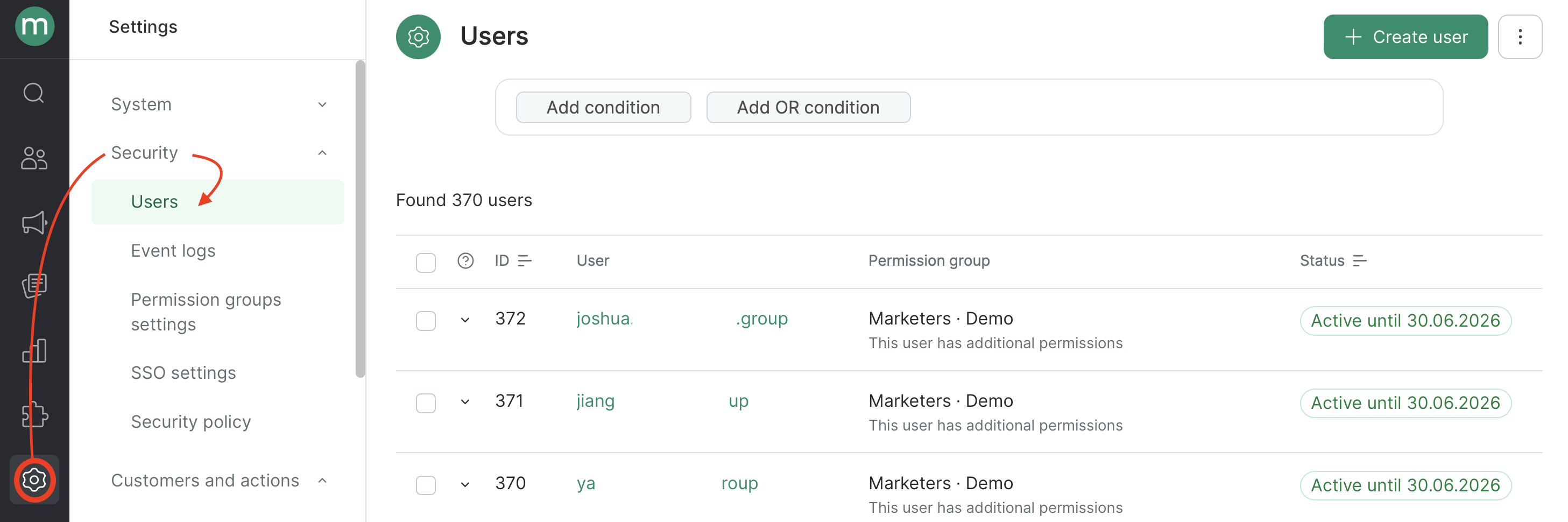 2. Click **Import**.
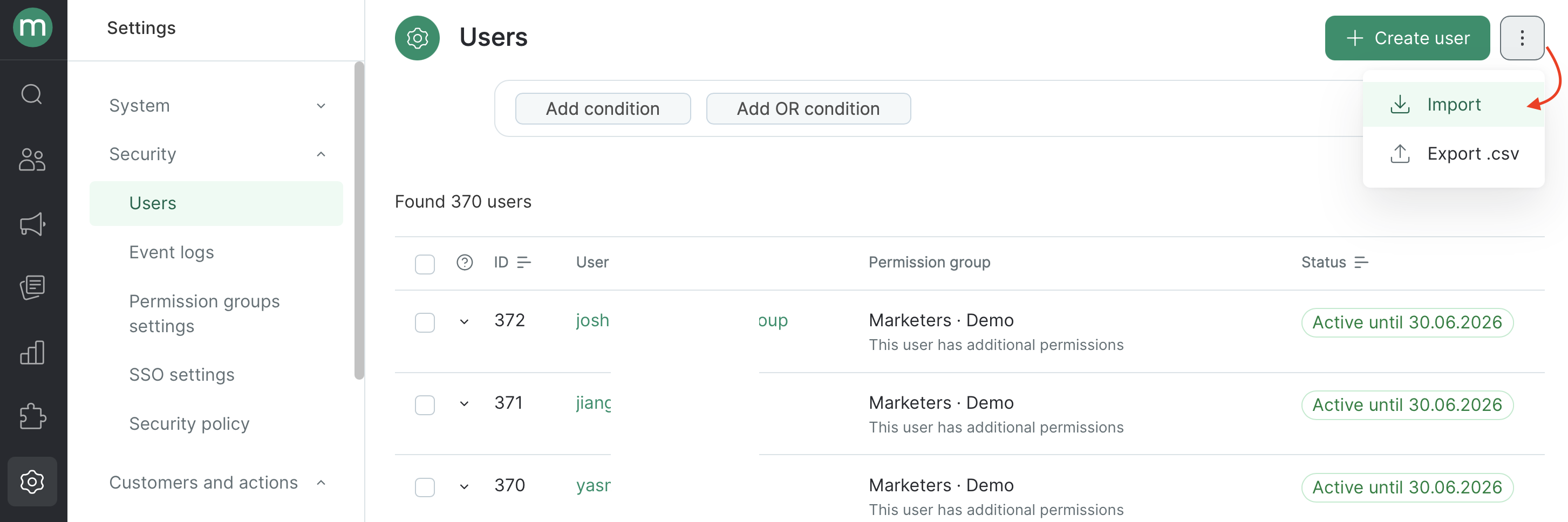 3. Choose **Bulk user import**. A file template is available for download.
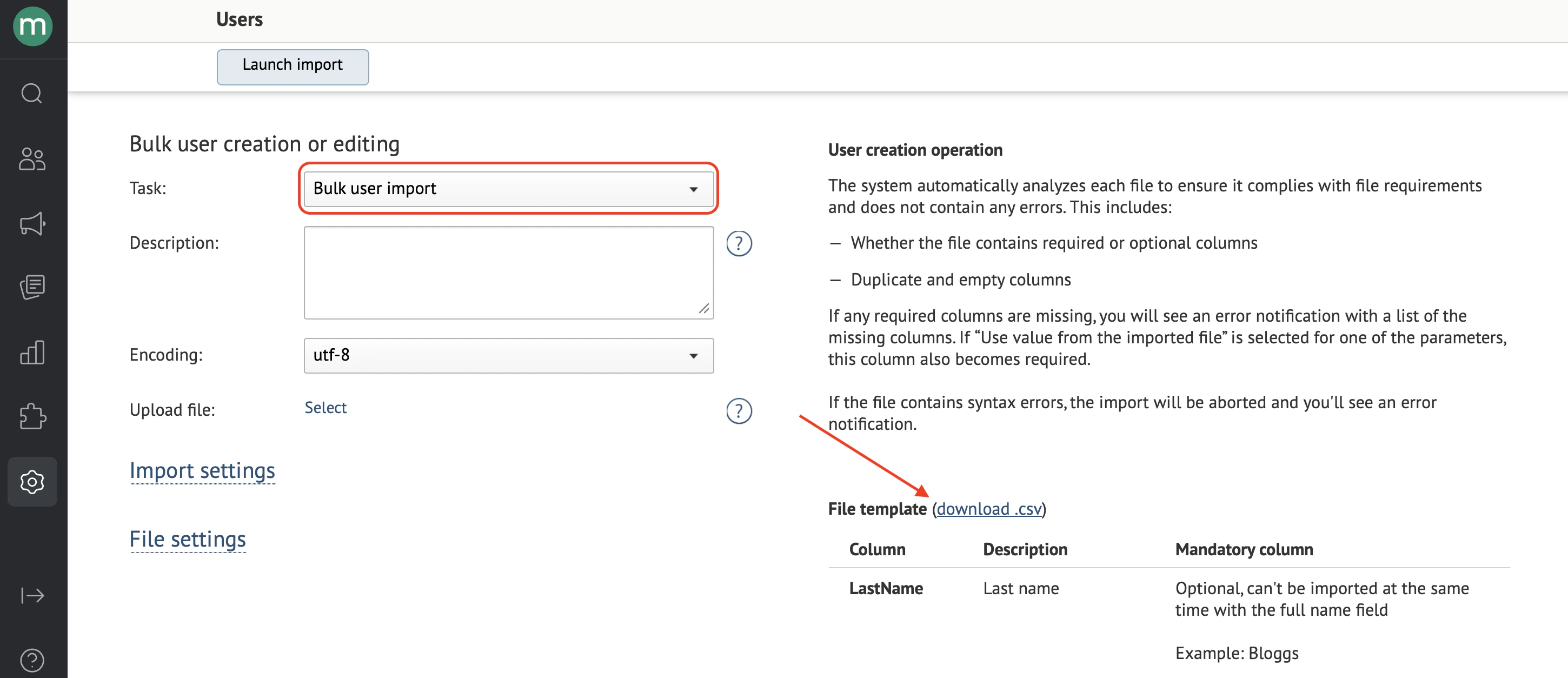 The page also displays all available upload fields, including each field's name, description, whether it's required, and examples of accepted formats.
4. Prepare your file.
* **Format:** CSV
* **Encoding:** UTF-8
* **First row:** field names (headers)
**Required fields**
| Field | Notes |
| ---------- | -------------------------------- |
| `UserName` | Login. Latin characters only |
| `Email` | Password setup link is sent here |
| `Comment` | Usually the person's role |
**Optional fields**
| Field | Notes |
| -------------- | ------------------------------------------------------------------------------------------------------------- |
| `MobilePhone` | Phone number. Needed for SMS-based [two-factor authentication](/security/how-two-factor-authentication-works) |
| `FirstName` | First name. |
| `LastName` | Last name. |
| `Groups` | System name(s) of permission groups to assign. |
| `Permissions` | [Additional permissions](/administration/staff/how-to-extend-staff-permissions) on top of the group. |
| `IsChargeable` | Whether to enable support chat access (billable). |
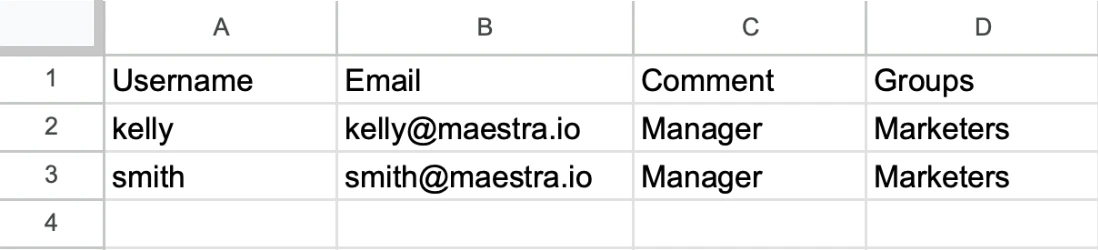
Example of a completed file:
The page also displays all available upload fields, including each field's name, description, whether it's required, and examples of accepted formats.
4. Prepare your file.
* **Format:** CSV
* **Encoding:** UTF-8
* **First row:** field names (headers)
**Required fields**
| Field | Notes |
| ---------- | -------------------------------- |
| `UserName` | Login. Latin characters only |
| `Email` | Password setup link is sent here |
| `Comment` | Usually the person's role |
**Optional fields**
| Field | Notes |
| -------------- | ------------------------------------------------------------------------------------------------------------- |
| `MobilePhone` | Phone number. Needed for SMS-based [two-factor authentication](/security/how-two-factor-authentication-works) |
| `FirstName` | First name. |
| `LastName` | Last name. |
| `Groups` | System name(s) of permission groups to assign. |
| `Permissions` | [Additional permissions](/administration/staff/how-to-extend-staff-permissions) on top of the group. |
| `IsChargeable` | Whether to enable support chat access (billable). |
Example of a completed file:
 You can only assign a permission group if you belong to it yourself or hold every permission it contains. The same rule applies to individual permissions — you can only grant permissions you have.\
\
Pick a [**built-in group**](https://maestraio.mintlify.app/administration/staff/what-security-groups-are-available) (like Marketers or Analysts) or a [**custom one**](https://maestraio.mintlify.app/administration/staff/how-to-create-a-security-group) you’ve created.
5. Upload the file and click **Launch import**.
A task link appears.
You can only assign a permission group if you belong to it yourself or hold every permission it contains. The same rule applies to individual permissions — you can only grant permissions you have.\
\
Pick a [**built-in group**](https://maestraio.mintlify.app/administration/staff/what-security-groups-are-available) (like Marketers or Analysts) or a [**custom one**](https://maestraio.mintlify.app/administration/staff/how-to-create-a-security-group) you’ve created.
5. Upload the file and click **Launch import**.
A task link appears.
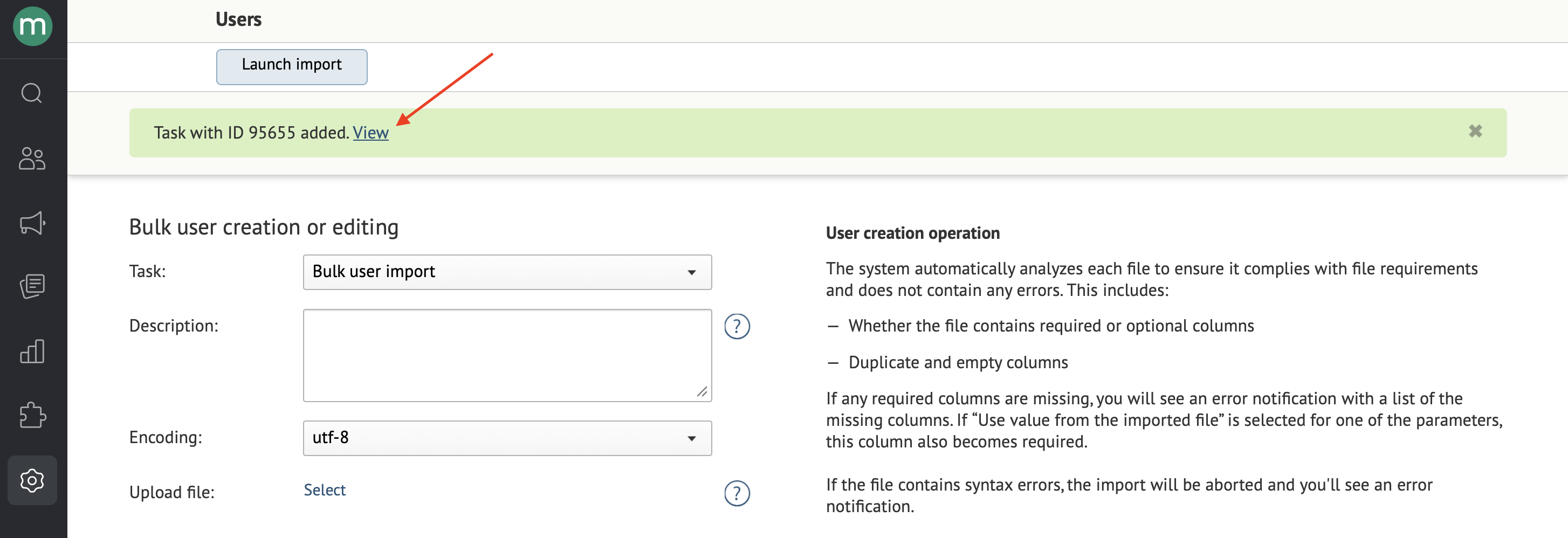 Staff will be added once the task is completed successfully.
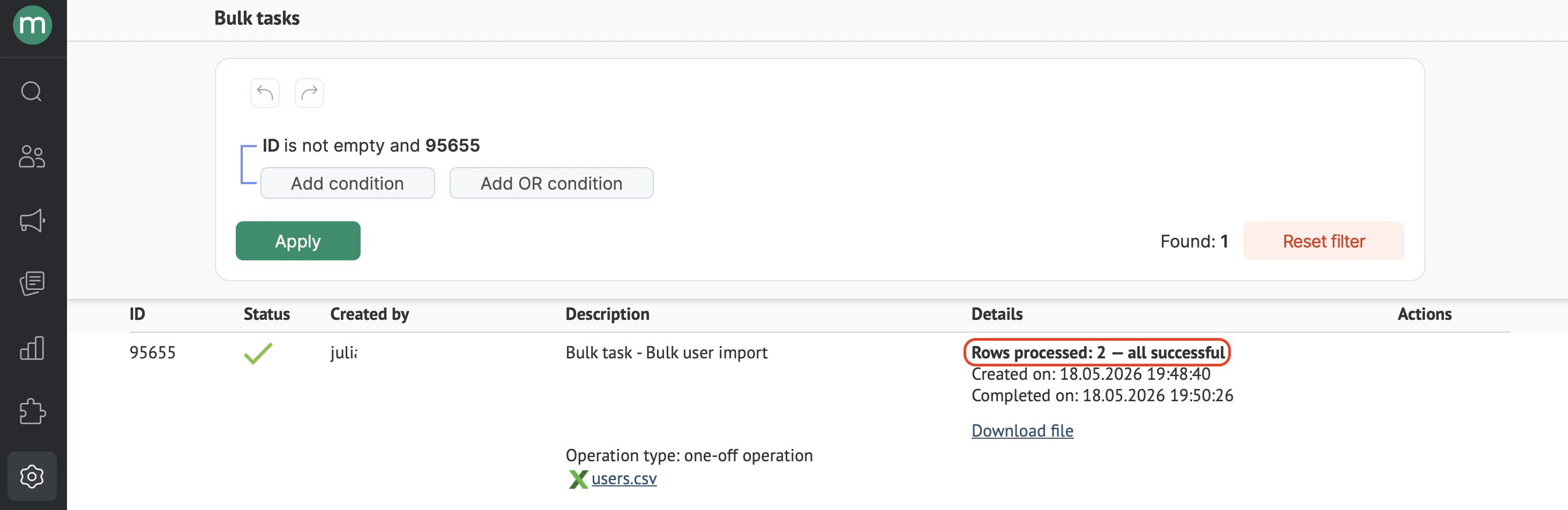 Once it finishes, the new users receive an email with a link to set their password. After that, they can start working in Maestra.