> ## Documentation Index
> Fetch the complete documentation index at: https://help.maestra.io/llms.txt
> Use this file to discover all available pages before exploring further.
# How to create a permission group
This feature may not be enabled on your account. Check with your customer success manager or contact support.
Built-in groups (Marketers, Analysts, Owners, etc.) cover most teams, but if you need a different bundle of permissions — say, "Email Specialist" who can build and send emails but not touch SMS — create a custom permission group.
## Create a permission group
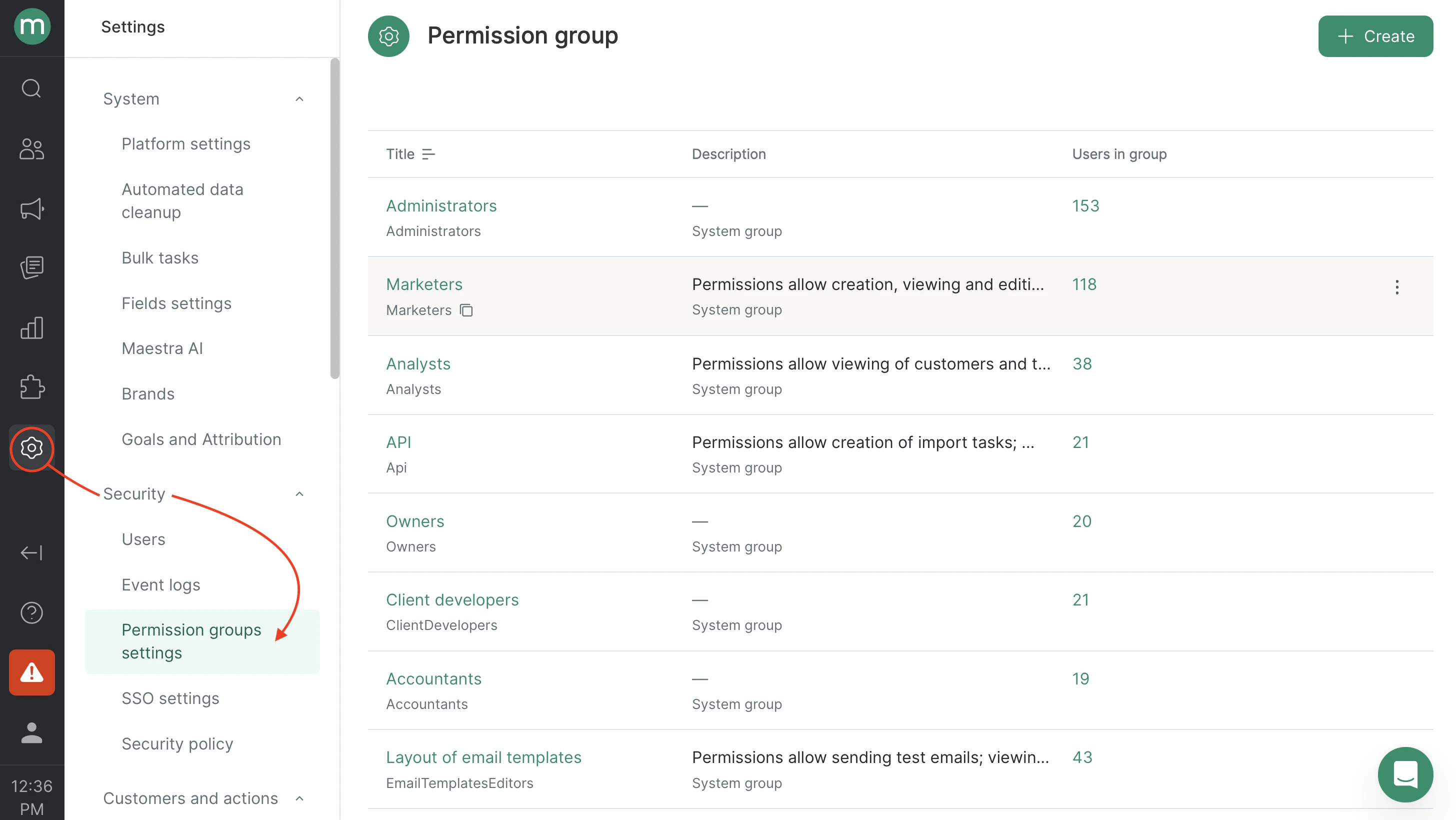
1. Go to **Settings** → **Security** → **Permission groups settings**.
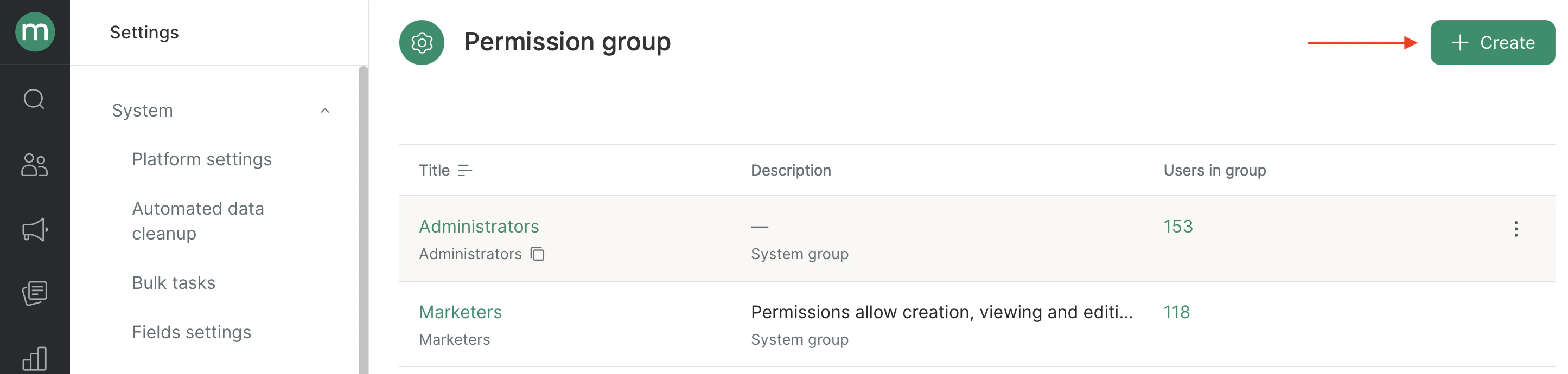
 2. Click **Create**.
 3. Fill in the fields:
* Name — what shows up in the group list.
* System name — used when you assign this group via bulk staff import.
* Description — what role this group is for.
* Permissions — pick the permissions the group grants.
3. Fill in the fields:
* Name — what shows up in the group list.
* System name — used when you assign this group via bulk staff import.
* Description — what role this group is for.
* Permissions — pick the permissions the group grants.
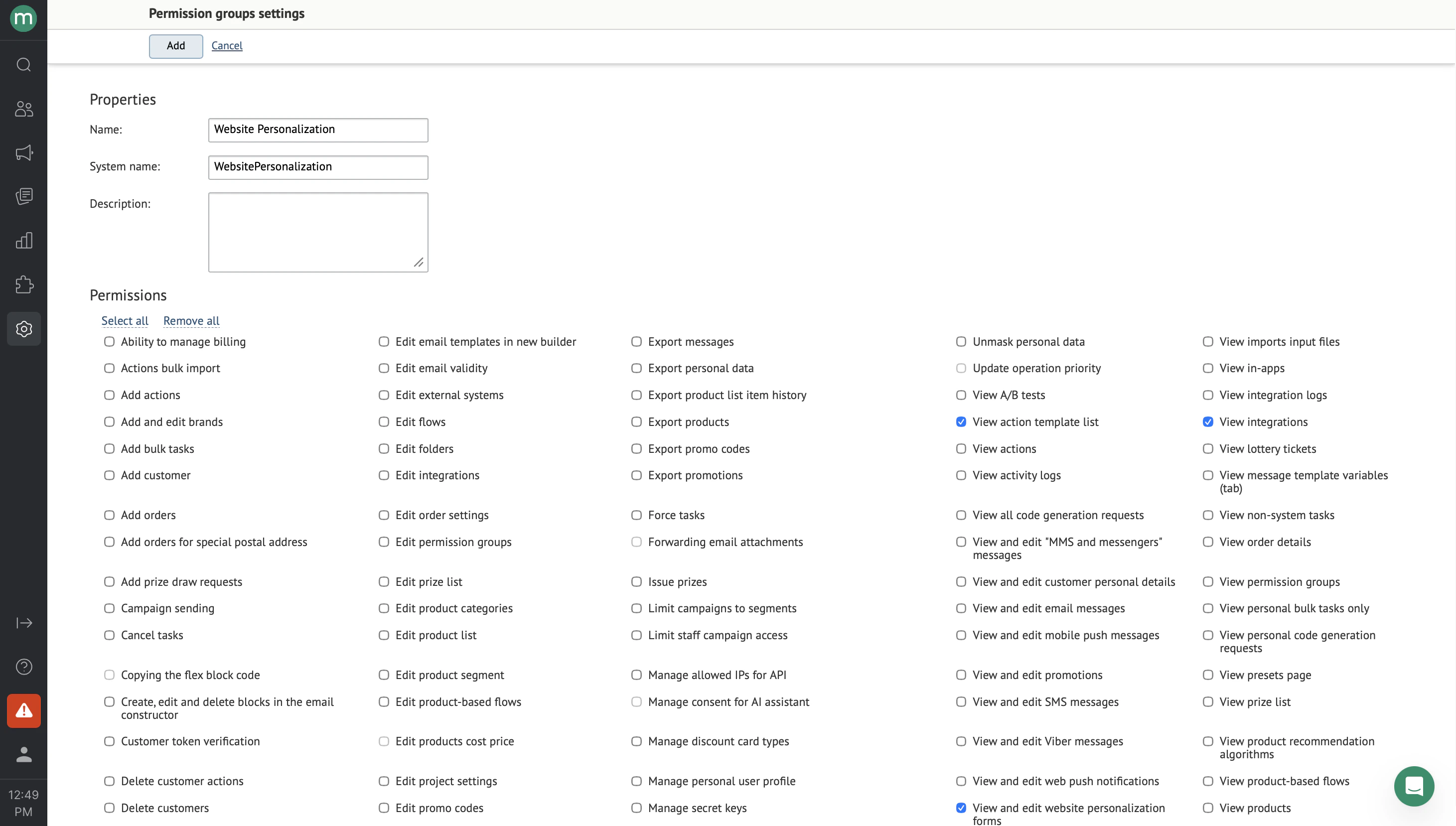 4. Click Add.
