> ## Documentation Index
> Fetch the complete documentation index at: https://help.maestra.io/llms.txt
> Use this file to discover all available pages before exploring further.
# How to extend a user's permissions
Sometimes the [permission group](/administration/staff/what-security-groups-are-available) a user is assigned doesn't cover everything they need to do. When that happens, you can extend their permissions.
## Which permissions to grant
Start here:
1. Find the [permissions the task requires](/administration/staff/what-permissions-are-needed-for-different-tasks-v2).
2. [Check whether the user is actually missing them](/administration/staff/how-to-check-your-own-permissions).
You don't have to grant permissions one by one — you can also swap the user's permission group entirely. That's the better move when a lot of permissions are missing. Pick a [standard group](/administration/staff/what-security-groups-are-available) that fits, or [create a new one](/administration/staff/how-to-create-a-security-group).
Create a group when several people need the same non-standard set of permissions. For a one-off, stick with additional permissions on top of the existing group.
## Who can extend permissions
Two things matter here: access to editing users, and holding enough permissions yourself.
### Access to editing users
You can edit users if you have these permissions:
* `View and export the users list`
* `View users`
* `Edit users`
The **Owners** standard group has all three.
### You can't grant what you don't have
Whatever you grant has to be covered by your own access:
* You can only grant additional permissions that exist on your own profile.
* To assign a permission group, you either need to belong to that group yourself or hold every permission it contains.
Permissions are usually granted by **Owners**, since they have the widest access on the project.
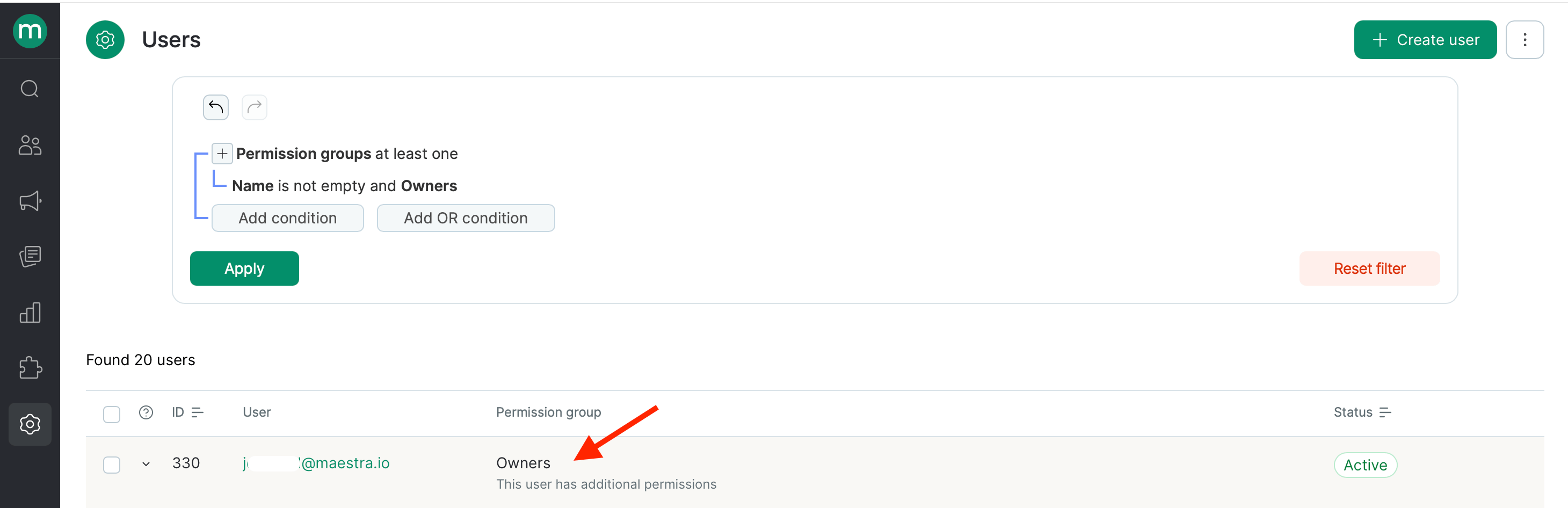
So if you're not an Owner and the permissions you need to grant are outside your own access, find an **Owner** who can grant them for you — use the filter on the users page.
 ## How to grant additional permissions
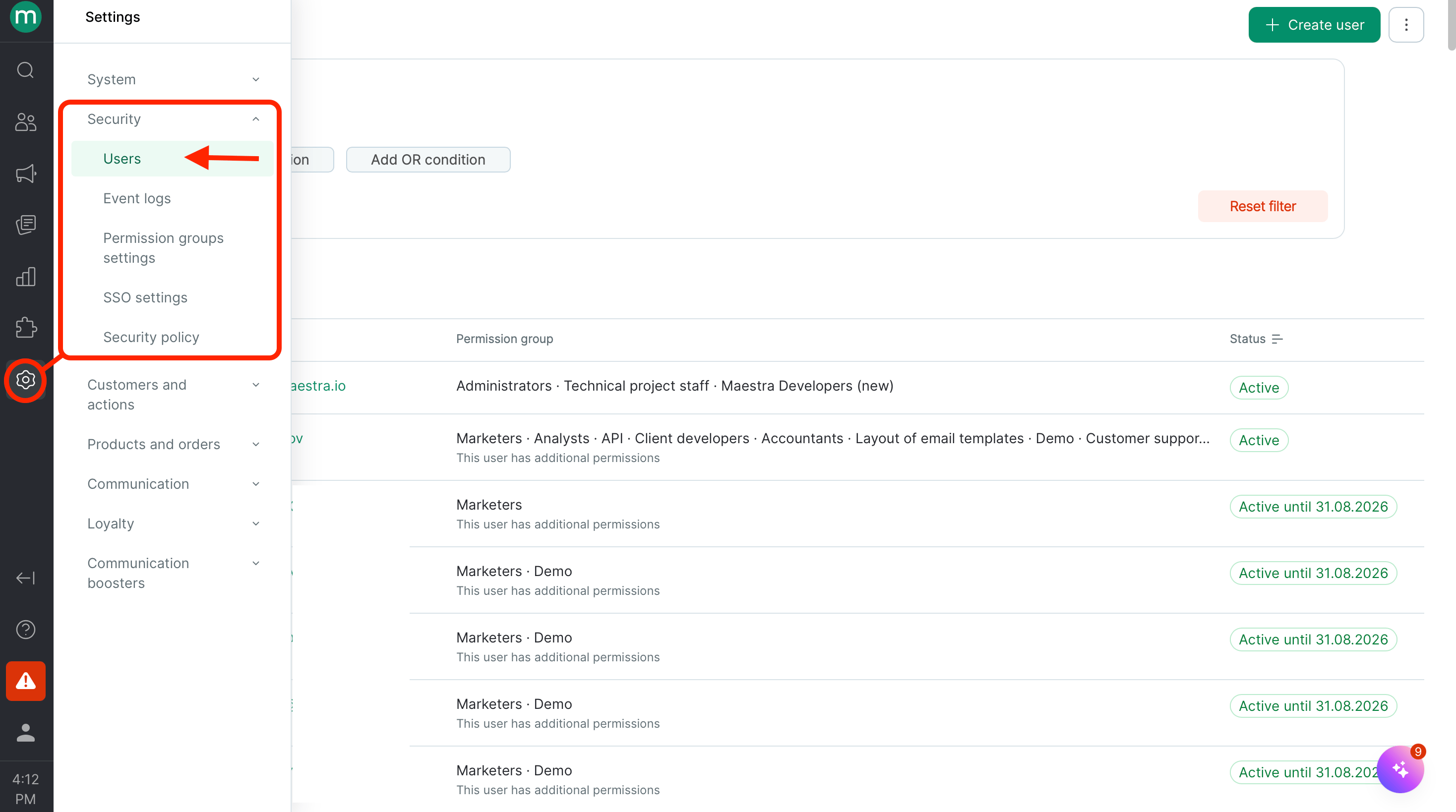
Go to **Settings** → **Security** → **Users**.
## How to grant additional permissions
Go to **Settings** → **Security** → **Users**.
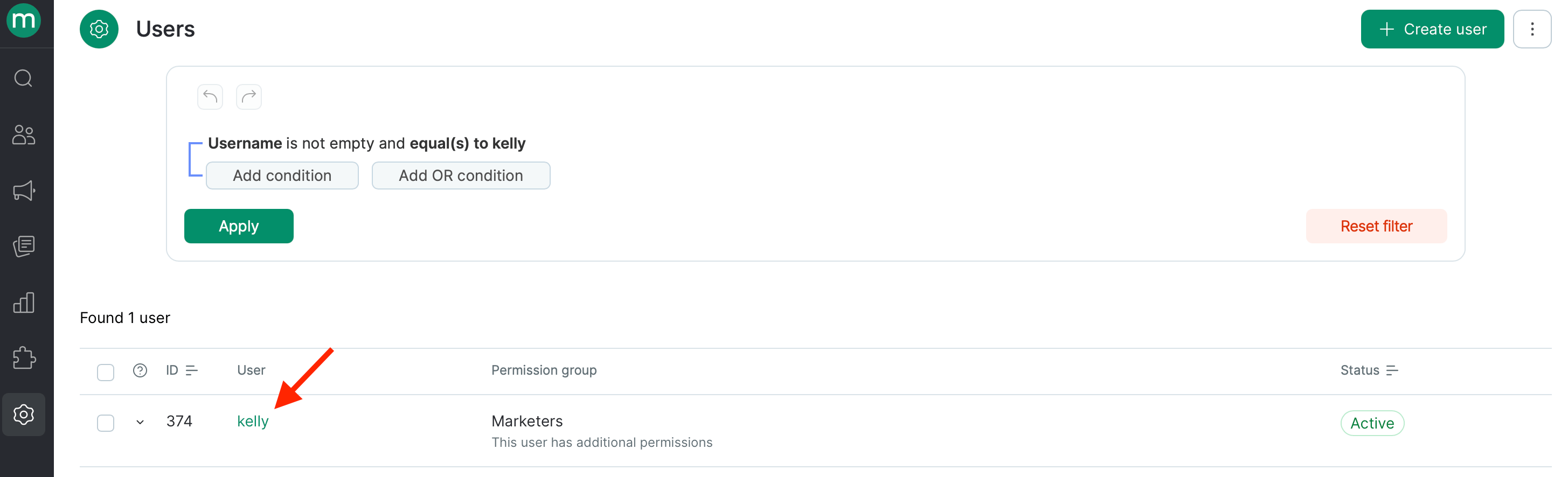
 Find the user you need and open their profile.
 Pick the permissions you need from the **Additional permissions** dropdown.
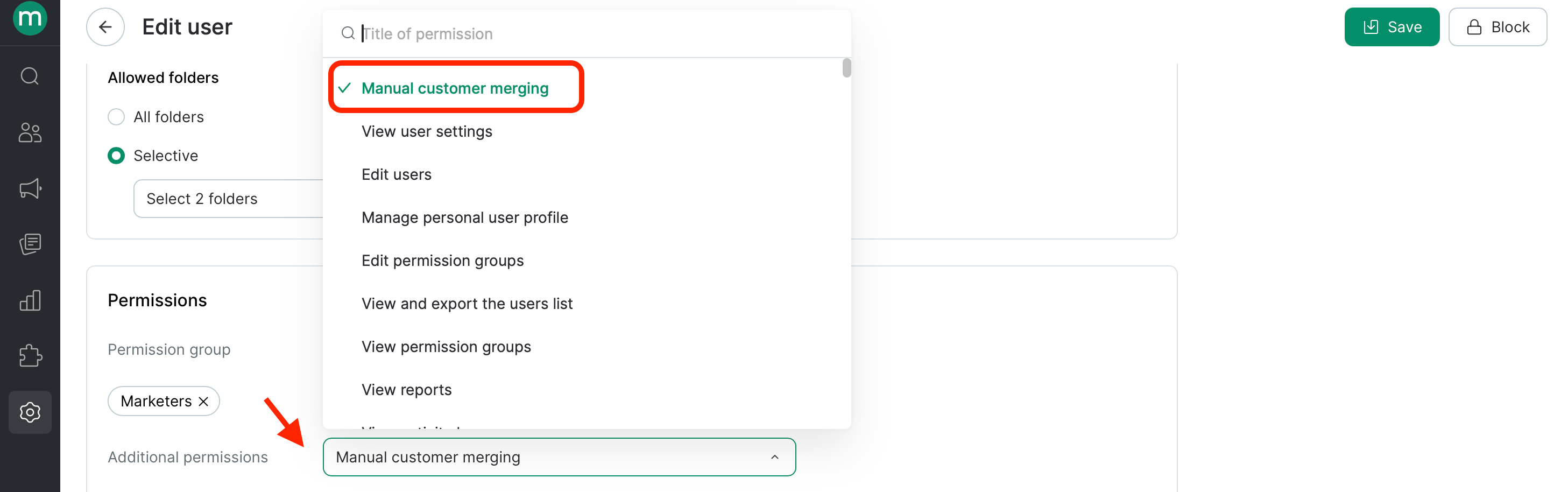 Click **Save**.