> ## Documentation Index
> Fetch the complete documentation index at: https://help.maestra.io/llms.txt
> Use this file to discover all available pages before exploring further.
# Computed fields
**Computed fields** allow aggregating data about your customer and fill their profile in with additional info based on their user behavior.
For example, such fields can help you identify what products, categories, or vendors your customer buys or views most frequently.
Computed fields can be used as any other custom fields, e. g. for segmentation, campaigns, promotions, etc.
# Creating a computed field
You can create up to 3 fields
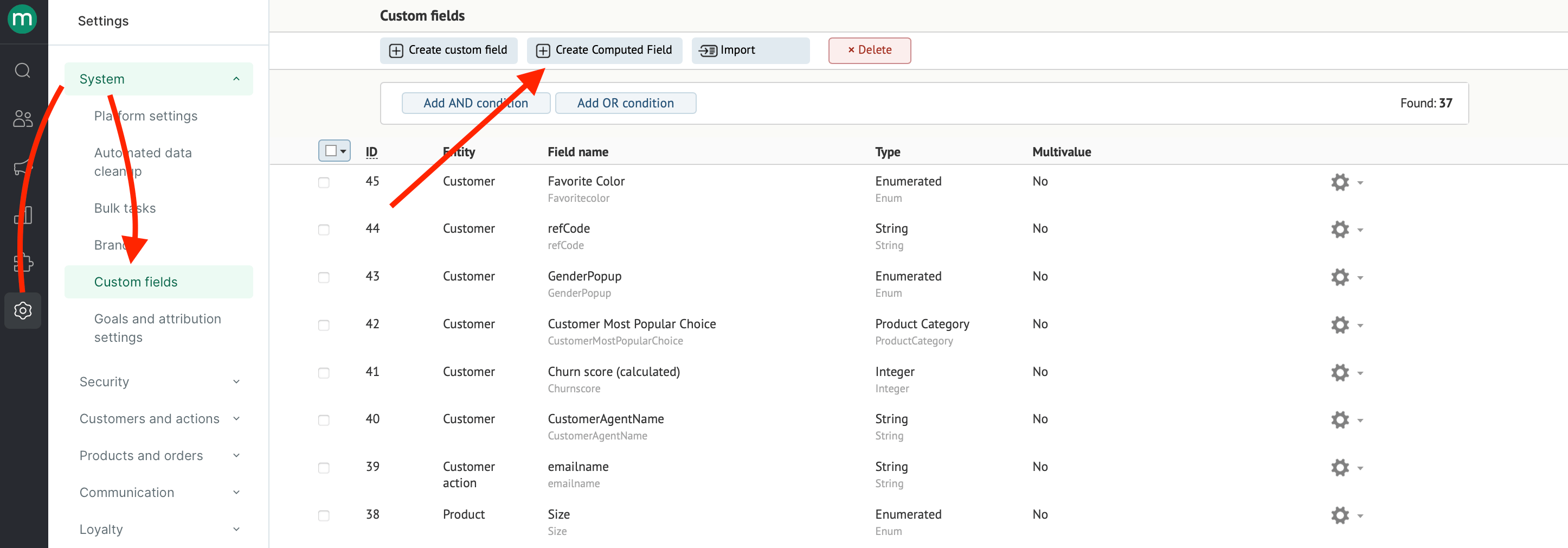
1. Go to the **Settings tab** → **System settings** → **Custom fields** and click "**Create computed field**":
 2. Fill in the settings:
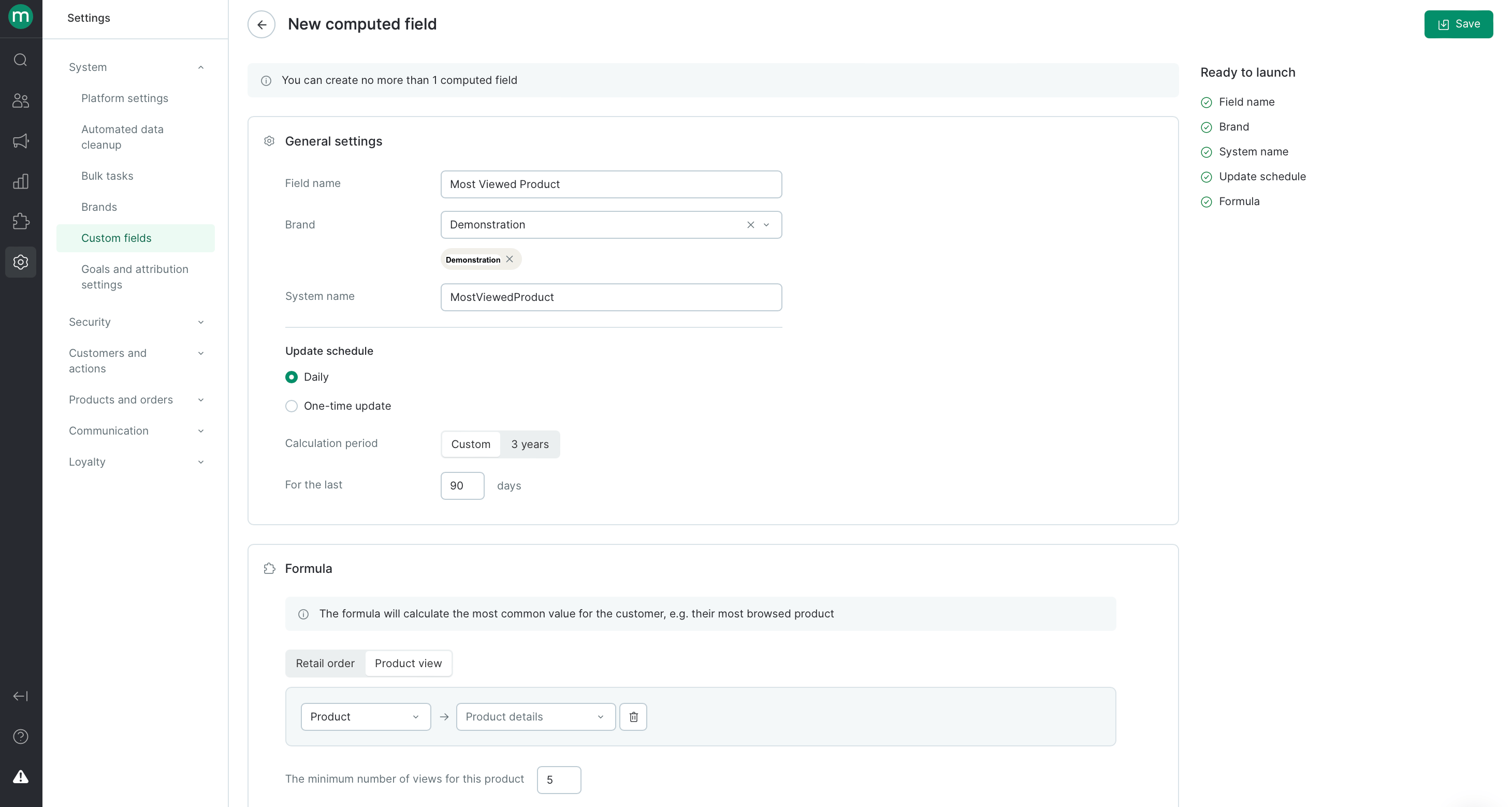 ## General settings
* Name — the same as displayed in filters or campaigns
* Brand
* System name — is used in integrations and the message template engine
## Recalculating
* Frequency is daily or just once (per all the time the field exists)
* Period is the data time frame you want to use in your report.
## Formula
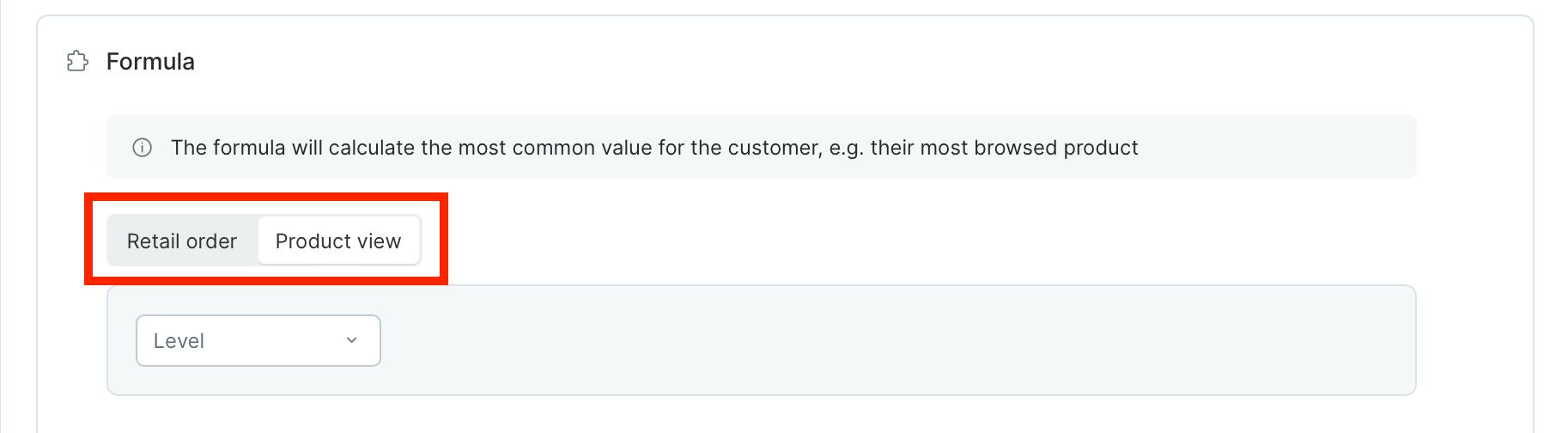
1. Choose what type of events to collect data for: views or orders
## General settings
* Name — the same as displayed in filters or campaigns
* Brand
* System name — is used in integrations and the message template engine
## Recalculating
* Frequency is daily or just once (per all the time the field exists)
* Period is the data time frame you want to use in your report.
## Formula
1. Choose what type of events to collect data for: views or orders
 2. Choose which entity to search in processed data — it will be filled in customer’s calculated field.
* **Product**
2. Choose which entity to search in processed data — it will be filled in customer’s calculated field.
* **Product**
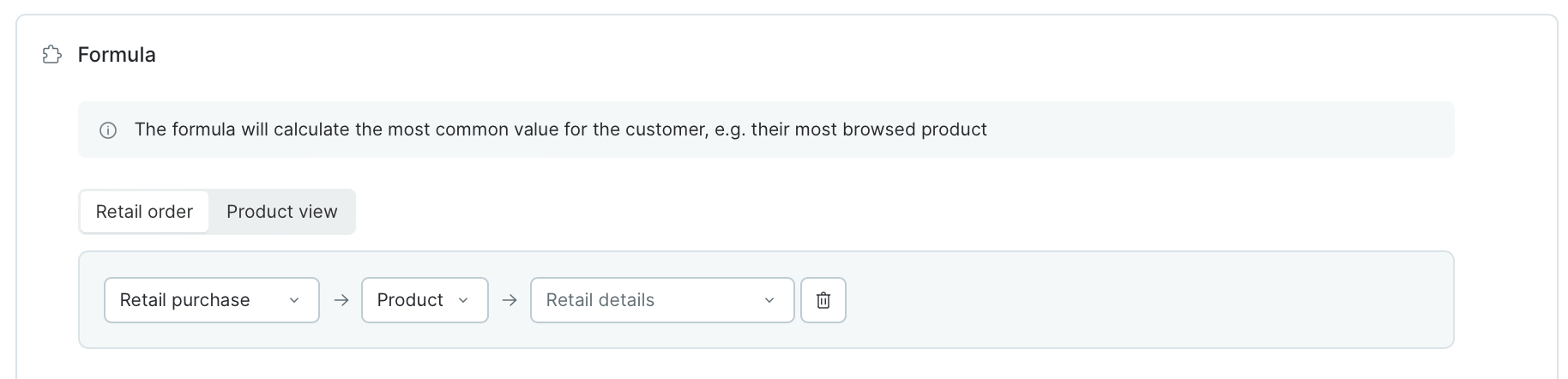
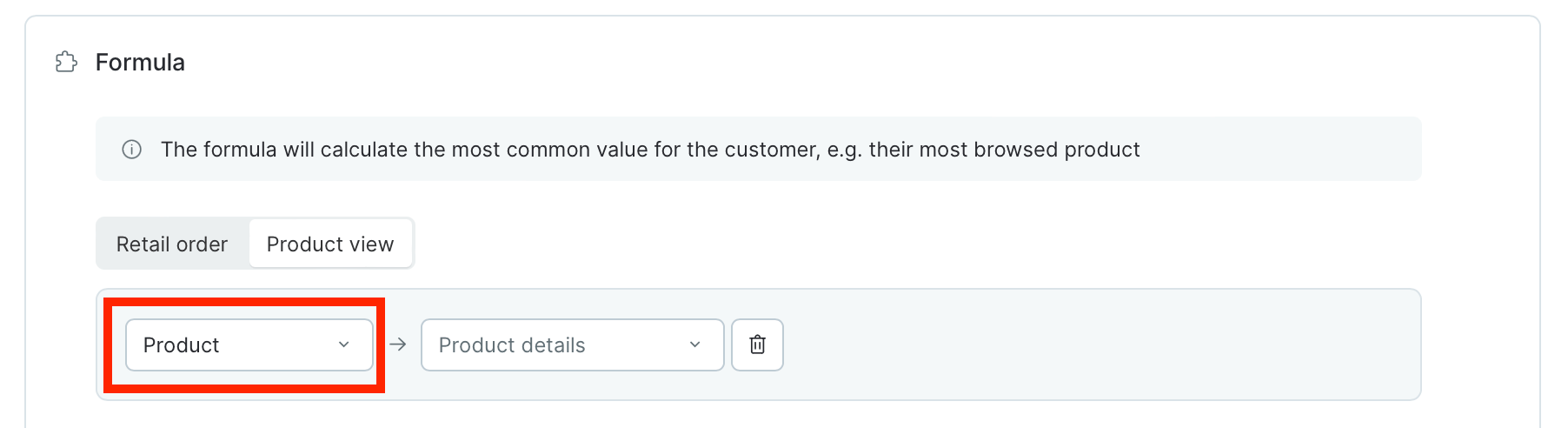 | Find the most frequently purchased product: |
| --------------------------------------------- |
| Or the most frequently viewed product: |
* **Category** — you need to select categories among which the calculation will take place
| Find the most frequently purchased product: |
| --------------------------------------------- |
| Or the most frequently viewed product: |
* **Category** — you need to select categories among which the calculation will take place
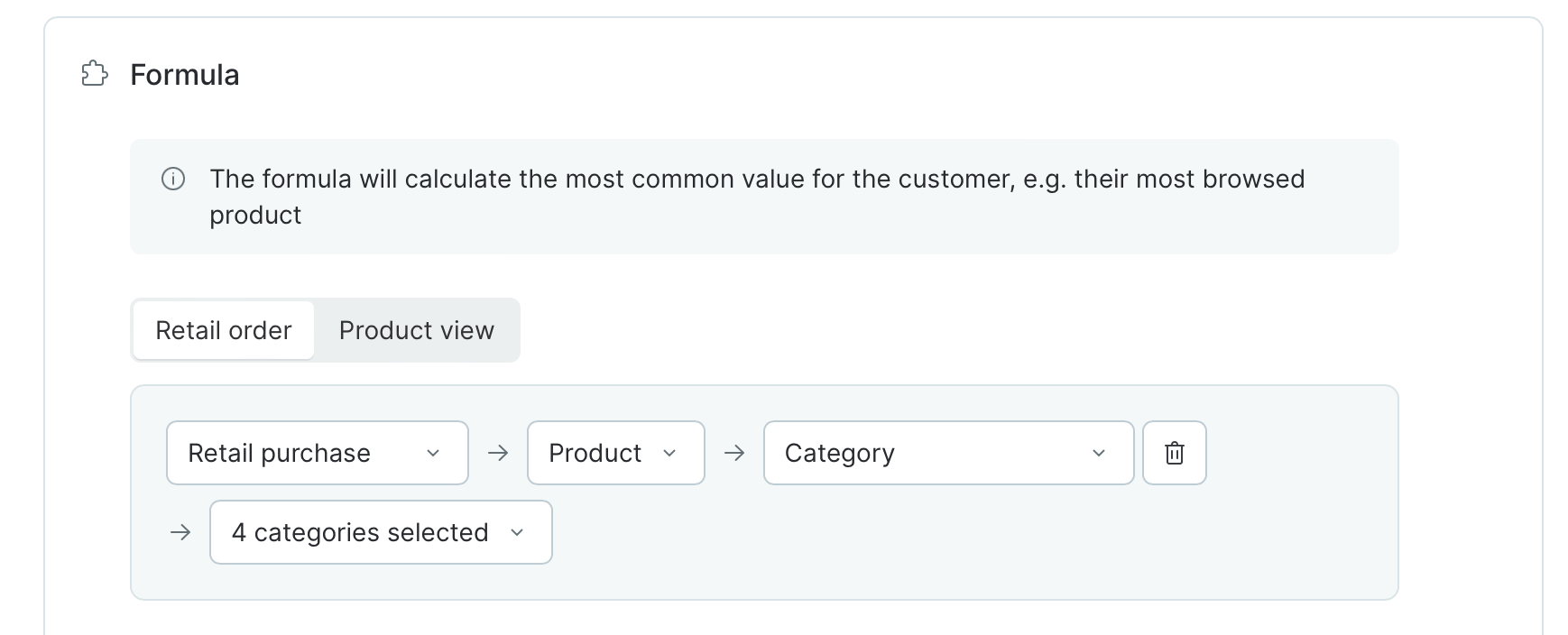 | Find the most frequently purchased category of the four selected: |
| ------------------------------------------------------------------- |
Important: You cannot select a parent and child category at the same time
| Find the most frequently purchased category of the four selected: |
| ------------------------------------------------------------------- |
Important: You cannot select a parent and child category at the same time
 * **Manufacturer**
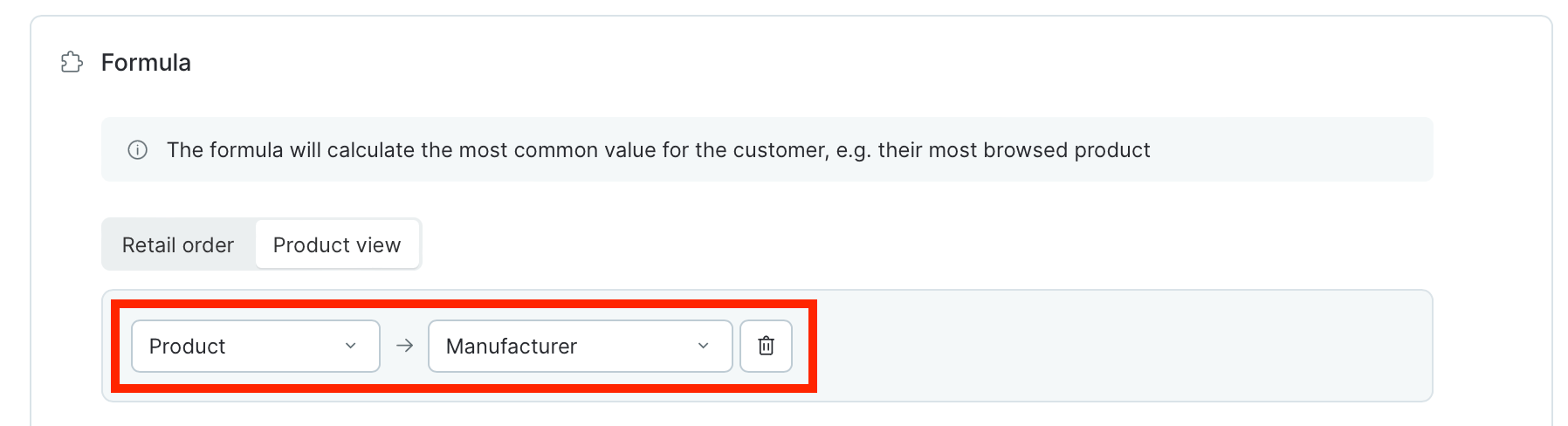 | Which manufacturer's products are most frequently purchased or viewed by the customer: |
| -------------------------------------------------------------------------------------- |
* **Product’s [custom field](/api-integrations/how-to-create-a-custom-field)** - string, integer and enumerated field types are available.
| Which manufacturer's products are most frequently purchased or viewed by the customer: |
| -------------------------------------------------------------------------------------- |
* **Product’s [custom field](/api-integrations/how-to-create-a-custom-field)** - string, integer and enumerated field types are available.
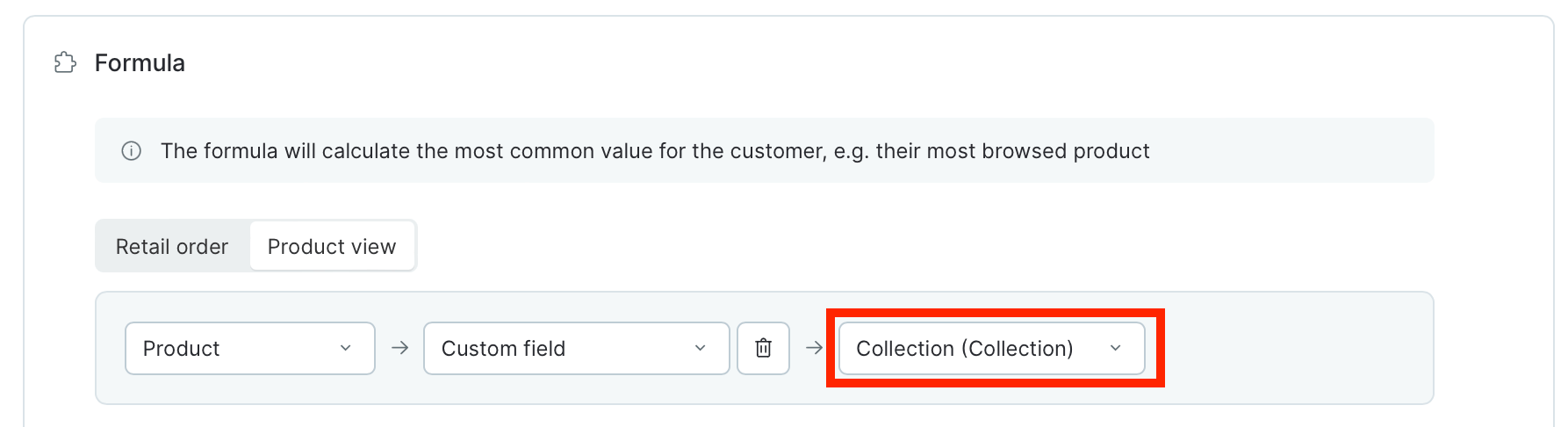 | Product from which collection the customer purchases most often |
| --------------------------------------------------------------- |
* **Order’s [custom field](/api-integrations/how-to-create-a-custom-field)** - string, integer and enumerated field types are available.
| Product from which collection the customer purchases most often |
| --------------------------------------------------------------- |
* **Order’s [custom field](/api-integrations/how-to-create-a-custom-field)** - string, integer and enumerated field types are available.
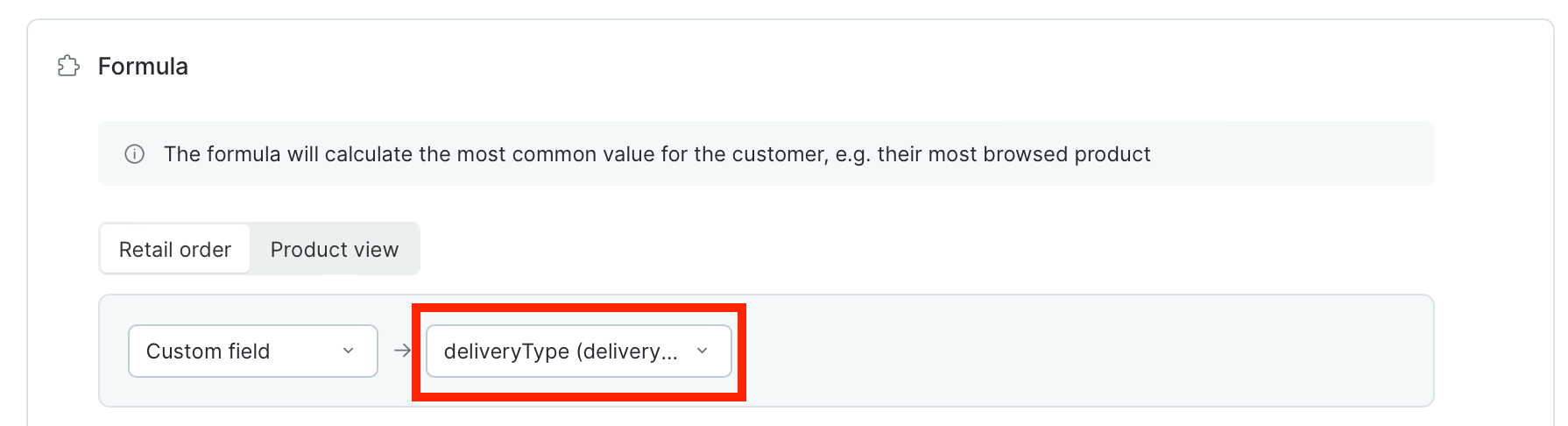 | Which delivery type the customer uses most often: |
| ------------------------------------------------- |
* **Order’s touchpoint**
| Which delivery type the customer uses most often: |
| ------------------------------------------------- |
* **Order’s touchpoint**
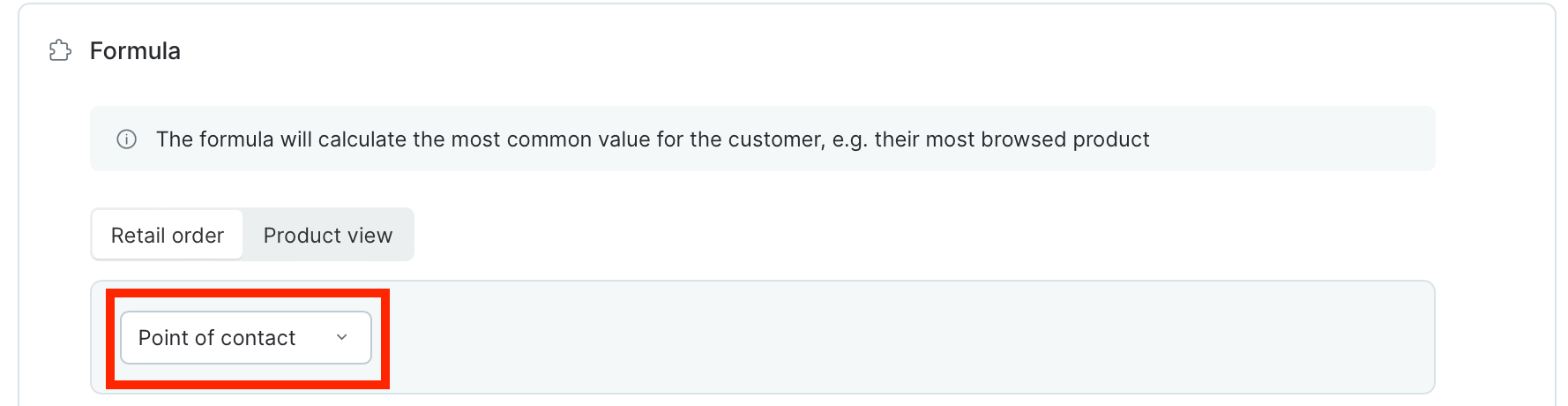 | Where the customer makes purchases most often: |
| ---------------------------------------------- |
**Additional conditions** - allow you to narrow the selection of data among which the calculation will take place.
| Where the customer makes purchases most often: |
| ---------------------------------------------- |
**Additional conditions** - allow you to narrow the selection of data among which the calculation will take place.
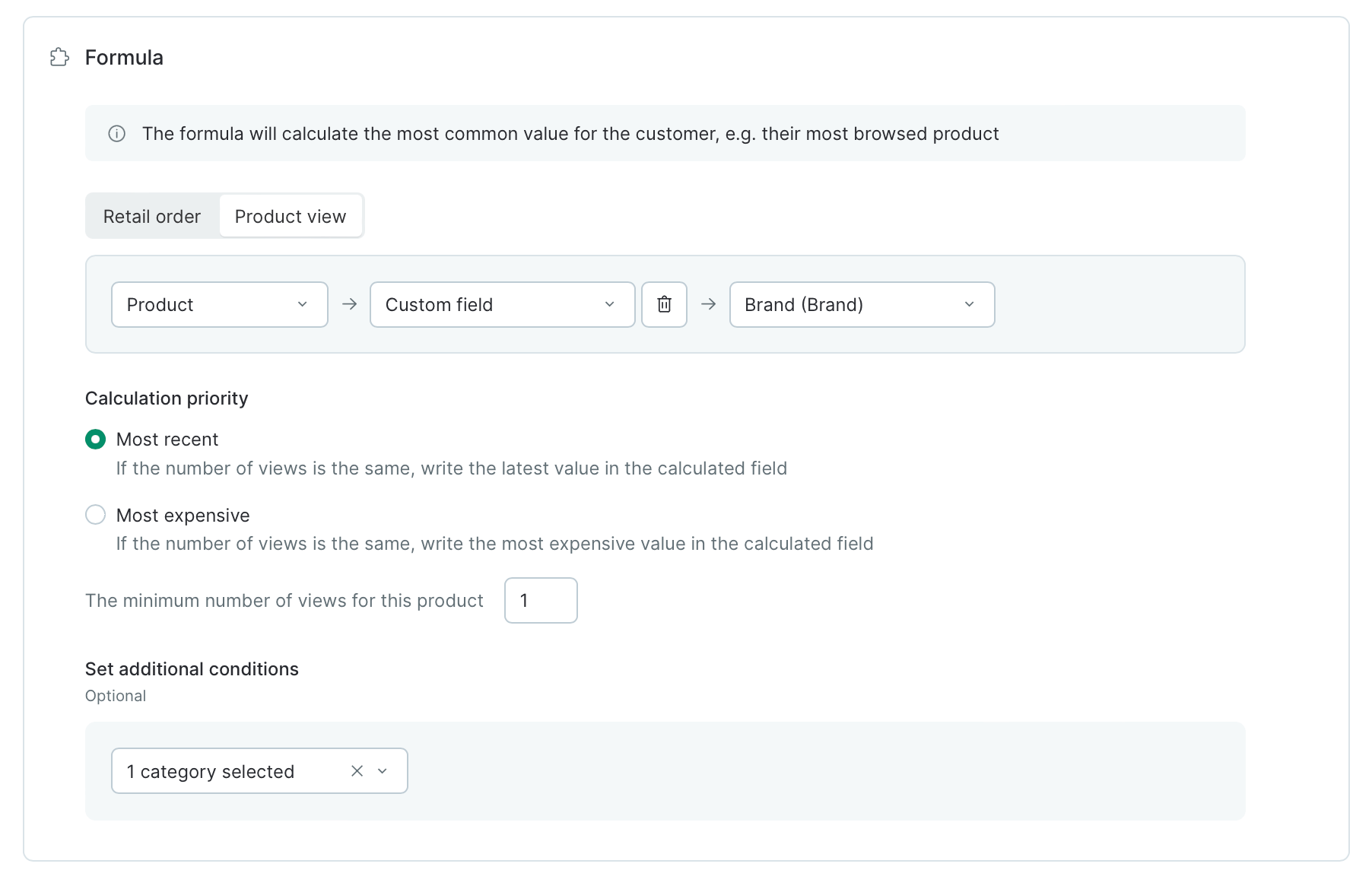
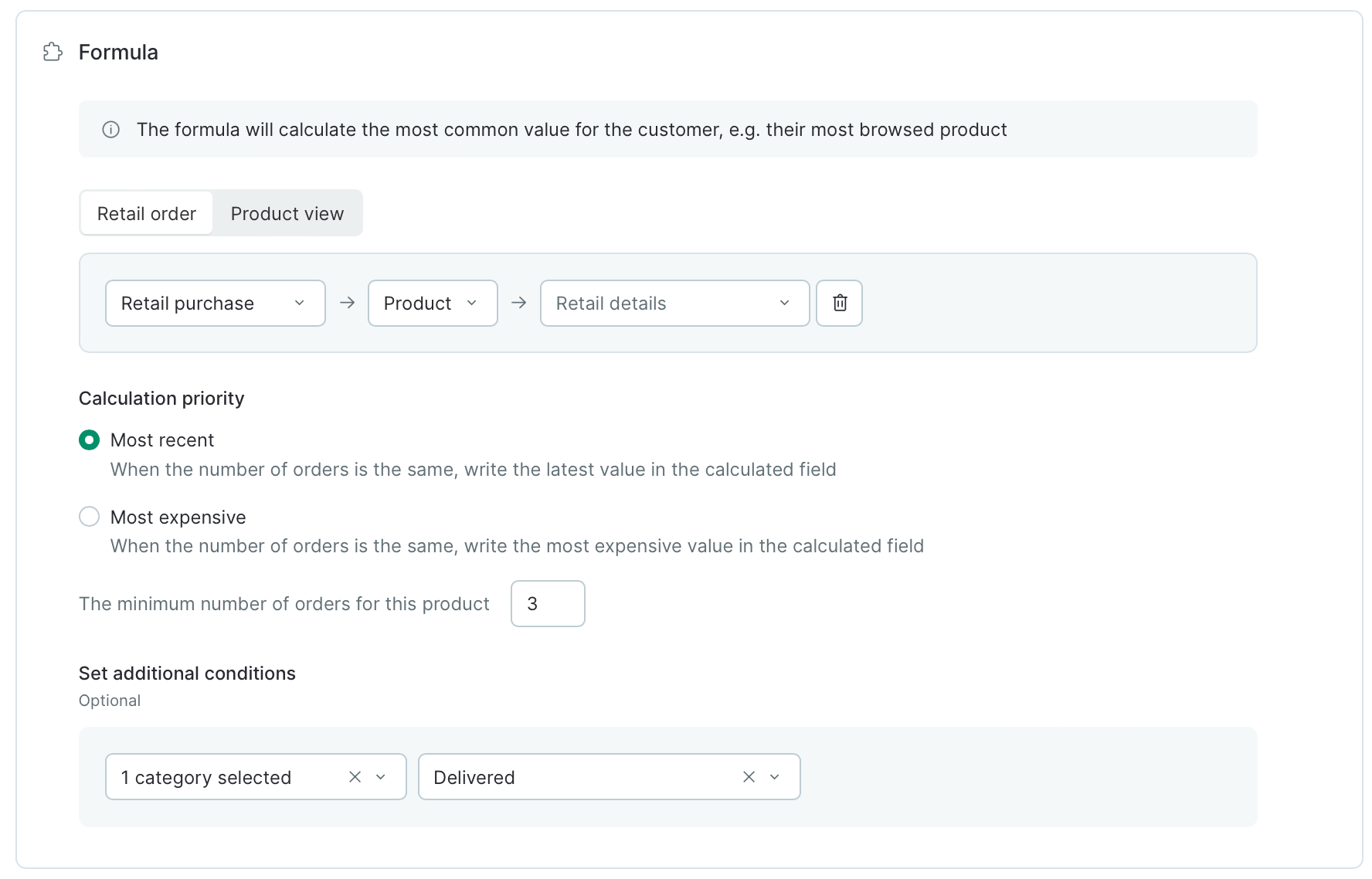 | Find the client's brand of interest in the eyewear category: |
| --------------------------------------------------------------------------------------------------- |
| Find the most frequently purchased product in the women's category and only from delivered items: |
Minimum views/orders for this product is the action number threshold for the value to be filled in the field.
You can also set the Calculation priority:
* Most recent
* Most expensive
3. Click "Save"
Done:
| Find the client's brand of interest in the eyewear category: |
| --------------------------------------------------------------------------------------------------- |
| Find the most frequently purchased product in the women's category and only from delivered items: |
Minimum views/orders for this product is the action number threshold for the value to be filled in the field.
You can also set the Calculation priority:
* Most recent
* Most expensive
3. Click "Save"
Done:
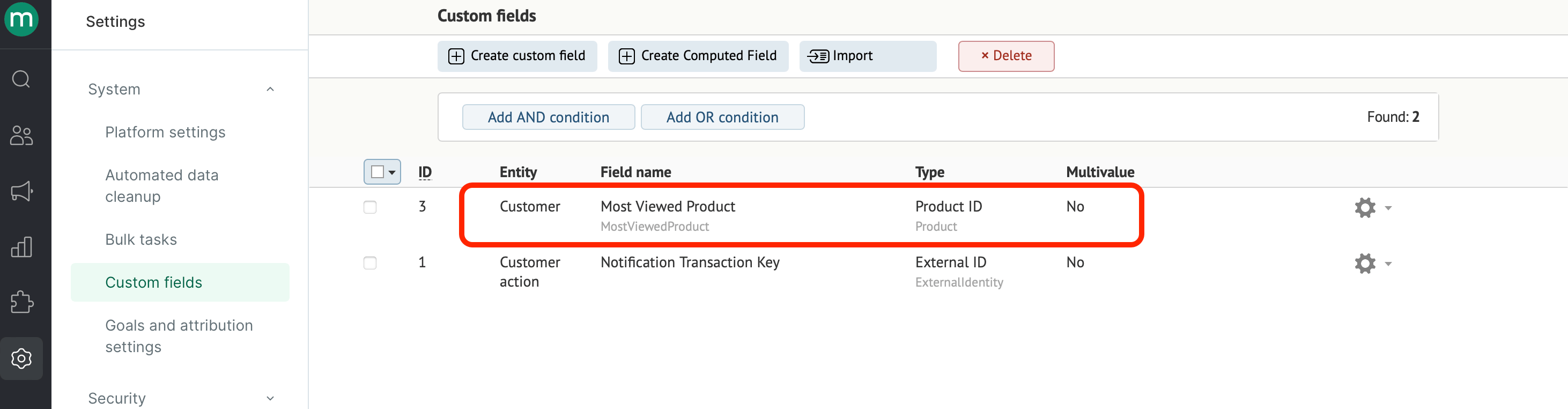 Filed computing is launched at night.
# Customer search
Custom and computed fields are located in the same tab in your customer card:
Filed computing is launched at night.
# Customer search
Custom and computed fields are located in the same tab in your customer card:
 You can use filters to filter out the customers with the filed value needed:
 # Display in the campaign
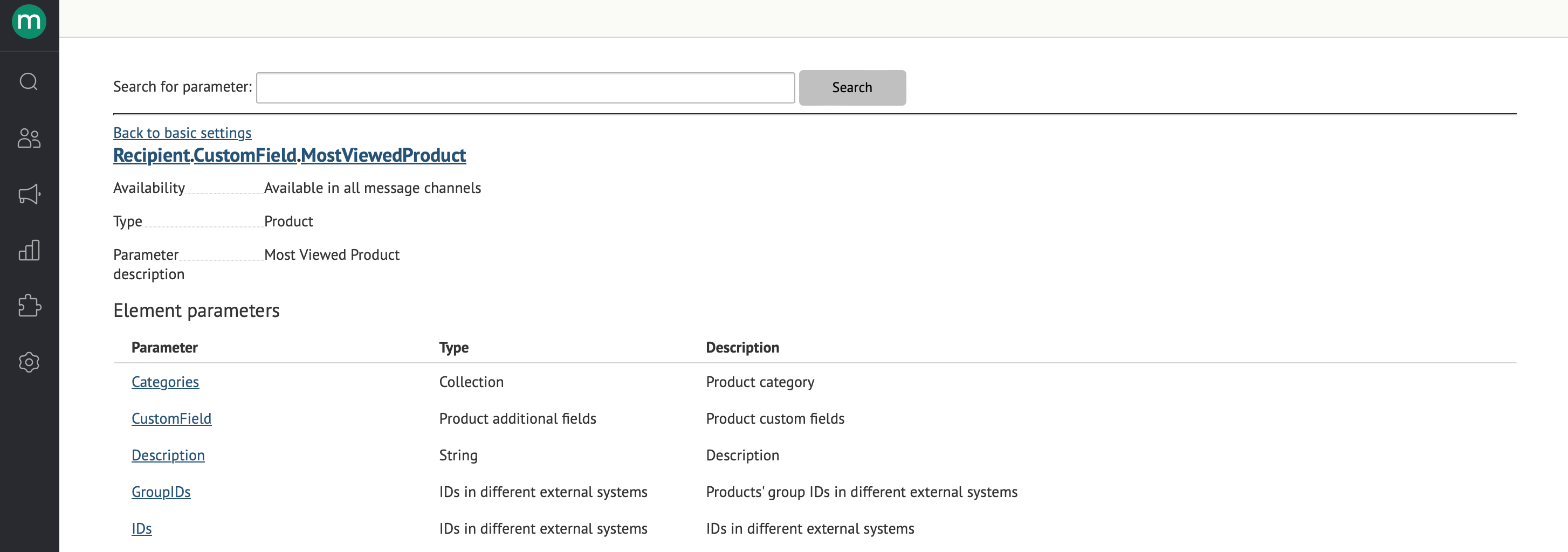
Computed field parameters are listed in **Recipient.CustomField**
To display products for a customer, use a parameter of this type: **Recipient.CustomField.\{Filed system name}**.
The available parameters depend on the type of calculated field.
* If you defined the product - all parameters for the product are available:
# Display in the campaign
Computed field parameters are listed in **Recipient.CustomField**
To display products for a customer, use a parameter of this type: **Recipient.CustomField.\{Filed system name}**.
The available parameters depend on the type of calculated field.
* If you defined the product - all parameters for the product are available:
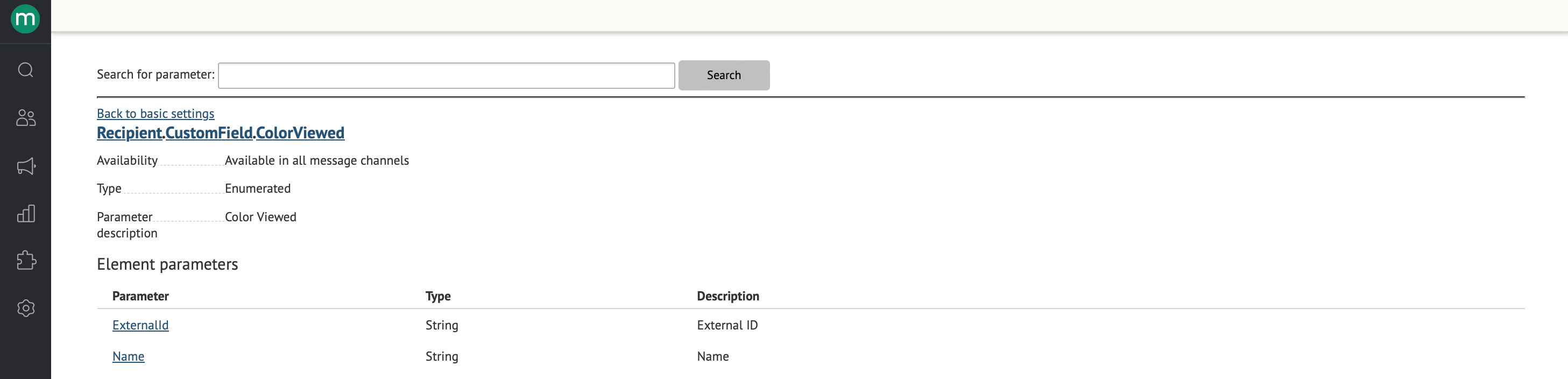
 * If you were looking for the most common value of the custom field - parameters for displaying this field are available:
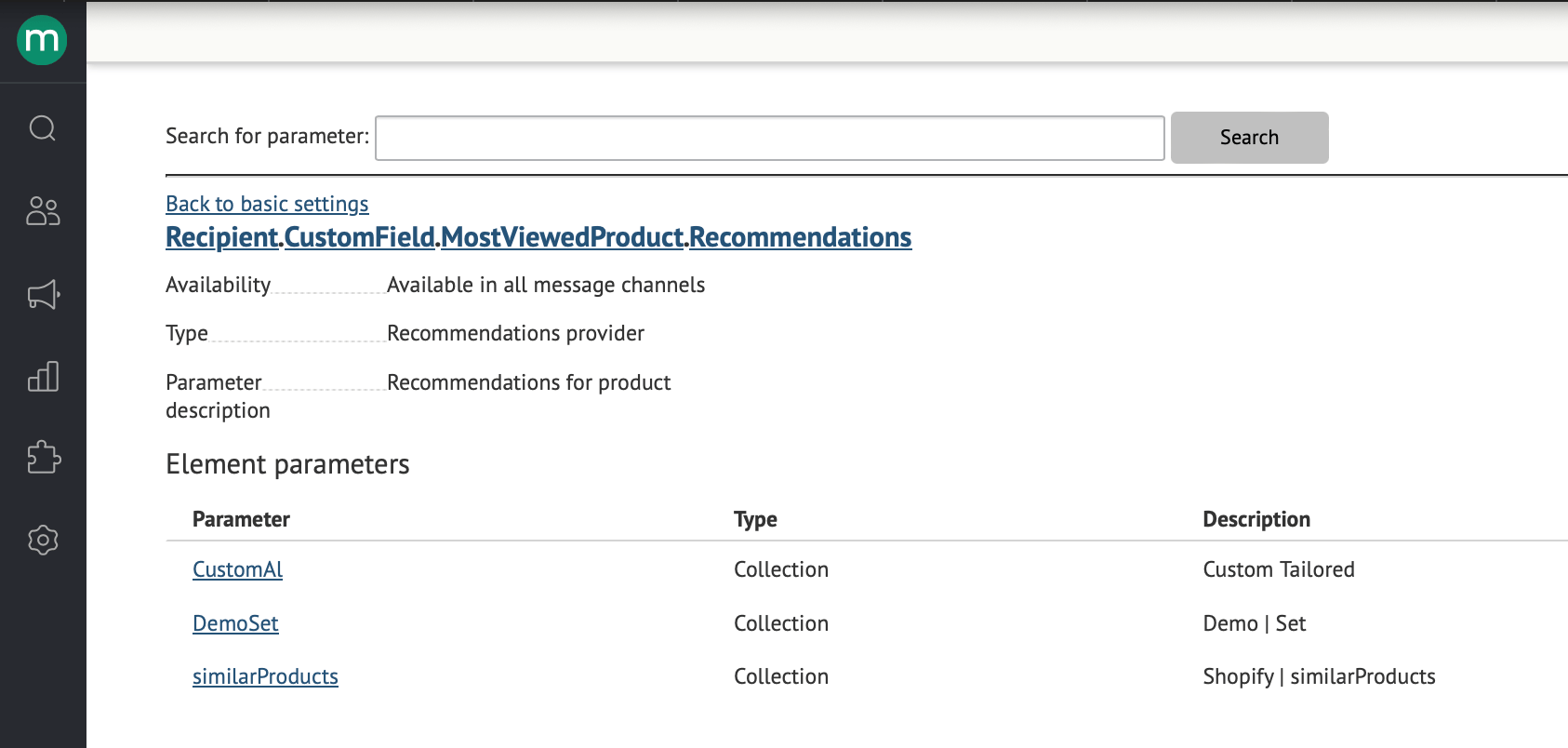
 It is also possible to display recommendations for computed products and categories.
 # Use in the flow
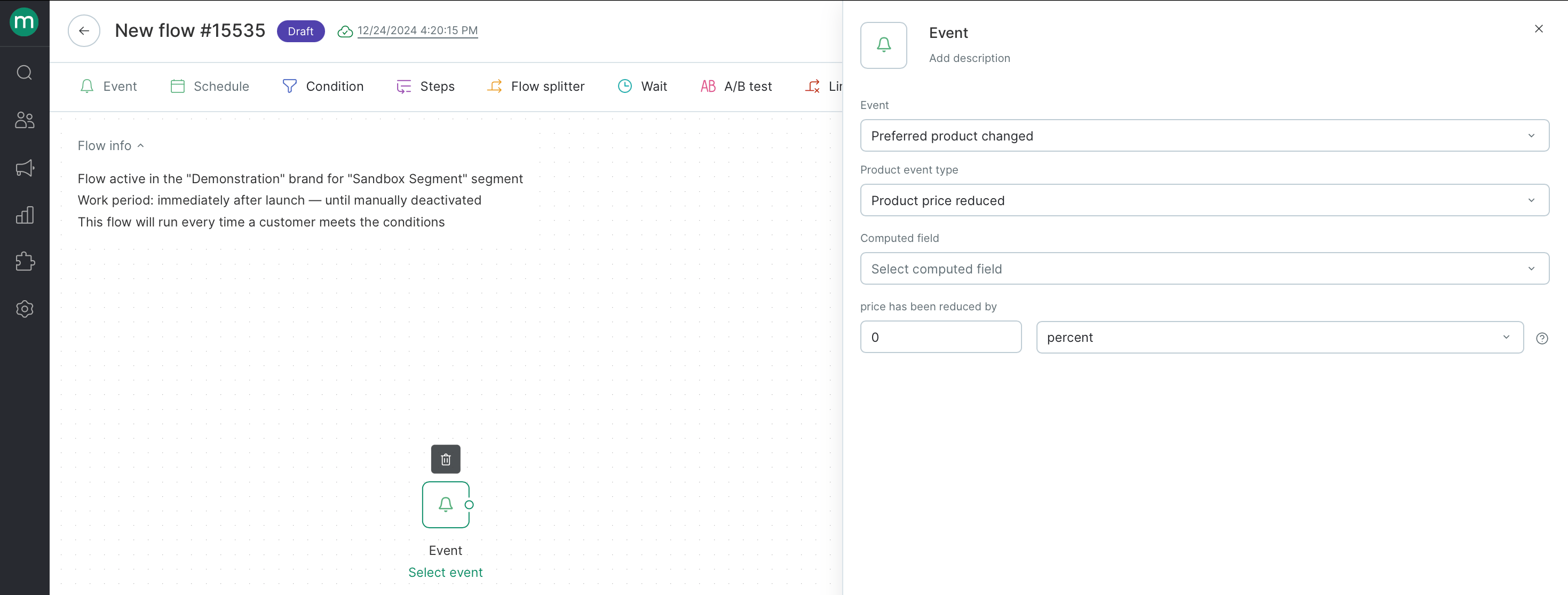
In the flow you can use “Preferred product changed” event, which allows you to react to a decrease in the cost of a product from a calculated field:
# Use in the flow
In the flow you can use “Preferred product changed” event, which allows you to react to a decrease in the cost of a product from a calculated field:
 Example:
["The price of the most viewed or purchased product has dropped" flow](https://intercom.help/maestraio/v1/docs/the-price-of-the-most-viewed-or-purchased-product-has-dropped-flow)
Example:
["The price of the most viewed or purchased product has dropped" flow](https://intercom.help/maestraio/v1/docs/the-price-of-the-most-viewed-or-purchased-product-has-dropped-flow)