> ## Documentation Index
> Fetch the complete documentation index at: https://help.maestra.io/llms.txt
> Use this file to discover all available pages before exploring further.
# Connect an AI Assistant to Maestra via MCP
> Let Claude, ChatGPT, and other AI assistants query your Maestra Platform data directly through a secure MCP connector.
**MCP (Model Context Protocol)** is an open standard that lets AI assistants connect to external tools and data sources. Instead of copy-pasting data into a chat window, the AI can fetch it directly — in real time, with the right context — using tools that you authorize. Think of it as a secure plugin system for AI.
Maestra Platform exposes an MCP endpoint that lets an AI assistant — Claude, ChatGPT, and others — query your account data and run analytics tools directly inside your chat session.
## What you can do with MCP
Once connected, your AI assistant can work with your Maestra data on demand — no copy-pasting numbers from reports. It can pull performance metrics, read campaign and custom-field details, and even edit email campaign drafts and custom fields directly from your chat. Currently available tools:
| Tool | What it does |
| ------------------------ | ---------------------------------------------------------------------------------------------------------------------------------------------------------------------------------------------------------------------------------------------------------------------------------------------------------------------------------------------------------------------------- |
| `campaign_report` | Returns campaign performance: revenue, orders, sends, delivery rate, open rate, click rate, conversion rate, unsubscribe rate, spam rate, bounce rate. Supports filters by date range, channel, activation type, brand, and goal. Includes summary totals, optional timeline, and per-campaign or per-folder breakdown. |
| `flow_report` | Returns flow performance with the same metric set as `campaign_report`, plus per-flow grouping. Includes summary totals, optional timeline, and per-flow breakdown sorted by your chosen metric. |
| `email_health_report` | Returns an email deliverability health check for a brand: an overall verdict plus per-metric cards (open, click, bounce, unsubscribe, spam, and sent-to-inactive rates). Each card shows the current value, the 7-day change, the industry benchmark, the target bands, and a plain recommendation. Optionally breaks results down by inbox provider (Gmail, Outlook, etc.). |
| `campaign_get` | Reads a single email campaign by ID: its current settings, send schedule, sending restrictions, UTM tags, audience selection, and — per variant — subject, sender, and message formats with preview links. Drafts included. This is the starting point before editing a campaign. |
| `campaign_edit_content` | Updates the message content of an email campaign: subject line, sender and reply-to, preheader, and the HTML body. Changes are saved as a draft — nothing is sent until a person activates and sends the campaign in Maestra Platform. Returns a preview link to review the result. |
| `campaign_edit` | Updates an email campaign's base settings: name, send time and timezone, UTM tags, hourly send throttle, and sending restrictions (frequency policy, subscription status, transactional flag). Only the fields you pass are changed; everything else is left as-is. |
| `customfields_list` | Lists the custom field definitions for an entity type (Customer, Order, Product, Promotion, and others): system name, value type, flags, and an in-app edit link. Use it to see which fields already exist. |
| `customfield_create` | Creates a new custom field on an entity type — for example a `loyaltyTier` field on Customer. You set the display name, system name, value type (text, number, date, boolean, enum), and options such as enum values, "allow multiple", or a PII flag. |
| `customfield_edit` | Updates an existing custom field's definition: display name, nullability, public/PII flags, merge strategy, and adding or removing enum values. The system name, value type, and entity type are fixed and can't be changed. |
| `personalization_list` | Lists your site personalization campaigns — pop-ups and embedded forms — with filters by name, type, status, and folder. Returns each campaign's ID, name, type, status, and dates. Use it to find a campaign before reading its details or pulling a report. |
| `personalization_get` | Reads a single personalization campaign by ID: its template, status, schedule, display frequency, page and behavior targeting rules, audience targeting, and — for embedded forms — where on the page it appears. This is the starting point for reviewing how a campaign is set up. |
| `personalization_report` | Returns site personalization performance for pop-ups and embedded forms. Two report types: lead generation (targeting → views → leads) and notification (targeting → views → clicks → orders, with revenue). Shows stage-to-stage conversion rates, an optional per-campaign breakdown, and an optional timeline. Product recommendation widgets aren't included yet. |
New tools are added over time. You don't need to reconnect or reinstall the connector — your AI assistant picks up new tools automatically (an app restart may be needed to refresh the list).
## Connect your AI assistant
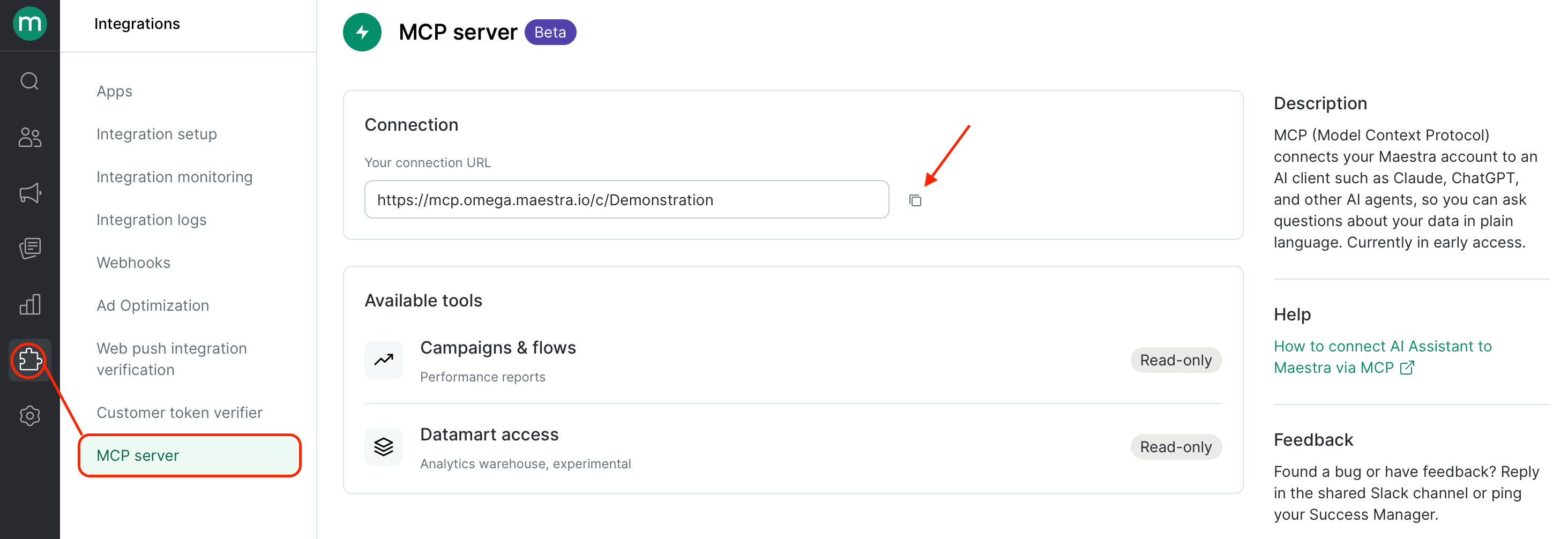
Before connecting your AI assistant, go to **Integrations → MCP server** in Maestra Platform and copy your connector URL. You'll need it in the steps below.
You need the **MCP Access** permission to see this section. It's grantedby default to Owners, Analysts, and Marketers. If the section isn't visible, ask your account Owner.
 ### \\
Connect Claude
Claude (claude.ai, desktop, and mobile apps) supports custom MCP connectors. How you add it depends on your Claude plan:
Go to **Customize → Connectors → + → Add custom connector** and paste the URL above.
[See Anthropic's guide →](https://support.claude.com/en/articles/11175166-get-started-with-custom-connectors-using-remote-mcp)
Only an **Owner** of your Claude organization can add connectors. They do this under **Organization settings → Connectors → Add**. After the Owner adds it, individual members can connect to it from their own accounts.
[See Anthropic's guide →](https://support.claude.com/en/articles/11503834-build-custom-connectors-via-remote-mcp-servers)
If your team uses Team or Enterprise Claude, coordinate the setup with your Anthropic workspace Owner — members can't add the connector themselves.
You can add one custom connector total.
#### Connect via Claude Code (terminal)
Run this command:
```bash theme={null}
claude mcp add \
--transport http \
"Maestra CDP" \
"https://mcp.omega.maestra.io/c/{accountSystemName}"
```
Or add this block manually to your Claude Code config file:
```json theme={null}
"Maestra CDP": {
"type": "http",
"url": "https://mcp.omega.maestra.io/c/{accountSystemName}"
}
```
The server uses OAuth2 — no Bearer token required.
### Connect ChatGPT
ChatGPT supports MCP connectors in a similar way. Use the same URL above. Refer to [OpenAI's documentation](https://help.openai.com/en/articles/12584461-developer-mode-and-mcp-apps-in-chatgpt) for setup steps in your ChatGPT account.
### Other AI agents
The MCP spec is open, and other clients (Cursor, Cline, and custom agents) should work with the same URL and OAuth flow. That said, Maestra Platform has only been tested end-to-end with Claude and ChatGPT. Treat other clients as exploratory — not yet a supported integration.
## What can I ask Maestra's MCP?
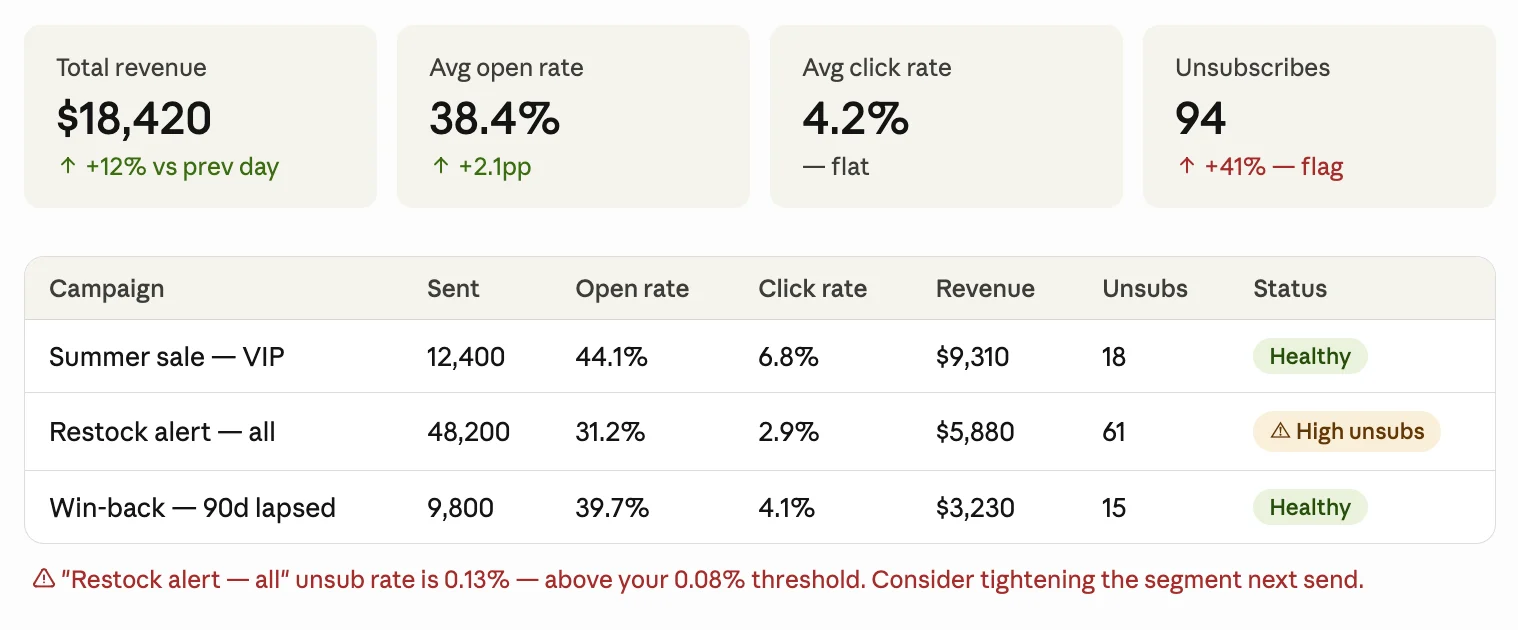
**You:** Show me yesterday's email campaign results — revenue, open rate, click rate, unsubscribes. Flag anything that looks off.
### \\
Connect Claude
Claude (claude.ai, desktop, and mobile apps) supports custom MCP connectors. How you add it depends on your Claude plan:
Go to **Customize → Connectors → + → Add custom connector** and paste the URL above.
[See Anthropic's guide →](https://support.claude.com/en/articles/11175166-get-started-with-custom-connectors-using-remote-mcp)
Only an **Owner** of your Claude organization can add connectors. They do this under **Organization settings → Connectors → Add**. After the Owner adds it, individual members can connect to it from their own accounts.
[See Anthropic's guide →](https://support.claude.com/en/articles/11503834-build-custom-connectors-via-remote-mcp-servers)
If your team uses Team or Enterprise Claude, coordinate the setup with your Anthropic workspace Owner — members can't add the connector themselves.
You can add one custom connector total.
#### Connect via Claude Code (terminal)
Run this command:
```bash theme={null}
claude mcp add \
--transport http \
"Maestra CDP" \
"https://mcp.omega.maestra.io/c/{accountSystemName}"
```
Or add this block manually to your Claude Code config file:
```json theme={null}
"Maestra CDP": {
"type": "http",
"url": "https://mcp.omega.maestra.io/c/{accountSystemName}"
}
```
The server uses OAuth2 — no Bearer token required.
### Connect ChatGPT
ChatGPT supports MCP connectors in a similar way. Use the same URL above. Refer to [OpenAI's documentation](https://help.openai.com/en/articles/12584461-developer-mode-and-mcp-apps-in-chatgpt) for setup steps in your ChatGPT account.
### Other AI agents
The MCP spec is open, and other clients (Cursor, Cline, and custom agents) should work with the same URL and OAuth flow. That said, Maestra Platform has only been tested end-to-end with Claude and ChatGPT. Treat other clients as exploratory — not yet a supported integration.
## What can I ask Maestra's MCP?
**You:** Show me yesterday's email campaign results — revenue, open rate, click rate, unsubscribes. Flag anything that looks off.
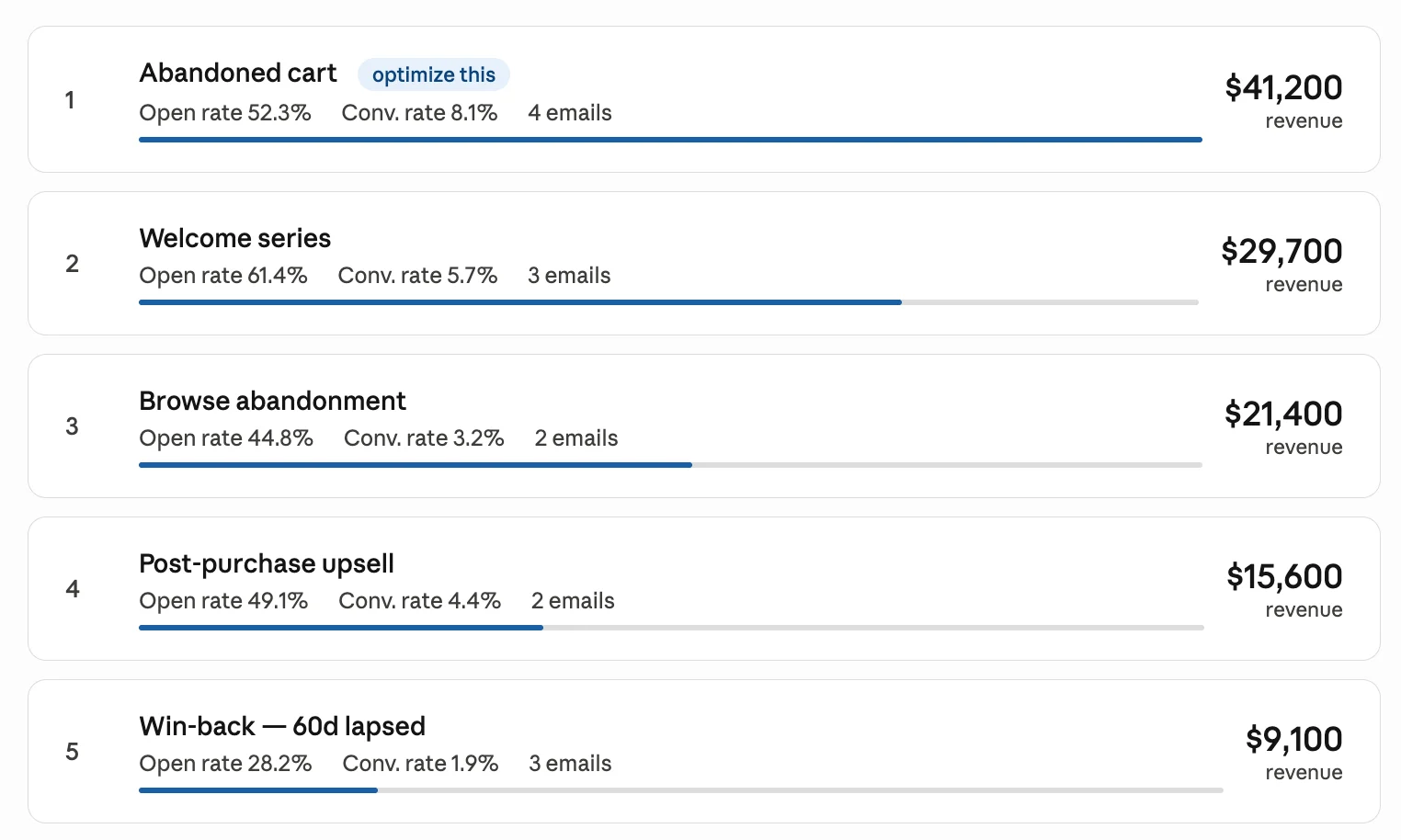
 **You:** Which email flows drove the most revenue over the last 30 days? Show me top 5 with open rate and conversion rate.
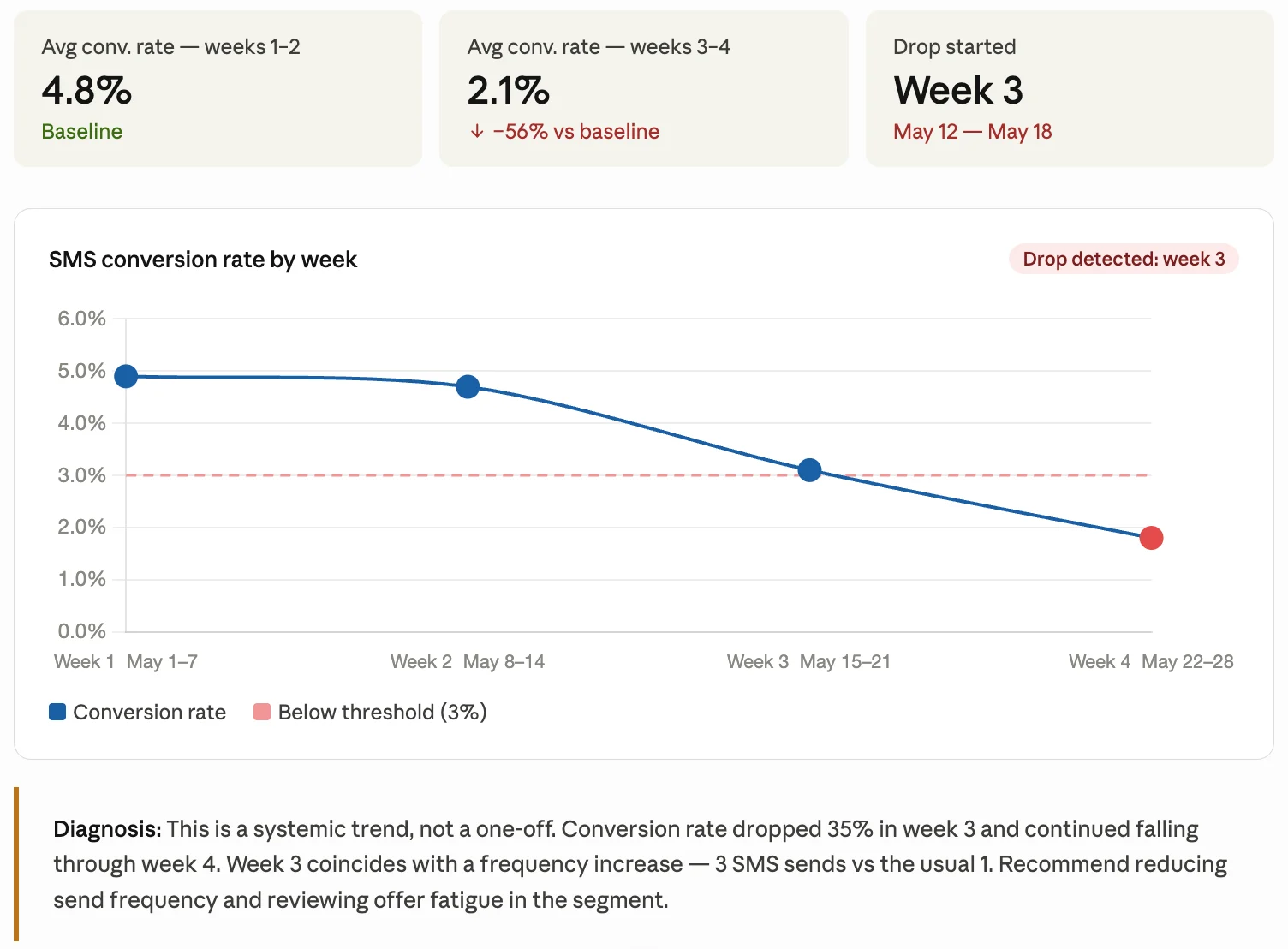
 **You:** SMS campaigns over the last month — show me conversion rate by week. Is there a drop, and if so, which week did it start?
 ## Security and data privacy
* **Authentication.** The MCP endpoint uses your existing Maestra staff login. The same role-based permissions that apply in the admin panel apply through MCP — if an action requires additional permissions, they're enforced the same way.
* **No customer PII is exposed.** The MCP tools return aggregated performance metrics only. No personal data belonging to your customers is transmitted.
* **No third-party sharing.** Maestra does not share your session data with third parties, including LLM providers. The data that passes through your MCP session (request parameters and results) is stored temporarily for debugging and quality improvement, and is purged when your account is offboarded.
* **You control your AI provider's data policy.** How your AI assistant (Claude, ChatGPT, etc.) handles the data it receives is governed by your agreement with that provider — manage this through your Anthropic or OpenAI account settings.
## Troubleshooting
Make sure the MCP feature is enabled for your account and the MCP Access permission is granted.
Contact your account Owner to grant you the MCP Access permission.
Restart your AI assistant app. Tool lists refresh on startup.
Only your Claude organization Owner can add connectors for Team/Enterprise plans. Reach out to whoever manages your organization's Claude account.
Your MCP authorization may have expired. MCP sessions last up to 30 days — after that, Claude loses access to Maestra data and stops responding with real results. To fix this open connector settings and sign in again.
## Security and data privacy
* **Authentication.** The MCP endpoint uses your existing Maestra staff login. The same role-based permissions that apply in the admin panel apply through MCP — if an action requires additional permissions, they're enforced the same way.
* **No customer PII is exposed.** The MCP tools return aggregated performance metrics only. No personal data belonging to your customers is transmitted.
* **No third-party sharing.** Maestra does not share your session data with third parties, including LLM providers. The data that passes through your MCP session (request parameters and results) is stored temporarily for debugging and quality improvement, and is purged when your account is offboarded.
* **You control your AI provider's data policy.** How your AI assistant (Claude, ChatGPT, etc.) handles the data it receives is governed by your agreement with that provider — manage this through your Anthropic or OpenAI account settings.
## Troubleshooting
Make sure the MCP feature is enabled for your account and the MCP Access permission is granted.
Contact your account Owner to grant you the MCP Access permission.
Restart your AI assistant app. Tool lists refresh on startup.
Only your Claude organization Owner can add connectors for Team/Enterprise plans. Reach out to whoever manages your organization's Claude account.
Your MCP authorization may have expired. MCP sessions last up to 30 days — after that, Claude loses access to Maestra data and stops responding with real results. To fix this open connector settings and sign in again.