> ## Documentation Index
> Fetch the complete documentation index at: https://help.maestra.io/llms.txt
> Use this file to discover all available pages before exploring further.
# How to Set up Control Groups and A/B Tests for Campaigns
The guide can be used for all types of campaigns and channels. We’ll be using email campaigns to illustrate the steps you need to follow.
Before you begin, make sure you’re familiar with the guides on [bulk](/campaigns/email-campaigns/how-to-create-a-bulk-email-campaign) and [automated campaigns](/campaigns/email-campaigns/how-to-create-automated-email-campaign).
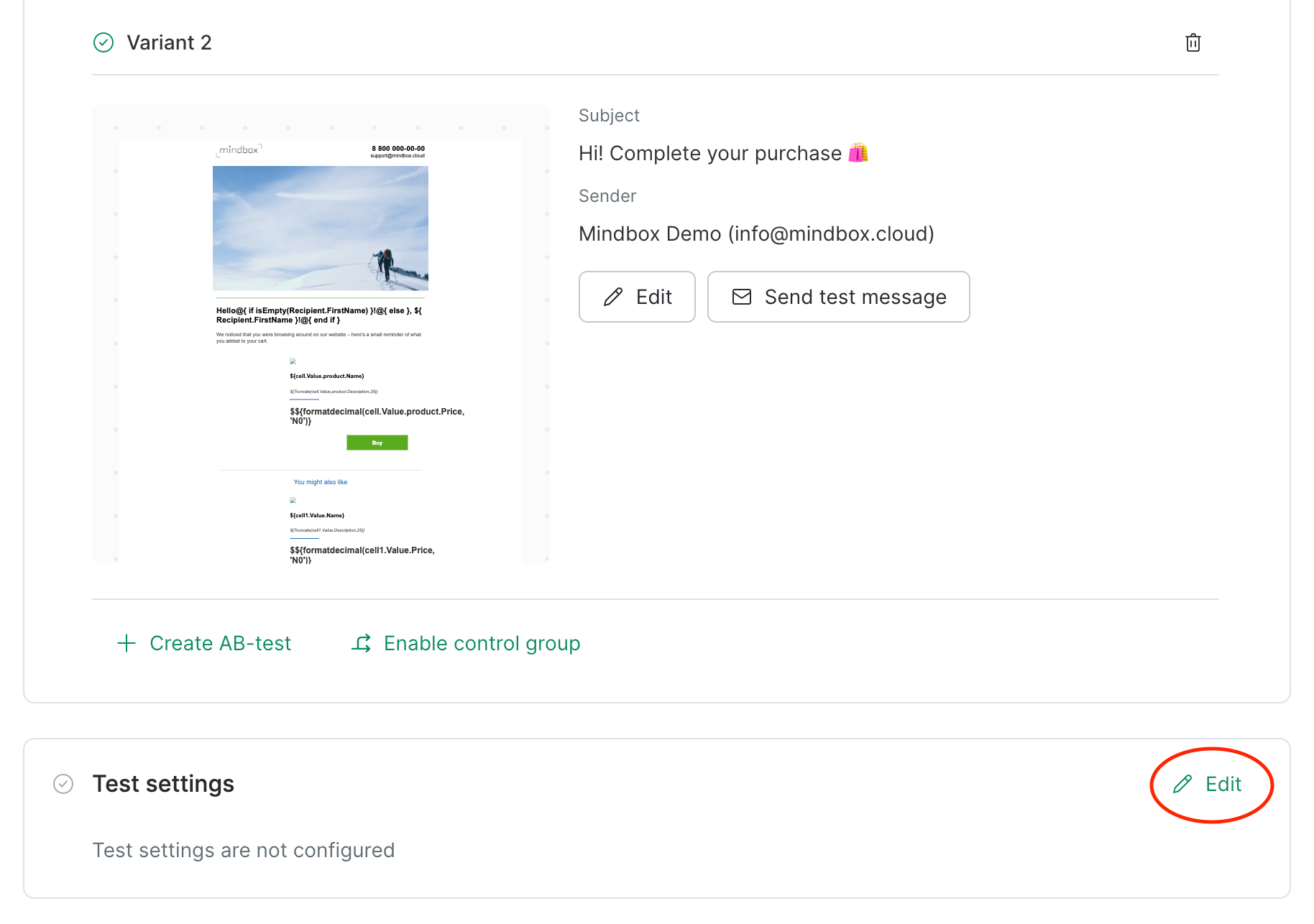
1. Go to the **Campaign** panel to enter a **Subject** and **Sender** and select a **Template**. After this, click "**Create A/B test**":
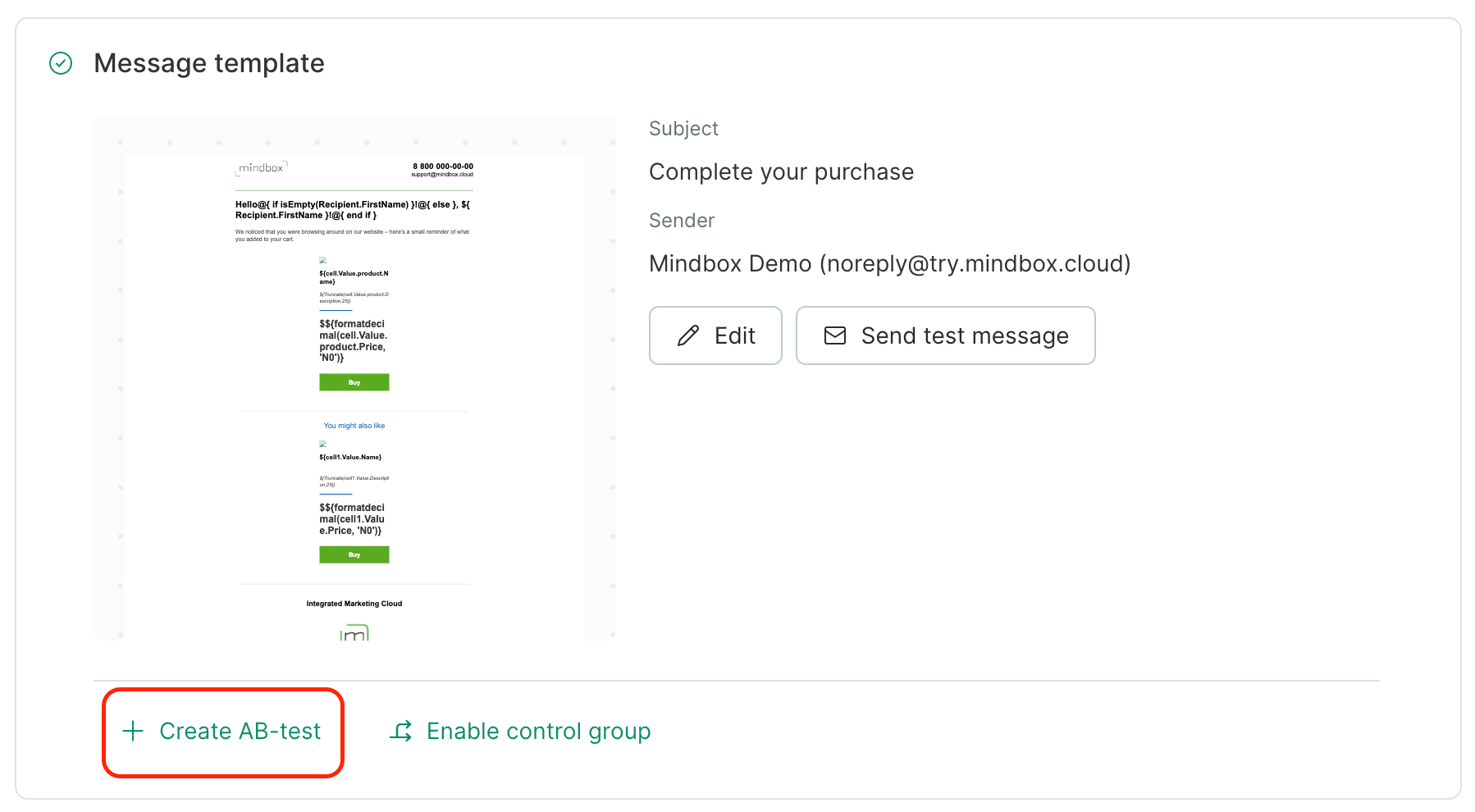 Enter a **Subject** and **Sender** and select a **Template** for your second variant.
When it comes to A/B testing, you have lots of variables to choose from.
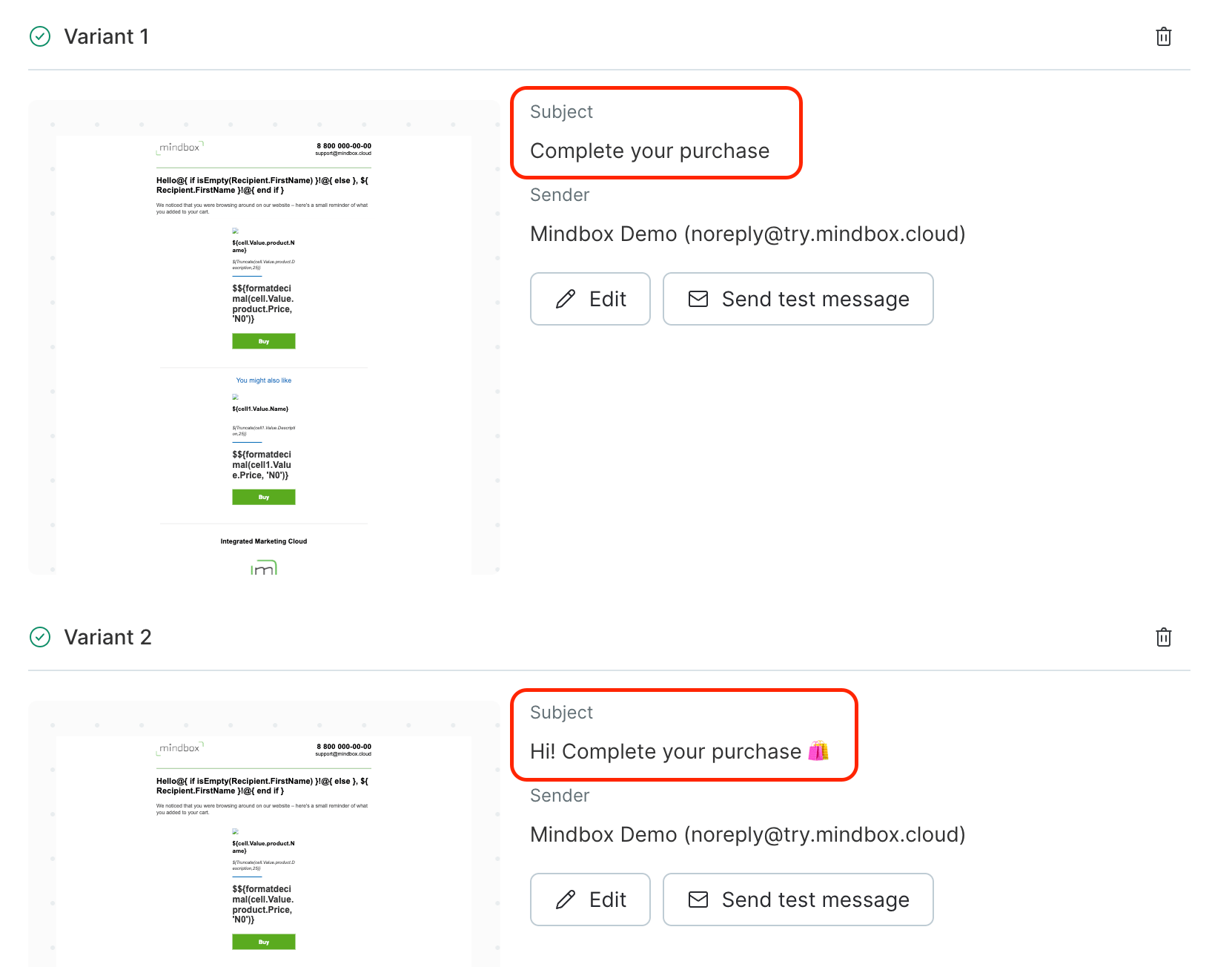
You can test the **Subject**:
Enter a **Subject** and **Sender** and select a **Template** for your second variant.
When it comes to A/B testing, you have lots of variables to choose from.
You can test the **Subject**:
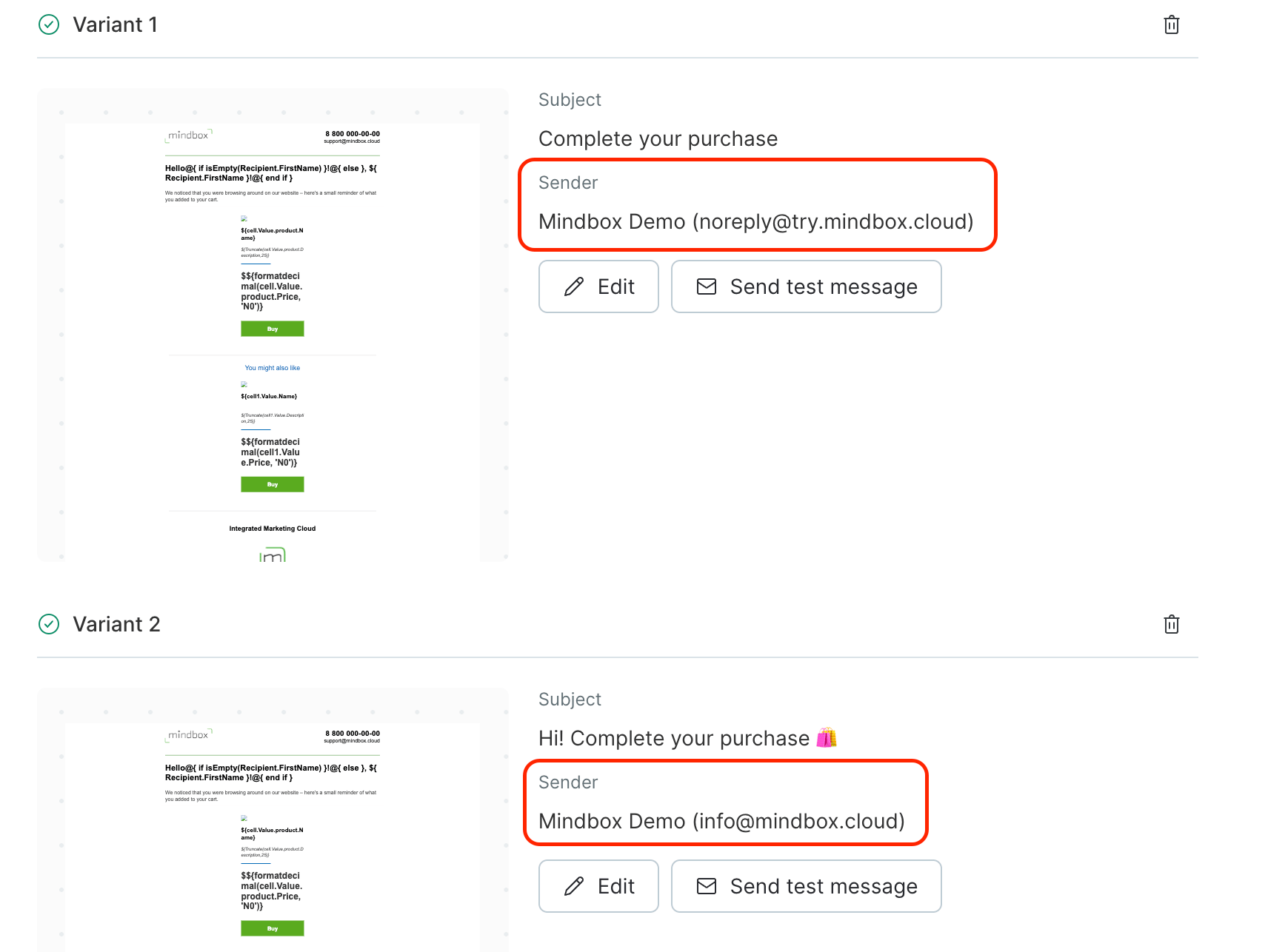
 Test the **Sender**:
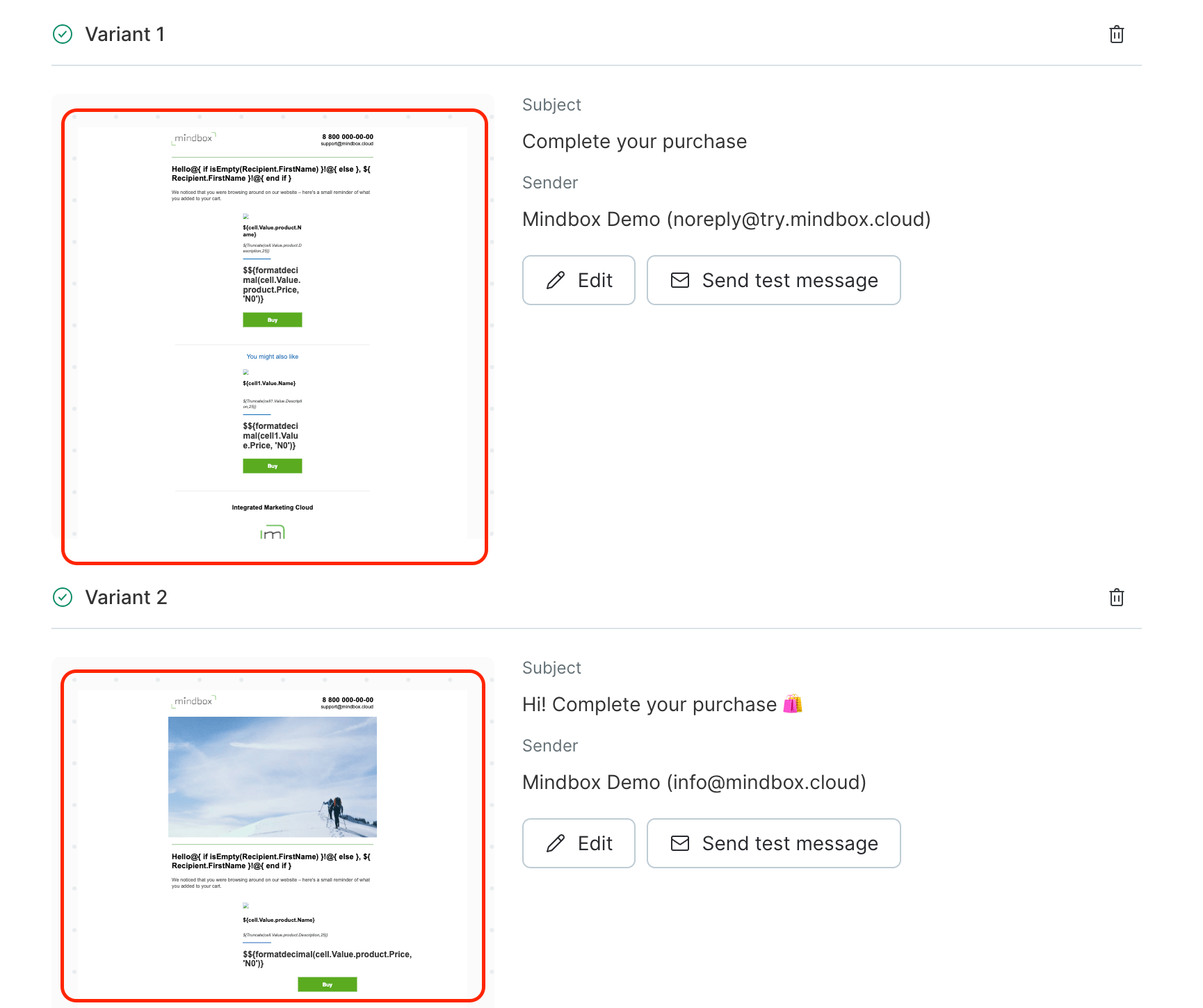
 Test the **Template**:
 Or you can combine Subject, Sender, and Template tests.
3. For a bulk campaign, select your Recipients.
4. Configure Test settings:
Or you can combine Subject, Sender, and Template tests.
3. For a bulk campaign, select your Recipients.
4. Configure Test settings:
 ## A/B test settings
There are 2 ways to run tests:
1. Campaign variations + a control group.
2. Campaign variations only.
To measure the effect and net profit of your campaign, select **Campaign** variations + control group. In this case, only the target action can be used as the assessment criterion.
The control group size is the same as the number of emails for this variation of your test.
When testing without a control group, the **Open rate** and **Click rate** options are also available as assessment criteria.
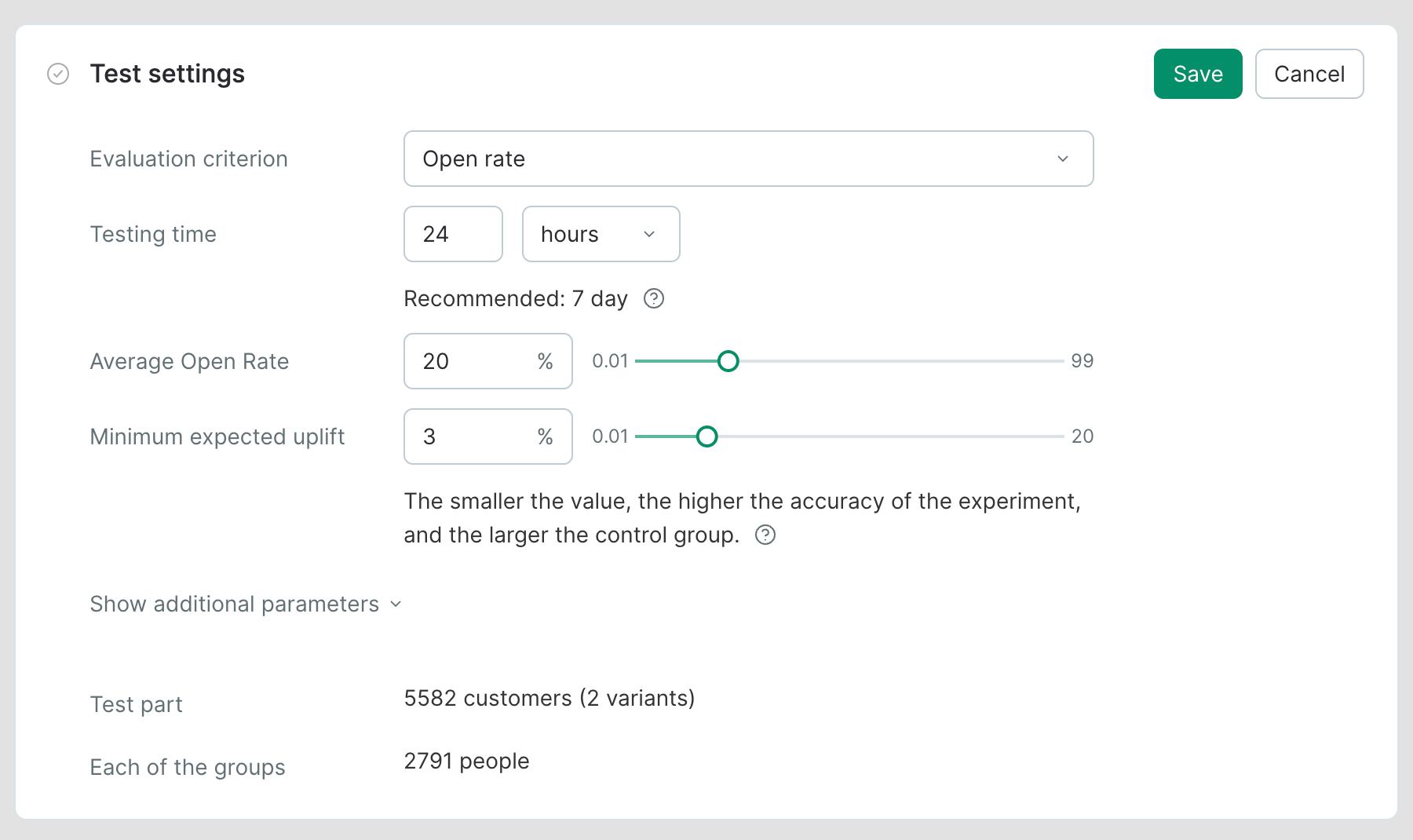
**Assessment criterion**. When it comes to choosing your assessment criterion, simply select what fits best depending on what you’re testing.
**For example**:
1. To test the **Subject** or **Sender**, select the **Open rate** as your criterion.
2. To test the **Template**, select the **Click rate** or **Target action** (e.g. order placement) as your criterion.
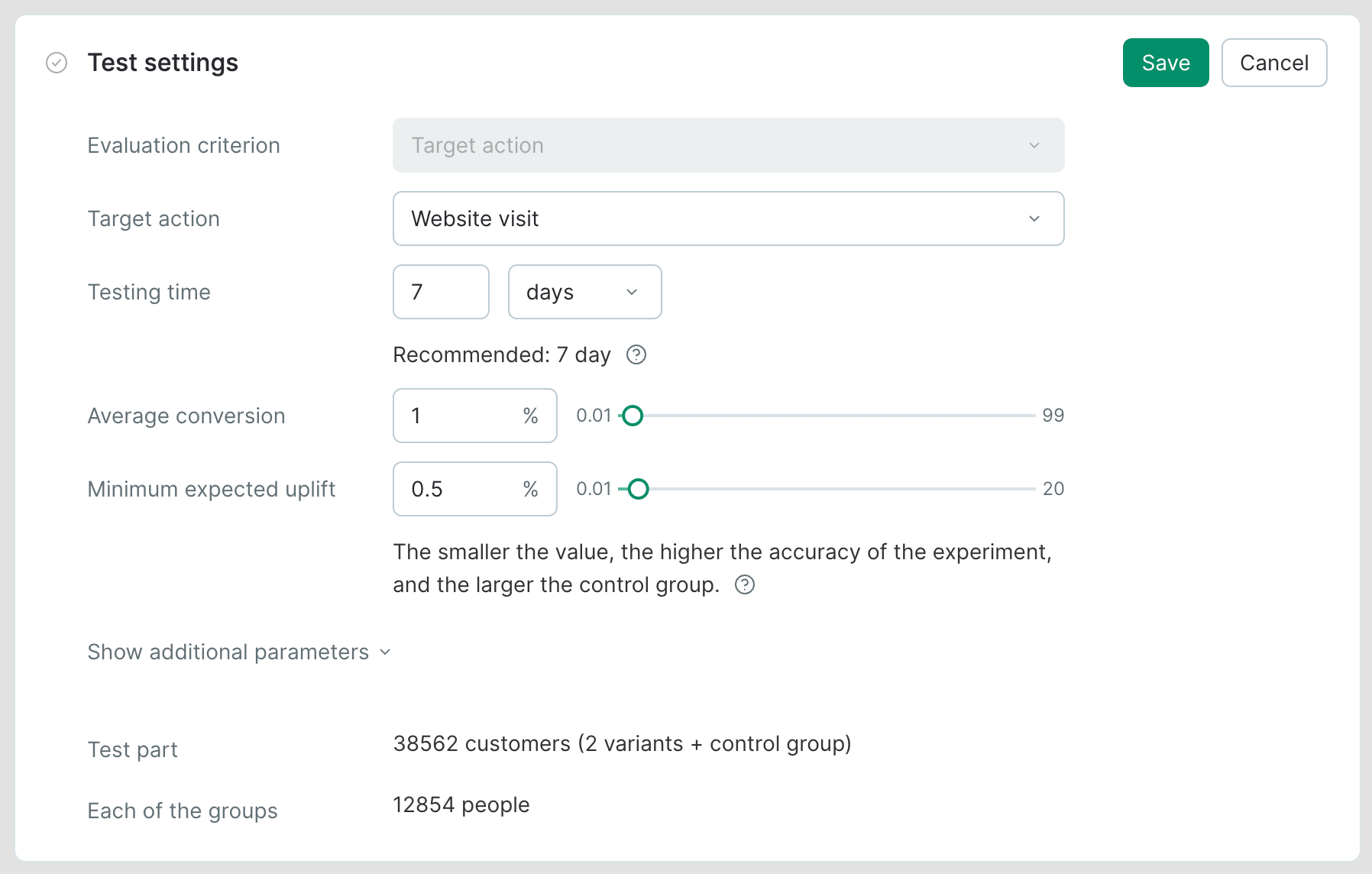
**Minimum expected uplift**: this is the minimum difference in percentage points for one variant to be considered more successful than another .
**Testing time**: this is the period during which the test will run and collect data. Once this time is out, the winning variant will be sent to the remaining audience.
A testing time is a parameter assigned individually to each customer. Thus, the total test duration time is a sum of the time to collect results from tested variations plus the testing time.
**How it works:** Subscribers from group A receive email variation A, subscribers from group B — variation B. Data is collected over the selected period. One the test period is over, the remaining subscribers will receive the successful variant.
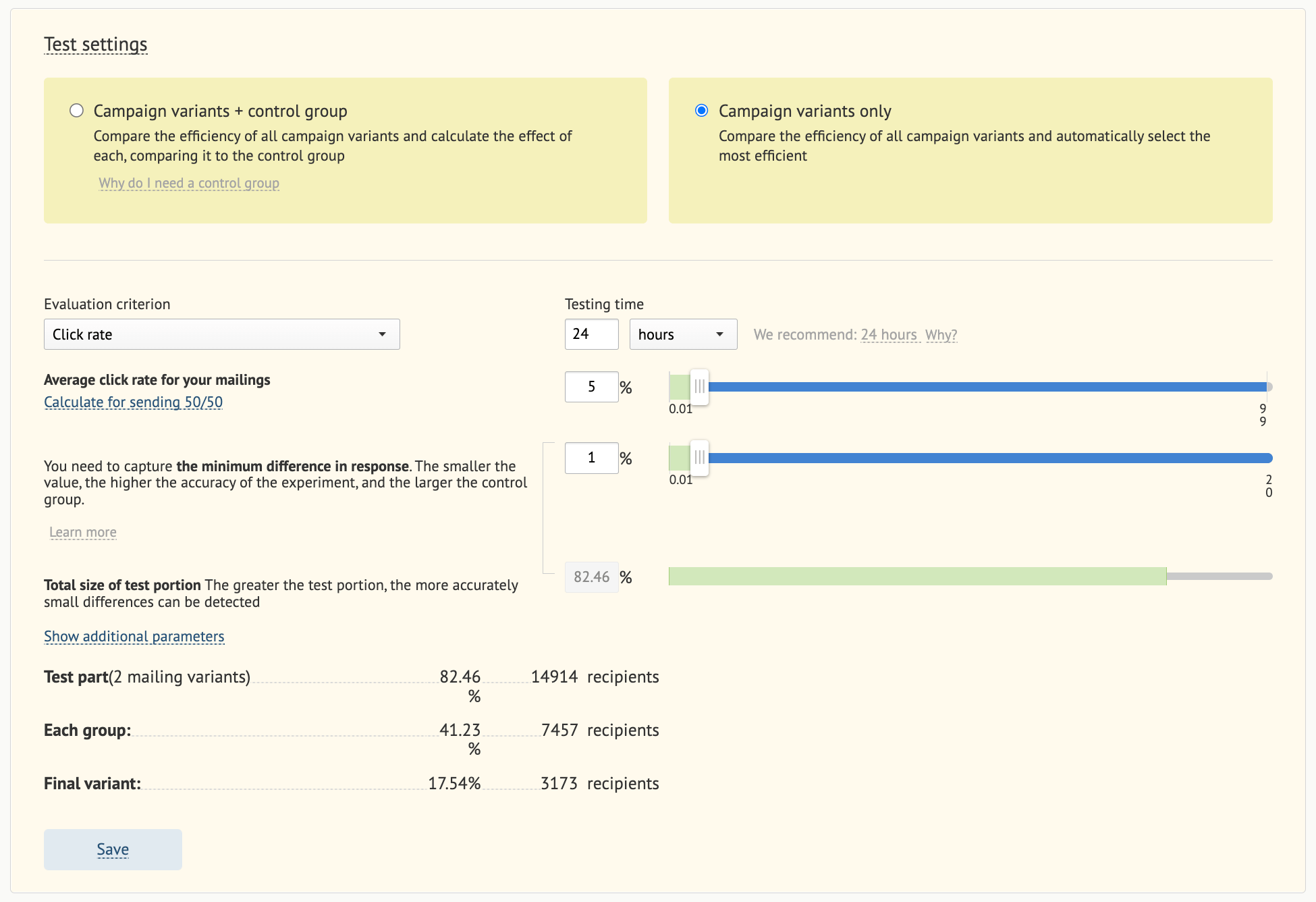
### Bulk campaign without a control group: test settings
## A/B test settings
There are 2 ways to run tests:
1. Campaign variations + a control group.
2. Campaign variations only.
To measure the effect and net profit of your campaign, select **Campaign** variations + control group. In this case, only the target action can be used as the assessment criterion.
The control group size is the same as the number of emails for this variation of your test.
When testing without a control group, the **Open rate** and **Click rate** options are also available as assessment criteria.
**Assessment criterion**. When it comes to choosing your assessment criterion, simply select what fits best depending on what you’re testing.
**For example**:
1. To test the **Subject** or **Sender**, select the **Open rate** as your criterion.
2. To test the **Template**, select the **Click rate** or **Target action** (e.g. order placement) as your criterion.
**Minimum expected uplift**: this is the minimum difference in percentage points for one variant to be considered more successful than another .
**Testing time**: this is the period during which the test will run and collect data. Once this time is out, the winning variant will be sent to the remaining audience.
A testing time is a parameter assigned individually to each customer. Thus, the total test duration time is a sum of the time to collect results from tested variations plus the testing time.
**How it works:** Subscribers from group A receive email variation A, subscribers from group B — variation B. Data is collected over the selected period. One the test period is over, the remaining subscribers will receive the successful variant.
### Bulk campaign without a control group: test settings
 ### Bulk campaign with a control group: test settings
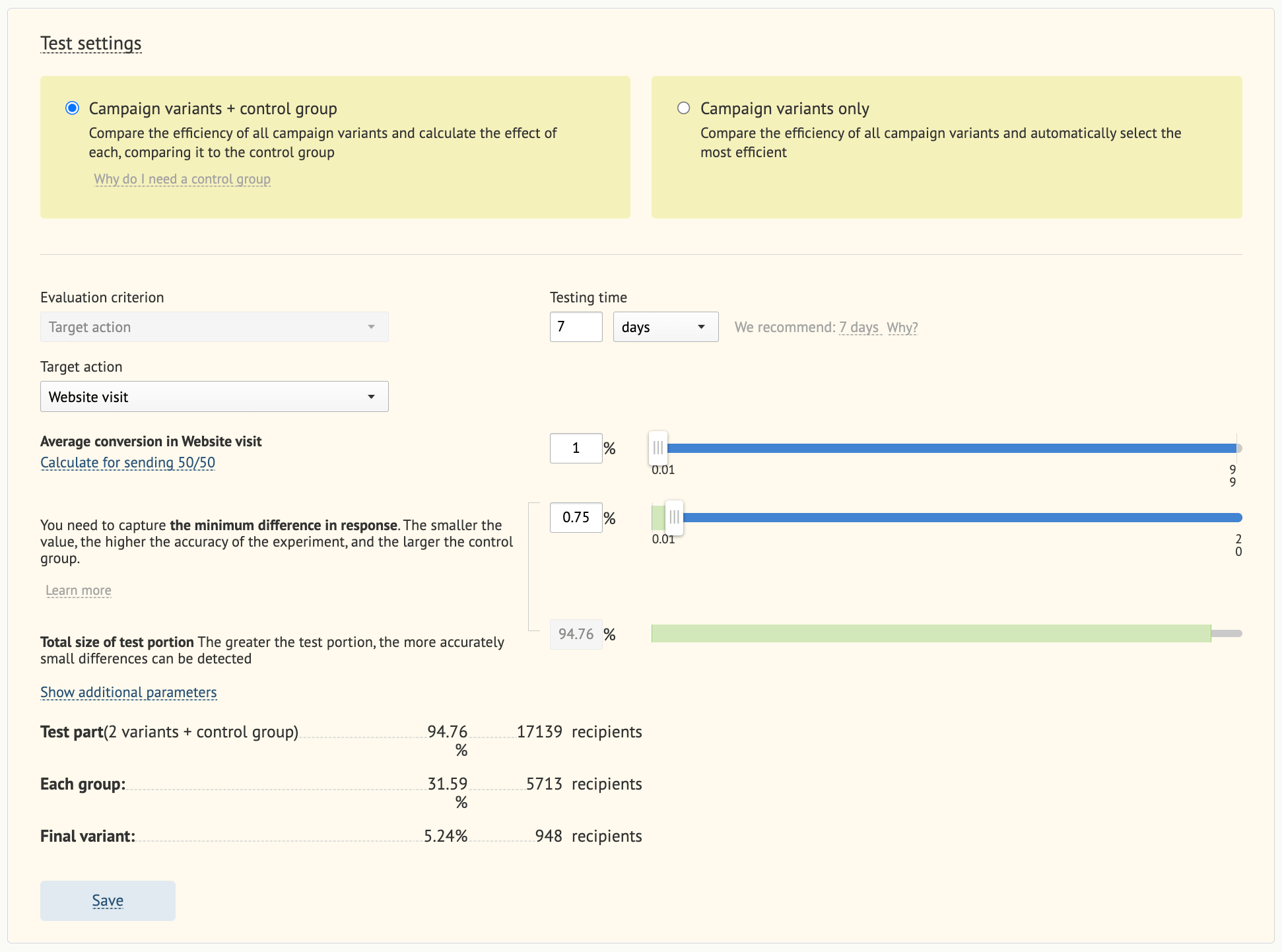 For bulk campaigns, test settings are used to specify which percentage of recipients will take part in the test and which portion of the audience will receive the winning variation.
### Automated campaign without a control group: test settings
For bulk campaigns, test settings are used to specify which percentage of recipients will take part in the test and which portion of the audience will receive the winning variation.
### Automated campaign without a control group: test settings
 ### Automated campaign with a control group: test settings
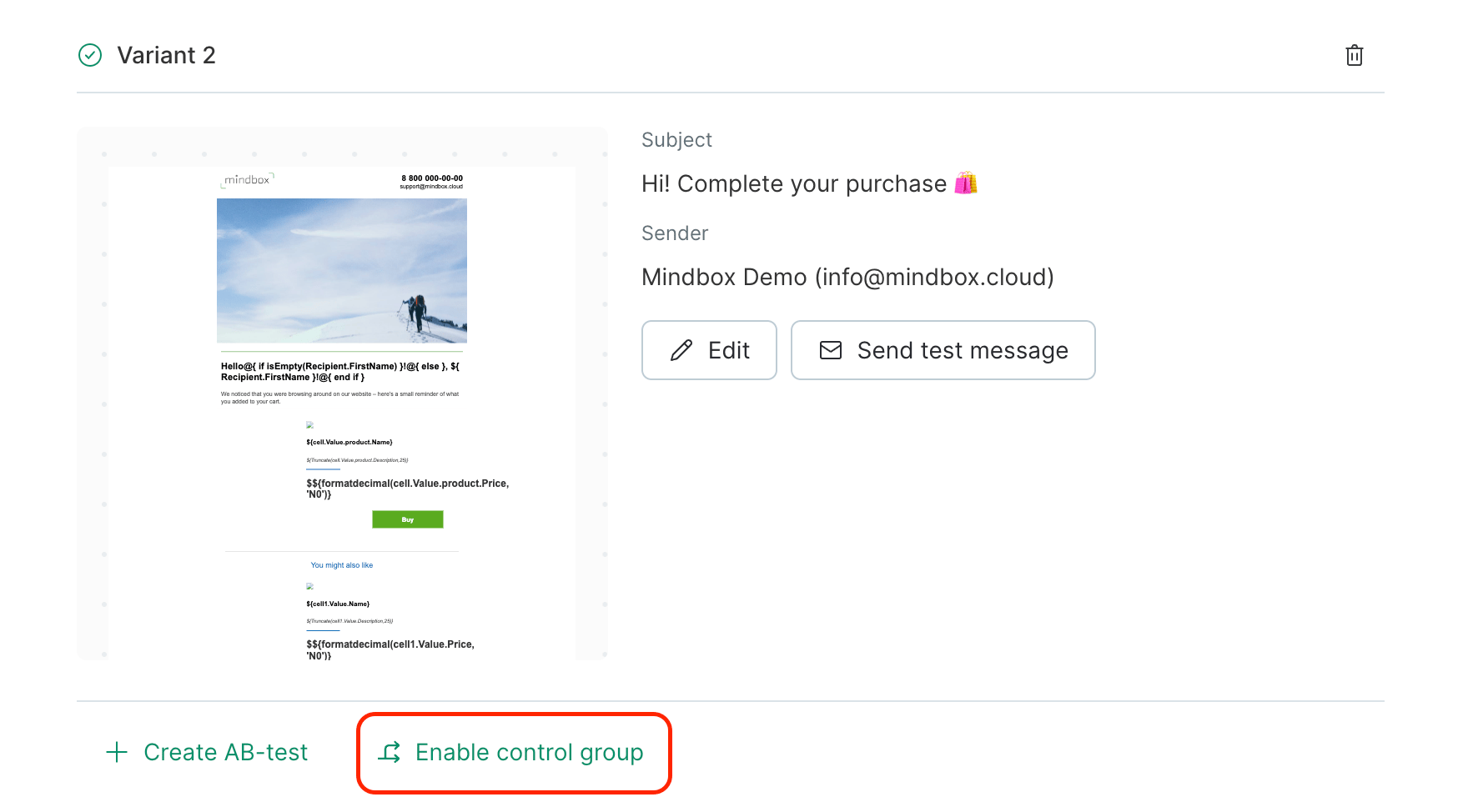
1. Click "**Enable control group**":
### Automated campaign with a control group: test settings
1. Click "**Enable control group**":
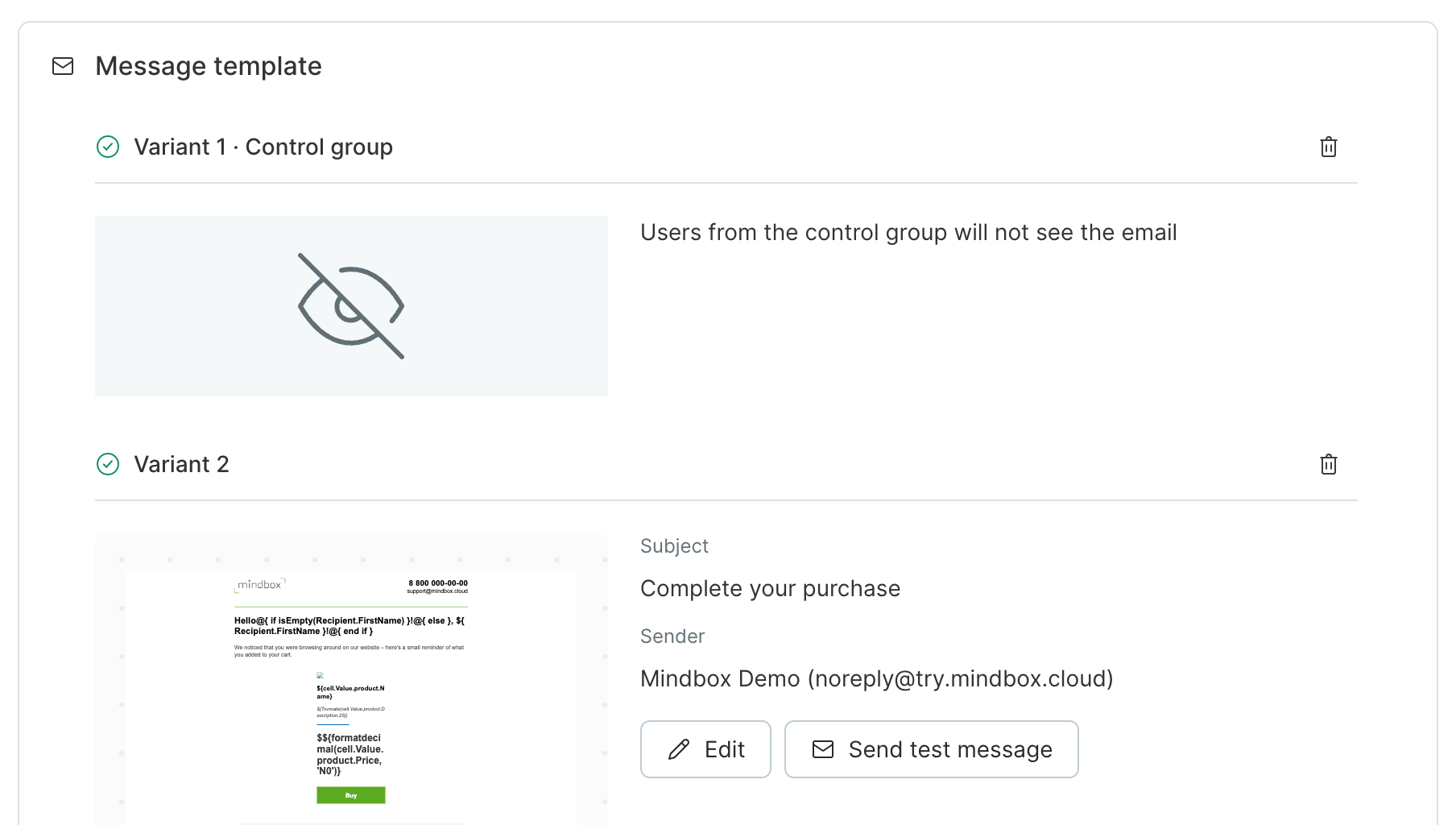
 2. **Variant 1** will appear in **Message template area**:
 3. Choose a **Target action** and other settings:
 ### You can also view additional parameters:
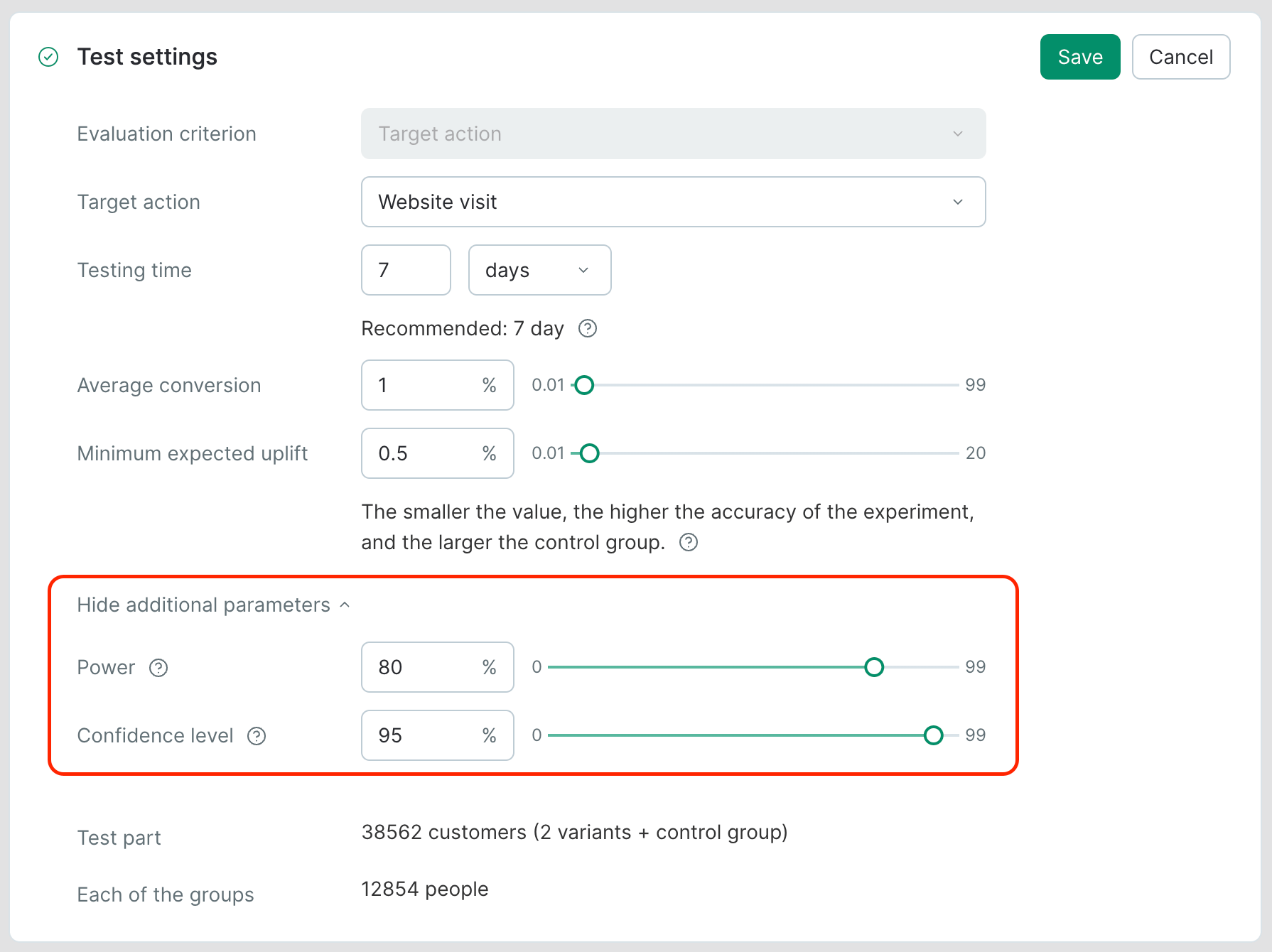 **Power** is the probability that we will be able to detect a difference (if there is any). The common practice is to use 80% as the default power of an A/B test.
The **confidence level** of the test is the confidence that we will not get a false positive result, with the default value in A/B tests being 95%.
## Test results
Once the test ends, the user(s) that created it receive a test report in their email inbox.
**Power** is the probability that we will be able to detect a difference (if there is any). The common practice is to use 80% as the default power of an A/B test.
The **confidence level** of the test is the confidence that we will not get a false positive result, with the default value in A/B tests being 95%.
## Test results
Once the test ends, the user(s) that created it receive a test report in their email inbox.