> ## Documentation Index
> Fetch the complete documentation index at: https://help.maestra.io/llms.txt
> Use this file to discover all available pages before exploring further.
# Active subscribers
To filter out active customers, let’s add segmentation criteria one by one.
1. Select customers who have been in your database for 45 days or less. This ensures we include new customers who have been added recently and may not have carried out any target actions. In addition, we can presume that a customer is "active" if they have taken certain actions to subscribe:
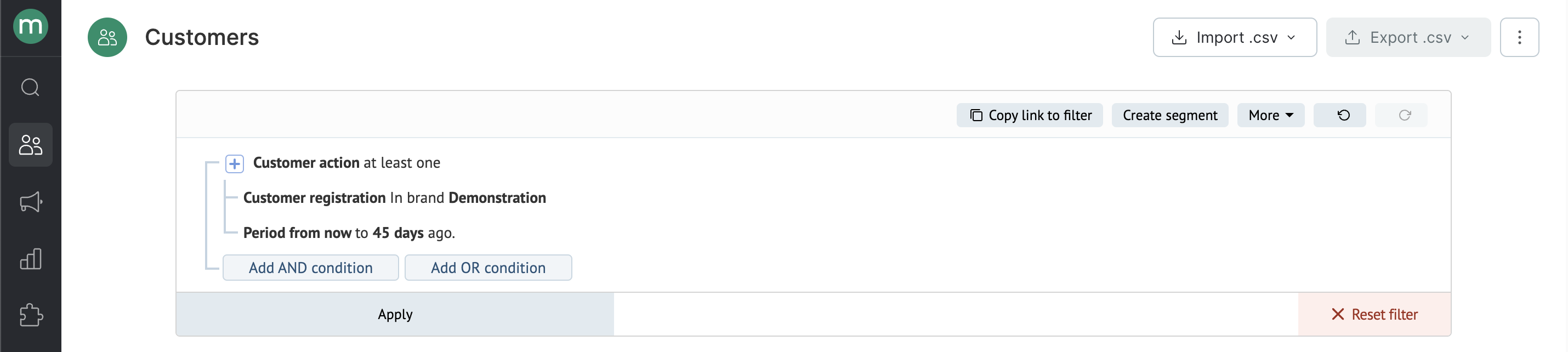 This period may vary depending on your subscription process and welcome series. Sometimes welcome series subscribers are temporarily removed from other mailing lists while they receive welcome emails.
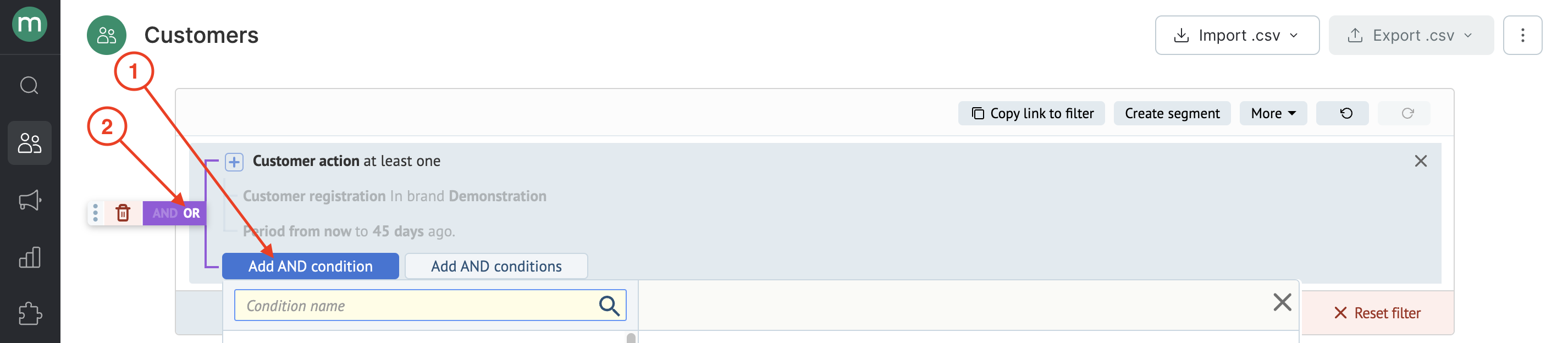
2. Click "Add AND condition" and then switch to "Or" (as demonstrated on the screenshot below):
This period may vary depending on your subscription process and welcome series. Sometimes welcome series subscribers are temporarily removed from other mailing lists while they receive welcome emails.
2. Click "Add AND condition" and then switch to "Or" (as demonstrated on the screenshot below):
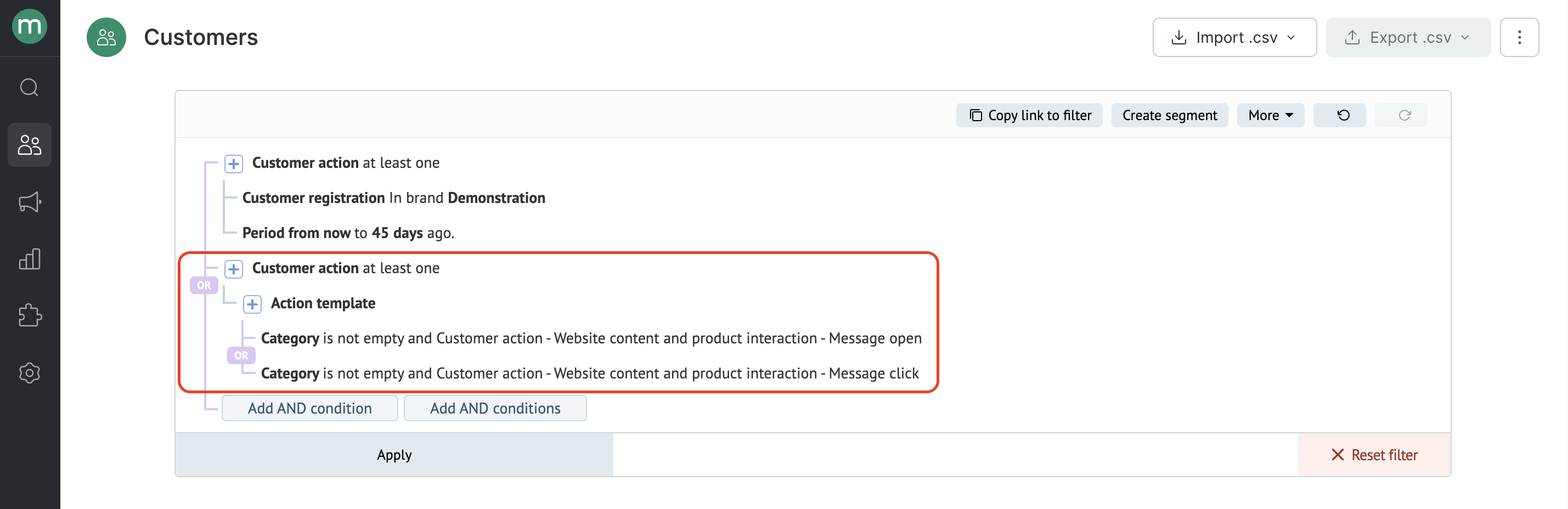
 3. Now add customers who have opened or clicked your campaigns within the last 90 days. This filter helps select customers who have engaged with your emails over the last 3 months. You can extend this period over 90 days if your email frequency is once a week or less, but we recommend keeping it at 90 days for daily emails:
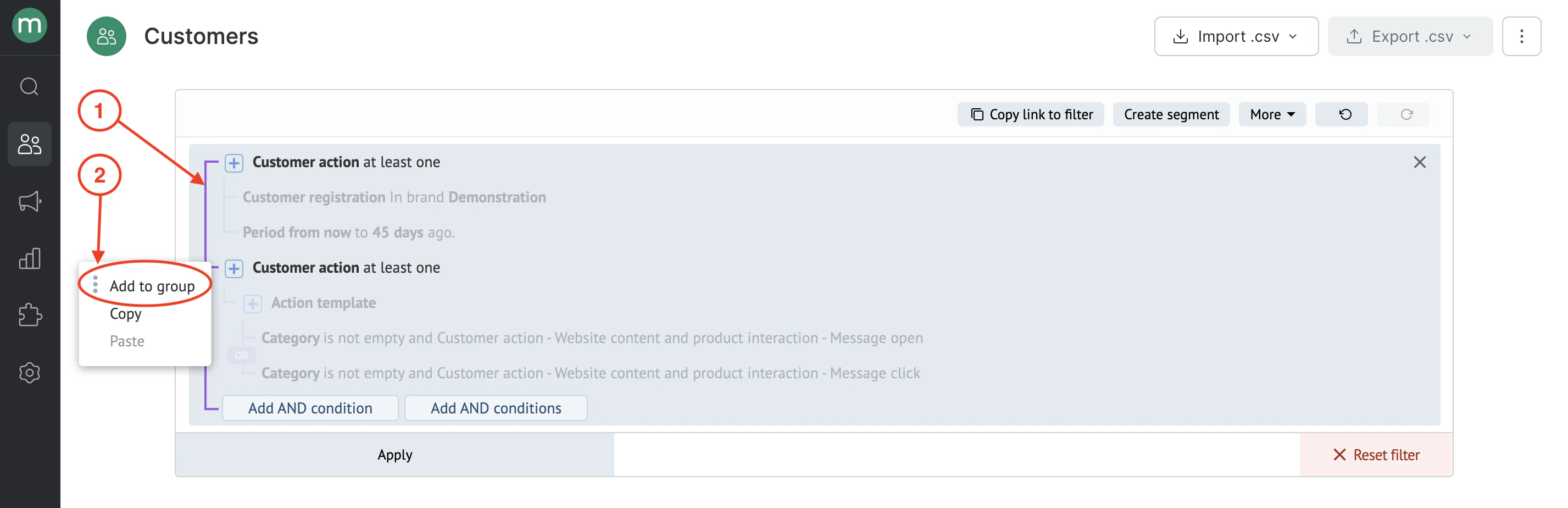
 4. Click the "Or" button to the left of the filter, then open the drop-down menu (three dots on the left), and select "Add to group":
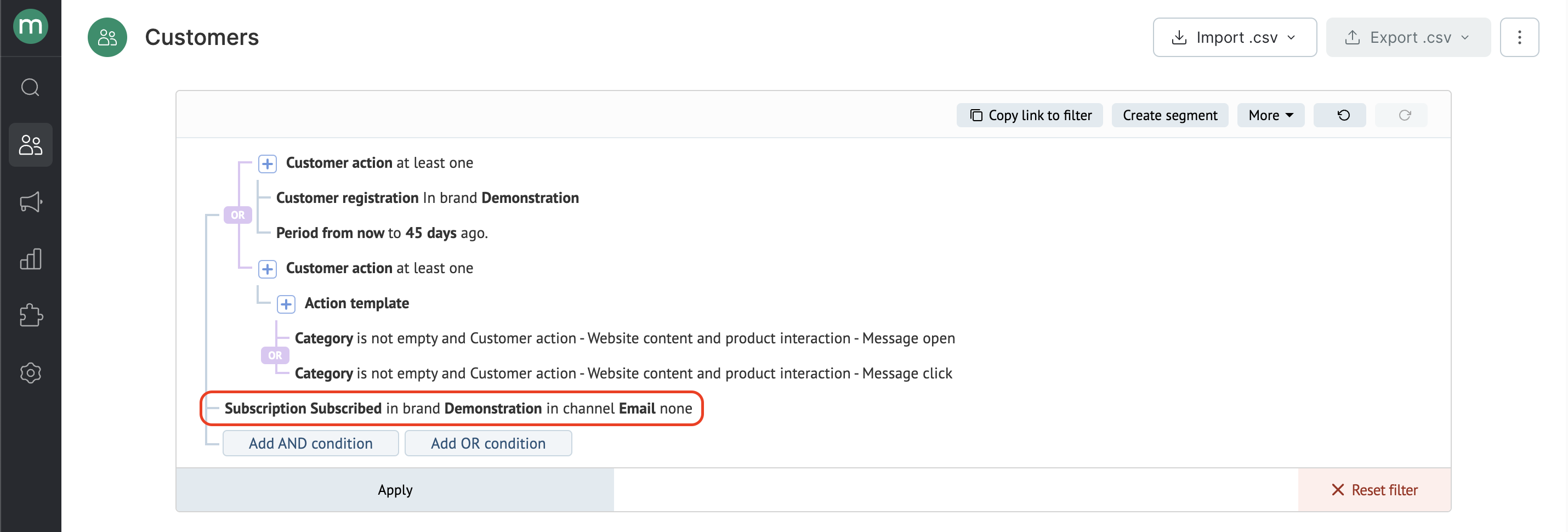
 5. Email subscription. This filter helps us select the customers who are still on your email list — they can be selected as subscribed for manual or automated email campaigns:
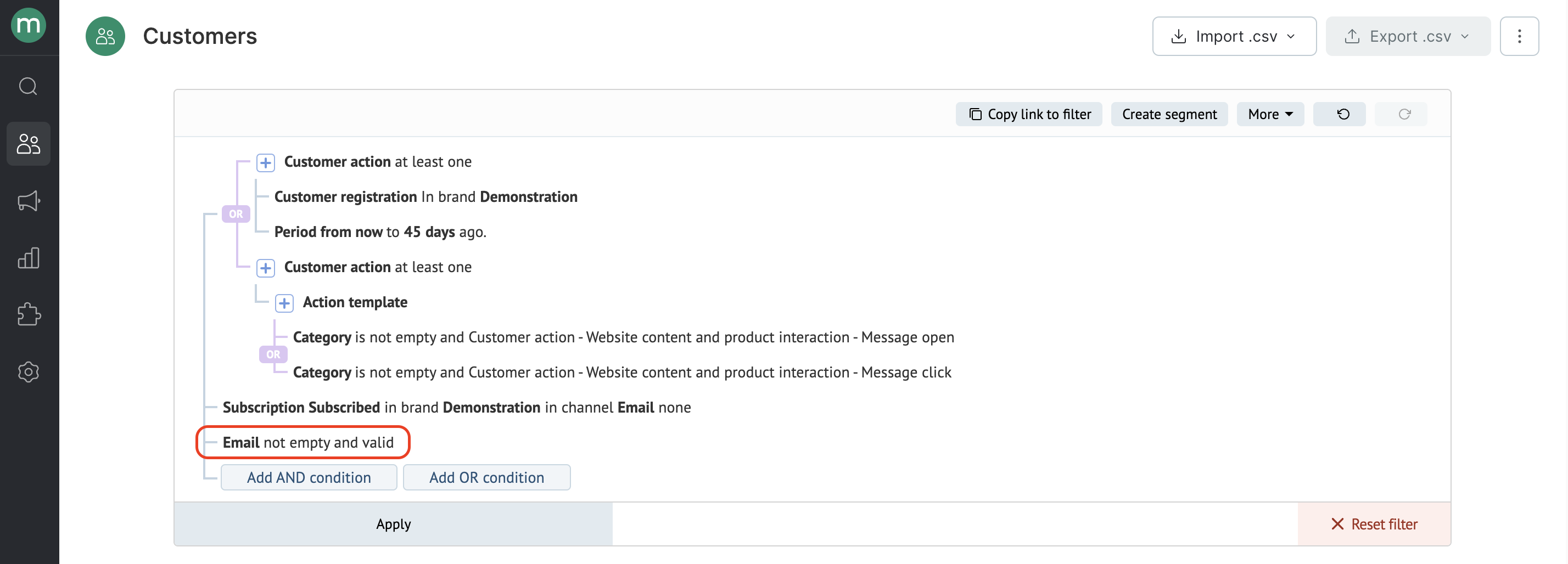
 6. Email address is valid. This filter helps us select the customers who can receive our emails:
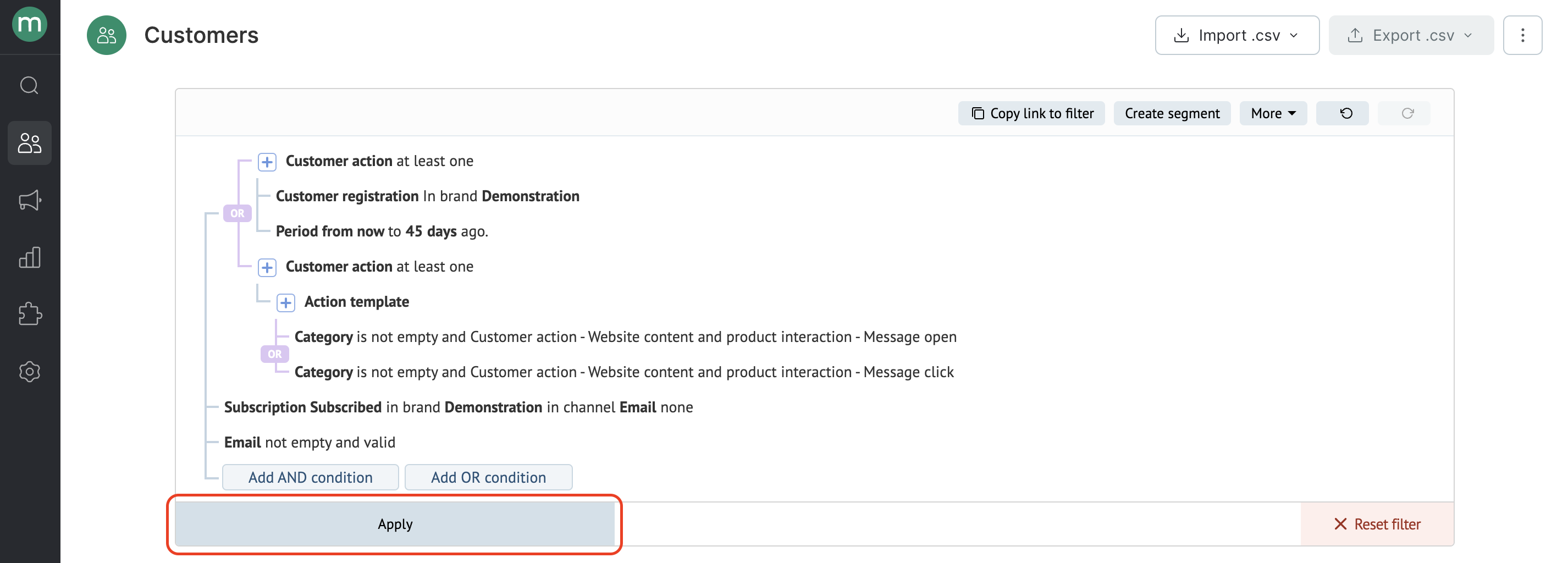
 7. Click Apply to save the conditions you selected. The system will display the filtered customers and their total number:
 As a result, this segment will contain customers who:
* Have been in your database for 45 days or less OR have engaged with campaigns within the last 90 days by opening or clicking emails.
* Have a valid email and are subscribed.
As a result, this segment will contain customers who:
* Have been in your database for 45 days or less OR have engaged with campaigns within the last 90 days by opening or clicking emails.
* Have a valid email and are subscribed.