> ## Documentation Index
> Fetch the complete documentation index at: https://help.maestra.io/llms.txt
> Use this file to discover all available pages before exploring further.
# How to Add Sender's email address
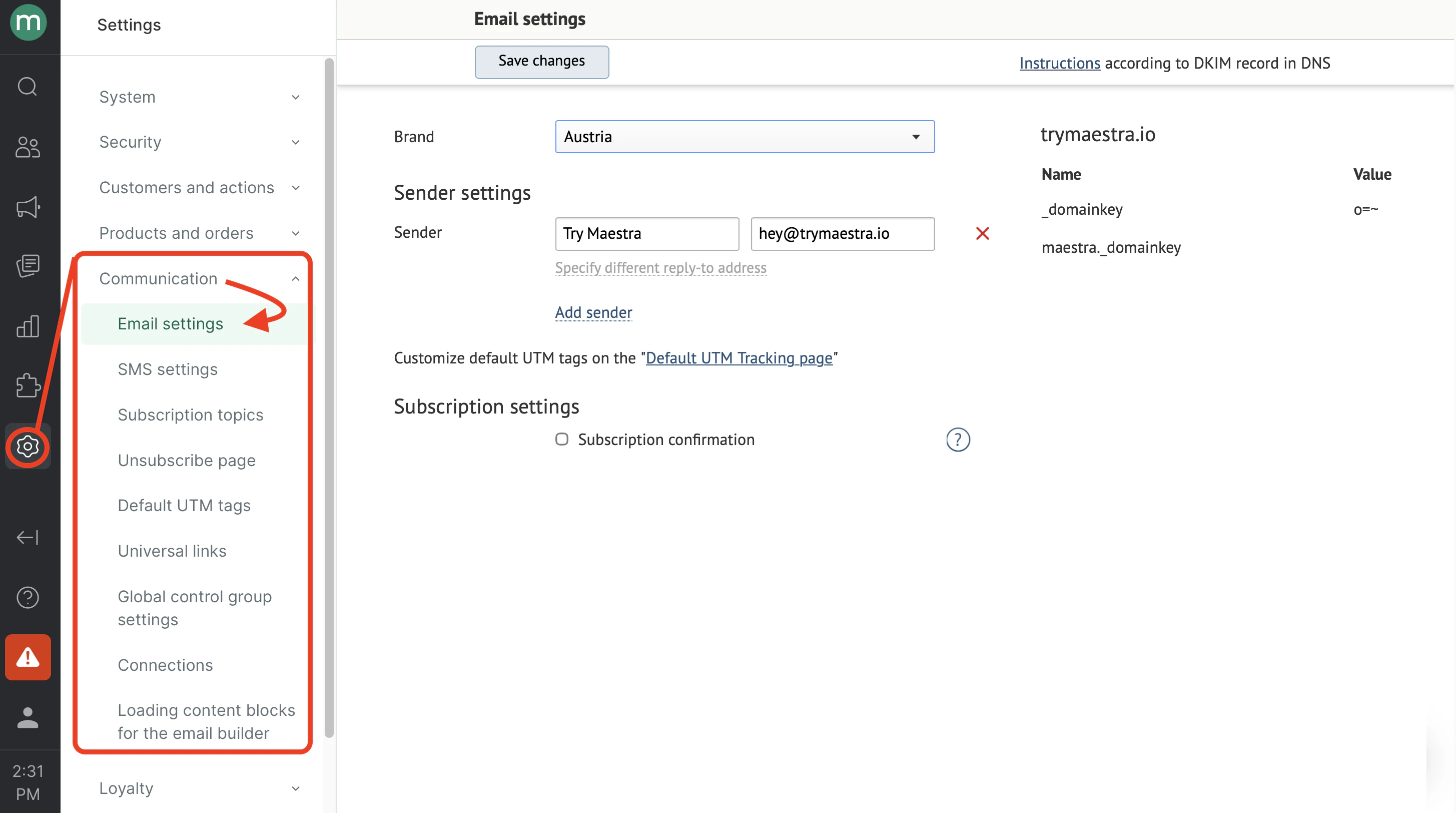
Go to **Settings** → **Communication** → **Email Settings** :
 # How to add a new sender
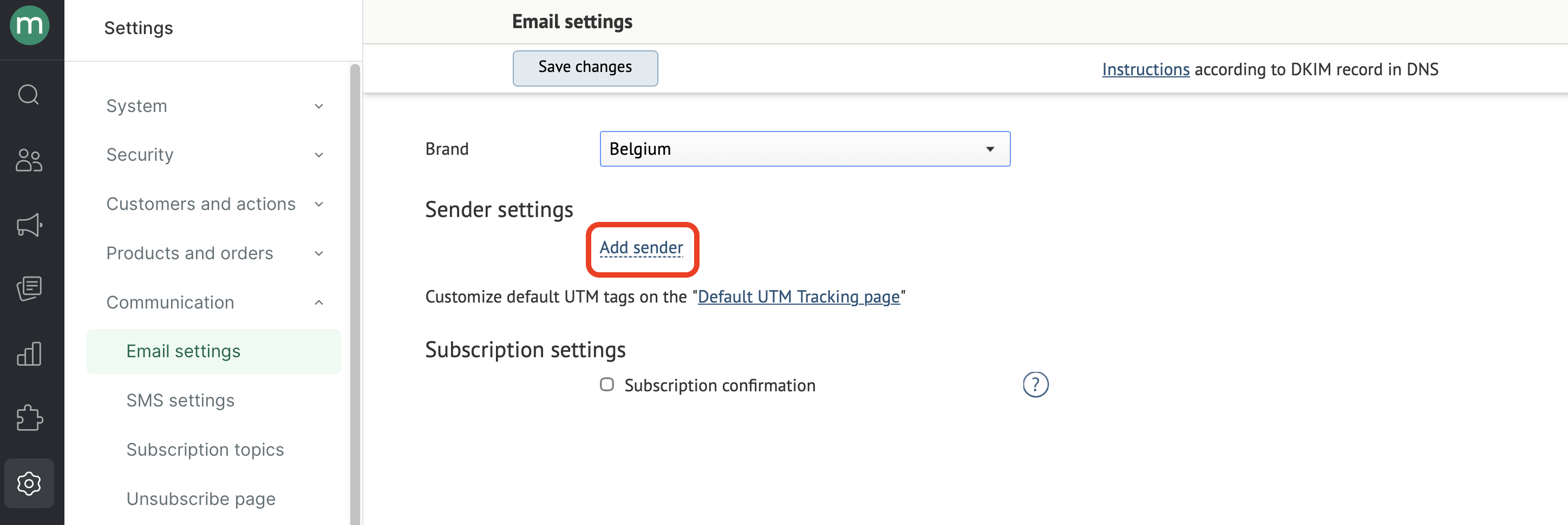
1. Click **Add sender**:
# How to add a new sender
1. Click **Add sender**:
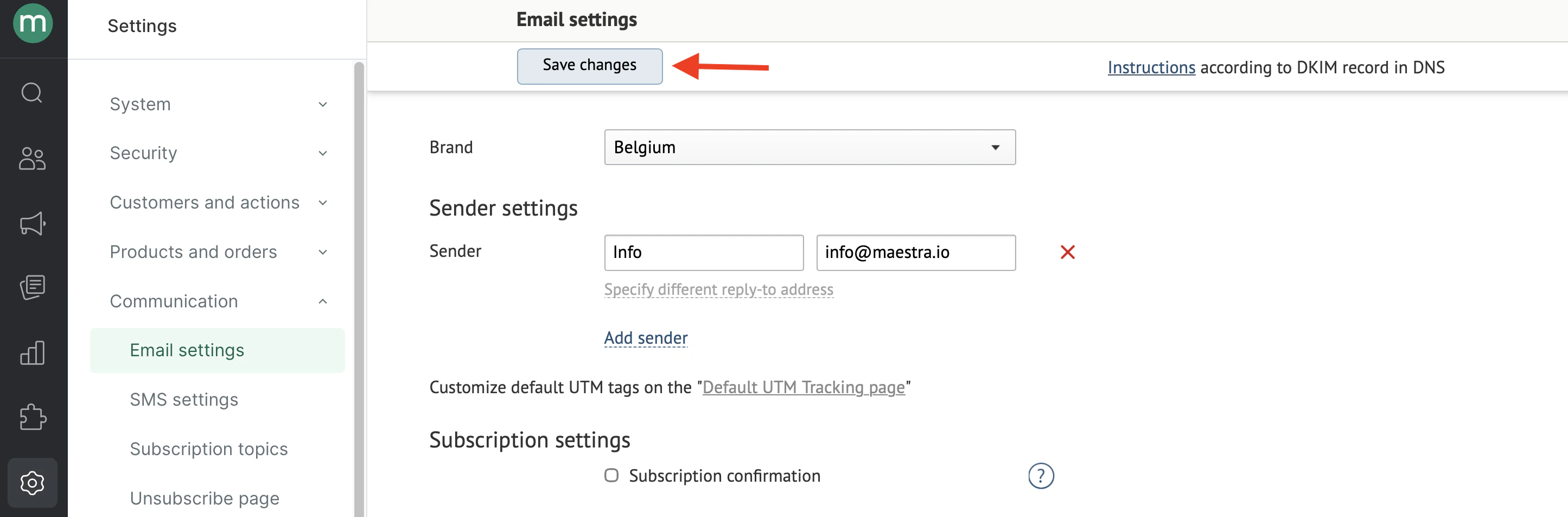
 2. Fill in the fields and click **Save changes**:
 Set up individual [DKIM & DMARC ](/campaigns/email-campaigns/email-authentication-methods/setting-up-dkim-and-dmarc)for each new sending domain or subdomain to ensure your emails are successfully delivered.
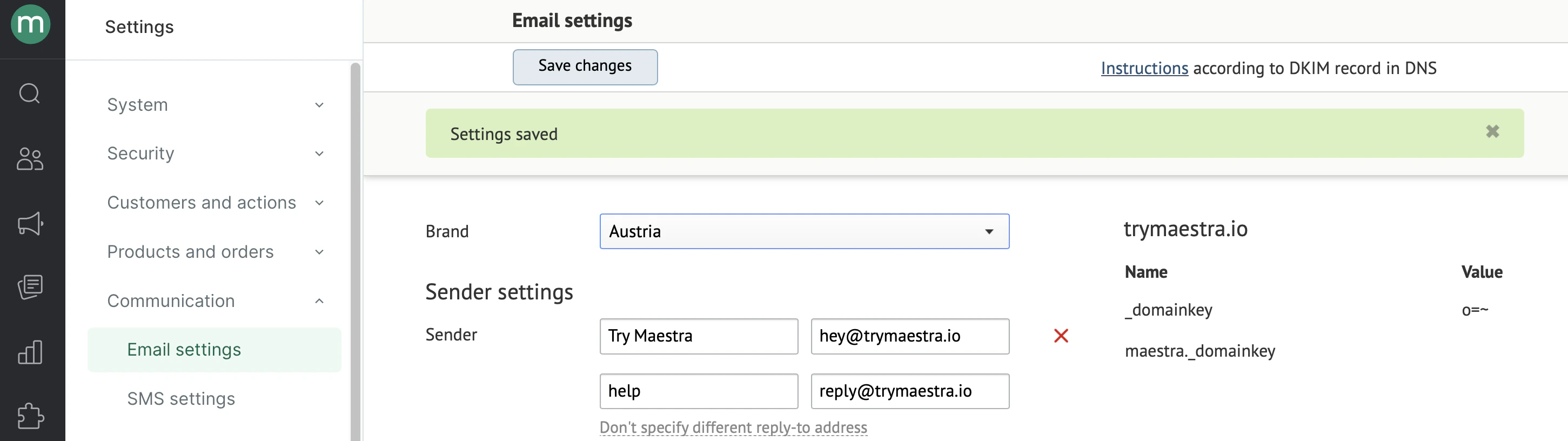
4. If the settings are saved successfully, a message will pop up:
Set up individual [DKIM & DMARC ](/campaigns/email-campaigns/email-authentication-methods/setting-up-dkim-and-dmarc)for each new sending domain or subdomain to ensure your emails are successfully delivered.
4. If the settings are saved successfully, a message will pop up:
 # Supported formats
The email address must comply with [RFC 5321](https://datatracker.ietf.org/doc/html/rfc5321). In less technical terms, it means that all emails must match the following template:
```
`{Latin chars, digits, certain punctuation marks}@{domain}`
```
where the domain consists of one or more sections divided by dots, with each section containing Latin characters, digits, or a hyphen only.
Each domain section must be limited by 61 characters.
An email address must be limited by 254 characters.
In more technical terms, all email addresses must match the following regular expression:
```
`^([\p{L}0-9_\-!#\$%&’\*\+/=\?\^`\{}\|~])+([\.\p{L}0-9_\-!#\$%&’\*\+/=\?\^`\{}\|~])*@([\p{L}0-9]([\p{L}0-9\-]{0,61}[\p{L}0-9])?\.)*[\p{L}0-9]([\p{L}0-9\-]{0,61}[\p{L}0-9])?$`
```
To check whether email addresses comply with the regular expression, refer to [the tester](https://www.freeformatter.com/regex-tester.html).
# How to add a different reply-to address for the sender
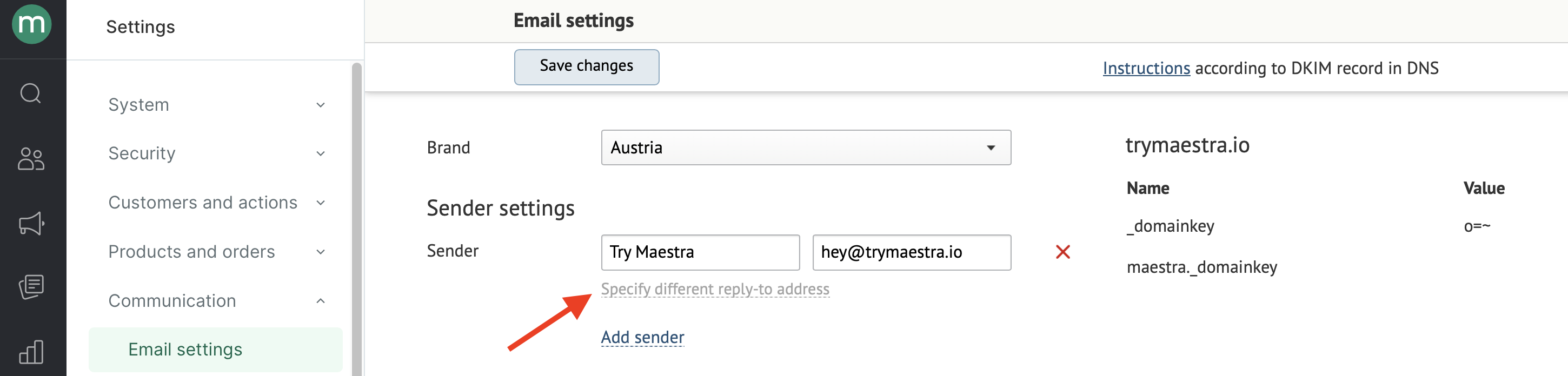
1. Click Specify different reply-to address:
# Supported formats
The email address must comply with [RFC 5321](https://datatracker.ietf.org/doc/html/rfc5321). In less technical terms, it means that all emails must match the following template:
```
`{Latin chars, digits, certain punctuation marks}@{domain}`
```
where the domain consists of one or more sections divided by dots, with each section containing Latin characters, digits, or a hyphen only.
Each domain section must be limited by 61 characters.
An email address must be limited by 254 characters.
In more technical terms, all email addresses must match the following regular expression:
```
`^([\p{L}0-9_\-!#\$%&’\*\+/=\?\^`\{}\|~])+([\.\p{L}0-9_\-!#\$%&’\*\+/=\?\^`\{}\|~])*@([\p{L}0-9]([\p{L}0-9\-]{0,61}[\p{L}0-9])?\.)*[\p{L}0-9]([\p{L}0-9\-]{0,61}[\p{L}0-9])?$`
```
To check whether email addresses comply with the regular expression, refer to [the tester](https://www.freeformatter.com/regex-tester.html).
# How to add a different reply-to address for the sender
1. Click Specify different reply-to address:
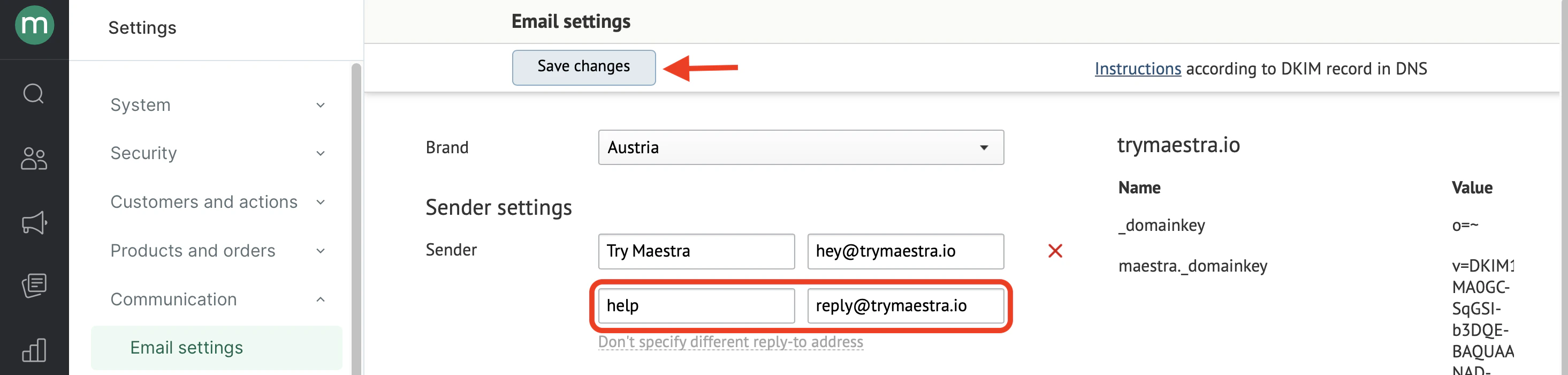
 2. Fill in the fields and click **Save changes**:
 3. If the settings are saved successfully, a message will pop up: