> ## Documentation Index
> Fetch the complete documentation index at: https://help.maestra.io/llms.txt
> Use this file to discover all available pages before exploring further.
# How to Create a Bulk Email Campaign
A **bulk email campaign** is a one-time email sent to a predefined list of recipients.
## How to Create a Bulk Email Campaign
1. Go to **Campaigns** → **Campaign Manager**
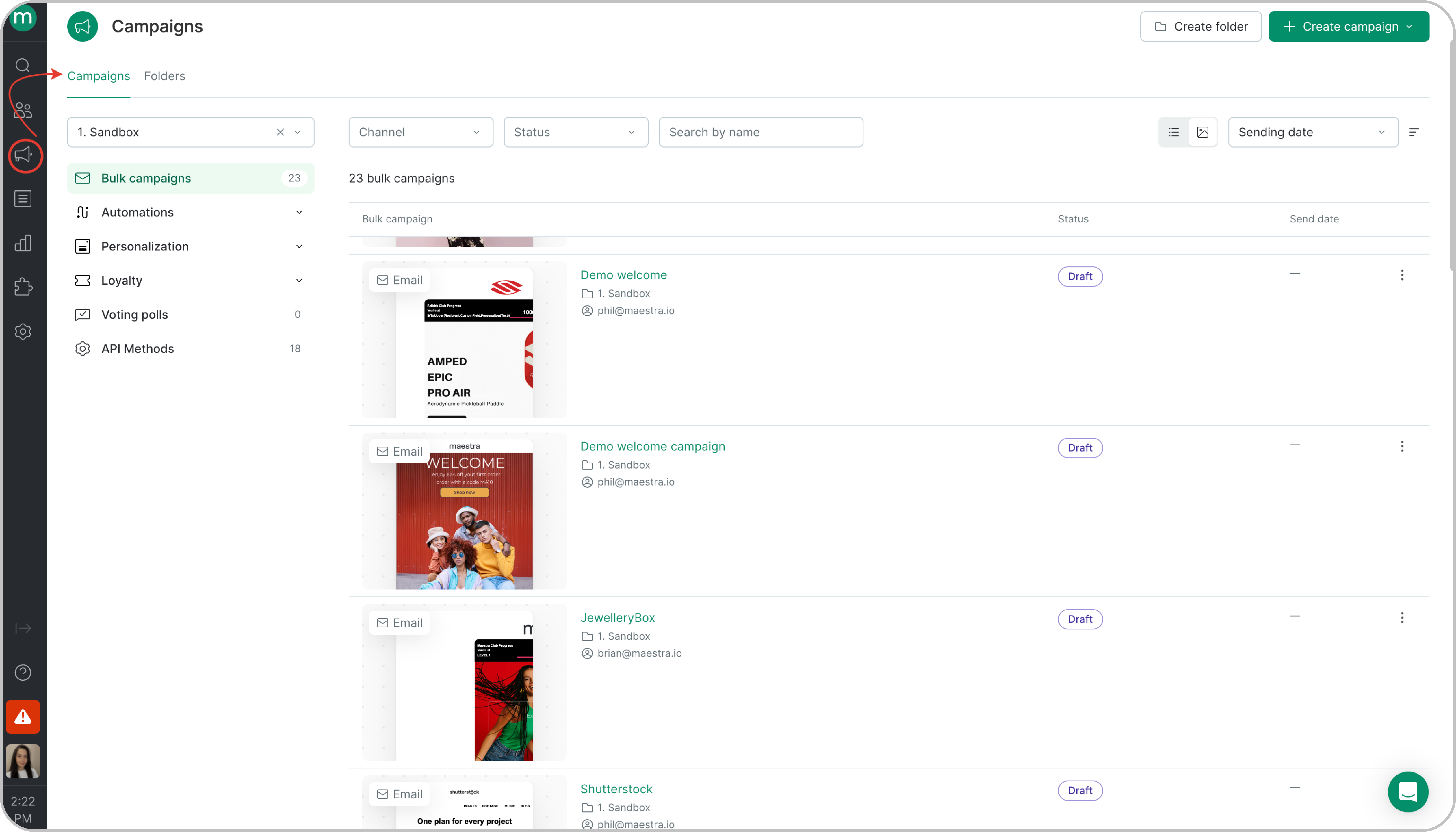 2. Click **Create Campaign** → **Bulk Campaign**.
.png?fit=max&auto=format&n=PP-BodS5bFF14NYd&q=85&s=dfd2f1e5a0d8a7c7eb25d999d46e7880) 3. Choose the channel, assign a folder, and click Create.
3. Choose the channel, assign a folder, and click Create.
.png?fit=max&auto=format&n=PP-BodS5bFF14NYd&q=85&s=4222d2bd01b70b786185e669bd71c898) ## Campaign Settings
### Campaign Name
## Campaign Settings
### Campaign Name
.png?fit=max&auto=format&n=PP-BodS5bFF14NYd&q=85&s=30e899aade4c2747afef80bfc01415f0) * Campaign Name is used to help you locate the campaign among others and manage it in reports, filters, or exports.
* If you use a [utm-tag](#h_6da7478263) with the \$\{Message.MailingUtmName} variable, the campaign name will be included in the tag automatically.
### Campaign
* Campaign Name is used to help you locate the campaign among others and manage it in reports, filters, or exports.
* If you use a [utm-tag](#h_6da7478263) with the \$\{Message.MailingUtmName} variable, the campaign name will be included in the tag automatically.
### Campaign
.png?fit=max&auto=format&n=PP-BodS5bFF14NYd&q=85&s=35499edb866504e81ebb049f20ff9645) * **Subject Line**. Supports [variables](/campaigns/message-template-engine/what-is-the-message-template-engine) and emojis.
* **Preview text**\* Body text – the email client will show the first line of the content;\* Custom – you can enter a custom preview text (supports variables/emojis);\* Blank – the area after the subject will be blank in inbox previews.
* **[Sender](/campaigns/email-campaigns/get-started/how-to-add-senders-email-address)**[ ](/campaigns/email-campaigns/get-started/how-to-add-senders-email-address)- set the name and email address that appear in the recipient’s inbox, indicating who the message is from.
### Choose how to create an email
* **Subject Line**. Supports [variables](/campaigns/message-template-engine/what-is-the-message-template-engine) and emojis.
* **Preview text**\* Body text – the email client will show the first line of the content;\* Custom – you can enter a custom preview text (supports variables/emojis);\* Blank – the area after the subject will be blank in inbox previews.
* **[Sender](/campaigns/email-campaigns/get-started/how-to-add-senders-email-address)**[ ](/campaigns/email-campaigns/get-started/how-to-add-senders-email-address)- set the name and email address that appear in the recipient’s inbox, indicating who the message is from.
### Choose how to create an email
.png?fit=max&auto=format&n=PP-BodS5bFF14NYd&q=85&s=8862987197e0576211d80c6219c4b815) Create your message using one of the following options:
* Maestra Editor – modern drag-and-drop editor;
* HTML Editor – custom HTML code, including manual insertion of [variables](/campaigns/message-template-engine/what-is-the-message-template-engine);
* Legacy editor – earlier version of visual email editor;
* URL – fetch template from a hosted link;
* ZIP – upload a ZIP archive of your template.
Once your template is complete, you can also:
* **Add an AMP version** for interactive elements (e.g. quizzes, surveys).
Create your message using one of the following options:
* Maestra Editor – modern drag-and-drop editor;
* HTML Editor – custom HTML code, including manual insertion of [variables](/campaigns/message-template-engine/what-is-the-message-template-engine);
* Legacy editor – earlier version of visual email editor;
* URL – fetch template from a hosted link;
* ZIP – upload a ZIP archive of your template.
Once your template is complete, you can also:
* **Add an AMP version** for interactive elements (e.g. quizzes, surveys).
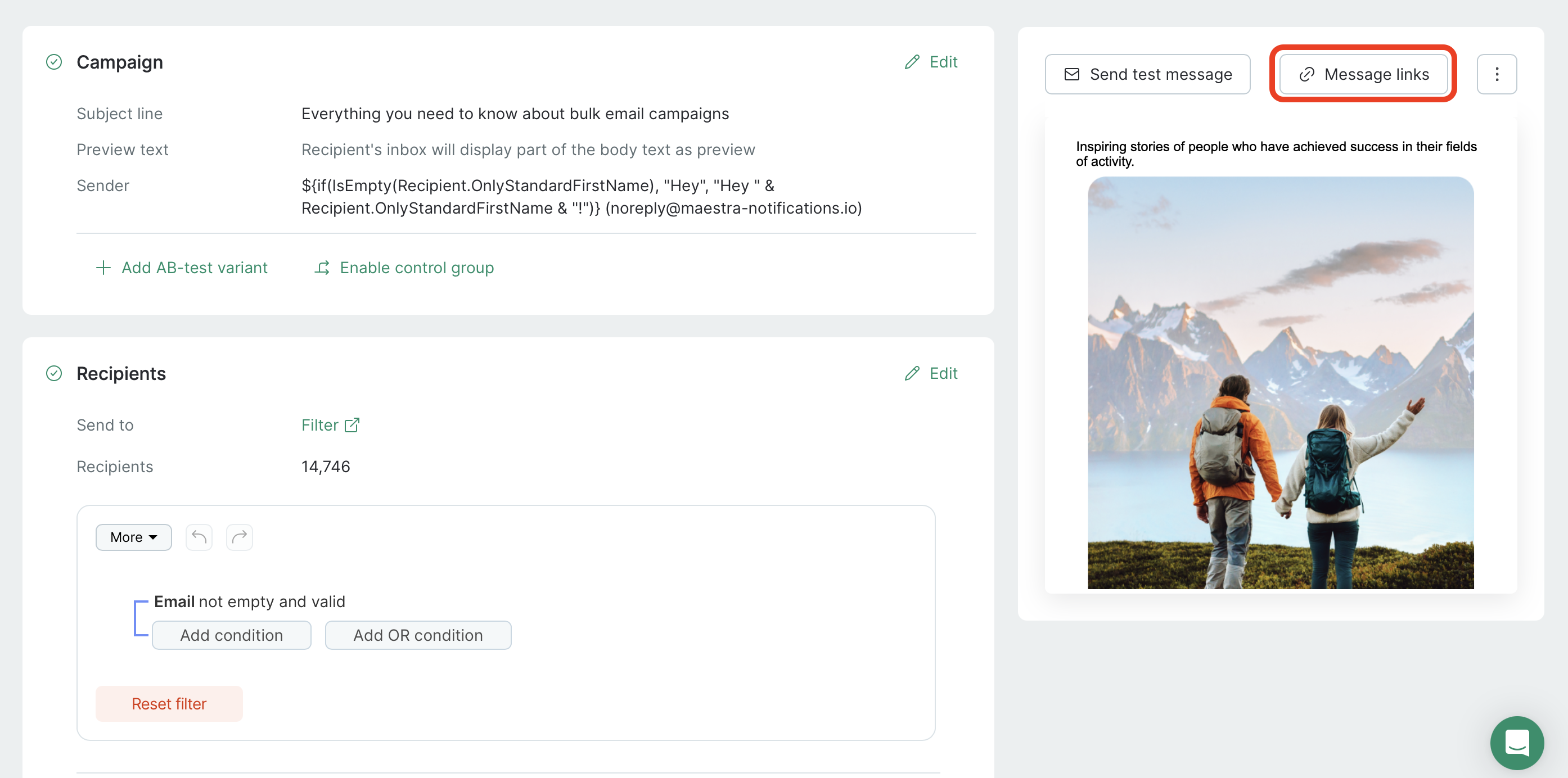
.png?fit=max&auto=format&n=PP-BodS5bFF14NYd&q=85&s=06f59fe8a51aed86714750127e4dfdbb) * Review and edit all **links in the message** and update their type if needed (e.g., when using custom subscription confirmation or unsubscribe links).
* Review and edit all **links in the message** and update their type if needed (e.g., when using custom subscription confirmation or unsubscribe links).
.png?fit=max&auto=format&n=PP-BodS5bFF14NYd&q=85&s=eeece71f9d78ca2066c69fdb257726d1) ## Send Test Message
Once your campaign is ready, you can preview it.
During a test send, the selected customer will receive the message via email.You can only send test emails to customers **that already exist** in your database. To create a new account in the database, please follow the [instructions](/customers-orders-and-products/customers/how-to-add-a-customer-manually-via-the-user-interface).
To send a live test, click “**Send Test Message**”. You can select recipients from the existing list (previously added for testing) or add additional ones using the “**Add Recipient**” button. Then, click “**Send to Selected**.”
## Send Test Message
Once your campaign is ready, you can preview it.
During a test send, the selected customer will receive the message via email.You can only send test emails to customers **that already exist** in your database. To create a new account in the database, please follow the [instructions](/customers-orders-and-products/customers/how-to-add-a-customer-manually-via-the-user-interface).
To send a live test, click “**Send Test Message**”. You can select recipients from the existing list (previously added for testing) or add additional ones using the “**Add Recipient**” button. Then, click “**Send to Selected**.”
.png?fit=max&auto=format&n=PP-BodS5bFF14NYd&q=85&s=da72fb2b8093256e6982f4de3990fd54) Test results are not recorded on the customers card. You can see their statuses in a list by clicking on the link.
Test results are not recorded on the customers card. You can see their statuses in a list by clicking on the link.
.png?fit=max&auto=format&n=PP-BodS5bFF14NYd&q=85&s=8b41c0fff89498cdf0ab63abcd0a16ef) Click Preview to view your message without sending it.
Click Preview to view your message without sending it.
.png?fit=max&auto=format&n=PP-BodS5bFF14NYd&q=85&s=856bae28db0f2943beb879ee1916be4a) ## General Settings
* **Brand** – relevant for multibrand projects.
* **Topic** – allows recipients to flexibly manage their subscriptions and receive communications only on topics they’re interested in.
* **Tags** – use tags to group campaigns by an additional attribute when channel, topic, and folder filters are not sufficient. Filtering campaigns by tags is easy, including within reports.**Campaign profile** – defines who can receive the message and under what rules. Available Profiles:
* **Default** – for marketing messages. Basic recipient checks are applied: \* Valid email adress \* Active email subscription (Subscribed to email channel or selected topic) \* Not part of the global control group (if enabled). Note: this is not the same as the campaign control group. \* Daily communications for the recipient stay within the allowed limit (if Smart Sending limits are enabled).
You can disable these checks using the toggles available in the campaign profile. However, subscription checks can only be bypassed in transactional campaigns, and only for critical service messages that must be delivered to the customer (such as order status updates).
* **Opt-In** – for confirming pending subscriptions. Applies checks for: \* Valid email \* Pending opt-in status for the email channel (or for the selected topic, if the campaign includes one) \* Daily communications for the recipient stay within the allowed limit (if Smart Sending limits are enabled).
You can override Smart Sending using toggle in the profile.
### Recipients
Choose one of the following recipients selection methods:
* **[Segment](/segments/how-to-filter-customers-into-segments)** – pick from prebuilt customer segments
* **[Filter](/filters/how-to-create-filters)** – build custom rules
* **One-time File** – import a list
## General Settings
* **Brand** – relevant for multibrand projects.
* **Topic** – allows recipients to flexibly manage their subscriptions and receive communications only on topics they’re interested in.
* **Tags** – use tags to group campaigns by an additional attribute when channel, topic, and folder filters are not sufficient. Filtering campaigns by tags is easy, including within reports.**Campaign profile** – defines who can receive the message and under what rules. Available Profiles:
* **Default** – for marketing messages. Basic recipient checks are applied: \* Valid email adress \* Active email subscription (Subscribed to email channel or selected topic) \* Not part of the global control group (if enabled). Note: this is not the same as the campaign control group. \* Daily communications for the recipient stay within the allowed limit (if Smart Sending limits are enabled).
You can disable these checks using the toggles available in the campaign profile. However, subscription checks can only be bypassed in transactional campaigns, and only for critical service messages that must be delivered to the customer (such as order status updates).
* **Opt-In** – for confirming pending subscriptions. Applies checks for: \* Valid email \* Pending opt-in status for the email channel (or for the selected topic, if the campaign includes one) \* Daily communications for the recipient stay within the allowed limit (if Smart Sending limits are enabled).
You can override Smart Sending using toggle in the profile.
### Recipients
Choose one of the following recipients selection methods:
* **[Segment](/segments/how-to-filter-customers-into-segments)** – pick from prebuilt customer segments
* **[Filter](/filters/how-to-create-filters)** – build custom rules
* **One-time File** – import a list
.png?fit=max&auto=format&n=PP-BodS5bFF14NYd&q=85&s=a763988b2460218a89f842ca2f985f37) ### UTM Tags
### UTM Tags
.png?fit=max&auto=format&n=PP-BodS5bFF14NYd&q=85&s=426ac88922b7702cceedfc05abca599a) UTMs help attribute traffic and performance to the correct campaign and channel.
You can either:
* Use saved default UTM parameters
* Customize UTMs per campaign
## When Setup Is Complete
### Campaign Readiness Check
Once all required fields are completed — indicated by a green check mark next to each section header — the system automatically changes the campaign status from "Draft" to "Ready to Send."
UTMs help attribute traffic and performance to the correct campaign and channel.
You can either:
* Use saved default UTM parameters
* Customize UTMs per campaign
## When Setup Is Complete
### Campaign Readiness Check
Once all required fields are completed — indicated by a green check mark next to each section header — the system automatically changes the campaign status from "Draft" to "Ready to Send."
.png?fit=max&auto=format&n=PP-BodS5bFF14NYd&q=85&s=4326ebbfa79036f7e6a3deec65a58c1d) ### Schedule or Send Now
### Schedule or Send Now
.png?fit=max&auto=format&n=PP-BodS5bFF14NYd&q=85&s=619c0071f80de37b43410aed2429a833) Pick send time:
* **Send Now** – campaign will begin sending right away and its status will change to "Sending".
* **Schedule** – set a specific future time and date. Until then, the campaign will have the status "Send scheduled". You can edit it during this waiting period — including adjusting the launch time.
Pick send time:
* **Send Now** – campaign will begin sending right away and its status will change to "Sending".
* **Schedule** – set a specific future time and date. Until then, the campaign will have the status "Send scheduled". You can edit it during this waiting period — including adjusting the launch time.
.png?fit=max&auto=format&n=PP-BodS5bFF14NYd&q=85&s=3be49200d12114708dbdc0ab7f675162) Timing and Sending Speed
* **Sending Interval** – limit sending to specific hours (by project or recipient timezone)
* **Sending Speed** – control the sending speed to manage traffic load on your website or call center. The system supports limits from 500 to 2,000,000 emails per hour. When throttling is enabled, you'll see an estimated duration for the full send.
* **How long to retry sending** – define how long a message remains valid (e.g. 3 hours). Example: If the relevance period is 3 hours and the campaign starts at 10:00 AM, no messages will be sent after 1:00 PM, even if delivery failed earlier.
## A/B Testing and Control Groups
**A/B testing** lets you try different subject lines, templates, or sender names to see which version performs best — boosting opens, clicks, and revenue.
Timing and Sending Speed
* **Sending Interval** – limit sending to specific hours (by project or recipient timezone)
* **Sending Speed** – control the sending speed to manage traffic load on your website or call center. The system supports limits from 500 to 2,000,000 emails per hour. When throttling is enabled, you'll see an estimated duration for the full send.
* **How long to retry sending** – define how long a message remains valid (e.g. 3 hours). Example: If the relevance period is 3 hours and the campaign starts at 10:00 AM, no messages will be sent after 1:00 PM, even if delivery failed earlier.
## A/B Testing and Control Groups
**A/B testing** lets you try different subject lines, templates, or sender names to see which version performs best — boosting opens, clicks, and revenue.
.png?fit=max&auto=format&n=PP-BodS5bFF14NYd&q=85&s=7312a848b180bcfe7ac3645d89082f62) **Control Groups** let you exclude part of your audience to see how your campaign really performs by comparing their behavior to those who got the message.
**Control Groups** let you exclude part of your audience to see how your campaign really performs by comparing their behavior to those who got the message.
.png?fit=max&auto=format&n=PP-BodS5bFF14NYd&q=85&s=0894c74cfa80bcf5c84efc97a7b1e6e0) You can run A/B tests and control groups simultaneously.
The following metrics are available for email campaigns:
* **Open rate** — the percentage of customers who opened the campaign during the testing period (does not work with control group).
* **Click rate** — the percentage of customers who clicked at least once during the testing period (available if click tracking is enabled, does not work with control group).
* **Conversion to order** — the percentage of customers who placed at least one order during the testing period. Returns and cancellations are not included.
* **Average order value (AOV)** — total revenue divided by the number of orders during the testing period. Returns and cancellations are not included.
* **Average revenue per user (ARPU)** — total revenue during the testing period divided by the number of participants in the test variant. Returns and cancellations are not included.
You can run A/B tests and control groups simultaneously.
The following metrics are available for email campaigns:
* **Open rate** — the percentage of customers who opened the campaign during the testing period (does not work with control group).
* **Click rate** — the percentage of customers who clicked at least once during the testing period (available if click tracking is enabled, does not work with control group).
* **Conversion to order** — the percentage of customers who placed at least one order during the testing period. Returns and cancellations are not included.
* **Average order value (AOV)** — total revenue divided by the number of orders during the testing period. Returns and cancellations are not included.
* **Average revenue per user (ARPU)** — total revenue during the testing period divided by the number of participants in the test variant. Returns and cancellations are not included.
.png?fit=max&auto=format&n=PP-BodS5bFF14NYd&q=85&s=bc0427b81e0963a4b597ef888c922f9c) As soon as you add an A/B test, a control group, or both, it is automatically created in the corresponding section. You can view the test results in the report available there.
As soon as you add an A/B test, a control group, or both, it is automatically created in the corresponding section. You can view the test results in the report available there.
.png?fit=max&auto=format&n=PP-BodS5bFF14NYd&q=85&s=55d6c9ef756a8973ea045610fce6c415) ## Once Your Campaign Is Sent
### Filters
Each campaign generates statuses like Sent, Opened, Clicked, or Unsubscribed. Some statuses are assigned automatically when the campaign is sent (e.g., Sent), while others appear in the customer’s activity feed only if they’ve interacted with the message (e.g. Opened, Clicked, or Unsubscribed).
## Once Your Campaign Is Sent
### Filters
Each campaign generates statuses like Sent, Opened, Clicked, or Unsubscribed. Some statuses are assigned automatically when the campaign is sent (e.g., Sent), while others appear in the customer’s activity feed only if they’ve interacted with the message (e.g. Opened, Clicked, or Unsubscribed).
.png?fit=max&auto=format&n=PP-BodS5bFF14NYd&q=85&s=c0d3a9aeb46da7d55f3a13ccfe1b1ed3) You can use these statuses to create filters:Customers who interacted with the email campaign
You can use these statuses to create filters:Customers who interacted with the email campaign
.png?fit=max&auto=format&n=PP-BodS5bFF14NYd&q=85&s=0ec84db633ff34457bd6027c9d2b8bf2)
.png?fit=max&auto=format&n=05-EV9YqA_RINTJ8&q=85&s=4810fa731c7605814fc4d9c324b540b7) * Campaign statuses
* Campaign statuses
.png?fit=max&auto=format&n=PP-BodS5bFF14NYd&q=85&s=efa6f98a2b508b6b14e3131ef09a27b3)
.png?fit=max&auto=format&n=PP-BodS5bFF14NYd&q=85&s=7079709defb3bc5d2ee794fac47246ba) ## Reports
## After the campaign is sent, detailed reports become available:
### Performance metrics
##
## Reports
## After the campaign is sent, detailed reports become available:
### Performance metrics
## .png?fit=max&auto=format&n=05-EV9YqA_RINTJ8&q=85&s=44b6196a9fc94dad5e6189c8777f9066) ### Heatmaps
##
### Heatmaps
## .png?fit=max&auto=format&n=PP-BodS5bFF14NYd&q=85&s=5baaa79d370d9afa556447081478e767) ### Campaigns report
### Campaigns report
.png?fit=max&auto=format&n=PP-BodS5bFF14NYd&q=85&s=81f7dee1efab97ab84aa43a5e7b38c9b)