> ## Documentation Index
> Fetch the complete documentation index at: https://help.maestra.io/llms.txt
> Use this file to discover all available pages before exploring further.
# How to Send a Campaign with an Attachment
You can send an email campaign with a file attached by calling an API operation.
Here's how it works:
1. You upload the file to the server, which returns a unique identifier for it.
2. You send the campaign through an operation, passing that identifier in the call. The file is attached to the email.
Here's a closer look at each step.
## 1. Upload the attachment to the server
The upload uses the [standard file upload method](https://developers.maestra.io/docs/upload-attachments-for-emails). This section walks through doing it yourself in Postman.
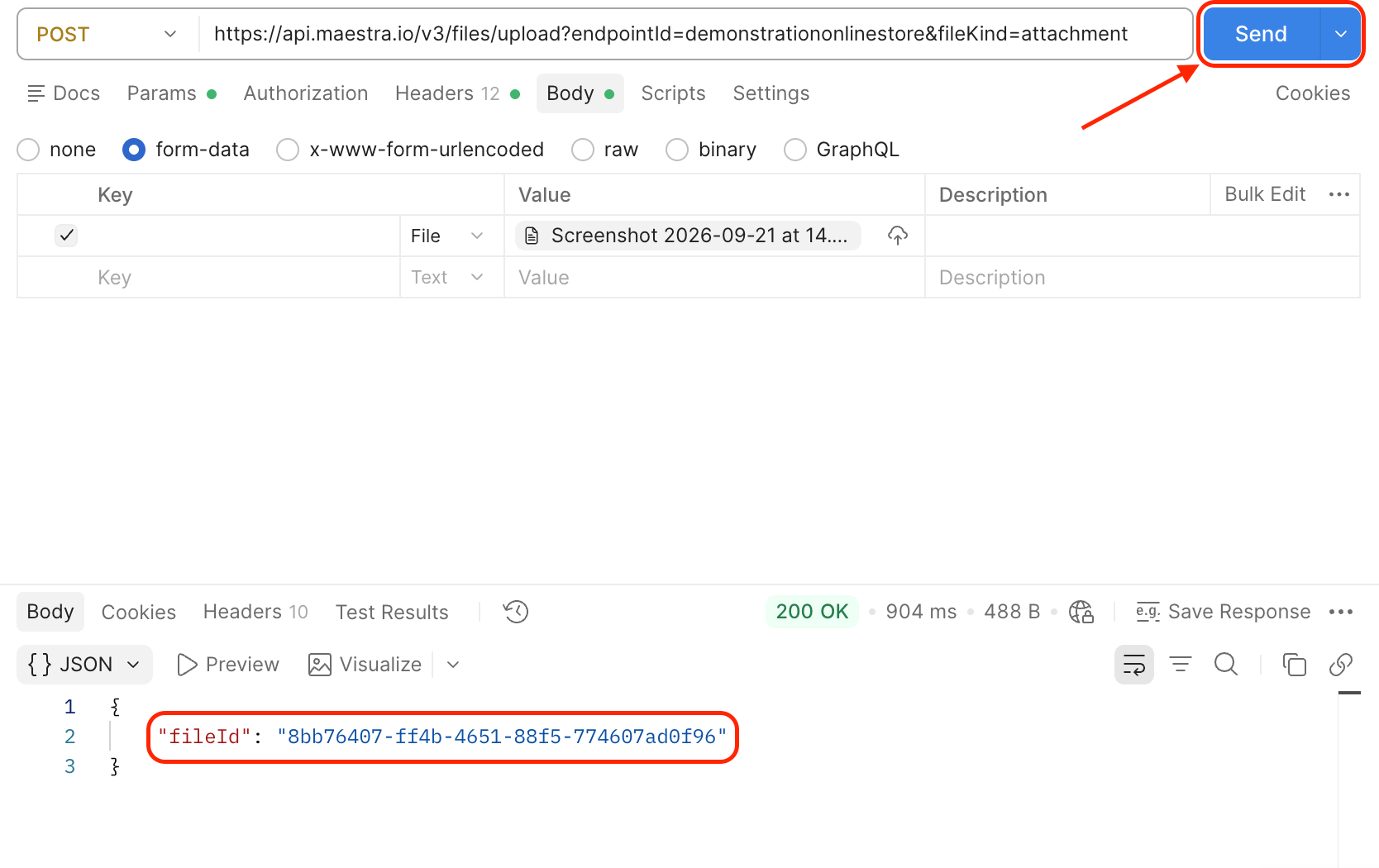
Select the **POST** method, then build the request URL for your account.
The general form of the URL:
```
https://api.maestra.io/v3/files/upload?endpointId={integration point system name}&fileKind=attachment
```
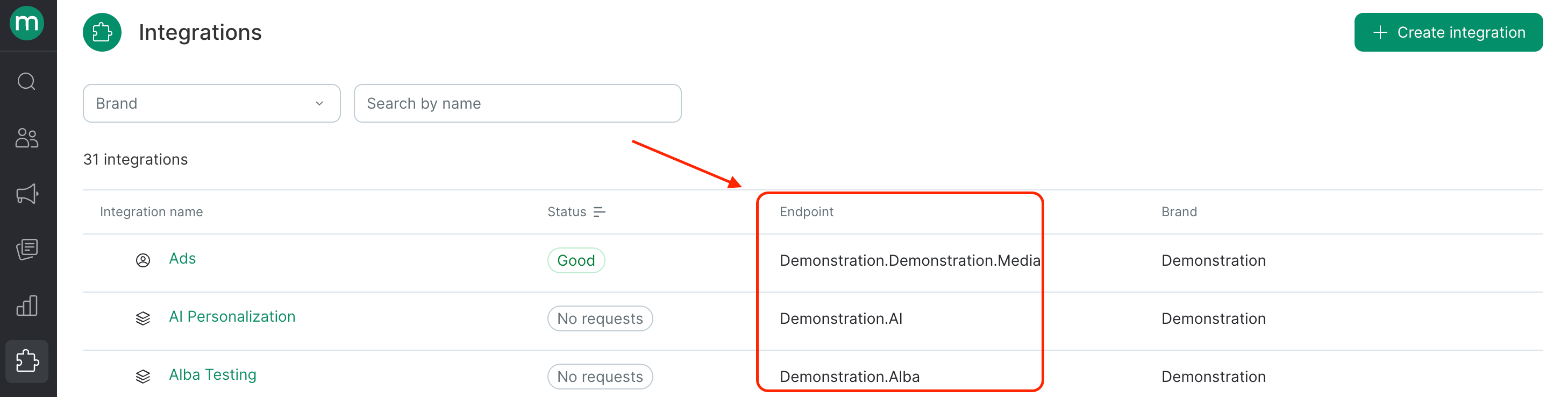
One part needs editing: after the `=` sign in `endpointId`, put the system name of the integration point the operation will be called through.
You can use any integration point from the **Integrations** section. The system name is in the **Endpoint** column.
 A finished URL looks like this:
```
https://api.maestra.io/v3/files/upload?endpointId=demo.Website&fileKind=attachment
```
Copy the headers below into the **Headers** tab. This operation requires a secret key — replace `{Secret key}` with the secret key of the integration point you specified in `endpointId`.
```
Accept: application/json
Content-Type: multipart/form-data
Authorization: SecretKey {Secret key}
```
A finished URL looks like this:
```
https://api.maestra.io/v3/files/upload?endpointId=demo.Website&fileKind=attachment
```
Copy the headers below into the **Headers** tab. This operation requires a secret key — replace `{Secret key}` with the secret key of the integration point you specified in `endpointId`.
```
Accept: application/json
Content-Type: multipart/form-data
Authorization: SecretKey {Secret key}
```
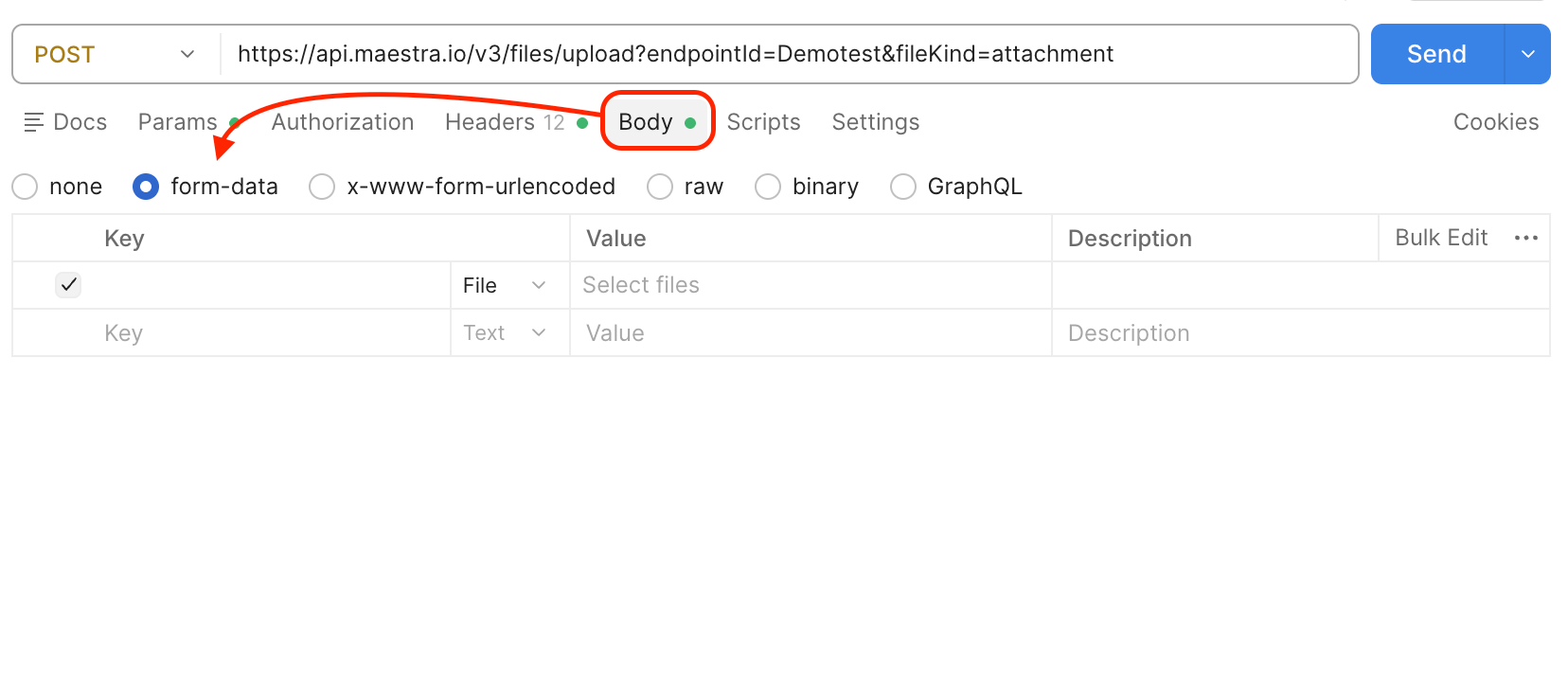
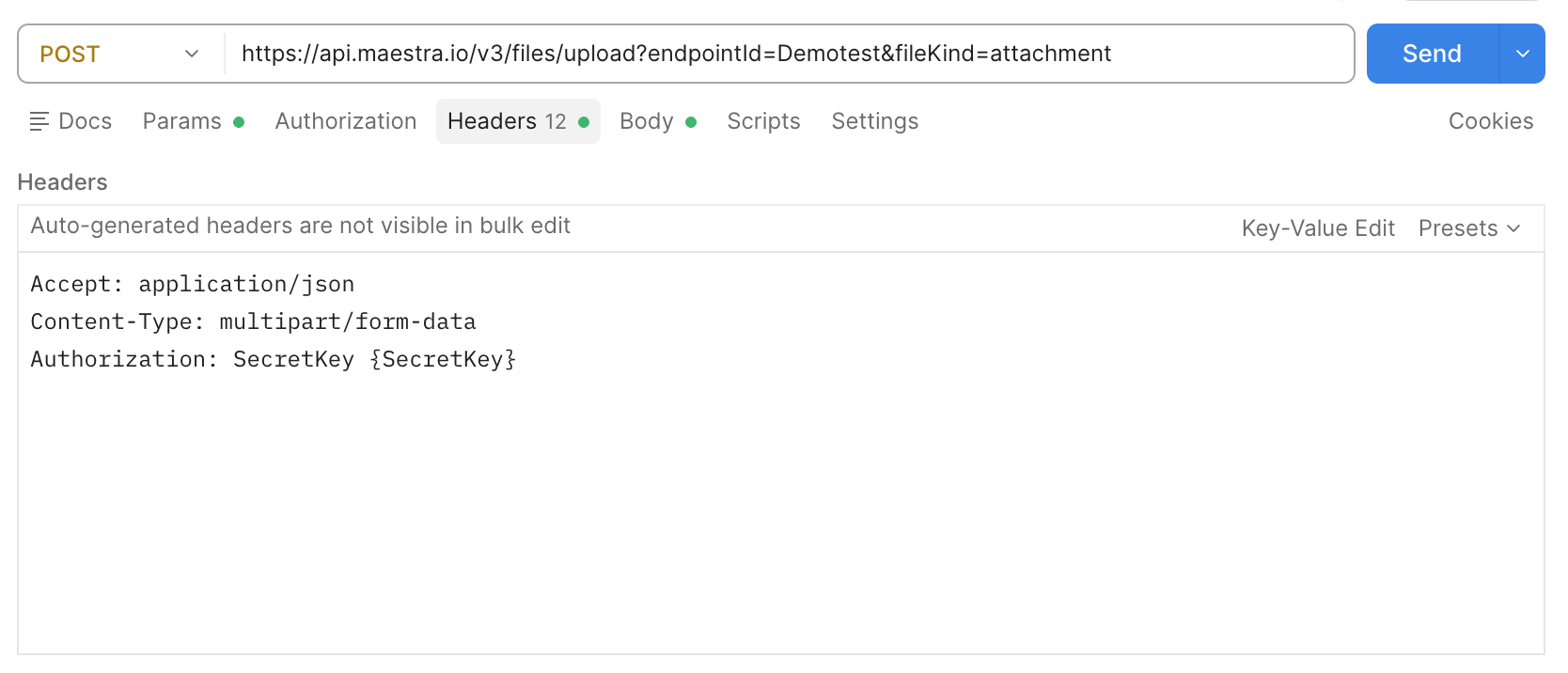 Go to the **Body** tab and select **form-data**.
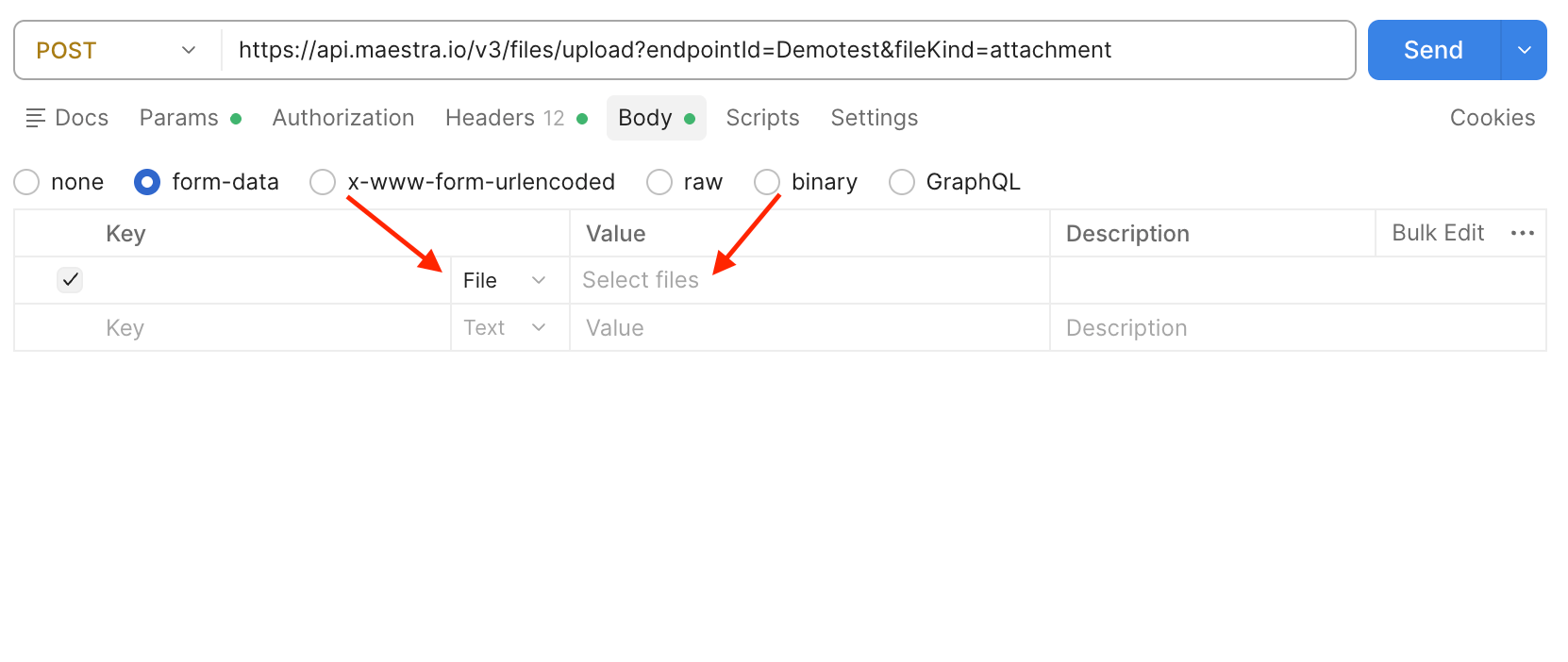
 Choose **File** in the **Key** field, then click **Select files** in the **Value** field. In the file picker, select the file you want to attach to the campaign.
 Click **Send** and copy the `fileId` value from the response.
 ## 2. Create an automated email campaign
Follow the steps in [How to Create Automated Email Campaign](/campaigns/email-campaigns/how-to-create-automated-email-campaign).
## 3. Add an operation with a step that sends the campaign
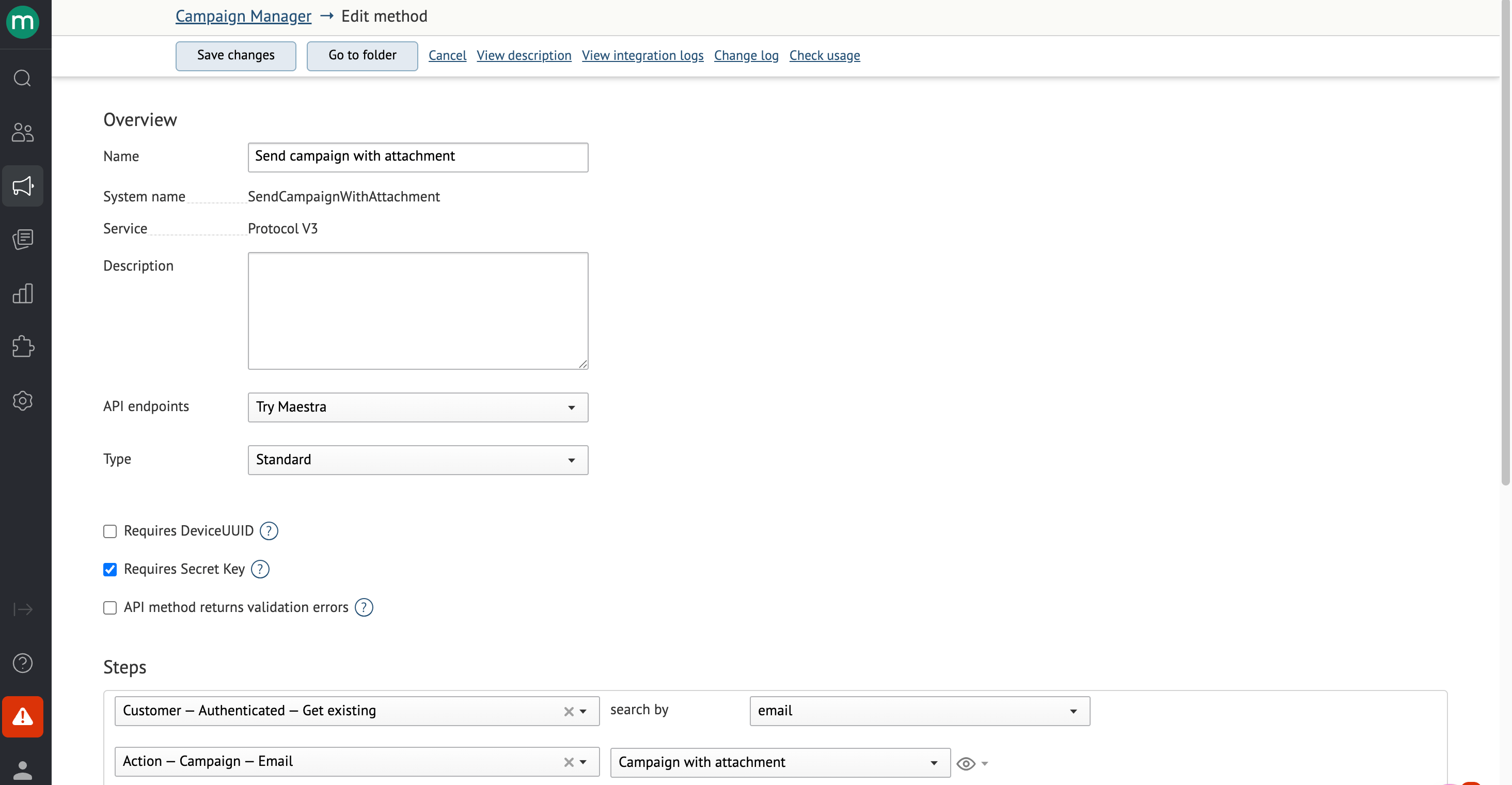
Create the operation as described in [API v3 Methods: Basics](/api-integrations/api-v3-methods-basics).
Example of an operation:
## 2. Create an automated email campaign
Follow the steps in [How to Create Automated Email Campaign](/campaigns/email-campaigns/how-to-create-automated-email-campaign).
## 3. Add an operation with a step that sends the campaign
Create the operation as described in [API v3 Methods: Basics](/api-integrations/api-v3-methods-basics).
Example of an operation:
 ### Build the call
Open the operation description. When an operation uses the **Send Email** step, its request specification gains a contract for attaching a file:
* `fileId` — the file identifier you got in step 1.
* `fileName` — the name the file will have in the sent email.
Both fields are required to send an attachment.
### Build the call
Open the operation description. When an operation uses the **Send Email** step, its request specification gains a contract for attaching a file:
* `fileId` — the file identifier you got in step 1.
* `fileName` — the name the file will have in the sent email.
Both fields are required to send an attachment.
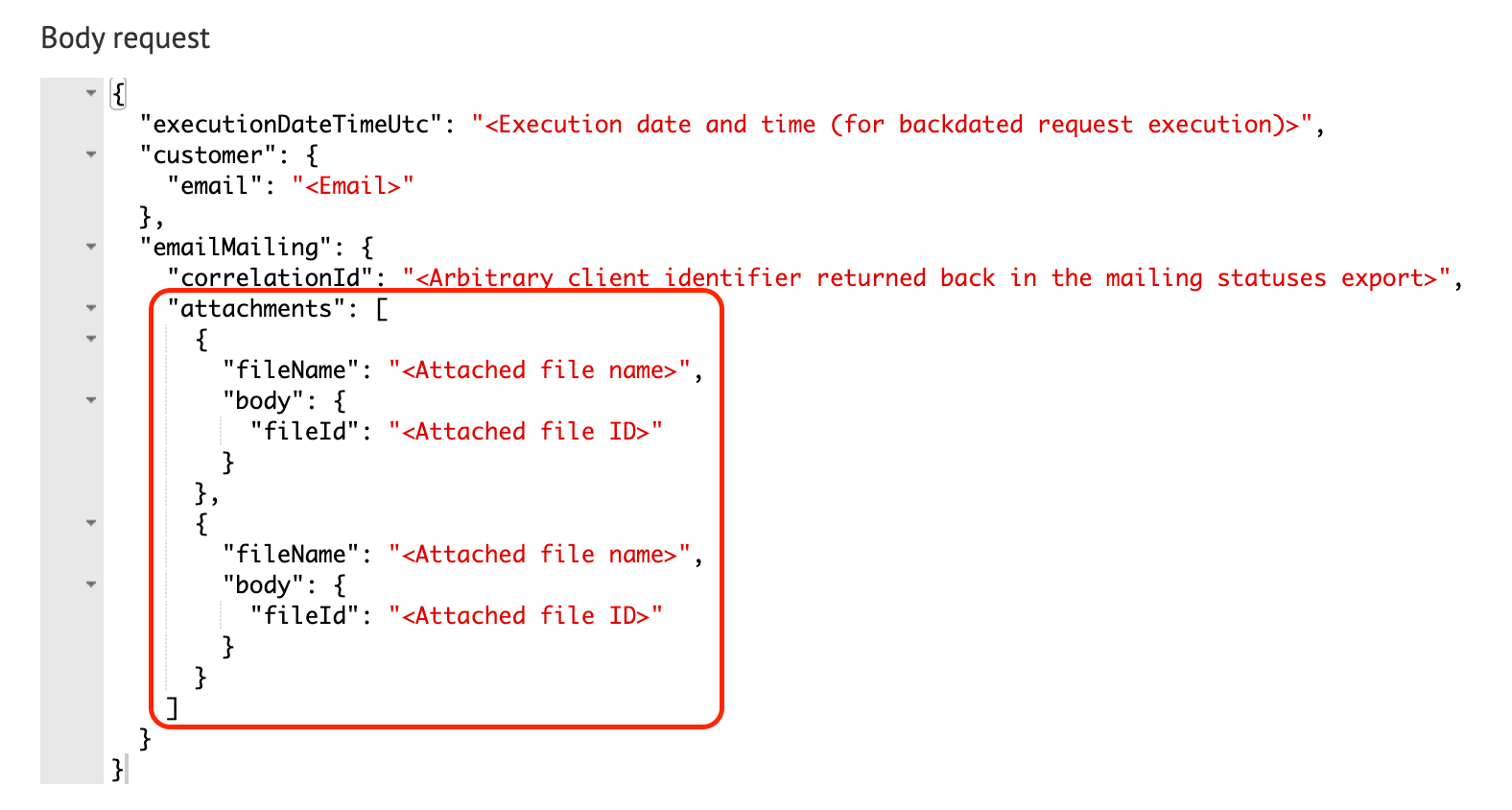 Example request body:
```json theme={null}
{
"customer": {
"email": "test@example.com"
},
"emailMailing": {
"attachments": [
{
"fileName": "Invoice",
"body": {
"fileId": "4d238d4e-20a8-4a44-9388-b16bf206978a"
}
}
]
}
}
```
## FAQ
These formats are supported:
```
application/msword
application/pdf
application/rtf
application/vnd.ms-excel
application/vnd.ms-powerpoint
application/vnd.oasis.opendocument.graphics
application/vnd.oasis.opendocument.presentation
application/vnd.oasis.opendocument.spreadsheet
application/vnd.oasis.opendocument.text
application/vnd.openxmlformats-officedocument.presentationml.presentation
application/vnd.openxmlformats-officedocument.spreadsheetml.sheet
application/vnd.openxmlformats-officedocument.wordprocessingml.document
application/x-7z-compressed
application/x-rar-compressed
application/zip
image/gif
image/jpeg
image/pjpeg
image/png
image/svg+xml
image/tiff
image/vnd.microsoft.icon
text/calendar
text/html
text/plain
video/mp4
video/mpeg
```
The maximum size of an email including all its attachments is 25 MB.
No. You can attach any number of files.
You can't view attachments from the account interface. To check one, forward the email to yourself from the customer profile.
Example request body:
```json theme={null}
{
"customer": {
"email": "test@example.com"
},
"emailMailing": {
"attachments": [
{
"fileName": "Invoice",
"body": {
"fileId": "4d238d4e-20a8-4a44-9388-b16bf206978a"
}
}
]
}
}
```
## FAQ
These formats are supported:
```
application/msword
application/pdf
application/rtf
application/vnd.ms-excel
application/vnd.ms-powerpoint
application/vnd.oasis.opendocument.graphics
application/vnd.oasis.opendocument.presentation
application/vnd.oasis.opendocument.spreadsheet
application/vnd.oasis.opendocument.text
application/vnd.openxmlformats-officedocument.presentationml.presentation
application/vnd.openxmlformats-officedocument.spreadsheetml.sheet
application/vnd.openxmlformats-officedocument.wordprocessingml.document
application/x-7z-compressed
application/x-rar-compressed
application/zip
image/gif
image/jpeg
image/pjpeg
image/png
image/svg+xml
image/tiff
image/vnd.microsoft.icon
text/calendar
text/html
text/plain
video/mp4
video/mpeg
```
The maximum size of an email including all its attachments is 25 MB.
No. You can attach any number of files.
You can't view attachments from the account interface. To check one, forward the email to yourself from the customer profile.
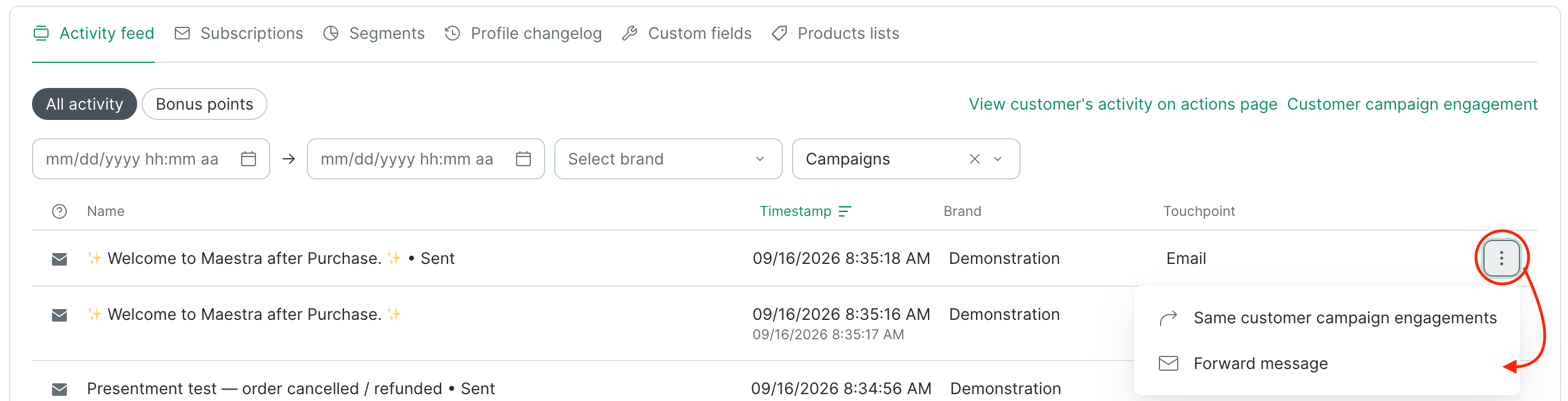 Forwarding a campaign with an attachment requires the `Forwarding email attachments` permission. Out of the box only the **Owners** group has it, and it [can be granted to others](/administration/staff/how-to-extend-staff-permissions). If a user doesn't have it, the email is forwarded without the attachment.