> ## Documentation Index
> Fetch the complete documentation index at: https://help.maestra.io/llms.txt
> Use this file to discover all available pages before exploring further.
# How to Create a Bulk SMS Campaign
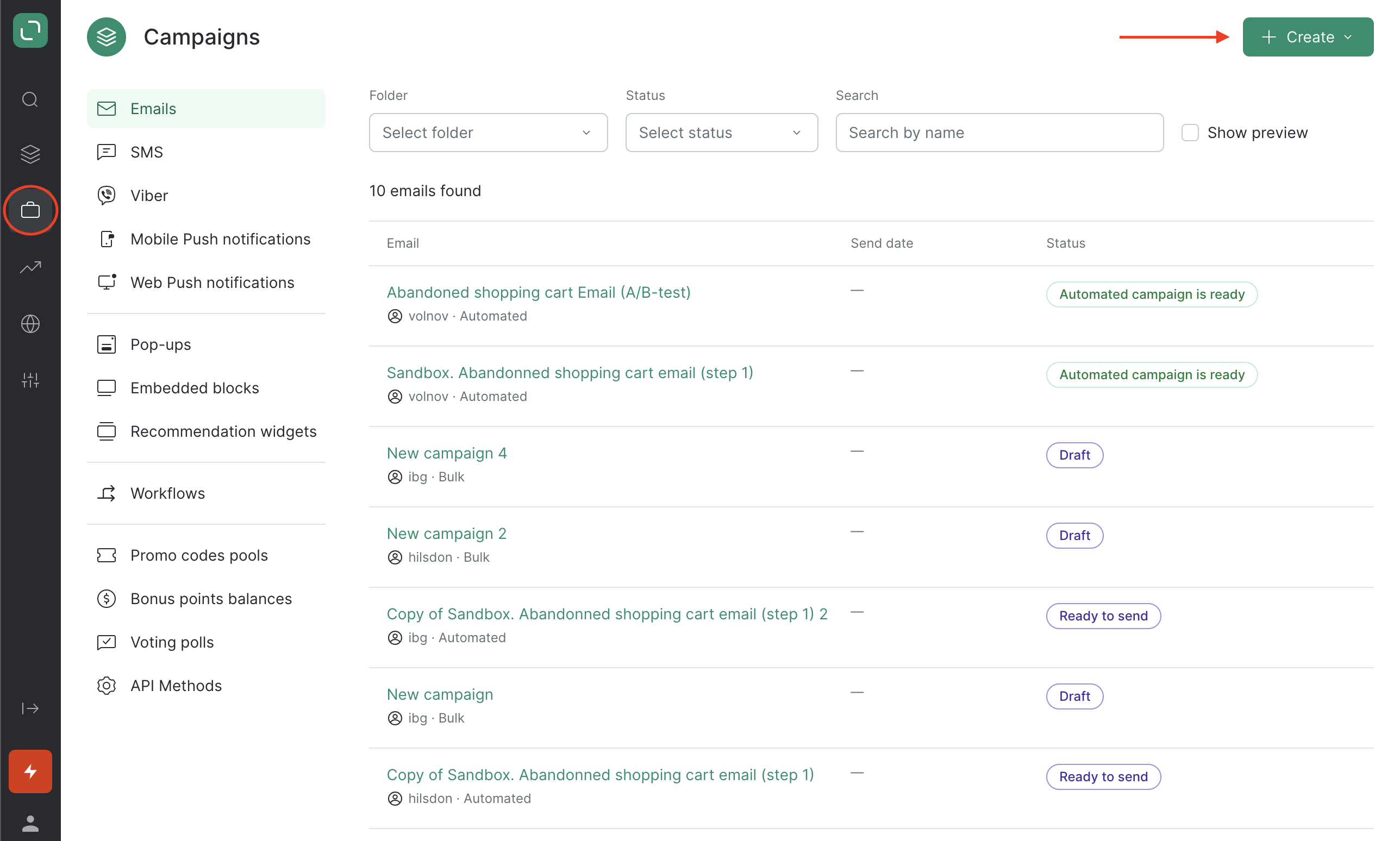
1. Go to **Campaigns** and click **Create**:
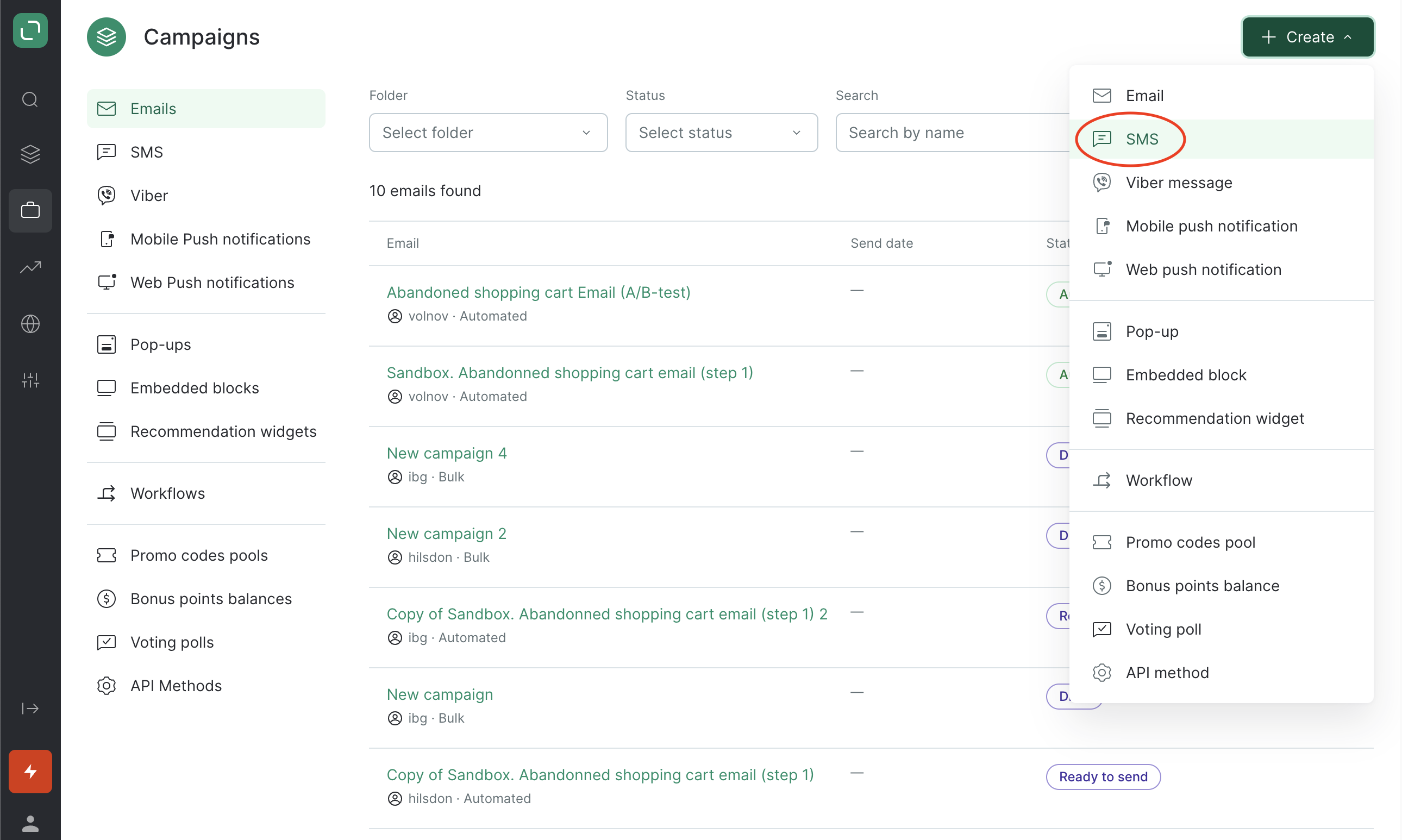
 2. Select the **SMS** channel:
 3. Select the **bulk** type and the folder, where your campaign will be created:
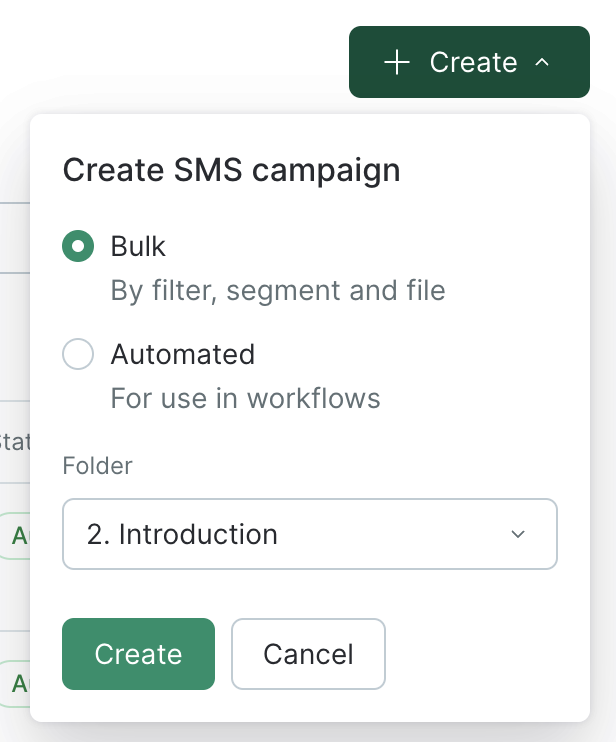 If you don’t yet have any folders, create a new one.
4. Enter a title for your campaign:
If you don’t yet have any folders, create a new one.
4. Enter a title for your campaign:
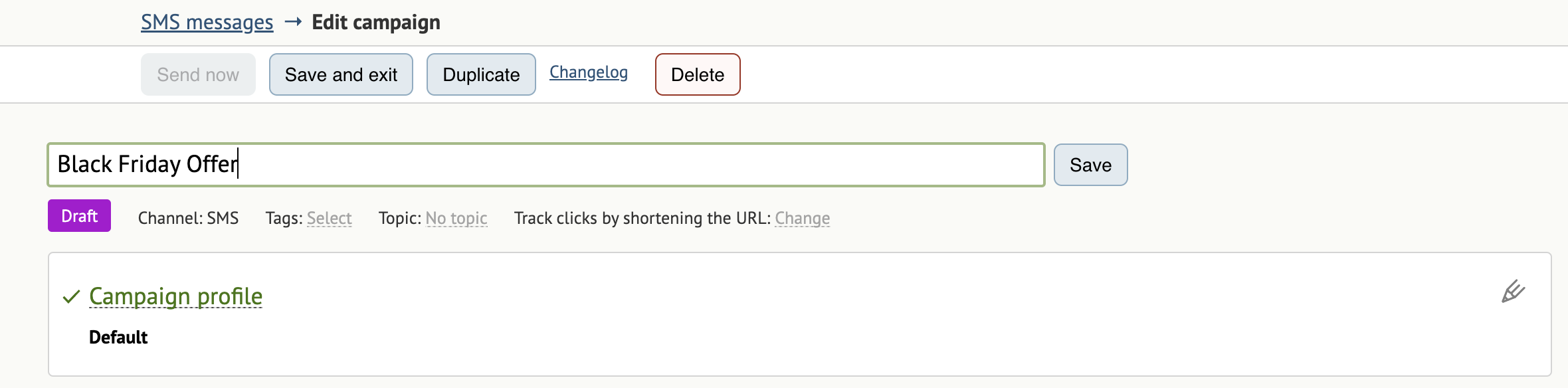 You’ll then be able to use this title to generate reports, create filters, or find your campaign in the system
5. You can also select a **Topic**:
You’ll then be able to use this title to generate reports, create filters, or find your campaign in the system
5. You can also select a **Topic**:
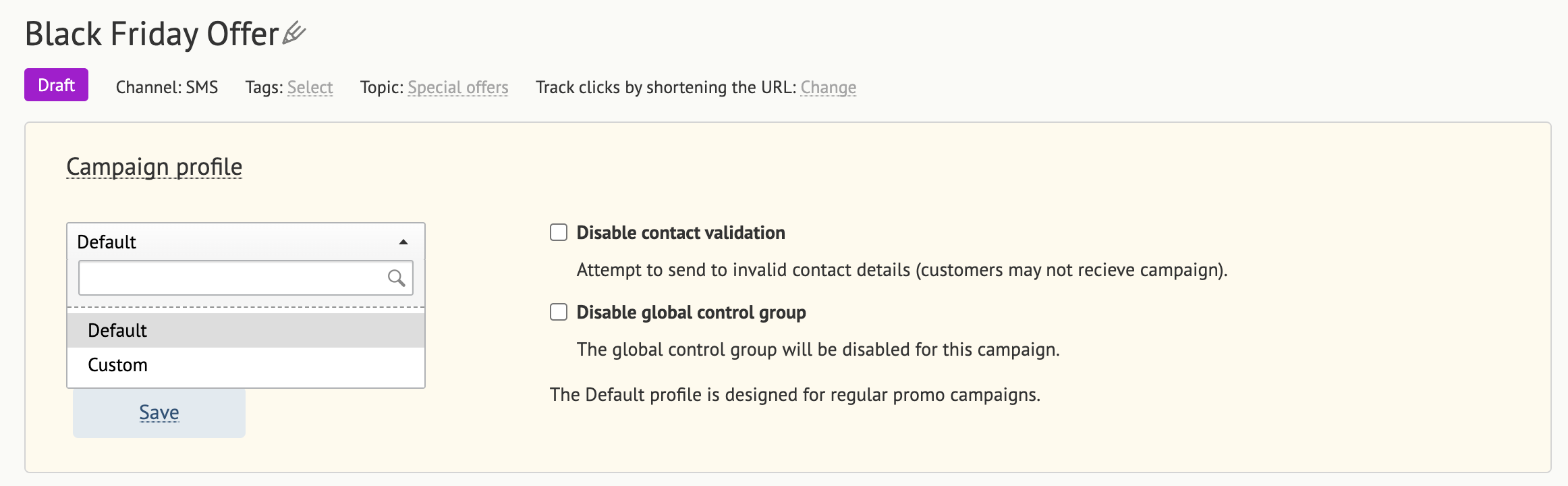
 6. Set up the **Campaign profile**.
When you select a campaign profile, you can specify if you would like to **Disable contact validation**, **Disable global control group** (if available), or specify **Campaign frequency control** (if this is available in your project).
Each profile setting is described on the setup pane:
6. Set up the **Campaign profile**.
When you select a campaign profile, you can specify if you would like to **Disable contact validation**, **Disable global control group** (if available), or specify **Campaign frequency control** (if this is available in your project).
Each profile setting is described on the setup pane:
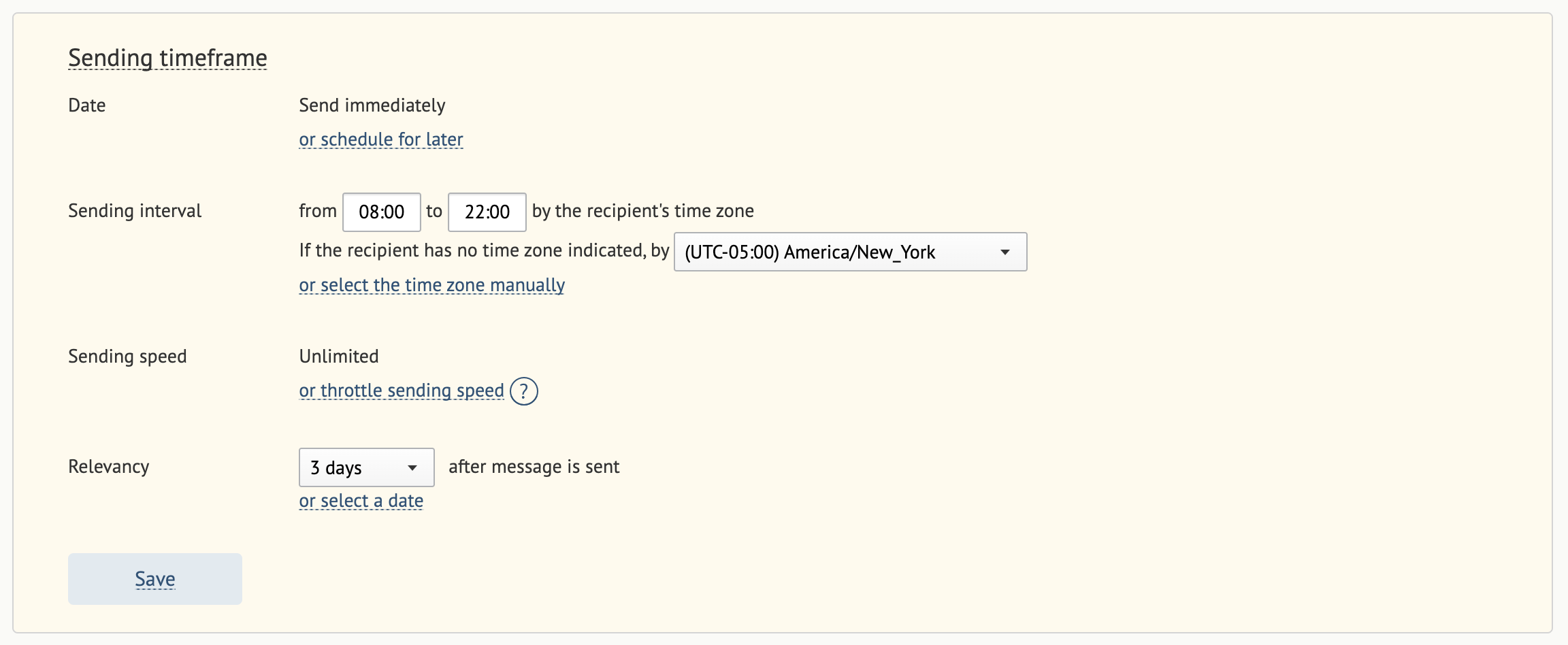
 7. Fill in the fields in the **Sending timeframe section**.
Use the **Date** to specify when the campaign will begin sending: immediately after saving or according to a schedule.
The **Sending interval** is the interval in which your customers will receive the message. Note that their time zones will be taken into account. If you set only the sending hours, messages will be sent immediately (as quickly as possible).
**Sending speed** is unlimited by default. You can throttle sending speed as necessary. The average rate is 100,000 SMS messages per hour and the maximum speed is 250,000 SMS messages per hour, depending on your provider. The messages will be distributed evenly over an hour.
**Relevancy** is the timeframe in which your bulk campaign is valid. Specify an interval (for example, 3 days from the time the message was sent) or a date (for example, until 01/07/2023 00:00 (UTC-05:00) America/New York).
7. Fill in the fields in the **Sending timeframe section**.
Use the **Date** to specify when the campaign will begin sending: immediately after saving or according to a schedule.
The **Sending interval** is the interval in which your customers will receive the message. Note that their time zones will be taken into account. If you set only the sending hours, messages will be sent immediately (as quickly as possible).
**Sending speed** is unlimited by default. You can throttle sending speed as necessary. The average rate is 100,000 SMS messages per hour and the maximum speed is 250,000 SMS messages per hour, depending on your provider. The messages will be distributed evenly over an hour.
**Relevancy** is the timeframe in which your bulk campaign is valid. Specify an interval (for example, 3 days from the time the message was sent) or a date (for example, until 01/07/2023 00:00 (UTC-05:00) America/New York).
 8. If you have URLs in your message, use the following feature to shorten them:
 [How to Shorten URLs](https://intercom.help/maestraio/en/articles/11898656-short-urls-in-sms-campaigns)
Enabling this function allows you to collect statistics on clicks and orders from SMS. If the function is disabled, the number of clicks and orders from the SMS campaign will always be 0.
9. Select the **Sender**:
[How to Shorten URLs](https://intercom.help/maestraio/en/articles/11898656-short-urls-in-sms-campaigns)
Enabling this function allows you to collect statistics on clicks and orders from SMS. If the function is disabled, the number of clicks and orders from the SMS campaign will always be 0.
9. Select the **Sender**:
 Please note: the sender’s name must be registered with a mobile operator
10. Enter your message:
Please note: the sender’s name must be registered with a mobile operator
10. Enter your message:
 In the U.S. and Canada, text messages are limited to 160 characters (including spaces and punctuation marks).
11. Once finished, click **Save**.
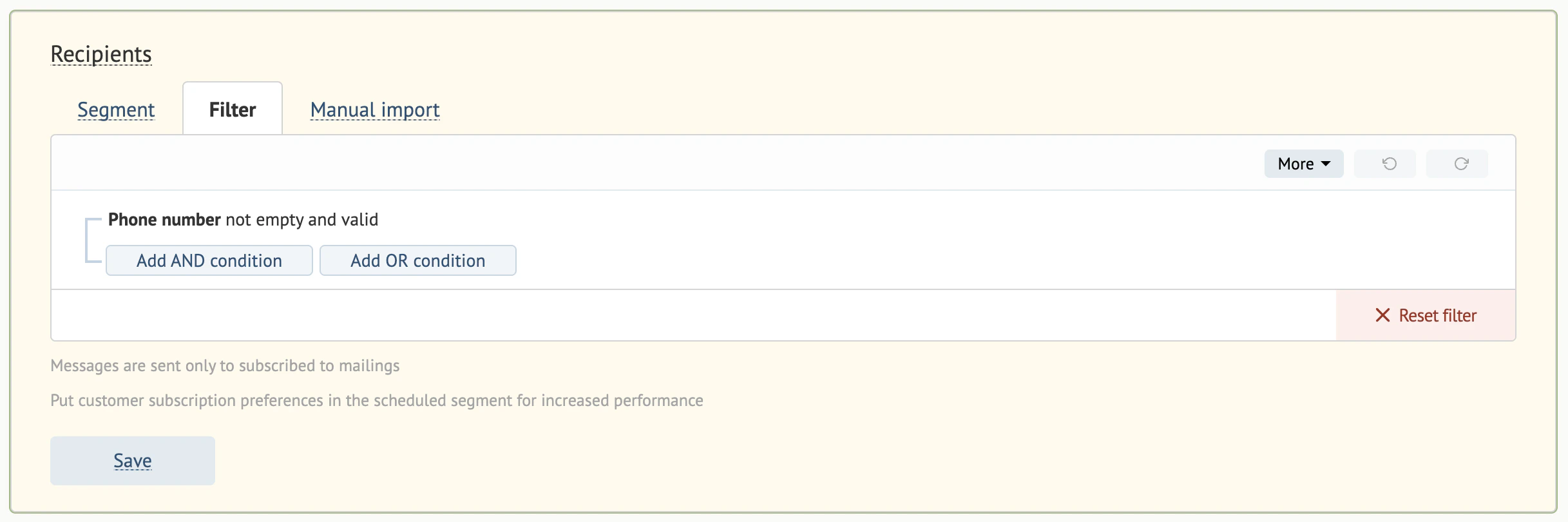
12. Specify your recipients: select a [customer segment](/segments/how-to-filter-customers-into-segments), create a filter, or upload a file for [manual import:](/campaigns/common-settings/how-to-use-manual-import-in-emails)
In the U.S. and Canada, text messages are limited to 160 characters (including spaces and punctuation marks).
11. Once finished, click **Save**.
12. Specify your recipients: select a [customer segment](/segments/how-to-filter-customers-into-segments), create a filter, or upload a file for [manual import:](/campaigns/common-settings/how-to-use-manual-import-in-emails)
 13. Send a test message to check that you’ve set everything up correctly:
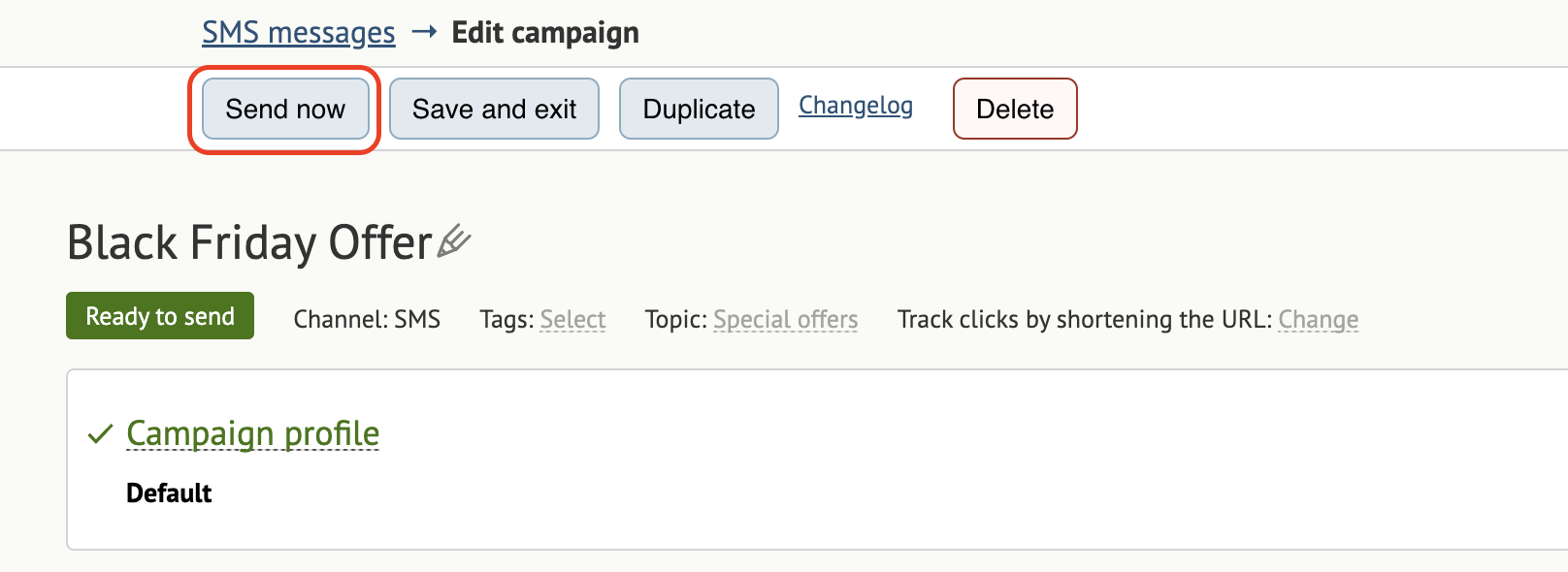
 14. When you’re ready, click **Send now**:
 ### Scheduled sending
If you schedule your message for a later date/time, its status switches to **Sending scheduled**.
Please note that once you click **Send now,** the system will launch your campaign immediately. You need to click **Save and exit** to launch your campaign later.
You can also apply the following actions to a campaign:
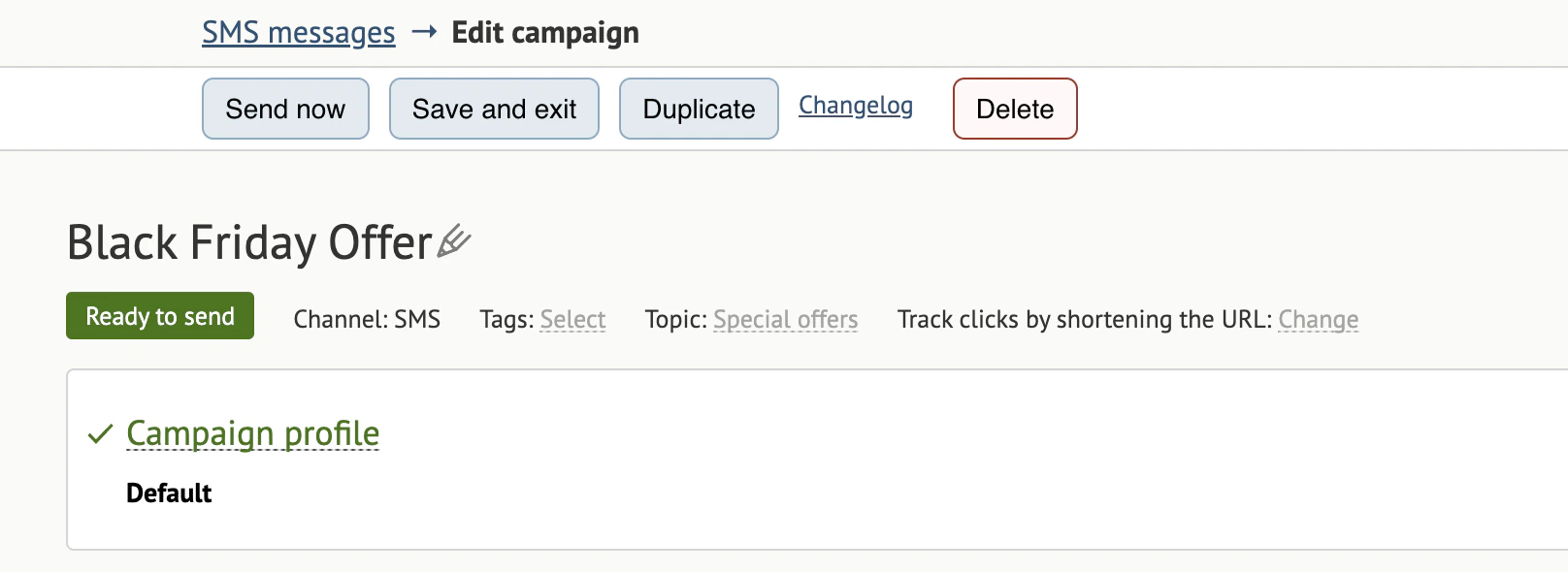
* **Save and exit** — nothing happens, changes will be saved and you will end up on the bulk campaign tab on the Campaigns page.
* **Duplicate** — a new copy of the campaign will be created.
* **Changelog** — view a history of edits/ changes made to the campaign.
* **Delete** — this campaign will be deleted.
### Scheduled sending
If you schedule your message for a later date/time, its status switches to **Sending scheduled**.
Please note that once you click **Send now,** the system will launch your campaign immediately. You need to click **Save and exit** to launch your campaign later.
You can also apply the following actions to a campaign:
* **Save and exit** — nothing happens, changes will be saved and you will end up on the bulk campaign tab on the Campaigns page.
* **Duplicate** — a new copy of the campaign will be created.
* **Changelog** — view a history of edits/ changes made to the campaign.
* **Delete** — this campaign will be deleted.
 ## A/B tests and control groups
1. Add an A/B test variation:
## A/B tests and control groups
1. Add an A/B test variation:
 You can enter a different sender or message.
2. Set up your A/B testing:
You can enter a different sender or message.
2. Set up your A/B testing:
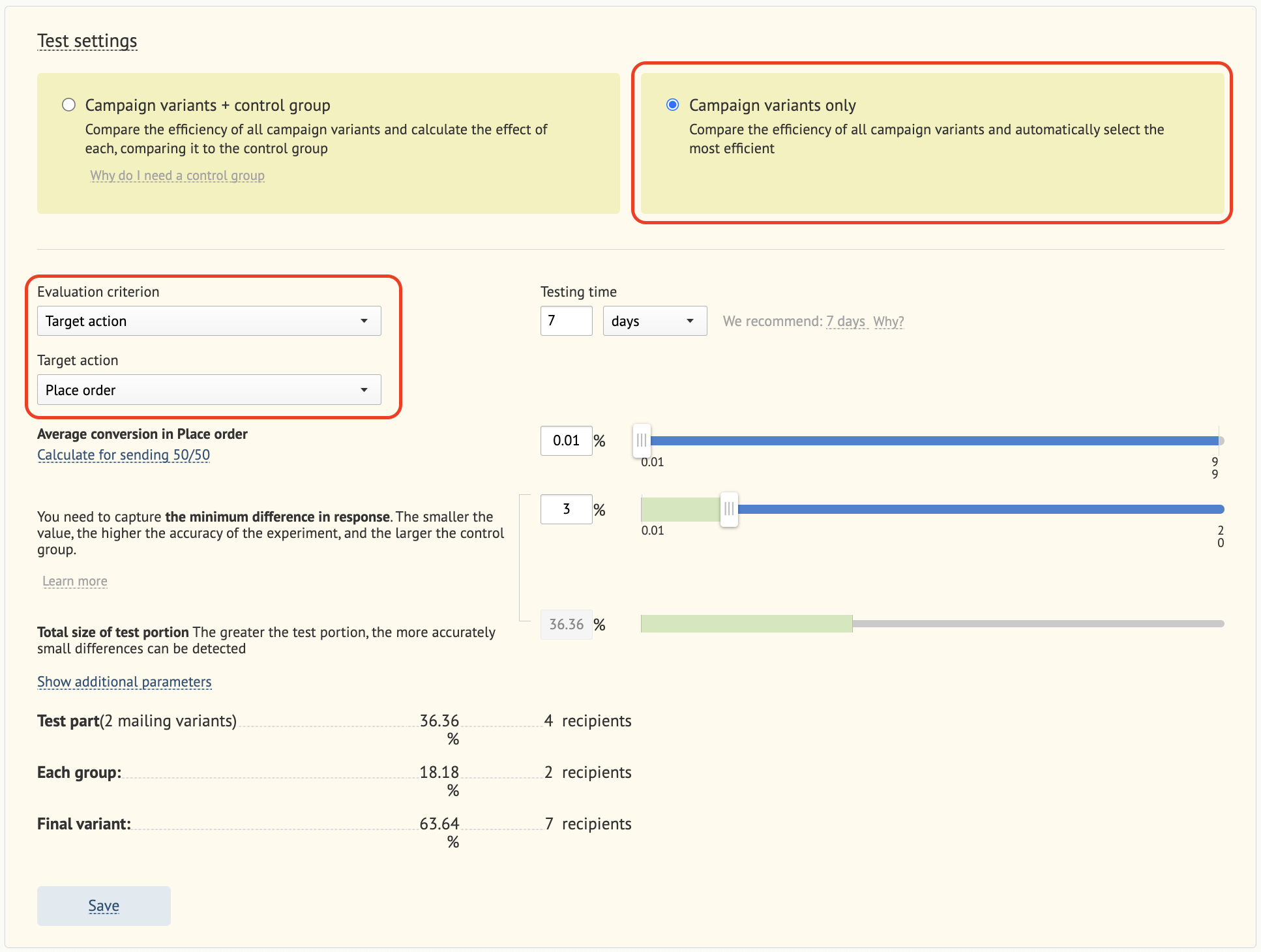
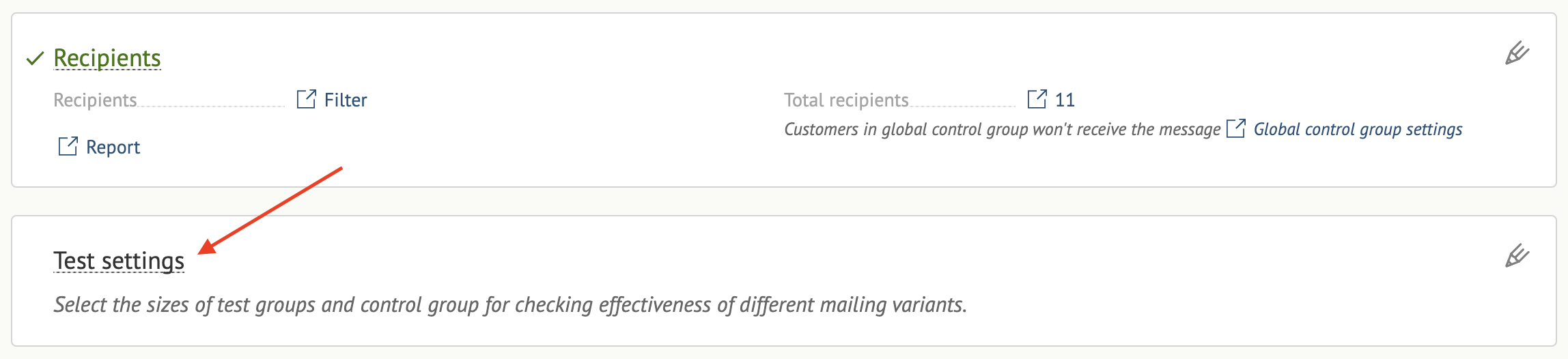 2.1. If you're only using variants:
* Select the evaluation criterion.
* Select the target action.
2.1. If you're only using variants:
* Select the evaluation criterion.
* Select the target action.
 2.2. If you're using variants + a control group:
* Select the target action.
2.2. If you're using variants + a control group:
* Select the target action.
