

How to add a brand
- Go to Settings → System → Brands, and click “Add”:

- Enter brand name, system name and industry, and click “Save Brand”.
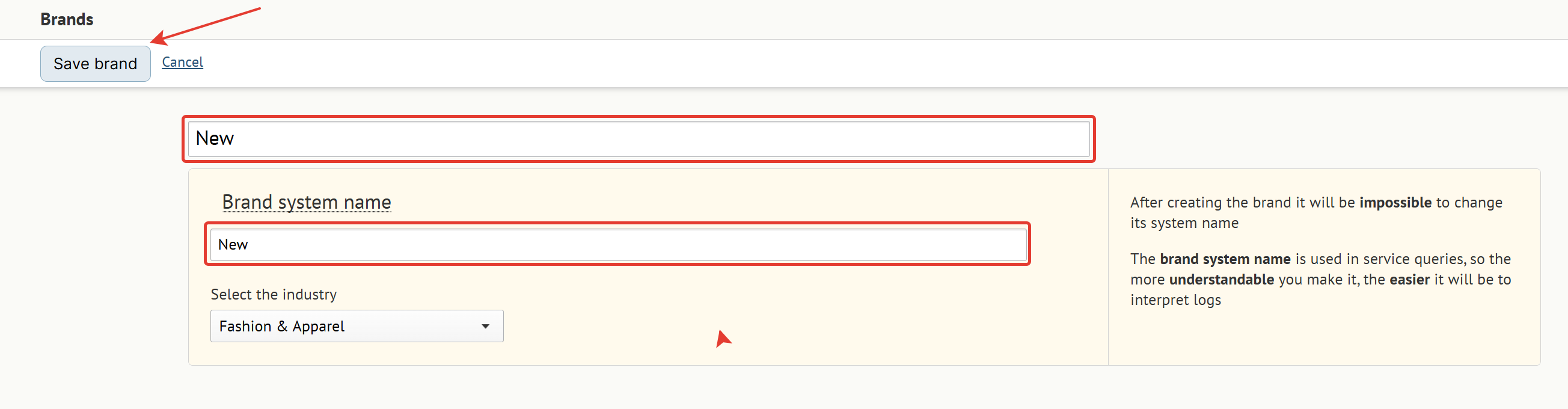 Choosing an industry sets the benchmarks for your “Email Health” metrics.
After you add a brand
After you add your first additional brand to a project, any existing entities (like flows, campaigns, settings, or imports) continue to work for the original brand as they did before. The new brand starts with its own empty configuration, so you’ll need to review the brand-specific settings and complete the required setup steps to activate it before you can use it.Entity: Subscriptions in customer profile
- After you add a brand
- The subscriptions section for the newly added brand will be empty in the customer’s profile, while subscriptions for the original brand remain unchanged.
- Required updates
- Before you can send emails for a new brand, import subscription statuses (subscribed or unsubscribed). Otherwise, your emails won’t go out.
- What gets added
- From now on, you’ll need to choose a brand for every subscription change — whether you’re importing customers (file or API) or making subscription changes in a customer profile.
Entity: Customer actions
- After you add a brand
- All past customer actions stay with the original brand.
- Required updates
- No changes needed.
- What gets added
- To assign an action, either select a brand or choose an integration point tied to that brand.
Entity: Saved filters: “Customer—Subscription”
- After you add a brand
- Becomes a filter for the original brand. For example, the filter “Subscription — Subscribed” will change to “Subscription — Subscribed in Brand 1 .”
- Required updates
- Adjust filters and segments for different brands, where necessary.
- What gets added
- You’ll need to specify a brand in any subscription-based filters.
Entity: Saved filters “Action—Registration” and “Action—First Interaction”
- After you add a brand
- Becomes a filter for all the brands. For example, the “Customer Action—Customer Registration” filter will turn into the “Customer Action—Customer Registration in Any Brand” filter.
- Required updates
- Adjust filters and segments for different brands, where necessary.
- What gets added
- You’ll be able to choose a specific brand in “Action—Registration” filters and “Action—First Interaction” filters — or leave it open to all brands.
Entity: RFM segments
- After you add a brand
- Remains tied to the original brand.
- Required updates
- Add RFM segments for the new brand if needed.
- What gets added
- Choose a brand when creating a new RFM segment.
Entity: Product feeds
- After you add a brand
- Remains tied to the original brand.
- Required updates
- If needed, add products for your new brand.
- What gets added
- To add products or feeds, you must assign them to a brand.
Entity: Campaigns
- After you add a brand
- Remains tied to the original brand.
- Required updates
- Create or duplicate campaigns for the new brand, if needed.
- What gets added
- Specify the brand when creating campaigns
Entity: Pop-ups, embedded forms, widgets
- After you add a brand
- Brand is inherited from the site integration point. All previously created integration points stay tied to the first brand they were created under.
- Required updates
- Create new forms for the new brand if needed. If you’re using custom JavaScript, you may need to adjust some API methods (see the Technical Specification section).
- What gets added
- Nothing changes — you’ll just need to select the site where it should display.
Entity: In-apps
- After you add a brand
- Brand is inherited from the app integration point. All previously created integration points stay tied to the first brand they were created under.
- Required updates
- Create In-Apps for the new brand if needed.
- What gets added
- Nothing changes — you’ll just need to select the app.
Entity: Event-Based Flows
- After you add a brand
- Remain tied to the original brand.
- Actions issued in Steps node inherit the flow’s brand
- Event-based flow is typically triggered only by events (actions and products) associated with its brand, but there are some exceptions. Learn more in the Events in flows section.
- Required updates
- If needed, duplicate your flows under the new brand — or restrict who can enter the flow to the right brand with conditions like subscriptions or touchpoints.
- What gets added
- Specify the brand when creating a new flow.
Entity: Scheduled flows
- After you add a brand
- Remain tied to the original brand. As these flows have no triggering event, they run for all the customers who meet the conditions in the schedule filter.
- Required updates
- If needed, restrict who can enter the flow to the right brand with conditions like subscriptions or touchpoints.
- What gets added
- Specify the brand when creating a new flow.
Entity: Promocode Pools / Points balances/ Voting Polls
- After you add a brand
- The entities are not linked to the brand
- Required updates
- No changes needed.
- What gets added
- The entities are not linked to the brand
Entity: API Methods
- After you add a brand
- Brand is determined by the integration point. All integration points remain under original brand.
- Required updates
- Add the new brand’s integration point to the existing API method setup, or build new methods just for that brand.
- What gets added
- Everything stays the same — just pick the right brand’s integration point when setting up the new method.
Entity: API documentation
- After you add a brand
- For any methods that pass the
subscriptionsobject (steps such as “Customer—Register” / “Customer—Authenticated—Enrich” / “Authenticated—Edit” / “Unauthenticated—Register or Enrich” / “Customer—Import” / “Customer—Create and Subscribe to Campaigns”), if a brand isn’t explicitly specified, the customer will be subscribed under the brand associated with the method’s integration point. All integration points remain assigned to the original brand. - Any subscription-edit method (“Customer—Authenticated—Edit” and “Customer—Unauthenticated—Edit”) configured as “Set manually” in edit by data field will continue updating subscriptions for the original brand.
- In methods that return data (“Customer—Get Current Customer Data” and “Customer—Merge”), if no brand is specified, the response includes data for all brands.
- New fields will appear in exports:
- Download Customer Discount Cards discountCards/ discountCard/ customer/ subscriptions/ subscription/ brand
- Download Customers customers/ customer/ subscriptions/ subscription/ brand
- Download Merged Customers customerMerges/ customerMerge/ resultingCustomer/ subscriptions/ subscription/ brand
- For any methods that pass the
- Required updates
- Review the settings for any methods that include these steps. Specify a brand where required, or allow all brands when appropriate.
- What gets added
- You’ll be able to choose a brand in integration points, route actions by brand, or update multiple brands’ data in a single API call.
Entity: Folders
- After you add a brand
- All brands allowed
- Required updates
- If needed, restrict staff access to brand folders. For each folder, either assign a specific brand or leave it available to all brands.
- What gets added
- You can restrict specific folders by brand. This ensures campaigns and flows can only be created under the allowed brand, and only by staff who have permission for that same brand.
Entity: Promotions
- After you add a brand
- The entities are not linked to the brand
- Required updates
- You can limit promotions by channel, so that they apply to websites and offline stores of the selected brand only.
- What gets added
- Creating promotions works the same way as before. Use channel limits to make a promotion run only for the chosen brand’s online or offline channels.
Entity: Discount cards
- After you add a brand
- The entities are not linked to the brand
- Required updates
- Can be grouped and managed by type if needed.
- What gets added
- Adding discount cards works the same way as before.
Entity: Product recommendations
- After you add a brand
- Product brand is automatically considered in recommendations.
- Required updates
- No updates needed
- What gets added
- Nothing changes
Entity: A/B tests by customer segments
- After you add a brand
- The brand is not considered in A/B testing. However, tests are tied to campaigns for a specific brand, so the winning variant is unaffected.
- Required updates
- No updates needed
- What gets added
- Nothing changes
Entity: A/B tests by website users
- After you add a brand
- Brand is determined by the integration point.
- Required updates
- Create tests for the new brand if needed
- What gets added
- Nothing changes, you need to select a website for the test
Entity: Reports
- After you add a brand
- You can view reports for a specific brand.
- Required updates
- No updates needed
- What gets added
- Nothing changes
Entity: Report Subscriptions
- After you add a brand
- Report subscriptions stay tied to the initial brand.
- Required updates
- Re-subscribe or add a subscription to a new brand if needed
- What gets added
- Specify the brand when subscribing
Entity: Integration points
- After you add a brand
- Integration points stay tied to the initial brand.
- Required updates
- Create integration points for the new brand. If needed, add them to existing methods or set up separate methods for that brand.
- What gets added
- Specify the brand when creating Integration points.
Entity: FTP import
- After you add a brand
- FTP import stays tied to the initial brand.
- Required updates
- Duplicate it for the new brand if needed
- What gets added
- Specify the brand during setup.
Entity: FTP export
- After you add a brand
- Brand isn’t set in the FTP configuration, but it may appear in exports depending on the method you use
- Export Discount CardsdiscountCards/ discountCard/ customer/ subscriptions/ subscription/ brand
- Export Customers customers/ customer/ subscriptions/ subscription/ brand
- Export Customer Merges customerMerges/ customerMerge/ resultingCustomer/ subscriptions/ subscription/ brand
- Brand isn’t set in the FTP configuration, but it may appear in exports depending on the method you use
- Required updates
- No updates needed
- What gets added
- Nothing changes
Entity: API calls
- After you add a brand
- Each call always includes an
endpointId(integration point), which determines the brand. Product import, however, requires explicitly passing the brand in the URL or request body.
- Each call always includes an
- Required updates
- Set up calls for the new brand’s integration points, and include the brand in product import requests.
- What gets added
- Nothing changes. Just use the integration point for the correct brand in your calls. For product imports, you must always pass the brand explicitly.
Entity: SMPP connections
- After you add a brand
- SMPP connections stay tied to the initial brand.
- Required updates
- Add SMPP connections for the new brand if needed.
- What gets added
- Specify the brand during setup.
Entity: Webhooks
- After you add a brand
- The entity is not linked to the brand. However, you may have to specify the brand in the request body when passing a subscription object (see API documentation section)
- Required updates
- Check if calls include subscription data. Add the brand if needed.
- What gets added
- You can specify the brand in webhook request body when including a subscription object.
Entity: Action templates
- After you add a brand
- Allowed in all brands
- Required updates
- No updates needed
- What gets added
- Can be allowed in specific brands only
Entity: Channels and touchpoints
- After you add a brand
- The entities are not linked to the brand
- Required updates
- You can add new ones for the new brand—for example, to limit promotions.
- What gets added
- Nothing changes
Entity: Staff
- After you add a brand
- All brands allowed
- Required updates
- Restrict staff members by brand if needed.
- What gets added
- You can restrict staff members by brand. This ensures they can only create campaigns and flows for that brand, and they’ll only be able to build filters within their assigned brand.
Entity: Permissions
- After you add a brand
- Only users with “Brand View” permission can create campaigns and flows.
- Required updates
- Add the “Brand View” permission to the staff members and security groups
- What gets added
- Nothing changes
Entity: Loyalty program participants
- After you add a brand
- Loyalty program participants stay tied to the initial brand.
- Required updates
- Specify for the new brand if needed
- What gets added
- You have to select the brand during the setup
Entity: Pop-up frequency control
- After you add a brand
- Applies to the entire project, not individual brands.
- Required updates
- No updates needed
- What gets added
- Nothing changes
Entity: Order attribution
- After you add a brand
- Is automatically scoped to the brand
- Required updates
- No updates needed
- What gets added
- Nothing changes
Entity: Variables
- After you add a brand
- The entities are not linked to the brand
- Required updates
- No updates needed
- What gets added
- Nothing changes
Entity: Zones
- After you add a brand
- The entities are not linked to the brand
- Required updates
- No updates needed
- What gets added
- Nothing changes
Entity: Email settings—DKIM senders
- After you add a brand
- DKIM senders and subscriptions stay tied to the initial brand.
- Required updates
- Add senders for the new brand
- What gets added
- The senders will be created within the specific brand
Entity: Email settings—Subscription confirmation
- After you add a brand
- Subscription confirmation stay tied to the initial brand. New brands are added with subscription confirmation disabled by default.
- Required updates
- Set up subscription confirmation for the new brand or leave it disabled
- What gets added
- You can enable or disable Subscription confirmation for each brand independently.
Entity: SMS settings—Subscription confirmation
- After you add a brand
- Subscription confirmation stay tied to the initial brand. New brands are added with subscription confirmation disabled by default.
- Required updates
- Set up subscription confirmation for the new brand or leave it disabled
- What gets added
- You can enable or disable Subscription confirmation for each brand independently.
Entity: UTM tags
- After you add a brand
- Remain tied to the original brand. For any new brand, default UTM tags are applied automatically utm_campaign ${Message.MailingUtmName} utm_source maestra utm_medium email
- Required updates
- Update the UTM tags for Email, and add Web Push tags for the new brand if needed.
- What gets added
- You can configure tags for each brand independently.
Entity: Topics
- After you add a brand
- Remain tied to the original brand.
- Required updates
- Add topics for the new brand if needed.
- What gets added
- Create topics within the specific brand
Entity: Control group
- After you add a brand
- Control groups aren’t scoped to a brand, since customers can interact across brands.
- Required updates
- No updates needed
- What gets added
- Nothing changes
Entity: Autodeletion
- After you add a brand
- Saved Subscription filters apply to the original brand by default. For example, “Subscription—Subscribed” filter will become “Subscription—Subscribed to Brand 1”. The “Action—Registration” and “Action—First Interaction” filters will become set ‘in any brand’. For example, the “Customer Action—Customer Registration” filter will turn into the “Customer Action—Customer Registration in Any Brand” filter.
- Required updates
- Update any auto-deletion filters that use these conditions, if needed.
- What gets added
- When setting auto-deletion criteria in filters, make sure to select a brand.
Events in flows
If your account includes multiple brands (2+), you’ll be asked to select the brand when creating a flow. A flow is typically triggered only by events (actions and products) associated with its brand, but there are some exceptions. These exception events ignore the brand and trigger across all brands:- Product list changed
- Customer entered the segment
- Customer quit the segment
- Predictive AI: Next Best ActionTo segment customers by brand for flows triggered by exception events, add Condition blocks and set the filter to the required brand.
How to disable the brand
Before disabling the brand, you need to delete or edit the entities associated with it:- Campaigns in “Ready to Send” status (drafts and completed campaigns can be left untouched, but clicks on campaigns already sent within that brand will no longer be tracked);
- flows;
- product feeds;
- folders limited by the brand;
- subscriptions to brand reports;
- Integration points and their linked functionalities:
- API methods;
- Pop-ups, embedded blocks, widgets;;
- In-Apps,
- A/B tests for website.
- In the Settings → System → Brands tab, go to the edit screen for the brand you want to disable:

- Uncheck the “Active brand” checkbox and click “Save brand”.
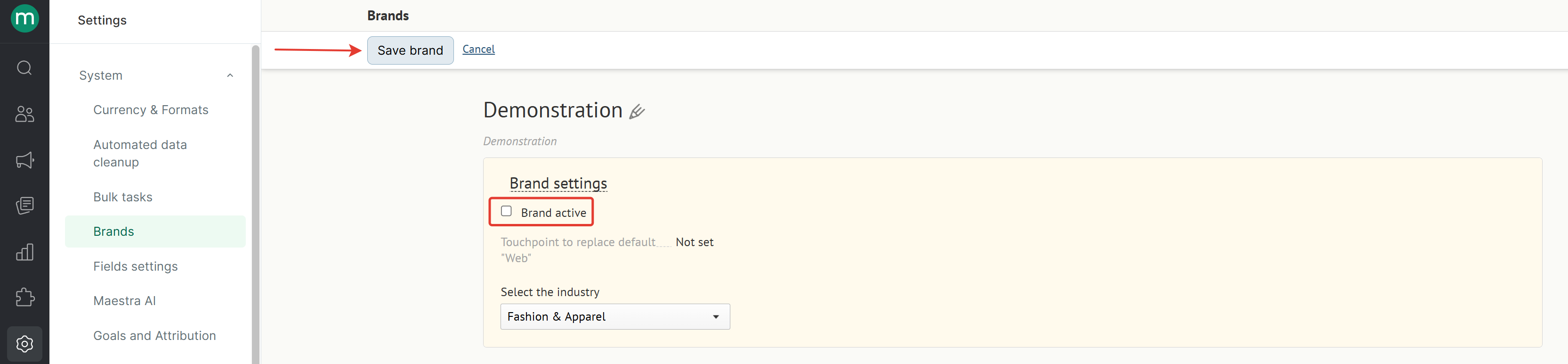 A validation message will appear if there are any associated entities:

After You Disable a Brand
What happens to existing entities within the project that are linked to a deactivated brand.
| Entity | What happens |
|---|---|
| Subscriptions in Customer Profile | Subscriptions for the disabled brand will not be displayed in customer’s profile. If only one brand remains, the brand breakdown in the Subscriptions menu is removed. The data for the remaining brand still appears, but it’s no longer labeled by brand. You also no longer need to specify a brand in filters, since only one brand remains. |
| Saved filters: “Customer—Subscription in Brand” | Filters are retained when the project contains two brands and more. If one brand remains, filters are switched to “Customer—Subscription” |
| Saved filters: “Customer Action—Customer Registration in Brand” and “Customer Action—First Interaction in Brand” | Filters are retained when the project contains two brands and more. If one brand remains, filters are switched to “Customer Action—Customer Registration” and “Customer Action—First Interaction” |
| Saved filters: “Action—Brand” | Filters by brand are retained even if only one active brand remains on the project |
| Products | Products are retained |
| Campaigns | Completed, paused campaigns, and drafts remain in the deactivated brand |
| Technical Specification | If only one active brand remains in the project:You can still specify the active brand in the Subscriptions node for API methods that involve subscription handling (steps: “Customer—Register” / “Customer—Authorized—Add” / “Authorized—Edit” / “Unauthorized—Register or Add” / “Customer—Import” / “Customer—Create and Subscribe to Campaigns”).The /customer/subscriptions/subscription/pointOfContact field will no longer be available in the API methods that return data (“Customer—Receive Data on Current Customer” / “Action—“Merge Customers”)The following fields will be removed from exports:Download Customer Discount Cards discountCards/ discountCard/ customer/ subscriptions/ subscription/ brandDownload Customers customers/ customer/ subscriptions/ subscription/ brandDownload Merged Customers customerMerges/ customerMerge/ resultingCustomer/ subscriptions/ subscription/ brand |
| FTP export | These fields will be removed from API exports If only one active brand remains in the project::Customer Discount Cards Export—discountCards/ discountCard/ customer/ subscriptions/ subscription/ brandDownload Customers—customers/ customer/ subscriptions/ subscription/ brandDownload Merged Customers—customerMerges/ customerMerge/ resultingCustomer/ subscriptions/ subscription/ brand |
| API methods | Data related to inactive brands will not be processed. Requests sent to deleted endpoints (integration points) will fail with an error.Product imports can still include a brand, but it must be an active one. |
| Email, SMS, and SMPP connection settings | Settings for the deactivated brand are hidden |
| Webhooks | Do not use brands. However, data related to a deactivated brand may still be passed in the request body. |
| Staff | Staff access can be restricted by the inactive brand. Adjust access permissions if necessary |
| Permissions | If only one active brand remains on the project, the “Brand View” permission will no longer be required for creating flows and campaigns |
| Reports | Reports for deactivated brands are hidden |