> ## Documentation Index
> Fetch the complete documentation index at: https://help.maestra.io/llms.txt
> Use this file to discover all available pages before exploring further.
# How to filter customers by total revenue
The nested conditions in the revenue filter work the same way as in [order filters](/filters/filtering-by-orders/how-to-find-customers-with-orders).
The key difference is that the top-level condition here is **total revenue value**, not **order**.
Next, set the range **from … to** (upper bound is not inclusive) and define which orders should be used to calculate revenue.
Revenue is calculated based on the **[order total after discount excluding refunds](/filters/filtering-by-orders/how-to-find-orders-with-a-specific-order-price)**.
**Use case:** let's find customers whose **total revenue** is **\$3,000* or more*\* over the last month.
\**The currency depends on your project settings.*
1. Go to **Customer Data Platform→ Customers.**
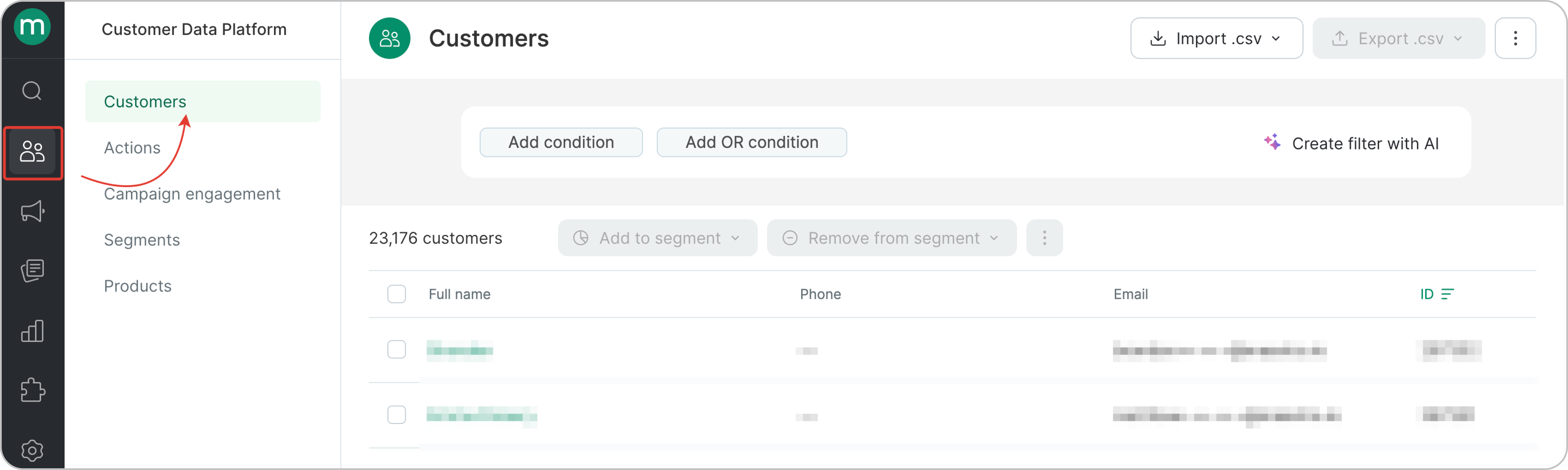 2\. Set up the filter.
.png?fit=max&auto=format&n=O0b_zyYQP7Y48mll&q=85&s=edc332a3af2b85a78018c3cca76c9ada) Revenue is calculated using **placed, paid, and delivered items**. Canceled and returned items are not included in the total.
Revenue is calculated using **placed, paid, and delivered items**. Canceled and returned items are not included in the total.