> ## Documentation Index
> Fetch the complete documentation index at: https://help.maestra.io/llms.txt
> Use this file to discover all available pages before exploring further.
# What are flows and How Do You Use Them?
## What are flows?
Flows help set up automated communications with customers across all channels (email, mobile and web push notifications, SMS, webhooks, and more), assign promo codes, award bonus points, edit customer data, and transmit this data between segments.
Flows are highly flexible, and combined with Maestra’s segmentation capabilities, they allow you to create an ultra-personalized sequence of interactions with each customer.
## How to create a flow
Go to **Campaign manager**:
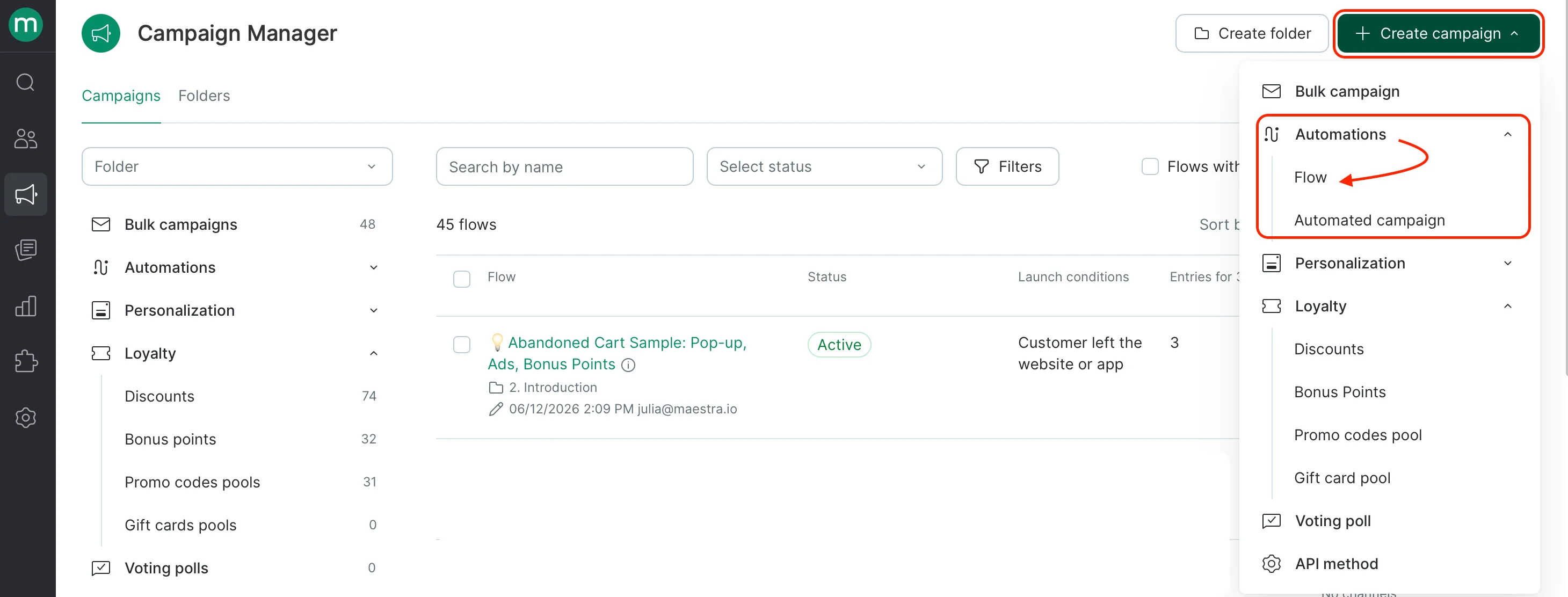
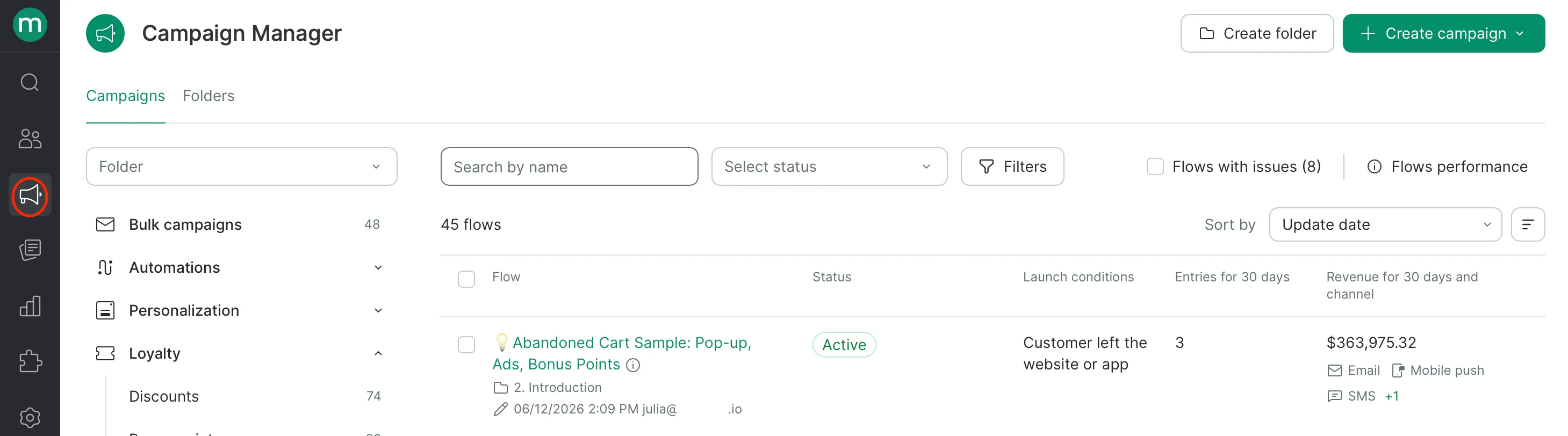 Click the green **Create campaign** button in the upper right corner, expand **Automations**, and select **Flow**.
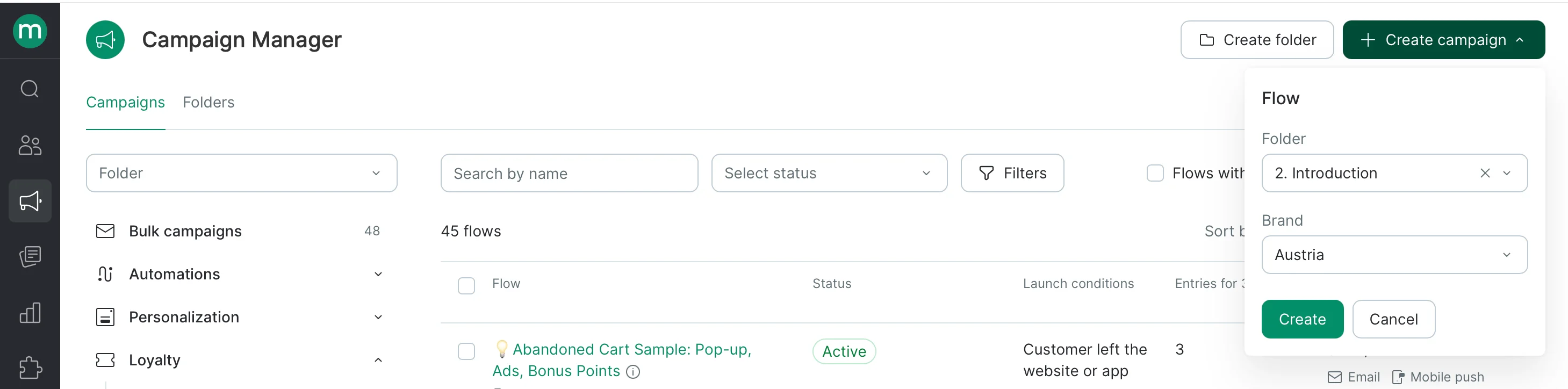
 Next, choose the folder where the system will create your flow and brand (if you have several, otherwise the brand field will be hidden) and click **Create**:
 ## How to set up a flow
#### Settings
### Flow statuses
* **Draft**: some nodes are still empty;
* **Ready for launch**: all the blocks are filled in and the flow (or the draft) can be launched;
* **Launching**: this status is displayed for a couple of seconds after clicking the Launch button;
* **Active**: the flow is running;
* **Paused**: the flow has been paused;
* **Creating draft**: the status is displayed for a couple of seconds after clicking the Edit or Copy flow buttons.
### Nodes
A flow consists of different **nodes**:
## How to set up a flow
#### Settings
### Flow statuses
* **Draft**: some nodes are still empty;
* **Ready for launch**: all the blocks are filled in and the flow (or the draft) can be launched;
* **Launching**: this status is displayed for a couple of seconds after clicking the Launch button;
* **Active**: the flow is running;
* **Paused**: the flow has been paused;
* **Creating draft**: the status is displayed for a couple of seconds after clicking the Edit or Copy flow buttons.
### Nodes
A flow consists of different **nodes**:
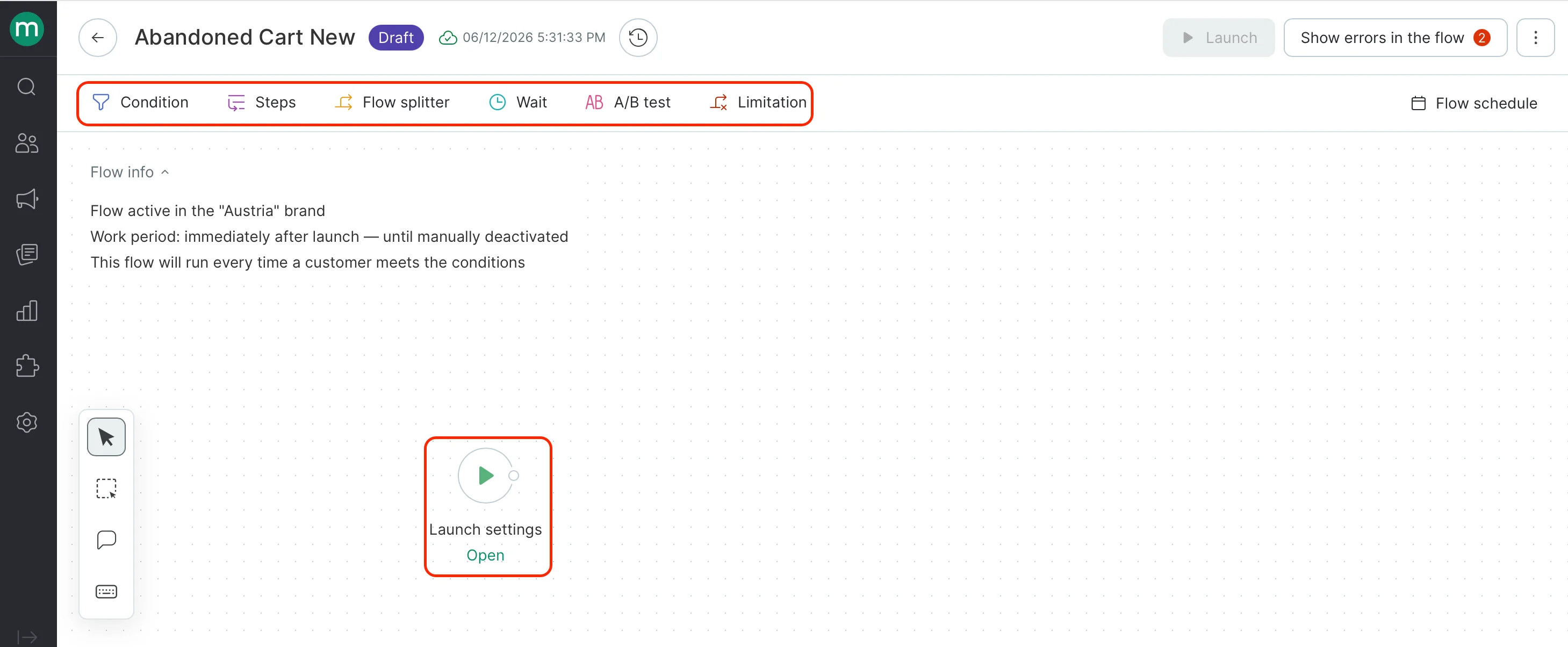 We support the stable flow interface up to 150 added nodes.
1. **Launch Settings**
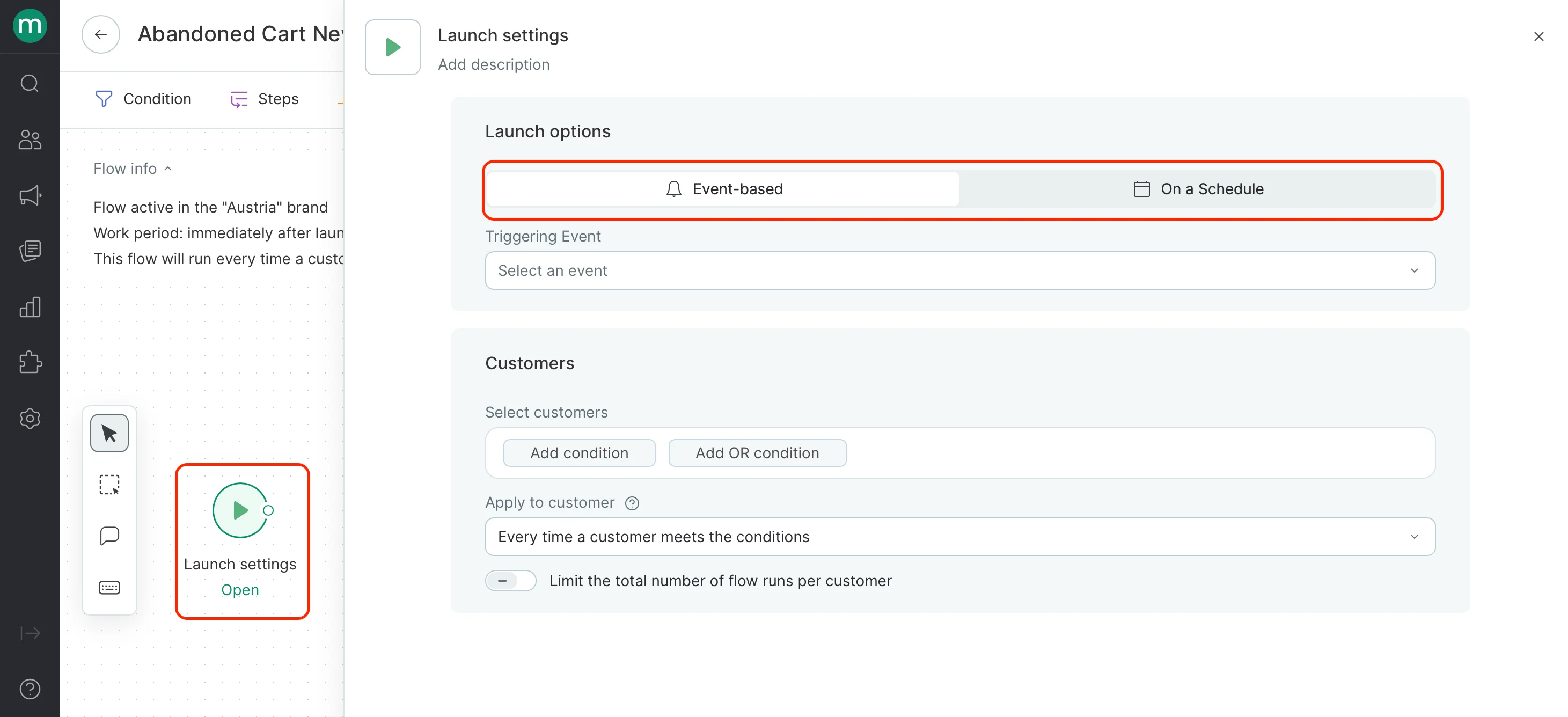
The Launch Settings node is the starting point of every flow — it defines what kicks it off. Each flow requires exactly one Launch Settings node. There are two ways to trigger a flow:
* **Event-based** — the flow starts when a specific action or change occurs, such as a customer joining your list, a browsing session ending, or an order status update.
* **On a Schedule** — the flow runs on a recurring schedule rather than in response to an event: daily, on specific days of the week, or on set dates each month.
We support the stable flow interface up to 150 added nodes.
1. **Launch Settings**
The Launch Settings node is the starting point of every flow — it defines what kicks it off. Each flow requires exactly one Launch Settings node. There are two ways to trigger a flow:
* **Event-based** — the flow starts when a specific action or change occurs, such as a customer joining your list, a browsing session ending, or an order status update.
* **On a Schedule** — the flow runs on a recurring schedule rather than in response to an event: daily, on specific days of the week, or on set dates each month.
 2. **Condition**
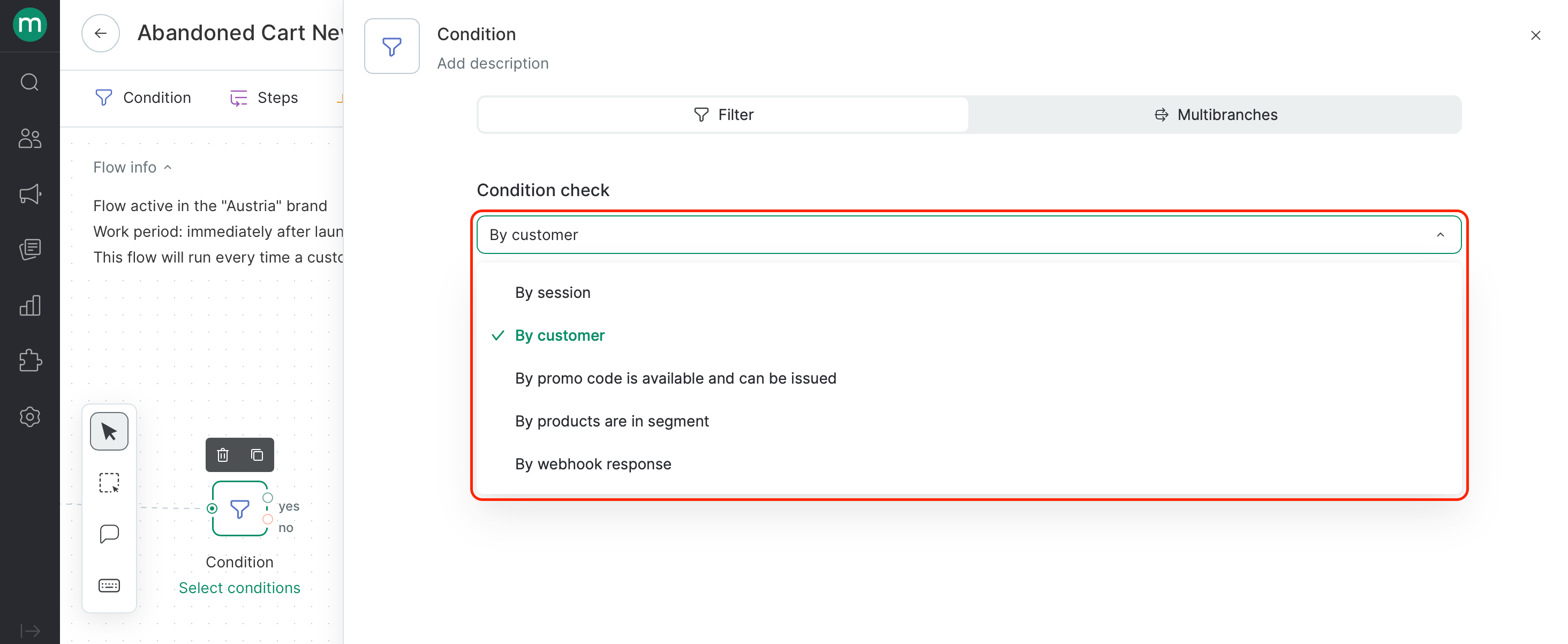
The Condition block lets you filter contacts after a flow is triggered by checking criteria across multiple entities — such as the customer, the triggering event (order, session, or product), or promo code availability. The entities available in the block depend on the flow's trigger: some, like customer, are always accessible, while others — like order or session details — are only available when the flow is triggered by the corresponding event.
2. **Condition**
The Condition block lets you filter contacts after a flow is triggered by checking criteria across multiple entities — such as the customer, the triggering event (order, session, or product), or promo code availability. The entities available in the block depend on the flow's trigger: some, like customer, are always accessible, while others — like order or session details — are only available when the flow is triggered by the corresponding event.
 4. **Steps**
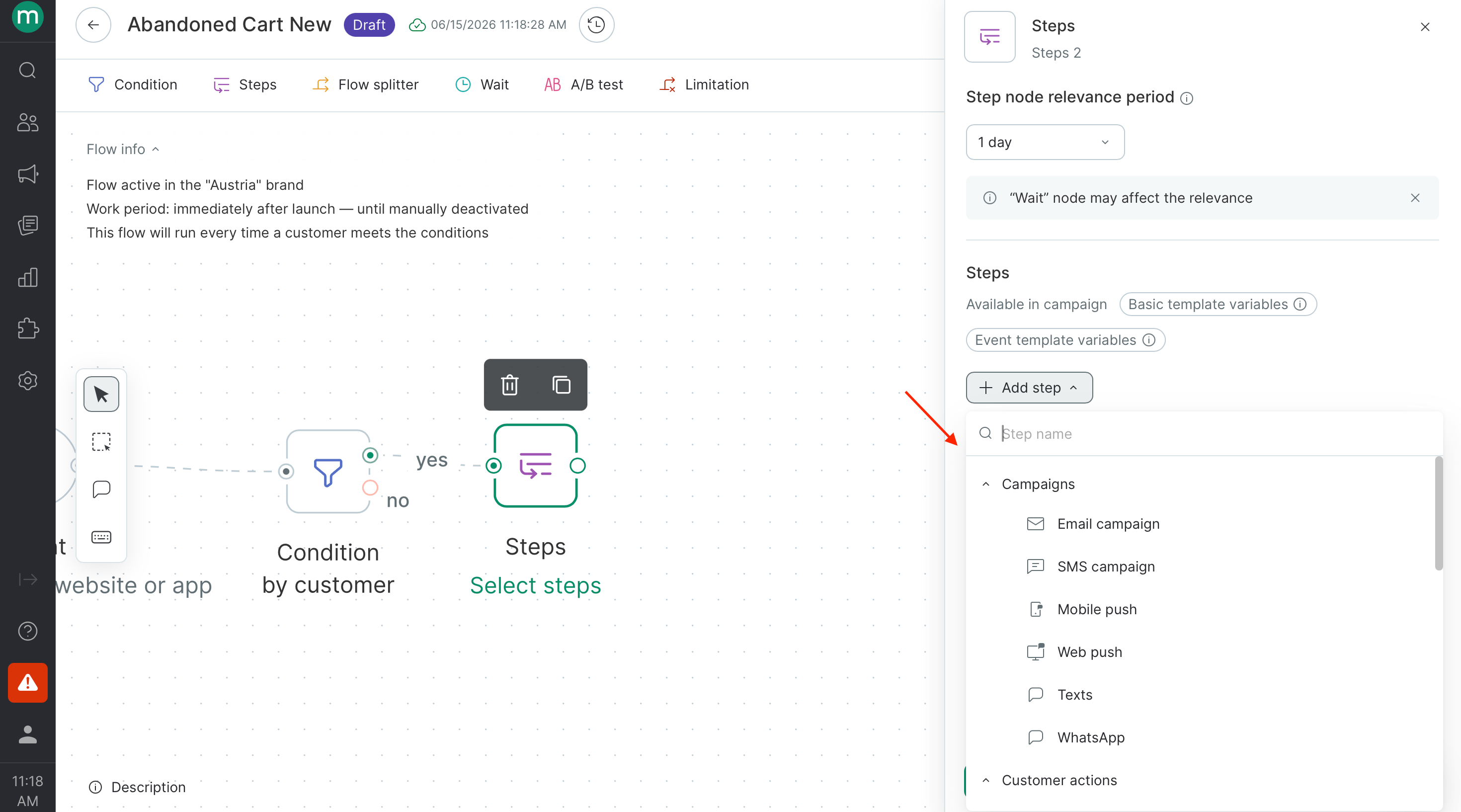
The Step block defines what actions Maestra Platform takes on a contact once they reach that point in the flow — such as sending a message, issuing a promo code, updating loyalty points, or editing customer data.
4. **Steps**
The Step block defines what actions Maestra Platform takes on a contact once they reach that point in the flow — such as sending a message, issuing a promo code, updating loyalty points, or editing customer data.
 5. **Flow splitter**
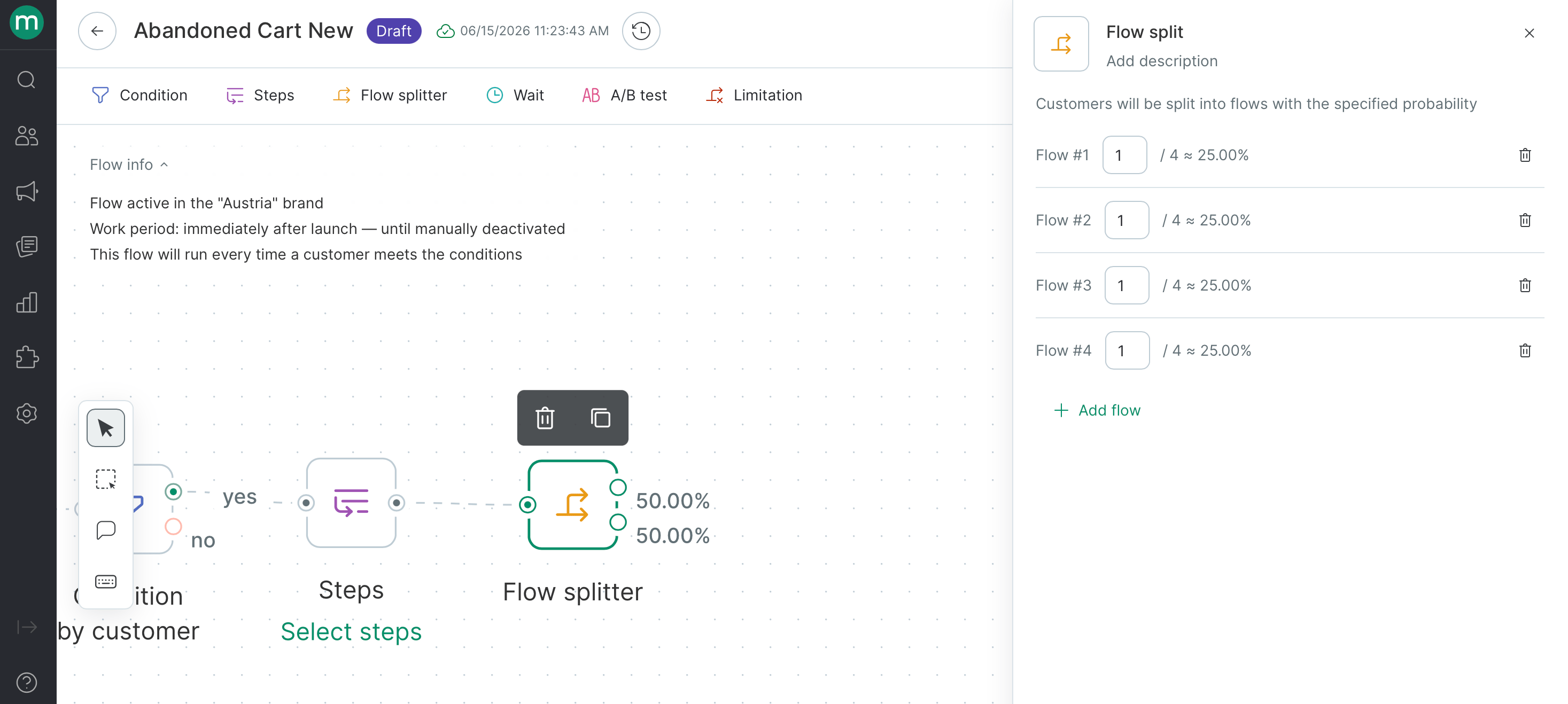
The Split block randomly distributes contacts across up to five branches based on set probabilities, so you can send different groups down different paths within the same flow. Unlike the A/B test block, it handles distribution only — without any built-in performance tracking.
5. **Flow splitter**
The Split block randomly distributes contacts across up to five branches based on set probabilities, so you can send different groups down different paths within the same flow. Unlike the A/B test block, it handles distribution only — without any built-in performance tracking.
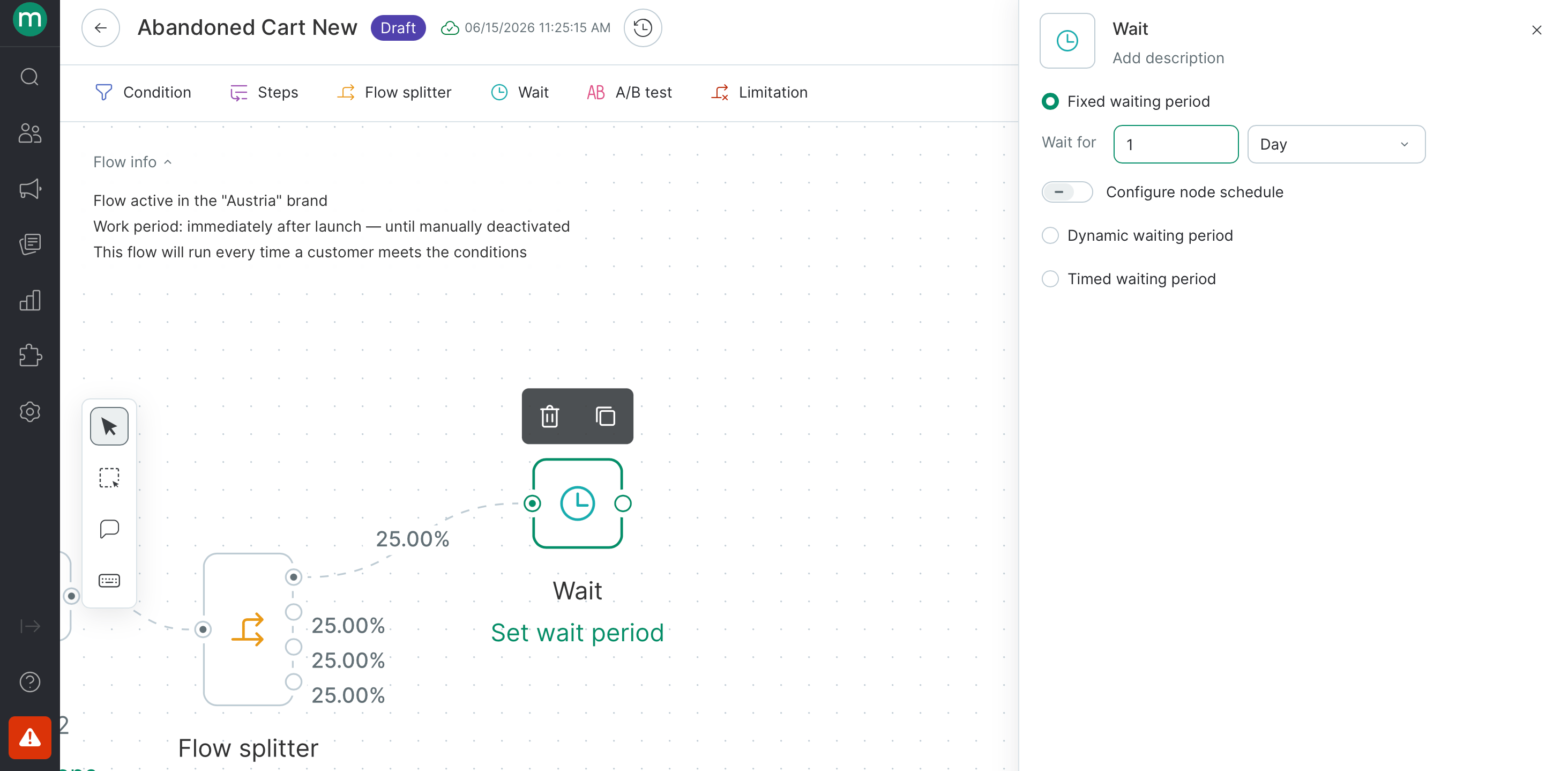
 6. **Wait**
The Wait block pauses a contact's progress in the flow until a set condition is met. There are three delay types:
* **Fixed** — holds the contact for a set number of minutes, hours, or days.
* **Dynamic** — waits until a date stored in a customer, order, product, or action field, with the option to trigger before, on, or after that date.
* **Timed waiting period**— doesn't add a delay, but controls when the contact exits the block by restricting it to specific hours or days of the week.
6. **Wait**
The Wait block pauses a contact's progress in the flow until a set condition is met. There are three delay types:
* **Fixed** — holds the contact for a set number of minutes, hours, or days.
* **Dynamic** — waits until a date stored in a customer, order, product, or action field, with the option to trigger before, on, or after that date.
* **Timed waiting period**— doesn't add a delay, but controls when the contact exits the block by restricting it to specific hours or days of the week.
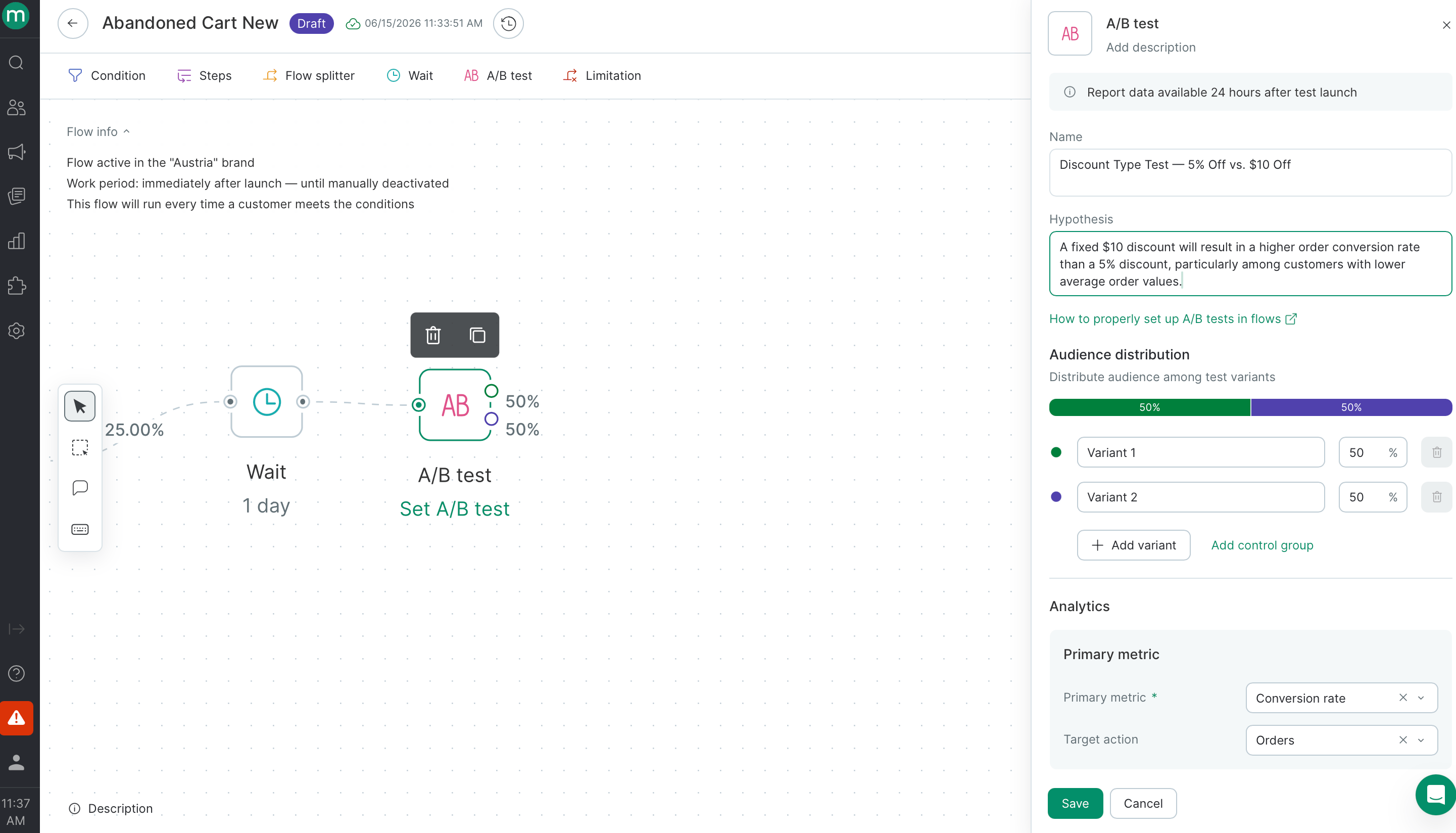
 7. **A/B test**
The A/B Test block splits contacts into up to five branches at set percentages to test hypotheses and measure their impact on key metrics like order conversion rate, average order value, or revenue per contact. Unlike the Split block, it includes built-in reporting that tracks performance across variants and determines a winner.
7. **A/B test**
The A/B Test block splits contacts into up to five branches at set percentages to test hypotheses and measure their impact on key metrics like order conversion rate, average order value, or revenue per contact. Unlike the Split block, it includes built-in reporting that tracks performance across variants and determines a winner.
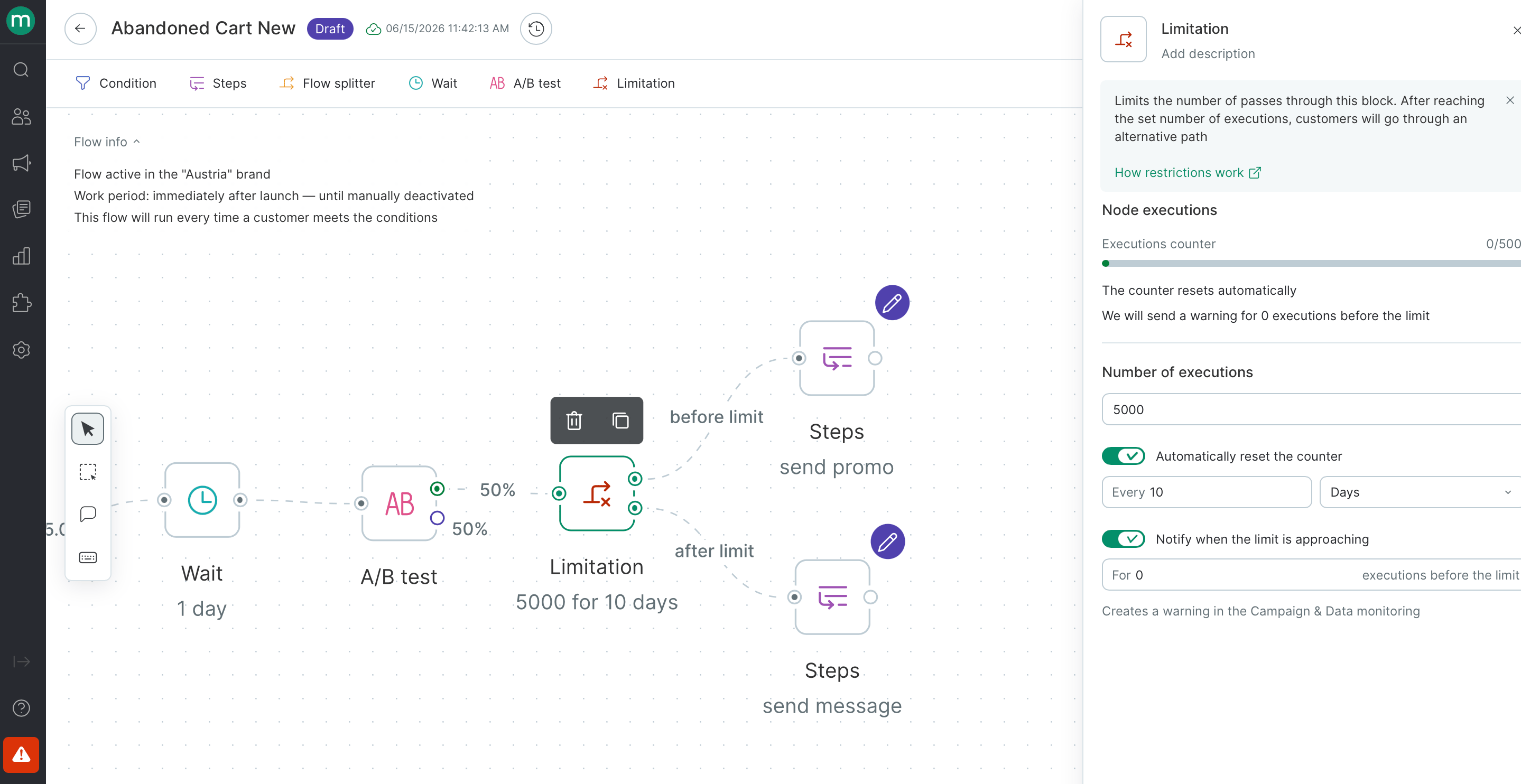
 8. **Limitation**
The Limit block caps how many contacts can pass through a specific branch — either over all time or within a rolling period. This lets you control spend on paid channels, cap the number of messages sent per period, or run promotions with a fixed number of rewards.\\
8. **Limitation**
The Limit block caps how many contacts can pass through a specific branch — either over all time or within a rolling period. This lets you control spend on paid channels, cap the number of messages sent per period, or run promotions with a fixed number of rewards.\\
 ## Connections between nodes
Use connection lines to join nodes into a sequence
## Connections between nodes
Use connection lines to join nodes into a sequence
 ## Bulk copying and deleting blocks
To copy or delete multiple blocks at once:
## Bulk copying and deleting blocks
To copy or delete multiple blocks at once:
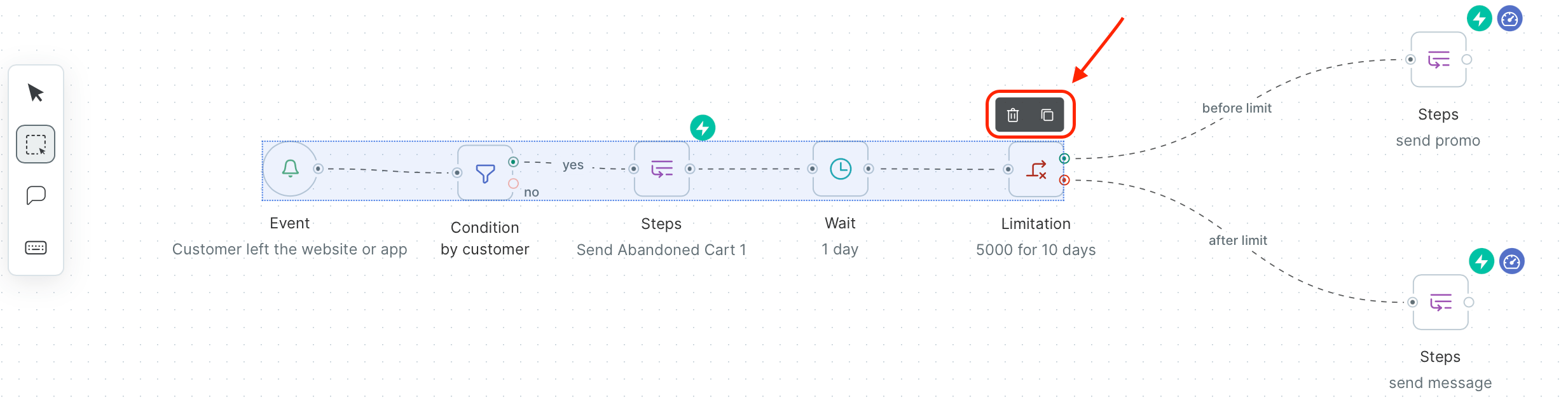
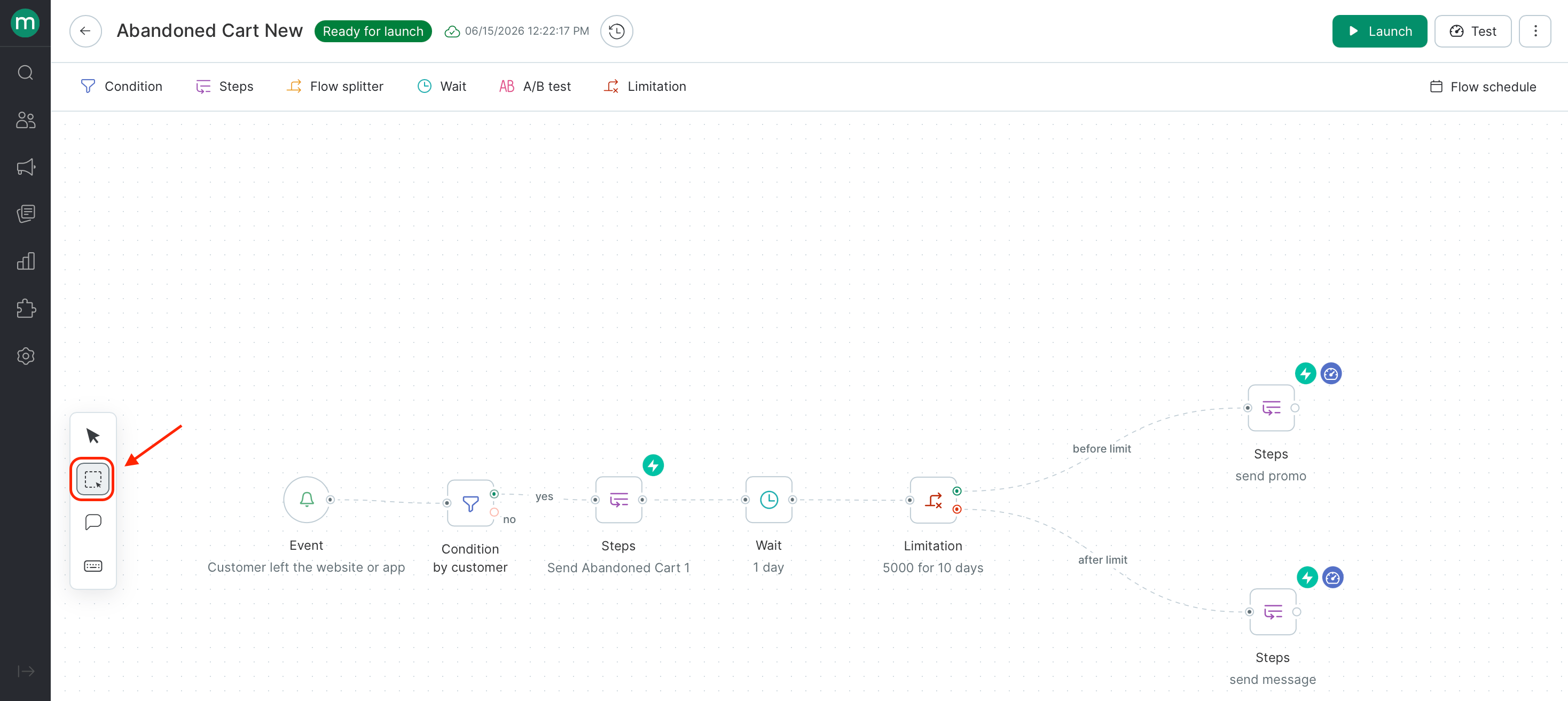 Drag to highlight the blocks you want.
Use the buttons in the upper-right corner of the selection to copy or delete them.\\
Drag to highlight the blocks you want.
Use the buttons in the upper-right corner of the selection to copy or delete them.\\
 **Keyboard shortcuts**
| Action | macOS | Windows |
| --------------- | --------- | -------- |
| Select multiple | Option | Shift |
| Copy | Cmd + C | Ctrl + C |
| Paste | Cmd + V | Ctrl + V |
| Delete | Backspace | Delete |
You can also copy blocks into other flows within the same account.
***
## Flow frequency per customer or order
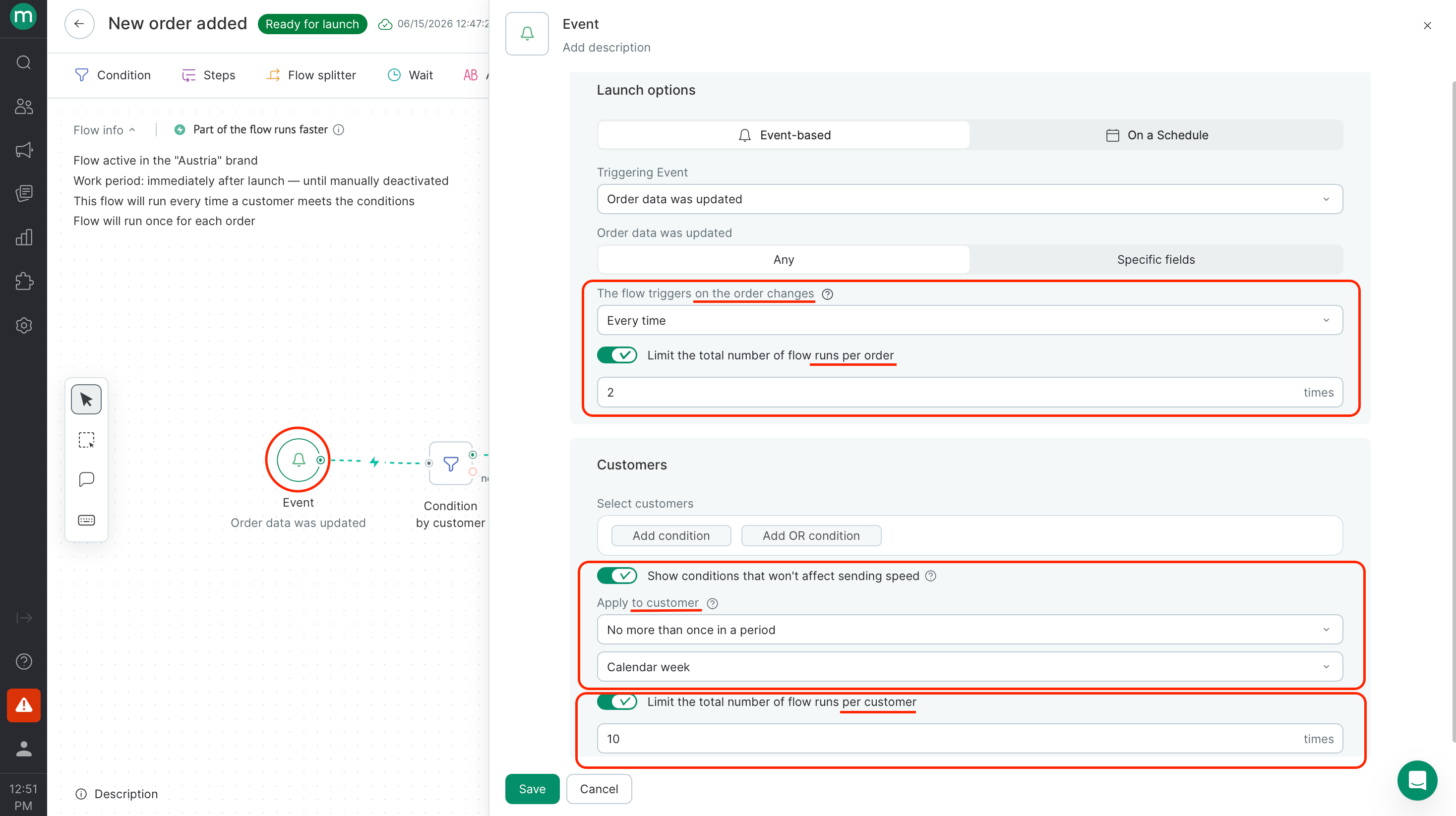
You can set a limit on how often a flow fires for a given customer or order — once ever, on a recurring schedule, or every time the flow fires.
**Keyboard shortcuts**
| Action | macOS | Windows |
| --------------- | --------- | -------- |
| Select multiple | Option | Shift |
| Copy | Cmd + C | Ctrl + C |
| Paste | Cmd + V | Ctrl + V |
| Delete | Backspace | Delete |
You can also copy blocks into other flows within the same account.
***
## Flow frequency per customer or order
You can set a limit on how often a flow fires for a given customer or order — once ever, on a recurring schedule, or every time the flow fires.
 ***
## Flow schedule
There are three ways to schedule a flow:
* Launch it immediately when you're ready.
* Schedule it to start automatically on a future date.
* Set an end date so it stops automatically at a specific time.
To set a start and/or end date on a future date for your flow:
Open the flow schedule in the upper-right corner.
***
## Flow schedule
There are three ways to schedule a flow:
* Launch it immediately when you're ready.
* Schedule it to start automatically on a future date.
* Set an end date so it stops automatically at a specific time.
To set a start and/or end date on a future date for your flow:
Open the flow schedule in the upper-right corner.
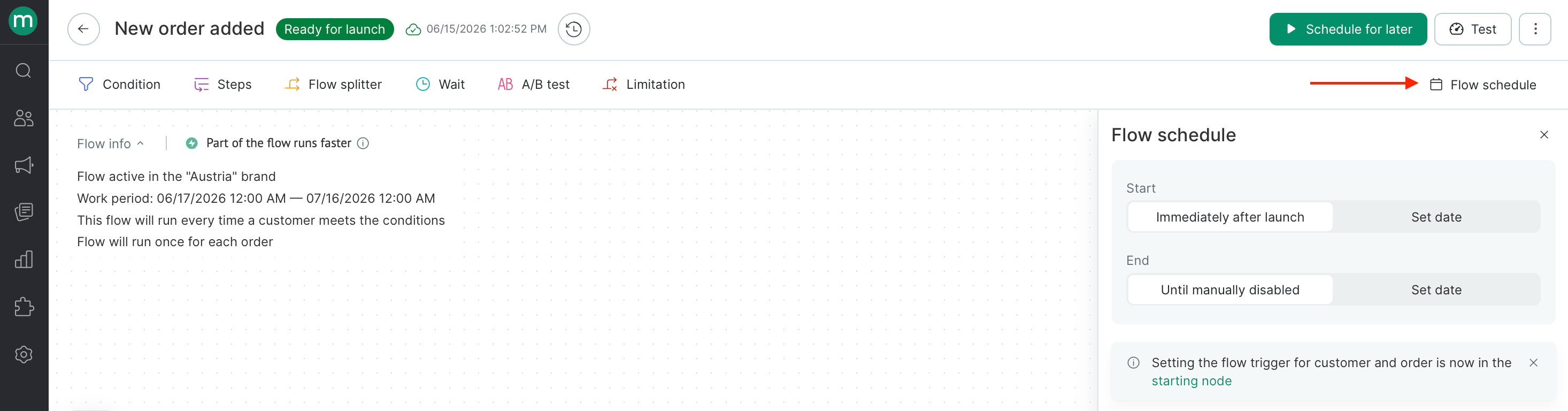 Enter the start and/or end date and time.\\
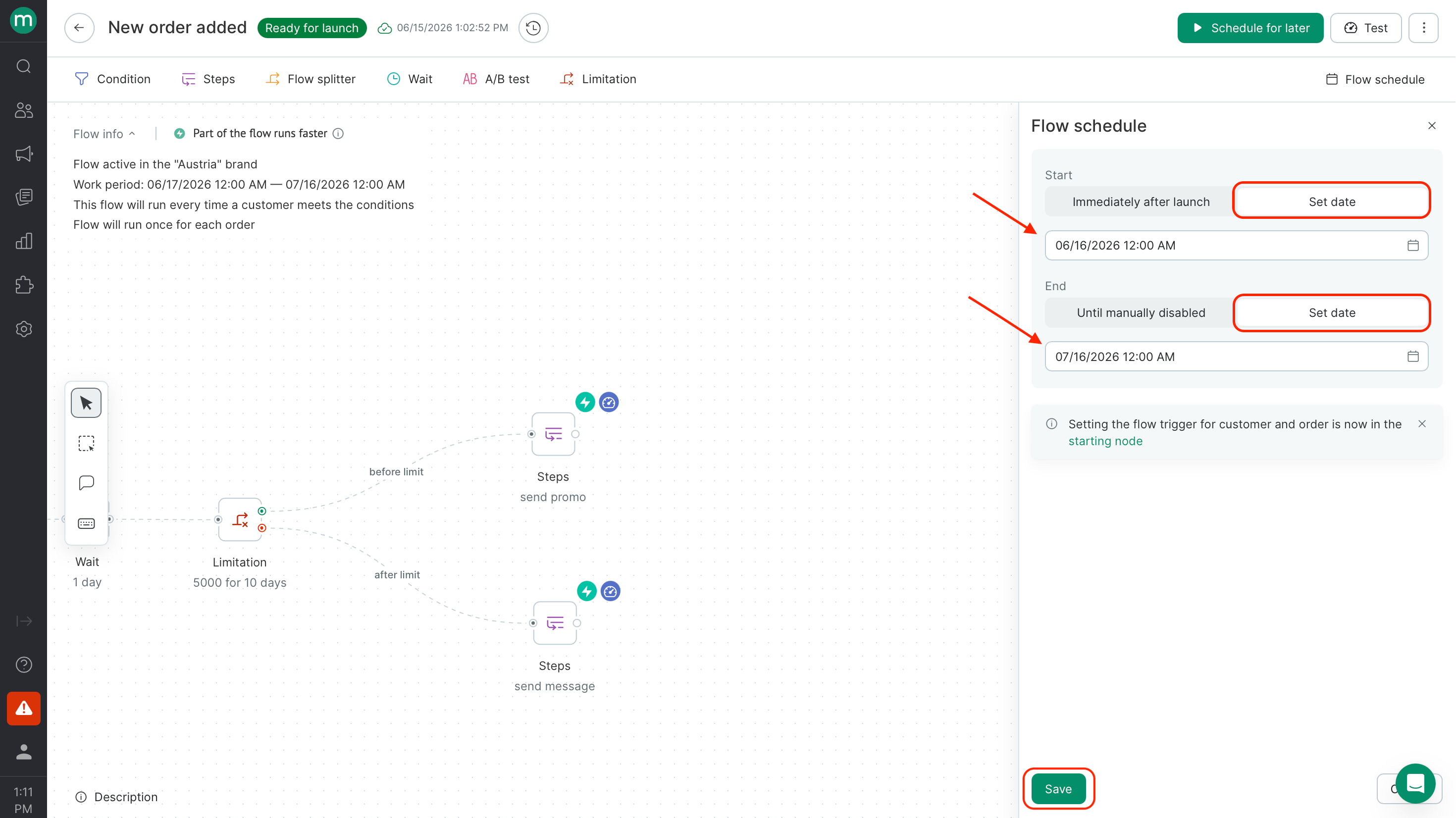 If setting a start date, click **Schedule for later** — otherwise the flow won't launch automatically.
 **Once the schedule is set, here's how each option affects the flow:**
**Start date** — the flow only processes events that occur after this date.
**End date** — works like a manual stop: contacts already in a Wait block will remain there, and no further steps will execute. If you push the end date back while contacts are waiting, they'll continue through the flow.
***
## Segment restriction
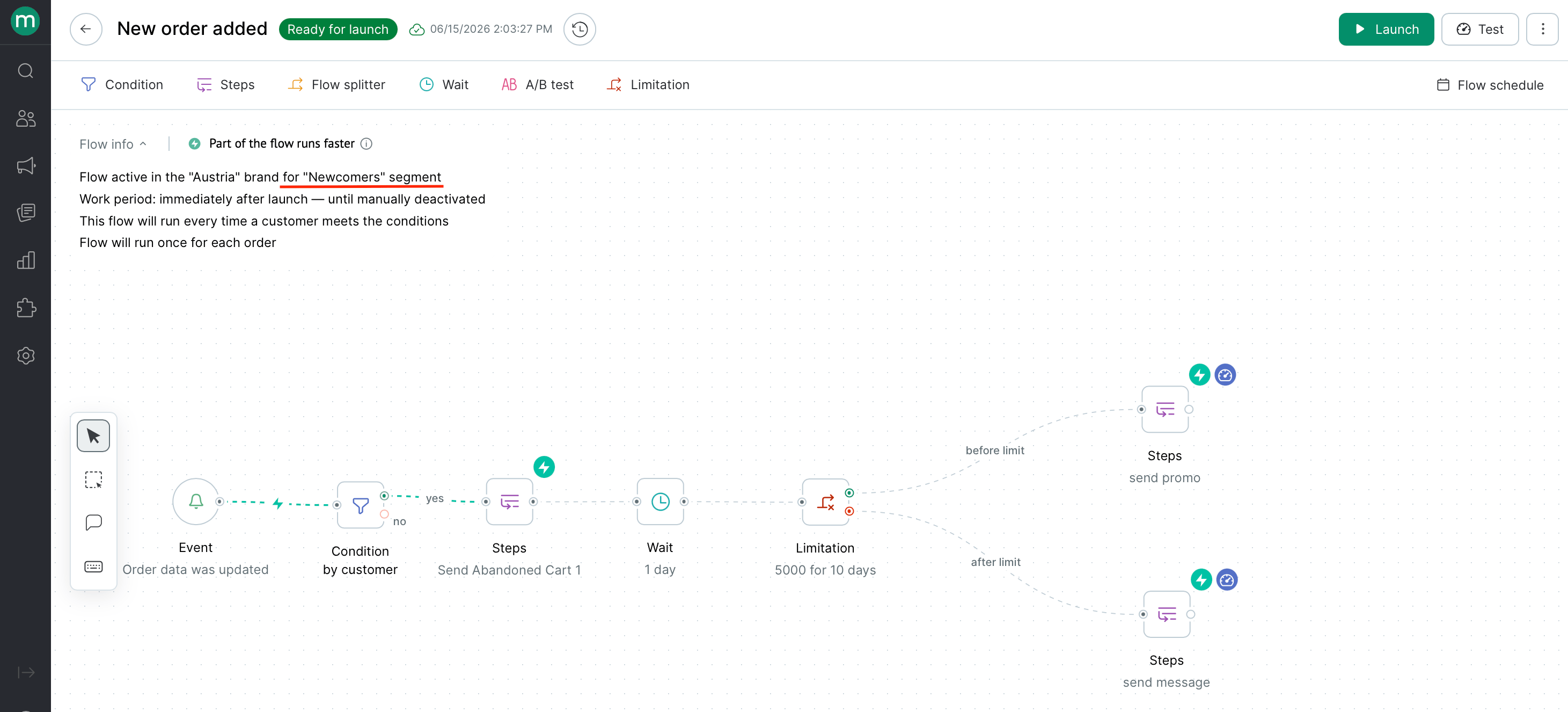
If the folder containing your flow is restricted to a segment, the flow will only fire for contacts who belong to that segment — both at the time of the trigger event and at the time each step executes. If a contact leaves the segment at any point, their run stops.
**Once the schedule is set, here's how each option affects the flow:**
**Start date** — the flow only processes events that occur after this date.
**End date** — works like a manual stop: contacts already in a Wait block will remain there, and no further steps will execute. If you push the end date back while contacts are waiting, they'll continue through the flow.
***
## Segment restriction
If the folder containing your flow is restricted to a segment, the flow will only fire for contacts who belong to that segment — both at the time of the trigger event and at the time each step executes. If a contact leaves the segment at any point, their run stops.
 ***
## Autosave and validation
Every change is saved automatically.\
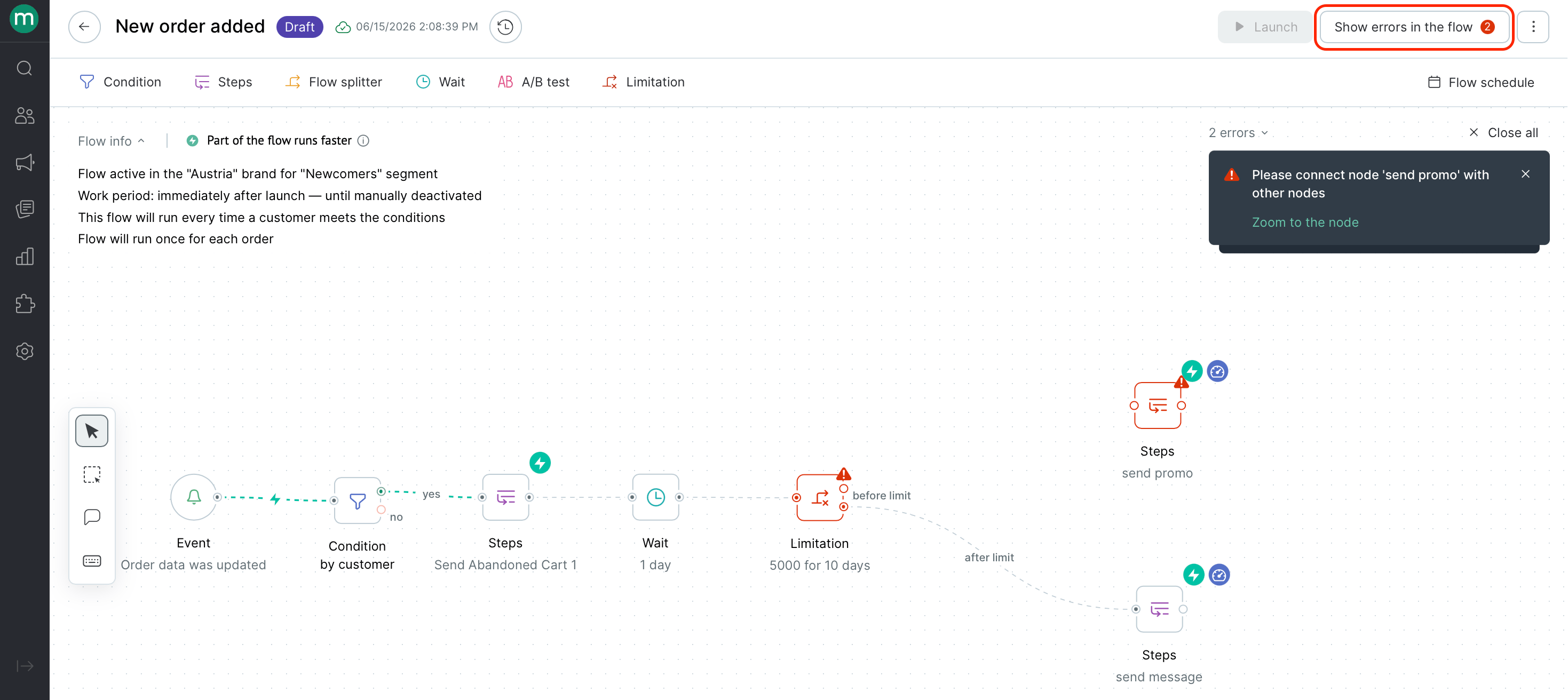
If you can't launch your draft, click **Show errors in the flow** in the top right corner to see what's blocking it. You can jump straight to the problem by clicking the link in the popup.
***
## Autosave and validation
Every change is saved automatically.\
If you can't launch your draft, click **Show errors in the flow** in the top right corner to see what's blocking it. You can jump straight to the problem by clicking the link in the popup.
 ***
## Launching a flow
### Test mode
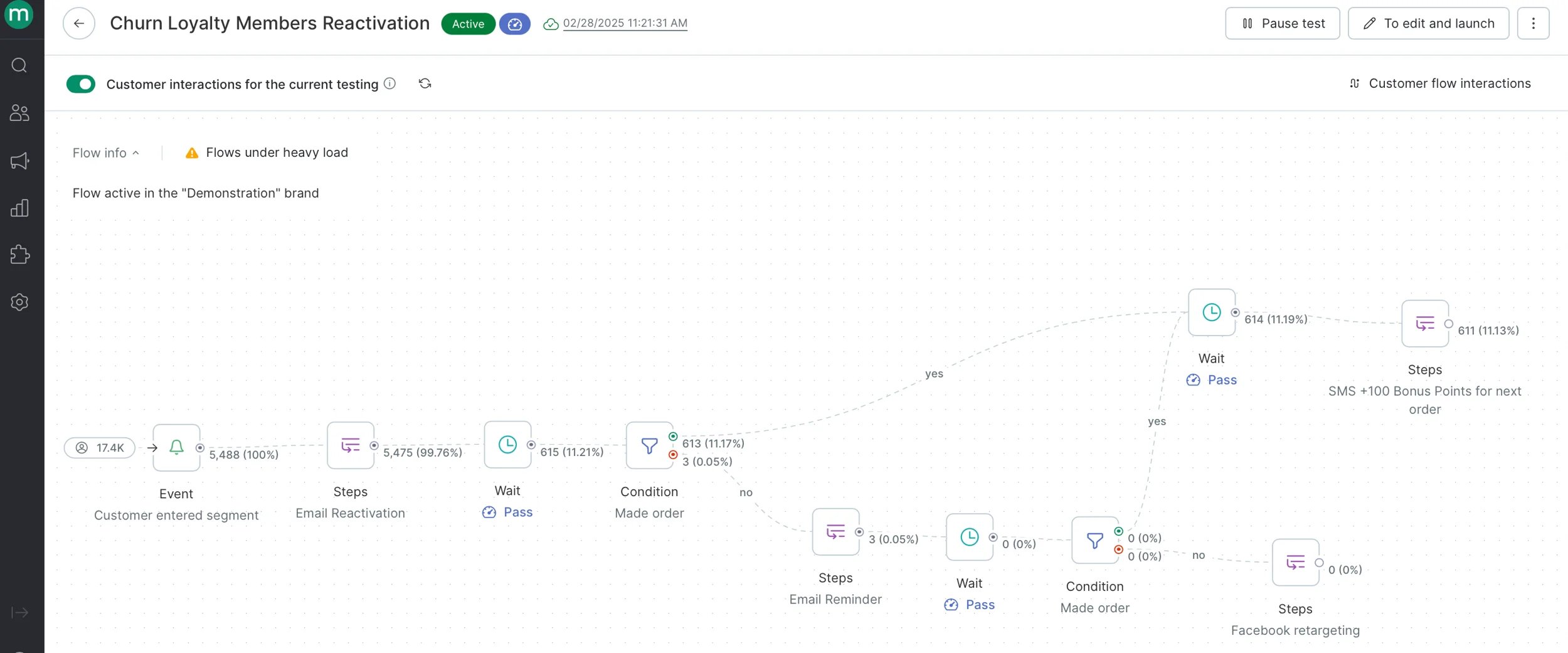
Use [test mode](/flows/how-to-test-a-flow) to verify your flow logic before going live. You can preview how contacts are routed through each branch and generate test messages — step groups won't execute and wait blocks are skipped.
***
## Launching a flow
### Test mode
Use [test mode](/flows/how-to-test-a-flow) to verify your flow logic before going live. You can preview how contacts are routed through each branch and generate test messages — step groups won't execute and wait blocks are skipped.
 ### Editing a live flow
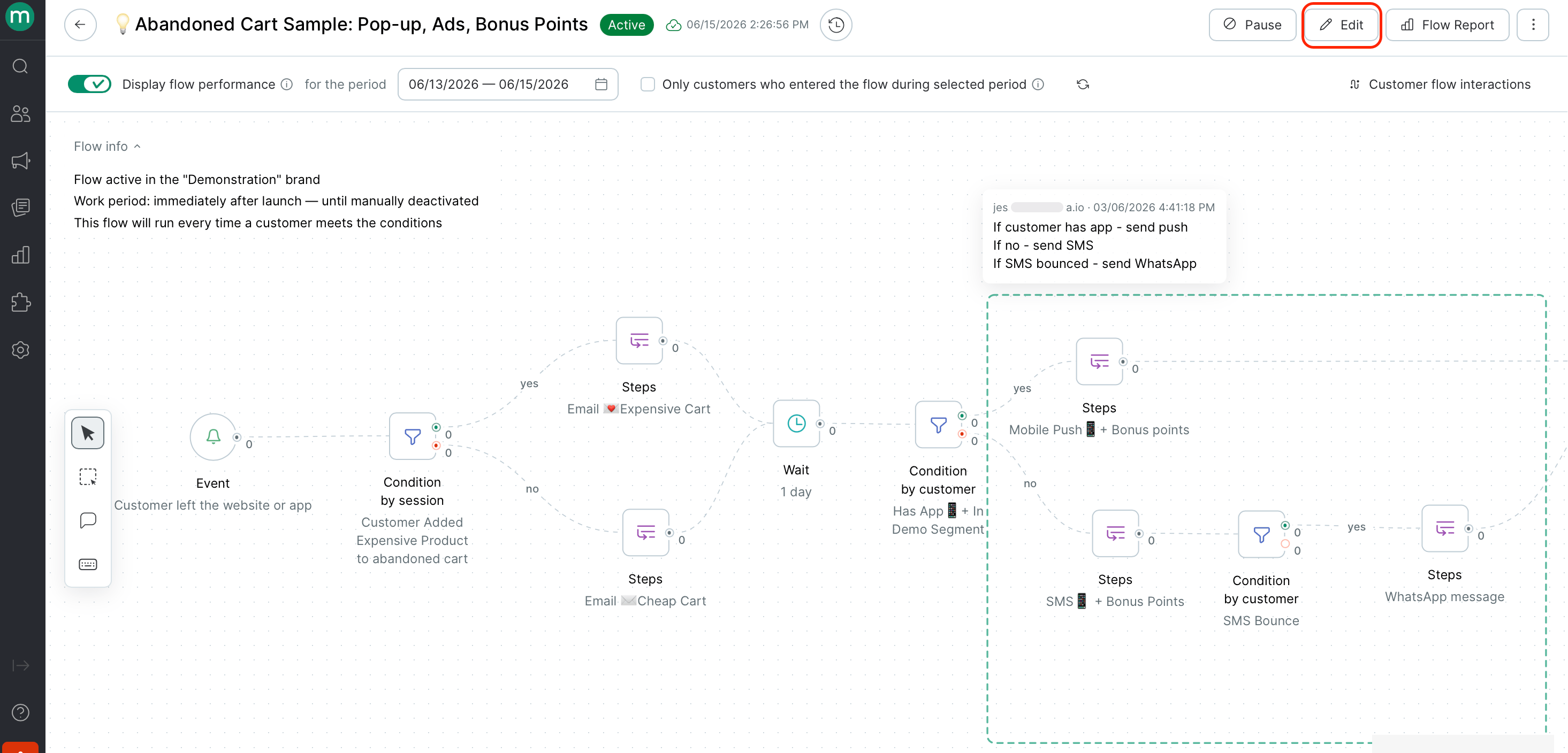 A draft is created that doesn't affect the live version.
Edit the draft as needed.
The draft goes live and the previous version stops.
A draft is created that doesn't affect the live version.
Edit the draft as needed.
The draft goes live and the previous version stops.
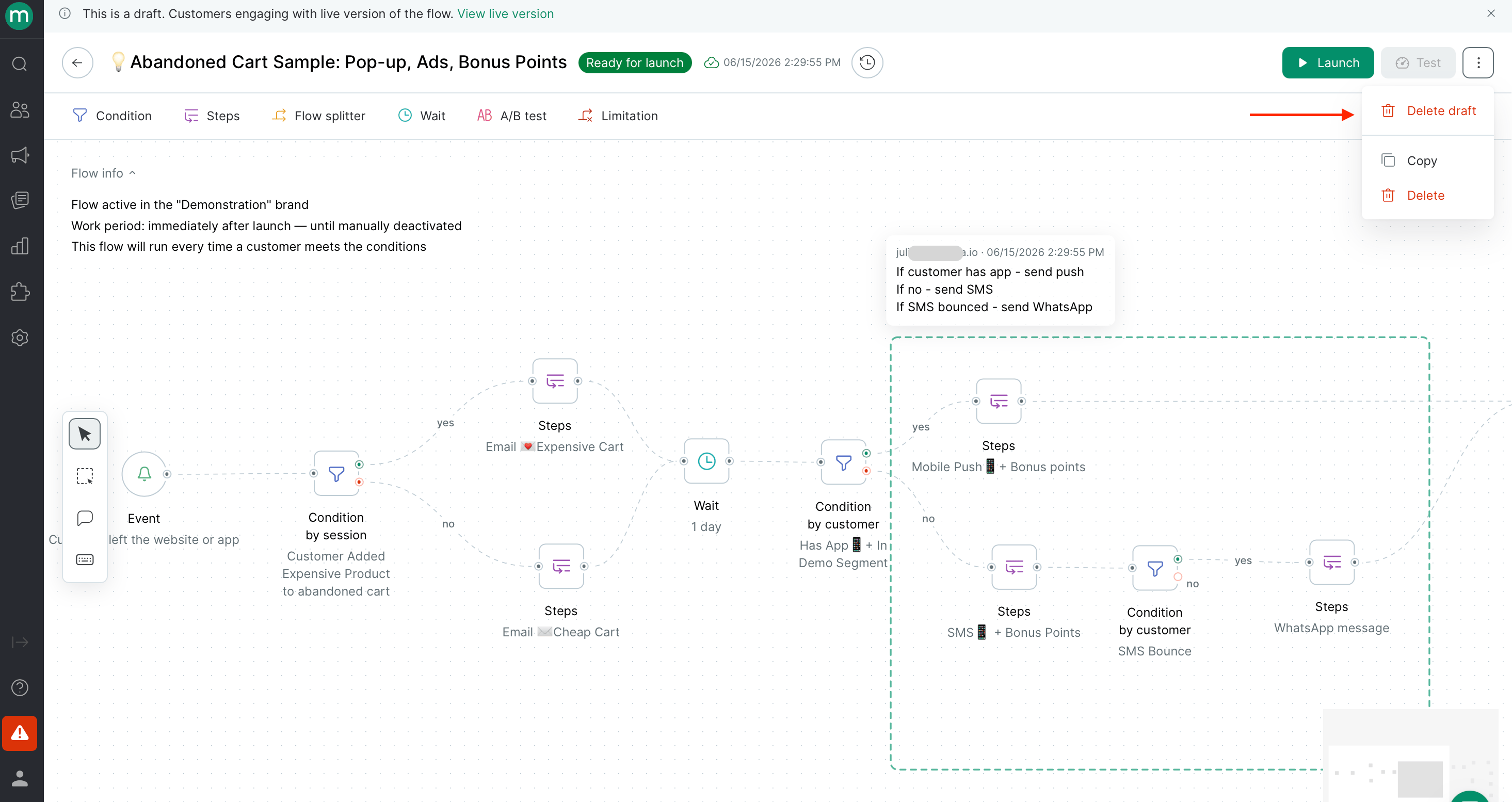
 To discard your changes, select **Delete draft** from the menu.
 ### Version history
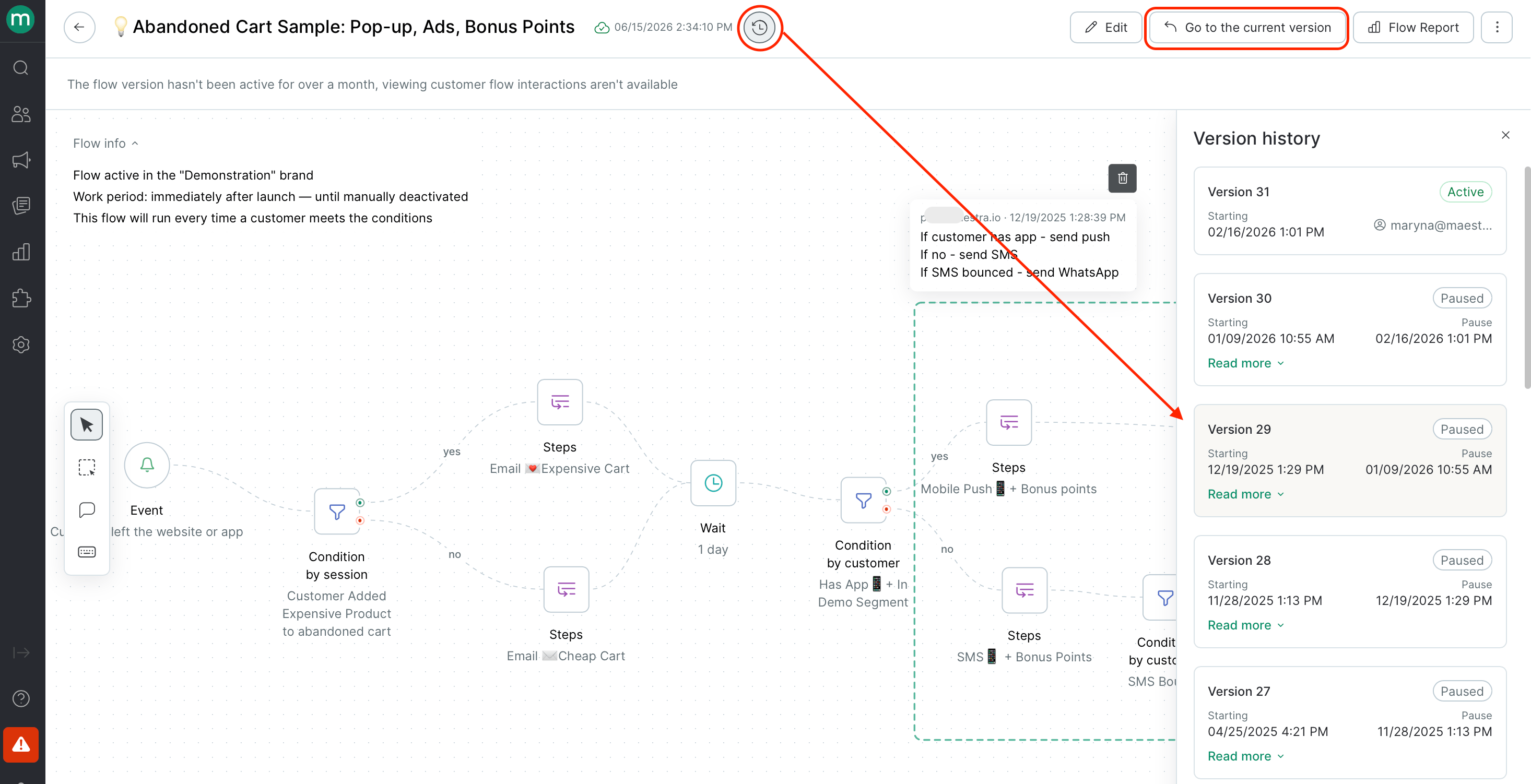
Click the clock icon next to the flow name to open version history. Each entry shows when that version was launched and stopped. Click any version to view its configuration at that point in time.
### Version history
Click the clock icon next to the flow name to open version history. Each entry shows when that version was launched and stopped. Click any version to view its configuration at that point in time.
 ### Copying a flow
Select **Copy** from the flow menu
### Copying a flow
Select **Copy** from the flow menu
 Then choose the destination folder and brand. By default, the original folder and brand are pre-selected.
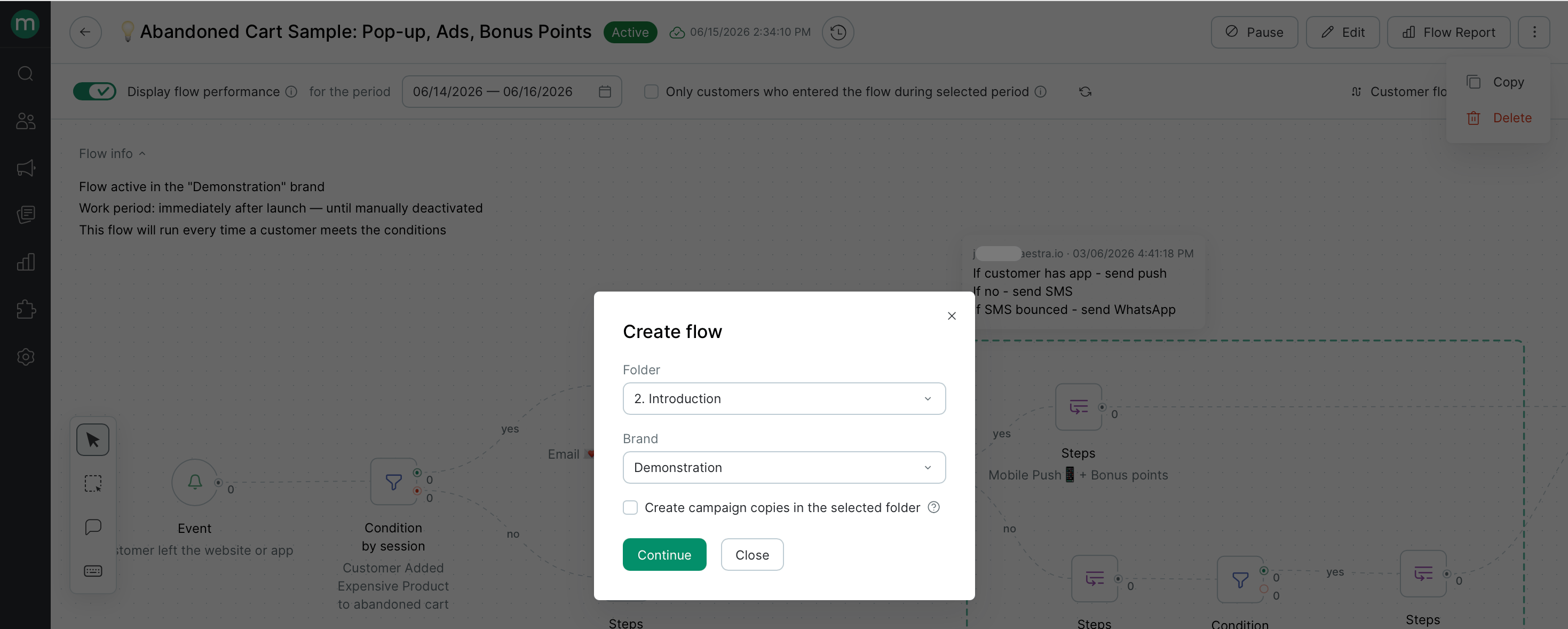 * If the flow sends campaigns, check **Create campaign copies in the selected folder** to automatically duplicate them in the new folder.
* If the flow issues an action, the step group will be copied without that step — you'll need to create a new action template and add it to the copied flow manually.
***
## Comments
Comments let you leave notes directly on the flow canvas — useful for documenting logic or leaving context for teammates.
To add a comment:
* If the flow sends campaigns, check **Create campaign copies in the selected folder** to automatically duplicate them in the new folder.
* If the flow issues an action, the step group will be copied without that step — you'll need to create a new action template and add it to the copied flow manually.
***
## Comments
Comments let you leave notes directly on the flow canvas — useful for documenting logic or leaving context for teammates.
To add a comment:
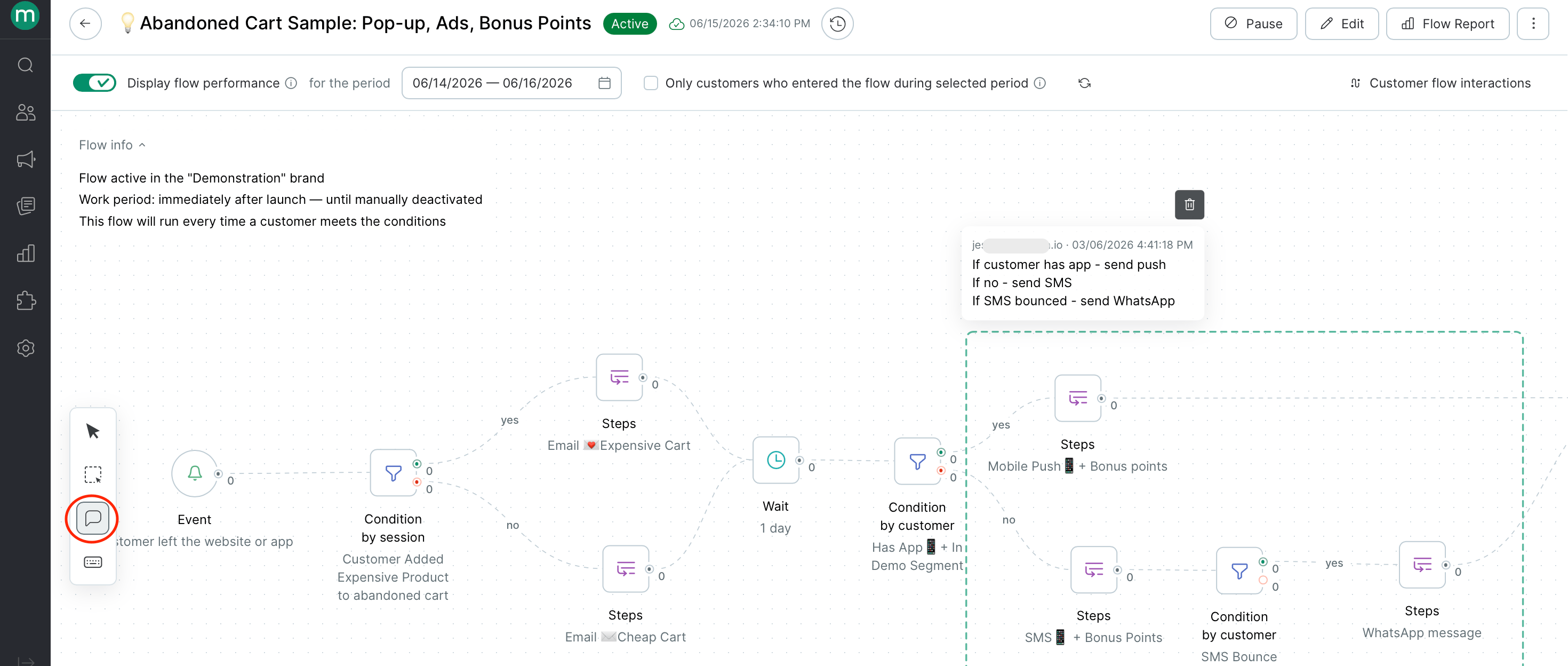
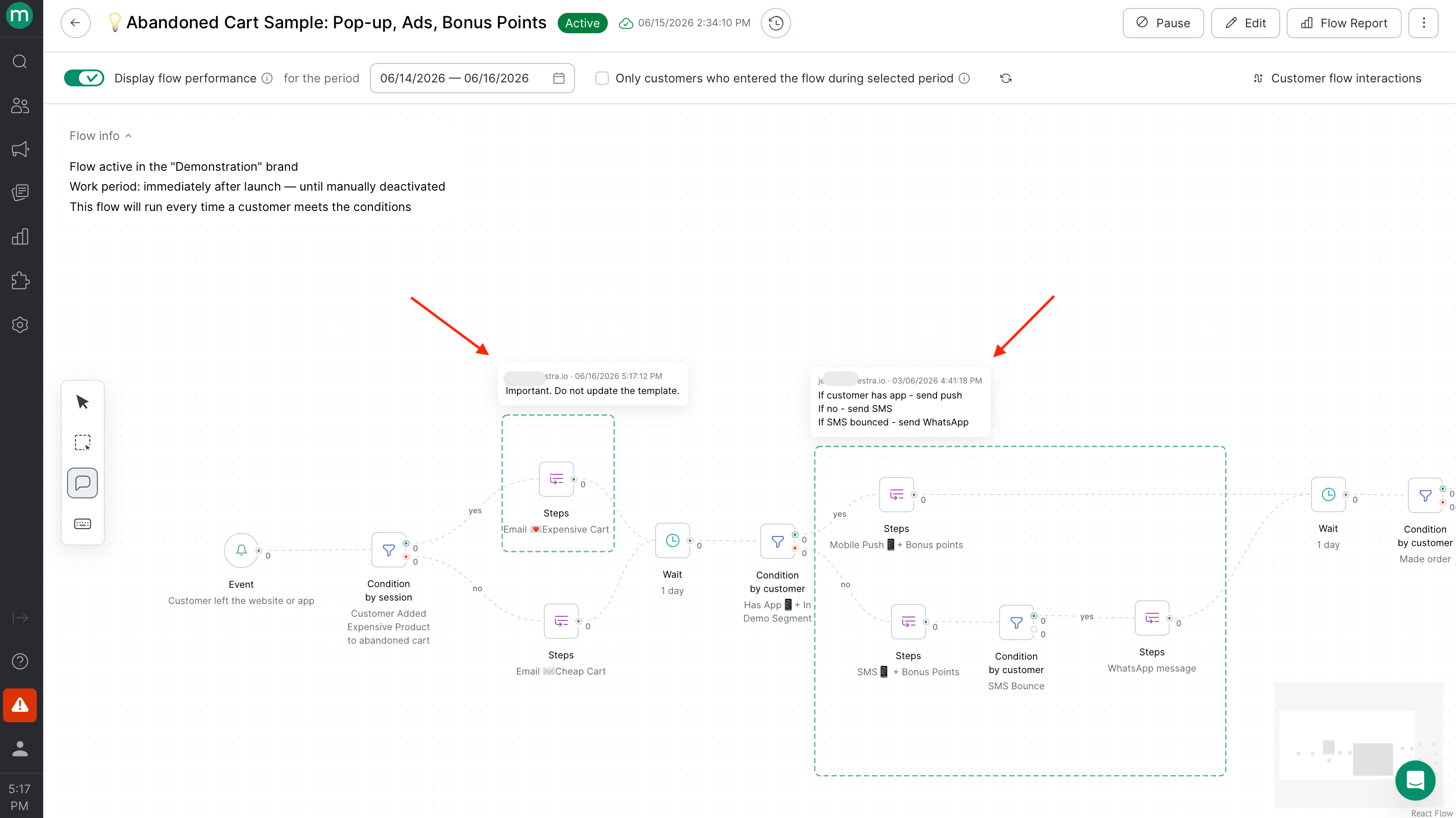 Once added, you can move comments around the canvas, resize the highlighted area, or delete them.
***
## Flow analytics
### Run statistics
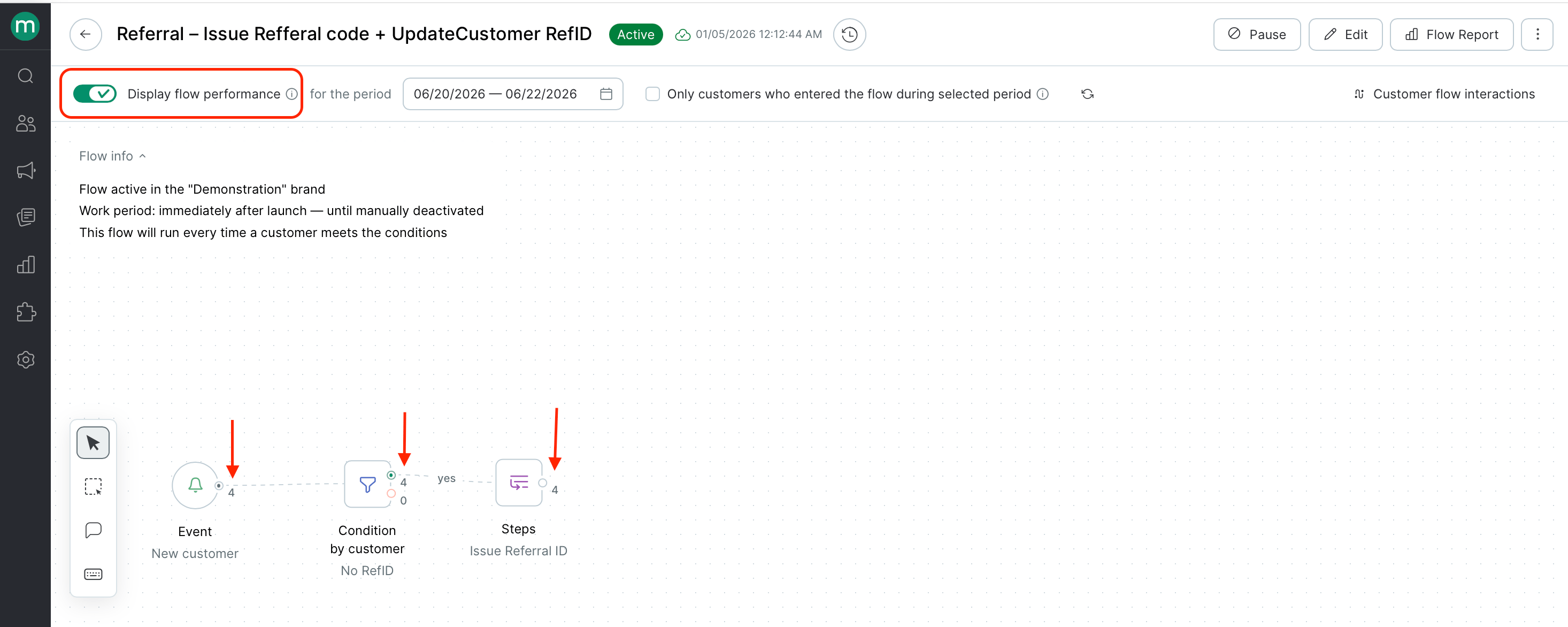
Once your flow is live, run statistics appear directly on each step. Use them to see:
* How many contacts entered the flow
* How they moved through each branch and where they dropped off
* The most common step execution errors
* Send metrics for any messages in the flow
Once added, you can move comments around the canvas, resize the highlighted area, or delete them.
***
## Flow analytics
### Run statistics
Once your flow is live, run statistics appear directly on each step. Use them to see:
* How many contacts entered the flow
* How they moved through each branch and where they dropped off
* The most common step execution errors
* Send metrics for any messages in the flow
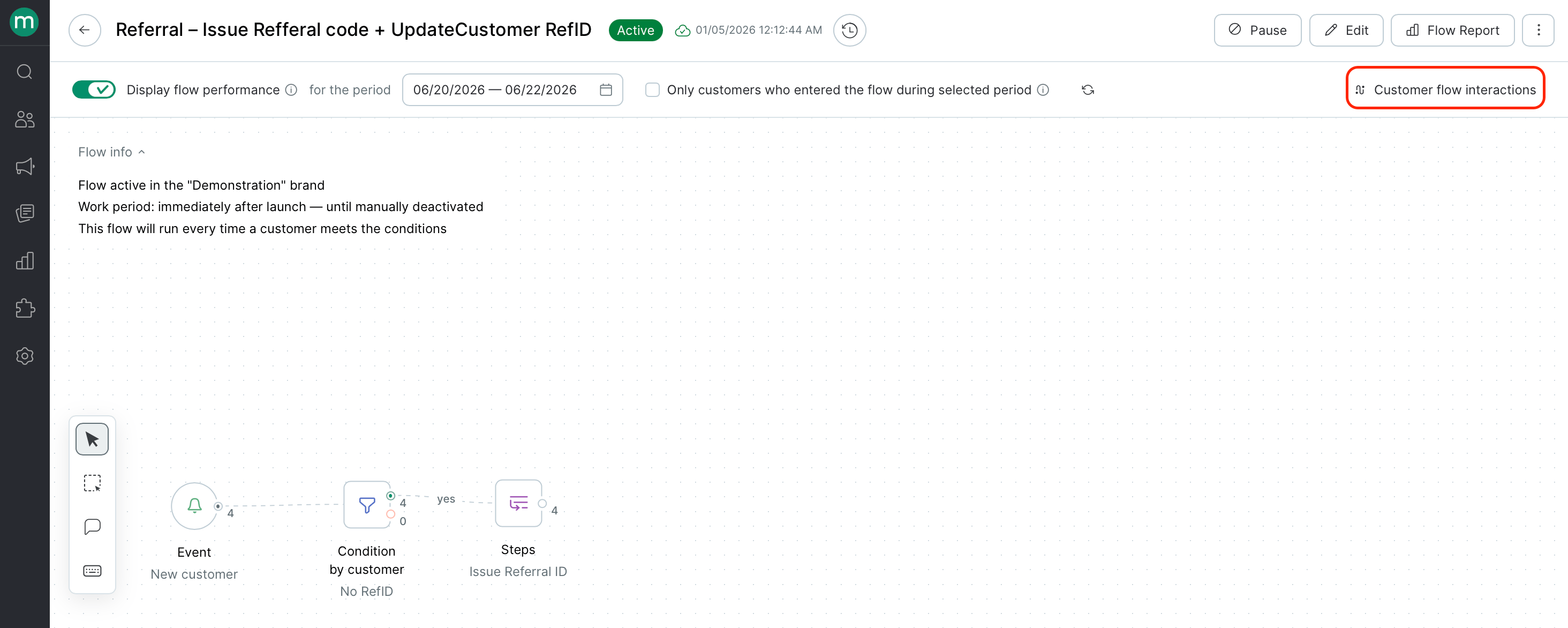
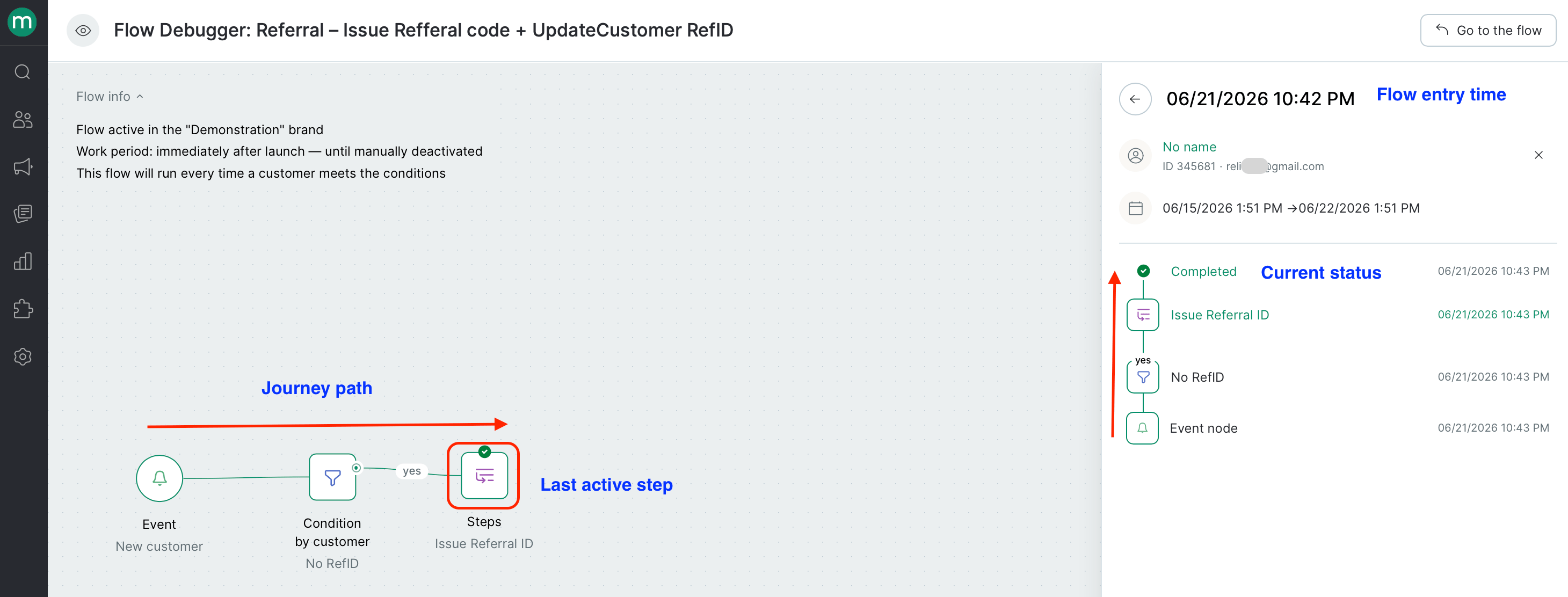
 You can also drill into any individual contact's run history.
 ### Reporting
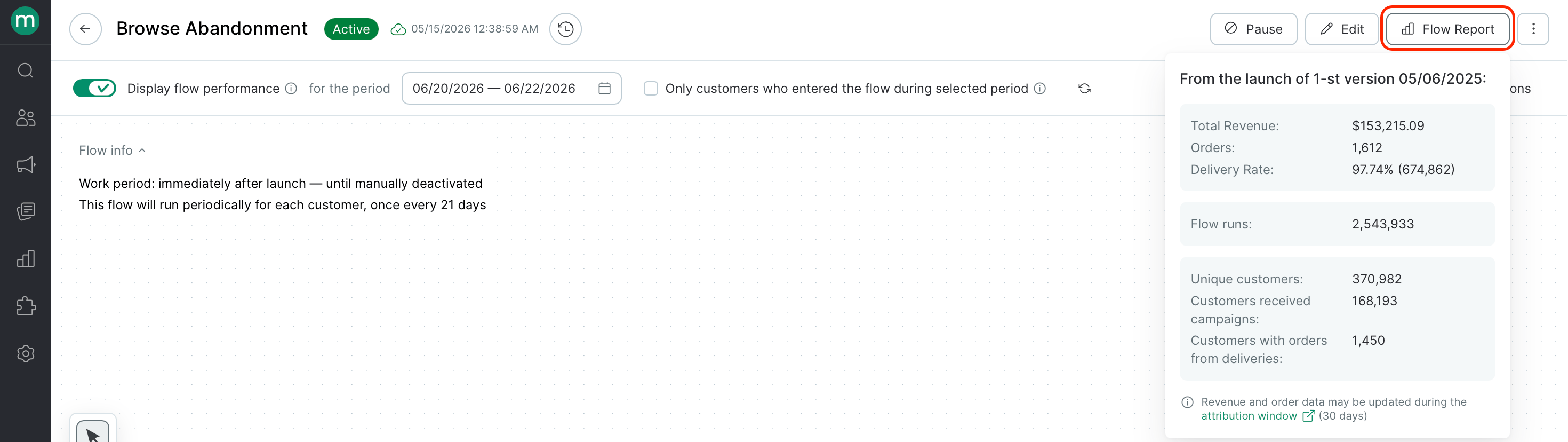
Hover over **Flow Report** on the flow page for a summary of metrics since the first launch. \\
### Reporting
Hover over **Flow Report** on the flow page for a summary of metrics since the first launch. \\
 \
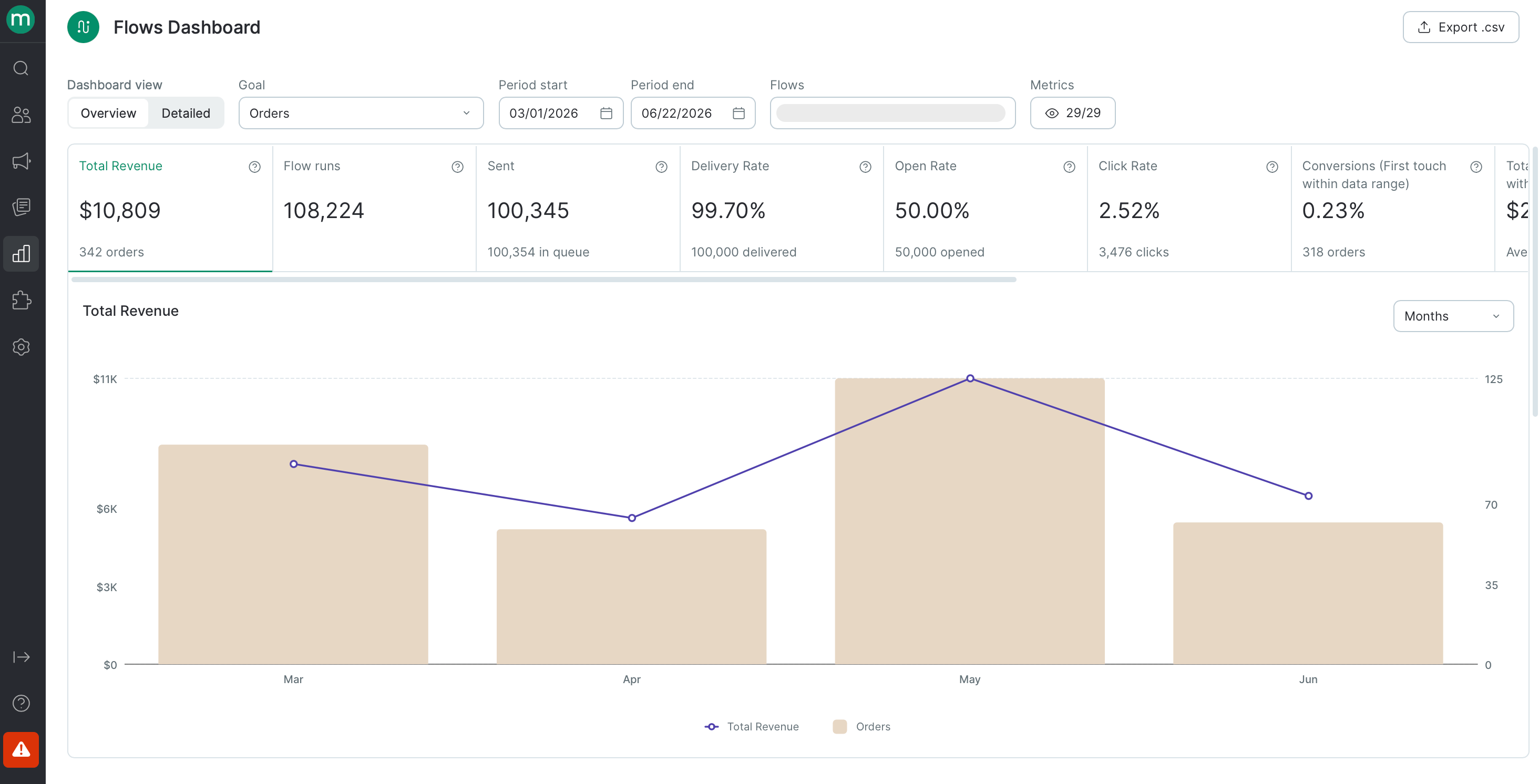
Click to open the full **Flows Dashboard** for this flow.
\
Click to open the full **Flows Dashboard** for this flow.
 ***
## Bulk flow management
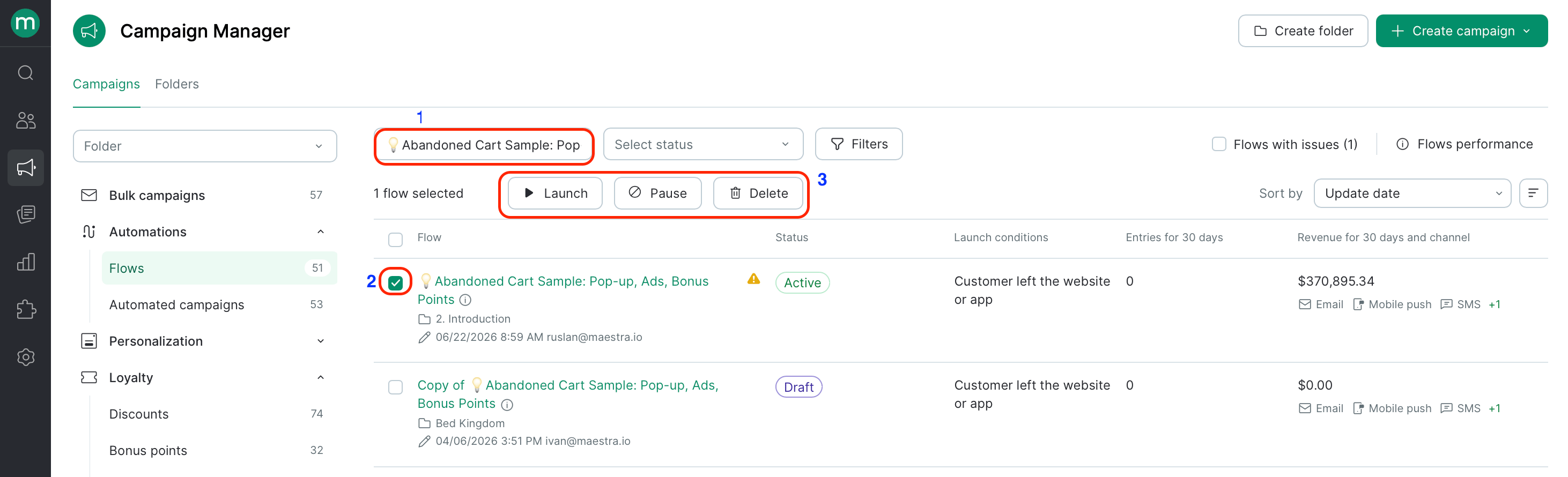
From the campaigns list, you can launch, pause, or delete multiple flows at once:
1. Filter the list to find the flows you need.
2. Use the checkboxes to select them.
3. Choose an action — launch, stop, or delete.
4. Confirm when prompted.
***
## Bulk flow management
From the campaigns list, you can launch, pause, or delete multiple flows at once:
1. Filter the list to find the flows you need.
2. Use the checkboxes to select them.
3. Choose an action — launch, stop, or delete.
4. Confirm when prompted.
 This is useful for:
* Launching a multi-flow automation all at once
* Pausing flows with errors while you fix them
* Cleaning up old test flows in bulk
This is useful for:
* Launching a multi-flow automation all at once
* Pausing flows with errors while you fix them
* Cleaning up old test flows in bulk