> ## Documentation Index
> Fetch the complete documentation index at: https://help.maestra.io/llms.txt
> Use this file to discover all available pages before exploring further.
# How to Create a Bestsellers Preset
Bestsellers presets surface your top-selling products to every kind of shopper — identified or anonymous, in email, on-site widgets, or personalized blocks. Popularity is scored first by order volume, then by view count as a tiebreaker, so items customers actually buy float to the top.
There are three presets to pick from, each tuned for a different placement.
Site-wide top sellers across your full catalog.
Top sellers calculated separately for each category.
Top sellers from the categories a customer browsed in their last session.
See [Types of recommendation presets](/personalization/product-recommendation/recommendation-presets/types-of-product-recommendation-presets) for the details on each preset — refresh cadence, limits, and how they pick products.
## How to set it up
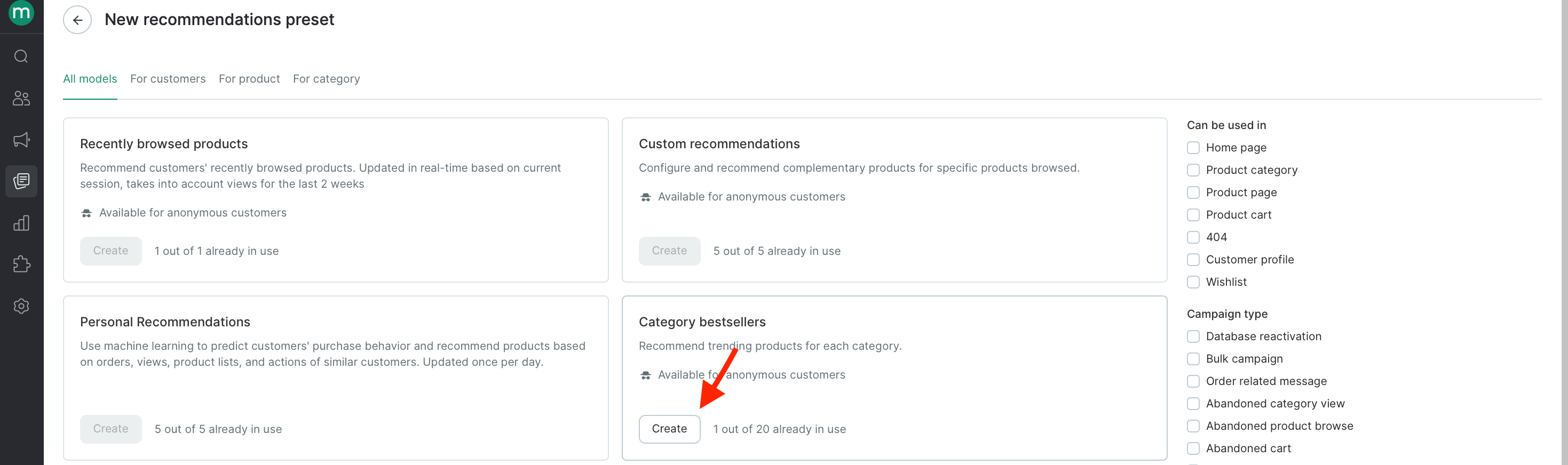
Go to **Content → Product Recommendations → Create recommendations preset**.
 Pick **Bestsellers**, **Category bestsellers**, or **Bestsellers from previously viewed categories** depending on where you'll show recommendations.
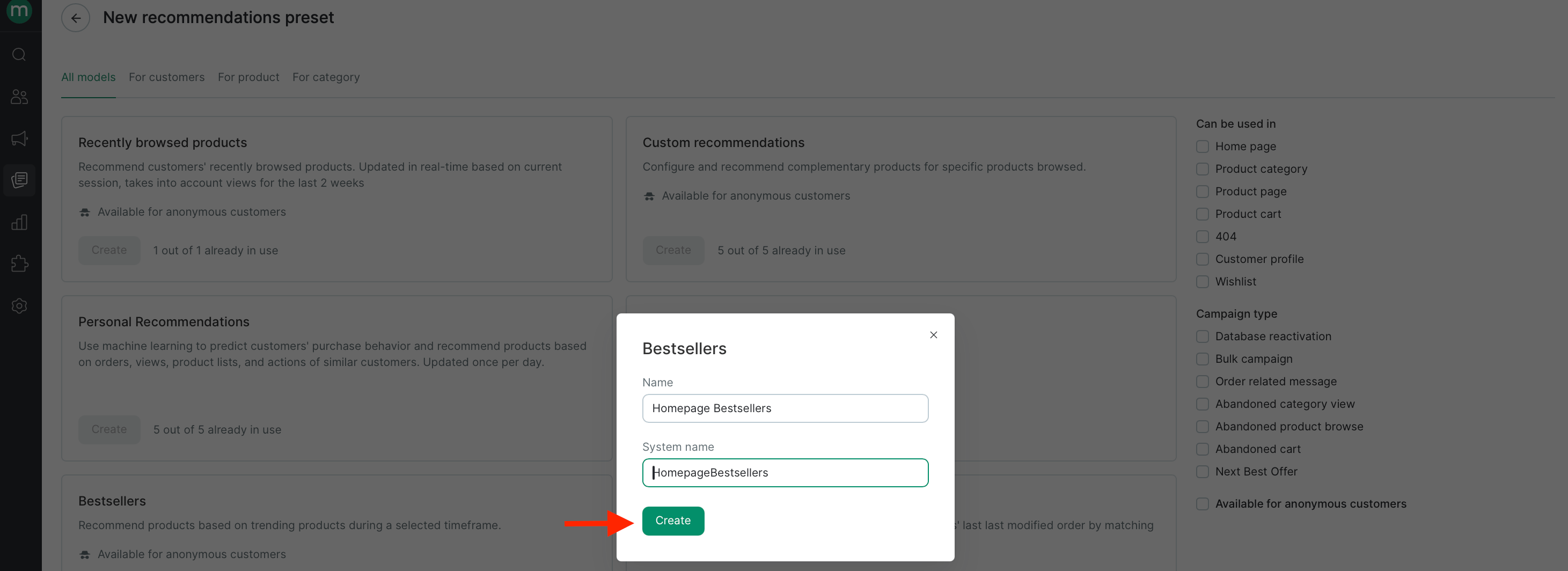
 Give it a descriptive name (for example, `Homepage bestsellers`) so you can find it later, then continue.
 Settings vary slightly by preset.
**Bestsellers**
* **Recommend from** — optionally restrict the source pool to a product segment. Leave empty to draw from your full catalog.
* **Consider product actions for the past** — the time window used to score popularity, between **1 and 180 days**. Shorter windows react to current trends; longer windows produce more stable results.
**Category bestsellers**
* **Recommend from** — optionally restrict the source pool to a product segment.
To get recommendations for categories, process `Product.Categories.Take().Recommendations` as a collection.
**Bestsellers from previously viewed categories**
Settings vary slightly by preset.
**Bestsellers**
* **Recommend from** — optionally restrict the source pool to a product segment. Leave empty to draw from your full catalog.
* **Consider product actions for the past** — the time window used to score popularity, between **1 and 180 days**. Shorter windows react to current trends; longer windows produce more stable results.
**Category bestsellers**
* **Recommend from** — optionally restrict the source pool to a product segment.
To get recommendations for categories, process `Product.Categories.Take().Recommendations` as a collection.
**Bestsellers from previously viewed categories**
Recommend from — optionally restrict the source pool to a product segment. Leave empty to draw from your full catalog.
* **Recommend from** — optionally restrict the source pool to a product segment. Leave empty to draw from your full catalog.
* \*\*Consider product actions for the past \*\*— the time window used to score popularity, between 1 and 180 days. Shorter windows react to current trends; longer windows produce more stable results.
Click **Start**. The preset appears in your list with its current status and the timestamp of its last update.
