> ## Documentation Index
> Fetch the complete documentation index at: https://help.maestra.io/llms.txt
> Use this file to discover all available pages before exploring further.
# Passkey login administration and setup
Passkey login is enabled by default for all projects. If you experience any issues, please contact Maestra Support.
If you use [SSO (Single Sign-On)](/security/single-sign-on-sso) and enforced login is enabled, passkey authentication is not required.
# Managing Passkeys: Owner/Admin Guide
To manage passkeys, you need the **View user settings** and **Edit users** permissions. By default, these permissions are granted to project owners and administrators. If needed, you can assign them to other team members.
We recommend granting passkey management access to at least two staff members in case one of them loses access to their passkey.
Owners, administrators, and any staff members with the above permissions can:
* View which users have passkeys set up.
* Send an email to create a new passkey for users who’ve lost access or need an additional passkey for another device.
* Reset existing passkeys.
## **How to send a setup email to a new user**
You can add new users manually or via import. After adding them, go to the staff editing page and click **Send new passkey.** The user will receive an email with a link to set up their passkey.
.png?fit=max&auto=format&n=8VE_QojSxRA8jQ0B&q=85&s=dcff11c4ab0f1862139211dcd8968385) ## **How to set up an additional passkey for a user**
Each employee can have up to three passkeys.
A user may need an additional passkey if they access Maestra from multiple devices that cannot share the same passkey. For example, when one is stored locally in Windows Hello or Google Password Manager under a corporate account.
To set up an additional passkey:
1. Go to **Settings → Security → Users.**
2. Open the user’s profile.
3. Click **Send new passkey.**
## **Helping users with passkey issues**
If a user reports that:
* Their password manager has changed, but the passkeys weren’t transferred.
* They lost the device on which their passkey was set up.
* A passkey has been compromised.
follow these steps:
1. Go to **Settings → Security → Users.**
2. Open the user’s profile.
3. Click **Reset keys.**
4. Send a new key.
When passkeys are reset, all existing passkeys are permanently deleted and cannot be recovered.
## **How to set up an additional passkey for a user**
Each employee can have up to three passkeys.
A user may need an additional passkey if they access Maestra from multiple devices that cannot share the same passkey. For example, when one is stored locally in Windows Hello or Google Password Manager under a corporate account.
To set up an additional passkey:
1. Go to **Settings → Security → Users.**
2. Open the user’s profile.
3. Click **Send new passkey.**
## **Helping users with passkey issues**
If a user reports that:
* Their password manager has changed, but the passkeys weren’t transferred.
* They lost the device on which their passkey was set up.
* A passkey has been compromised.
follow these steps:
1. Go to **Settings → Security → Users.**
2. Open the user’s profile.
3. Click **Reset keys.**
4. Send a new key.
When passkeys are reset, all existing passkeys are permanently deleted and cannot be recovered.
.png?fit=max&auto=format&n=8VE_QojSxRA8jQ0B&q=85&s=af07a9027331a9cdfcf3b46dfd528735) # Passkey Setup: From Email Invitation to Sign-In
## **New users**
Once the project owner creates your profile, you’ll receive an email with a link to set up your access.
* The link is one-time use and valid for a limited period: 24 hours for regular users; 72 hours for project owners.
* The expiration time is shown in the email.
* The link cannot be reused after setup.
* If the link expires before you complete setup, contact the project owner to issue a new one.
1. Follow the link from the email.
# Passkey Setup: From Email Invitation to Sign-In
## **New users**
Once the project owner creates your profile, you’ll receive an email with a link to set up your access.
* The link is one-time use and valid for a limited period: 24 hours for regular users; 72 hours for project owners.
* The expiration time is shown in the email.
* The link cannot be reused after setup.
* If the link expires before you complete setup, contact the project owner to issue a new one.
1. Follow the link from the email.
.png?fit=max&auto=format&n=8VE_QojSxRA8jQ0B&q=85&s=3f601b4e00920788ff2702f2f4dc2a32) 2. In the window that opens, click **Set up.** **
2. In the window that opens, click **Set up.** **
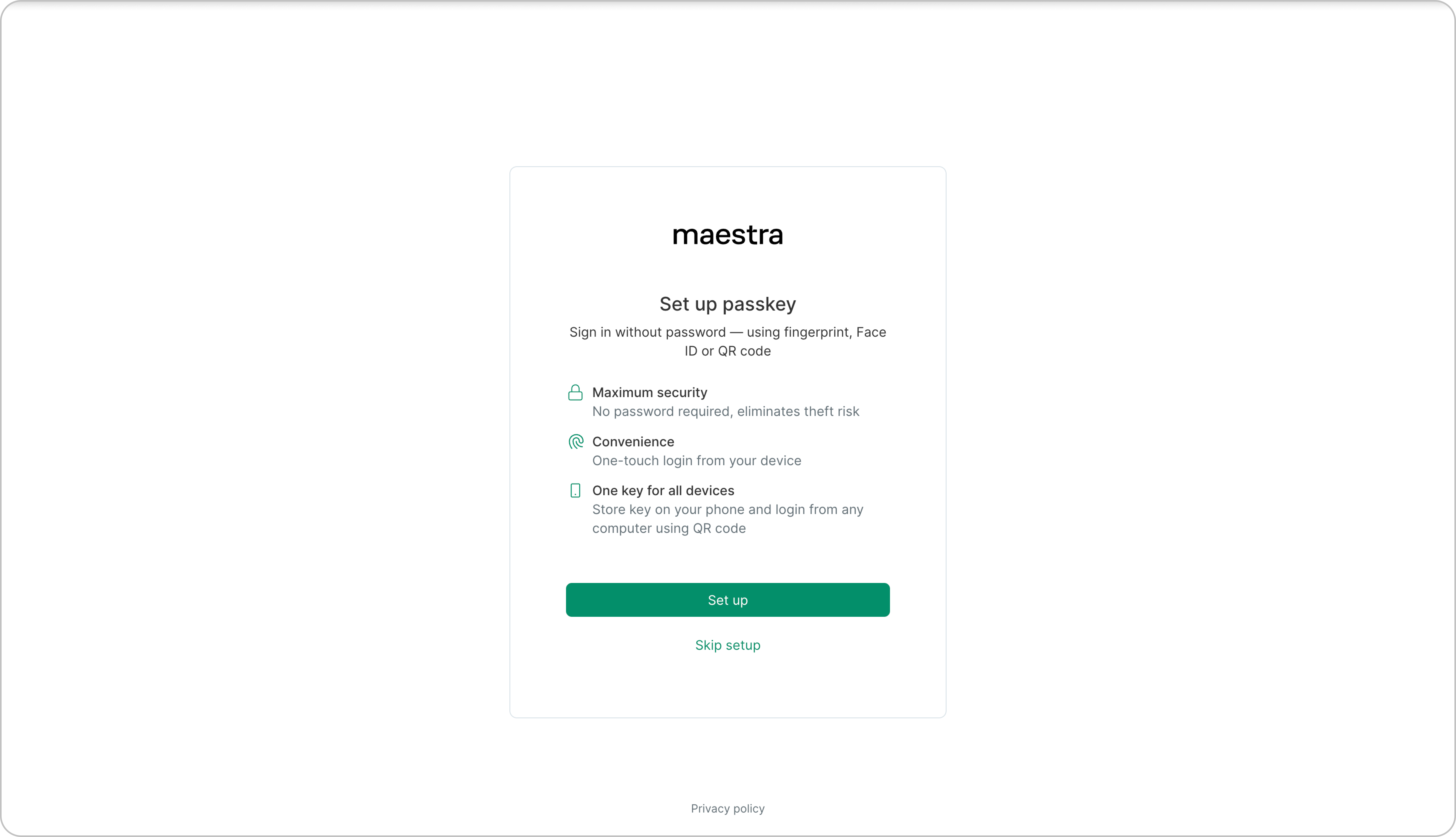 3. Choose where to store your passkey:
The options available in the system window depend on your browser, device operating system, and installed password managers.
It is available for selection in the system window when setting up the passkey on Apple devices.
Once configured, you can access the project from any Apple device that is logged into your iCloud account.
1. In the system window, select "iCloud Keychain."
3. Choose where to store your passkey:
The options available in the system window depend on your browser, device operating system, and installed password managers.
It is available for selection in the system window when setting up the passkey on Apple devices.
Once configured, you can access the project from any Apple device that is logged into your iCloud account.
1. In the system window, select "iCloud Keychain."
.png?fit=max&auto=format&n=8VE_QojSxRA8jQ0B&q=85&s=1b0ab7232951fad3b9ccbcb771046e2e) 2\. Confirm saving the passkey in the keychain.
2\. Confirm saving the passkey in the keychain.
.png?fit=max&auto=format&n=8VE_QojSxRA8jQ0B&q=85&s=cb75e287ae14d5efd52ef2126c80a346) This option is available in the system window of your browser if it supports passkeys and your device supports Bluetooth.
After setting up your passkey, access the project by scanning the QR code and confirming your login with the passkey on your phone. Use your mobile phone camera (Apple or Android) to scan the QR code.
**To set up the access key on a Macbook, follow these steps:**
1. In the system window, select "Use a phone, tablet, or security key."
This option is available in the system window of your browser if it supports passkeys and your device supports Bluetooth.
After setting up your passkey, access the project by scanning the QR code and confirming your login with the passkey on your phone. Use your mobile phone camera (Apple or Android) to scan the QR code.
**To set up the access key on a Macbook, follow these steps:**
1. In the system window, select "Use a phone, tablet, or security key."
.png?fit=max&auto=format&n=8VE_QojSxRA8jQ0B&q=85&s=5abd1f2f49ece75d8684a02a6235e847) 2\. Use your device's camera to scan the QR code and save the security key for logging in.
2\. Use your device's camera to scan the QR code and save the security key for logging in.
.png?fit=max&auto=format&n=8VE_QojSxRA8jQ0B&q=85&s=2cd5a5bc30a29000e7050416a3dc2506) If your phone cannot read the QR code, use authentication apps to save the passkey. For example, Google Authenticator or Microsoft Authenticator.
3\. Follow the instructions on your phone after scanning the QR code.
**To set up the passkey on a Windows computer, follow these steps:**
1. In the system window, select "Iphone, Ipad or Android device".
If your phone cannot read the QR code, use authentication apps to save the passkey. For example, Google Authenticator or Microsoft Authenticator.
3\. Follow the instructions on your phone after scanning the QR code.
**To set up the passkey on a Windows computer, follow these steps:**
1. In the system window, select "Iphone, Ipad or Android device".
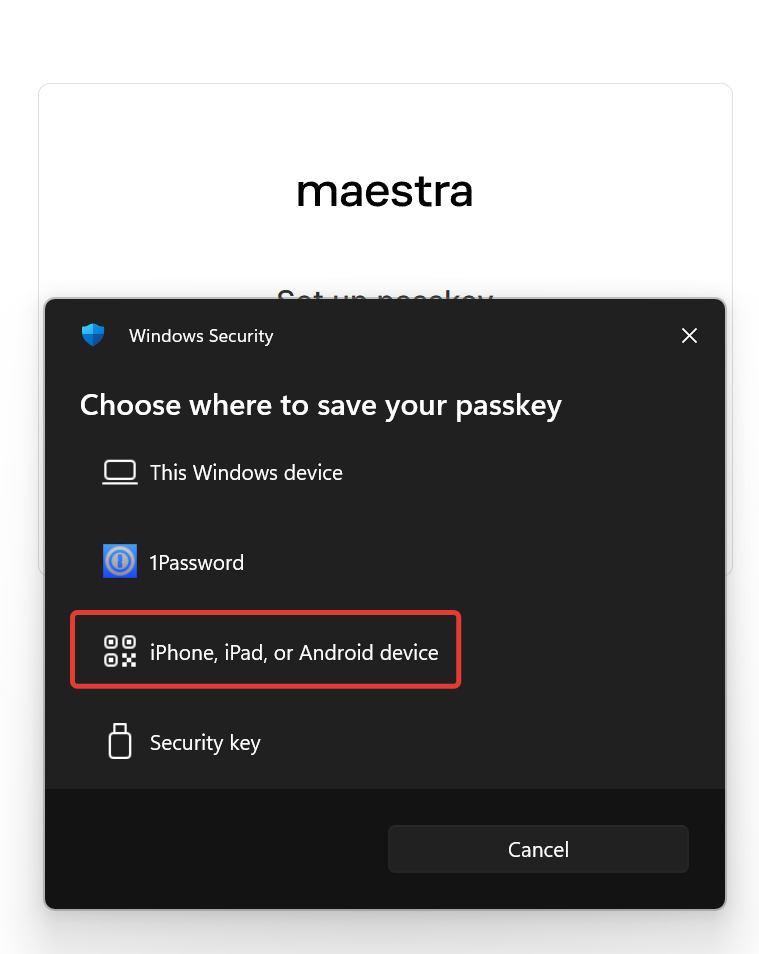 2. Use your device's camera to scan the QR code and save the passkey for logging in.
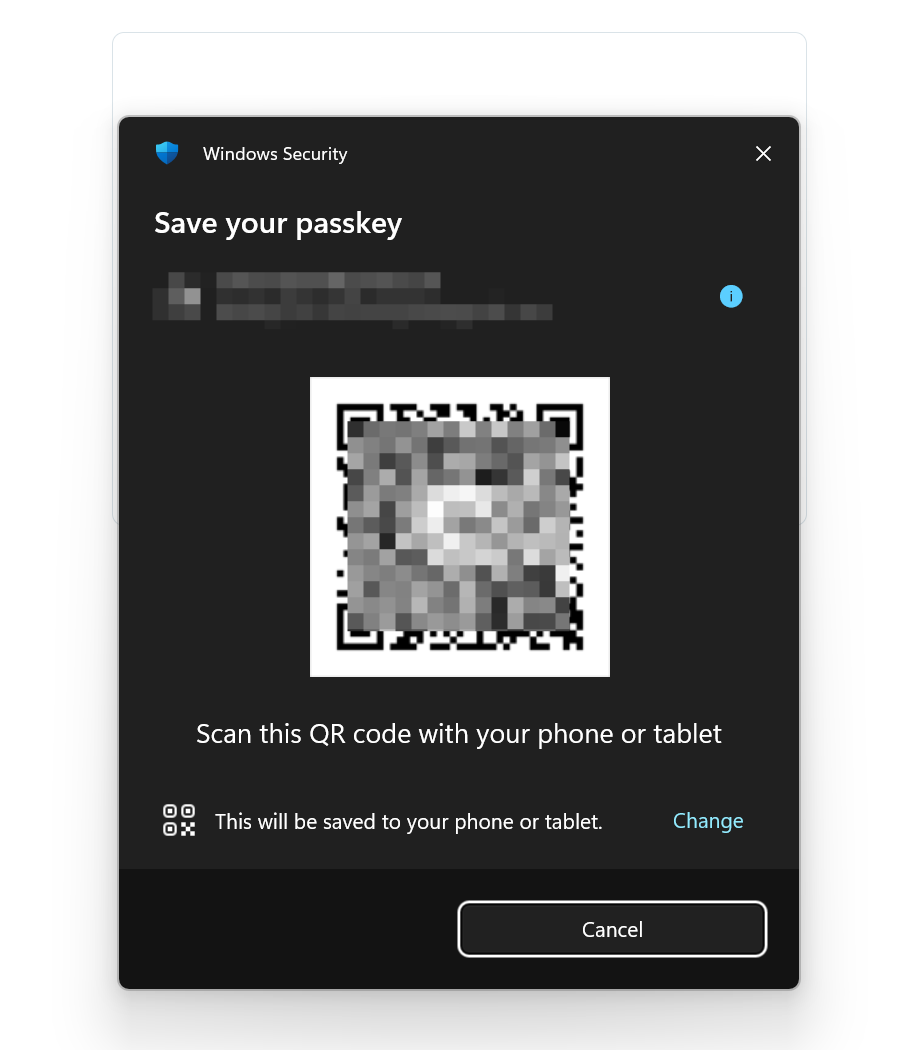 If your phone cannot read the QR code, use authentication apps to save the access key. For example, Google Authenticator or Microsoft Authenticator.
3\. Follow the instructions on your phone after scanning the QR code.
If the system prompts you to insert a security key into the USB port but does not show you how to save the key using your phone, follow these steps:
If your phone cannot read the QR code, use authentication apps to save the access key. For example, Google Authenticator or Microsoft Authenticator.
3\. Follow the instructions on your phone after scanning the QR code.
If the system prompts you to insert a security key into the USB port but does not show you how to save the key using your phone, follow these steps:
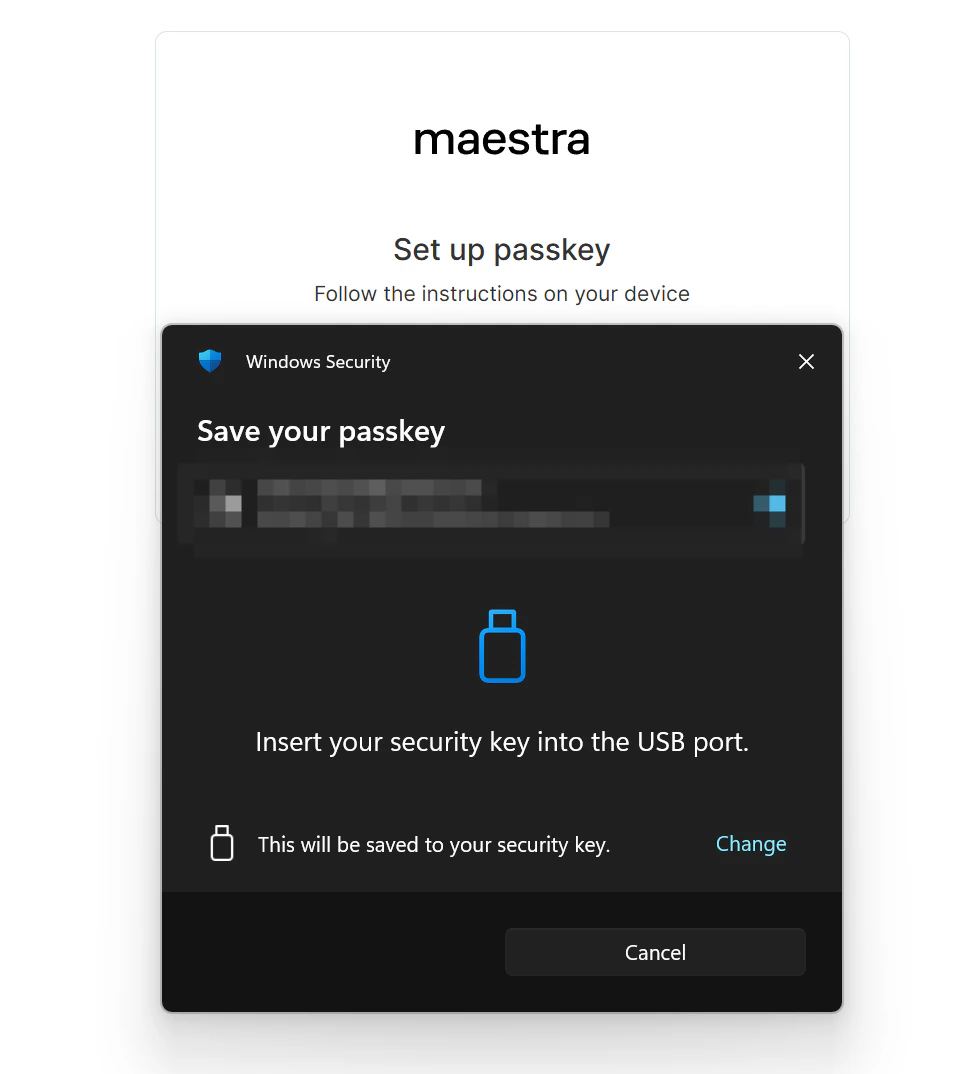 1. Make sure your device supports Bluetooth, and that it is turned on on both your phone and computer during setup.
2. If Bluetooth was turned off, turn it on and refresh the page to start setting up the keys again. When the system window appears asking if you want to continue with USB port, click "Cancel".
1. Make sure your device supports Bluetooth, and that it is turned on on both your phone and computer during setup.
2. If Bluetooth was turned off, turn it on and refresh the page to start setting up the keys again. When the system window appears asking if you want to continue with USB port, click "Cancel".
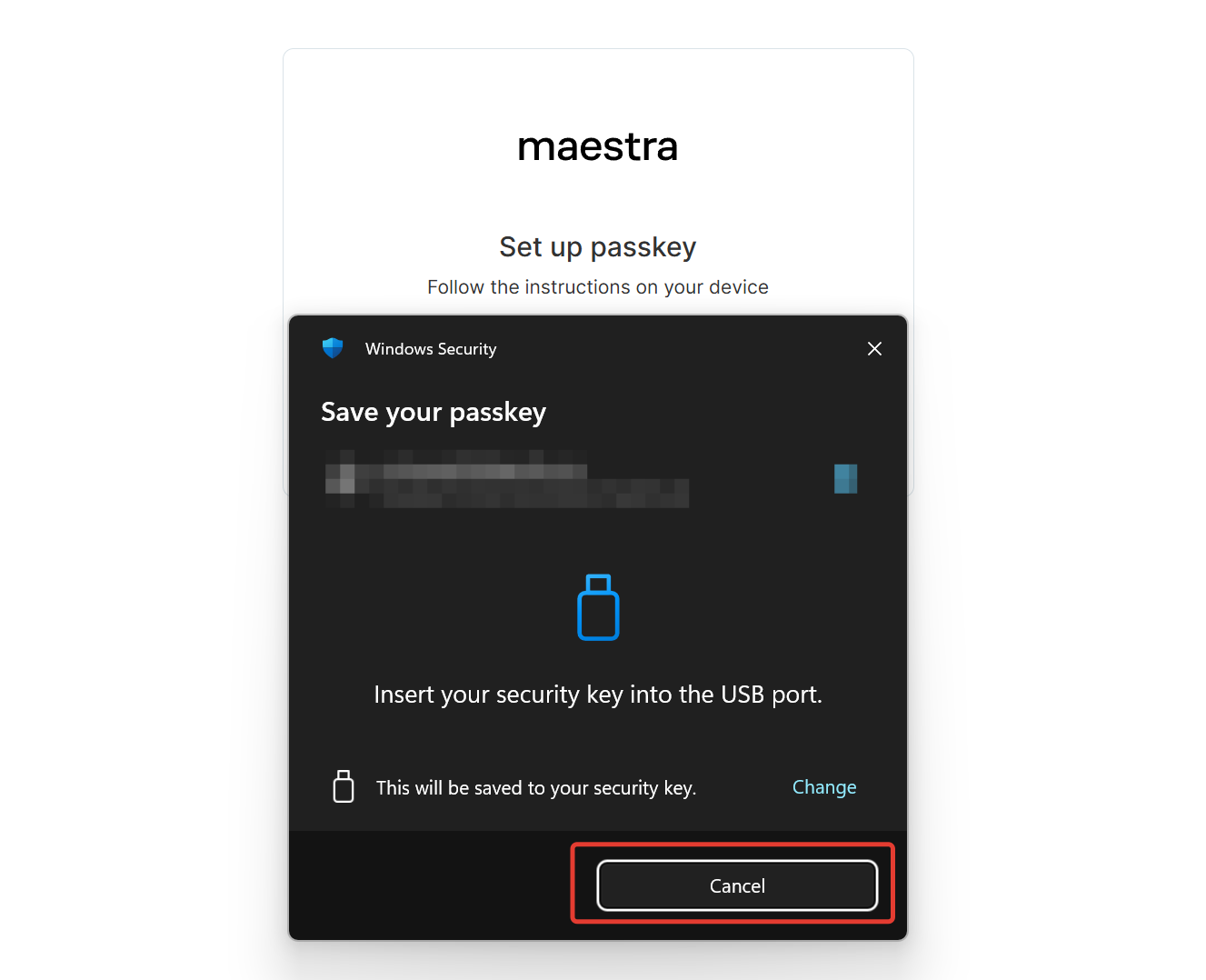 3. After that, the system may offer other ways to save the security key. Select "Iphone, Ipad or Android device".
If the above method does not work and the system does not offer any options except for a USB key, please contact Maestra Support.
It is available for selection in the system window of the Chrome browser. To save the passkey, you need to be authorized in your Google account.
Once configured, you can access the project from any device logged into your Google account.
If you need to access the project from a device that does not have access to your Google account, you can use QR login with your phone, which must be logged into your Google account. When logging in, select the "Use a phone, tablet, or security key" option, scan the QR code, and confirm the use of the key saved in Google Password Manager. This method is available only if your device supports Bluetooth.
1. In the system window, select "Google Password Manager"
3. After that, the system may offer other ways to save the security key. Select "Iphone, Ipad or Android device".
If the above method does not work and the system does not offer any options except for a USB key, please contact Maestra Support.
It is available for selection in the system window of the Chrome browser. To save the passkey, you need to be authorized in your Google account.
Once configured, you can access the project from any device logged into your Google account.
If you need to access the project from a device that does not have access to your Google account, you can use QR login with your phone, which must be logged into your Google account. When logging in, select the "Use a phone, tablet, or security key" option, scan the QR code, and confirm the use of the key saved in Google Password Manager. This method is available only if your device supports Bluetooth.
1. In the system window, select "Google Password Manager"
.png?fit=max&auto=format&n=8VE_QojSxRA8jQ0B&q=85&s=2e27000c1eb1447871c8a987d978ea96) 2. Save the passkey in your Google account.
2. Save the passkey in your Google account.
.png?fit=max&auto=format&n=8VE_QojSxRA8jQ0B&q=85&s=7f2169ec5a056d6e0c54739ab1b1097d) This option is available for selection in the system window of the Chrome browser.
The passkey is stored locally in the current Chrome profile on the device and is not synchronized. Therefore, logging into the project with this key will not be possible from other devices or browsers.
1. In the system window, select "Your Chrome profile"
This option is available for selection in the system window of the Chrome browser.
The passkey is stored locally in the current Chrome profile on the device and is not synchronized. Therefore, logging into the project with this key will not be possible from other devices or browsers.
1. In the system window, select "Your Chrome profile"
.png?fit=max&auto=format&n=8VE_QojSxRA8jQ0B&q=85&s=86d1026cf7ea2d3532d5d12b86577409) 2. Save the access key in your profile.
2. Save the access key in your profile.
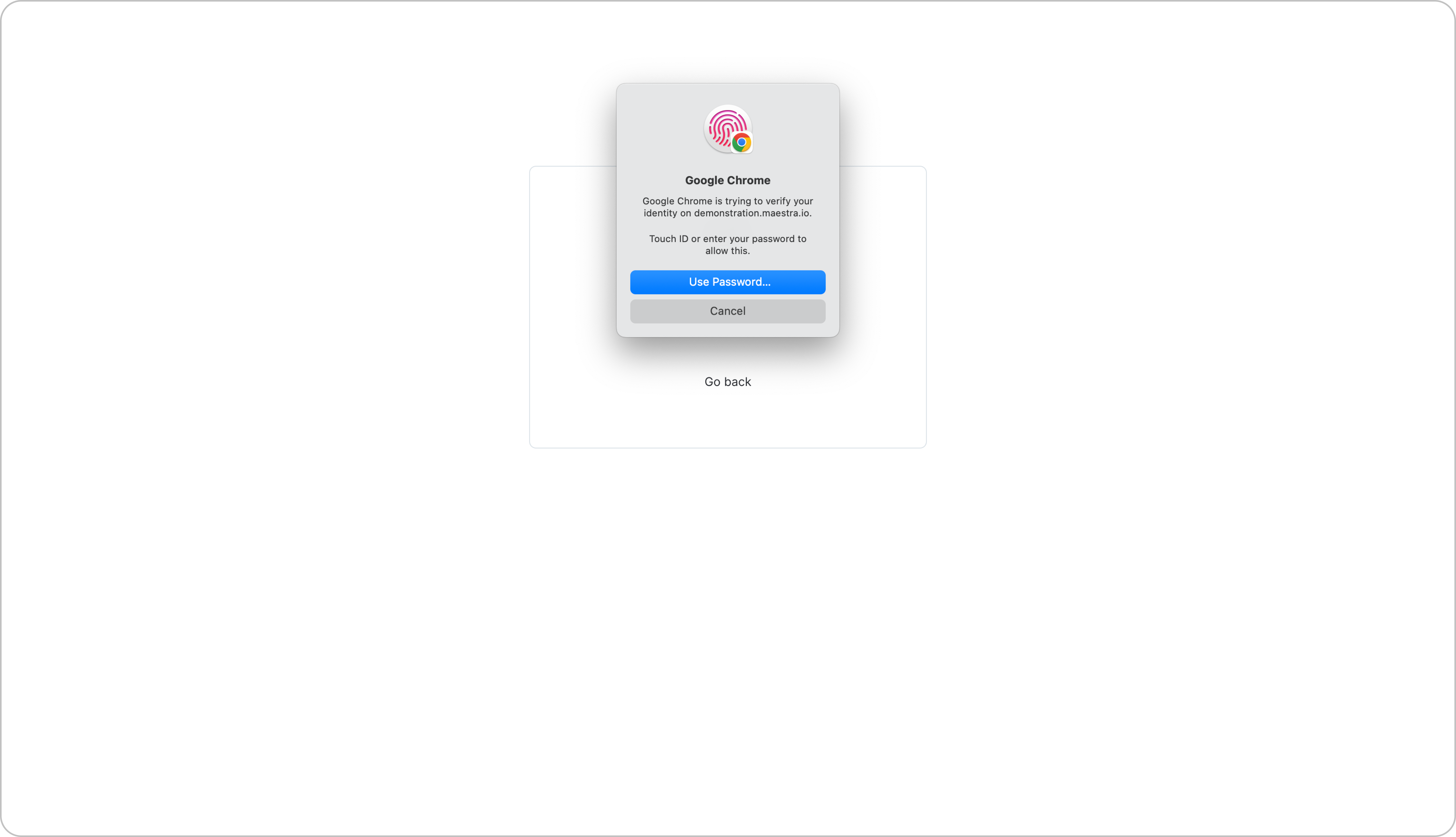
.png?fit=max&auto=format&n=8VE_QojSxRA8jQ0B&q=85&s=3a8f28303283a08bc6e92b970d2f8f5f) 3\. To complete saving your passkey, confirm your identity with your PIN, fingerprint, or Face ID.
3\. To complete saving your passkey, confirm your identity with your PIN, fingerprint, or Face ID.
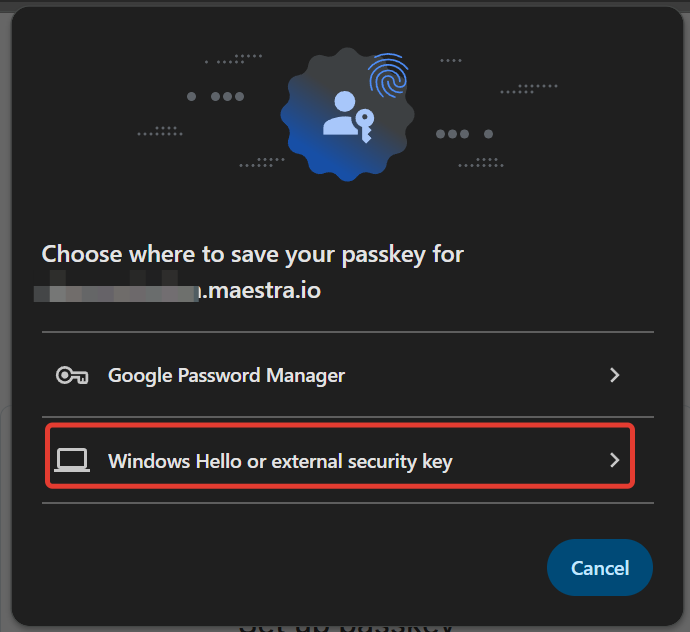
 Available for selection in the system window on Windows computers that have PIN or fingerprint sign-in enabled.
The passkey will be stored locally on your Windows device. If you use multiple devices under the same Microsoft account, the passkey will sync across them.
1. In the system window, select “Windows Hello or external security key.”
Available for selection in the system window on Windows computers that have PIN or fingerprint sign-in enabled.
The passkey will be stored locally on your Windows device. If you use multiple devices under the same Microsoft account, the passkey will sync across them.
1. In the system window, select “Windows Hello or external security key.”
 2. Verify your identity by entering your PIN or scanning your fingerprint.
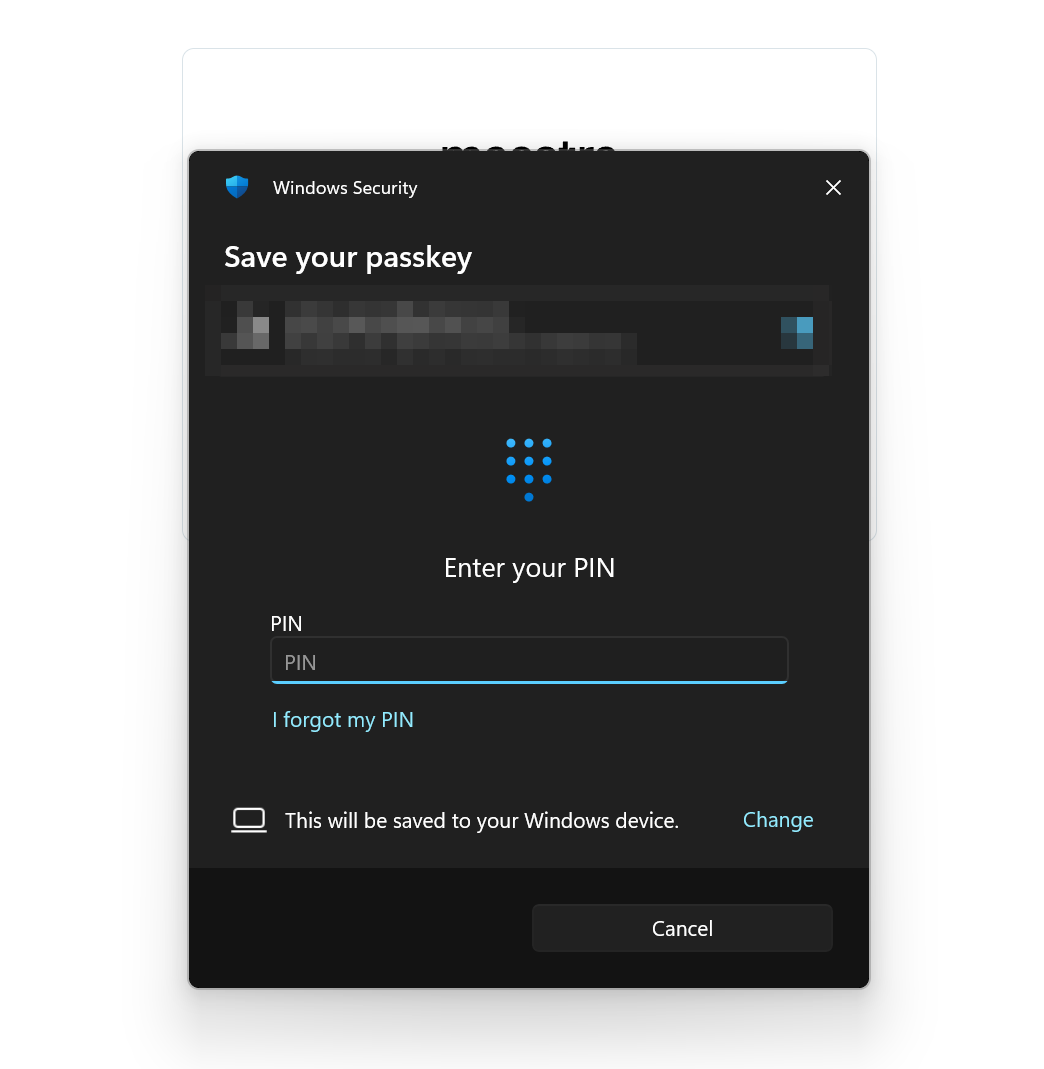 If the system asks you to insert a security key into a USB port and doesn’t display the option to store the passkey using Windows Hello:
1. Make sure your computer has PIN or fingerprint sign-in enabled. If not, change your sign-in method accordingly.
2. After enabling PIN or fingerprint login, refresh the page and start the passkey setup process again. When prompted to insert a USB security key, click “Cancel”**.**
If the system asks you to insert a security key into a USB port and doesn’t display the option to store the passkey using Windows Hello:
1. Make sure your computer has PIN or fingerprint sign-in enabled. If not, change your sign-in method accordingly.
2. After enabling PIN or fingerprint login, refresh the page and start the passkey setup process again. When prompted to insert a USB security key, click “Cancel”**.**
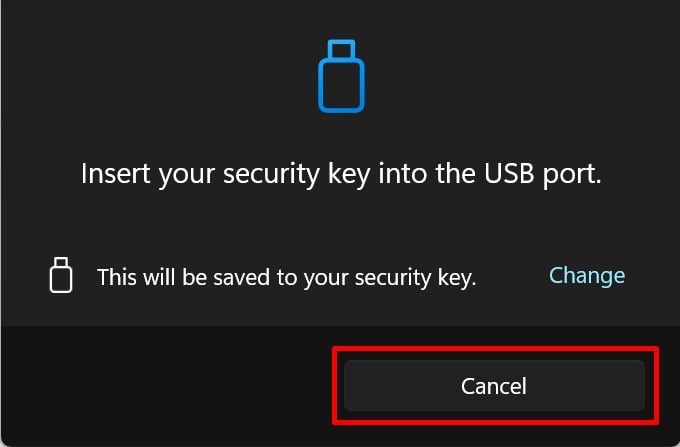 After that, the system should offer alternative storage options. Select “Windows Hello or external security key”.
If the steps above don’t resolve the issue and the system still only offers a USB key option, please contact Maestra Support.
In this section, we’ll look at how to store your passkey in the Bitwarden password manager. You can also use other password managers, such as 1Password, Dashlane and others.
1. Register an account on the [Bitwarden website](https://bitwarden.com/).
2. Sign in to your Bitwarden account and install the browser extension.
After that, the system should offer alternative storage options. Select “Windows Hello or external security key”.
If the steps above don’t resolve the issue and the system still only offers a USB key option, please contact Maestra Support.
In this section, we’ll look at how to store your passkey in the Bitwarden password manager. You can also use other password managers, such as 1Password, Dashlane and others.
1. Register an account on the [Bitwarden website](https://bitwarden.com/).
2. Sign in to your Bitwarden account and install the browser extension.
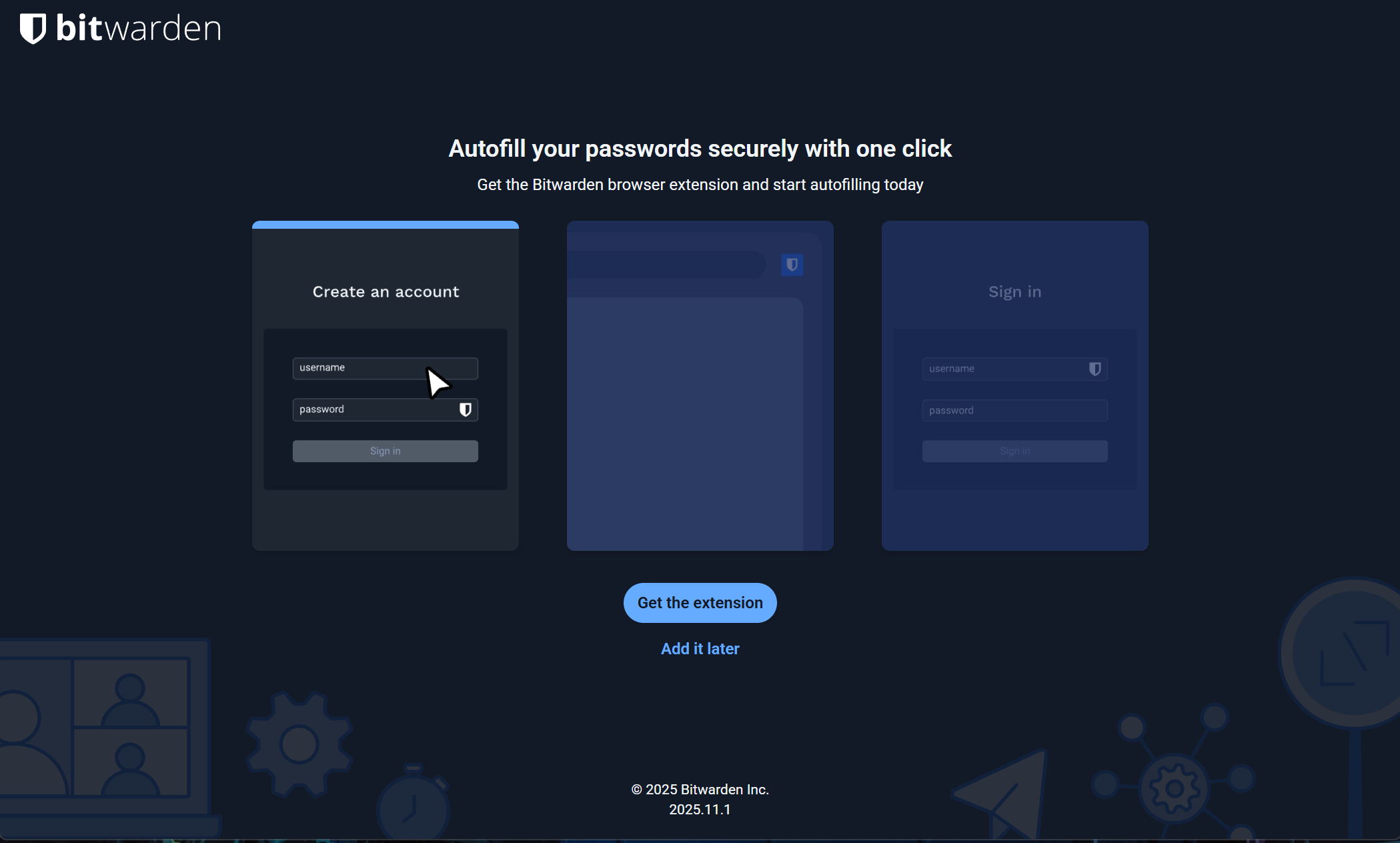 3. Complete the extension setup following Bitwarden’s [instructions](https://bitwarden.com/browser-start/#browser-start-instruction).
4. Go to the Maestra passkey setup page and click “Set up”.
5. The Bitwarden extension will automatically prompt you to save your passkey. Click “Save passkey as new login”.
3. Complete the extension setup following Bitwarden’s [instructions](https://bitwarden.com/browser-start/#browser-start-instruction).
4. Go to the Maestra passkey setup page and click “Set up”.
5. The Bitwarden extension will automatically prompt you to save your passkey. Click “Save passkey as new login”.
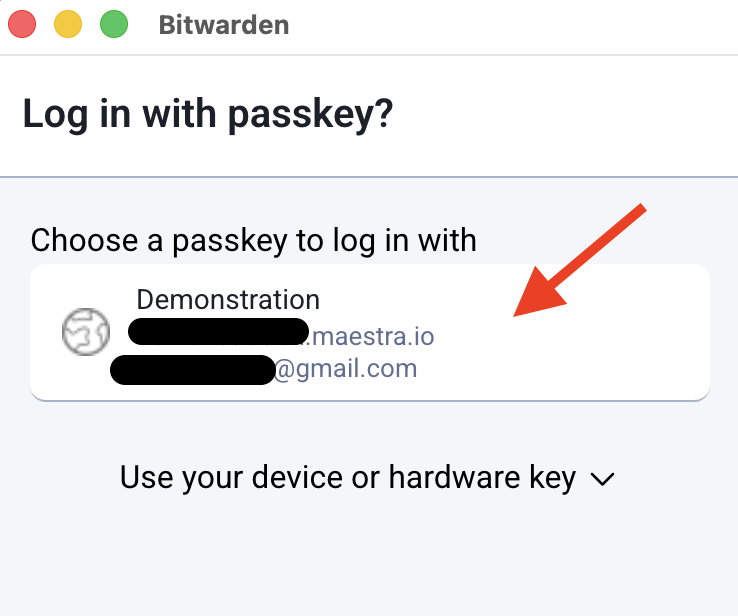
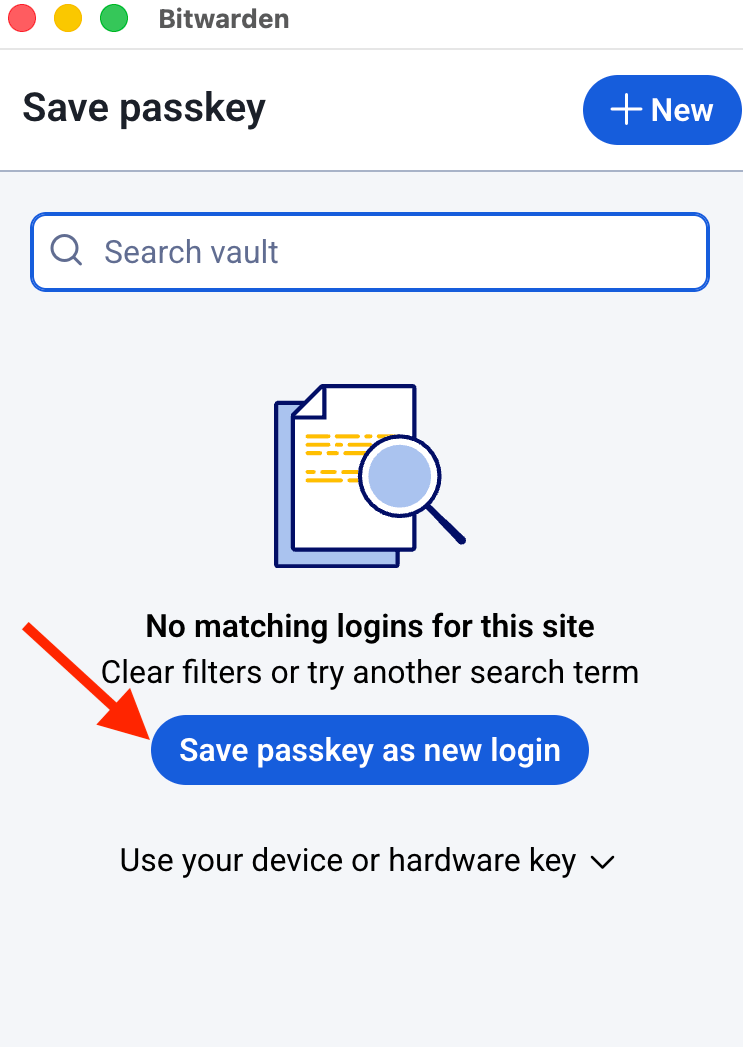 To sign in using the passkey stored in Bitwarden:
* Enter your username or email.
* Confirm authentication by selecting the appropriate passkey.
To sign in using the passkey stored in Bitwarden:
* Enter your username or email.
* Confirm authentication by selecting the appropriate passkey.
 4. That’s it — passkey saved.
.png?fit=max&auto=format&n=8VE_QojSxRA8jQ0B&q=85&s=5c6e6022b40423ac7ee6360af31d60d8) ## Existing users
The system will prompt existing users to set up a passkey during their next login to Maestra. Follow the same setup steps described above, starting from step 2. If needed, you can postpone the setup and return to it later.
## How to set up passkeys on a new device
* **If your passkey is stored in a password manager or iCloud Keychain:** Log in to your account on the a device — the passkey will sync automatically.
* **If your passkey is linked to a specific device:** Contact the project owner or administrator to generate an additional passkey for a new device.
# How to log into Maestra using a passkey
1. Enter your email or username on the login page.
## Existing users
The system will prompt existing users to set up a passkey during their next login to Maestra. Follow the same setup steps described above, starting from step 2. If needed, you can postpone the setup and return to it later.
## How to set up passkeys on a new device
* **If your passkey is stored in a password manager or iCloud Keychain:** Log in to your account on the a device — the passkey will sync automatically.
* **If your passkey is linked to a specific device:** Contact the project owner or administrator to generate an additional passkey for a new device.
# How to log into Maestra using a passkey
1. Enter your email or username on the login page.
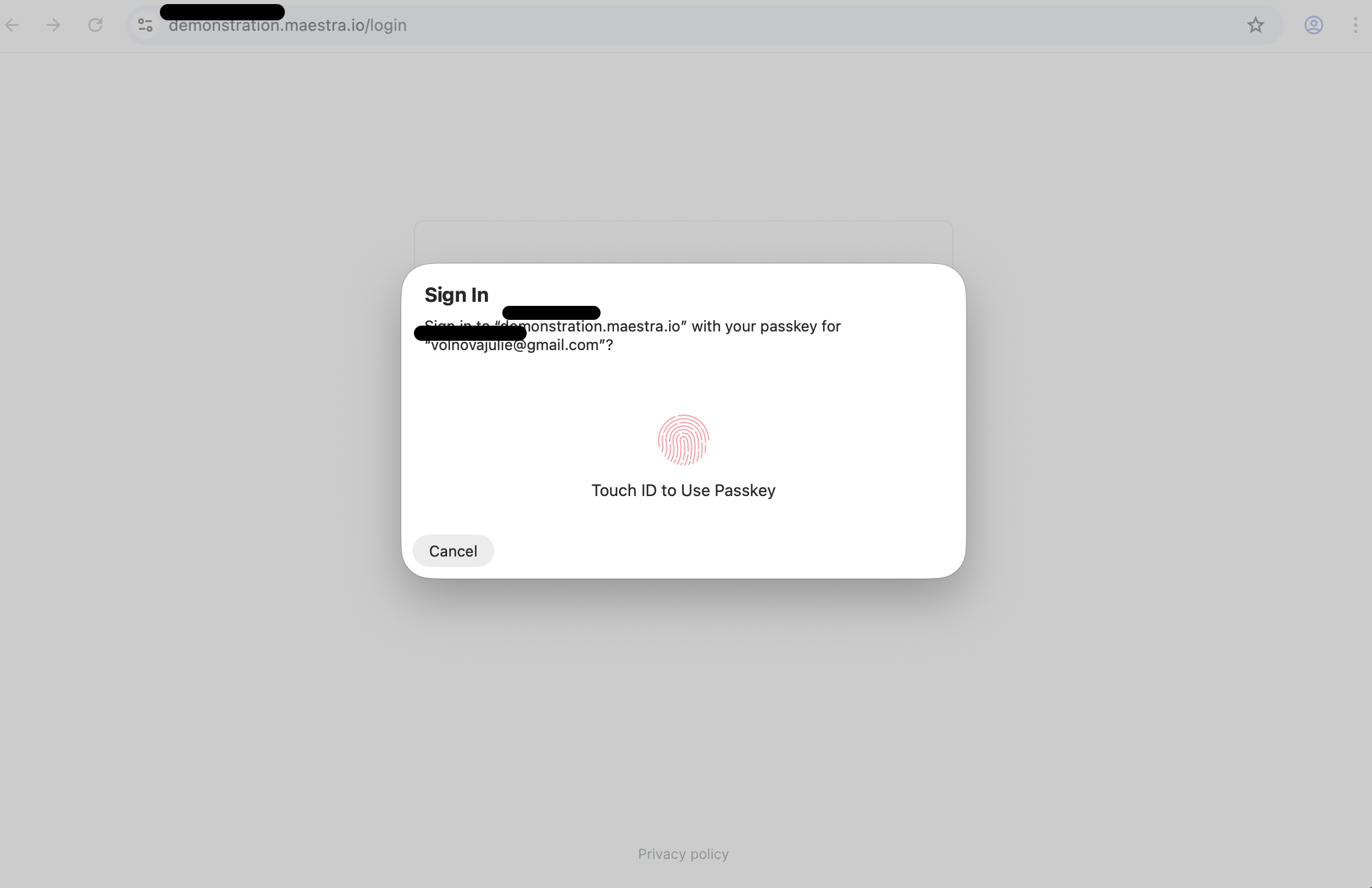
.png?fit=max&auto=format&n=8VE_QojSxRA8jQ0B&q=85&s=0e6d0cca22560fc8825b1b81d0bc93f1) 2\. Confirm your identity using your passkey.
2\. Confirm your identity using your passkey.