> ## Documentation Index
> Fetch the complete documentation index at: https://help.maestra.io/llms.txt
> Use this file to discover all available pages before exploring further.
# How to Filter Customers into Segments
> Build a customer filter, save it as a segment, and choose how it refreshes.
Segments are saved filters you can target in campaigns, flows, and reports. Build the filter once in **Customers**, then save it as a real-time or scheduled segment.
## Create a segment from a filter
Go to **Customer Data Platform → Customers**.
 Add conditions to narrow the list to the customers you want in the segment, then click **Apply**.
 Use **Add condition** for AND logic and **Add OR condition** when a customer should match any of several criteria. Learn more about building filters in [How to create filters](/filters/how-to-create-filters).
With the filter applied, click **Create segment** in the top right to open the segment panel.
Use **Add condition** for AND logic and **Add OR condition** when a customer should match any of several criteria. Learn more about building filters in [How to create filters](/filters/how-to-create-filters).
With the filter applied, click **Create segment** in the top right to open the segment panel.
 ## Configure the segment
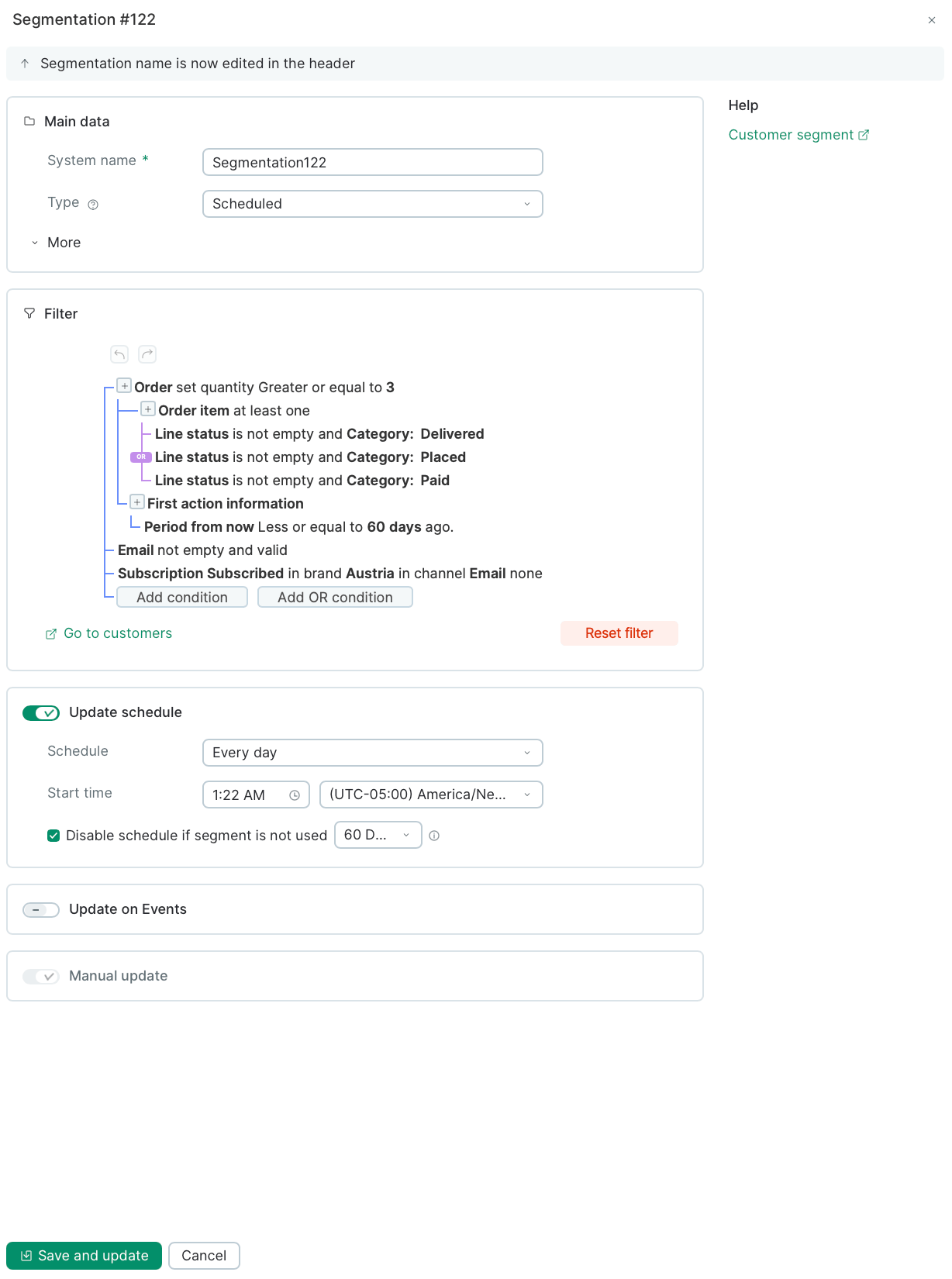
The segment panel opens with everything on one screen. Set the fields below, then click **Save and update** at the bottom to create the segment and run the first calculation.\\
## Configure the segment
The segment panel opens with everything on one screen. Set the fields below, then click **Save and update** at the bottom to create the segment and run the first calculation.\\
 ### Name and system name
Type the segment name in the header at the top of the panel.
### Name and system name
Type the segment name in the header at the top of the panel.
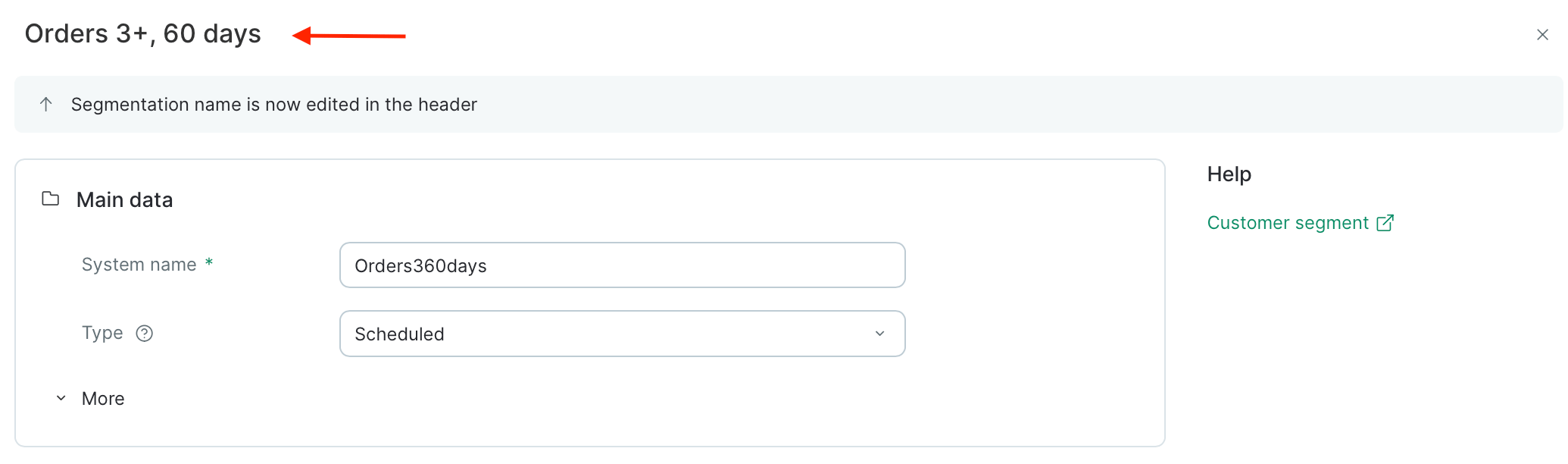 The **System name** is generated automatically. Leave it as is, or edit it if you need a stable identifier for API calls or integrations.
### Type
Choose how the segment is built and refreshed.
The **System name** is generated automatically. Leave it as is, or edit it if you need a stable identifier for API calls or integrations.
### Type
Choose how the segment is built and refreshed.
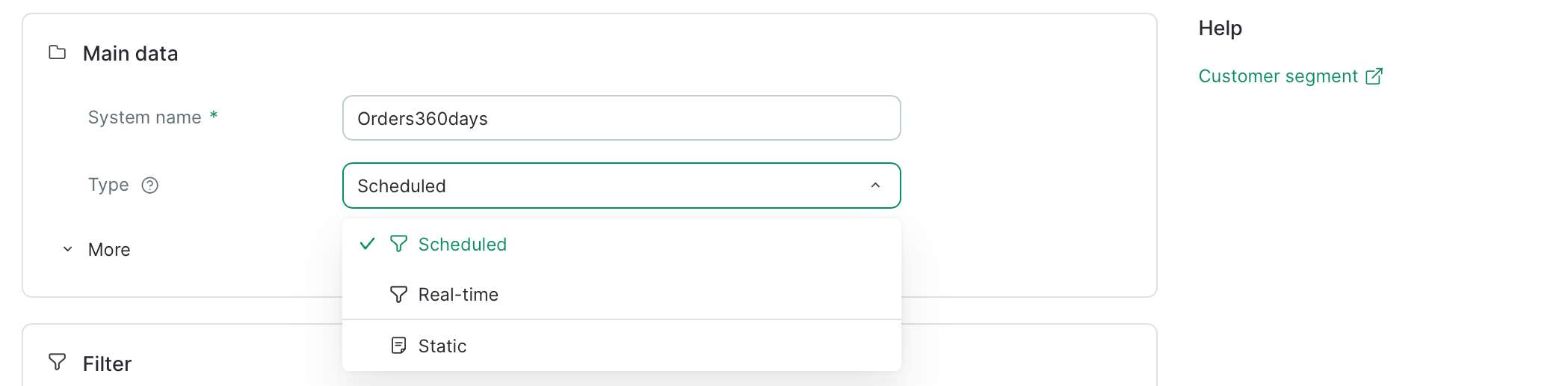 Saving a filter you just built on the Customers page? Pick **Real-time** or **Scheduled** — those are the filter-based types. **Static** segments don't use a filter at all and are set up through a separate flow ([How to Create a Static Customer Segment](/segments/how-to-create-a-static-customer-segment)).
| Type | Based on | How it refreshes | Best for |
| ------------- | -------------------------------------- | ------------------------------------------------------------------------ | ------------------------------------------------------------------------------------------ |
| **Real-time** | Filter conditions | The moment a customer's data changes | Saving a frequently used filter as a reusable audience |
| **Scheduled** | Filter conditions | On a schedule you set, or on events you specify | Large or complex segments where real-time updates aren't necessary |
| **Static** | Manual selection (no filter) or a flow | Only when you add or remove members manually, via import, or from a flow | Hand-picked lists, one-off campaign audiences, or segments managed entirely by automations |
**Type cannot be changed after creation.** If you need a different type later, create a new segment.
Not sure which to pick? See [Types of customer segments](/segments/types-of-customer-segments) for a deeper comparison.
### More (External ID and Description)
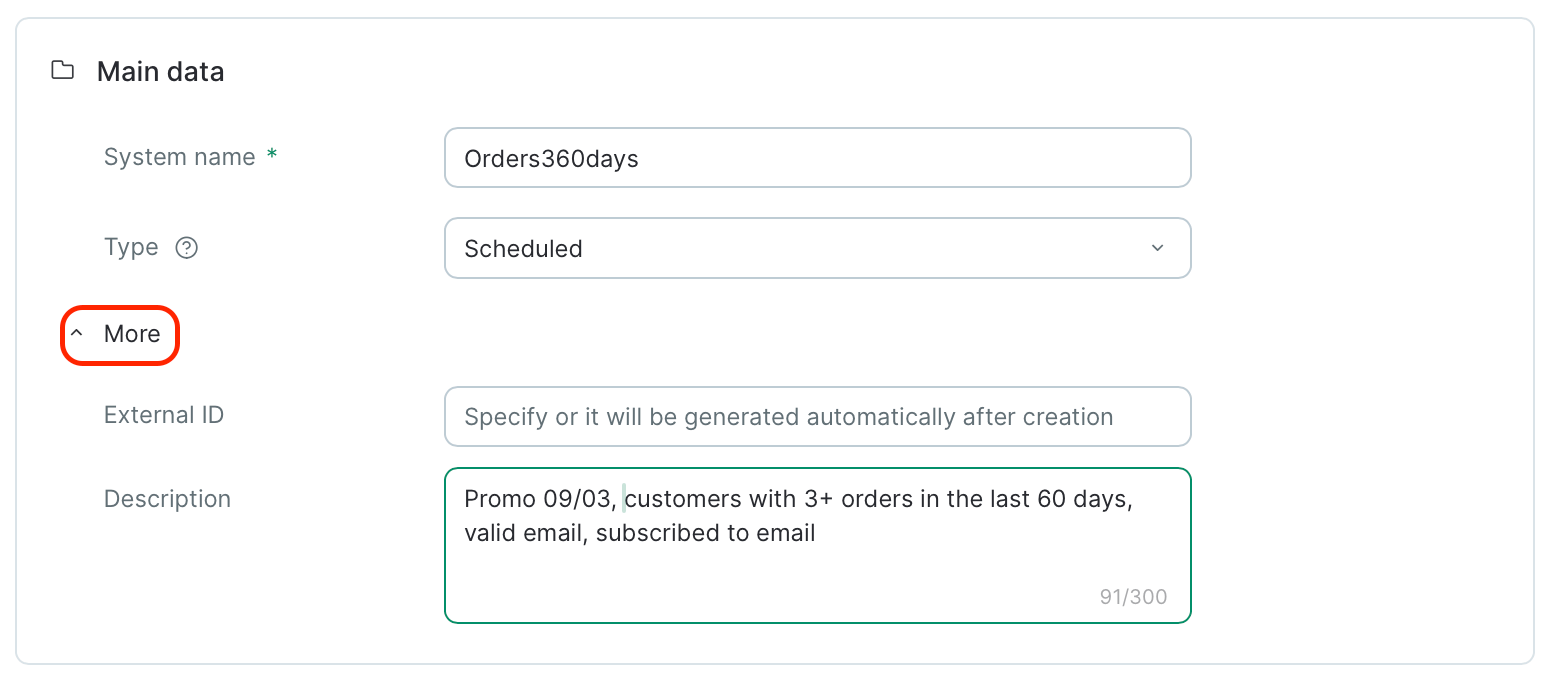
Expand **More** under Main data to set two optional fields:
* **External ID** — your own identifier for the segment, useful when referencing it from an API or external system. Leave it blank and Maestra Platform will generate one after creation.
* **Description** — a short note (up to 300 characters) explaining who's in the segment and what it's for. Helpful for teammates picking the segment from a list later.
Saving a filter you just built on the Customers page? Pick **Real-time** or **Scheduled** — those are the filter-based types. **Static** segments don't use a filter at all and are set up through a separate flow ([How to Create a Static Customer Segment](/segments/how-to-create-a-static-customer-segment)).
| Type | Based on | How it refreshes | Best for |
| ------------- | -------------------------------------- | ------------------------------------------------------------------------ | ------------------------------------------------------------------------------------------ |
| **Real-time** | Filter conditions | The moment a customer's data changes | Saving a frequently used filter as a reusable audience |
| **Scheduled** | Filter conditions | On a schedule you set, or on events you specify | Large or complex segments where real-time updates aren't necessary |
| **Static** | Manual selection (no filter) or a flow | Only when you add or remove members manually, via import, or from a flow | Hand-picked lists, one-off campaign audiences, or segments managed entirely by automations |
**Type cannot be changed after creation.** If you need a different type later, create a new segment.
Not sure which to pick? See [Types of customer segments](/segments/types-of-customer-segments) for a deeper comparison.
### More (External ID and Description)
Expand **More** under Main data to set two optional fields:
* **External ID** — your own identifier for the segment, useful when referencing it from an API or external system. Leave it blank and Maestra Platform will generate one after creation.
* **Description** — a short note (up to 300 characters) explaining who's in the segment and what it's for. Helpful for teammates picking the segment from a list later.
 ### Filter
Review the conditions you brought in from the customer list. You can keep editing them here — your changes are saved with the segment once you click **Save and update**.
### Filter
Review the conditions you brought in from the customer list. You can keep editing them here — your changes are saved with the segment once you click **Save and update**.
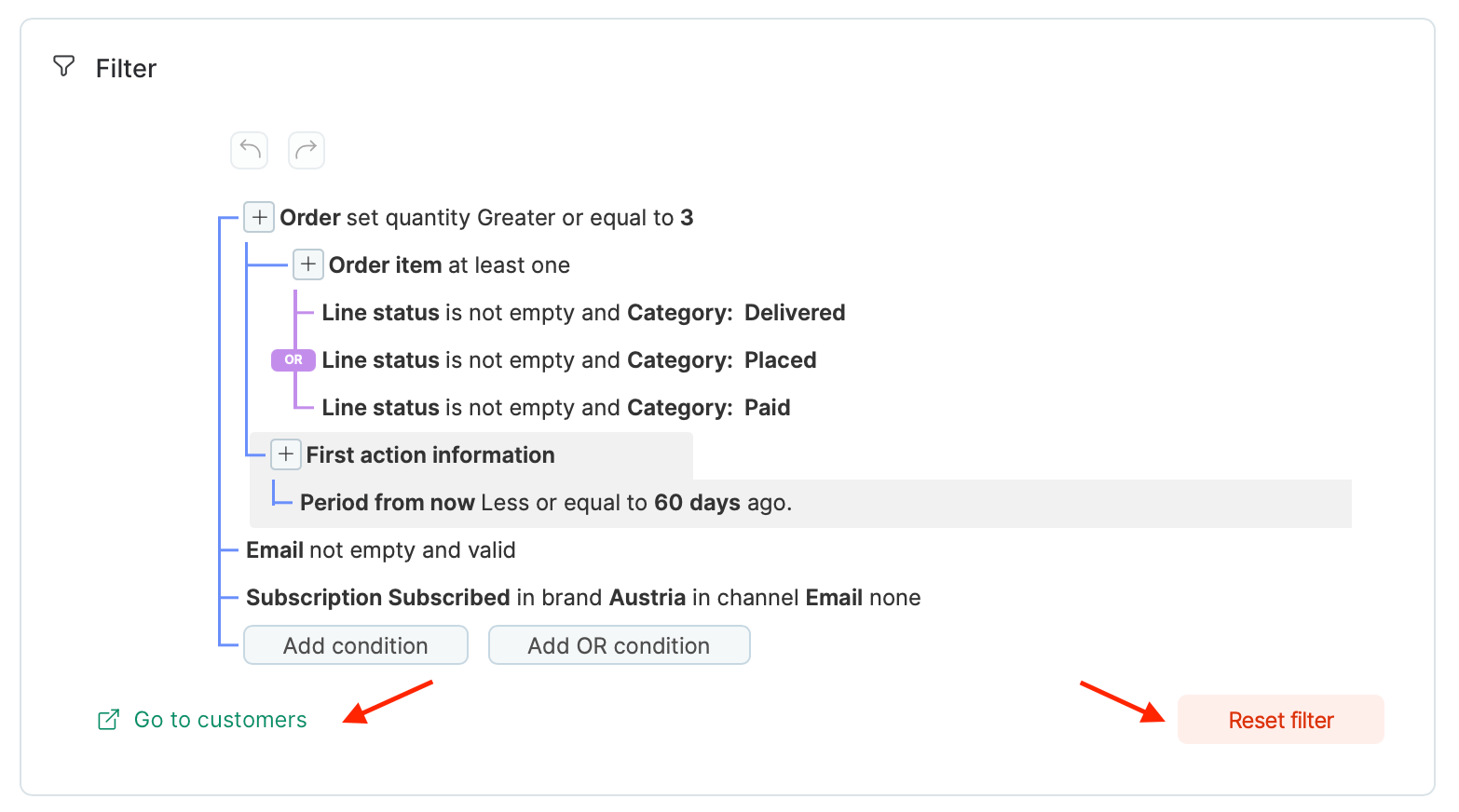 Two buttons sit below the filter conditions:
* **Go to customers** — opens the customer list with this filter applied to preview who currently matches.
* **Reset filter** — clears all conditions so you can start over.
### Update schedule (Scheduled segments only)
If you picked **Scheduled**, configure how and when the segment refreshes.
Two buttons sit below the filter conditions:
* **Go to customers** — opens the customer list with this filter applied to preview who currently matches.
* **Reset filter** — clears all conditions so you can start over.
### Update schedule (Scheduled segments only)
If you picked **Scheduled**, configure how and when the segment refreshes.
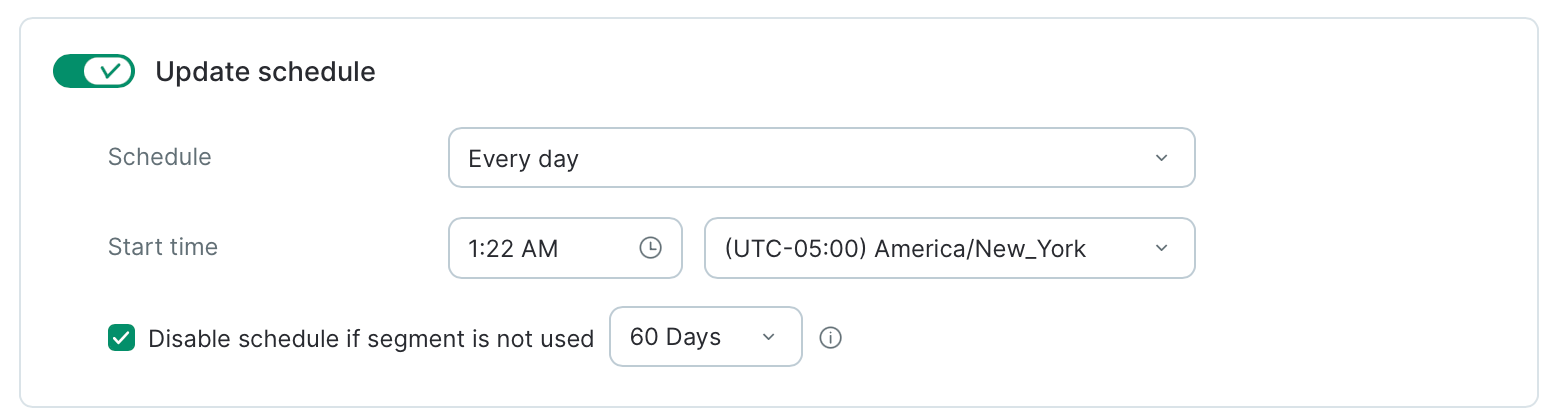 ***Schedule***
Cadence of the refresh:
* **Every day** — once a day at the time you choose.
* **By days of week** — one or more weekdays at the hour you choose.
* **By days of month** — a specific day of the month at the hour you choose.
***Start time***
The time of day the refresh kicks off, in the time zone you select.
Schedule recalculations at night, when database load is lower.
***Disable schedule if segment is not used***
This checkbox is enabled by default. If the segment sits unused for the number of days you set (60 by default), Maestra Platform automatically switches it to manual recalculation. Too many segments recalculating at once can slow each other down and add load across your project — auto-stop helps you avoid spending resources on segments no one is actively using.
You can uncheck it if you need the schedule to keep running no matter what, but we don't recommend it.
### Update on Events (Scheduled segments only)
Turn on **Update on Events** to recalculate the segment whenever specific customer events occur — on top of the scheduled refresh. Useful when you need the segment to react to key actions (a purchase, a subscription change, a custom event) without waiting for the next scheduled run.
***Schedule***
Cadence of the refresh:
* **Every day** — once a day at the time you choose.
* **By days of week** — one or more weekdays at the hour you choose.
* **By days of month** — a specific day of the month at the hour you choose.
***Start time***
The time of day the refresh kicks off, in the time zone you select.
Schedule recalculations at night, when database load is lower.
***Disable schedule if segment is not used***
This checkbox is enabled by default. If the segment sits unused for the number of days you set (60 by default), Maestra Platform automatically switches it to manual recalculation. Too many segments recalculating at once can slow each other down and add load across your project — auto-stop helps you avoid spending resources on segments no one is actively using.
You can uncheck it if you need the schedule to keep running no matter what, but we don't recommend it.
### Update on Events (Scheduled segments only)
Turn on **Update on Events** to recalculate the segment whenever specific customer events occur — on top of the scheduled refresh. Useful when you need the segment to react to key actions (a purchase, a subscription change, a custom event) without waiting for the next scheduled run.
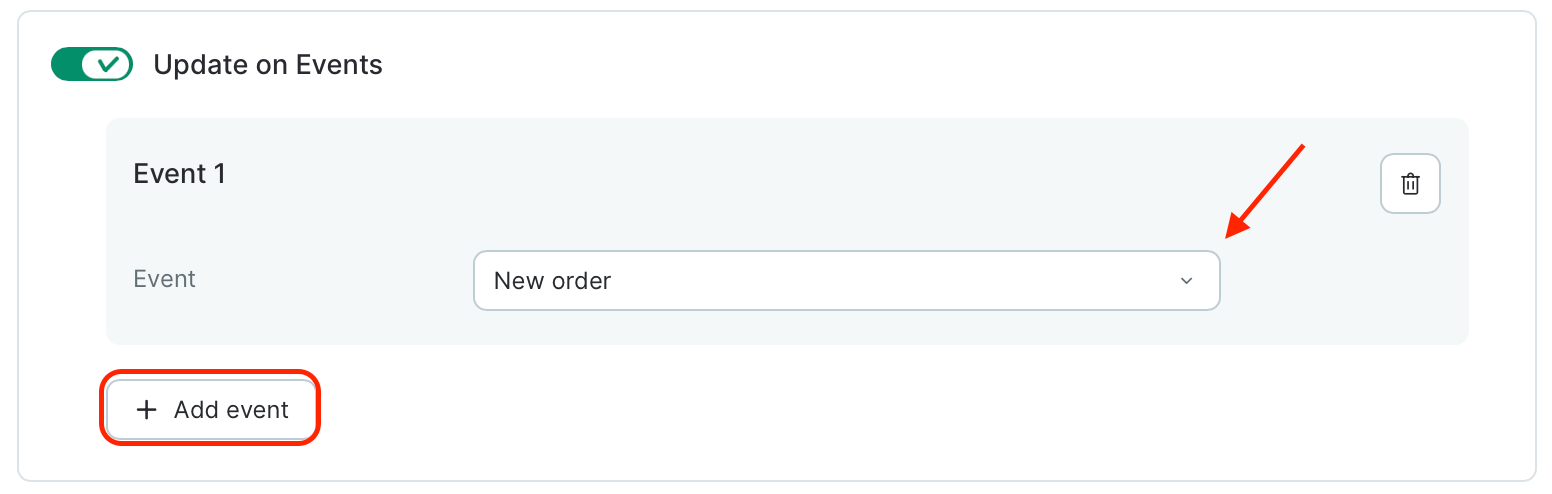 How to set it up:
1. Toggle **Update on Events** on. An empty **Event 1** card appears.
2. Open the **Event** dropdown and pick the event that should trigger a refresh.
3. Click **+ Add event** to add more triggers. Each one is listed as its own card.
4. To remove a trigger, click the trash icon on the event card.
Only add events when your use case truly calls for them. The more events a segment listens to, the more recalculations it triggers — and the more load it puts on your database.
### Manual update (Scheduled segments only)
Always available for scheduled segments.
### Save
Click **Save and update**.
How to set it up:
1. Toggle **Update on Events** on. An empty **Event 1** card appears.
2. Open the **Event** dropdown and pick the event that should trigger a refresh.
3. Click **+ Add event** to add more triggers. Each one is listed as its own card.
4. To remove a trigger, click the trash icon on the event card.
Only add events when your use case truly calls for them. The more events a segment listens to, the more recalculations it triggers — and the more load it puts on your database.
### Manual update (Scheduled segments only)
Always available for scheduled segments.
### Save
Click **Save and update**.
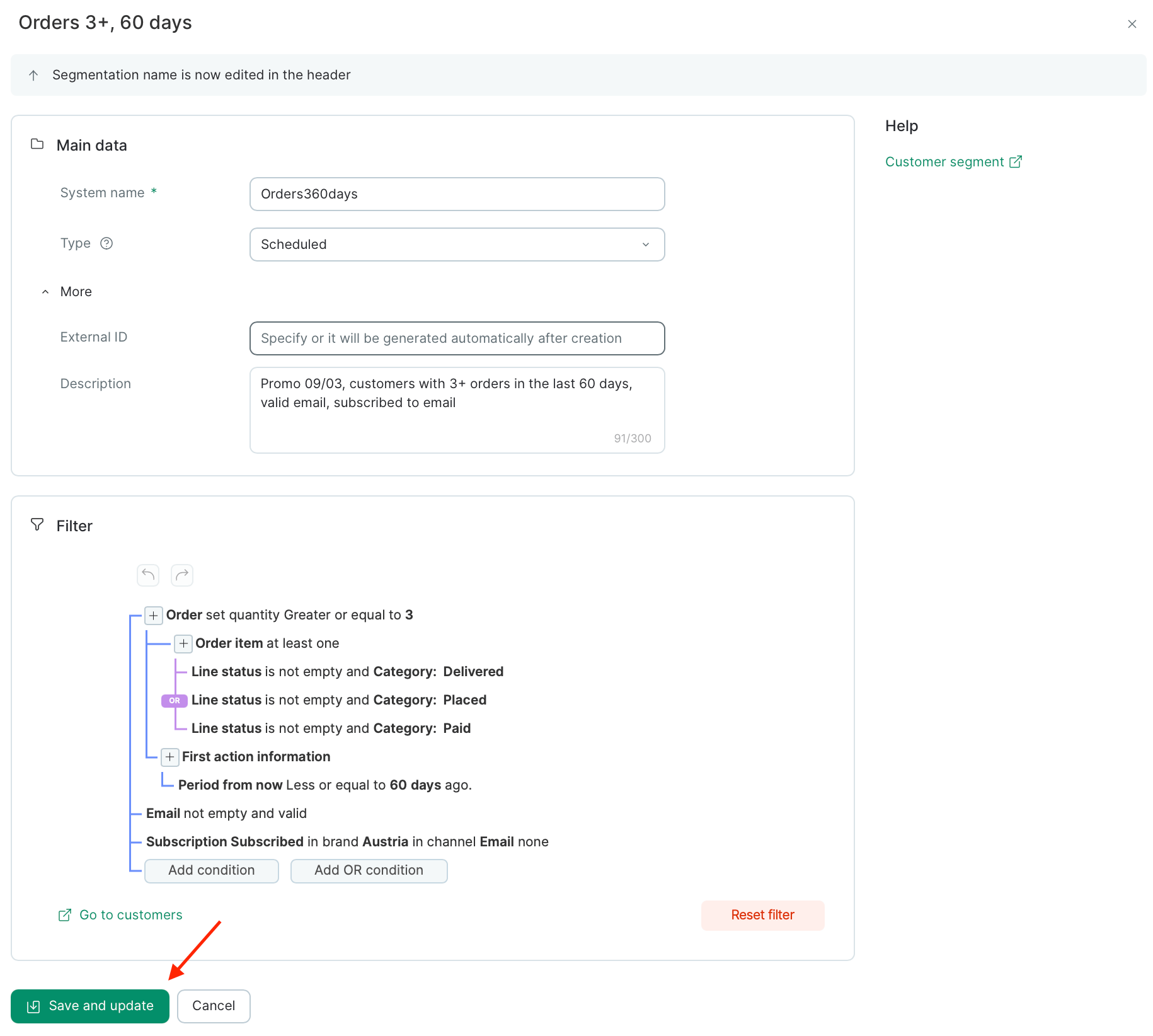 You can open the segments list straight from the success popup (your new segment shows up at the top), or find it later under **Customer Data Platform → Segments**.
 **Real-time segments** are ready to target right away. **Scheduled segments** need to finish their first recalculation first — you can watch the status on the segment page.