To work with cart data and viewed pages, a full integration is required according to the setup guide.
Adding an Embedded Form
- Go to Customer Data Platform→ Customers.
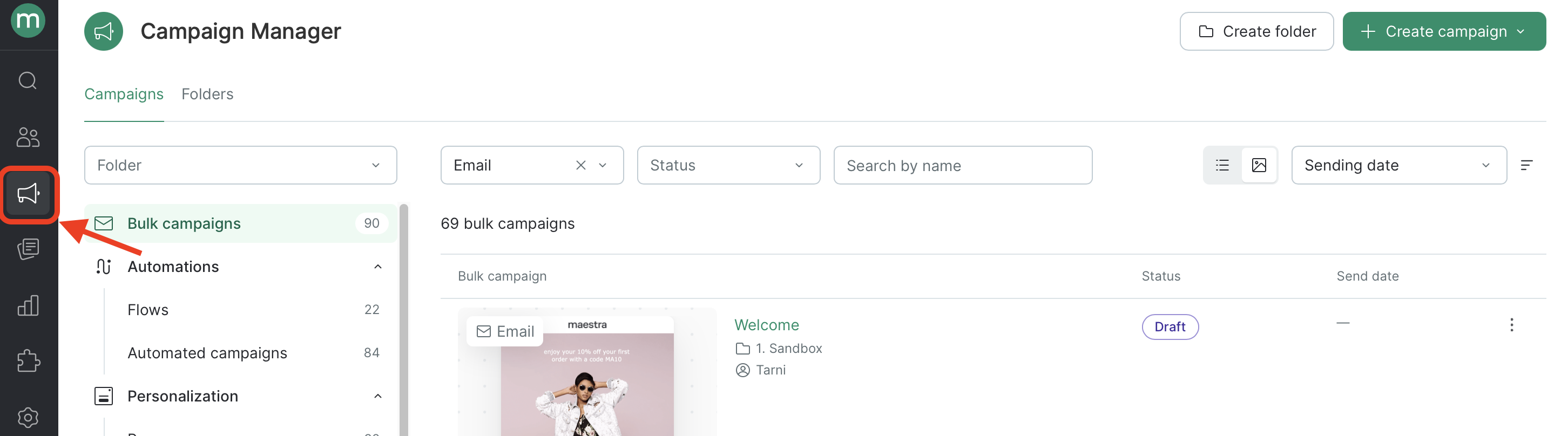
- Click “Create Campaign” → “Personalization” → “Embedded form”:

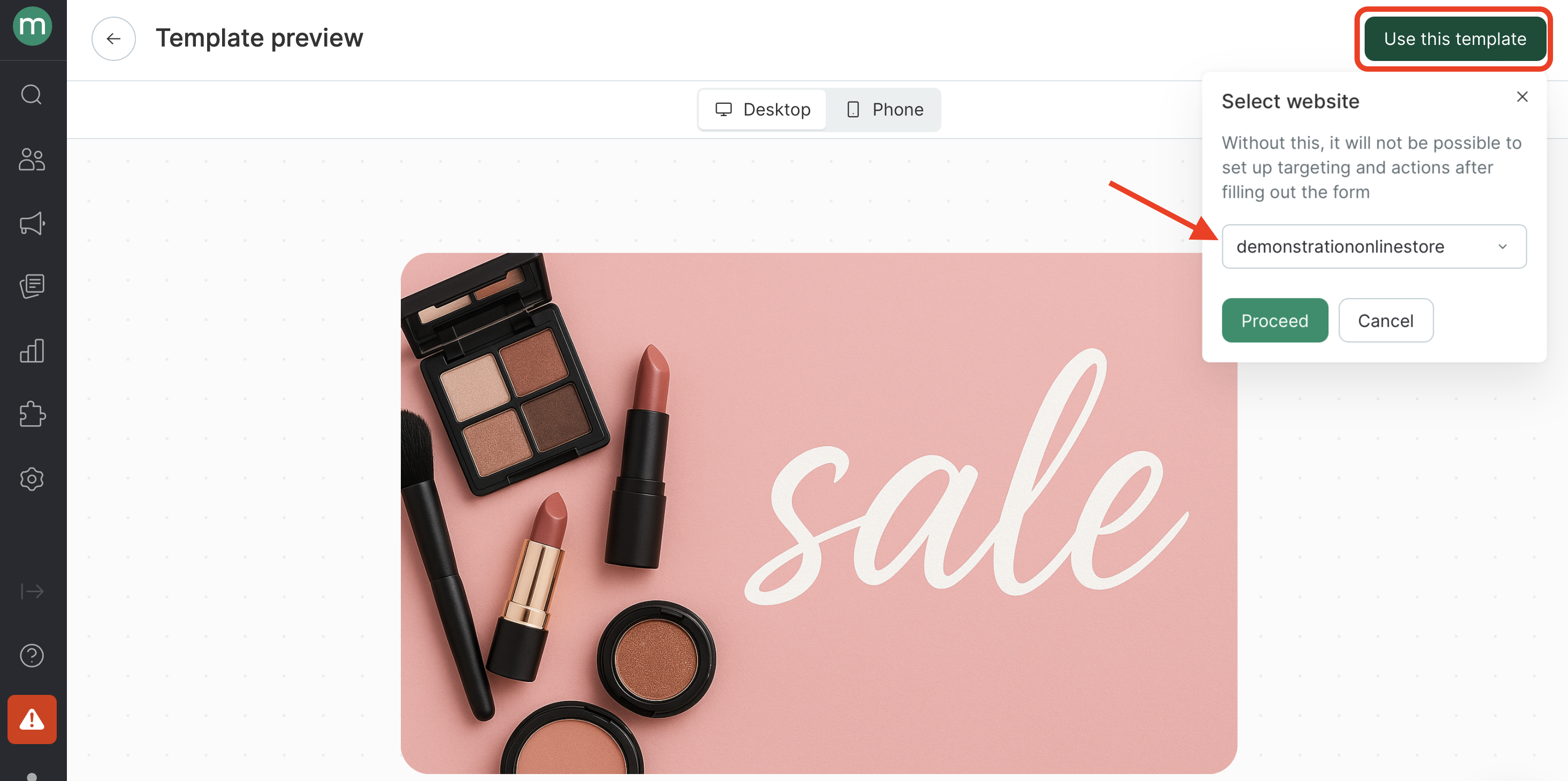
- Select a folder and click “Create”:
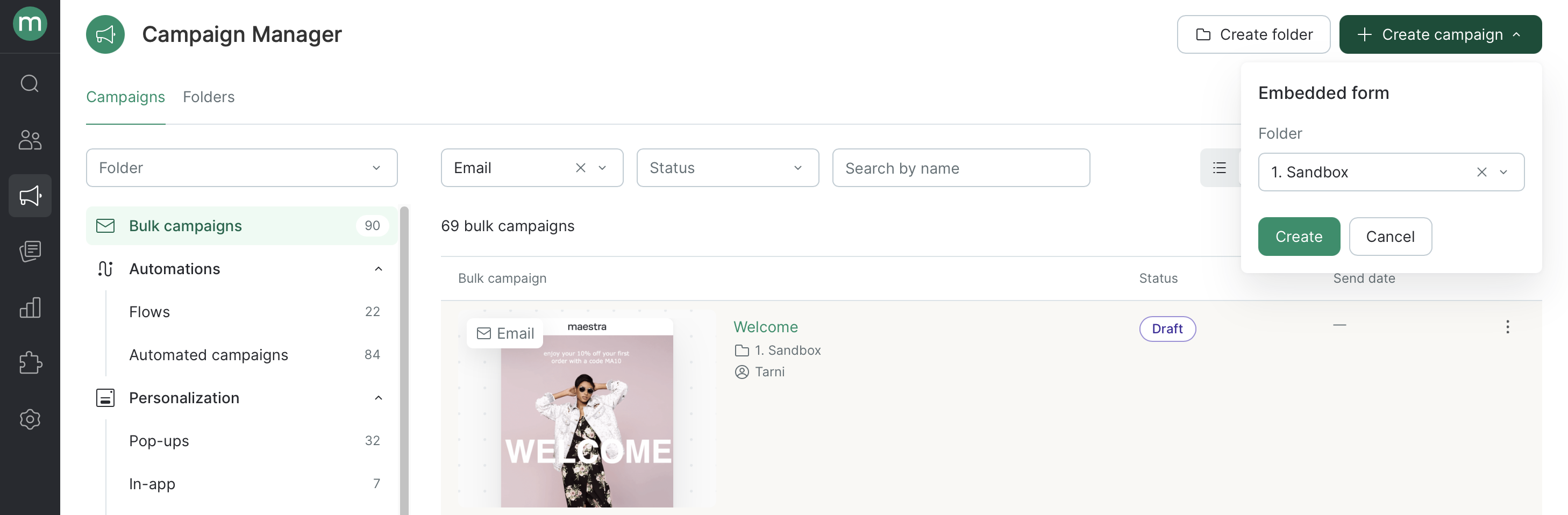
- Choose a template:

- Select a website:
- Enter a name:
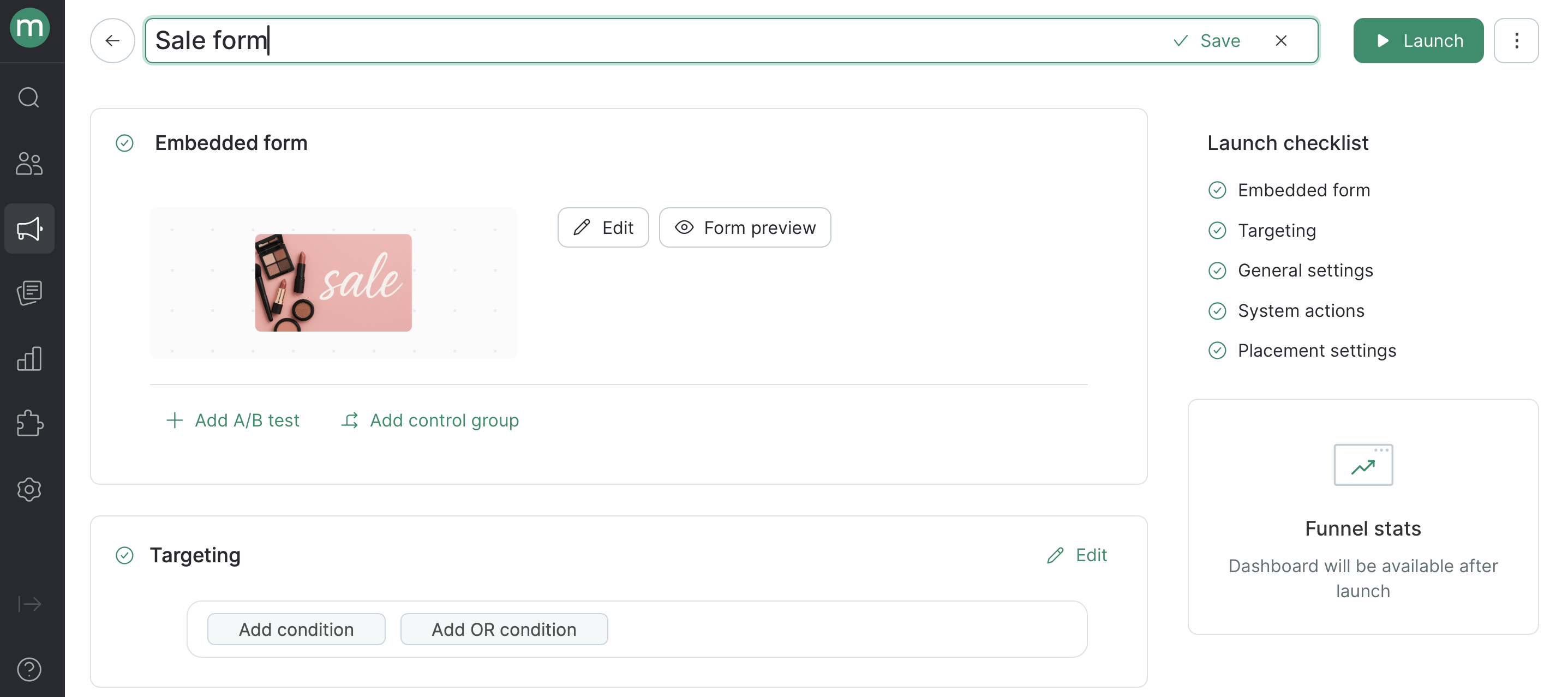
Form Design
In the “Embedded Form” section, click “Edit”, then click “Edit” under “Template design”. 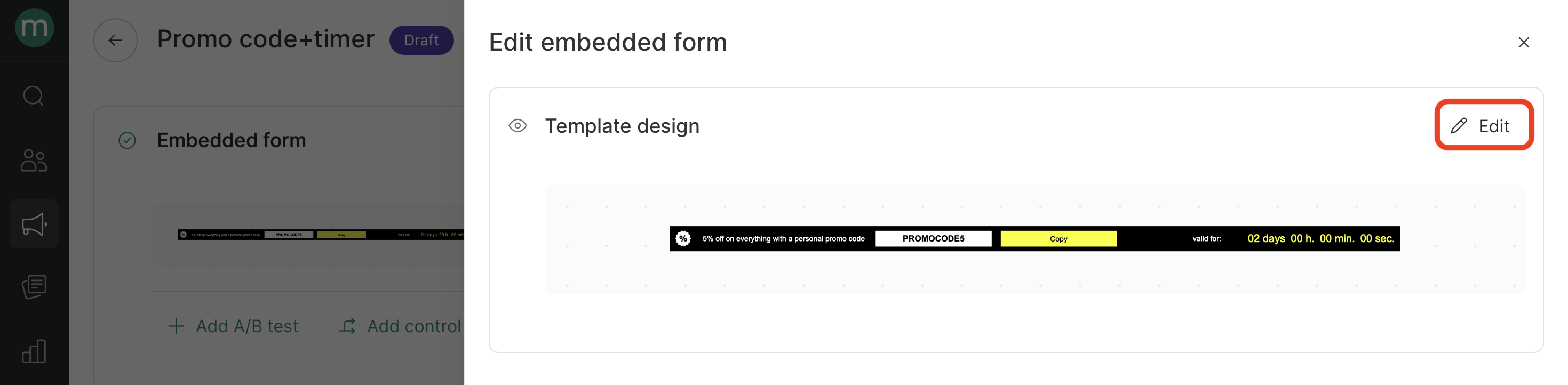
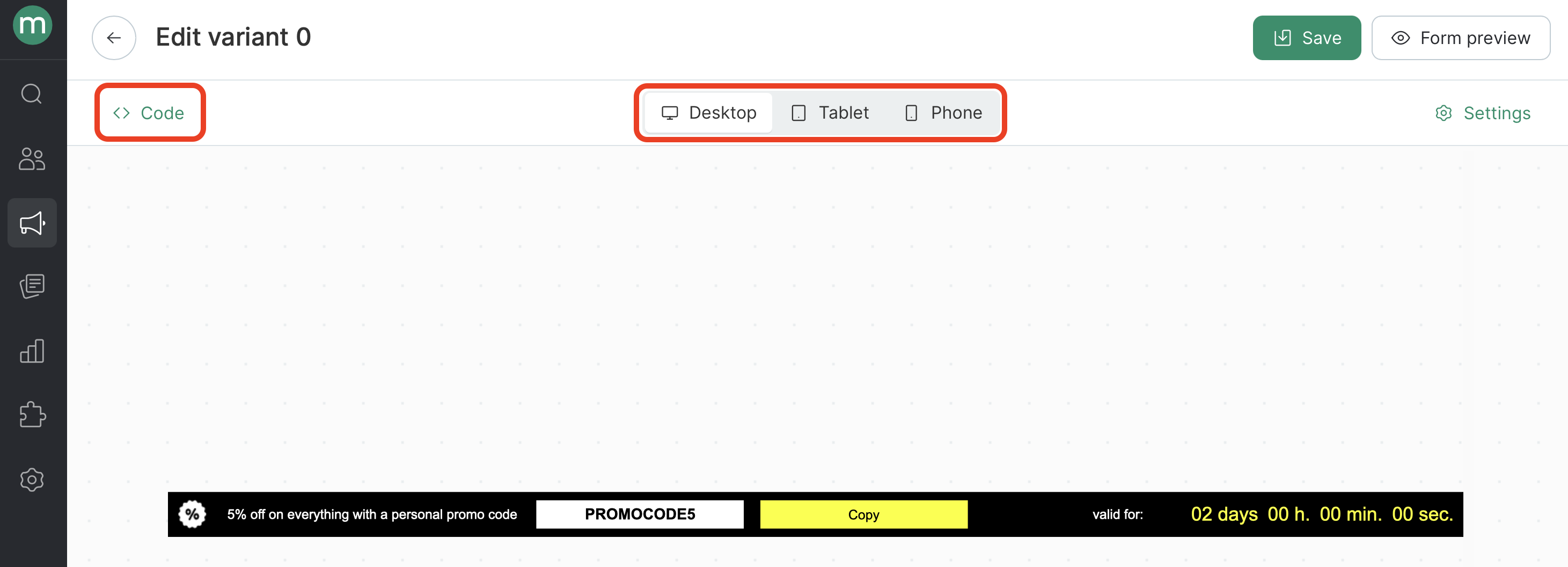
New Templates
Use the new embedded block templates for more flexible customization.- Choose a template labeled “New”:

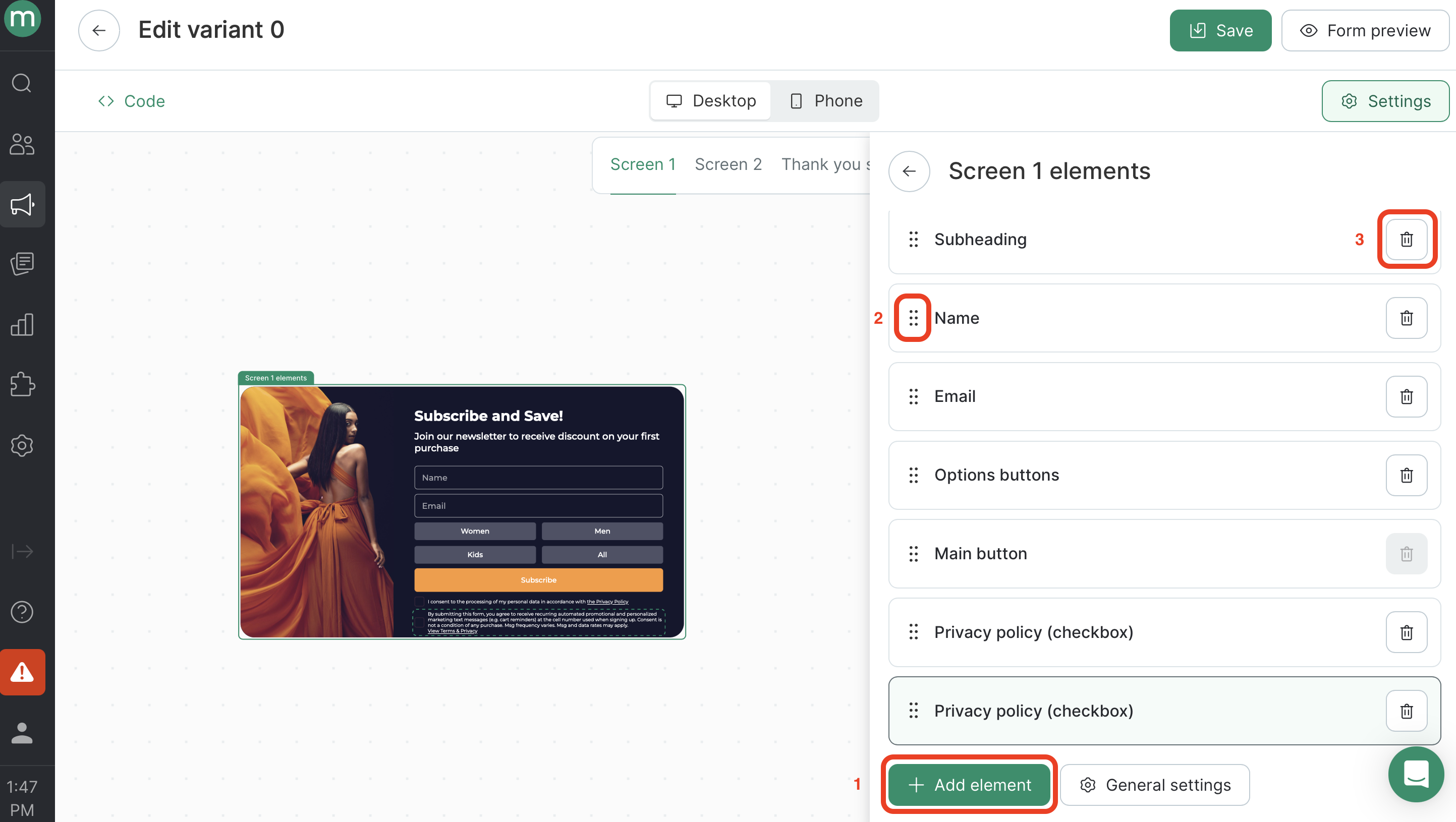
- Add the required elements to each screen using the “Add element” button (1), reorder them as needed (2), and remove any unnecessary ones (3).
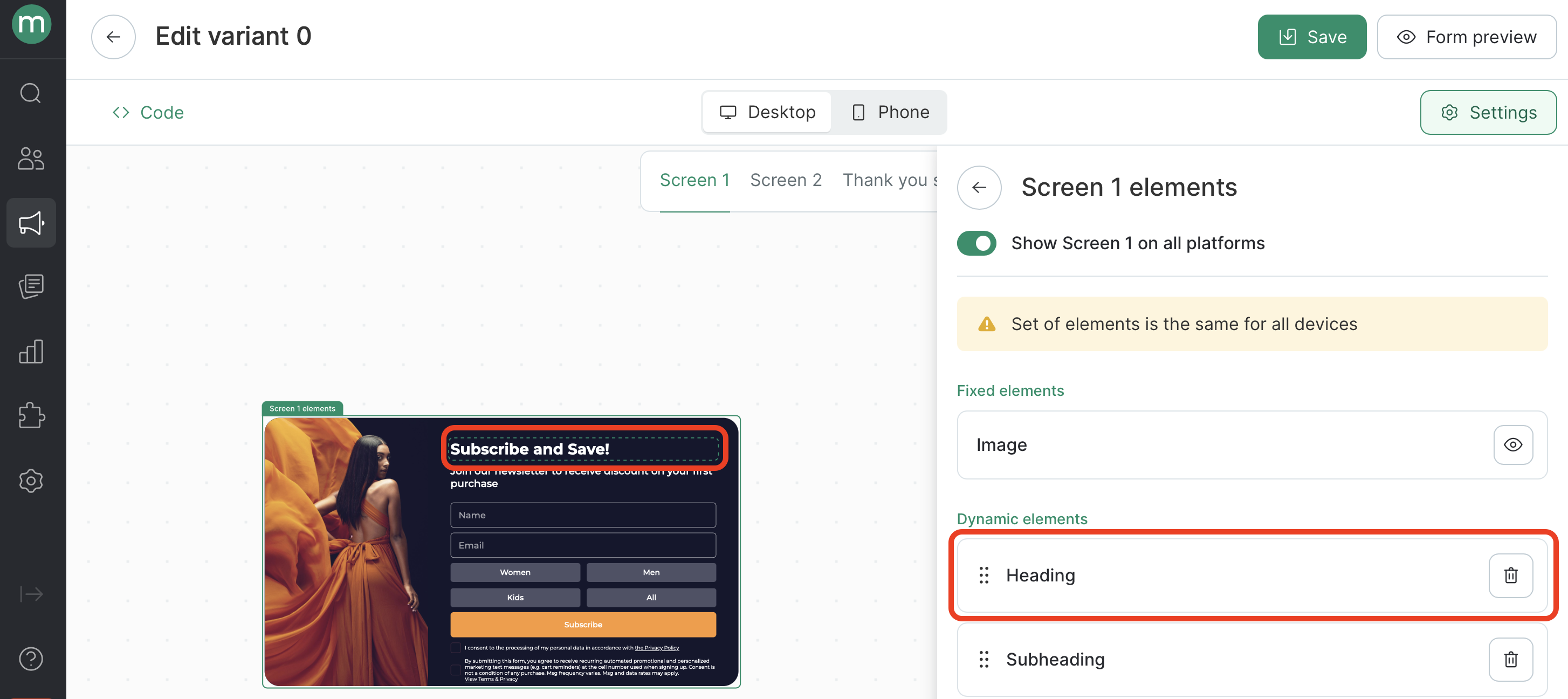
- To edit an element, click it in the screen element list or directly in the preview:
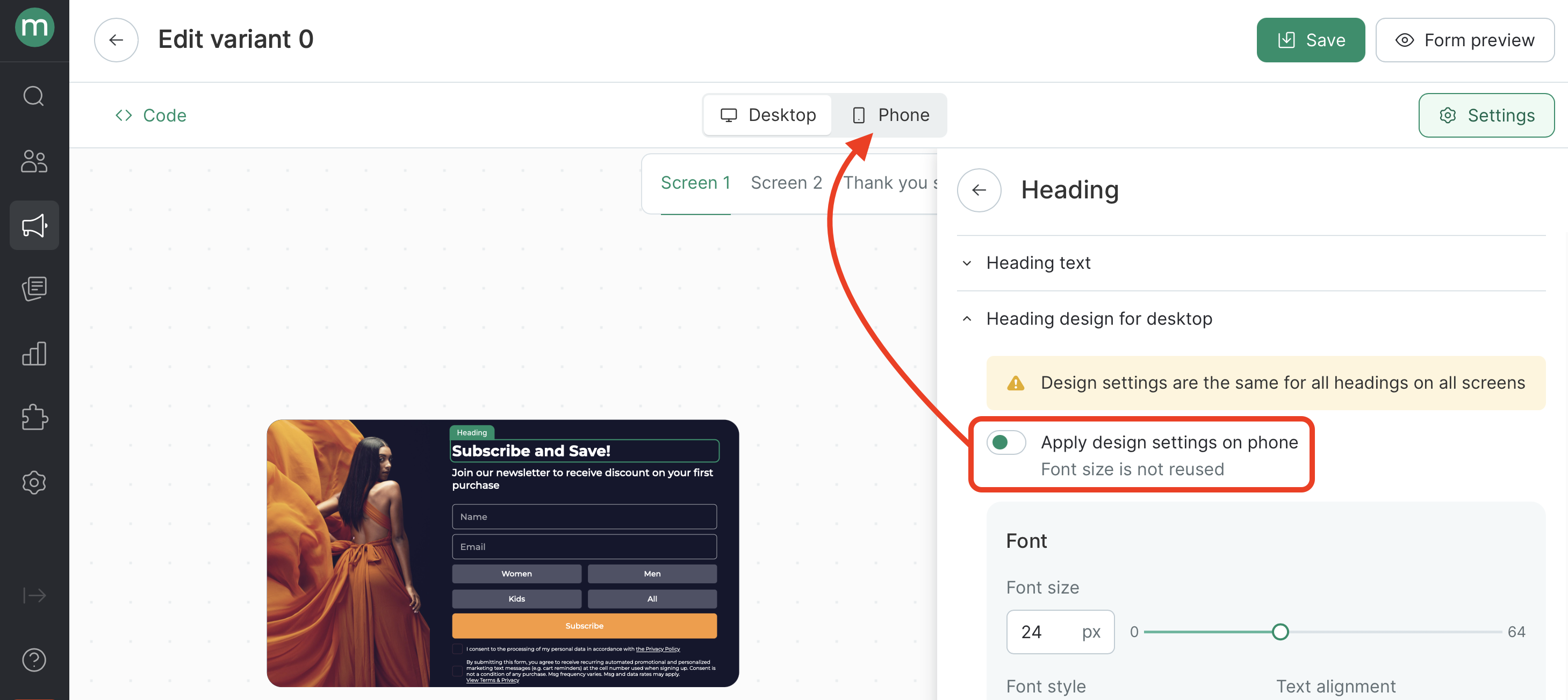
In the new templates, you can configure different settings for each text element on different screens, including font style, size, color, and text alignment.
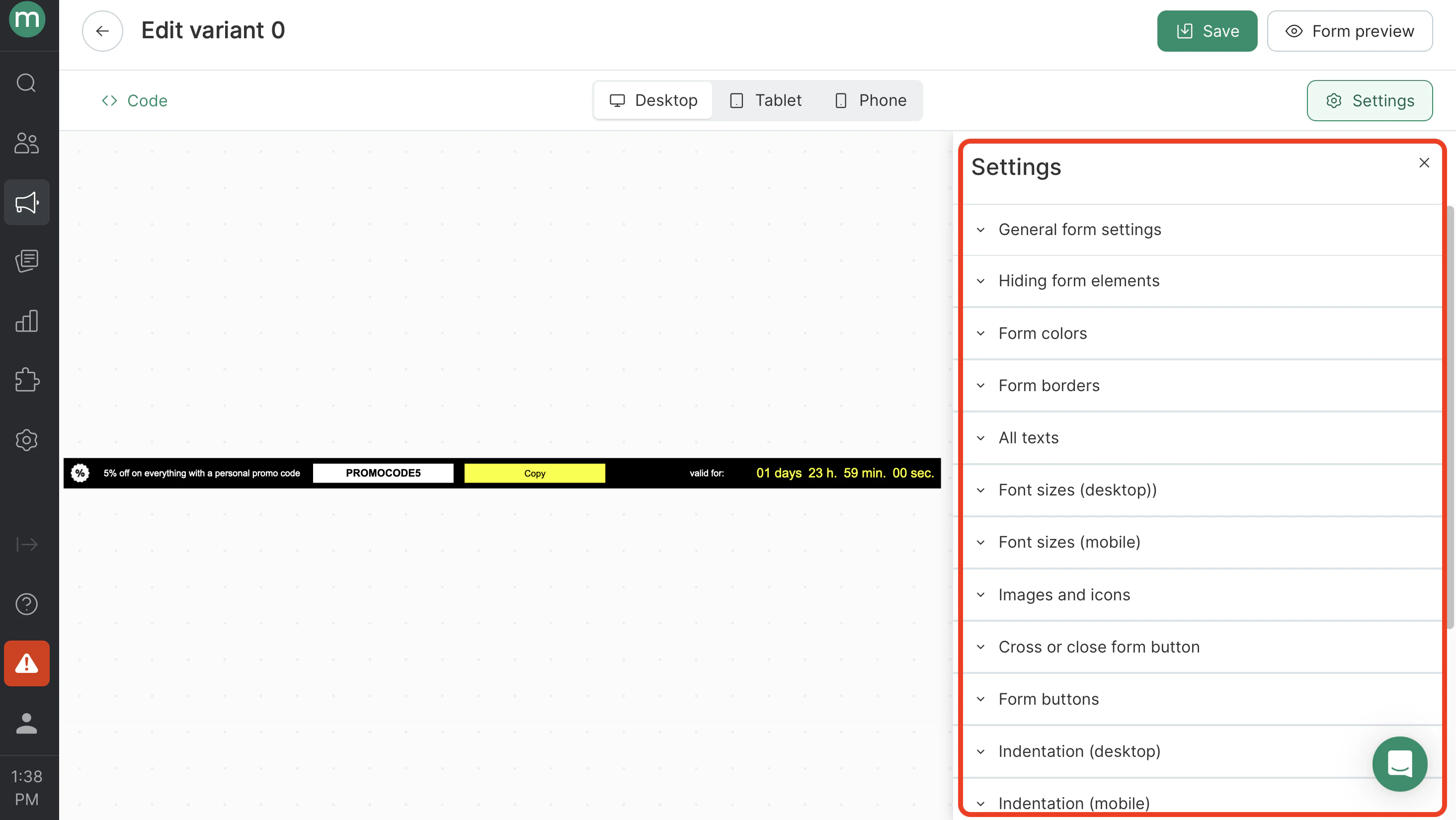
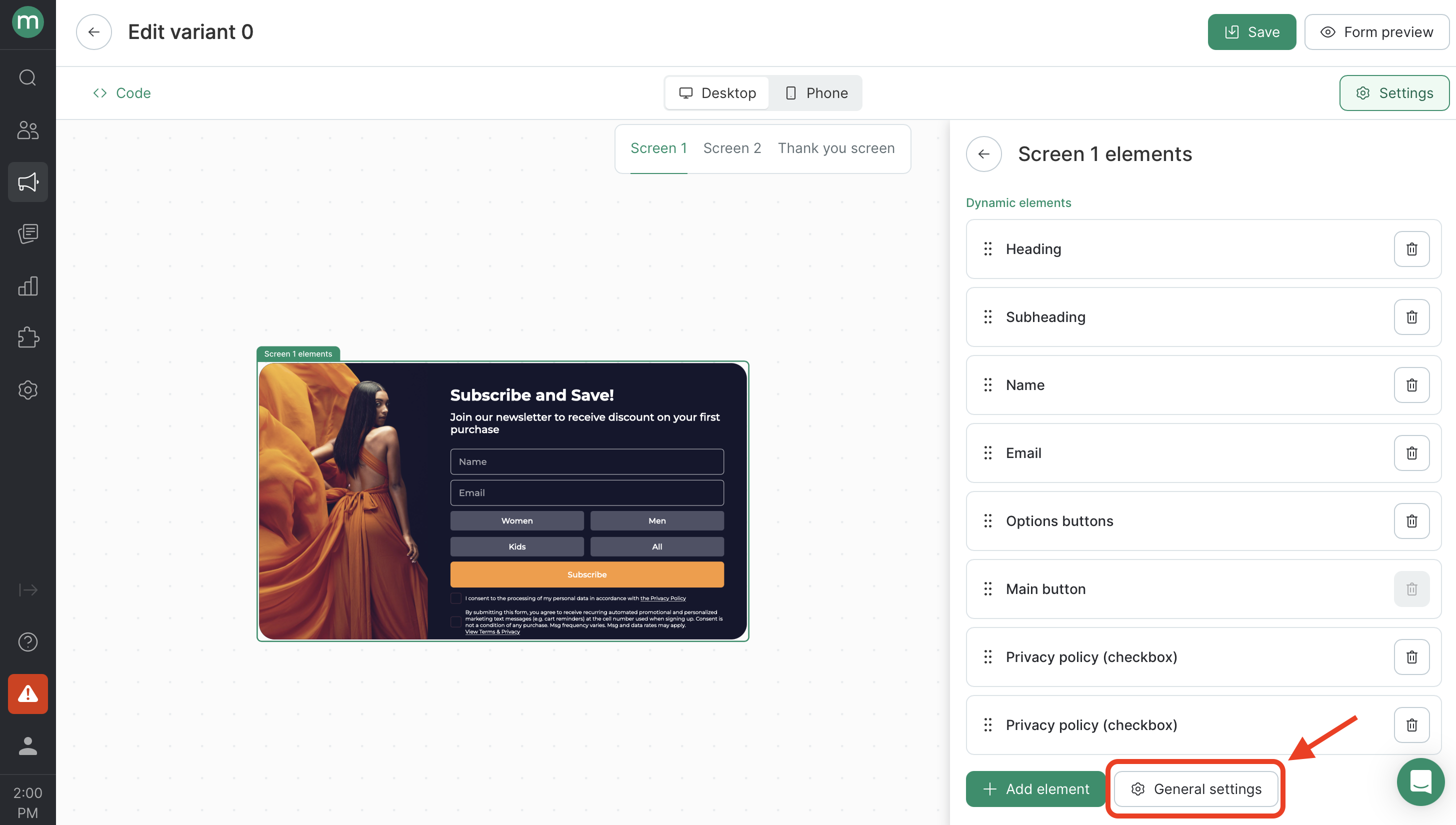
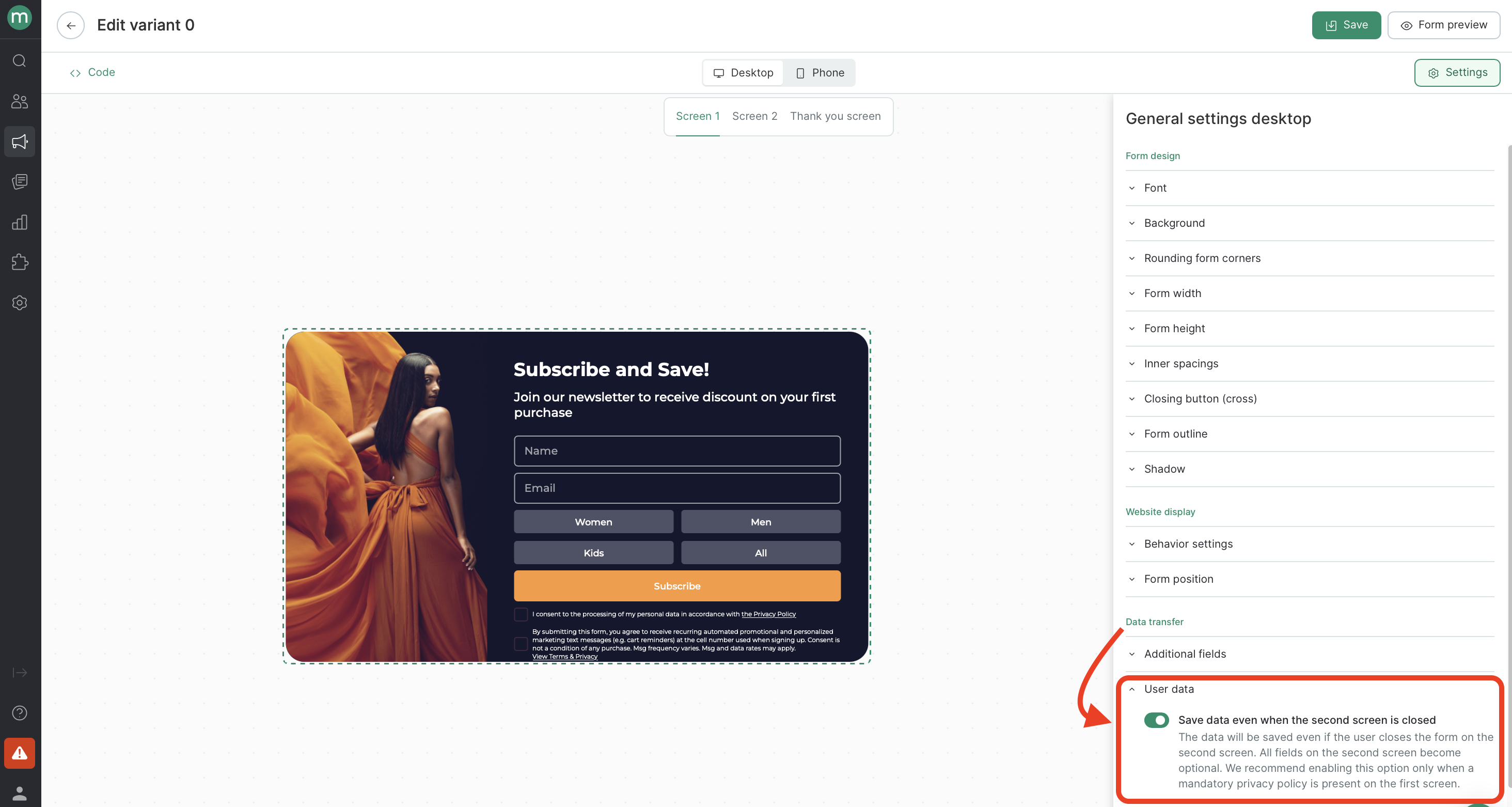
- Go to “General Settings” to update:
- The overall form design (font, width and height, close button, and more)
- The form placement on the website
- Data submission settings (phone input format, autocomplete, user data storage)
In the new template settings, you can set a unified form height for all screens. This is useful when screens contain different types of content and the height may otherwise change when switching between them.
Targeting
Specify who should see the form and under what conditions. You can limit the audience by segment, traffic source, and more. For example, show the form only to segment of customers whose birthday is in 7 days: 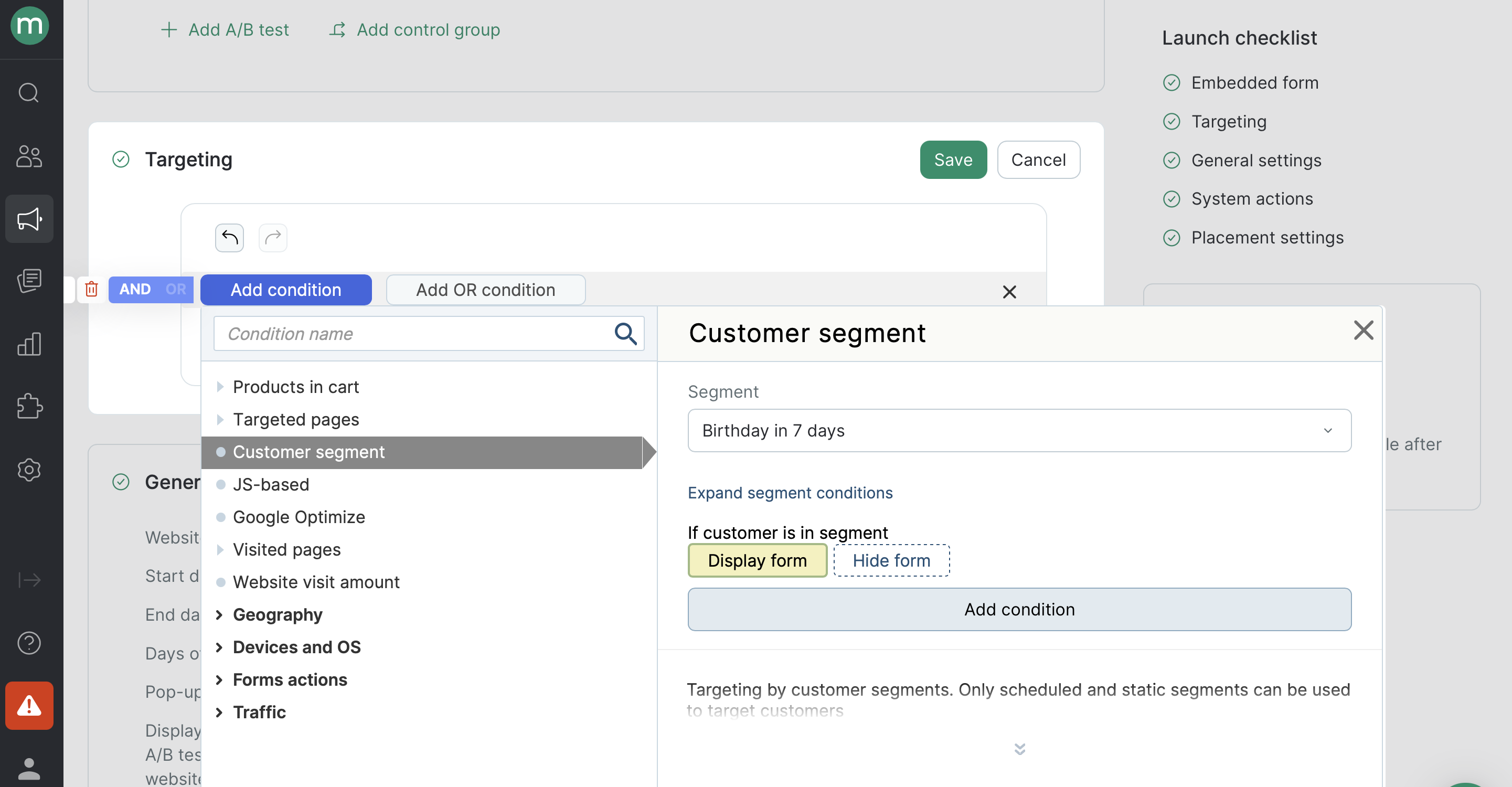
General Settings
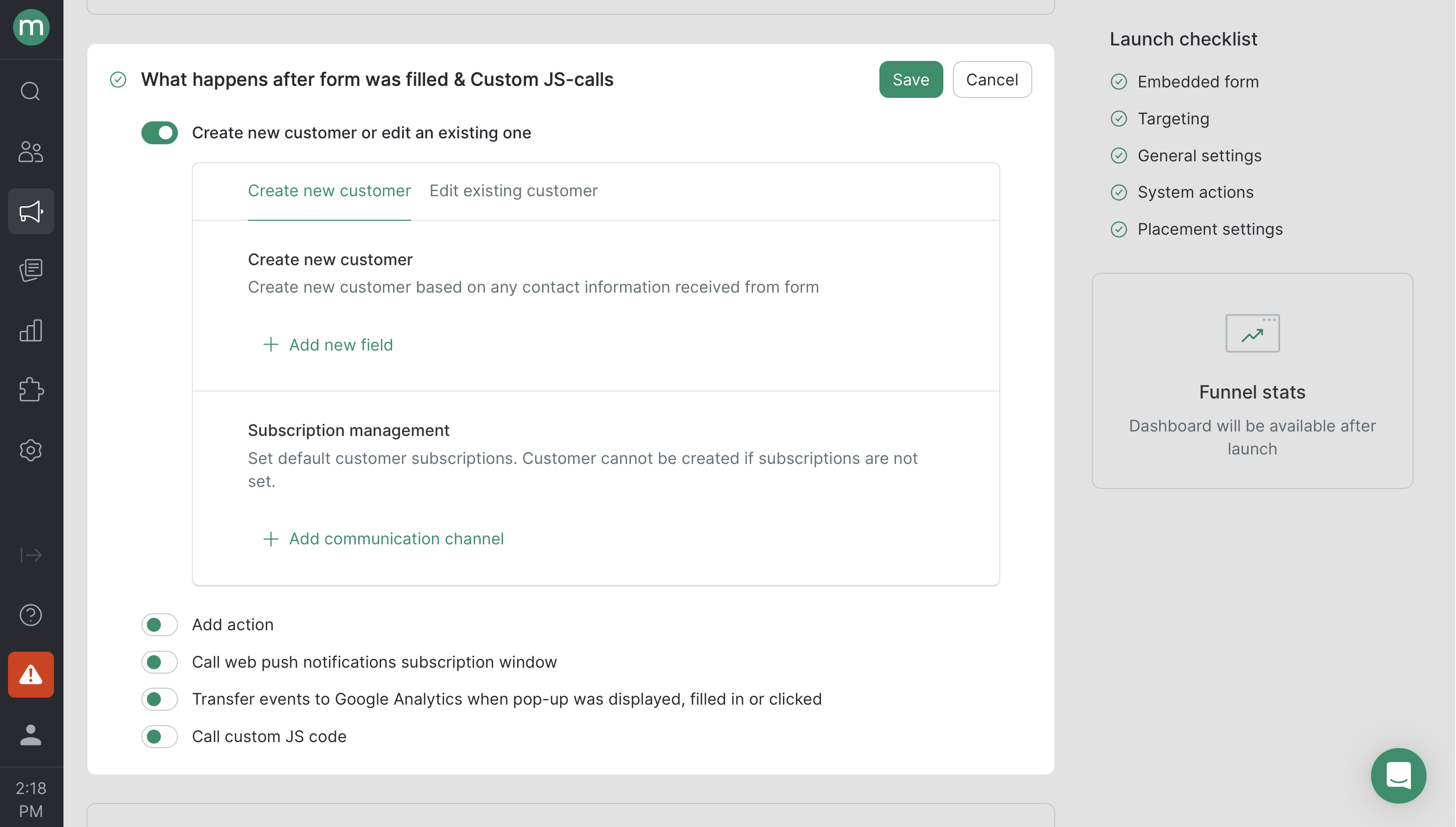
What happens after form was filled
How to Add a Form to Your Website
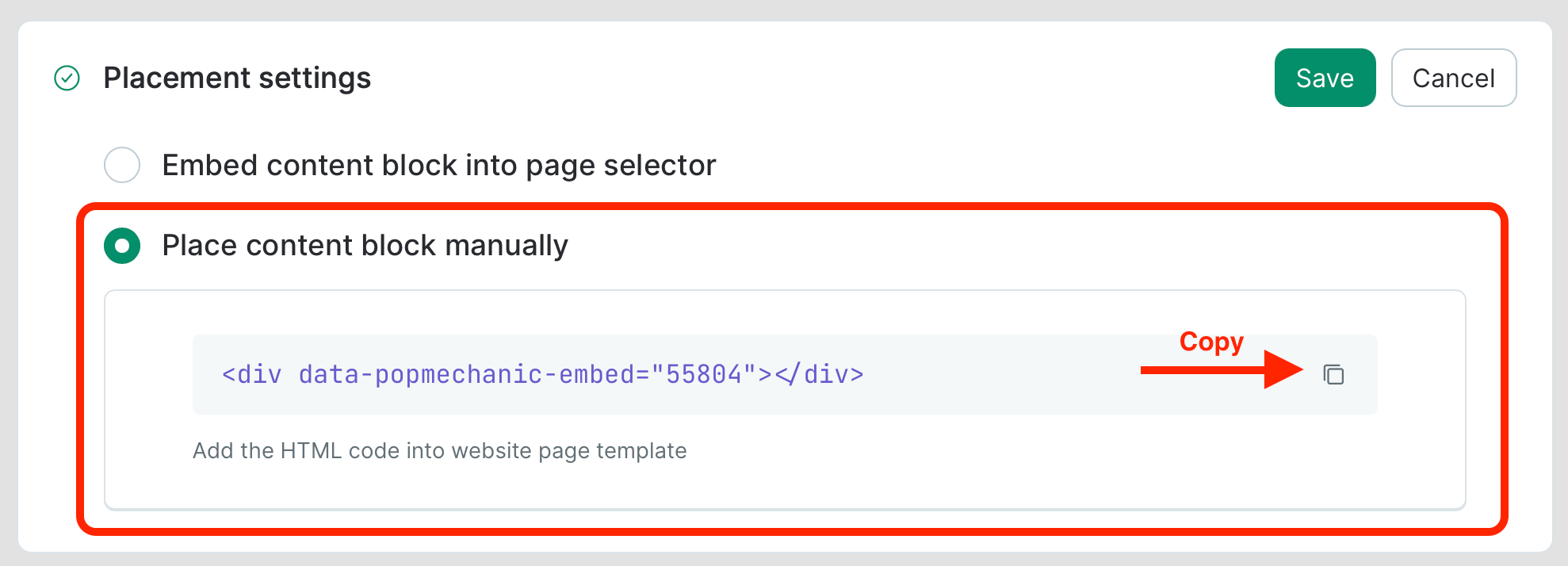
Placement Settings:- Embed content block into page selector:
- Embed form placement: before/after element, at the start/at the end of the block, replace content of the block, replace block
- Selector
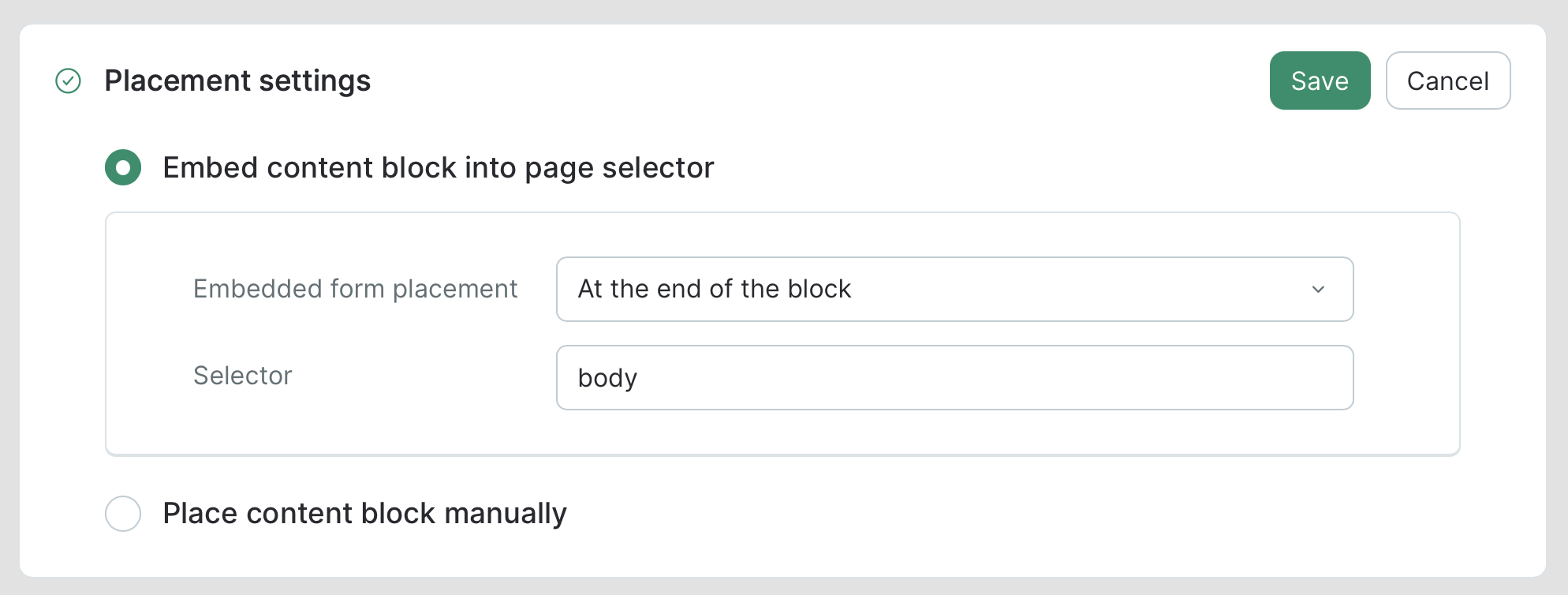
- Place content block manually Copy the code and paste it into the appropriate location in your website template.
 How to Choose a Selector A CSS selector is the element to which specific CSS properties will be applied.
- Install the Selector Gadget extension for Google Chrome. It significantly simplifies finding the correct selector.
- Go to the website where you want to place the form and choose the location on the page where it should appear.
- Activate Selector Gadget, hover your cursor over the desired area, and copy the selector.Common selector types:
.someClass— targets any element with the classsomeClass#someId— targets the element with thesomeIdID.You can find a detailed guide on selecting the right selector in the article. If you need to use different selectors for desktop and mobile for the same form, use the following in the selector field:
[selector_for_desktop] and [selector_for_mobile] with the corresponding selectors.
Check how the form appears on the website.
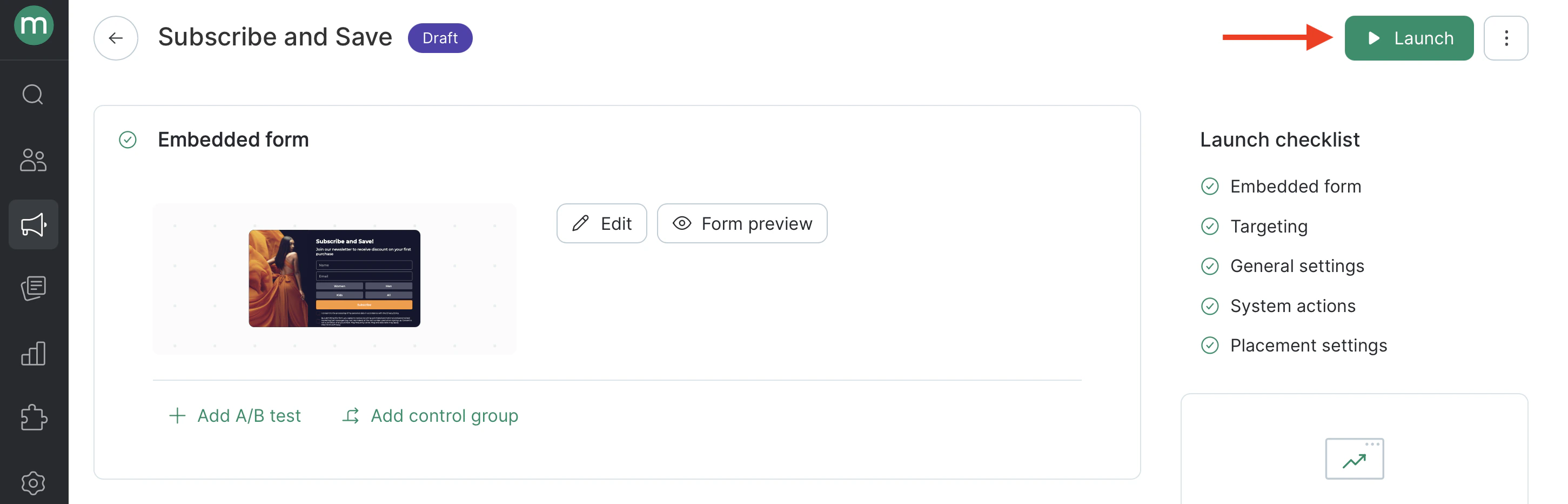
To preview the form on the website, make sure the Placement section is configured. This means either embedding a div block on the site (Place content block manually) or selecting display by selector and specifying the required selector (Embed content block into page selector). Click “Form Preview” and follow the link under “Your address”: 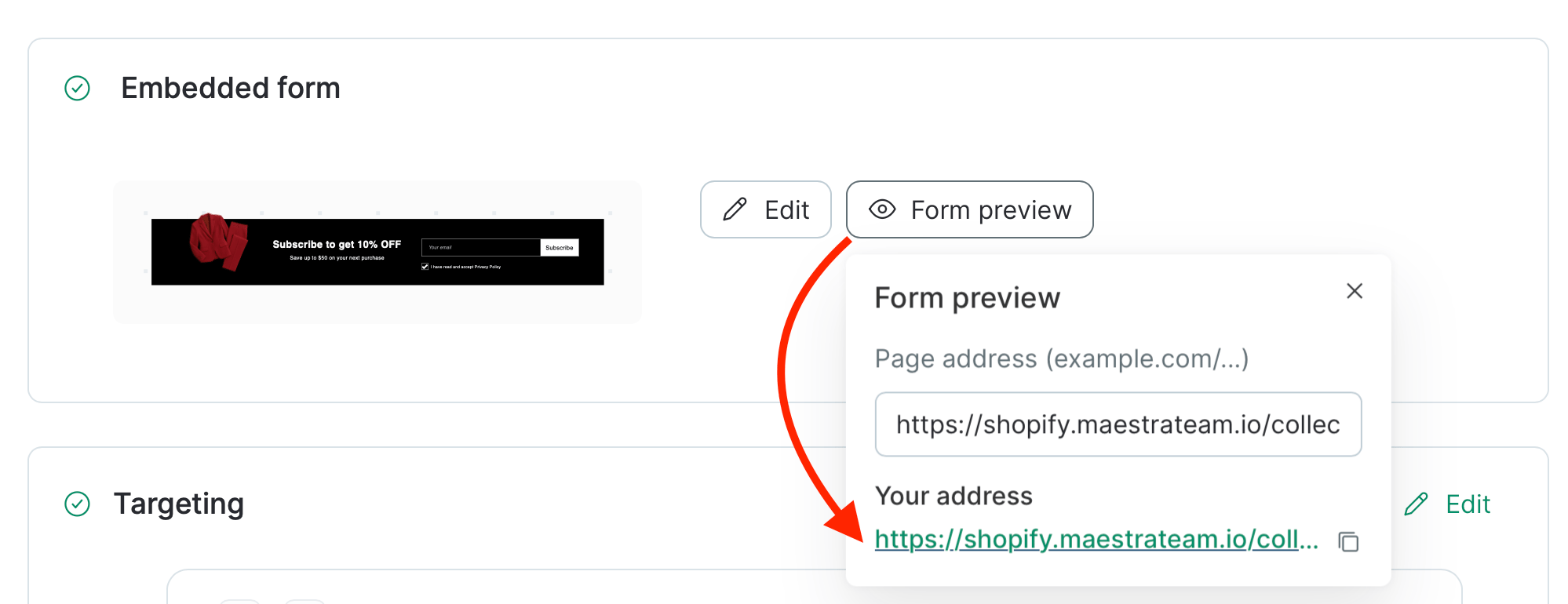 Check the embedded form on your site

Launch
If the form meets the requirements, launch it.