

Since August 2025, the system no longer creates bulk tasks for feed import.
How it worked before
After you added a feed to your project, the system would automatically check it at the set intervals. A product import was only triggered if the feed contained new or updated data since the last import. You could download an original file with new data or a resulting file in the “Bulk tasks” tab.How it will be now: bulk tasks for feed import are no longer created. Data update logic stays the same. You can view your feed’s update history on its page. See more.
Adding a product feed
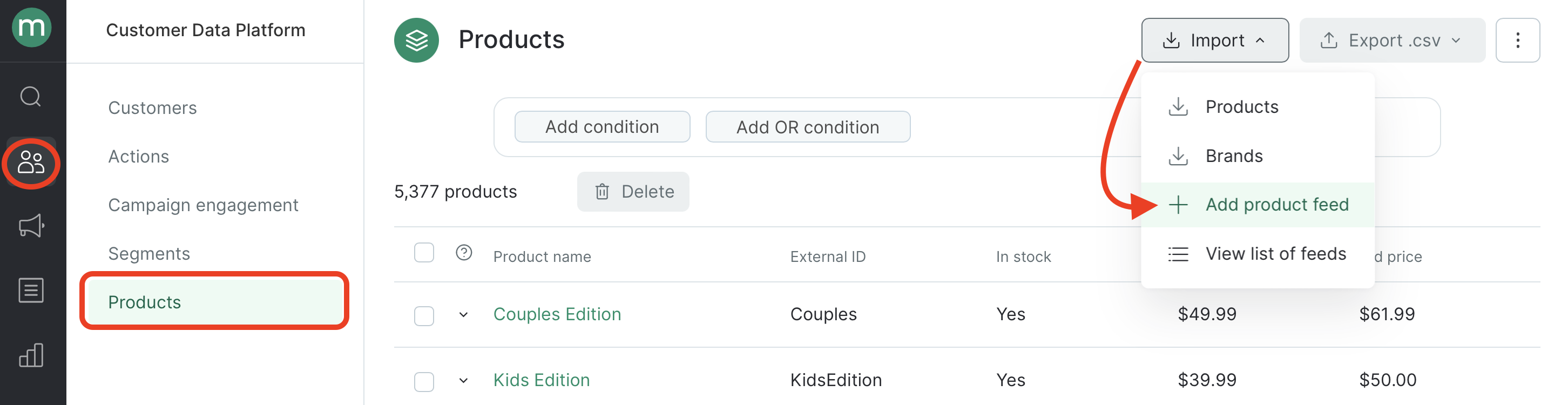
- Go to the Products tab and click “Import” → “Add product feed”:
Another way to add your feed
Another way to add your feed
Go to the Integration setup tab. Click “Create integration”: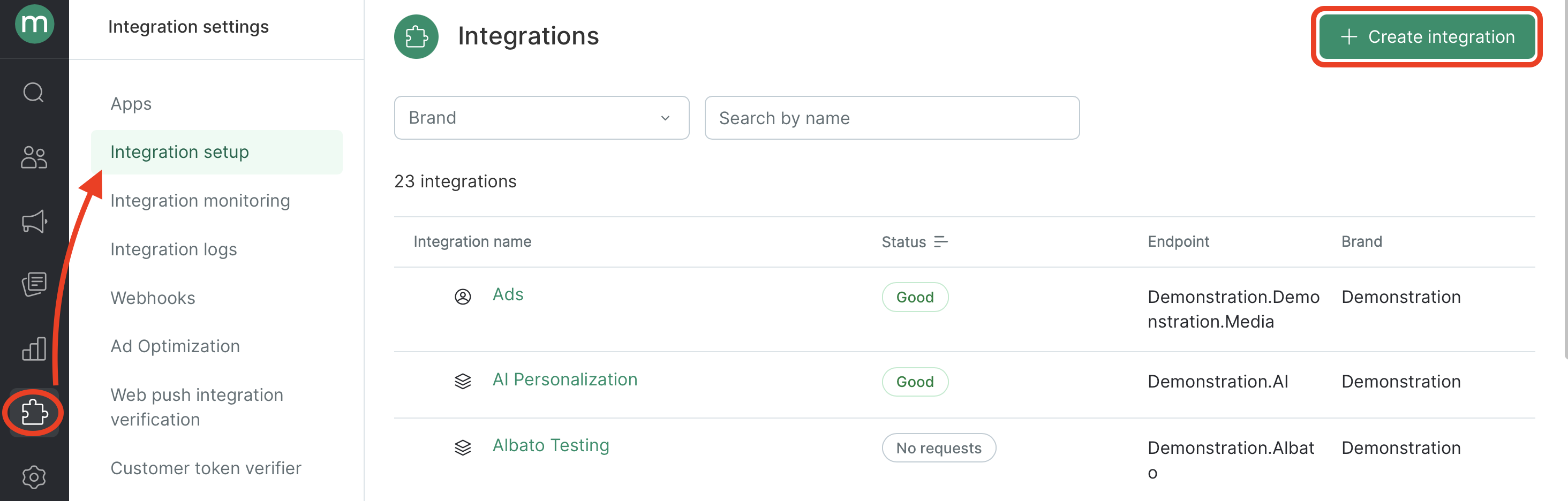

- Fill in the fields on the settings page:

- Feed type — Google/YML.
- External system — the system we take incoming data from.
- Brand — relevant for multi-brand projects. Select the brand you need to upload the product data for.
- URL — your file address.
- Update every n hours — the time period after which the system downloads the file by the specified URL and updates the data if necessary. After adding the feed, data download will start immediately, and then continue with the selected frequency. See more on the update algorithm.
If you specify a number that is a multiple of 12, you will be able to specify the exact time at which the data should be updated.
- By default, your feed is named Product feed #. Feel free to give it a more convenient name anytime.
- Area — used for the projects where products data may differ depending on the region (Areas).
- Launch update at — the exact time the data update is needed if necessary. After adding the feed, data download will start immediately, and then continue with the selected frequency. This option becomes available when you enter a number divisible by 12 in the Update every n hours field.
- Authorization — fill in the field if the file for the download is secured by password. To add the feeds secured by password, you need to have the “Managing secret data” permission.
- Click “Add”.
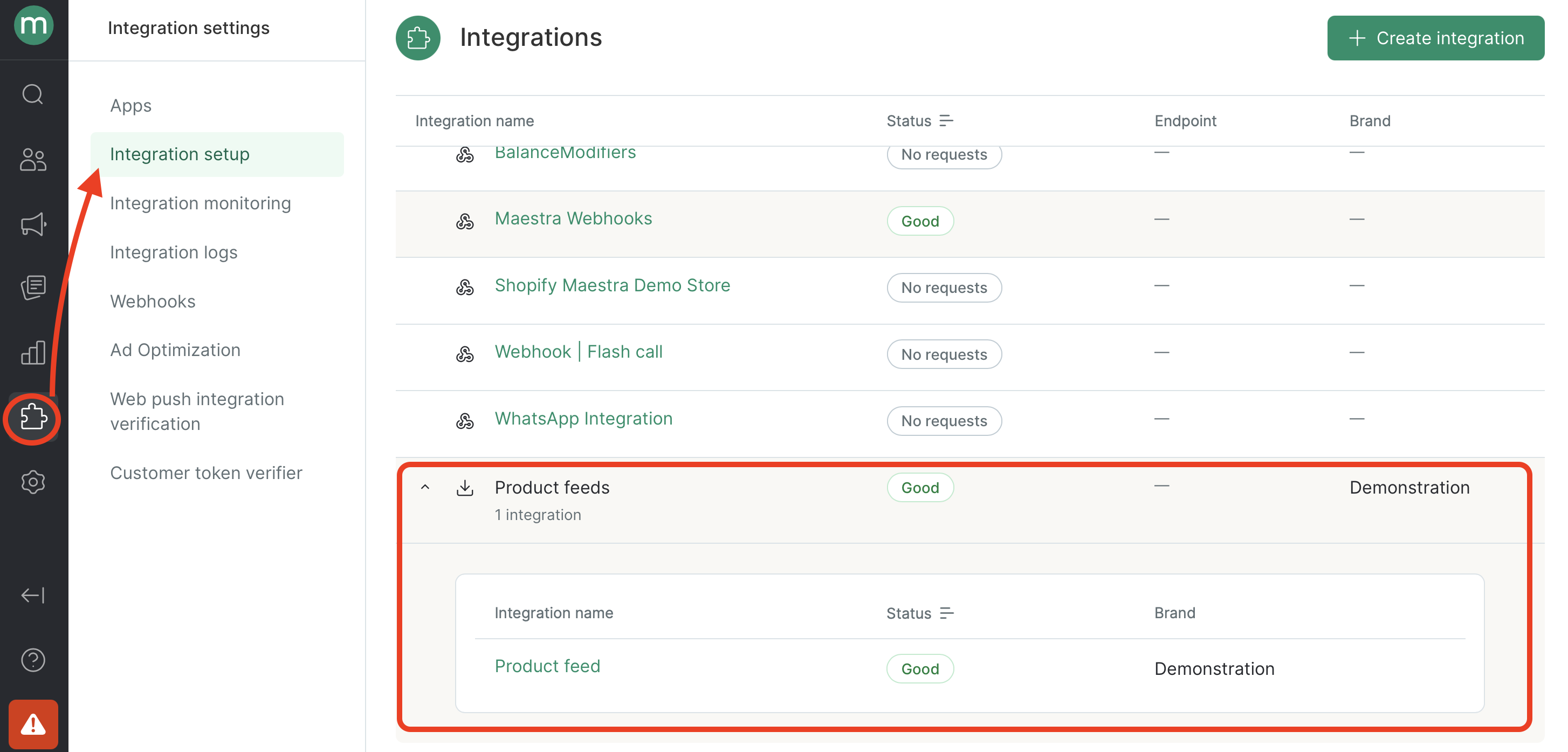
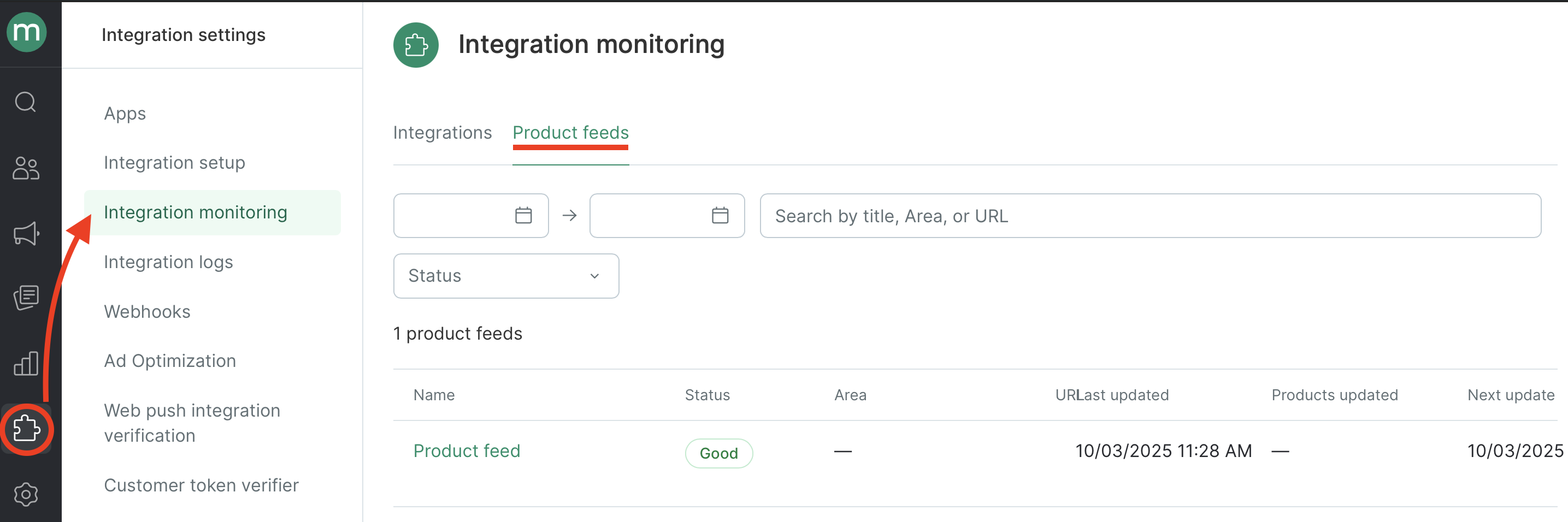
- You can check your feed download status on the following page: Integration monitoring → Product feeds.
How product data is updated
Immediately after the feed is added to the project and during periodic updates, the system attempts to download the product feed file from the specified link. If the file is successfully downloaded and there are changes compared to the previous download, product information is updated: new products are added and existing ones are edited. When loading and updating the feed, the system identifies a product based on two parameters: the external product ID and the external feed system. If the feeds with the same external product ID are added to the project, two scenarios are possible:- Different external systems are selected—two product cards will be created on the project, one for each system.
- The same external system is selected—one product card will be created on the project. Updates may be applied to the product unpredictably, sometimes from one feed, sometimes from another.
A brand does not currently impact a product’s identification in Maestra.

Possible problems
Issue with the file or link
Issues with specific product values
Feed update history
Go to Integration Setup → Product feeds and select the relevant feed.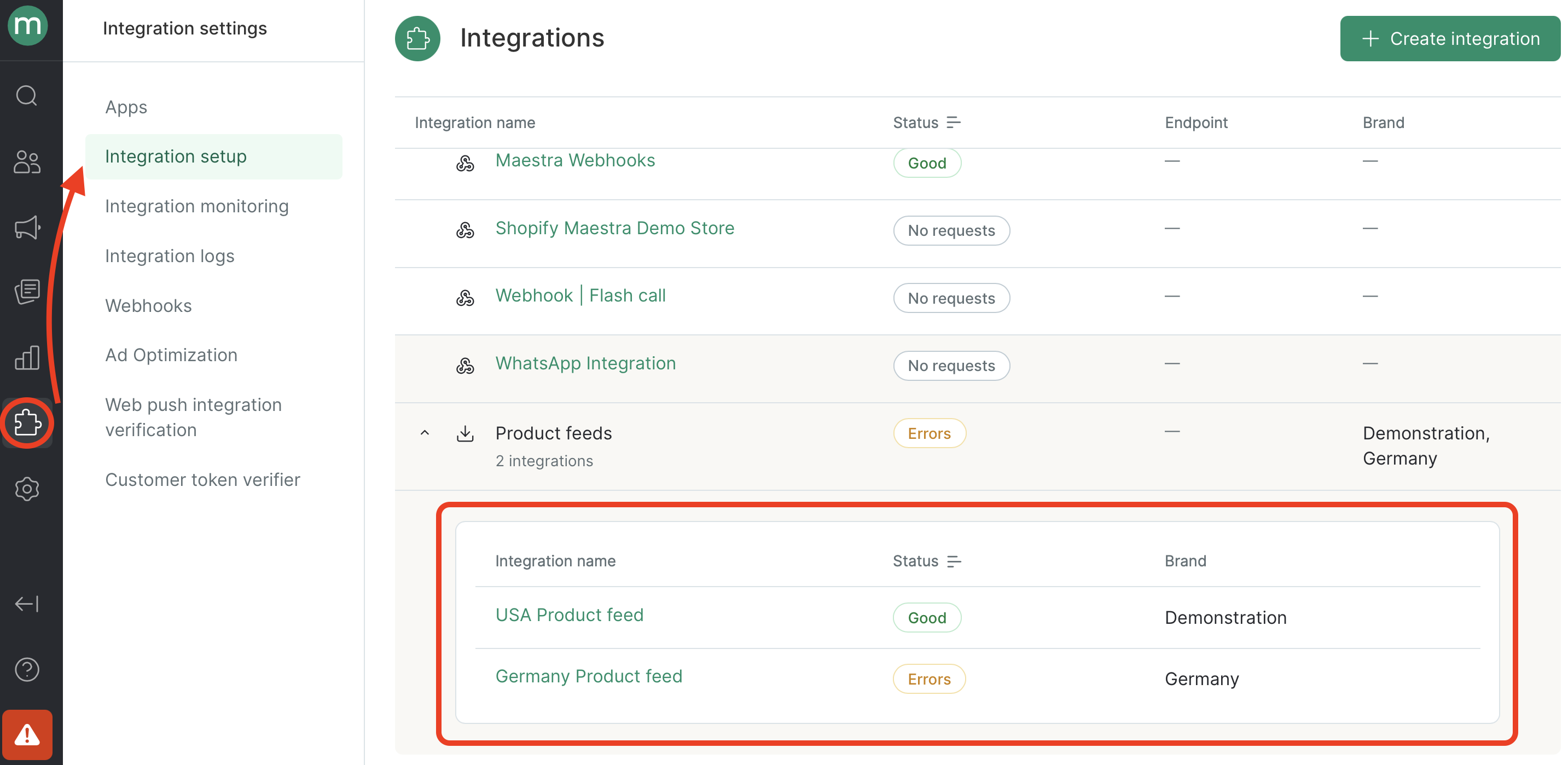
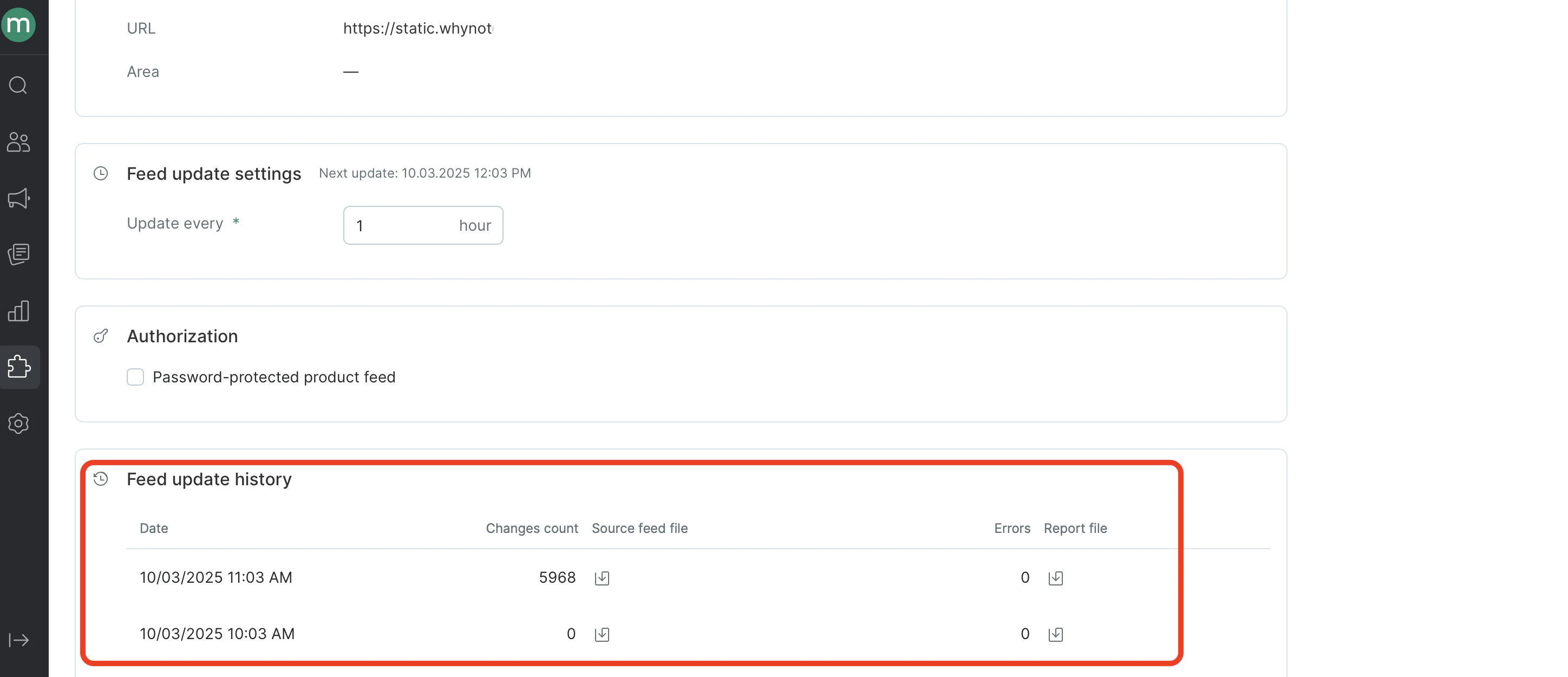
- Date — date&time of the feed file download.
- Number of changes — the number of products changed as a result of the data update.
- Original feed file — contains all the feed data at the start of feed download.
