

When to use file-based email campaigns
These campaigns are useful for:- sending a campaign to a list of customers from a file (it can be a list of email addresses or phone numbers, or IDs).
- adding values into the campaign that are not stored in the database (for example, promo codes or custom variables).
How it works
- In Recipients, select the One-time file option.
.png?fit=max&auto=format&n=PP-BodS5bFF14NYd&q=85&s=2172f8653d2a85ac88f3230dd4e08e53)
- Maestra customer ID
- Phone number
- Custom field (field type must be “unique id”)
- Download the template file.

- Fill in the template with values based on the identifier you selected.

How Campaign Sending Works Across Channels
- If you select Email identification and the file contains email addresses, the campaign will be sent to those addresses.
- If identification is set to email but you send an SMS campaign, customer data will be pulled from the database.
When sending Email campaigns
If you’re using email addresses to identify customers for the campaign:- If the email address isn’t in the database, the customer will be added as “Subscribed”.
- Customers without a subscription are automatically assigned the “Subscribed” status (if it’s a topic-based campaign, the user will be subscribed only to the topic, not the entire channel).
- Unsubscribed customers do not receive campaigns, and their email addresses are excluded from recipient counts after file upload.
- If the file contains duplicate email addresses, the campaign will be sent to each duplicate address.
- If the campaign is created by user without permission to import new customers:
- The campaign will only be sent to existing customers already in the database.
- New customers will not be added or receive the campaign.
- Copying a campaign created by a user without import permissions will not add new customers. The campaign must be recreated.

When sending SMS campaigns
Customer identification by phone number follows the same rules as email campaigns.When Sending Campaigns Across Other Channels
To send mobile push or web push, you can use any available identifier: email, phone number, Maestra ID, or a unique ID.Please note: customer data will always be pulled from the database.
How to Send a Bulk Campaign with Custom Variables
We usually add custom variables to a campaign when we need to include a value that isn’t stored in the database. For example, if each customer needs to receive a unique promo code. To send the campaign with custom variables:- Follow the instructions to create a campaign.
- Add a unique variable to your template: - Come up with a name for your variable. The name must be unique, e.g., you may use the name of your campaign - SalesWithPromo123. - Add the variable into the campaign:
${CustomParameters.ABC}ABC is the name of the variable that we came up with above. The “CustomParameters” part of the variable always stays the same. How it looks in your campaign editor:
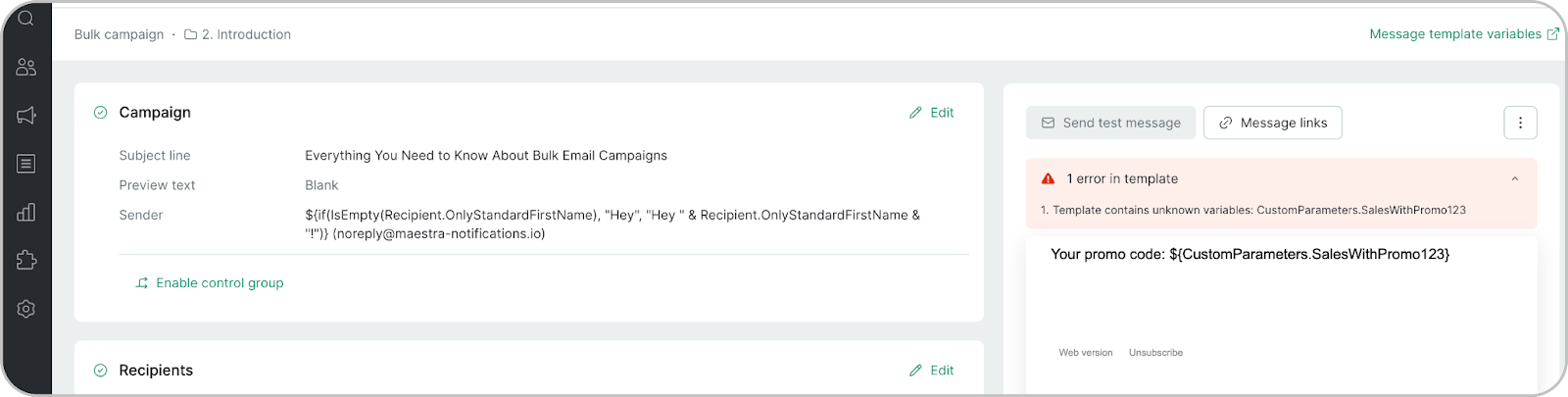
.png?fit=max&auto=format&n=PP-BodS5bFF14NYd&q=85&s=ab37b21e6b3d4a328b81c724cad092b5)

.png?fit=max&auto=format&n=PP-BodS5bFF14NYd&q=85&s=09a66f7c170c7caa2bb7bab5ac97f4b7)
- The CustomerIdentity column contains a list of email addresses.
-
The SalesWithPromo123 column contains variable values. The column name must match the name of the corresponding variable in the campaign.5. Upload your file

Common error
Missing “CustomerIdentity” column. The campaign accepts CSV files with a comma delimiter. The provided template file already uses this format.If you create the file manually, it may use a different delimiter. In this case, the campaign list will treat all columns as a single column and return an error indicating that the CustomerIdentity column is missing.To fix this, check the file delimiter using a text editor and replace them with commas if necessary, or copy the data into the template file.How to test your campaign
- Create a small file with test addresses.
- Add sample variables values.
- Upload and send to the test group.
- Verify the result.
- Clone the campaign.
- Upload the full file.
- Send the live campaign.