

- Create a new pool of promo codes;
- Edit pool settings;
- Activate the pool.
1. How to import a promo code pool
Open the campaign you’d like to add promo codes to: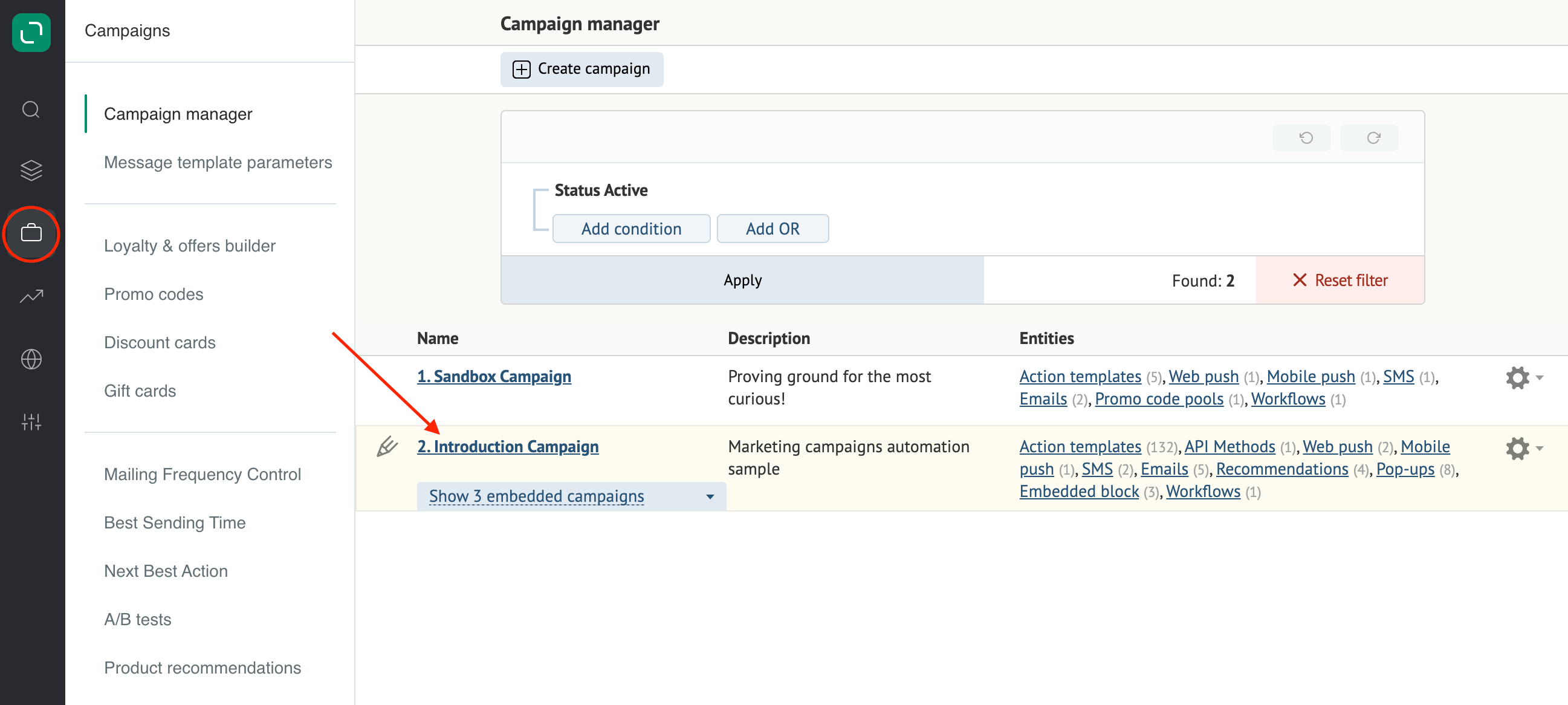
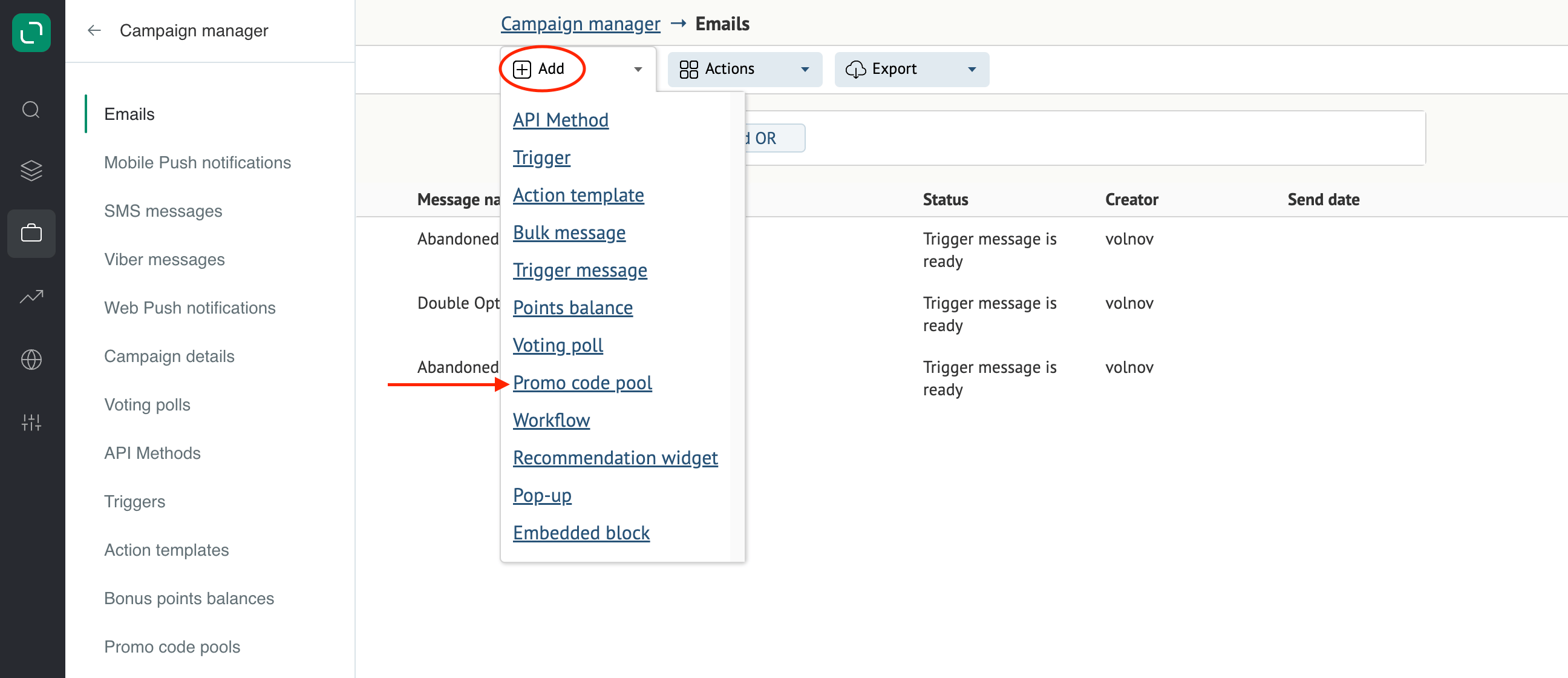
2. How to edit the pool settings
2.1. The pool name and general settings:
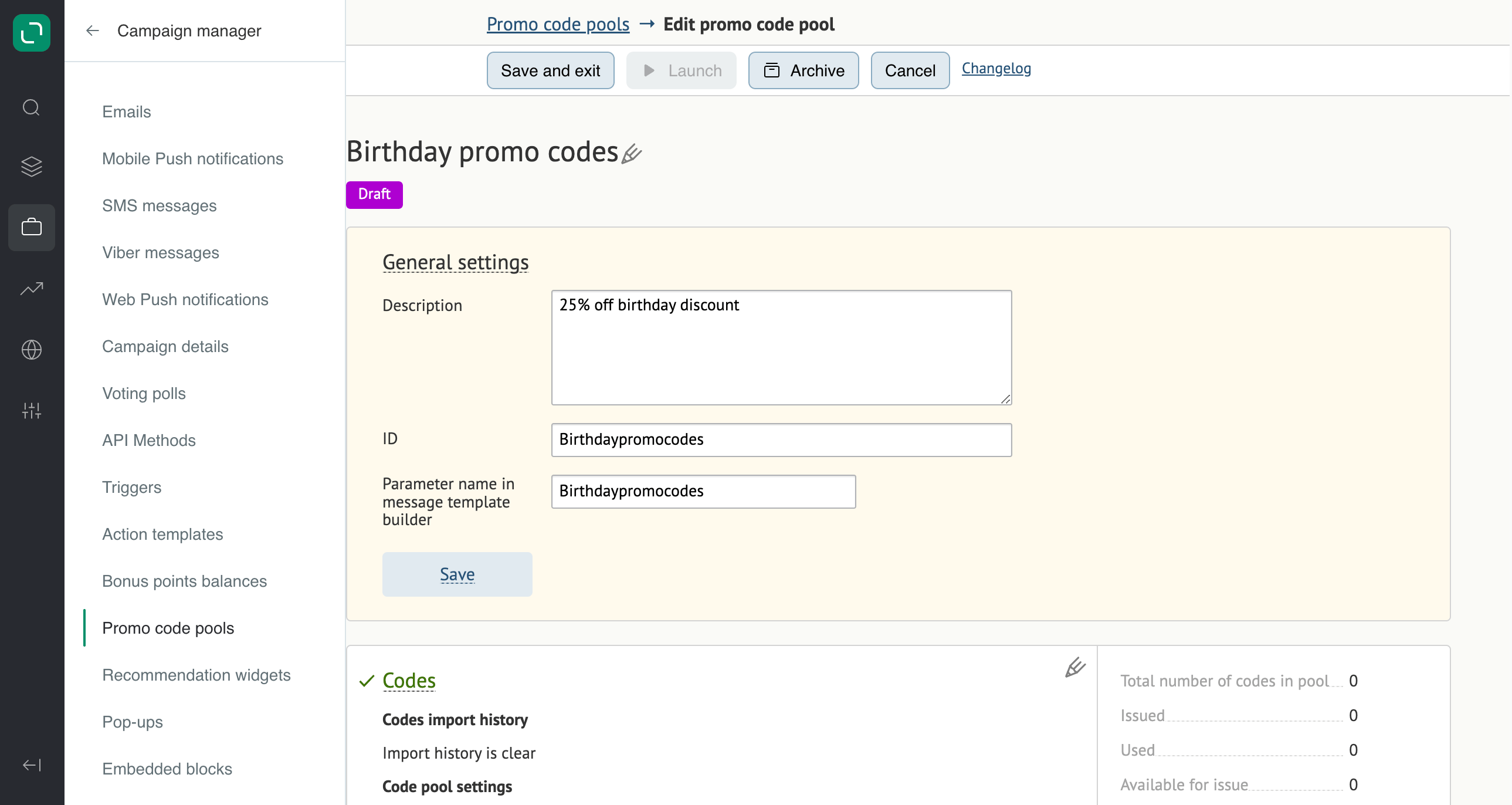
2.2. How to add more promo codes to your pool:
You can add new promo codes manually or generate them in the system. Use the “generate more codes” button if you’d like the platform to generate promo codes for you. If you’d like to upload more codes manually, please note that the “generate more codes” button will become inactive after the first upload.Manual import
- Download the Manual code import template:
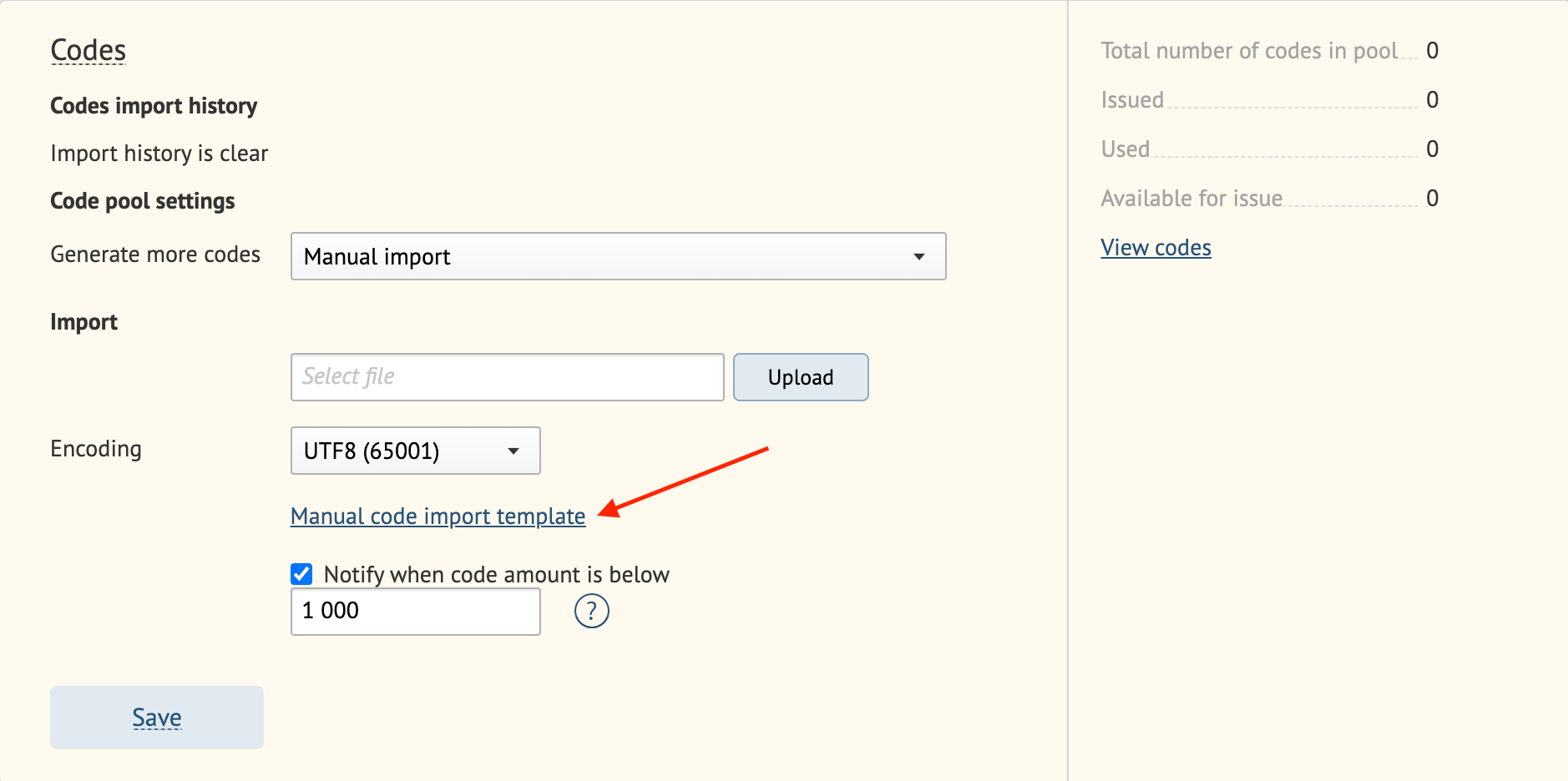
- Get your file ready:

- Upload the file.
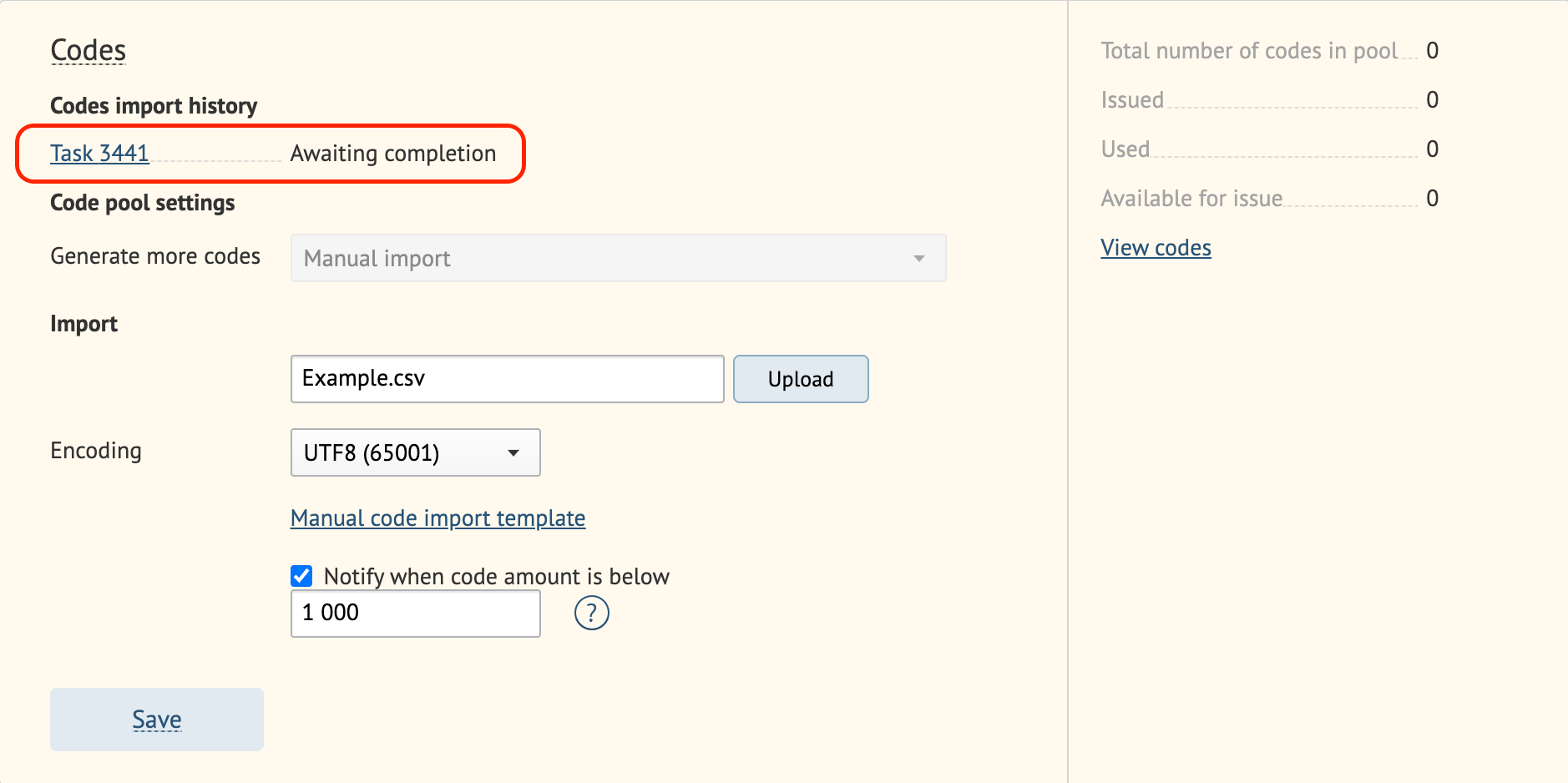
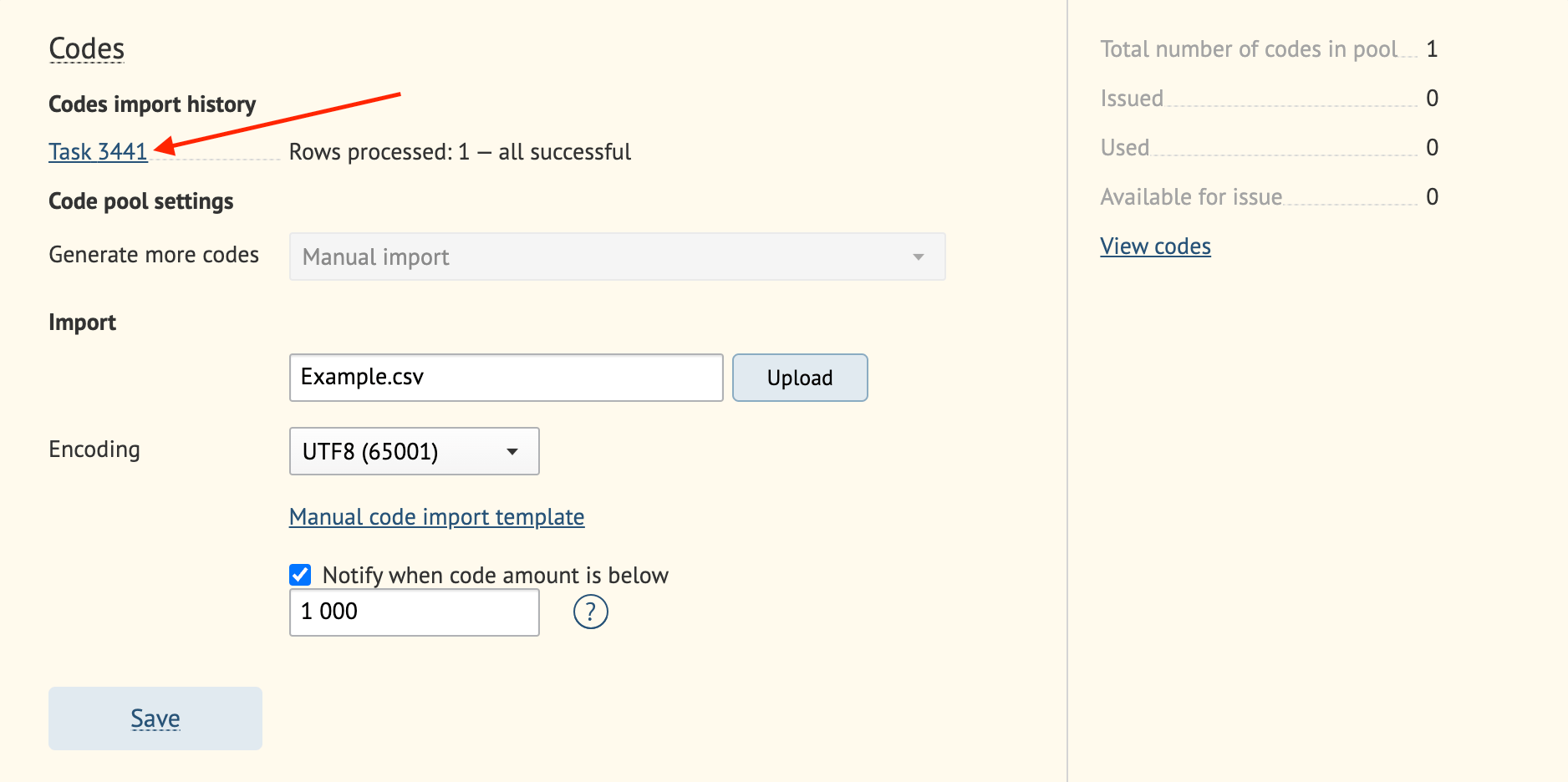
- Click Save.
How to generate promo codes
We go into more detail on generating promo codes in this article.Manual import using the text box
Type in your promo codes and click Upload: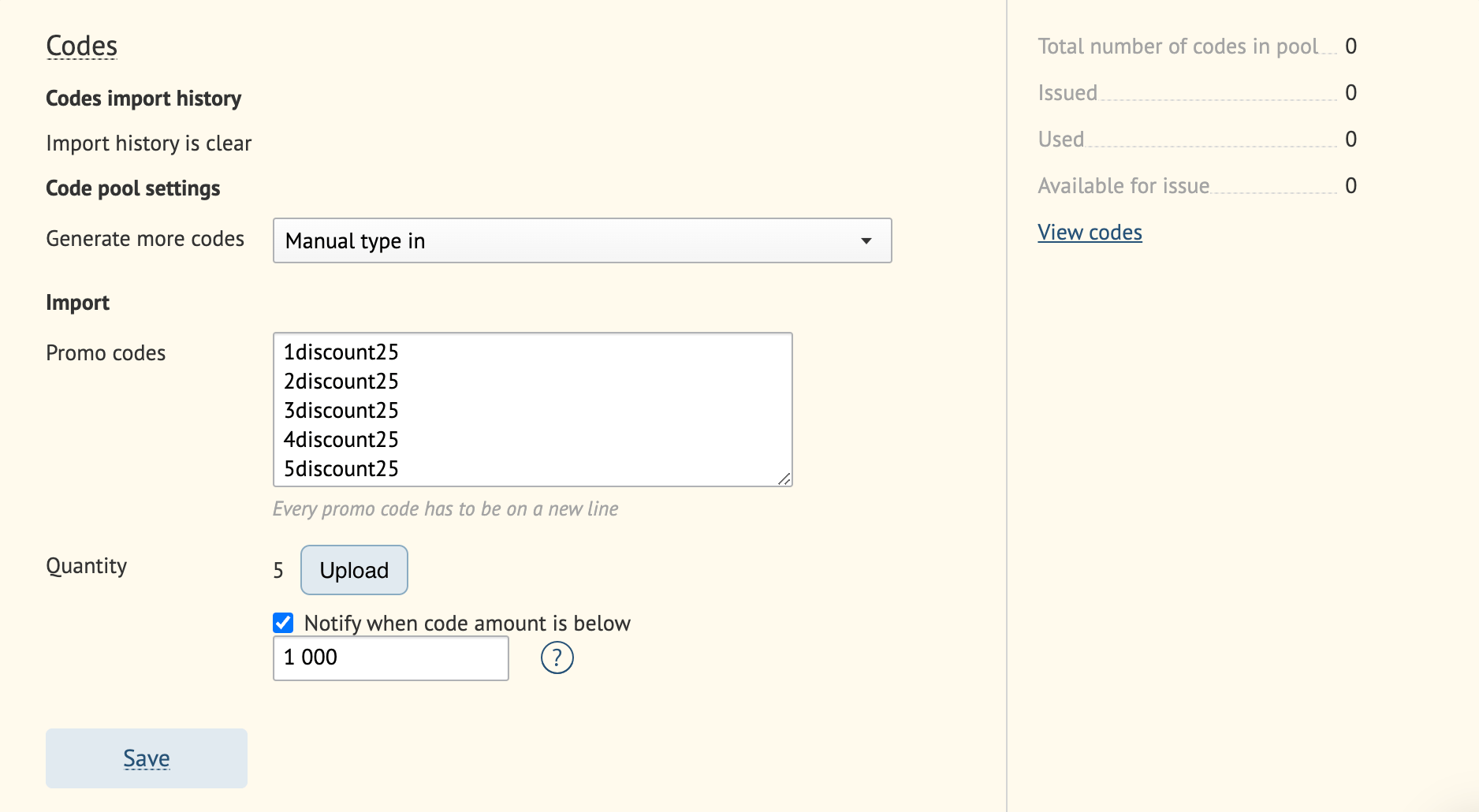
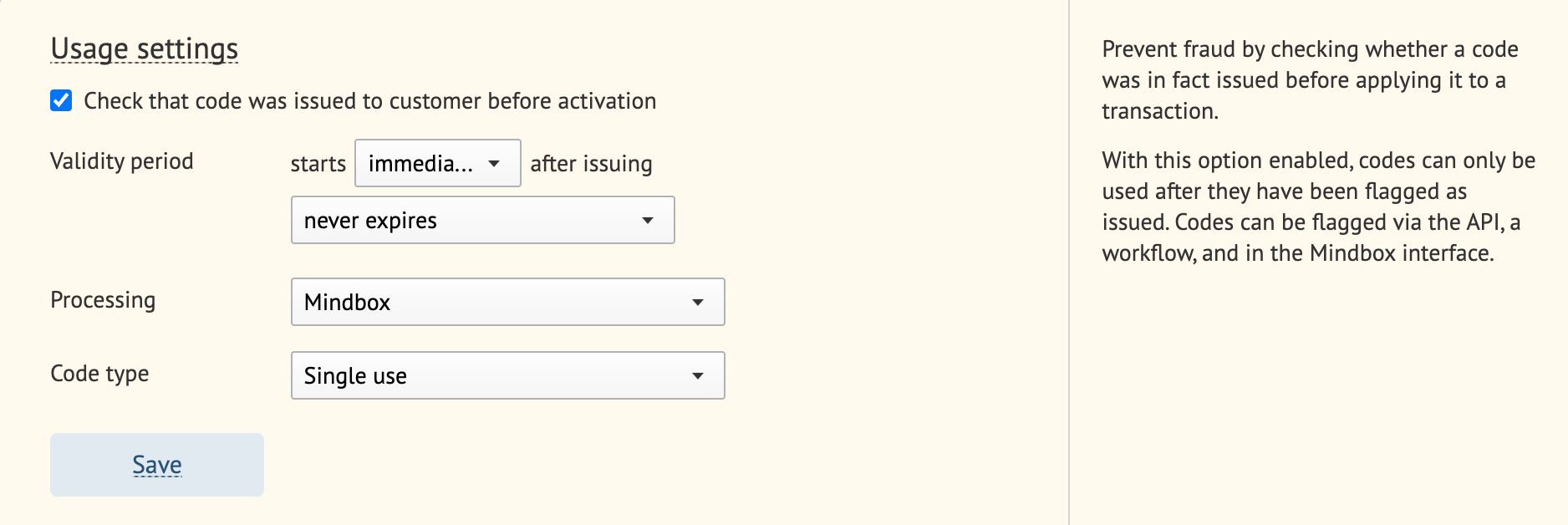
2.3. Usage settings
3. How to activate your pool
Once you’ve finished editing, click Launch to make the pool accessible in the database: