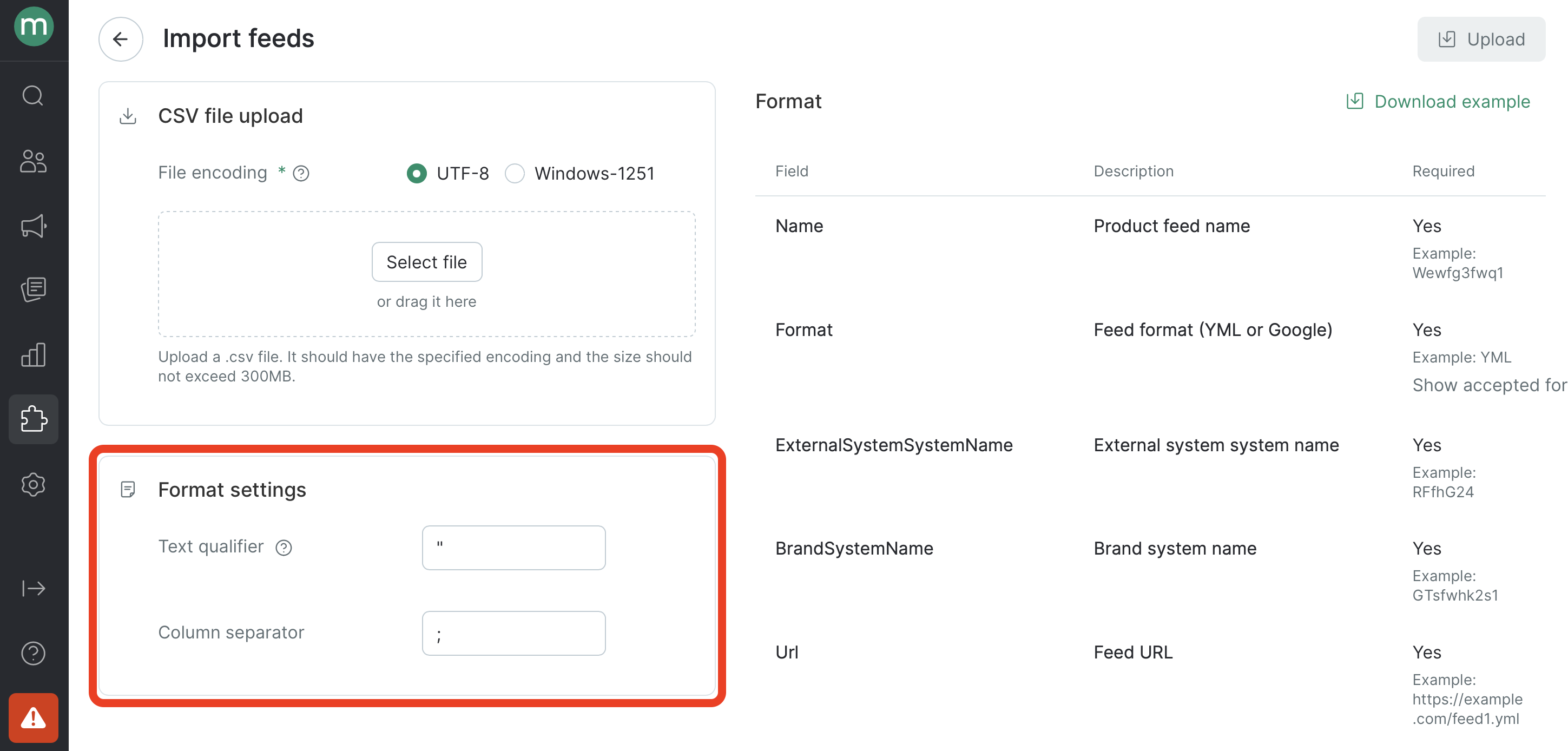
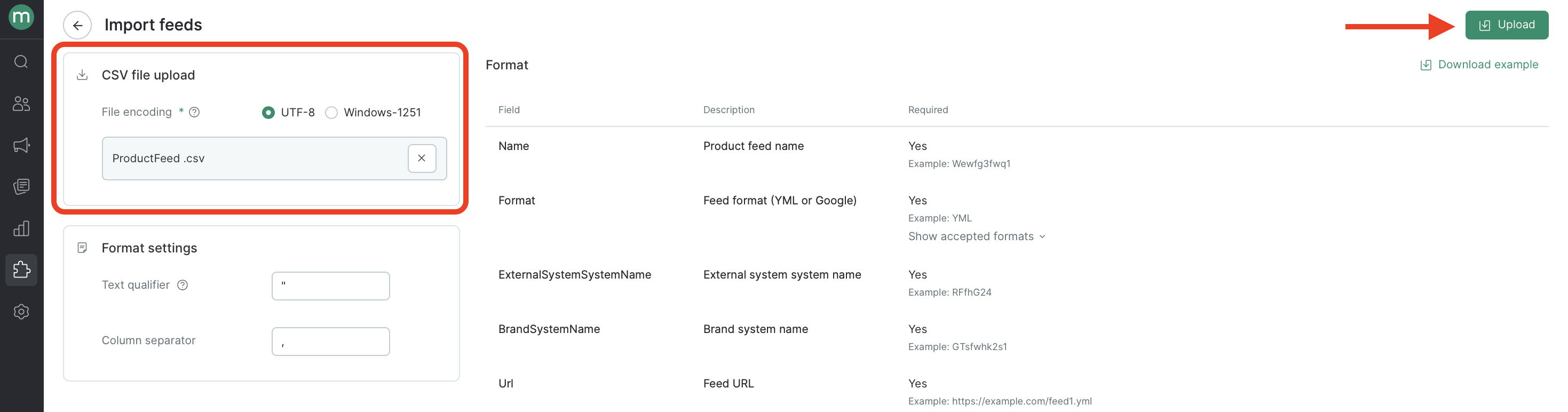
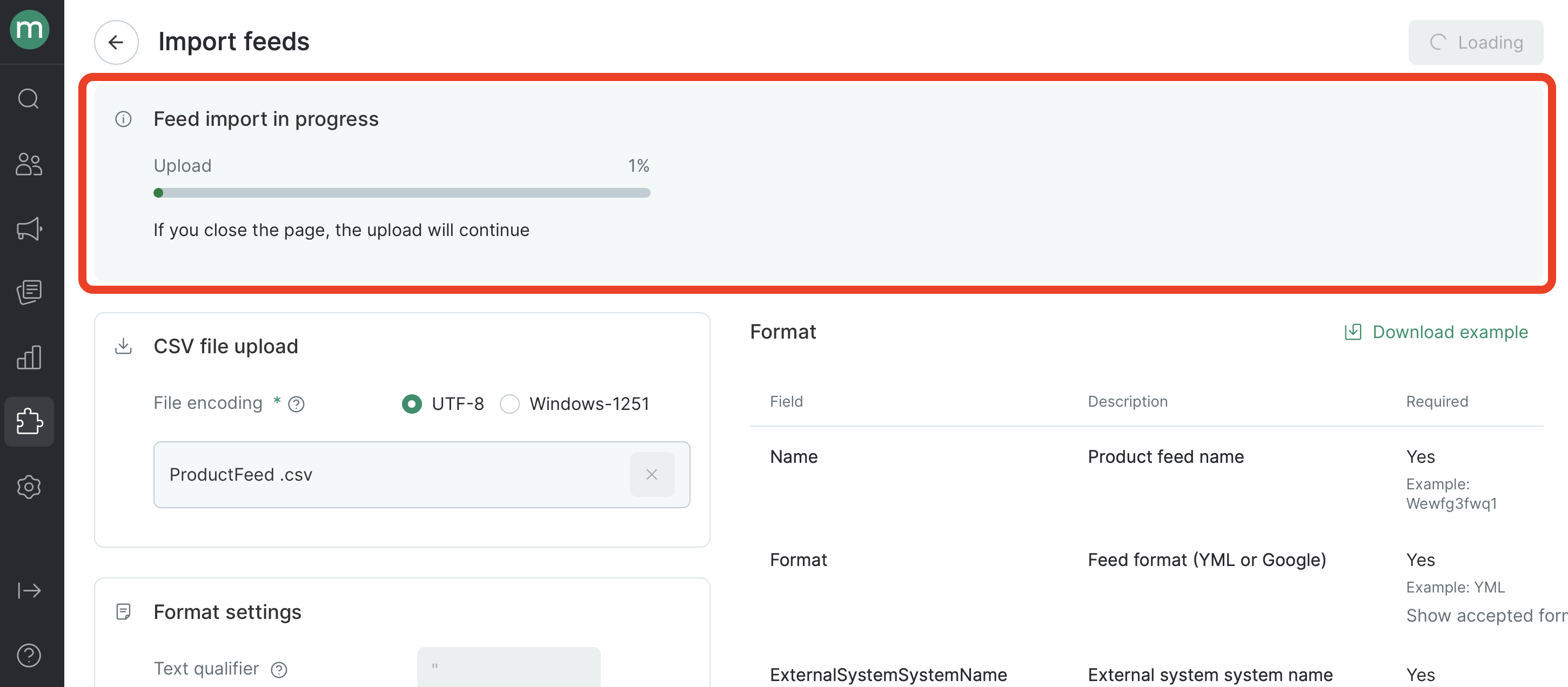
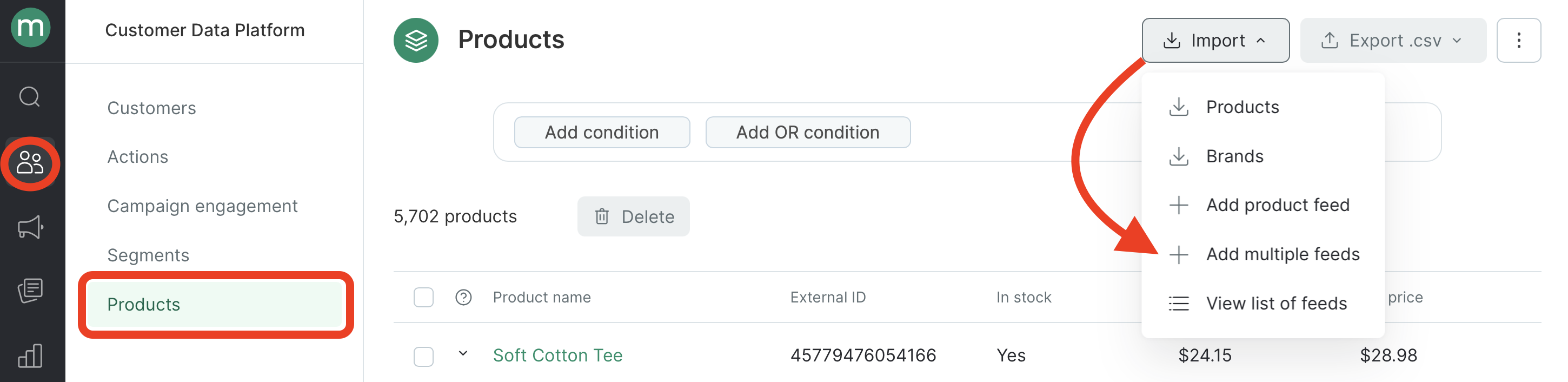
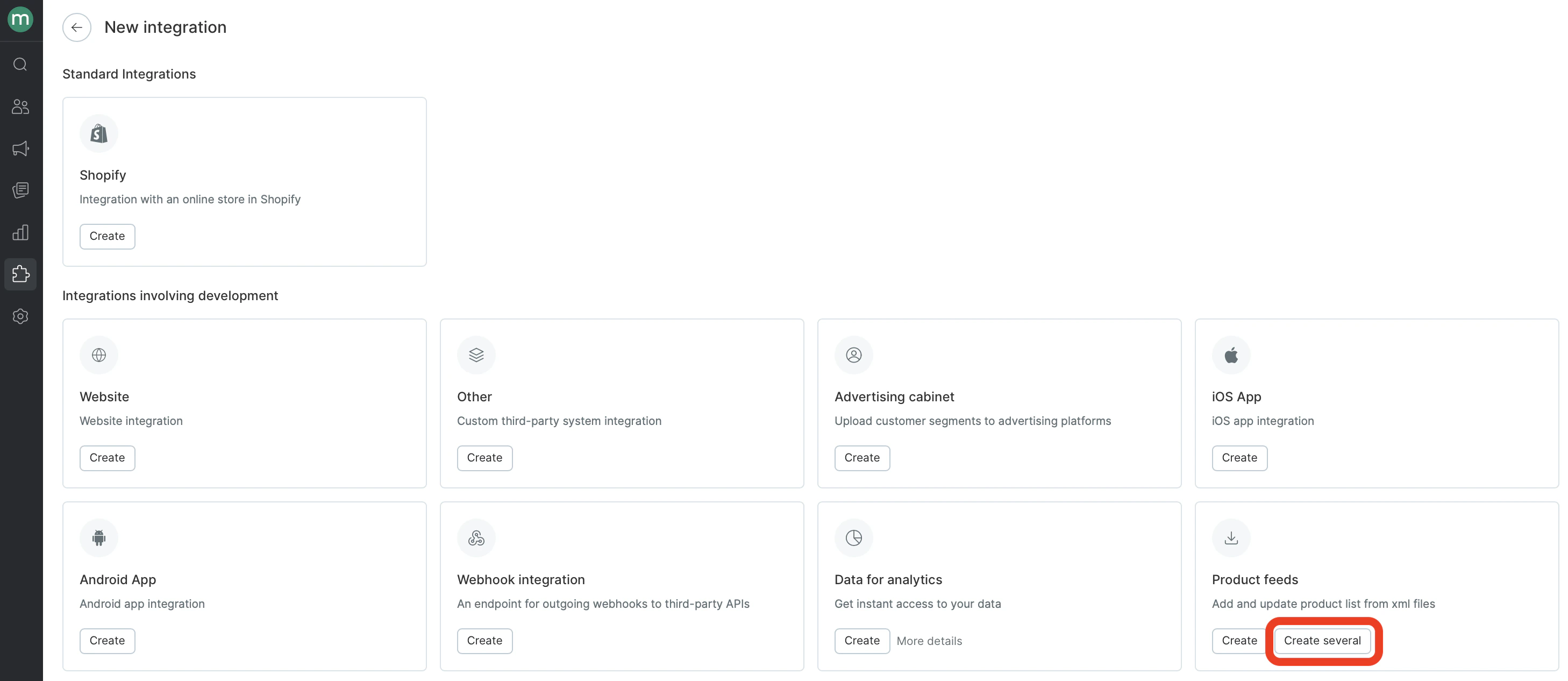
- In the Products section, click “Import” → “Add multiple feeds”:
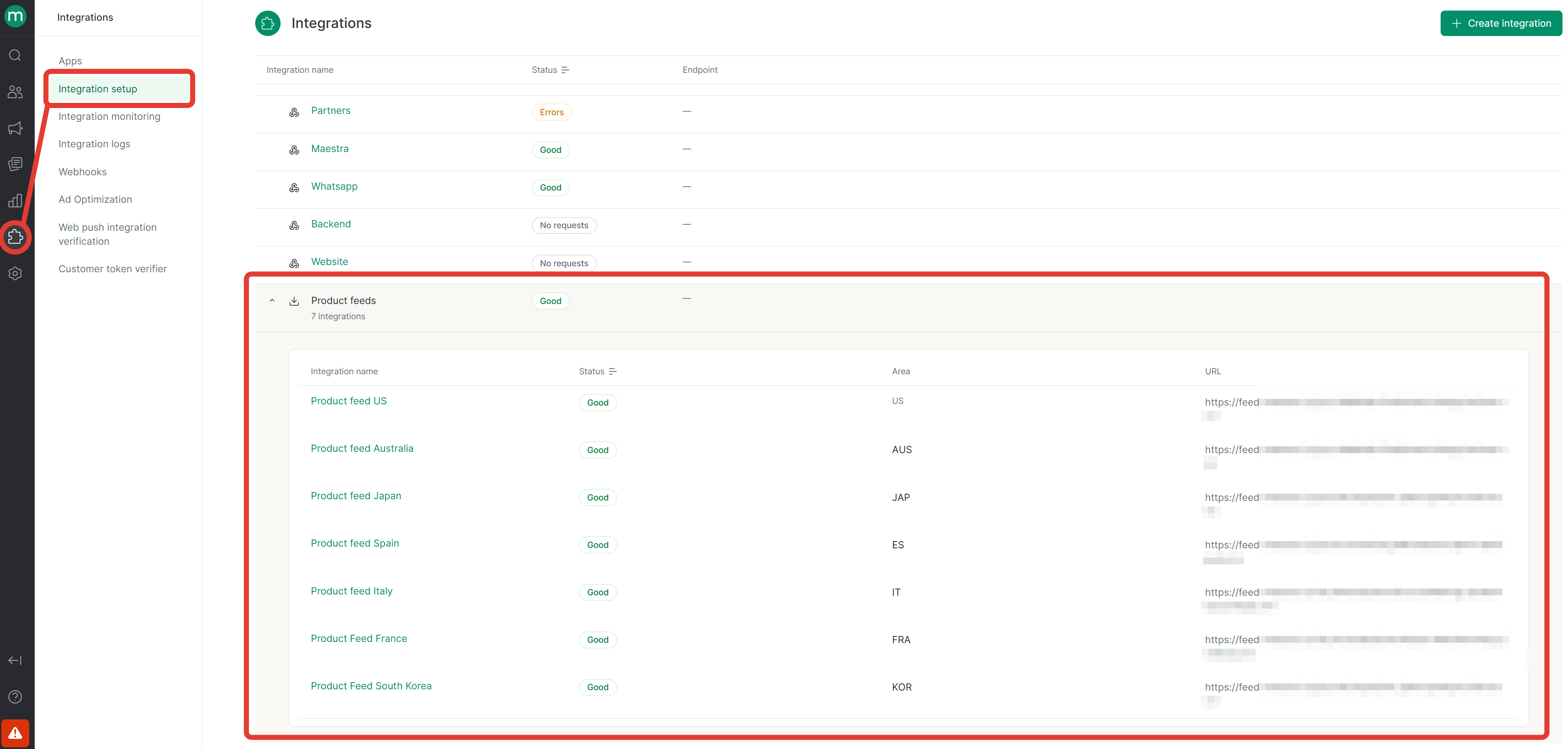
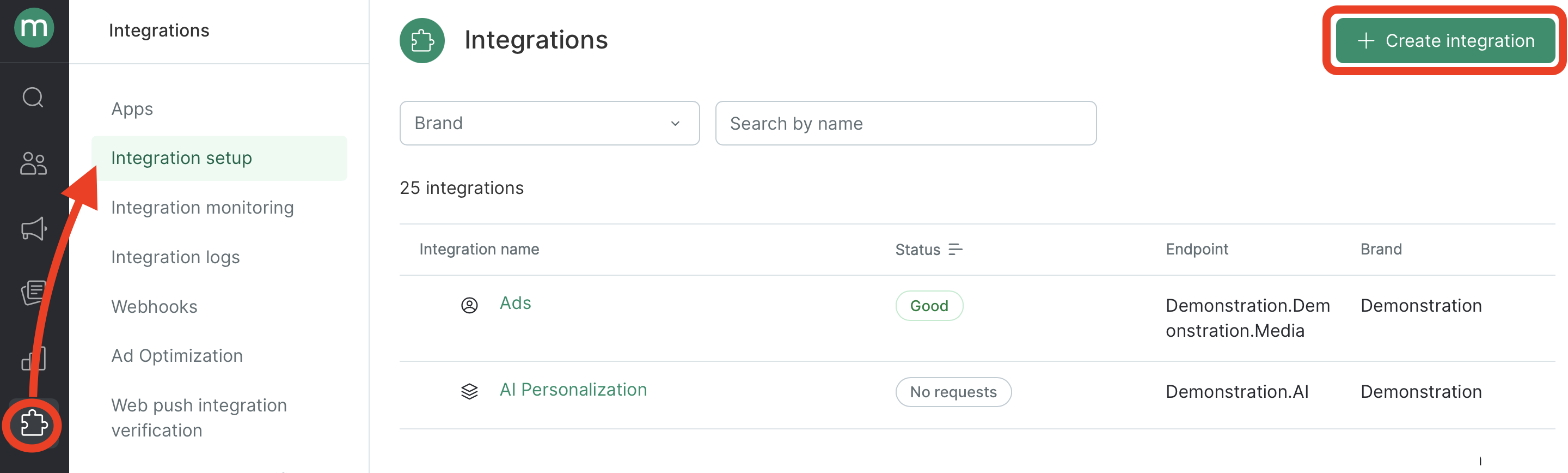
In the Integration set up section, click “Create integration”:
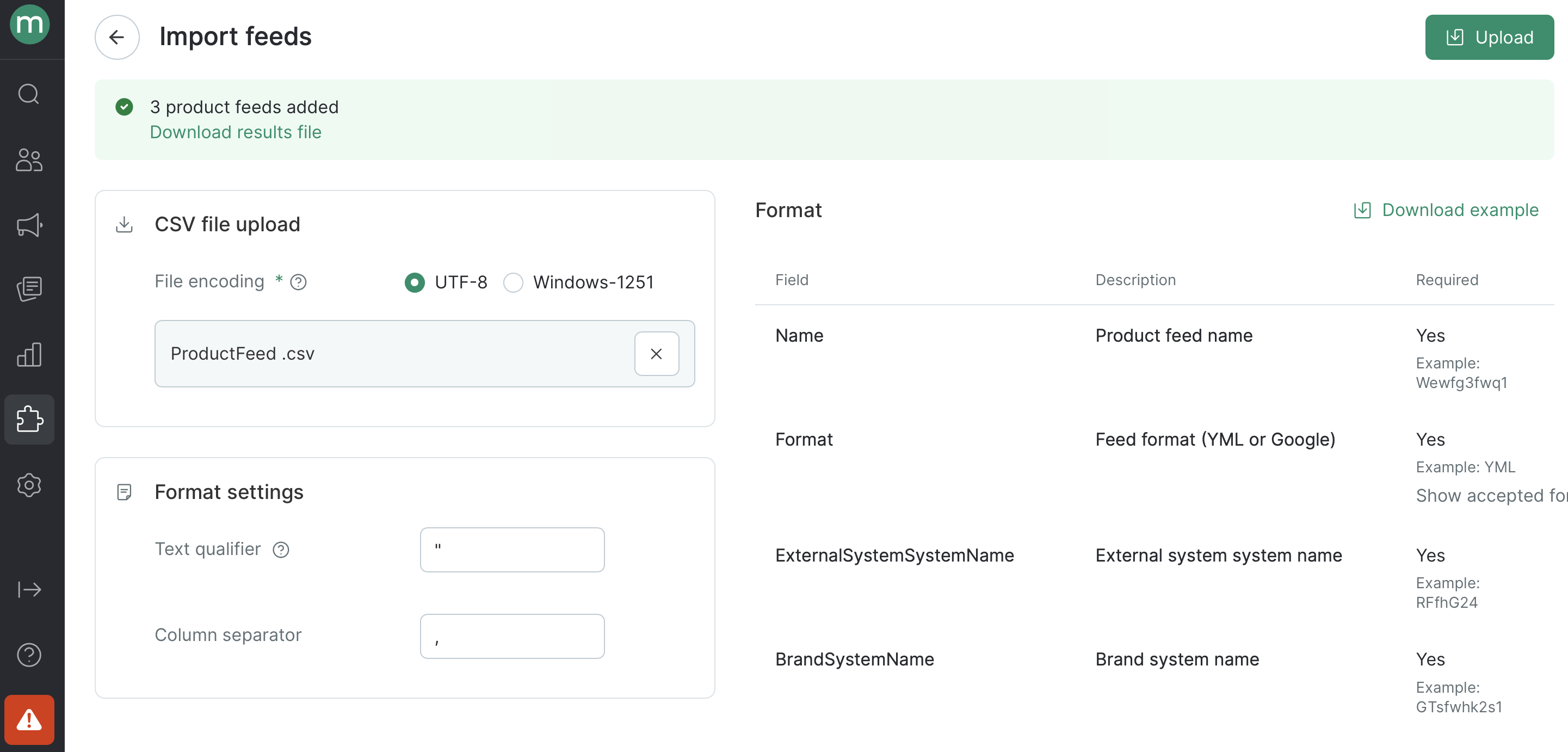
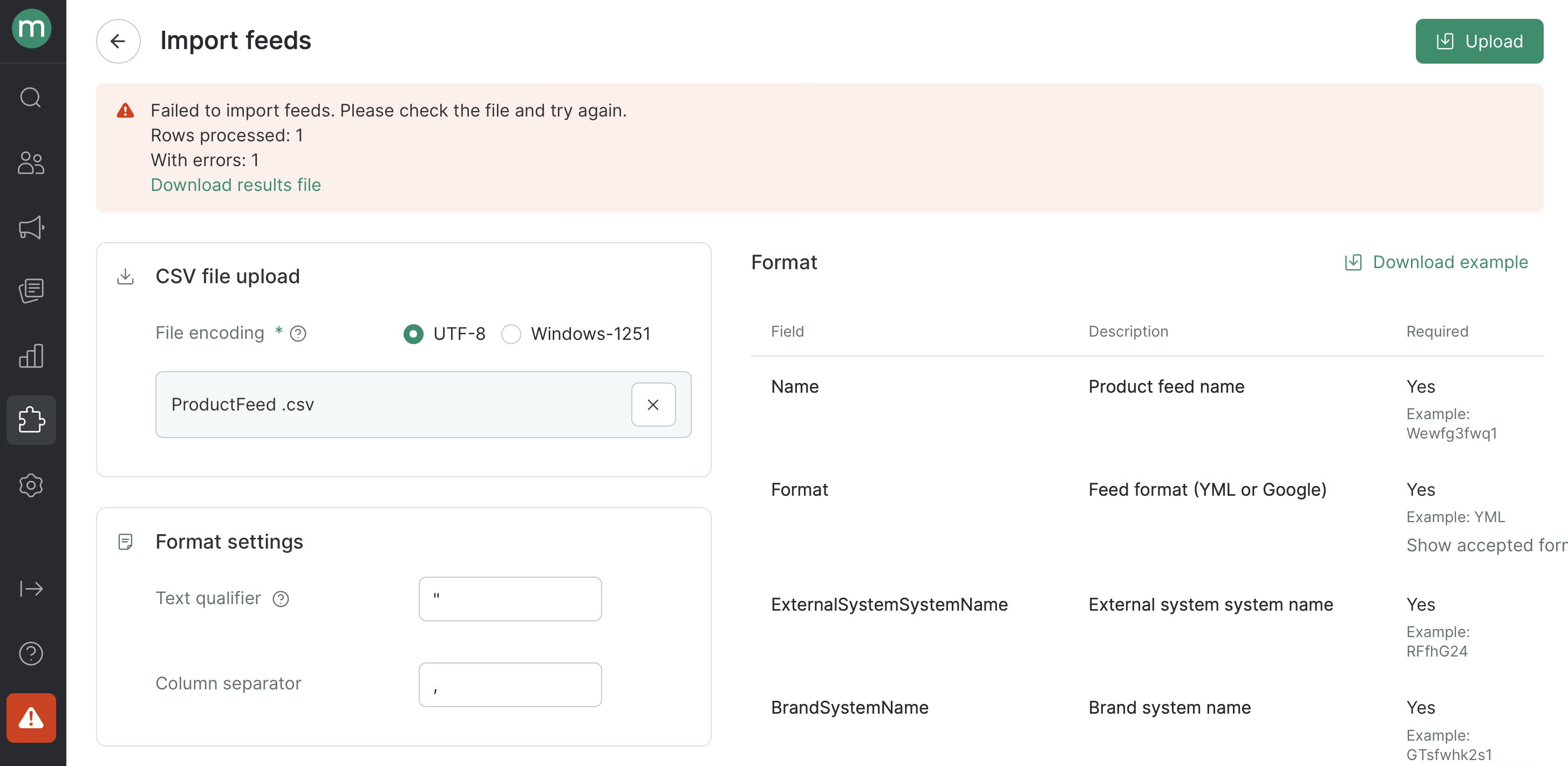
- On the file upload page, you can click Download example in the top-right corner to download a pre-filled file with sample data. Below it, you’ll find a list of all available upload fields, including each field’s name, description, whether it’s required, and examples of accepted formats.
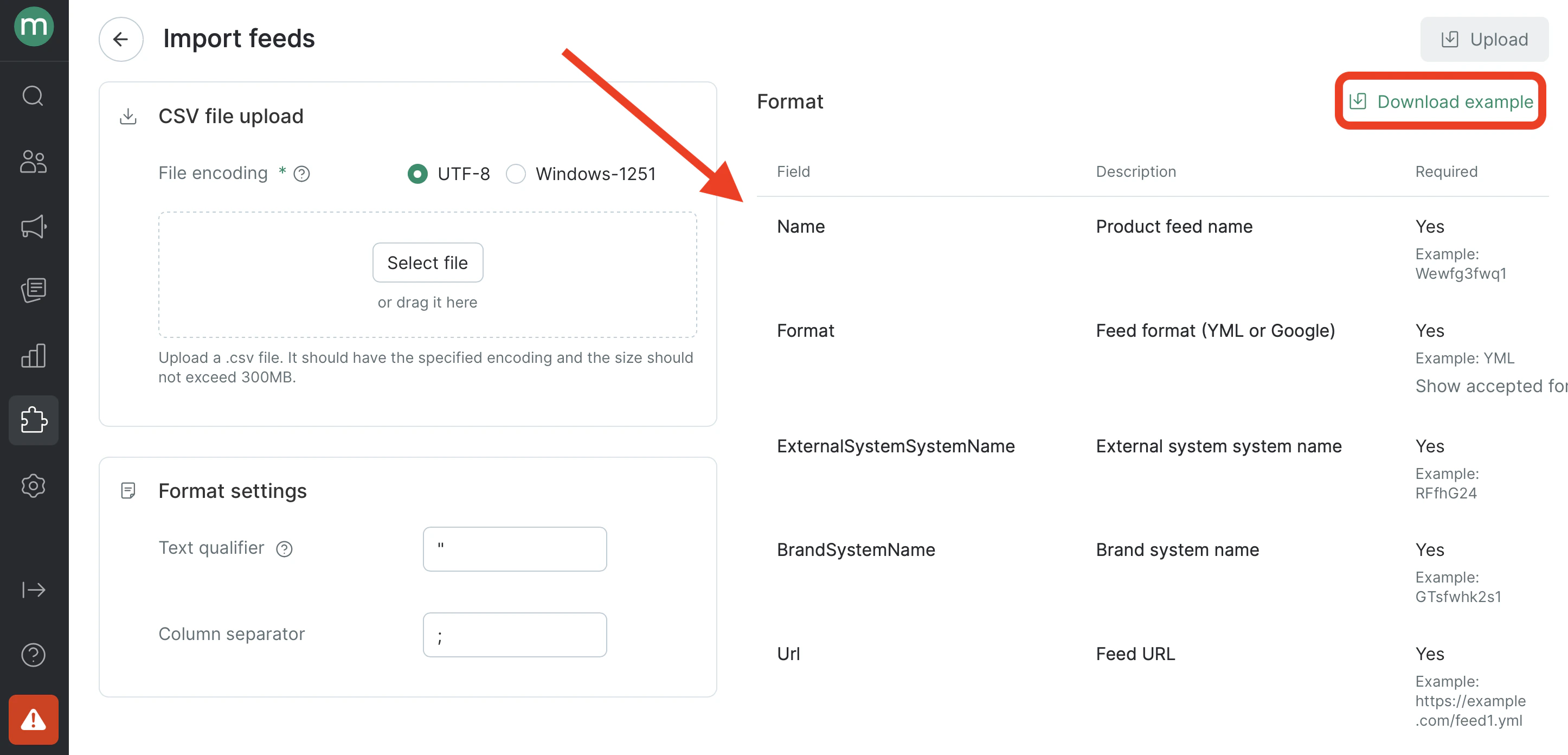
- Name — product feed name
- Format — Google or YML
- ExternalSystemSystemName — system name of the external system.
- BrandSystemName — system name of the brand.
- URL — web address where your product feed file is hosted
- UploadInterval — how often the system checks your feed for updates. The system downloads the feed file every N hours and updates product data if anything has changed. The value is set in hours.Optional fields:
- AreaExternalId — the external id of the area. Used in projects where products are split by areas. Required * when uploading a regional feed for a specific area.*
- UploadStartAt — the scheduled time to run product feed updates. After you upload the file and the feed is added successfully for the first time, the system will check your product feed URL for updates every N hours, starting at the time you specify (for example, at 6:00 AM each day). You can set this only if UploadInterval is a multiple of 12. Otherwise the feed won’t be added to the project.
- Login — username for password-protected feeds. Required if the uploaded file is password-protected.
- Password — password for protected feeds. Required if the uploaded file is password-protected.
- Prepare the file. Here is an example of a completed file: