

File requirements
File format
Maestra accepts two formats:.csv(recommended).txt
customers.csv works, customers.xlsx does not.
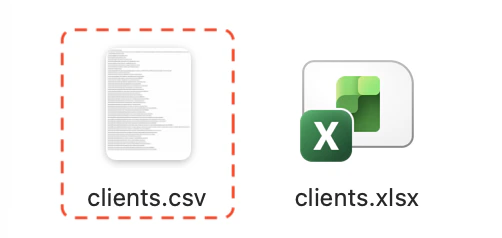
Don’t see file extensions?
- Windows: in File Explorer, go to View and enable File name extensions.
- macOS: in Finder, go to Settings → Advanced and enable Show all filename extensions.
Cmd + I on macOS).Encoding
Encoding tells your computer how to interpret letters and symbols. If the file’s encoding doesn’t match what Maestra Platform expects, names may appear as garbled characters likeÐнна Иванова in the preview.
Fix: re-save the file as UTF-8 using the instructions in How to save the file correctly.
Column delimiter
In.csv and .txt files, data is stored as plain text and columns are separated by a delimiter character.
Maestra Platform supports any delimiter. The most common ones are:
How to check the delimiter:
- Open the file in Notepad (Windows) or TextEdit (macOS).
- Look at the first data row.
- Note the character separating the values.
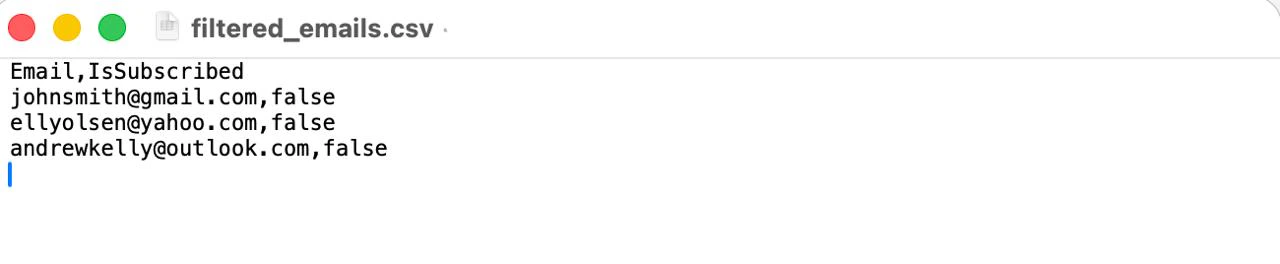
Example of an import file using a comma(,) delimiter
Text qualifier
A qualifier is a character that wraps values containing special symbols (like a comma inside an address, or a line break). Without it, those values would be misread as multiple columns.The recommended qualifier is double quotes
".; also appears inside the address. Maestra Platform would see 4 columns instead of 3 and throw an error.
With a qualifier:
- Open the file in Notepad or TextEdit.
- Look at rows where values contain punctuation (addresses, product descriptions, reviews).
- If those values are wrapped in
"...", the qualifier is". If not, no qualifier is in use.
File size
The limit is 1.5 GB per file, which is plenty for almost any task. How to check file size:- Windows: right-click the file → Properties → Size.
- macOS: right-click → Get Info /
Cmd + I.
- Split the file into parts (by region, segment, date range, etc.) and upload each part as a separate import.
- Remove duplicate columns and rows.
How to save the file correctly
Pick the tool you use.Microsoft Excel
Microsoft Excel
1
Open or prepare your file
2
Choose File → Save As
3
Pick a folder
4
Enter a file name
5
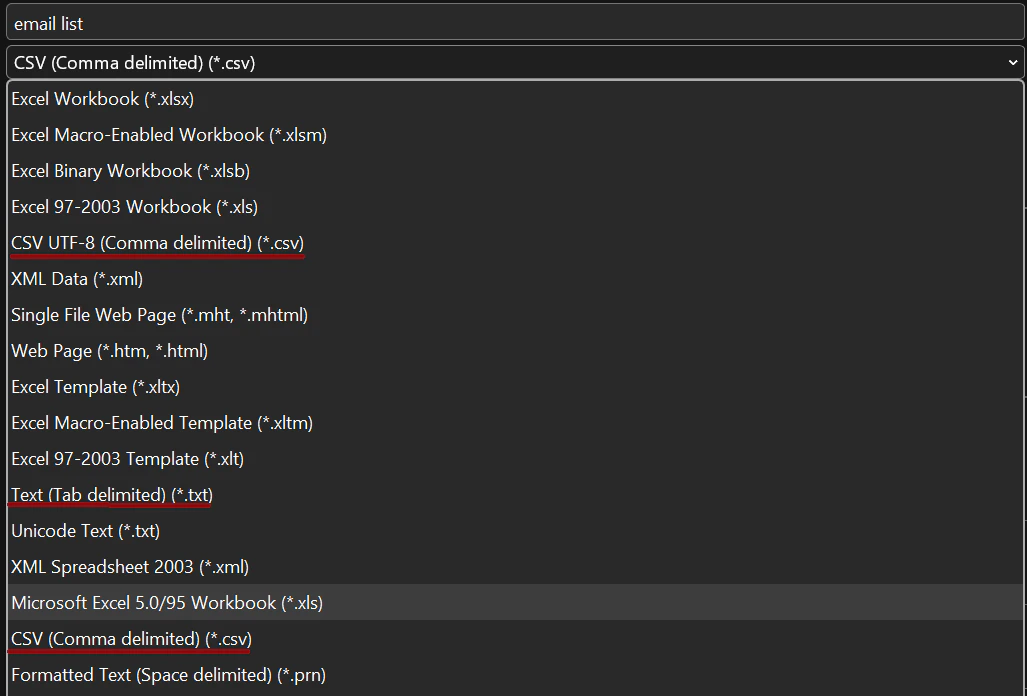
In the file type dropdown, choose one of
- CSV (comma delimited) — recommended
- CSV UTF-8 (comma delimited)
- Text (tab-delimited)
6
Click Save
LibreOffice
LibreOffice
1
Open or prepare your file
2
Choose File → Save As
3
Pick a folder and file name
4
In the file type dropdown, choose Text CSV (.csv)
5
Enable Edit filter settings to set encoding, delimiter, or qualifier
6
Click Save
7
In the dialog that appears, set
- Character set:
UTF-8 - Field delimiter:
,(comma) - String delimiter:
"(double quote)
8
Click OK
Google Sheets
Google Sheets
Google Sheets always exports 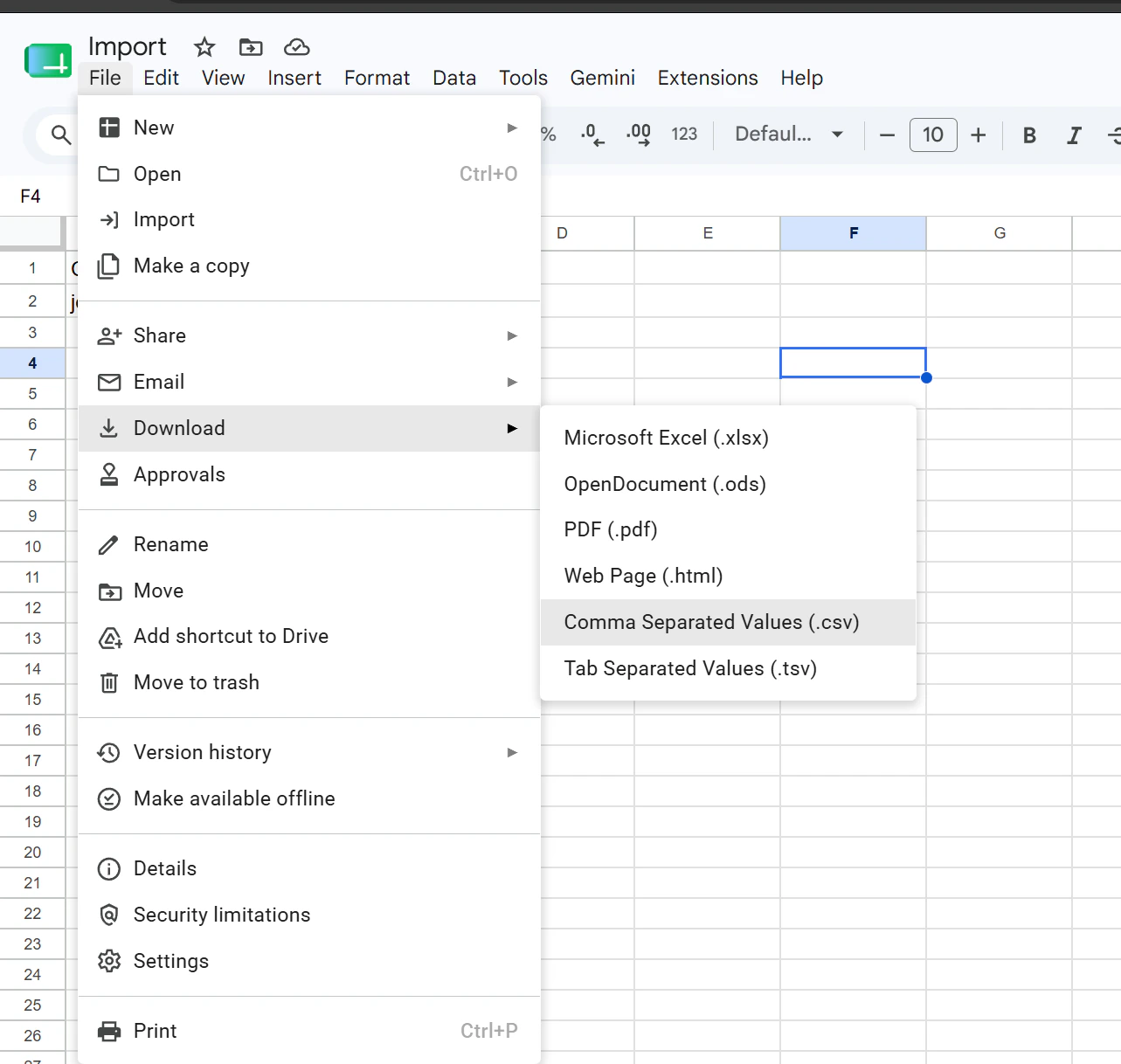
.csv as UTF-8 with a comma delimiter. There’s no way to change the delimiter or qualifier from the UI.1
Open the file in Google Sheets
2
Choose File → Download → Comma-separated values (.csv)
Common problems
Non-Latin characters appear as ”?” or gibberish
The file is saved in an unsupported encoding. Re-save it as UTF-8 (or Windows-1251) using the instructions above.Data lands in a single column on upload
Maestra Platform couldn’t detect the delimiter. In the upload settings, manually pick the delimiter (and qualifier if needed) — the preview will redistribute columns automatically. If that doesn’t help, re-save the file with a different delimiter.The file is rejected on upload
- Check the extension — only
.csvand.txtare supported. - Check the file name — it cannot contain forbidden characters.
- Check the size — it must be under 1.5 GB.