

- Scheduled segments (Filter-based)
- Realtime segments (Filter-based)
- Static segments
1. Scheduled segment (Filter-based)
Key points:
- You can see a full history of when customers were added to the segment or removed from it.
- An event when a customer is added to / removed from a segment can be used to launch automations.
- This segment can be used in promotions.
- It can be used for a dynamic overview in reports like Revenue & Drivers, Segmants and A/B test reports.
- These segments provide data that is relevant as of the latest update (i.e., not in real time)
How to create a Scheduled segment
Please refer to this guide for a detailed breakdown — How to Filter Customers into SegmentsAdding customers to a Scheduled segment
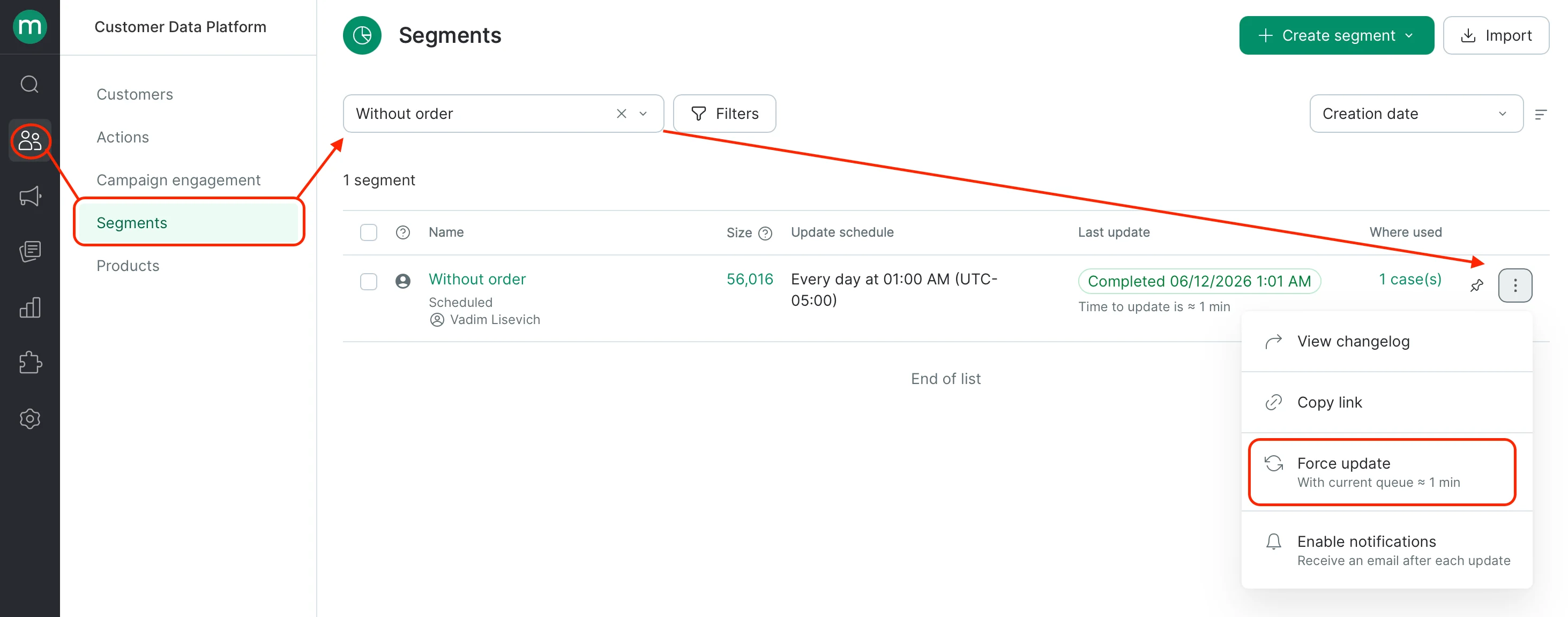
A customer must match the filter conditions you applied to create the segment. Once a customer meets these conditions, they will be added into the segment the next time the segment is updated. If a customer already meets your segment’s conditions but hasn’t been included yet because the segment hasn’t refreshed, you can trigger a manual update right away.In the left navigation, go to Customer Data Platform → Segments. Use the search bar to find your segment by name and click Apply. Once your segment appears in the list, click the three-dot menu (⋯) to the right of the segment name and select Force Update. The estimated update time will be shown next to the Force Update option.
Removing customers from a Scheduled segment
A customer should no longer meet the filter conditions of the segment group. In this case, the customer will be removed next time the segment is updated. If a customer no longer meets the segment’s filter conditions but is still included because the segment hasn’t updated yet, go to Customer Data Platform → Segments. Use the search bar to find your segment by name and click Apply. Once your segment appears in the list, click the three-dot menu (⋯) to the right of the segment name and select Force Update. The estimated update time will be shown next to the Force Update option.How a Scheduled segment is displayed in a customer’s profile
Go to Customer Data Platform→ Customers, select the relevant customer and go to the Segments tab, then click Current segments:

How to filter customers that belong to a Scheduled segment
Select Segment in the filter and then search for your segment name in the drop-down list. The data displayed is correct as of the time of the last update:
- don’t belong to this segment;
- belonged to this segment on a certain date in the past;
- were added to this segment during a specific period;
- have never belonged to this segment.

2. Real-time segment (Filter-based)
Key points:
- They keep data updated;
- Segment history is not available;
- Segment may take a while to load if it is based on complex filters. The system may suggest creating a Scheduled segment instead.
How to create a Real-time segment group
Please refer to this guide for a detailed breakdown — How to Filter Customers into SegmentsAdding customers to a Realtime segment
A customer must match the filter conditions applied to this segment group.Removing customers from a Realtime segment group
Once a customer no longer matches the filter conditions applied to the segment, they will be removed from it automatically.How a Realtime segment group is displayed in a customer’s profile
The realtime segment does not display in a customer’s profile. The segment history does not display whether a customer has been added to a segment or removed from it. Use filters to check belonging to a realtime segment.How to filter customers that belong to a Realtime segment
Simply create a filter in the Customers tab. Select Segment and search for the segment name in the drop-down list:
How to filter customers that do not belong to a Realtime segment
Here you’ll also need to create a filter in the Customers tab. Select Segment → Segment not and search for the segment name in the drop-down list:
3. Static segments
This segment will not support filters and can only be updated manually, through flows or methods .Key points:
- You can see a full history of when customers were added to the segment or removed from it.
- Events where a customer is added or removed from the segment can be used to launch automations.
- Events where a customer is added or removed from the segment can be an automation step.
- Events where a customer is added or removed from the segment can be an API method step.
- These segments can be used in promotions.
- It can be used for a dynamic overview in reports like Revenue & Drivers, Segmants and A/B test reports.
How to create a Static segment
Unlike filter-based segments, you need to manually create a segmentation first and then build segments from there. This means your segments and segmentation may have different names and one segmentation may have multiple segments. For more details, please refer to this article — How to Create a Static Customer Segment.Adding customers to a Static segment
Please refer to the following guide: How to Add Customers into a Static Segment using the UIHow a Static segment is displayed in a customer’s profile
Go to Customer Data Platform → Customers, choose a relevant customer and click the Segments tab → Current segments:

How to filter customers belonging to a Static segment
Create a filter on the Customers page: Segment → **Segment (select Segmentation name)**→ Select segment from the drop-down list:
If the Segmentation includes only one segment, select only this segmentation name in the filter.
Use the drop-down list to filter the customers who:
- don’t belong to the segment;
- belonged to this segment on a certain date in the past;
- were added to the segment during a specific period;
- have never been in this segment.
