

What you can do with webhooks
Trigger external workflows
Notify your helpdesk, warehouse, or any other tool the moment a customer takes an action.
Sync data in real time
Push customer attributes, order details, or loyalty status to any third-party tool.
Send to custom channels
Reach Telegram, WhatsApp Business, voice bots, or any service with an API.
Pull data into flows
Use the webhook’s response to branch a flow or personalize the next message.
How it works
Setting up a webhook in Maestra Platform is a two-part job:1
Create an integration
The integration holds everything shared across your webhooks for a given service: the base URL, auth headers, and rate limits.
2
Create the webhook itself
The webhook defines the specific endpoint, HTTP method, request body, and what to do with the response. You can have many webhooks under one integration.
Part 1: Create the integration
1
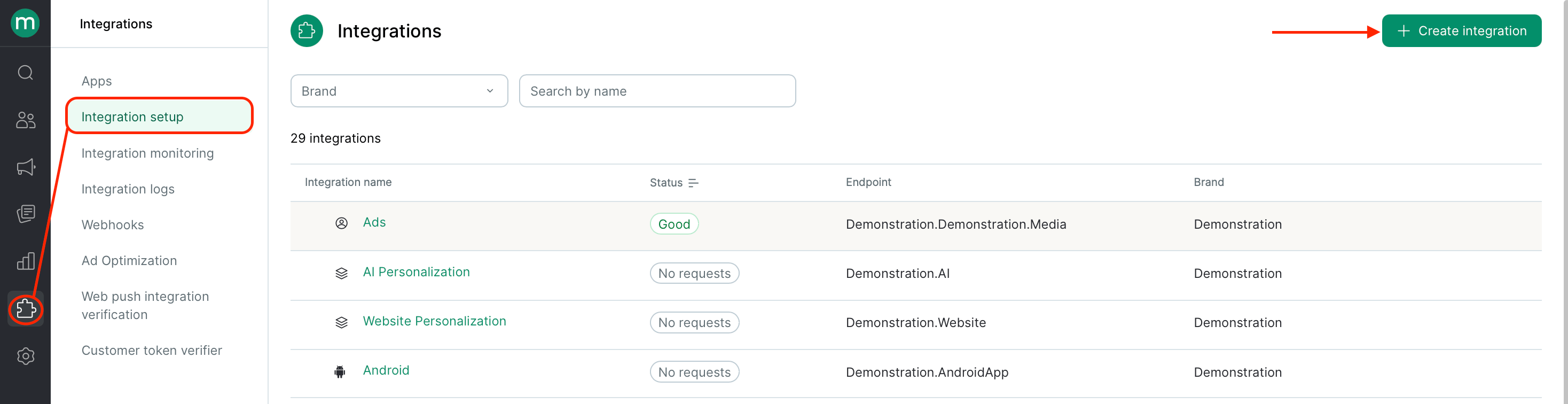
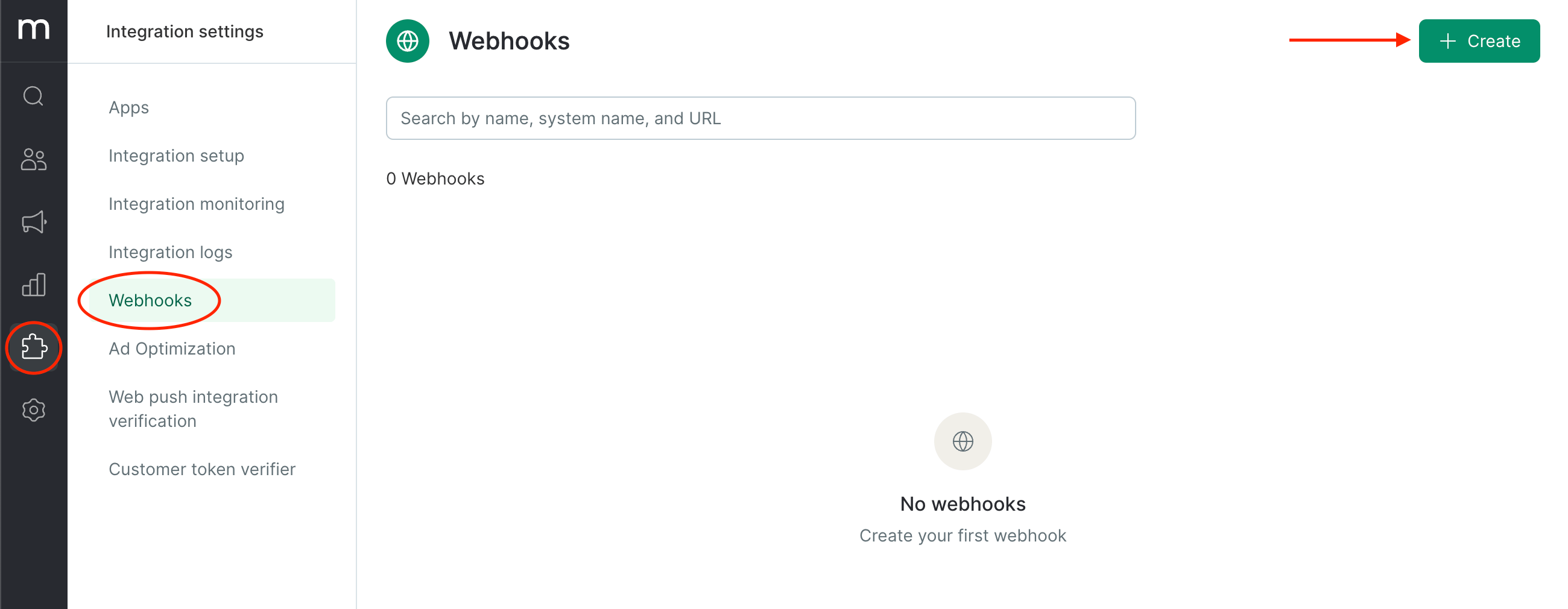
Click Integrations → Integration Setup → Create Integration
2
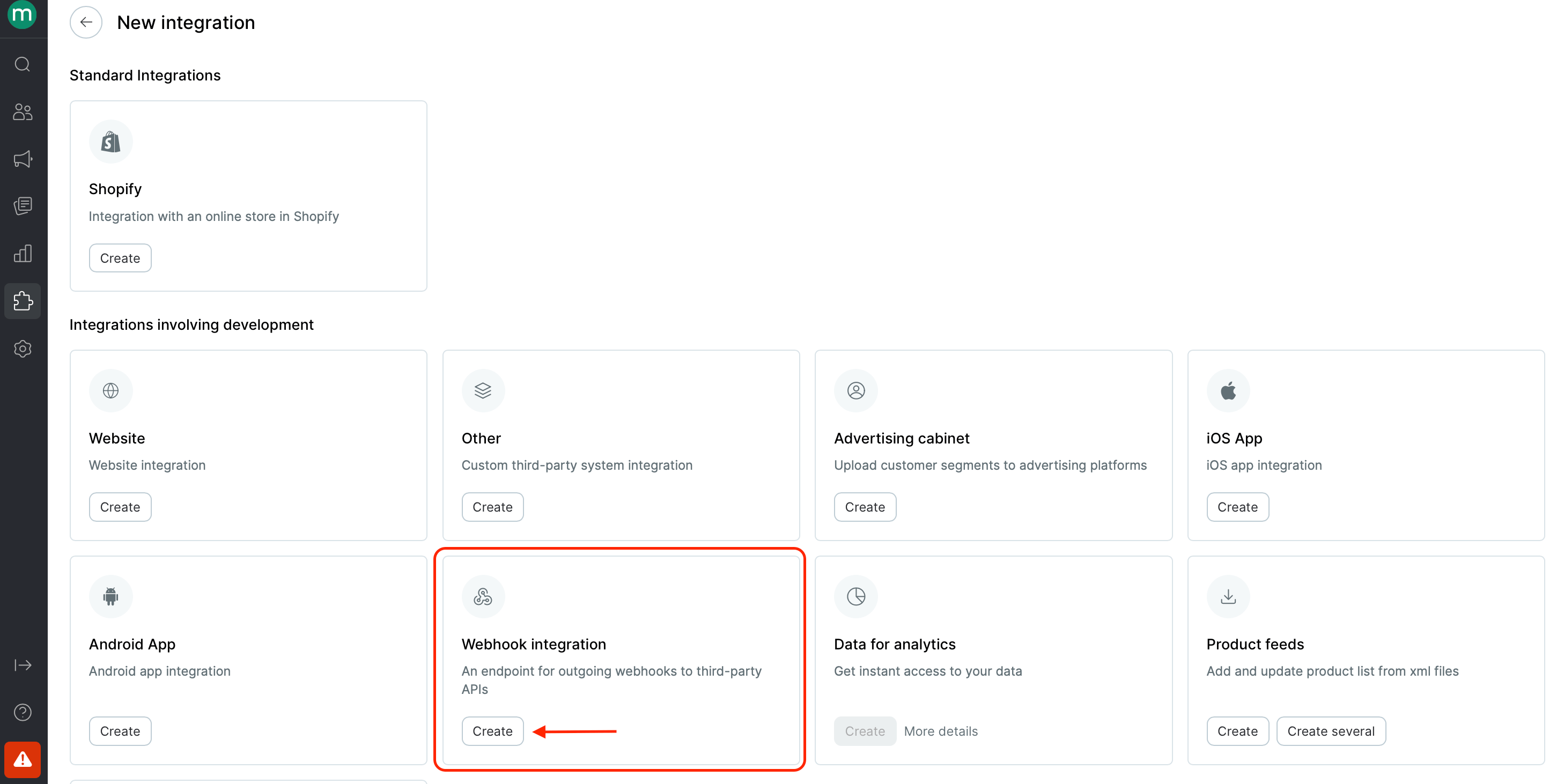
Pick the Webhook Integration preset
3
Name your integration
Use a descriptive name so you’ll know what it does at a glance — like 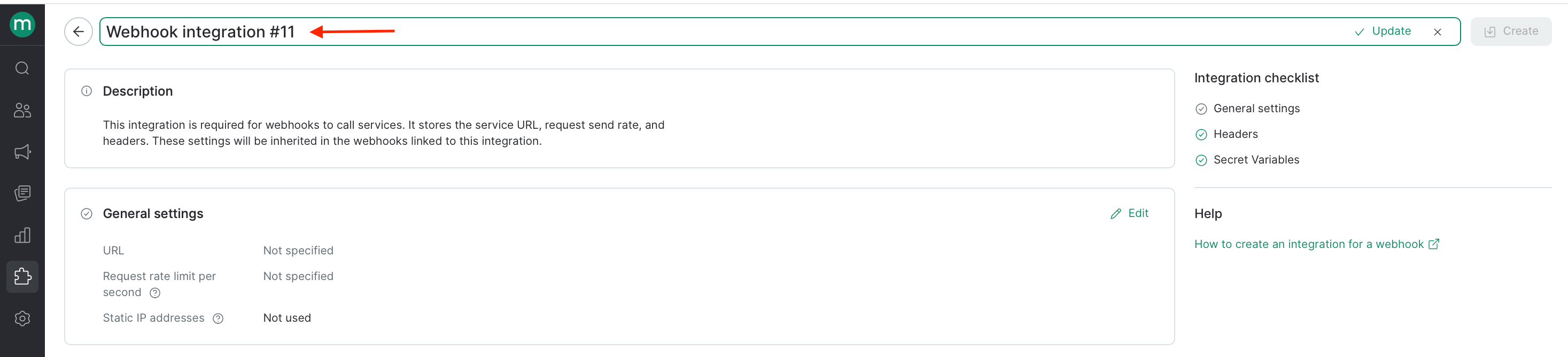
Shopify Order Sync or Zendesk Ticket Webhooks.4
Set the root URL
This is the base URL all webhooks in this integration will share. You can either:
- Put the full URL here and leave the path blank on individual webhooks, or
- Put only the root here and let each webhook add its own path — the usual setup when one integration covers many different methods. Less typing, fewer typos, and if the base ever changes, you update it in one place instead of touching every webhook.
Example: For example, Maestra Platform’s own API uses 
https://api.maestra.io/v3/operations/ as the root. You set that once on the integration, and each webhook just adds the part that’s unique to its method.\5
Set a request rate limit (optional)
If the receiving service has a rate cap, set the max requests per second here. Every webhook in this integration counts toward the same limit.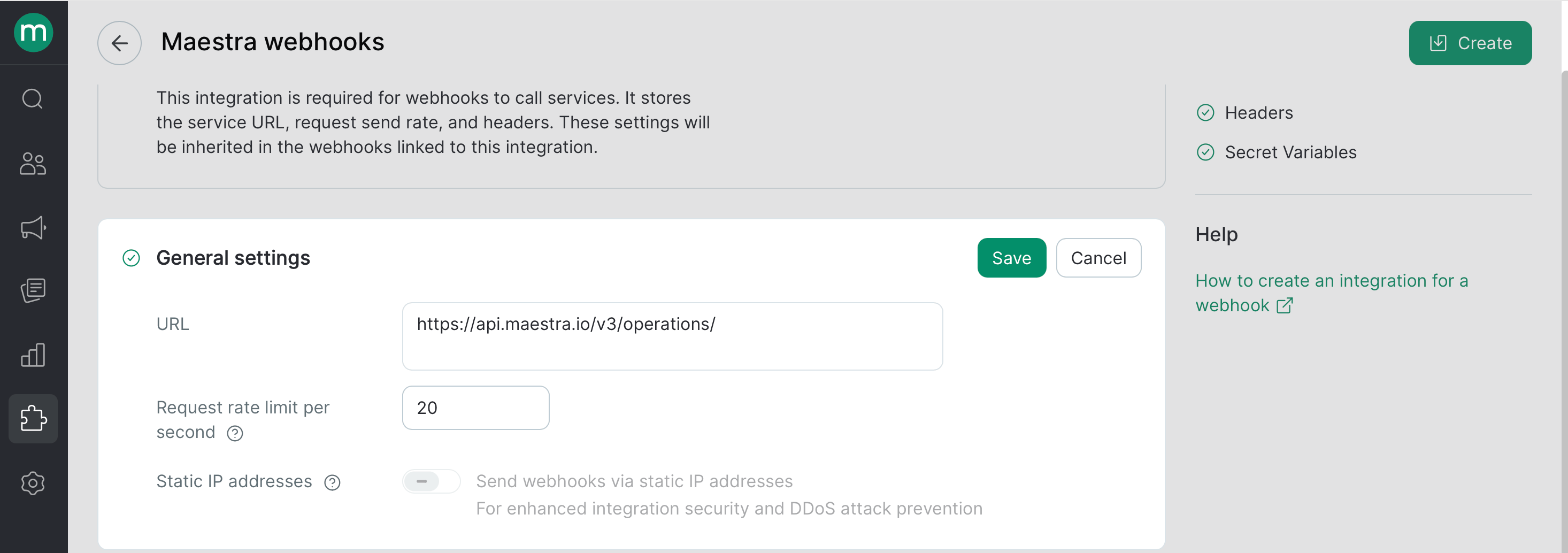
The actual rate can vary slightly due to network delays. Set the limit a little below what the service can handle to stay safely under the cap.
6
Add headers
Add the headers your service needs. The two you’ll almost always set are Authorization (your API key or token) and Content-Type (usually 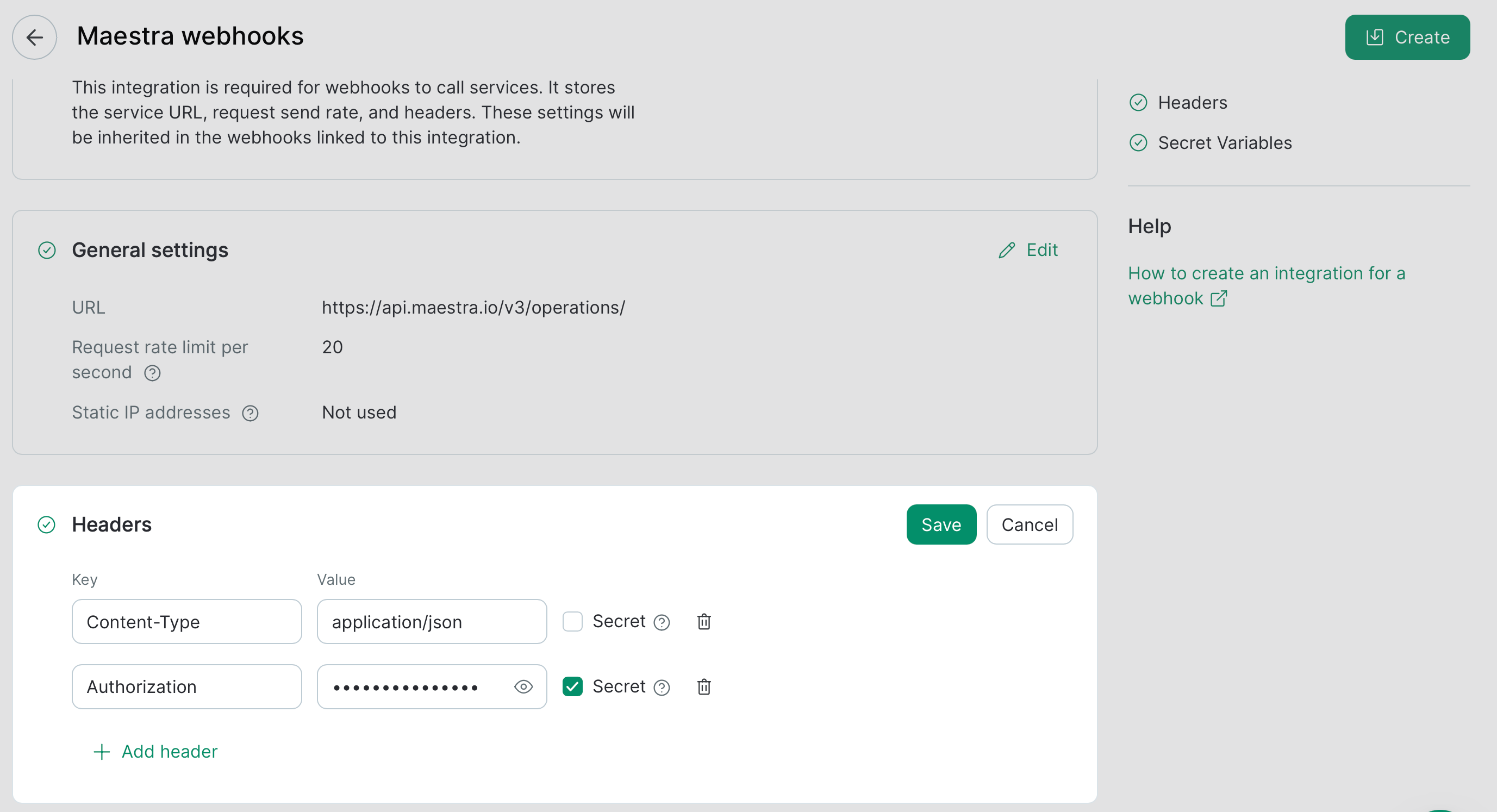
application/json).7
Click Create to save the integration.

Part 2: Create the webhook
1
Add a new webhook
You can create a webhook from one of two places — both end up in the same editor.
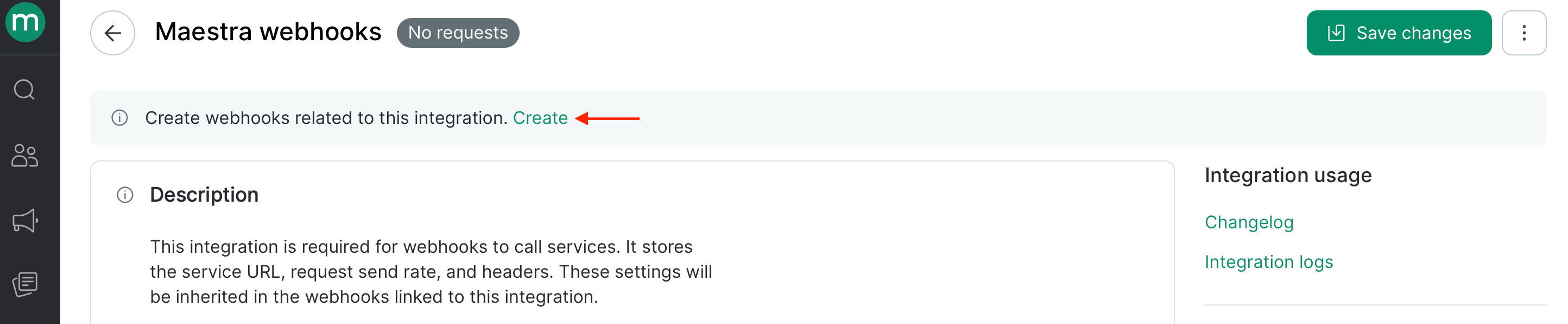
- From webhook integration point
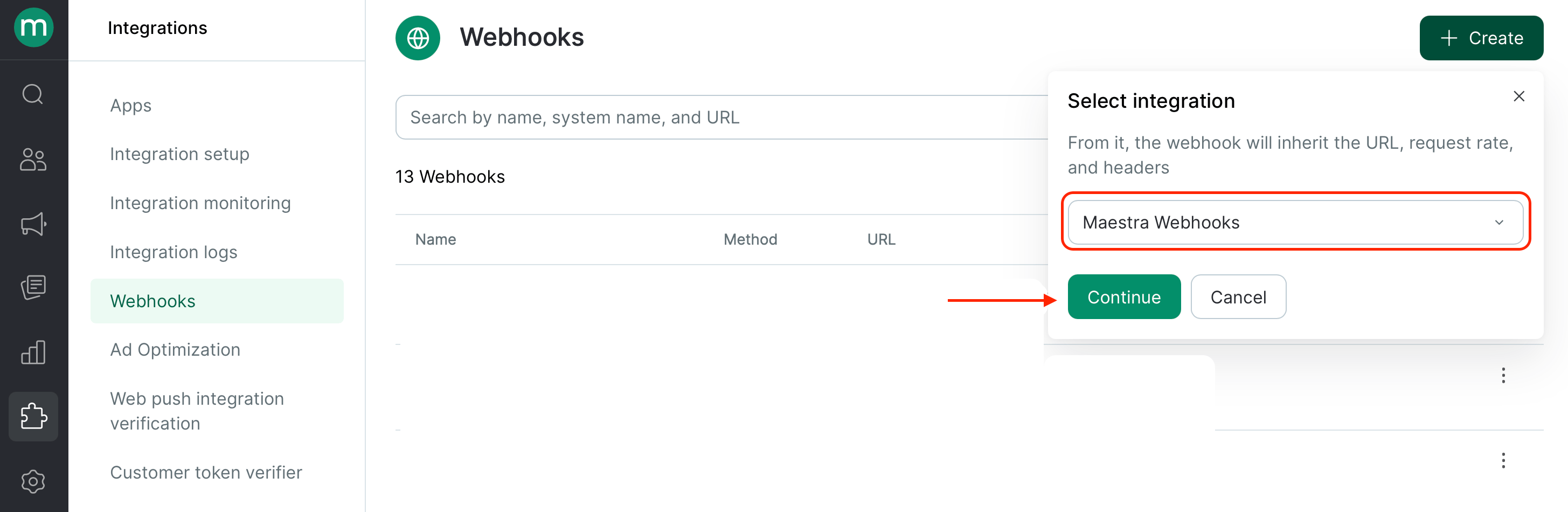
- From webhooks list
Continue the setup you started in Part 1 — on the webhook integration page, click Create.
2
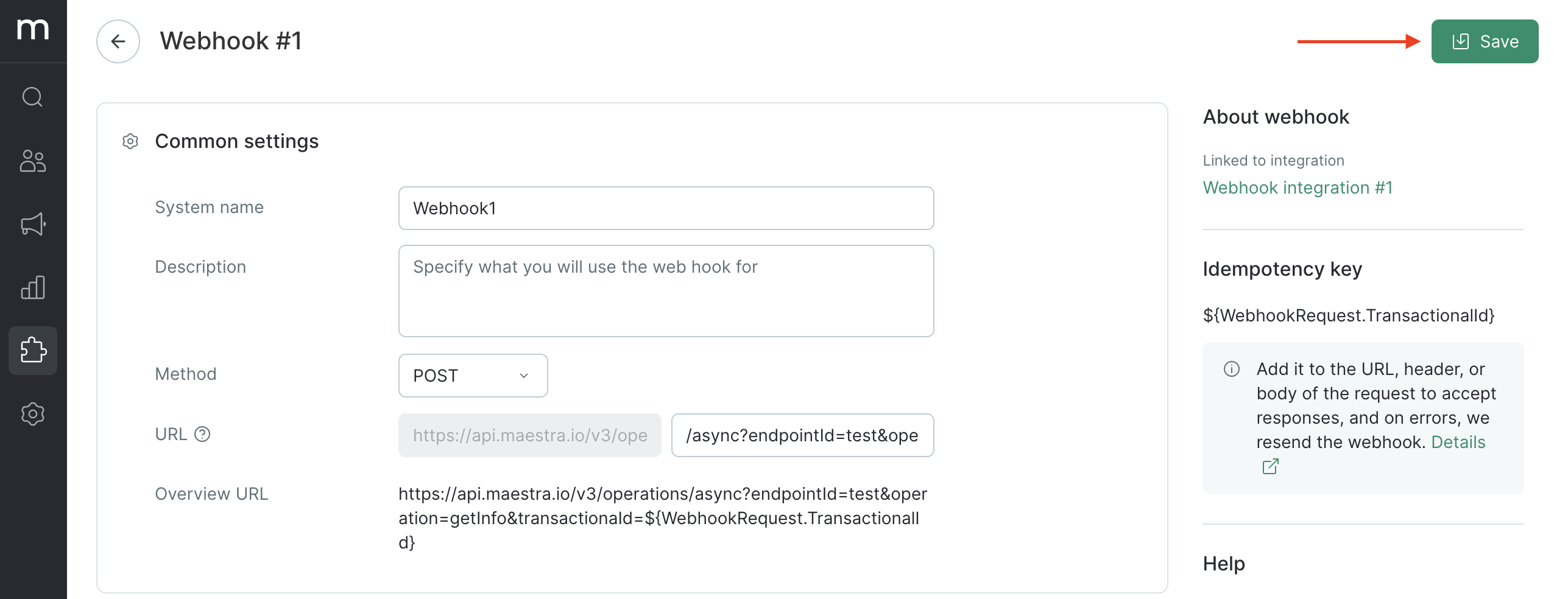
Fill in the basics
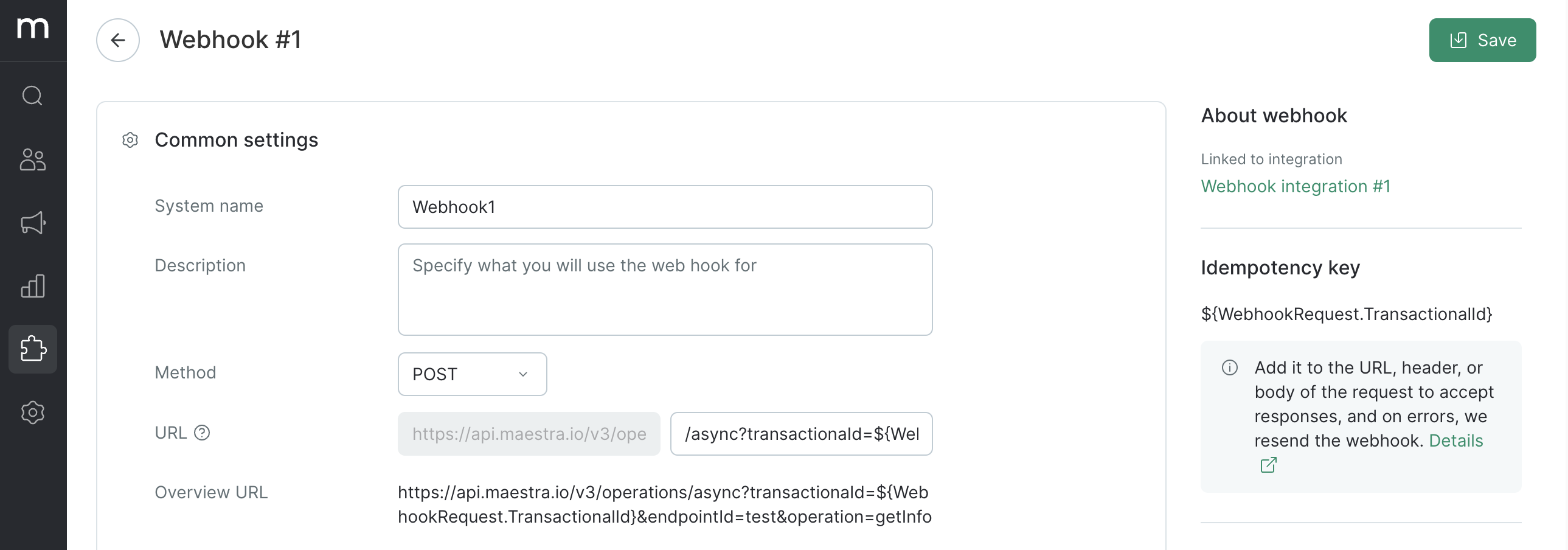
3
Add an idempotency key (recommended)
By default, a webhook is sent once. If the receiving service returns a You can put it in the URL, a header, or the request body. Where it goes depends on what the receiving service expects.
5xx or 429 error, the request is gone.Adding an idempotency key tells Maestra Platform to safely retry — up to 3 times over 6 minutes — without the receiving service treating the retries as new, duplicate events.Use the template variable:Example: adding it to the URL as a query parameter
Example: adding it to the URL as a query parameter
Append it after a 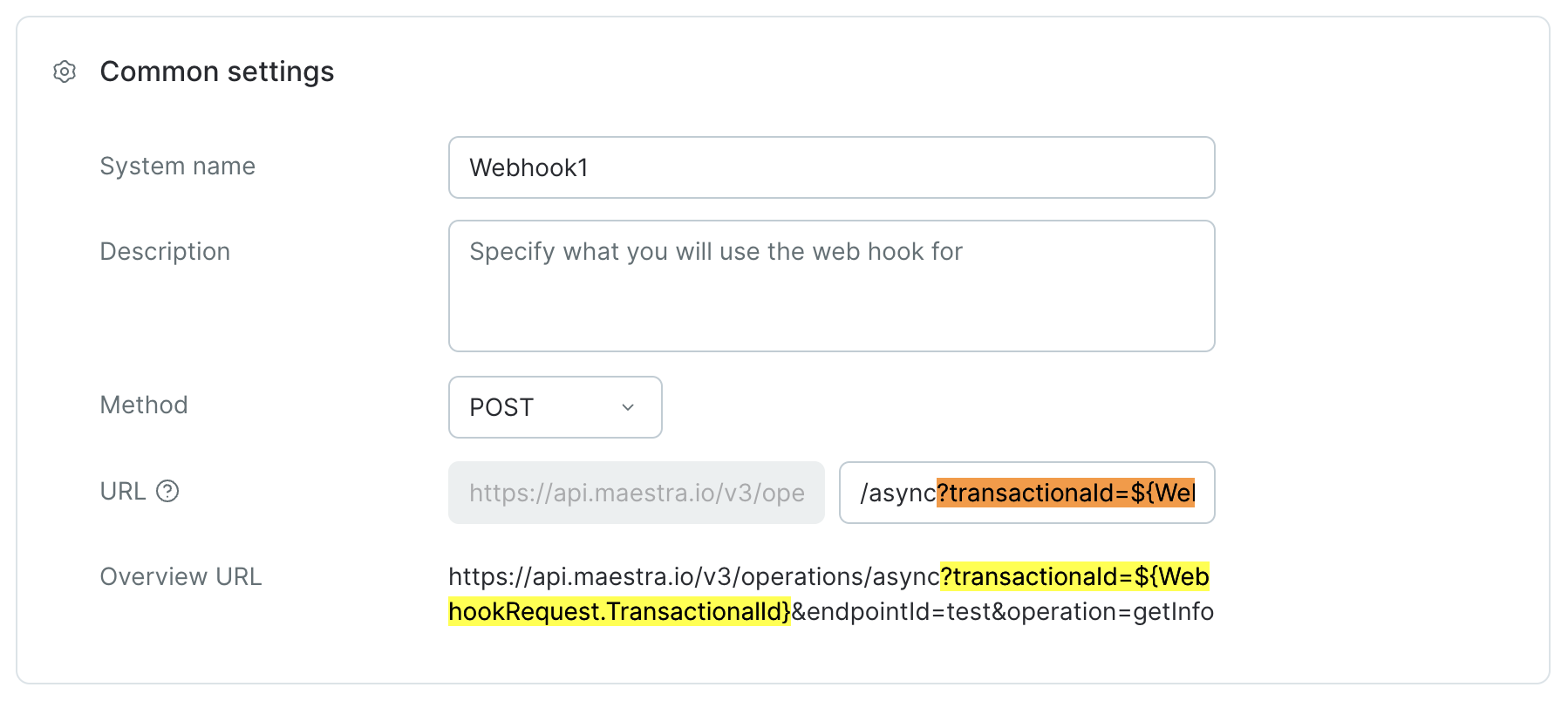
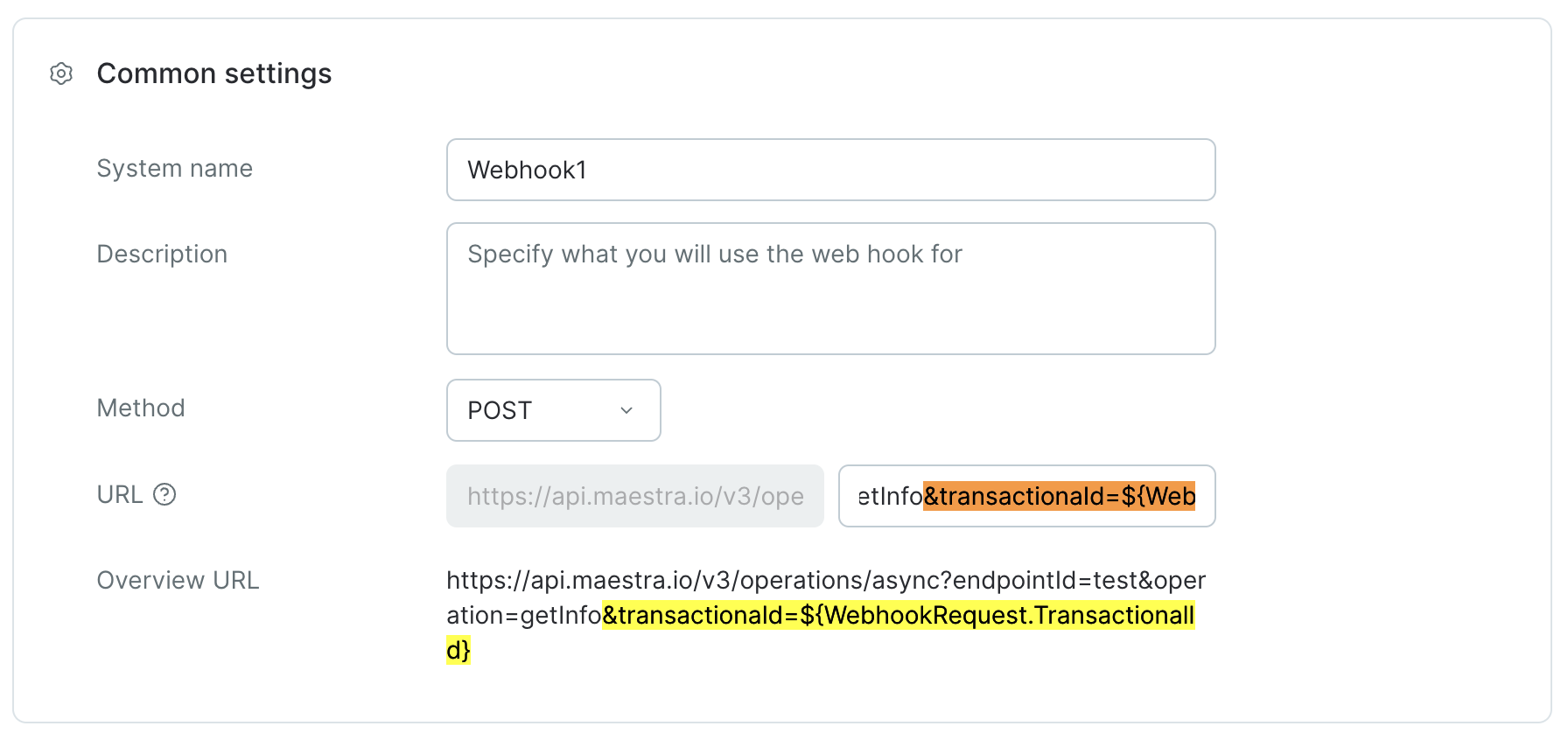
?:& instead:Example: adding it as a header
Example: adding it as a header
Many APIs (Stripe-style) expect it as a header like
Idempotency-Key: ${WebhookRequest.TransactionalId}.Example: adding it to the request body
Example: adding it to the request body
Drop it into your JSON payload as a field the receiving service expects, e.g.
"request_id": "${WebhookRequest.TransactionalId}".4
Set webhook-specific headers
Headers from the integration are inherited automatically. You can: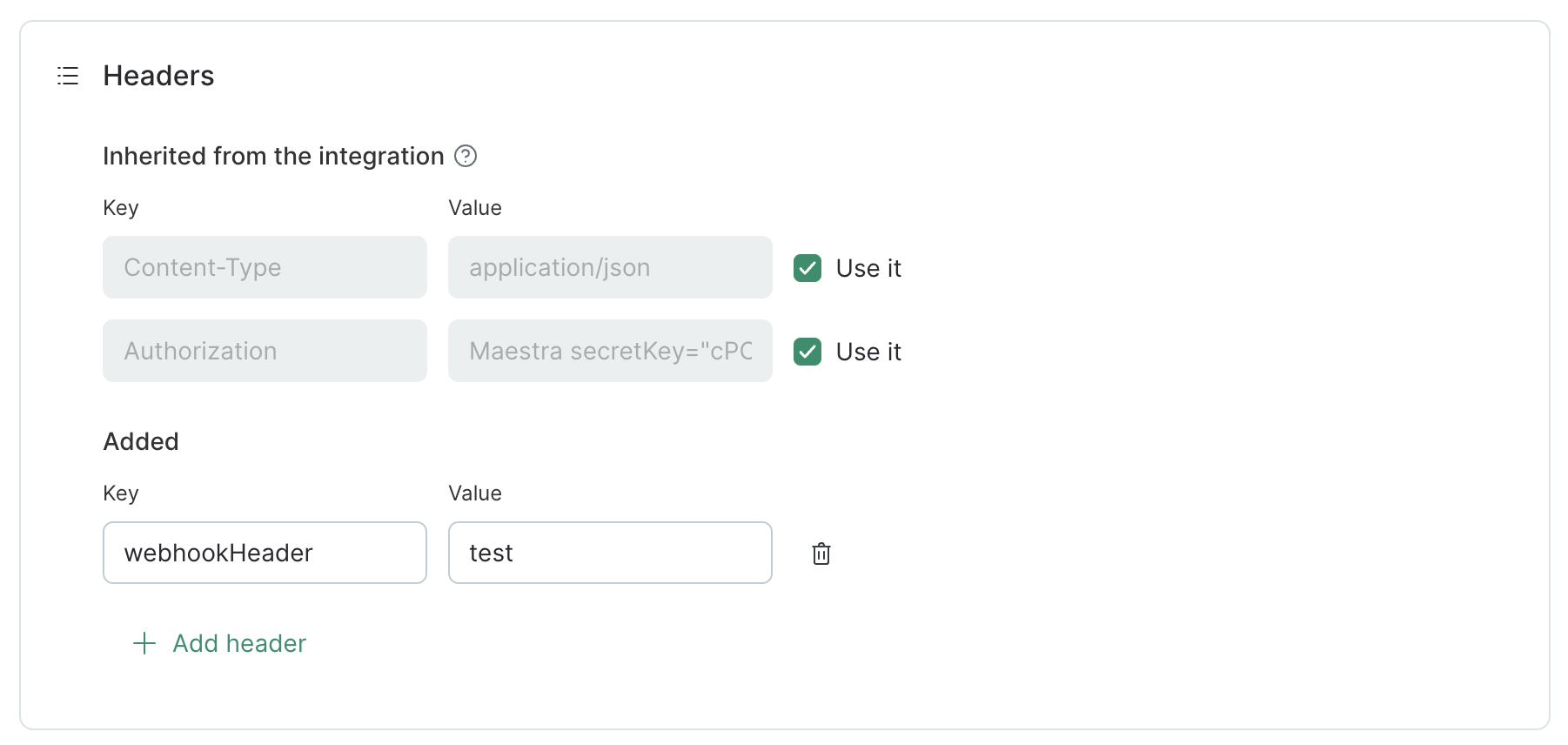
- Turn off an inherited header by unchecking Use.
- Add extra headers that only apply to this webhook.
5
Build the request body
Drop in a JSON payload and pull in customer data using dynamic parameters from the message template engine.You can use:
- Variables like
${customer.email}or${order.totalPrice} - Conditionals with if / else if / end if
- Loops with for / end for — handy for line items in an order
6
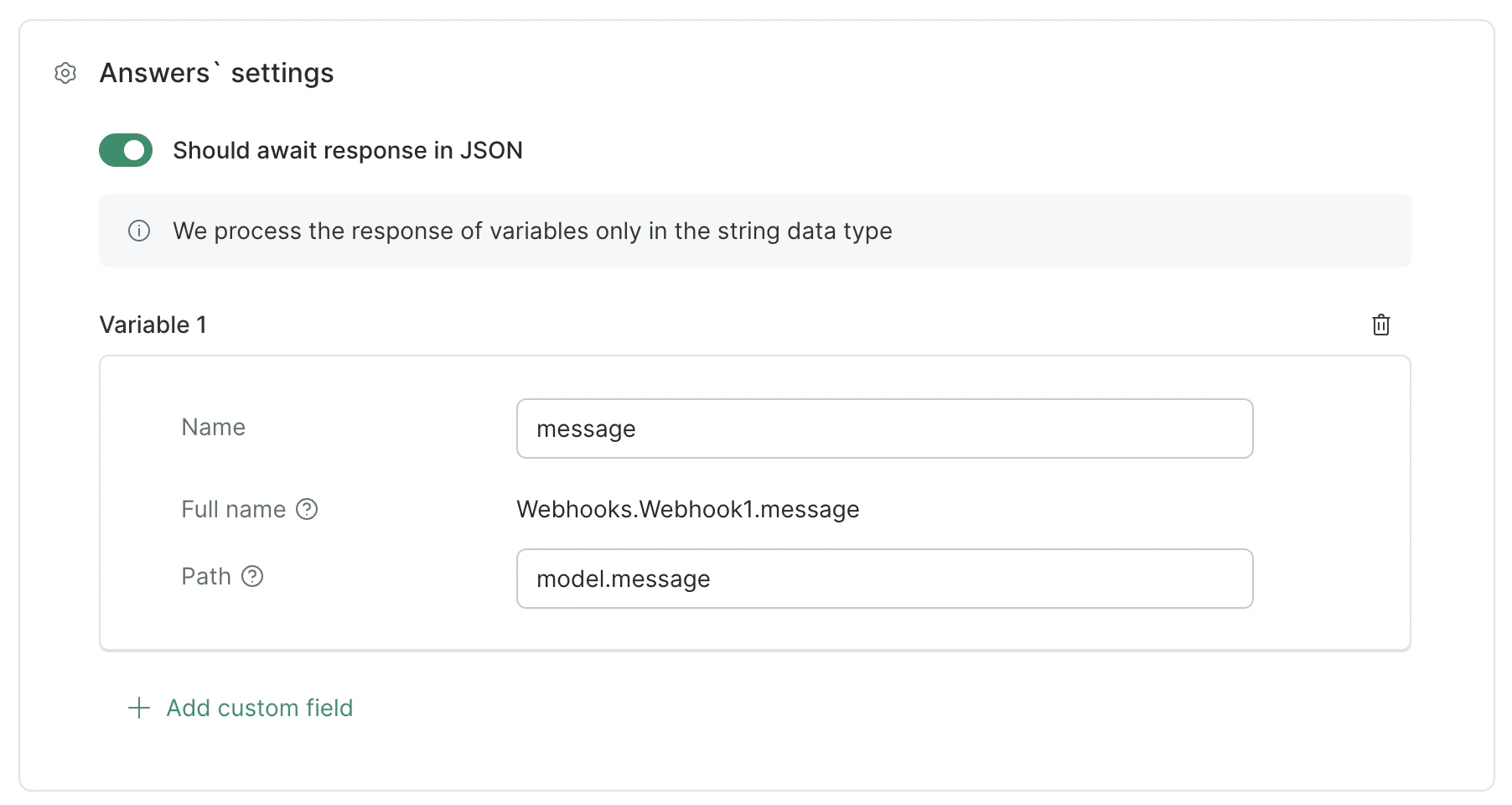
Capture the response (optional)
If the receiving service sends back data you want to use later in your flow — an order number, a status, a tracking link — capture it here.Once captured, you can:
- Branch the flow based on whether the call succeeded
-
Personalize the next message with values from the response
7
Save
Copy a webhook
If you need a near-duplicate (same auth, different endpoint or payload), open the webhook’s menu and click Copy — faster than rebuilding from scratch.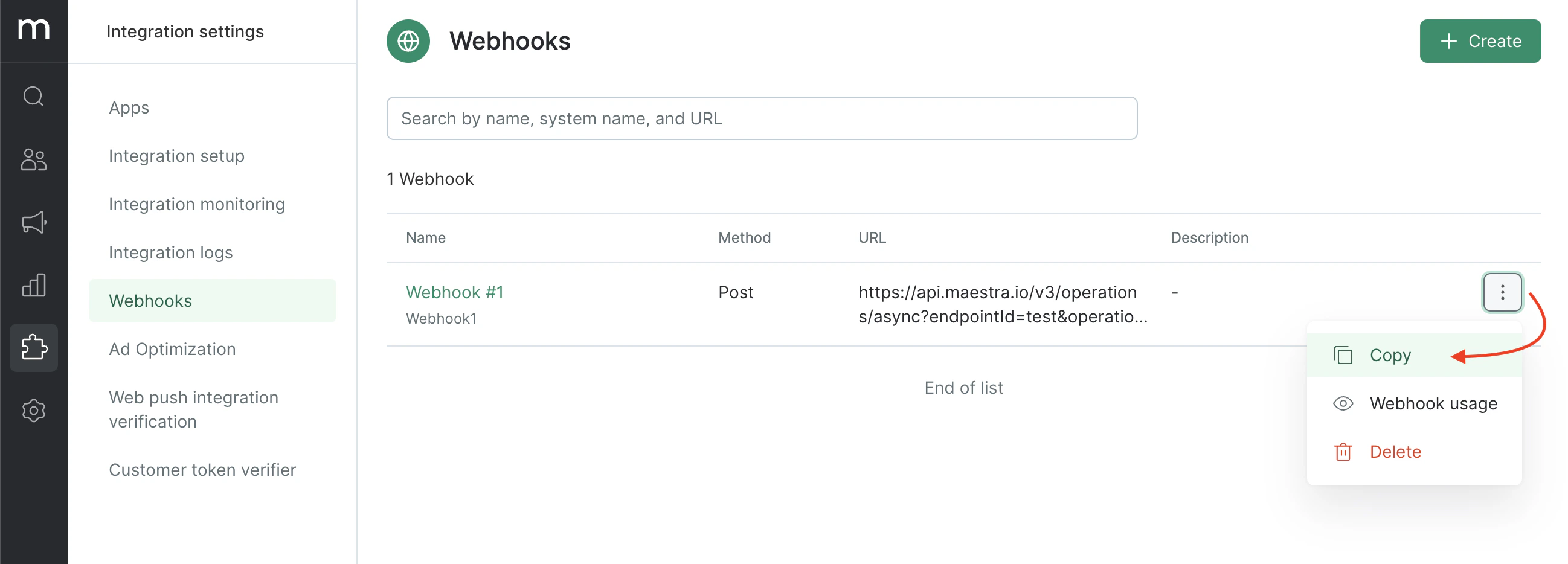
Troubleshooting and monitoring
Once your webhook is live, the Webhook Logs view is your source of truth for what was actually sent, what came back, and where things went wrong.Use webhook responses in flows
Branch flows or personalize messages with data the receiving service sends back.
Webhook logs
Inspect every request and response for debugging and auditing.
Webhook-powered campaign content
Pull live data from an external service into your campaign content.
Message template engine
Reference for variables, conditionals, and loops in your request body.