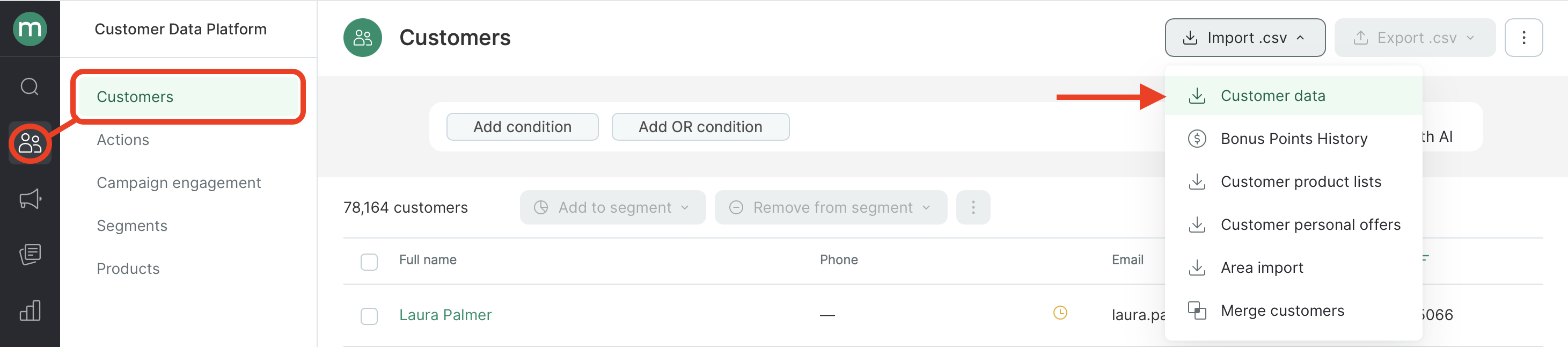
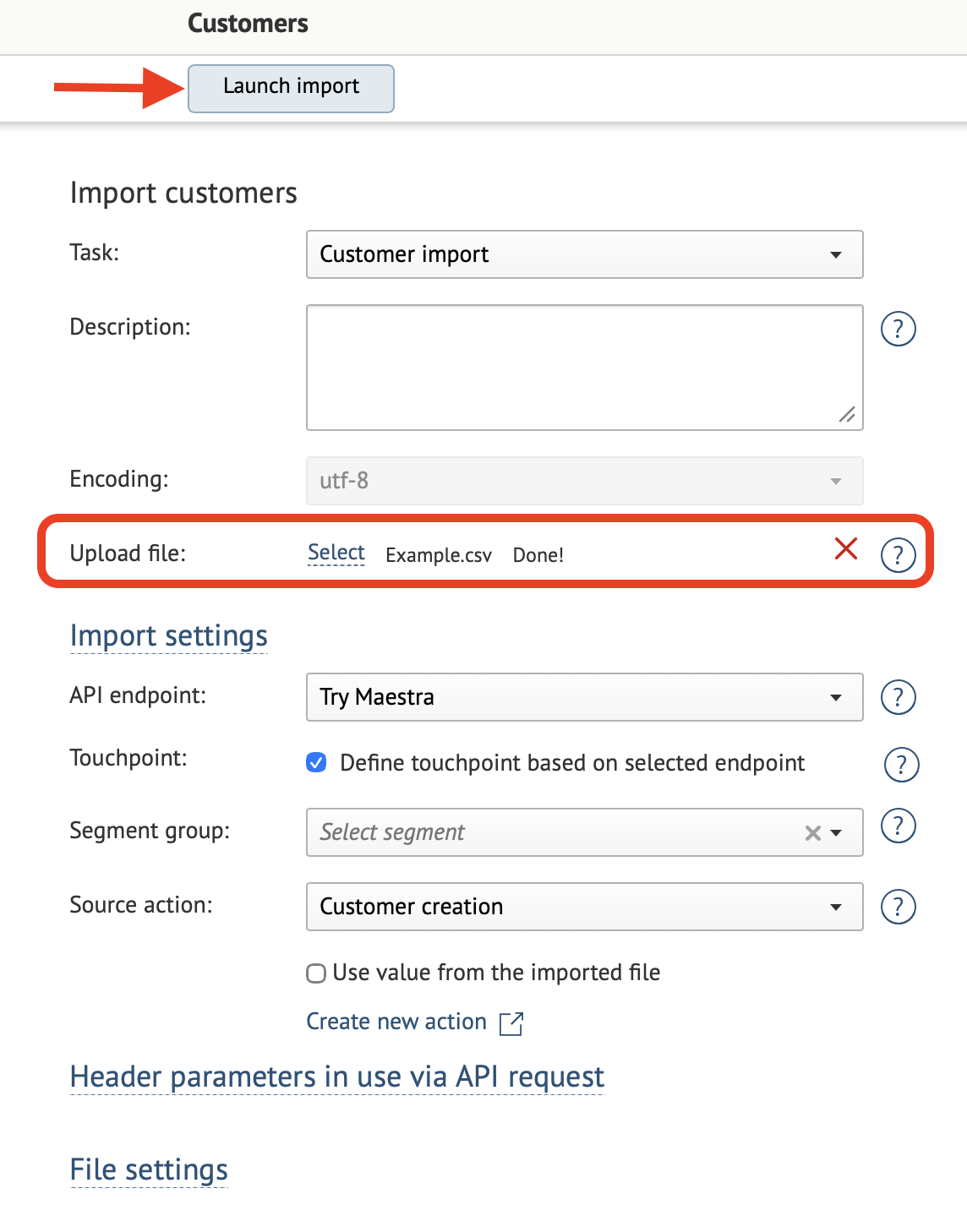
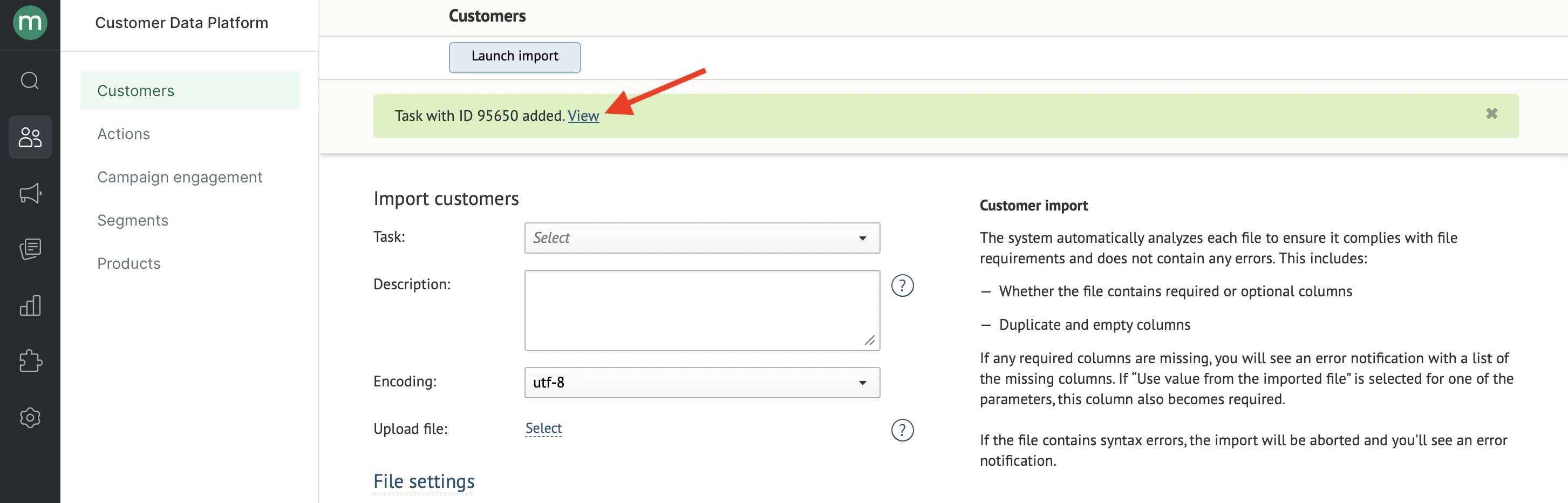
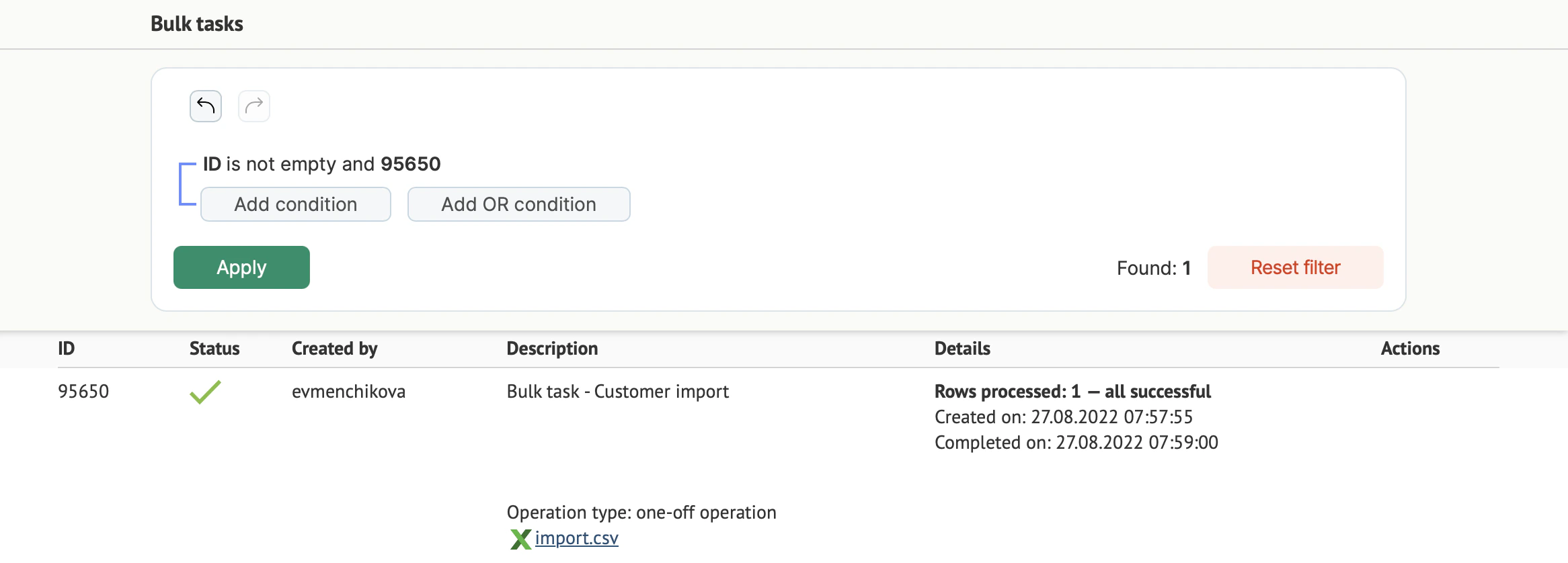
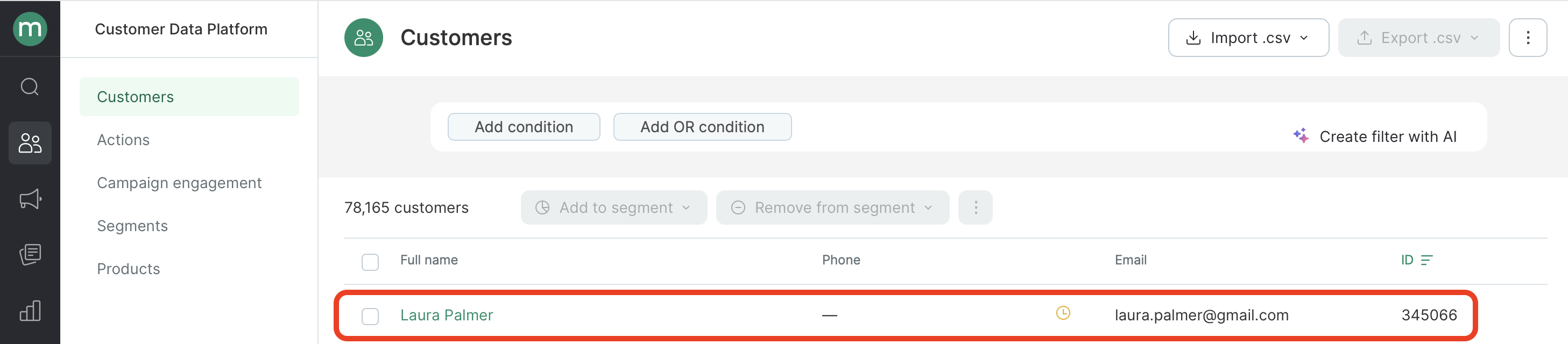
Go to Customer Data Platform → Customers → Import .csv → Customer data:
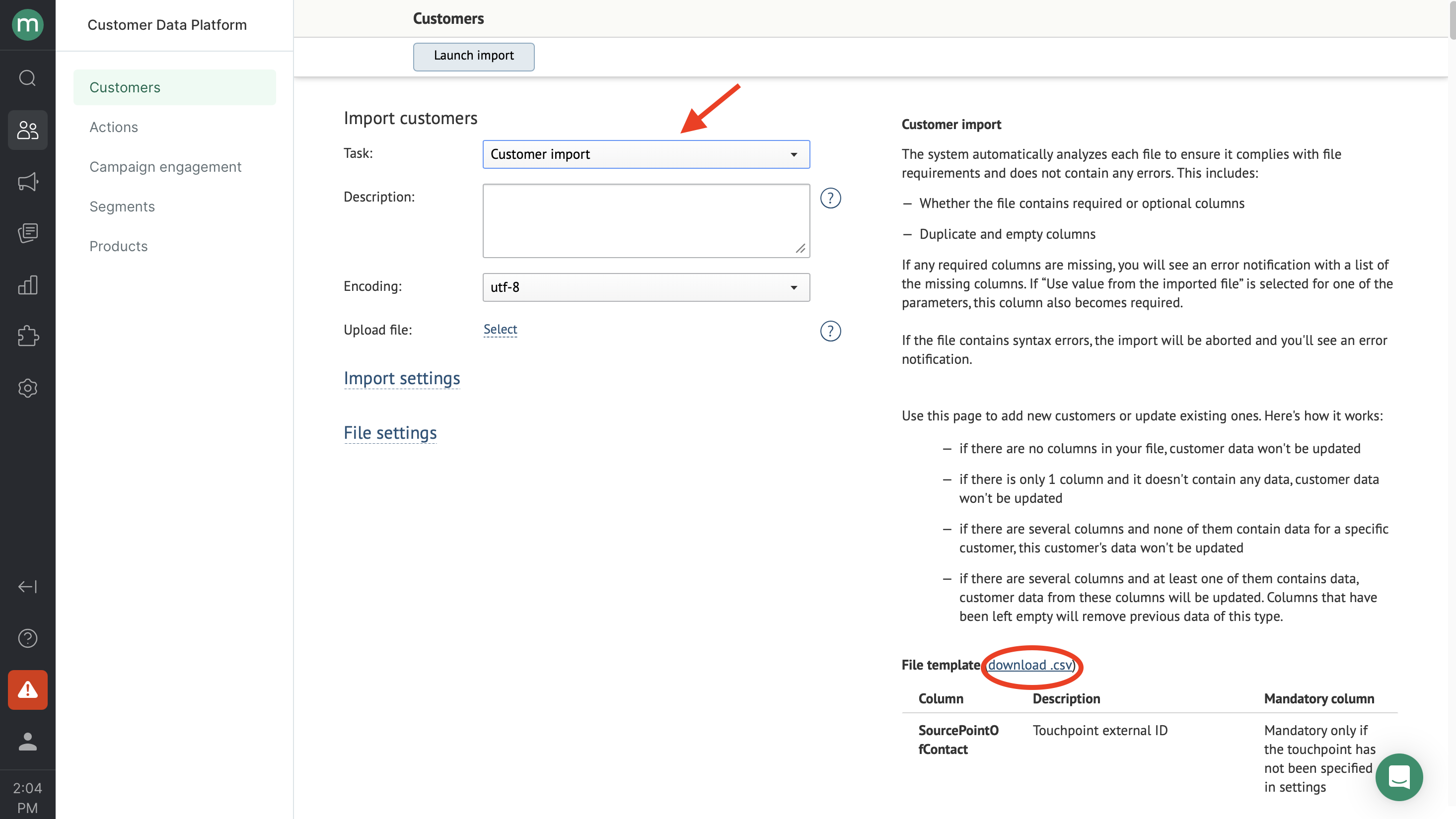
Select Customer import from the Task drop-down menu:
Now you’ll need to prepare a file for import.
The supported file format for uploads is CSV.
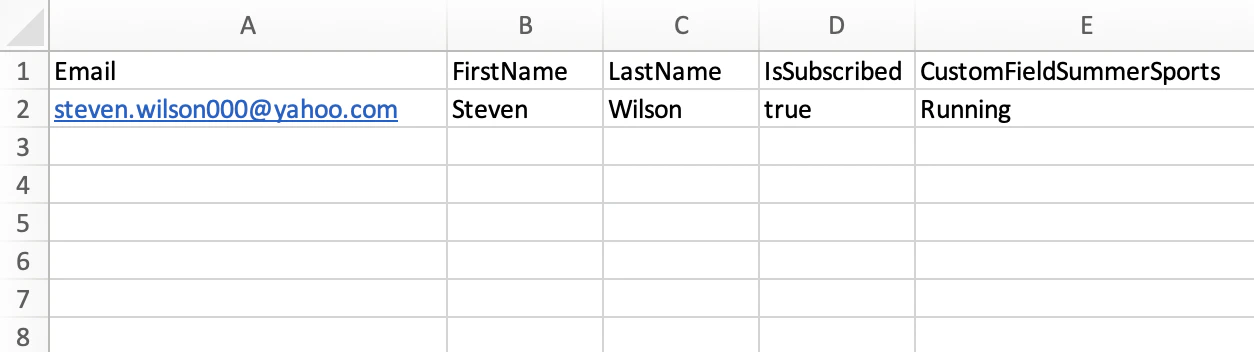
Download the file template (see the screenshot above, download.csv) to see an example of a properly formatted file. You can also customize it for your needs by adding or removing columns and filling it in with your customer data.Use the hints on the right and the column name reference to format your file correctly.Here’s an example of a file ready for import:
Important
Make sure your file includes at least one identifier (email, phone number, or external ID) — otherwise the import will fail.
Your file should not contain any irrelevant columns or empty columns (columns with a header but no data).
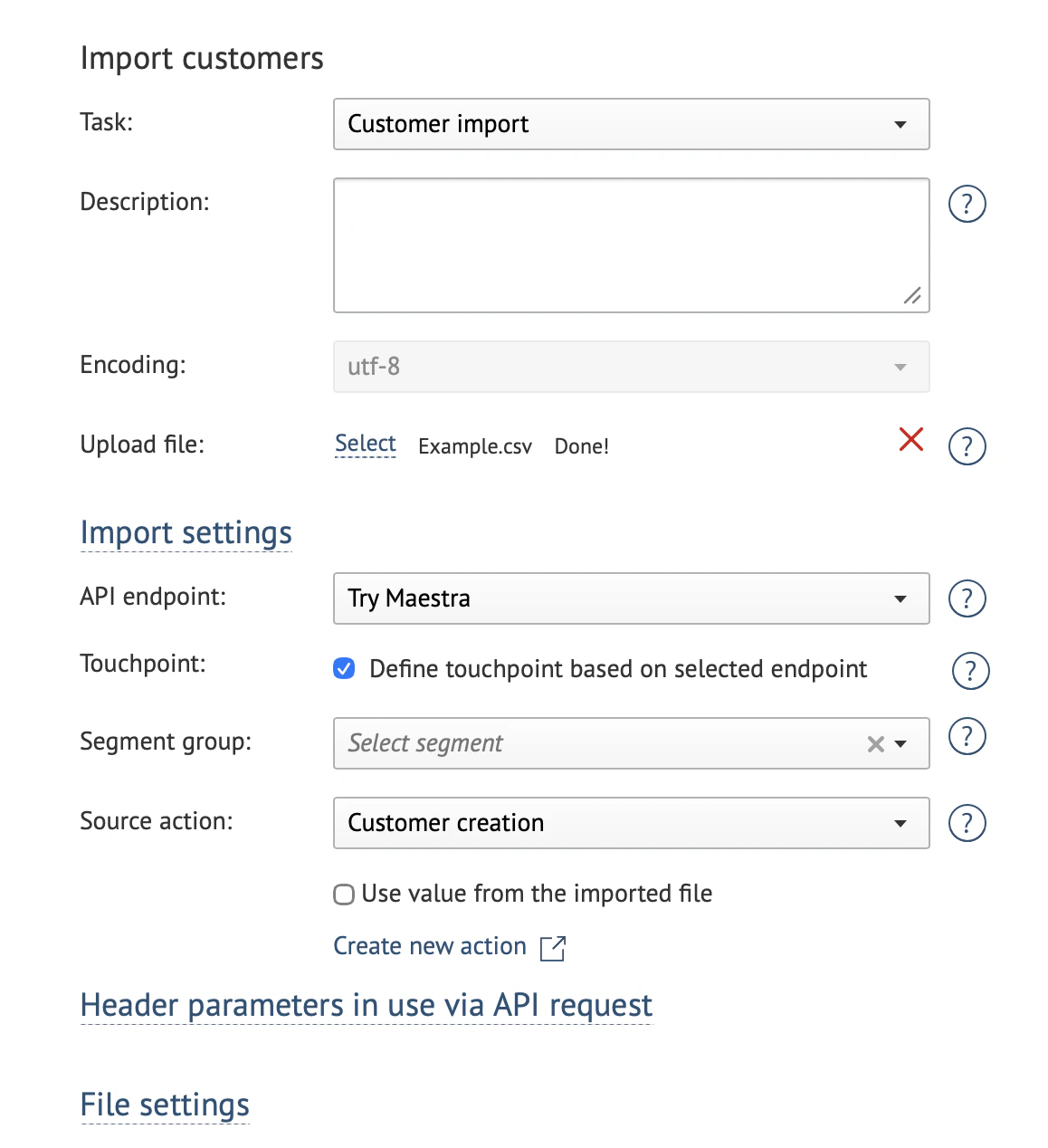
Task: Customer import.Description: fill in if applicable. This description can help you find your import task in the tasks list.Encoding: the default encoding is UTF-8.Uploaded file: follow Step 1 to upload the import file.
API endpoint: indicates where the data originated. This affects customer action attribution. The default is “Maestra touchpoint”.
Touchpoint: determines which channel or integration the customer is linked to. By default, this is detected automatically based on the API endpoint. If you need to explicitly associate customers with a specific website or store, select the touchpoint manually.
Segment group: you can add customers from the file to a static segment. Select an existing segment or create a new one.
Source action: the action associated with the customer when they’re added to the database (e.g., “Create customer”). This affects segmentation and analytics.
Source action will be added to customers’ activity feeds. If you create an action template, make sure the action name is easy for you to find – for example “Filled in May “22 survey” or “Registered on xyz.com”.
Each parameter can be set either in the import settings (applied to all customers in the file) or in the file itself (individually per row).
{"docsConfig":{"theme":"mint","$schema":"https://mintlify.com/docs.json","name":"Maestra Help Center","colors":{"primary":"#5DA600","light":"#97EA2D","dark":"#7ECE17"},"logo":{"light":"https://mintcdn.com/maestraio/QFfUMd9lAUjtR59J/logo/light.svg?fit=max\u0026auto=format\u0026n=QFfUMd9lAUjtR59J\u0026q=85\u0026s=850a8fd5d63a0dc23daae21e31810aed","dark":"https://mintcdn.com/maestraio/QFfUMd9lAUjtR59J/logo/dark.svg?fit=max\u0026auto=format\u0026n=QFfUMd9lAUjtR59J\u0026q=85\u0026s=5ff6140ad7367a721f7ef4748d393b39"},"favicon":"https://mintcdn.com/maestraio/fpoGWXHzPf6Ub5Qi/favicon.png?fit=max\u0026auto=format\u0026n=fpoGWXHzPf6Ub5Qi\u0026q=85\u0026s=55f1e8d5d8d3f26ff774217a9a0ee5f7","navbar":{"links":[{"href":"https://maestra.io/blog/cases","label":"Success stories"},{"href":"https://developers.maestra.io","label":"Maestra API"}]},"footer":{"socials":{"linkedin":"https://www.linkedin.com/company/maestraplatform","facebook":"https://www.facebook.com/maestraplatform"},"links":[{"items":[{"label":"support@maestra.io","href":"mailto:support@maestra.io"}]}]},"integrations":{"intercom":{"appId":"imn5pkg4"}},"contextual":{"options":["copy","view","chatgpt","claude","perplexity","mcp","cursor","vscode"],"display":"header"},"styling":{"latex":true},"navigation":{"global":{},"pages":[]}},"deployment":{"deploymentMetadataValue":{"subdomain":"maestraio","hasAudioNarration":false,"actualSubdomain":"maestraio","customDomains":["help.maestra.io"],"gitSource":{"type":"github","owner":"maestra-io","repo":"help-maestra-docs","deployBranch":"main","contentDirectory":"","isPrivate":true,"mountPath":"","label":""},"chroma":{"liveDeploymentHistoryId":"6ad6280a4613fdc88741b16e","collectionId":"02a2a0cb-caa2-4aad-892f-c5694d915686","schemaVersion":"v3","latestBuiltDeploymentHistoryId":"6ad6280a4613fdc88741b16e"},"entitlements":{},"buildId":"6ad6280a4613fdc88741b16e","clientVersion":"0.0.3902","searchFilterCounts":[{"language":"default","tag":"Guides","count":305},{"language":"default","tag":"Customers, orders and products","count":83},{"language":"default","tag":"Campaigns","count":61},{"language":"default","tag":"Customers","count":54},{"language":"default","tag":"Flows","count":29},{"language":"default","tag":"Merging customers","count":26},{"language":"default","tag":"Personalization","count":26},{"language":"default","tag":"Loyalty","count":24},{"language":"default","tag":"Email campaigns","count":23},{"language":"default","tag":"Filters","count":23}]},"assistantConfig":{"enableAskAiButton":false,"enableStarterQuestions":false,"enableContextualStarterQuestions":false,"enableAskAiSearchBar":true},"hasChatPermissions":false,"hasWebMcpPermissions":false,"toggles":[{"name":"kill-isr","enabled":true,"variant":{"name":"disabled","enabled":false,"feature_enabled":true},"impressionData":false},{"name":"agent-mintlify-slack","enabled":true,"variant":{"name":"disabled","enabled":false,"feature_enabled":true},"impressionData":false},{"name":"editor-v7-file-tree","enabled":true,"variant":{"name":"disabled","enabled":false,"feature_enabled":true},"impressionData":false},{"name":"agent-integrations-settings","enabled":true,"variant":{"name":"disabled","enabled":false,"feature_enabled":true},"impressionData":false},{"name":"automations-pr-grouping","enabled":true,"variant":{"name":"disabled","enabled":false,"feature_enabled":true},"impressionData":false},{"name":"custom-prefix","enabled":true,"variant":{"name":"disabled","enabled":false,"feature_enabled":true},"impressionData":false},{"name":"analytics-v7","enabled":true,"variant":{"name":"disabled","enabled":false,"feature_enabled":true},"impressionData":false},{"name":"user-flows-analytics","enabled":true,"variant":{"name":"disabled","enabled":false,"feature_enabled":true},"impressionData":false},{"name":"no-publish-flow","enabled":true,"variant":{"name":"disabled","enabled":false,"feature_enabled":true},"impressionData":false},{"name":"workos-onboarding","enabled":true,"variant":{"name":"disabled","enabled":false,"feature_enabled":true},"impressionData":false},{"name":"llms-txt-v2","enabled":true,"variant":{"name":"disabled","enabled":false,"feature_enabled":true},"impressionData":false},{"name":"pause-universal-search-reconcile","enabled":true,"variant":{"name":"disabled","enabled":false,"feature_enabled":true},"impressionData":false},{"name":"snapshot-serving-live","enabled":true,"variant":{"name":"disabled","enabled":false,"feature_enabled":true},"impressionData":false},{"name":"stripTemperatureMiddleware","enabled":true,"variant":{"name":"disabled","enabled":false,"feature_enabled":true},"impressionData":false},{"name":"per-site-search-delta","enabled":true,"variant":{"name":"disabled","enabled":false,"feature_enabled":true},"impressionData":false},{"name":"support-platform-pylon-zendesk","enabled":true,"variant":{"name":"disabled","enabled":false,"feature_enabled":true},"impressionData":false},{"name":"editor-branches-v2-autocommit","enabled":true,"variant":{"name":"disabled","enabled":false,"feature_enabled":true},"impressionData":false},{"name":"editor-branches-v2","enabled":true,"variant":{"name":"disabled","enabled":false,"feature_enabled":true},"impressionData":false},{"name":"snapshot-serving","enabled":true,"variant":{"name":"disabled","enabled":false,"feature_enabled":true},"impressionData":false},{"name":"instant-rollback","enabled":true,"variant":{"name":"disabled","enabled":false,"feature_enabled":true},"impressionData":false},{"name":"granular-notifications-server","enabled":true,"variant":{"name":"disabled","enabled":false,"feature_enabled":true},"impressionData":false},{"name":"granular-notifications","enabled":true,"variant":{"name":"disabled","enabled":false,"feature_enabled":true},"impressionData":false},{"name":"editor-private-page-search","enabled":true,"variant":{"name":"disabled","enabled":false,"feature_enabled":true},"impressionData":false},{"name":"automations-fable","enabled":true,"variant":{"name":"disabled","enabled":false,"feature_enabled":true},"impressionData":false},{"name":"fixed-ai-action-pricing","enabled":true,"variant":{"name":"disabled","enabled":false,"feature_enabled":true},"impressionData":false},{"name":"automation-resolve-merge-conflict","enabled":true,"variant":{"name":"disabled","enabled":false,"feature_enabled":true},"impressionData":false},{"name":"scoped-publishing","enabled":true,"variant":{"name":"disabled","enabled":false,"feature_enabled":true},"impressionData":false},{"name":"mintql","enabled":true,"variant":{"name":"disabled","enabled":false,"feature_enabled":true},"impressionData":false},{"name":"page-level-analytics","enabled":true,"variant":{"name":"disabled","enabled":false,"feature_enabled":true},"impressionData":false},{"name":"teamspace","enabled":true,"variant":{"name":"disabled","enabled":false,"feature_enabled":true},"impressionData":false},{"name":"editor-version-history-v2","enabled":true,"variant":{"name":"disabled","enabled":false,"feature_enabled":true},"impressionData":false},{"name":"vite-origin","enabled":true,"variant":{"name":"disabled","enabled":false,"feature_enabled":true},"impressionData":false},{"name":"editor-nav-generations","enabled":true,"variant":{"name":"disabled","enabled":false,"feature_enabled":true},"impressionData":false},{"name":"workspace-projects","enabled":true,"variant":{"name":"disabled","enabled":false,"feature_enabled":true},"impressionData":false},{"name":"assistant-v5","enabled":true,"variant":{"name":"disabled","enabled":false,"feature_enabled":true},"impressionData":false},{"name":"byok-sep-25","enabled":true,"variant":{"name":"disabled","enabled":false,"feature_enabled":true},"impressionData":false},{"name":"revalidation-jwt","enabled":true,"variant":{"name":"disabled","enabled":false,"feature_enabled":true},"impressionData":false},{"name":"editor-agent-model-picker","enabled":true,"variant":{"name":"disabled","enabled":false,"feature_enabled":true},"impressionData":false},{"name":"client-snapshot-docs-config","enabled":true,"variant":{"name":"disabled","enabled":false,"feature_enabled":true},"impressionData":false},{"name":"hobby-abuse-scan","enabled":true,"variant":{"name":"disabled","enabled":false,"feature_enabled":true},"impressionData":false},{"name":"dashboard-inbox","enabled":true,"variant":{"name":"disabled","enabled":false,"feature_enabled":true},"impressionData":false}],"isAtlas":false,"googleFontsInlined":false},"customCss":[{"filePath":"custom.css","content":"details.accordion{margin-top:1.5rem;background-color:rgba(151,234,45,.08)}.dark details.accordion{background-color:rgba(255,255,255,.04)}.accordion-muted details.accordion{background-color:rgba(128,128,128,.08)}"}],"page":{"pagePath":"customers-orders-and-products/customers/add-edit-export-delete/bulk-import-and-edit/how-to-bulk-import-customers-from-a-file","slug":"/customers-orders-and-products/customers/add-edit-export-delete/bulk-import-and-edit/how-to-bulk-import-customers-from-a-file","pageMetadata":{"title":"How to Bulk Import Customers from a File?","description":null,"href":"/customers-orders-and-products/customers/add-edit-export-delete/bulk-import-and-edit/how-to-bulk-import-customers-from-a-file"},"pageType":"default","mdx":{"mdxSource":{"compiledSource":"\"use strict\";const{Fragment:_Fragment,jsx:_jsx,jsxs:_jsxs}=arguments[0];const{useMDXComponents:_provideComponents}=arguments[0];function _createMdxContent(props){const _components={a:`a`,br:`br`,li:`li`,p:`p`,strong:`strong`,ul:`ul`,..._provideComponents(),...props.components},{Card,Frame,Heading,OptimizedImage,Tip}=_components;if(!Card)_missingMdxReference(`Card`,true);if(!Frame)_missingMdxReference(`Frame`,true);if(!Heading)_missingMdxReference(`Heading`,true);if(!OptimizedImage)_missingMdxReference(`OptimizedImage`,true);if(!Tip)_missingMdxReference(`Tip`,true);return _jsxs(_Fragment,{children:[_jsx(Heading,{level:`2`,id:`1-prepare-your-file-for-import`,children:_jsx(_components.strong,{children:`1. Prepare your file for import`})}),`\n`,_jsxs(_components.p,{children:[`Go to `,_jsx(_components.strong,{children:`Customer Data Platform`}),` → `,_jsx(_components.strong,{children:`Customers`}),` → `,_jsx(_components.strong,{children:`Import .csv`}),` → `,_jsx(_components.strong,{children:`Customer data:`})]}),`\n`,_jsx(Frame,{children:_jsx(OptimizedImage,{src:`https://mintcdn.com/maestraio/12rIpp_FerVDAgj5/images/2026-05-18-14.00.28.png?fit=max\u0026auto=format\u0026n=12rIpp_FerVDAgj5\u0026q=85\u0026s=4f334b9879259553386463012c6aa6b7`,alt:`2026 05 18 14 00 28`,\"data-og-width\":`2922`,width:`2922`,\"data-og-height\":`646`,height:`646`,\"data-path\":`images/2026-05-18-14.00.28.png`,\"data-optimize\":`true`,\"data-opv\":`3`,srcset:`https://mintcdn.com/maestraio/12rIpp_FerVDAgj5/images/2026-05-18-14.00.28.png?w=280\u0026fit=max\u0026auto=format\u0026n=12rIpp_FerVDAgj5\u0026q=85\u0026s=bacc8fdf84d2b99b0bb0be4693a3a81c 280w, https://mintcdn.com/maestraio/12rIpp_FerVDAgj5/images/2026-05-18-14.00.28.png?w=560\u0026fit=max\u0026auto=format\u0026n=12rIpp_FerVDAgj5\u0026q=85\u0026s=b3dc5c47402a1f7192b617c92ea9bda4 560w, https://mintcdn.com/maestraio/12rIpp_FerVDAgj5/images/2026-05-18-14.00.28.png?w=840\u0026fit=max\u0026auto=format\u0026n=12rIpp_FerVDAgj5\u0026q=85\u0026s=d492c6063eb0a2cf4fbb8b7c7bf3914c 840w, https://mintcdn.com/maestraio/12rIpp_FerVDAgj5/images/2026-05-18-14.00.28.png?w=1100\u0026fit=max\u0026auto=format\u0026n=12rIpp_FerVDAgj5\u0026q=85\u0026s=46c2d6fc60246ce687b05bc1b2f96efa 1100w, https://mintcdn.com/maestraio/12rIpp_FerVDAgj5/images/2026-05-18-14.00.28.png?w=1650\u0026fit=max\u0026auto=format\u0026n=12rIpp_FerVDAgj5\u0026q=85\u0026s=95be9dc0a8d85788c13994c2d80b5fb1 1650w, https://mintcdn.com/maestraio/12rIpp_FerVDAgj5/images/2026-05-18-14.00.28.png?w=2500\u0026fit=max\u0026auto=format\u0026n=12rIpp_FerVDAgj5\u0026q=85\u0026s=d3af46afc098bd2b6159d244b9bf994f 2500w`})}),`\n`,_jsxs(_components.p,{children:[`Select `,_jsx(_components.strong,{children:`Customer import`}),` from the `,_jsx(_components.strong,{children:`Task`}),` drop-down menu:`]}),`\n`,_jsx(Frame,{children:_jsx(OptimizedImage,{src:`https://mintcdn.com/maestraio/12rIpp_FerVDAgj5/images/2026-05-18-14.04.11.png?fit=max\u0026auto=format\u0026n=12rIpp_FerVDAgj5\u0026q=85\u0026s=02bc27c446d3d9efc5806dccb7bae529`,alt:`2026 05 18 14 04 11`,\"data-og-width\":`2932`,width:`2932`,\"data-og-height\":`1650`,height:`1650`,\"data-path\":`images/2026-05-18-14.04.11.png`,\"data-optimize\":`true`,\"data-opv\":`3`,srcset:`https://mintcdn.com/maestraio/12rIpp_FerVDAgj5/images/2026-05-18-14.04.11.png?w=280\u0026fit=max\u0026auto=format\u0026n=12rIpp_FerVDAgj5\u0026q=85\u0026s=3271131a752c3cefb13d726fe9130ff2 280w, https://mintcdn.com/maestraio/12rIpp_FerVDAgj5/images/2026-05-18-14.04.11.png?w=560\u0026fit=max\u0026auto=format\u0026n=12rIpp_FerVDAgj5\u0026q=85\u0026s=de5f345964cc822685879e4b855dfbee 560w, https://mintcdn.com/maestraio/12rIpp_FerVDAgj5/images/2026-05-18-14.04.11.png?w=840\u0026fit=max\u0026auto=format\u0026n=12rIpp_FerVDAgj5\u0026q=85\u0026s=c25e2a4a55c2acf11958c203c44ef9b0 840w, https://mintcdn.com/maestraio/12rIpp_FerVDAgj5/images/2026-05-18-14.04.11.png?w=1100\u0026fit=max\u0026auto=format\u0026n=12rIpp_FerVDAgj5\u0026q=85\u0026s=9ab5536b972c1970668c3d1620fe282e 1100w, https://mintcdn.com/maestraio/12rIpp_FerVDAgj5/images/2026-05-18-14.04.11.png?w=1650\u0026fit=max\u0026auto=format\u0026n=12rIpp_FerVDAgj5\u0026q=85\u0026s=f3c1cb43ed8943246d0533a8bf54cf85 1650w, https://mintcdn.com/maestraio/12rIpp_FerVDAgj5/images/2026-05-18-14.04.11.png?w=2500\u0026fit=max\u0026auto=format\u0026n=12rIpp_FerVDAgj5\u0026q=85\u0026s=a56ed1e78e55df55a21509616779371b 2500w`})}),`\n`,_jsx(_components.p,{children:`Now you’ll need to prepare a file for import.`}),`\n`,_jsx(Tip,{children:_jsx(_components.p,{children:`The supported file format for uploads is CSV.`})}),`\n`,_jsxs(_components.p,{children:[`Download the file template (see the screenshot above, `,_jsx(_components.strong,{children:`download.csv`}),`) to see an example of a properly formatted file. You can also customize it for your needs by adding or removing columns and filling it in with your customer data.`]}),`\n`,_jsx(_components.p,{children:`Use the hints on the right and the column name reference to format your file correctly.`}),`\n`,_jsx(_components.p,{children:`Here’s an example of a file ready for import:`}),`\n`,_jsx(OptimizedImage,{src:`https://mintcdn.com/maestraio/Itk5DZRmZl9Vbe7N/images/imported/img-d1b6ebe0.png?fit=max\u0026auto=format\u0026n=Itk5DZRmZl9Vbe7N\u0026q=85\u0026s=96845fd5386f32ec453ff9fcfb5fbf05`,alt:`02_importcustomer`,\"data-og-width\":`1254`,width:`1254`,\"data-og-height\":`352`,height:`352`,\"data-path\":`images/imported/img-d1b6ebe0.png`,\"data-optimize\":`true`,\"data-opv\":`3`,srcset:`https://mintcdn.com/maestraio/Itk5DZRmZl9Vbe7N/images/imported/img-d1b6ebe0.png?w=280\u0026fit=max\u0026auto=format\u0026n=Itk5DZRmZl9Vbe7N\u0026q=85\u0026s=e95b139af4e4326e1d52d7a2ecb8666f 280w, https://mintcdn.com/maestraio/Itk5DZRmZl9Vbe7N/images/imported/img-d1b6ebe0.png?w=560\u0026fit=max\u0026auto=format\u0026n=Itk5DZRmZl9Vbe7N\u0026q=85\u0026s=bd2be692ca8c031797866c837c9c12bf 560w, https://mintcdn.com/maestraio/Itk5DZRmZl9Vbe7N/images/imported/img-d1b6ebe0.png?w=840\u0026fit=max\u0026auto=format\u0026n=Itk5DZRmZl9Vbe7N\u0026q=85\u0026s=56588fd2be09b6a06eac53987a063a07 840w, https://mintcdn.com/maestraio/Itk5DZRmZl9Vbe7N/images/imported/img-d1b6ebe0.png?w=1100\u0026fit=max\u0026auto=format\u0026n=Itk5DZRmZl9Vbe7N\u0026q=85\u0026s=3823b7ce6c4f145e8b7e4f28080d5fd9 1100w, https://mintcdn.com/maestraio/Itk5DZRmZl9Vbe7N/images/imported/img-d1b6ebe0.png?w=1650\u0026fit=max\u0026auto=format\u0026n=Itk5DZRmZl9Vbe7N\u0026q=85\u0026s=a48bb8c72dd46009f05cb689690428e1 1650w, https://mintcdn.com/maestraio/Itk5DZRmZl9Vbe7N/images/imported/img-d1b6ebe0.png?w=2500\u0026fit=max\u0026auto=format\u0026n=Itk5DZRmZl9Vbe7N\u0026q=85\u0026s=b705e05df75f14e8cffeef084e24db92 2500w`}),`\n`,_jsx(Card,{title:`Important`,type:`warning`,children:_jsxs(_components.ul,{children:[`\n`,_jsxs(_components.li,{children:[`Make sure your file includes `,_jsx(_components.strong,{children:`at least one identifier`}),` (email, phone number, or external ID) — otherwise the import will fail.`]}),`\n`,_jsx(_components.li,{children:`Your file should not contain any irrelevant columns or empty columns (columns with a header but no data).`}),`\n`]})}),`\n`,_jsx(Heading,{level:`2`,id:`2-import-customers`,children:_jsx(_components.strong,{children:`2. Import customers`})}),`\n`,_jsx(Heading,{level:`3`,id:`2-1-fill-in-the-settings`,children:_jsx(_components.strong,{children:`2.1. Fill in the settings:`})}),`\n`,_jsx(Frame,{children:_jsx(OptimizedImage,{src:`https://mintcdn.com/maestraio/12rIpp_FerVDAgj5/images/2026-05-18-14.23.17.png?fit=max\u0026auto=format\u0026n=12rIpp_FerVDAgj5\u0026q=85\u0026s=46cf7e3f444c1bb2afbff2fd068fcde3`,alt:`2026 05 18 14 23 17`,\"data-og-width\":`1158`,width:`1158`,\"data-og-height\":`1268`,height:`1268`,\"data-path\":`images/2026-05-18-14.23.17.png`,\"data-optimize\":`true`,\"data-opv\":`3`,srcset:`https://mintcdn.com/maestraio/12rIpp_FerVDAgj5/images/2026-05-18-14.23.17.png?w=280\u0026fit=max\u0026auto=format\u0026n=12rIpp_FerVDAgj5\u0026q=85\u0026s=d7664bbe343c5e7d7b94dc934c78b56b 280w, https://mintcdn.com/maestraio/12rIpp_FerVDAgj5/images/2026-05-18-14.23.17.png?w=560\u0026fit=max\u0026auto=format\u0026n=12rIpp_FerVDAgj5\u0026q=85\u0026s=a72b93a876edde8b5bfc7b1fd6e5f7ea 560w, https://mintcdn.com/maestraio/12rIpp_FerVDAgj5/images/2026-05-18-14.23.17.png?w=840\u0026fit=max\u0026auto=format\u0026n=12rIpp_FerVDAgj5\u0026q=85\u0026s=d50692c272e3808f26dfaaf6d45dfc22 840w, https://mintcdn.com/maestraio/12rIpp_FerVDAgj5/images/2026-05-18-14.23.17.png?w=1100\u0026fit=max\u0026auto=format\u0026n=12rIpp_FerVDAgj5\u0026q=85\u0026s=6ba0008c816f63453e6e30e4aa85190b 1100w, https://mintcdn.com/maestraio/12rIpp_FerVDAgj5/images/2026-05-18-14.23.17.png?w=1650\u0026fit=max\u0026auto=format\u0026n=12rIpp_FerVDAgj5\u0026q=85\u0026s=8fc516c7914c361b1e5edc735d608cf0 1650w, https://mintcdn.com/maestraio/12rIpp_FerVDAgj5/images/2026-05-18-14.23.17.png?w=2500\u0026fit=max\u0026auto=format\u0026n=12rIpp_FerVDAgj5\u0026q=85\u0026s=b0a894d0cc6d46da2834ce96d2951af2 2500w`})}),`\n`,_jsxs(_components.p,{children:[_jsx(_components.strong,{children:`Task:`}),` Customer import.`]}),`\n`,_jsxs(_components.p,{children:[_jsx(_components.strong,{children:`Description:`}),` fill in if applicable. This description can help you find your import task in the tasks list.`]}),`\n`,_jsxs(_components.p,{children:[_jsx(_components.strong,{children:`Encoding:`}),` the default encoding is UTF-8.`]}),`\n`,_jsxs(_components.p,{children:[_jsx(_components.strong,{children:`Uploaded file:`}),` follow Step 1 to upload the import file.`]}),`\n`,_jsx(Heading,{level:`4`,id:`import-settings`,children:_jsx(_components.strong,{children:`Import settings:`})}),`\n`,_jsxs(_components.ul,{children:[`\n`,_jsxs(_components.li,{children:[_jsx(_components.strong,{children:`API endpoint:`}),` indicates where the data originated. This affects customer action attribution. The default is “Maestra touchpoint”.`]}),`\n`,_jsxs(_components.li,{children:[_jsx(_components.strong,{children:`Touchpoint:`}),` determines which channel or integration the customer is linked to. By default, this is detected automatically based on the API endpoint. If you need to explicitly associate customers with a specific website or store, select the touchpoint manually.`]}),`\n`,_jsxs(_components.li,{children:[_jsx(_components.strong,{children:`Segment group:`}),` you can add customers from the file to a static segment. Select an existing segment or create a new one.`]}),`\n`,_jsxs(_components.li,{children:[_jsx(_components.strong,{children:`Source action:`}),` the action associated with the customer when they’re added to the database (e.g., “Create customer”). This affects segmentation and analytics.`,_jsx(_components.br,{}),`\n`,`Source action will be added to customers’ activity feeds. If you `,_jsx(_components.a,{href:`/customers-orders-and-products/actions/action-template/how-to-create-an-action-template`,children:`create an action template`}),`, make sure the `,_jsx(_components.strong,{children:`action name`}),` is easy for you to find – for example “Filled in May “22 survey” or “Registered on xyz.com”.`]}),`\n`]}),`\n`,_jsx(_components.p,{children:`Each parameter can be set either in the import settings (applied to all customers in the file) or in the file itself (individually per row).`}),`\n`,_jsxs(Heading,{level:`3`,id:`2-2-click-launch-import-to-add-your-task\\\\`,children:[_jsx(_components.strong,{children:`2.2. Click Launch import to add your task:`}),`\\\\`]}),`\n`,_jsx(Frame,{children:_jsx(OptimizedImage,{src:`https://mintcdn.com/maestraio/12rIpp_FerVDAgj5/images/2026-05-18-14.48.45.png?fit=max\u0026auto=format\u0026n=12rIpp_FerVDAgj5\u0026q=85\u0026s=2360c065b9babc104bd454e520df6f94`,alt:`2026 05 18 14 48 45`,\"data-og-width\":`1144`,width:`1144`,\"data-og-height\":`1458`,height:`1458`,\"data-path\":`images/2026-05-18-14.48.45.png`,\"data-optimize\":`true`,\"data-opv\":`3`,srcset:`https://mintcdn.com/maestraio/12rIpp_FerVDAgj5/images/2026-05-18-14.48.45.png?w=280\u0026fit=max\u0026auto=format\u0026n=12rIpp_FerVDAgj5\u0026q=85\u0026s=fba467afdb1e0bfbfe63f2c8500228f3 280w, https://mintcdn.com/maestraio/12rIpp_FerVDAgj5/images/2026-05-18-14.48.45.png?w=560\u0026fit=max\u0026auto=format\u0026n=12rIpp_FerVDAgj5\u0026q=85\u0026s=e420d9e3ec10639d2caa8397078b7ab8 560w, https://mintcdn.com/maestraio/12rIpp_FerVDAgj5/images/2026-05-18-14.48.45.png?w=840\u0026fit=max\u0026auto=format\u0026n=12rIpp_FerVDAgj5\u0026q=85\u0026s=6edce8d4f2d8e7775077c217e8f9412d 840w, https://mintcdn.com/maestraio/12rIpp_FerVDAgj5/images/2026-05-18-14.48.45.png?w=1100\u0026fit=max\u0026auto=format\u0026n=12rIpp_FerVDAgj5\u0026q=85\u0026s=fc77d8be18a1f4d8ed55b5ccf0a07a3c 1100w, https://mintcdn.com/maestraio/12rIpp_FerVDAgj5/images/2026-05-18-14.48.45.png?w=1650\u0026fit=max\u0026auto=format\u0026n=12rIpp_FerVDAgj5\u0026q=85\u0026s=a04026ae87a2ff20046a0973beec736c 1650w, https://mintcdn.com/maestraio/12rIpp_FerVDAgj5/images/2026-05-18-14.48.45.png?w=2500\u0026fit=max\u0026auto=format\u0026n=12rIpp_FerVDAgj5\u0026q=85\u0026s=14b394398f13ec56bd8c63f9b9332bc6 2500w`})}),`\n`,_jsxs(_components.p,{children:[_jsx(_components.br,{}),`\n`,`Now you can see a URL leading to this task:`]}),`\n`,_jsx(Frame,{children:_jsx(OptimizedImage,{src:`https://mintcdn.com/maestraio/12rIpp_FerVDAgj5/images/2026-05-18-14.50.47.png?fit=max\u0026auto=format\u0026n=12rIpp_FerVDAgj5\u0026q=85\u0026s=d1747d1e698a60af26d7d5d3a42bcc03`,alt:`2026 05 18 14 50 47`,\"data-og-width\":`2906`,width:`2906`,\"data-og-height\":`932`,height:`932`,\"data-path\":`images/2026-05-18-14.50.47.png`,\"data-optimize\":`true`,\"data-opv\":`3`,srcset:`https://mintcdn.com/maestraio/12rIpp_FerVDAgj5/images/2026-05-18-14.50.47.png?w=280\u0026fit=max\u0026auto=format\u0026n=12rIpp_FerVDAgj5\u0026q=85\u0026s=119d7beb3a8c0836d971e40671fdc61f 280w, https://mintcdn.com/maestraio/12rIpp_FerVDAgj5/images/2026-05-18-14.50.47.png?w=560\u0026fit=max\u0026auto=format\u0026n=12rIpp_FerVDAgj5\u0026q=85\u0026s=119b7fa72d6f4fbeadfe46db88fe12dc 560w, https://mintcdn.com/maestraio/12rIpp_FerVDAgj5/images/2026-05-18-14.50.47.png?w=840\u0026fit=max\u0026auto=format\u0026n=12rIpp_FerVDAgj5\u0026q=85\u0026s=16d35efc507cc84eec9f842388ef0e5d 840w, https://mintcdn.com/maestraio/12rIpp_FerVDAgj5/images/2026-05-18-14.50.47.png?w=1100\u0026fit=max\u0026auto=format\u0026n=12rIpp_FerVDAgj5\u0026q=85\u0026s=5c99d1507895fc419915b4b77044e1ae 1100w, https://mintcdn.com/maestraio/12rIpp_FerVDAgj5/images/2026-05-18-14.50.47.png?w=1650\u0026fit=max\u0026auto=format\u0026n=12rIpp_FerVDAgj5\u0026q=85\u0026s=415e9c47c9de3ab9f3be6fd5c8468f9a 1650w, https://mintcdn.com/maestraio/12rIpp_FerVDAgj5/images/2026-05-18-14.50.47.png?w=2500\u0026fit=max\u0026auto=format\u0026n=12rIpp_FerVDAgj5\u0026q=85\u0026s=a9b61a0df64a287fedbdb673f4bdb69d 2500w`})}),`\n`,_jsx(_components.p,{children:`Wait for the import to be completed:`}),`\n`,_jsx(Frame,{children:_jsx(OptimizedImage,{src:`https://mintcdn.com/maestraio/12rIpp_FerVDAgj5/images/2026-05-18-14.55.51.png?fit=max\u0026auto=format\u0026n=12rIpp_FerVDAgj5\u0026q=85\u0026s=917a8032495c9c0a8ec5dbe50cbe21e0`,alt:`2026 05 18 14 55 51`,\"data-og-width\":`2332`,width:`2332`,\"data-og-height\":`838`,height:`838`,\"data-path\":`images/2026-05-18-14.55.51.png`,\"data-optimize\":`true`,\"data-opv\":`3`,srcset:`https://mintcdn.com/maestraio/12rIpp_FerVDAgj5/images/2026-05-18-14.55.51.png?w=280\u0026fit=max\u0026auto=format\u0026n=12rIpp_FerVDAgj5\u0026q=85\u0026s=64cb9b1f5ddf2d12b70673f5aa3d2226 280w, https://mintcdn.com/maestraio/12rIpp_FerVDAgj5/images/2026-05-18-14.55.51.png?w=560\u0026fit=max\u0026auto=format\u0026n=12rIpp_FerVDAgj5\u0026q=85\u0026s=3f53a0cc9376f6b75c7a11478e437fda 560w, https://mintcdn.com/maestraio/12rIpp_FerVDAgj5/images/2026-05-18-14.55.51.png?w=840\u0026fit=max\u0026auto=format\u0026n=12rIpp_FerVDAgj5\u0026q=85\u0026s=c5638aa3cd986a2f9cc1eaed7cc635c9 840w, https://mintcdn.com/maestraio/12rIpp_FerVDAgj5/images/2026-05-18-14.55.51.png?w=1100\u0026fit=max\u0026auto=format\u0026n=12rIpp_FerVDAgj5\u0026q=85\u0026s=7fa750d807f94062eab023ba1e81353e 1100w, https://mintcdn.com/maestraio/12rIpp_FerVDAgj5/images/2026-05-18-14.55.51.png?w=1650\u0026fit=max\u0026auto=format\u0026n=12rIpp_FerVDAgj5\u0026q=85\u0026s=fd7c53c50ff50dc6a4b9f24884dbeca3 1650w, https://mintcdn.com/maestraio/12rIpp_FerVDAgj5/images/2026-05-18-14.55.51.png?w=2500\u0026fit=max\u0026auto=format\u0026n=12rIpp_FerVDAgj5\u0026q=85\u0026s=a8d437b1639b14c6fa58c1508644a2ec 2500w`})}),`\n`,_jsx(_components.p,{children:`The customer will emerge in the database:`}),`\n`,_jsx(Frame,{children:_jsx(OptimizedImage,{src:`https://mintcdn.com/maestraio/12rIpp_FerVDAgj5/images/2026-05-18-14.58.26.png?fit=max\u0026auto=format\u0026n=12rIpp_FerVDAgj5\u0026q=85\u0026s=62f4aa31d8dfa8effdb1b70c21a14c12`,alt:`2026 05 18 14 58 26`,\"data-og-width\":`2914`,width:`2914`,\"data-og-height\":`640`,height:`640`,\"data-path\":`images/2026-05-18-14.58.26.png`,\"data-optimize\":`true`,\"data-opv\":`3`,srcset:`https://mintcdn.com/maestraio/12rIpp_FerVDAgj5/images/2026-05-18-14.58.26.png?w=280\u0026fit=max\u0026auto=format\u0026n=12rIpp_FerVDAgj5\u0026q=85\u0026s=7518344bfeb4909efa5efdd397f56efe 280w, https://mintcdn.com/maestraio/12rIpp_FerVDAgj5/images/2026-05-18-14.58.26.png?w=560\u0026fit=max\u0026auto=format\u0026n=12rIpp_FerVDAgj5\u0026q=85\u0026s=989b87e7eea6f27e61e93b4875029936 560w, https://mintcdn.com/maestraio/12rIpp_FerVDAgj5/images/2026-05-18-14.58.26.png?w=840\u0026fit=max\u0026auto=format\u0026n=12rIpp_FerVDAgj5\u0026q=85\u0026s=d552554e1ba5ffc22c7a40068814a4ad 840w, https://mintcdn.com/maestraio/12rIpp_FerVDAgj5/images/2026-05-18-14.58.26.png?w=1100\u0026fit=max\u0026auto=format\u0026n=12rIpp_FerVDAgj5\u0026q=85\u0026s=b5f37de5648d2dedd922615aa40bc135 1100w, https://mintcdn.com/maestraio/12rIpp_FerVDAgj5/images/2026-05-18-14.58.26.png?w=1650\u0026fit=max\u0026auto=format\u0026n=12rIpp_FerVDAgj5\u0026q=85\u0026s=29f7f8360299d4f639203e43913e3efd 1650w, https://mintcdn.com/maestraio/12rIpp_FerVDAgj5/images/2026-05-18-14.58.26.png?w=2500\u0026fit=max\u0026auto=format\u0026n=12rIpp_FerVDAgj5\u0026q=85\u0026s=3df526cc7589fab1cece85ce895dc3bf 2500w`})})]})}function MDXContent(props={}){const{wrapper:MDXLayout}={..._provideComponents(),...props.components};return MDXLayout?_jsx(MDXLayout,{...props,children:_jsx(_createMdxContent,{...props})}):_createMdxContent(props)}return{default:MDXContent};function _missingMdxReference(id,component){throw new Error(`Expected `+(component?`component`:`object`)+\" `\"+id+\"` to be defined: you likely forgot to import, pass, or provide it.\")}","frontmatter":{},"scope":{"config":{},"pageMetadata":{"title":"How to Bulk Import Customers from a File?","description":null,"href":"/customers-orders-and-products/customers/add-edit-export-delete/bulk-import-and-edit/how-to-bulk-import-customers-from-a-file"}}},"mdxSourceWithNoJs":null},"mdxExtracts":{"tableOfContents":[{"title":"1. Prepare your file for import","slug":"1-prepare-your-file-for-import","depth":2,"children":[]},{"title":"2. Import customers","slug":"2-import-customers","depth":2,"children":[{"title":"2.1. Fill in the settings:","slug":"2-1-fill-in-the-settings","depth":3,"children":[]},{"title":"Import settings:","slug":"import-settings","depth":4,"children":[]},{"title":"2.2. Click Launch import to add your task:\\","slug":"2-2-click-launch-import-to-add-your-task\\","depth":3,"children":[]}]}],"codeExamples":{}},"jsLinks":[],"subdomain":"maestraio","siteName":"Maestra Help Center","title":"How to Bulk Import Customers from a File? - Maestra Help Center","navMaps":{"firstHrefInVersion":{},"firstHrefInLanguage":{}},"lastModified":"2026-10-14T16:48:14.899Z","originalFileLocation":"customers-orders-and-products/customers/add-edit-export-delete/bulk-import-and-edit/how-to-bulk-import-customers-from-a-file.mdx"},"headHtml":"\u003cscript data-mint-head>(function(){var d=document.documentElement,p=null;if(!p){try{p=localStorage.getItem(\"isDarkMode\")}catch(e){}if(p==='true')p='dark';else if(p==='false')p='light';if(p!=='light'\u0026\u0026p!=='dark'\u0026\u0026p!=='system')p=\"system\"}var r=p==='system'?(matchMedia(\"(prefers-color-scheme: dark)\").matches?'dark':'light'):p;d.classList.remove(r==='dark'?'light':'dark');d.classList.add(r);d.setAttribute(\"data-theme-preference\",p)})();\u003c/script>\u003cmeta data-mint-head name=\"application-name\" content=\"Maestra Help Center\">\u003cmeta data-mint-head name=\"generator\" content=\"Mintlify\">\u003clink data-mint-head rel=\"icon\" type=\"image/png\" sizes=\"192x192\" href=\"/mintlify-assets/_mintlify/favicons/maestraio/pnAUqzhcyAMFIg1E/_generated/favicon/android-chrome-192x192.png\" media=\"(prefers-color-scheme: light)\">\u003clink data-mint-head rel=\"apple-touch-icon\" type=\"image/png\" sizes=\"180x180\" href=\"/mintlify-assets/_mintlify/favicons/maestraio/pnAUqzhcyAMFIg1E/_generated/favicon/apple-touch-icon.png\">\u003clink data-mint-head rel=\"icon\" type=\"image/png\" sizes=\"16x16\" href=\"/mintlify-assets/_mintlify/favicons/maestraio/pnAUqzhcyAMFIg1E/_generated/favicon/favicon-16x16.png\" media=\"(prefers-color-scheme: light)\">\u003clink data-mint-head rel=\"icon\" type=\"image/png\" sizes=\"32x32\" href=\"/mintlify-assets/_mintlify/favicons/maestraio/pnAUqzhcyAMFIg1E/_generated/favicon/favicon-32x32.png\" media=\"(prefers-color-scheme: light)\">\u003clink data-mint-head rel=\"shortcut icon\" type=\"image/x-icon\" href=\"/mintlify-assets/_mintlify/favicons/maestraio/pnAUqzhcyAMFIg1E/_generated/favicon/favicon.ico\" media=\"(prefers-color-scheme: light)\">\u003clink data-mint-head rel=\"icon\" type=\"image/png\" sizes=\"192x192\" href=\"/mintlify-assets/_mintlify/favicons/maestraio/pnAUqzhcyAMFIg1E/_generated/favicon-dark/android-chrome-192x192.png\" media=\"(prefers-color-scheme: dark)\">\u003clink data-mint-head rel=\"icon\" type=\"image/png\" sizes=\"16x16\" href=\"/mintlify-assets/_mintlify/favicons/maestraio/pnAUqzhcyAMFIg1E/_generated/favicon-dark/favicon-16x16.png\" media=\"(prefers-color-scheme: dark)\">\u003clink data-mint-head rel=\"icon\" type=\"image/png\" sizes=\"32x32\" href=\"/mintlify-assets/_mintlify/favicons/maestraio/pnAUqzhcyAMFIg1E/_generated/favicon-dark/favicon-32x32.png\" media=\"(prefers-color-scheme: dark)\">\u003clink data-mint-head rel=\"shortcut icon\" type=\"image/x-icon\" href=\"/mintlify-assets/_mintlify/favicons/maestraio/pnAUqzhcyAMFIg1E/_generated/favicon-dark/favicon.ico\" media=\"(prefers-color-scheme: dark)\">\u003cmeta data-mint-head property=\"og:title\" content=\"How to Bulk Import Customers from a File? - Maestra Help Center\">\u003cmeta data-mint-head property=\"og:site_name\" content=\"Maestra Help Center\">\u003cmeta data-mint-head property=\"og:url\" content=\"https://help.maestra.io/customers-orders-and-products/customers/add-edit-export-delete/bulk-import-and-edit/how-to-bulk-import-customers-from-a-file\">\u003cmeta data-mint-head property=\"og:type\" content=\"website\">\u003cmeta data-mint-head name=\"twitter:card\" content=\"summary_large_image\">\u003cmeta data-mint-head name=\"twitter:title\" content=\"How to Bulk Import Customers from a File? - Maestra Help Center\">\u003cmeta data-mint-head name=\"msapplication-config\" content=\"/mintlify-assets/_mintlify/favicons/maestraio/pnAUqzhcyAMFIg1E/_generated/favicon/browserconfig.xml\">\u003cmeta data-mint-head name=\"apple-mobile-web-app-title\" content=\"Maestra Help Center\">\u003cmeta data-mint-head name=\"msapplication-TileColor\" content=\"#5DA600\">\u003clink data-mint-head rel=\"canonical\" href=\"https://help.maestra.io/customers-orders-and-products/customers/add-edit-export-delete/bulk-import-and-edit/how-to-bulk-import-customers-from-a-file\">\u003clink data-mint-head rel=\"alternate\" type=\"application/xml\" href=\"/sitemap.xml\">\u003clink data-mint-head rel=\"alternate\" type=\"text/markdown\" href=\"/customers-orders-and-products/customers/add-edit-export-delete/bulk-import-and-edit/how-to-bulk-import-customers-from-a-file.md\">\u003cscript data-mint-head type=\"application/ld+json\">{\"@context\":\"https://schema.org\",\"@graph\":[{\"@type\":\"Organization\",\"@id\":\"https://help.maestra.io/#organization\",\"name\":\"Maestra Help Center\",\"url\":\"https://help.maestra.io\",\"logo\":{\"@type\":\"ImageObject\",\"url\":\"https://mintcdn.com/maestraio/QFfUMd9lAUjtR59J/logo/light.svg?fit=max\u0026auto=format\u0026n=QFfUMd9lAUjtR59J\u0026q=85\u0026s=850a8fd5d63a0dc23daae21e31810aed\"}},{\"@type\":\"WebSite\",\"@id\":\"https://help.maestra.io#website\",\"name\":\"Maestra Help Center\",\"url\":\"https://help.maestra.io\",\"publisher\":{\"@id\":\"https://help.maestra.io/#organization\"}},{\"@type\":\"WebPage\",\"@id\":\"https://help.maestra.io/customers-orders-and-products/customers/add-edit-export-delete/bulk-import-and-edit/how-to-bulk-import-customers-from-a-file#webpage\",\"url\":\"https://help.maestra.io/customers-orders-and-products/customers/add-edit-export-delete/bulk-import-and-edit/how-to-bulk-import-customers-from-a-file\",\"name\":\"How to Bulk Import Customers from a File?\",\"dateModified\":\"2026-10-14T16:48:14.899Z\",\"isPartOf\":{\"@id\":\"https://help.maestra.io#website\"},\"breadcrumb\":{\"@id\":\"https://help.maestra.io/customers-orders-and-products/customers/add-edit-export-delete/bulk-import-and-edit/how-to-bulk-import-customers-from-a-file#breadcrumb\"}},{\"@type\":\"BreadcrumbList\",\"@id\":\"https://help.maestra.io/customers-orders-and-products/customers/add-edit-export-delete/bulk-import-and-edit/how-to-bulk-import-customers-from-a-file#breadcrumb\",\"itemListElement\":[{\"@type\":\"ListItem\",\"position\":1,\"name\":\"Customers, orders and products\",\"item\":\"https://help.maestra.io/customers-orders-and-products/customers/who-is-a-customer\"},{\"@type\":\"ListItem\",\"position\":2,\"name\":\"Customers\",\"item\":\"https://help.maestra.io/customers-orders-and-products/customers/who-is-a-customer\"},{\"@type\":\"ListItem\",\"position\":3,\"name\":\"Add, edit, export, delete\",\"item\":\"https://help.maestra.io/customers-orders-and-products/customers/add-edit-export-delete/how-to-add-a-customer-manually-via-the-user-interface\"},{\"@type\":\"ListItem\",\"position\":4,\"name\":\"How to Bulk Import Customers from a File?\",\"item\":\"https://help.maestra.io/customers-orders-and-products/customers/add-edit-export-delete/bulk-import-and-edit/how-to-bulk-import-customers-from-a-file\"}]},{\"@type\":[\"Article\",\"TechArticle\"],\"@id\":\"https://help.maestra.io/customers-orders-and-products/customers/add-edit-export-delete/bulk-import-and-edit/how-to-bulk-import-customers-from-a-file#article\",\"headline\":\"How to Bulk Import Customers from a File?\",\"name\":\"How to Bulk Import Customers from a File?\",\"url\":\"https://help.maestra.io/customers-orders-and-products/customers/add-edit-export-delete/bulk-import-and-edit/how-to-bulk-import-customers-from-a-file\",\"mainEntityOfPage\":{\"@id\":\"https://help.maestra.io/customers-orders-and-products/customers/add-edit-export-delete/bulk-import-and-edit/how-to-bulk-import-customers-from-a-file#webpage\"},\"dateModified\":\"2026-10-14T16:48:14.899Z\",\"publisher\":{\"@id\":\"https://help.maestra.io/#organization\"},\"isPartOf\":{\"@id\":\"https://help.maestra.io#website\"}}]}\u003c/script>\u003cscript data-mint-head type=\"application/ld+json\">{\"@context\":\"https://schema.org\",\"@type\":\"WebSite\",\"name\":\"Maestra Help Center\",\"creator\":{\"@type\":\"Organization\",\"name\":\"Mintlify\",\"url\":\"https://mintlify.com\"}}\u003c/script>","siteName":"Maestra Help Center","nav":{"global":{},"tabs":[{"tab":"Guides","groups":[{"group":"Customers, orders and products","pages":[{"group":"Customers","pages":[{"title":"Who is a Customer?","href":"/customers-orders-and-products/customers/who-is-a-customer"},{"title":"How Customer De-anonymization Works","href":"/customers-orders-and-products/customers/how-customer-de-anonymization-works"},{"group":"Personal data","pages":[{"title":"How Customer Names Are Validated","href":"/customers-orders-and-products/customers/personal-data/how-customer-names-are-cleaned-up"},{"title":"Field Validation Rules for Customer Data","href":"/customers-orders-and-products/customers/personal-data/field-validation-rules"},{"title":"How a Customer's Time Zone Is Determined","href":"/customers-orders-and-products/customers/personal-data/how-customer-timezone-is-determined"},{"title":"How a Customer's Gender Is Determined From Their Name","href":"/customers-orders-and-products/customers/personal-data/how-customer-gender-is-determined-from-name"}]},{"group":"Contacts and identifiers","pages":[{"group":"Email validity","pages":[{"title":"How Email Validity Is Determined","href":"/customers-orders-and-products/customers/contacts-and-identifiers/email-validity/how-email-validity-is-determined"},{"title":"How to Manage Invalid Mobile Phone Numbers and Email Addresses","href":"/customers-orders-and-products/customers/contacts-and-identifiers/email-validity/how-to-manage-invalid-mobile-phone-numbers-and-email-addresses"}]},{"group":"Blocklist","pages":[{"title":"What Is the Blocklist","href":"/customers-orders-and-products/customers/contacts-and-identifiers/blocklist/what-is-the-blocklist"},{"title":"How to add contacts to the blocklist","href":"/customers-orders-and-products/customers/contacts-and-identifiers/blocklist/how-to-add-contacts-to-the-blocklist"},{"title":"How to remove contacts from the blocklist","href":"/customers-orders-and-products/customers/contacts-and-identifiers/blocklist/how-to-remove-contacts-from-the-blocklist"},{"title":"How to Export the Blocklist","href":"/customers-orders-and-products/customers/contacts-and-identifiers/blocklist/how-to-export-the-blocklist"}]},{"group":"Contact confirmation","pages":[{"title":"Contact Confirmation Status: How It Works","href":"/customers-orders-and-products/customers/contacts-and-identifiers/contact-confirmation/contact-confirmation-status"}]},{"group":"Account access","pages":[{"title":"How to Mark a Contact as \"Gives Account Access\" or Set It as Awaiting Confirmation","href":"/customers-orders-and-products/customers/contacts-and-identifiers/account-access/how-to-mark-a-contact-as-giving-account-access"},{"title":"How Contacts With the \"Gives Account Access\" Flag Behave","href":"/customers-orders-and-products/customers/contacts-and-identifiers/account-access/account-access-contact-behavior"}]}]},{"group":"Add, edit, export, delete","pages":[{"title":"How to Add a Customer Manually via the User Interface","href":"/customers-orders-and-products/customers/add-edit-export-delete/how-to-add-a-customer-manually-via-the-user-interface"},{"title":"How to Edit Customer Data in Their Profile","description":null,"href":"/customers-orders-and-products/customers/add-edit-export-delete/how-to-edit-customer-data-in-the-profile"},{"group":"Bulk import and edit","pages":[{"title":"How to Bulk Import Customers from a File?","href":"/customers-orders-and-products/customers/add-edit-export-delete/bulk-import-and-edit/how-to-bulk-import-customers-from-a-file"},{"title":"How to edit existing customers via import","description":null,"href":"/customers-orders-and-products/customers/add-edit-export-delete/bulk-import-and-edit/how-to-edit-existing-customers-via-import"},{"title":"Customer Import Best Practices","href":"/customers-orders-and-products/customers/add-edit-export-delete/bulk-import-and-edit/customer-import-recommendations"}]},{"group":"Bulk delete","pages":[{"title":"How to bulk delete customers by filter","href":"/customers-orders-and-products/customers/add-edit-export-delete/bulk-delete/how-to-bulk-delete-customers-by-filter"},{"title":"How to Bulk Delete Customers by ID List","href":"/customers-orders-and-products/customers/add-edit-export-delete/bulk-delete/how-to-bulk-delete-customers-by-id-list"},{"title":"How to bulk delete customers by email list","href":"/customers-orders-and-products/customers/add-edit-export-delete/bulk-delete/how-to-bulk-delete-customers-by-email-list"}]}]},{"group":"Subscriptions","pages":[{"title":"How Customer Subscriptions Work","href":"/customers-orders-and-products/customers/subscriptions/how-customer-subscriptions-work"},{"title":"How to Subscribe or Unsubscribe a Customer in Their Profile","href":"/customers-orders-and-products/customers/subscriptions/how-to-subscribe-or-unsubscribe-a-customer-in-their-profile"},{"title":"How to Bulk Subscribe or Unsubscribe Customers","href":"/customers-orders-and-products/customers/subscriptions/how-to-bulk-subscribe-or-unsubscribe-customers"},{"title":"How Topic Subscriptions Change When a Customer's Channel Data Is Updated","href":"/customers-orders-and-products/customers/subscriptions/how-topic-subscriptions-change-when-channel-data-is-updated"},{"title":"Double Opt-In: How Two-Step Subscription Works","href":"/customers-orders-and-products/customers/subscriptions/double-opt-in-how-two-step-subscription-works"}]},{"group":"Merging customers","pages":[{"title":"How Maestra Builds a Unified Customer Profile","href":"/customers-orders-and-products/customers/merging-customers/how-maestra-creates-a-unified-customer-profile"},{"title":"Why Were Two Customers Merged","href":"/customers-orders-and-products/customers/merging-customers/why-were-customers-merged"},{"title":"Customer Priority and Data Overwrites When Merging","href":"/customers-orders-and-products/customers/merging-customers/customer-priority-and-data-overwrites-on-merge"},{"title":"How to Manually Merge Customer Profiles","href":"/customers-orders-and-products/customers/merging-customers/how-to-merge-customer-profiles-manually"},{"title":"How to merge customers via import","href":"/customers-orders-and-products/customers/merging-customers/how-to-merge-customer-profiles-via-file-import"},{"group":"Merge settings","pages":[{"title":"What Deduplication Settings Are Available","href":"/customers-orders-and-products/customers/merging-customers/merge-settings/deduplication-settings"},{"title":"Can You Block Customer Profile Merging","href":"/customers-orders-and-products/customers/merging-customers/merge-settings/can-merging-be-disabled"},{"title":"Can You Turn Off Deduplication","href":"/customers-orders-and-products/customers/merging-customers/merge-settings/can-deduplication-be-disabled"}]},{"group":"Personal info and identifiers","pages":[{"title":"What Counts as Customer Personal Data and How to Edit It","href":"/customers-orders-and-products/customers/merging-customers/personal-info-and-identifiers/what-counts-as-personal-data-and-how-to-edit-it"},{"title":"Customer Identifiers in Maestra","href":"/customers-orders-and-products/customers/merging-customers/personal-info-and-identifiers/customer-identifiers-in-maestra"},{"title":"How to Wipe a Customer's Name, Phone, Email, or Identifier","href":"/customers-orders-and-products/customers/merging-customers/personal-info-and-identifiers/how-to-wipe-customer-name-phone-email-or-id"},{"title":"What Is Identifier History Search","href":"/customers-orders-and-products/customers/merging-customers/personal-info-and-identifiers/what-is-identifier-history-search"}]},{"group":"Customer change history","pages":[{"title":"How to Read Customer Change History After a Merge","href":"/customers-orders-and-products/customers/merging-customers/customer-change-history/how-to-read-customer-history-after-a-merge"},{"title":"How to Read Customer Change History to Find Out What Changed and Why","href":"/customers-orders-and-products/customers/merging-customers/customer-change-history/how-to-read-customer-history-why-customer-changed"},{"title":"How to Read Customer History — Where Did the Email Go","href":"/customers-orders-and-products/customers/merging-customers/customer-change-history/how-to-read-customer-history-where-did-the-email-go"}]},{"group":"Merge errors","pages":[{"title":"Error: \"Technical IDs Must Be Unique\"","href":"/customers-orders-and-products/customers/merging-customers/merge-errors/error-technical-ids-must-be-unique"},{"title":"Error: \"User With This Mobile Phone Is Already Registered\"","href":"/customers-orders-and-products/customers/merging-customers/merge-errors/error-user-with-mobile-phone-already-registered"},{"title":"Error: \"Cannot Uniquely Identify the Customer\"","href":"/customers-orders-and-products/customers/merging-customers/merge-errors/error-cannot-uniquely-identify-customer"}]},{"group":"Deduplication FAQ","pages":[{"group":"Contact merging","pages":[{"title":"Why Did a Customer Lose Their Phone or Email","href":"/customers-orders-and-products/customers/merging-customers/deduplication-faq/contact-merging/why-did-customer-lose-phone-or-email"},{"title":"Customers Share the Same Phone or Email — Why Weren't They Merged","href":"/customers-orders-and-products/customers/merging-customers/deduplication-faq/contact-merging/customers-share-phone-or-email-why-not-merged"}]},{"group":"Profile merging","pages":[{"title":"What Happens to a Customer's Name and Other Data After a Merge","href":"/customers-orders-and-products/customers/merging-customers/deduplication-faq/profile-merging/what-happens-to-name-and-other-data-after-merge"},{"title":"Which Segment Does a Customer Land In After a Merge","href":"/customers-orders-and-products/customers/merging-customers/deduplication-faq/profile-merging/which-segment-customer-lands-in-after-merge"},{"title":"Why Did a Customer's Custom Field Value Disappear","href":"/customers-orders-and-products/customers/merging-customers/deduplication-faq/profile-merging/why-customer-custom-field-value-disappeared"},{"title":"About Sessions: Why a Customer Has Actions That Happened Before They Appeared in the Database","href":"/customers-orders-and-products/customers/merging-customers/deduplication-faq/profile-merging/about-sessions-actions-before-database-appearance"},{"title":"What Happens to Subscriptions When Customers Are Merged","href":"/customers-orders-and-products/customers/merging-customers/deduplication-faq/profile-merging/what-happens-to-subscriptions-on-merge"},{"title":"What Happens to Customer Identifiers After a Merge","href":"/customers-orders-and-products/customers/merging-customers/deduplication-faq/profile-merging/what-happens-to-customer-identifiers-after-merge"}]}]}]}]},{"group":"Actions","pages":[{"title":"What is an Action?","href":"/customers-orders-and-products/actions/what-is-an-action"},{"title":"What is a Folder, and How to Create One","href":"/customers-orders-and-products/actions/what-is-a-folder-and-how-to-create-one"},{"group":"Issuing and deleting actions","pages":[{"title":"How to Issue an Action in a Customer Profile","href":"/customers-orders-and-products/actions/issuing-and-deleting-actions/how-to-issue-an-action-in-a-customer-profile"},{"title":"How to Issue Actions to Customers Selected by a Filter","href":"/customers-orders-and-products/actions/issuing-and-deleting-actions/how-to-issue-actions-to-customers-selected-by-a-filter"},{"title":"How to Import Actions","href":"/import-data/actions/how-to-bulk-import-actions-from-a-file"},{"title":"How to Delete Actions","href":"/customers-orders-and-products/actions/issuing-and-deleting-actions/how-to-delete-actions"}]},{"group":"Action template","pages":[{"title":"How to Create an Action Template","href":"/customers-orders-and-products/actions/action-template/how-to-create-an-action-template"},{"title":"How to Copy an Action Template","href":"/customers-orders-and-products/actions/action-template/how-to-copy-an-action-template"},{"group":"Template examples","pages":[{"title":"Action Template for Issuing an Action in an Operation or Flow","href":"/customers-orders-and-products/actions/action-template/examples/action-template-for-issuing-an-action-in-an-operation-or-flow"},{"title":"Action Template for Product and Category Views","href":"/customers-orders-and-products/actions/action-template/examples/action-template-for-product-or-category-views"},{"title":"Action Templates for Adding and Removing Products From a Product List","href":"/customers-orders-and-products/actions/action-template/examples/action-templates-for-adding-and-removing-products-from-a-product-list"}]}]},{"group":"Channels and touchpoints","pages":[{"title":"How the Website Traffic Source Is Determined","href":"/customers-orders-and-products/actions/channels-and-touchpoints/how-the-website-traffic-source-is-determined"},{"group":"Channels","pages":[{"title":"How to Create a Channel","href":"/customers-orders-and-products/actions/channels-and-touchpoints/channels/how-to-create-a-channel"},{"title":"How to Import Channels","href":"/import-data/references/how-to-import-channels"},{"title":"How Channels and Touchpoints Are Created From UTM Tags","href":"/customers-orders-and-products/actions/channels-and-touchpoints/channels/how-channels-and-touchpoints-are-created-from-utm-tags"}]},{"group":"Touchpoints","pages":[{"title":"How to Create a Touchpoint","href":"/customers-orders-and-products/actions/channels-and-touchpoints/touchpoints/how-to-create-a-touchpoint"},{"title":"How to Import Touchpoints","href":"/import-data/references/how-to-import-touchpoints"}]}]},{"group":"Tags","pages":[{"title":"How to Create an Action Tag","href":"/customers-orders-and-products/actions/tags/how-to-create-an-action-tag"},{"title":"How to Assign and Remove a Tag","href":"/customers-orders-and-products/actions/tags/how-to-assign-and-remove-a-tag"}]}]},{"group":"Orders","pages":[{"title":"What is an Order?","href":"/customers-orders-and-products/orders/what-is-an-order"},{"title":"How to Import Orders from a File","href":"/import-data/orders/how-to-bulk-import-orders-from-a-file"},{"title":"How Sending to the Contact from an Order Works","href":"/customers-orders-and-products/orders/how-sending-to-the-contact-from-an-order-works"},{"group":"Order settings","pages":[{"title":"How to Add an Order Line Status","href":"/customers-orders-and-products/orders/order-settings/how-to-add-an-order-line-status"},{"title":"How to Add a Payment Method","href":"/customers-orders-and-products/orders/order-settings/how-to-add-a-payment-method"}]}]},{"group":"Products","pages":[{"title":"What is a Product?","href":"/customers-orders-and-products/products/what-is-a-product"},{"title":"How to Set Up a Product Feed Import","href":"/customers-orders-and-products/products/how-to-set-up-a-product-feed-import"},{"title":"How to Set Up a Regional Product Feed Import","href":"/customers-orders-and-products/products/how-to-set-up-a-regional-product-feed-import"},{"title":"How to upload multiple product feeds in a single file","href":"/customers-orders-and-products/products/how-to-upload-multiple-product-feeds-in-a-single-file"}]},{"group":"Data Export","pages":[{"title":"How to Set Up Data Export for Analytics","href":"/customers-orders-and-products/data-export/how-to-set-up-data-export-for-analytics"}]}]},{"group":"Import data","pages":[{"title":"What is Data Import?","href":"/import-data/what-is-data-import"},{"title":"Preparing a file for import","href":"/import-data/preparing-a-file-for-import"}]},{"group":"Filters","pages":[{"title":"How to Create Filters","href":"/filters/how-to-create-filters"},{"title":"How to Simplify a Filter","href":"/filters/how-to-simplify-a-filter"},{"group":"Filtering by Customer Activity","pages":[{"title":"How to Find Customers Added to the Database in a Given Period","href":"/filters/how-to-find-customers-added-to-database-in-a-period"},{"title":"How to Find Customers Whose First Action Was in a Given Period","href":"/filters/how-to-find-customers-by-first-action-period"},{"title":"How to Find Customers Who Viewed Specific Products or Categories","href":"/filters/how-to-find-customers-who-viewed-products-or-categories"},{"title":"How to Find Customers Who Interacted With Product Lists","href":"/filters/how-to-find-customers-who-interacted-with-product-lists"},{"title":"How to Find Customers With Products in a List (Cart, Favorites)","href":"/filters/how-to-find-customers-with-products-in-a-list"},{"title":"How to Build a Filter With Multiple Action Templates","href":"/filters/how-to-build-a-filter-with-multiple-action-templates"}]},{"group":"Filtering by Campaign Engagement","pages":[{"title":"How to Find Customers Who Interacted with a Specific Campaign","href":"/filters/filtering-by-campaign-engagement/how-to-find-customers-who-interacted-with-a-specific-campaign"},{"title":"How to Find Customers Who Interacted with More Than One Campaign","href":"/filters/filtering-by-campaign-engagement/how-to-find-customers-who-interacted-with-more-than-one-campaign"},{"title":"How to find customers with send failures or undeliveries","href":"/filters/filtering-by-campaign-engagement/how-to-find-customers-with-send-failures-or-undeliveries"},{"title":"How to find clicks on specific links in campaigns","href":"/filters/filtering-by-campaign-engagement/how-to-find-clicks-on-specific-links-in-campaigns"}]},{"group":"Filtering by Orders","pages":[{"title":"How the order status filter works","href":"/filters/filtering-by-orders/how-the-order-status-filter-works"},{"title":"How the order first action filter works","href":"/filters/filtering-by-orders/how-the-order-first-action-filter-works"},{"title":"How to find customers with orders","href":"/filters/filtering-by-orders/how-to-find-customers-with-orders"},{"title":"How to find customers without orders","href":"/filters/filtering-by-orders/how-to-find-customers-without-orders"},{"title":"How to find orders for a specific period","href":"/filters/filtering-by-orders/how-to-find-orders-for-a-specific-period"},{"title":"How to find orders with a specific order price","href":"/filters/filtering-by-orders/how-to-find-orders-with-a-specific-order-price"},{"title":"How to find customers by Average Order Value","href":"/filters/filtering-by-orders/how-to-find-customers-by-average-order-value"},{"title":"How to filter customers by total revenue","href":"/filters/filtering-by-orders/how-to-filter-customers-by-total-revenue"},{"title":"How to find orders with applied promotions","href":"/filters/filtering-by-orders/how-to-find-orders-with-applied-promotions"},{"title":"How to find orders with earned points","href":"/filters/filtering-by-orders/how-to-find-orders-with-earned-points"},{"title":"How to Find Campaigns Sent for a Specific Order","href":"/filters/filtering-by-orders/how-to-find-campaigns-sent-for-a-specific-order"}]}]},{"group":"Segments","pages":[{"title":"Types of Customer Segments","href":"/segments/types-of-customer-segments"},{"title":"How to Filter Customers into Segments","href":"/segments/how-to-filter-customers-into-segments"},{"title":"How to Create a Static Customer Segment","href":"/segments/how-to-create-a-static-customer-segment"},{"title":"How to Add Customers into a Static Segment using UI","href":"/segments/how-to-add-customers-into-a-static-segment-using-ui"},{"title":"How Does RFM Segmentation Work?","href":"/segments/how-does-rfm-segmentation-work"},{"title":"What to Do If You Cannot Update a Segment","href":"/segments/what-to-do-if-you-cannot-update-a-segment"},{"title":"Types of Product Segments","href":"/segments/types-of-product-segments"},{"title":"How to Create a Product Segment From a Filter","href":"/segments/how-to-create-a-product-segment-from-a-filter"},{"title":"How to Create a Scheduled Product Segment","href":"/segments/how-to-create-a-scheduled-product-segment"},{"title":"How to Create a Static Product Segment","href":"/segments/how-to-create-a-static-product-segment"}]},{"group":"Flows","pages":[{"title":"What are flows and How Do You Use Them?","href":"/flows/what-are-flows-and-how-do-you-use-them"},{"title":"How to Test a Flow","href":"/flows/how-to-test-a-flow"},{"title":"How to Track a Customer's Progress Through a Flow","href":"/flows/how-to-track-a-customers-progress-through-a-flow"},{"title":"What is a transactional flow?","href":"/flows/what-is-a-transactional-flow"},{"title":"What Events Can Trigger a Flow","href":"/flows/what-events-can-trigger-a-flow"},{"title":"How to Schedule a Flow to Run Periodically","href":"/flows/how-to-schedule-a-flow-to-run-periodically"},{"title":"How Contextual Filters Work in the Condition Block of a Flow","href":"/flows/how-contextual-filters-work-in-the-condition-block-of-a-flow"},{"title":"How the \"MultiBranches\" Mode Work in the \"Condition\" Block of the flow","href":"/flows/how-the-multibranches-mode-work-in-the-condition-block-of-the-flow"},{"title":"How the Wait Block Works in a Flow","href":"/flows/how-the-wait-block-works-in-a-flow"},{"title":"How to Limit How Often a Flow Runs","href":"/flows/how-to-limit-how-often-a-flow-runs"},{"title":"Flow Run Statistics","href":"/flows/flow-run-statistics"},{"group":"Examples","pages":[{"title":"Welcome Flow: How to Greet a New Customer","href":"/flows/examples/welcome-flow"},{"title":"Double Opt-In Welcome Flow","href":"/flows/examples/double-opt-in-welcome-flow"},{"title":"Abandoned Session Flow","href":"/flows/examples/abandoned-session-flow"},{"title":"Multiple Abandoned Sessions Flow","href":"/flows/examples/multiple-abandoned-sessions-flow"},{"title":"Price Dropped on a Product in Customer's List Flow","href":"/flows/examples/price-dropped-on-product-in-list-flow"},{"title":"Price Dropped on a Viewed Product Flow","href":"/flows/examples/price-dropped-on-viewed-product-flow"},{"title":"Product From Customer's List Is Back in Stock Flow","href":"/flows/examples/product-in-list-back-in-stock-flow"},{"title":"Viewed Product Is Back in Stock Flow","href":"/flows/examples/viewed-product-back-in-stock-flow"},{"title":"The price of the most viewed or purchased product has dropped flow","href":"/flows/examples/the-price-of-the-most-viewed-or-purchased-product-has-dropped-flow"},{"title":"Order Confirmation Flow: 'Your Order Is Placed'","href":"/flows/examples/order-confirmation-flow"},{"title":"Reminder Before an Event Flow","href":"/flows/examples/reminder-before-event-flow"},{"title":"Post-Purchase Feedback and Review Flow","href":"/flows/examples/post-purchase-feedback-flow"},{"title":"Post-Trip Survey Flow","href":"/flows/examples/post-trip-survey-flow"},{"title":"Repeat Purchase Motivation Flow","href":"/flows/examples/repeat-purchase-motivation-flow"},{"title":"Product Replenishment Reminder Flow","href":"/flows/examples/product-replenishment-reminder-flow"},{"title":"Customer Reactivation by Order Activity Flow","href":"/flows/examples/reactivation-by-orders-flow"},{"title":"Customer Reactivation by Email Opens Flow","href":"/flows/examples/reactivation-by-email-opens-flow"},{"title":"How to Create a Next Best Action flow","href":"/flows/examples/how-to-create-a-next-best-action-flow"}]}]},{"group":"Campaigns","pages":[{"title":"Types of Campaigns Available in Maestra","href":"/campaigns/types-of-campaigns-available-in-maestra"},{"title":"Filtering Out Fake Clicks: Keeping Your Click Rate Clean","href":"/campaigns/filtering-out-fake-clicks-keeping-your-click-rate-clean"},{"title":"How to Test Your Campaign","href":"/campaigns/how-to-test-your-campaign"},{"title":"How to Test an Automated Campaign","href":"/campaigns/how-to-test-an-automated-campaign"},{"title":"How to Send a Campaign Using a File","href":"/campaigns/how-to-send-a-campaign-using-a-file"},{"title":"Smart Send","href":"/campaigns/smart-send"},{"group":"Email campaigns","pages":[{"title":"How to Create a Bulk Email Campaign","href":"/campaigns/email-campaigns/how-to-create-a-bulk-email-campaign"},{"title":"How to Create Automated Email Campaign","href":"/campaigns/email-campaigns/how-to-create-automated-email-campaign"},{"title":"How to Send a Campaign with an Attachment","href":"/campaigns/email-campaigns/how-to-send-a-campaign-with-an-attachment"},{"group":"Get started","pages":[{"title":"Maestra’s Basic Template Variables (Web Version, Unsubscribe, Mailing Name)","href":"/campaigns/email-campaigns/get-started/maestras-basic-template-variables-web-version-unsubscribe-mailing-name"},{"title":"How to Add Sender's email address","href":"/campaigns/email-campaigns/get-started/how-to-add-senders-email-address"},{"title":"Maestra IP List","href":"/campaigns/email-campaigns/get-started/maestra-ip-list"}]},{"group":"Email authentication methods","pages":[{"title":"Setting up DKIM and DMARC","href":"/campaigns/email-campaigns/email-authentication-methods/setting-up-dkim-and-dmarc"},{"title":"How to Set Up Branded Click Tracking","href":"/campaigns/email-campaigns/email-authentication-methods/how-to-set-up-branded-click-tracking"}]},{"group":"Email deliverability","pages":[{"title":"What Is Email Deliverability?","href":"/campaigns/email-campaigns/email-deliverability/what-is-email-deliverability"},{"title":"Which Email Metrics Impact Deliverability","href":"/campaigns/email-campaigns/email-deliverability/which-email-metrics-impact-deliverability"},{"title":"Email Health Report","href":"/campaigns/email-campaigns/email-deliverability/email-health-report"},{"title":"What IPs Does Maestra Use to Send Emails?","href":"/campaigns/email-campaigns/email-deliverability/what-ips-does-maestra-use-to-send-emails"},{"title":"Email List Hygiene","href":"/campaigns/email-campaigns/email-deliverability/email-list-hygiene"},{"title":"How to Segment Your Subscribers Based on Activity","href":"/campaigns/email-campaigns/email-deliverability/how-to-segment-your-subscribers-based-on-activity"},{"title":"Active subscribers","href":"/campaigns/email-campaigns/email-deliverability/active-subscribers"},{"title":"Inactive Subscribers","href":"/campaigns/email-campaigns/email-deliverability/inactive-subscribers"},{"title":"What to Do If You Have a Low Email Open Rate","href":"/campaigns/email-campaigns/email-deliverability/what-to-do-if-you-have-a-low-email-open-rate"},{"title":"What to Do if You Have a Low Email Click-Through Rate","href":"/campaigns/email-campaigns/email-deliverability/what-to-do-if-you-have-a-low-email-click-through-rate"},{"title":"What to Do if You Have a High Bounce Rate","href":"/campaigns/email-campaigns/email-deliverability/what-to-do-if-you-have-a-high-bounce-rate"},{"title":"What to Do if You Have a High Email Spam Complaint Rate","href":"/campaigns/email-campaigns/email-deliverability/what-to-do-if-you-have-a-high-email-spam-complaint-rate"},{"title":"What to Do if You Have a High Email Unsubscribe Rate","href":"/campaigns/email-campaigns/email-deliverability/what-to-do-if-you-have-a-high-email-unsubscribe-rate"},{"title":"Why Gmail Clips Emails","href":"/campaigns/email-campaigns/email-deliverability/why-gmail-clips-emails"}]},{"group":"Maestra Email Editor","pages":[{"title":"How to use custom fonts in the Maestra Editor","href":"/campaigns/email-campaigns/maestra-email-editor/how-to-use-custom-fonts-in-the-maestra-editor"}]}]},{"group":"SMS campaigns","pages":[{"title":"How to Create a Bulk SMS Campaign","href":"/campaigns/sms-campaigns/how-to-create-a-bulk-sms-campaign"},{"title":"How to Shorten Links in SMS, MMS, and Other Channels","href":"/campaigns/sms-campaigns/how-to-shorten-links-in-sms-mms-and-other-channels"}]},{"group":"Mobile Push Campaigns","pages":[{"title":"How to Create a Bulk Mobile Push Campaign","href":"/campaigns/mobile-push-campaigns/how-to-create-a-bulk-mobile-push-campaign"},{"title":"Technical Limitations for Push notifications","href":"/campaigns/mobile-push-campaigns/technical-limitations-for-push-notifications"}]},{"group":"Web Push Campaigns","pages":[{"title":"How to Create a Bulk Web Push Campaign","href":"/campaigns/web-push-campaigns/how-to-create-a-bulk-web-push-campaign"},{"title":"How to Create an Automated Web Push Campaign","href":"/campaigns/web-push-campaigns/how-to-create-an-automated-web-push-campaign"},{"title":"How to Find Recipients of a Web Push Campaign","href":"/campaigns/web-push-campaigns/how-to-find-web-push-recipients"},{"title":"How to Change the Web Push Service","href":"/campaigns/web-push-campaigns/how-to-change-the-web-push-service"}]},{"group":"Messengers","pages":[{"title":"How to Send a Telegram Campaign via Fasttrack","href":"/campaigns/messengers/how-to-send-a-telegram-campaign"},{"title":"How to Send a WhatsApp Campaign via Fasttrack","href":"/campaigns/messengers/how-to-send-a-whatsapp-campaign-via-fasttrack"},{"title":"How to Send a WhatsApp Campaign via Wazzup24","href":"/campaigns/messengers/how-to-send-a-whatsapp-campaign-via-wazzup"},{"title":"How to Send a WhatsApp Campaign via Edna Pulse","href":"/campaigns/messengers/how-to-send-a-whatsapp-campaign-via-edna-pulse"}]},{"group":"Common Settings","pages":[{"title":"How to Use Manual Import in Emails","href":"/campaigns/common-settings/how-to-use-manual-import-in-emails"},{"title":"Action Templates for Campaigns","href":"/campaigns/common-settings/action-templates-for-campaigns"},{"title":"How Does the Test Mode Work in Automated Campaigns?","href":"/campaigns/common-settings/how-does-the-test-mode-work-in-automated-campaigns"}]},{"group":"A/B Tests","pages":[{"title":"How A/B Tests Work in Maestra","href":"/campaigns/ab-tests/how-ab-tests-work"},{"title":"How to Set up Control Groups and A/B Tests for Campaigns","href":"/campaigns/ab-tests/how-to-set-up-control-groups-and-ab-tests-for-campaigns"},{"title":"A/B Tests by Customer Segments","href":"/campaigns/ab-tests/ab-tests-by-segments"},{"title":"A/B Tests in Flows","href":"/campaigns/ab-tests/ab-tests-in-flows"},{"title":"A/B Tests in Site Personalization","href":"/campaigns/ab-tests/ab-tests-in-site-personalization"},{"title":"Website A/B Tests","href":"/campaigns/ab-tests/website-ab-tests"},{"title":"Mobile App A/B Tests","href":"/campaigns/ab-tests/mobile-app-ab-tests"}]},{"group":"Message template engine","pages":[{"title":"What is the Message Template Engine?","href":"/campaigns/message-template-engine/what-is-the-message-template-engine"},{"title":"Adding a Condition: if...else if...end if","href":"/campaigns/message-template-engine/adding-a-condition-ifelse-ifend-if"},{"title":"How to Use Elements of a Collection with the \"for...end for\" Loop and the \"set\" Keyword","href":"/campaigns/message-template-engine/how-to-use-elements-of-a-collection-with-the-forend-for-loop-and-the-set-keyword"},{"title":"How Use Variables to Create a Product Grid Layout for HTML","href":"/campaigns/message-template-engine/how-use-variables-to-create-a-product-grid-layout-for-html"},{"title":"Data Processing and Formatting Methods","href":"/campaigns/message-template-engine/data-processing-and-formatting-methods"},{"title":"How to Greet Contacts by Name in your campaigns.","href":"/campaigns/message-template-engine/how-to-greet-contacts-by-name-in-your-campaigns"}]},{"group":"Webhooks","pages":[{"title":"What is a webhook and how to create one","href":"/campaigns/webhooks/what-is-a-webhook-and-how-to-create-one"},{"title":"Webhook Logs","href":"/campaigns/webhooks/webhook-logs"},{"title":"How to Use Webhook Responses in Flows","href":"/campaigns/webhooks/how-to-use-webhook-responses-in-flows"},{"title":"Adding Webhook-Powered Content to Campaigns","icon":"webhook","href":"/campaigns/webhooks/adding-webhook-powered-content-to-campaigns"}]}]},{"group":"Personalization","pages":[{"group":"Recommendations","pages":[{"title":"What Are Product Recommendations","href":"/personalization/product-recommendation/what-are-product-recommendations"},{"title":"Types of recommendation presets","href":"/personalization/product-recommendation/types-of-product-recommendation-presets"},{"group":"Recommendation presets","pages":[{"title":"How to Create a Bestsellers Preset","href":"/personalization/product-recommendation/recommendation-presets/how-to-create-a-popular-products-algorithm"},{"title":"How to Create a Similar Products Preset","href":"/personalization/product-recommendation/recommendation-presets/how-to-create-a-similar-products-algorithm"},{"title":"How to Create a Related Products Recommendation Preset","href":"/personalization/product-recommendation/recommendation-presets/how-to-create-a-related-products-algorithm"},{"title":"How to Create a Custom Recommendation Preset","href":"/personalization/product-recommendation/recommendation-presets/how-to-create-a-manual-mapping-algorithm"},{"title":"How to Create a Personal Recommendation Preset","href":"/personalization/product-recommendation/recommendation-presets/how-to-create-a-personal-recommendations-algorithm"}]},{"title":"Tips for Using Recommendation Algorithms","href":"/personalization/product-recommendation/tips-for-using-recommendation-algorithms"},{"title":"Why Recommendations Aren't Showing or Are Wrong","href":"/personalization/product-recommendation/why-recommendations-are-not-showing"},{"title":"How to Insert Recommendations Into an Email","href":"/personalization/product-recommendation/how-to-insert-recommendations-into-an-email"},{"title":"How to Create an Operation to Send Recommendations to a Site","href":"/personalization/product-recommendation/how-to-create-an-operation-to-send-recommendations-to-a-site"}]},{"group":"Site personalization","pages":[{"group":"Pop-up forms and embedded blocks","pages":[{"title":"How to Create Pop-ups","href":"/personalization/pop-up-forms-and-embedded-blocks/how-to-create-pop-ups"},{"title":"How to Create Embedded Form","href":"/personalization/pop-up-forms-and-embedded-blocks/how-to-create-embedded-form"},{"title":"Custom Colors and Fonts in Pop-ups and Embedded Blocks","href":"/personalization/pop-up-forms-and-embedded-blocks/custom-colors-and-fonts"},{"title":"How to Configure Form Targeting","href":"/personalization/pop-up-forms-and-embedded-blocks/how-to-configure-form-targeting"},{"title":"How to Set Up a Pop-up Trigger Button","href":"/personalization/pop-up-forms-and-embedded-blocks/how-to-set-up-a-pop-up-trigger-button"},{"title":"Actions After a Form Is Submitted","href":"/personalization/pop-up-forms-and-embedded-blocks/post-submission-actions"},{"title":"How to Pass Form Data to Your Project","href":"/personalization/pop-up-forms-and-embedded-blocks/how-to-pass-form-data-to-your-project"},{"title":"Guidelines for Coding Pop-ups and Embedded Forms","href":"/personalization/pop-up-forms-and-embedded-blocks/guidelines-for-coding-pop-ups-and-embedded-forms"}]},{"group":"Recommendation widgets","pages":[{"title":"How to Create a Recommendation Widget","href":"/personalization/recommendation-widgets/how-to-create-a-recommendation-widget"},{"title":"How to Style a Recommendation Widget","href":"/personalization/recommendation-widgets/how-to-style-a-recommendation-widget"},{"title":"Required Integrations for Recommendation Widgets","href":"/personalization/recommendation-widgets/required-integrations-for-recommendation-widgets"},{"title":"Product Grouping in a Recommendation Widget","href":"/personalization/recommendation-widgets/product-grouping-in-a-widget"}]}]},{"group":"Site integration","pages":[{"title":"How Maestra affects website loading speed?","href":"/personalization/site-integration/how-maestra-affects-website-loading-speed"},{"title":"Maestra and SEO","href":"/personalization/site-integration/maestra-and-seo"},{"title":"Site Integration Modes: Injector, Manual Div, and API","href":"/personalization/site-integration/site-integration-modes"}]}]},{"group":"Mobile app personalization","pages":[{"title":"Creating an In-app Message","href":"/mobile-app-personalization/creating-an-in-app-message"},{"title":"Free In-App to Collect Subscriptions to Push Notifications","href":"/mobile-app-personalization/free-in-app-to-collect-subscriptions-to-push-notifications"},{"title":"How to Display an In-App Message Anywhere in Your App","href":"/mobile-app-personalization/how-to-display-an-in-app-anywhere-in-the-app"},{"title":"How to Target In-Apps by Product or Category","href":"/mobile-app-personalization/how-to-target-in-apps-by-product-or-category"},{"title":"How to Limit How Often In-Apps Show to Customers","href":"/mobile-app-personalization/how-to-limit-in-app-frequency"},{"title":"Why an In-App Is Not Showing","href":"/mobile-app-personalization/why-an-in-app-is-not-showing"}]},{"group":"Ad Optimization","pages":[{"title":"How to Set Up the Ad Optimization Module","href":"/ad-optimization/how-to-set-up-the-ad-optimization-module"}]},{"group":"Loyalty","pages":[{"title":"What Is a Loyalty Program in Maestra","href":"/loyalty/what-is-a-loyalty-program"},{"group":"Promotions","pages":[{"title":"How to Create a Discount Promotion","href":"/loyalty/how-to-create-a-discount-promotion"},{"title":"How to Create a Bonus Points Promotion","href":"/loyalty/how-to-create-a-bonus-points-promotion"},{"title":"What Are External Promotions","href":"/loyalty/what-are-external-promotions"},{"title":"How Promotion Arbitration Works","href":"/loyalty/how-promotion-arbitration-works"},{"title":"How to Set Limits on a Promotion","href":"/loyalty/how-to-set-promotion-limits"},{"title":"Maximum Benefit in Promotions","href":"/loyalty/maximum-benefit-in-promotions"},{"title":"How Discounts Are Distributed Across Order Line Items","href":"/loyalty/how-discounts-are-distributed-across-order-line-items"}]},{"group":"Promo codes","pages":[{"title":"How to Import Promo Codes into a Project","href":"/loyalty/how-to-import-promo-codes-into-a-project"},{"title":"How to Create a Promo Code Format for Generation","href":"/loyalty/how-to-create-a-promo-code-format"},{"title":"How to Generate Promo Codes for a Pool","href":"/loyalty/how-to-generate-promo-codes-for-a-pool"},{"title":"How to Add a Multi-Use Promo Code Pool to a Promotion","href":"/loyalty/how-to-add-multi-use-promo-codes-to-a-promotion"},{"title":"How to Manually Issue Promo Codes from the Pool Using Filters","href":"/loyalty/how-to-manually-issue-promo-codes-from-the-pool-using-filters"},{"title":"How to add a Promo Code into a Campaign","href":"/loyalty/how-to-add-a-promo-code-into-a-campaign"}]},{"group":"Discount cards","pages":[{"title":"How to Create, Edit, and Delete Discount Card Types","href":"/loyalty/discount-cards/how-to-manage-discount-card-types"},{"title":"How to Bulk Import Discount Cards","href":"/loyalty/discount-cards/how-to-bulk-import-discount-cards"},{"title":"How to Change a Discount Card's Status","href":"/loyalty/discount-cards/how-to-change-a-discount-card-status"},{"title":"How to Bulk Unlink Discount Cards via the UI","href":"/loyalty/discount-cards/how-to-bulk-unlink-discount-cards-via-ui"}]},{"group":"Gift cards","pages":[{"title":"What Are Gift Cards in Maestra","href":"/loyalty/gift-cards/what-are-gift-cards"},{"title":"How to Import Gift Card Pools","href":"/loyalty/gift-cards/how-to-import-gift-card-pools"},{"title":"How to Import Gift Cards","href":"/loyalty/gift-cards/how-to-import-gift-cards"},{"title":"How to Delete Gift Card Pools","href":"/loyalty/gift-cards/how-to-delete-gift-card-pools"},{"title":"How to Delete Gift Cards","href":"/loyalty/gift-cards/how-to-delete-gift-cards"},{"title":"How to Extend Gift Card Validity","href":"/loyalty/gift-cards/how-to-extend-gift-card-validity"}]}]},{"group":"Reports","pages":[{"title":"Goals","href":"/reports/goals"},{"title":"Business Metrics Report","href":"/reports/business-metrics-report"},{"title":"How to Find Business Growth Opportunities","href":"/reports/how-to-find-business-growth-opportunities"},{"title":"Campaigns Report","href":"/reports/campaigns-report"},{"title":"Revenue \u0026 Drivers Report","href":"/reports/revenue-drivers-report"},{"title":"Customer Lifecycle Segmentation \u0026 Smart Engagement Strategies","href":"/reports/customer-lifecycle-segmentation-smart-engagement-strategies"},{"title":"Customer Segments Comparison Report","href":"/reports/customer-segments-comparison-report"},{"title":"Segments Dashboard","href":"/reports/segments-dashboard"},{"title":"Subscribers Report","href":"/reports/subscribers-report"},{"title":"Site Personalization Report","href":"/reports/site-personalization-report"},{"title":"In-App Messages Report","href":"/reports/in-app-report"},{"title":"Loyalty Program Report","href":"/reports/loyalty-program-report"},{"title":"Attribution model","href":"/reports/attribution-model"},{"title":"Promotions Report","href":"/reports/promotions-report"}]},{"group":"API integrations","pages":[{"title":"API v3 Methods: Basics","href":"/api-integrations/api-v3-methods-basics"},{"title":"What is a DeviceUUID?","href":"/api-integrations/what-is-a-deviceuuid"},{"title":"Cookies and Browser Storage","href":"/api-integrations/cookies-and-browser-storage"},{"title":"Computed fields","href":"/api-integrations/computed-fields"},{"title":"How to Create a Custom Field","href":"/api-integrations/how-to-create-a-custom-field"},{"title":"How to create and configure an integration point","href":"/api-integrations/how-to-create-and-configure-an-integration-point"},{"title":"Connect an AI Assistant to Maestra via MCP","href":"/api-integrations/connect-an-ai-assistant-to-maestra-via-mcp"}]},{"group":"Administration","pages":[{"title":"How the Billing page works","href":"/administration/billing"},{"title":"Invoices and Payment","href":"/administration/invoices-and-payment"},{"title":"Common billing questions","href":"/administration/billing-faq"},{"title":"Multibrand","href":"/administration/multibrand"},{"title":"How to create an external system","href":"/administration/how-to-create-an-external-system"},{"group":"Users","pages":[{"title":"How to add a User","href":"/administration/staff/how-to-add-a-staff-member"},{"title":"How to bulk import User from a file","href":"/administration/staff/how-to-bulk-import-staff-from-a-file"},{"title":"Permission Groups: Managing User Access.","href":"/administration/staff/what-security-groups-are-available"},{"title":"How to create a permission group","href":"/administration/staff/how-to-create-a-security-group"},{"title":"What permissions are needed for different tasks","href":"/administration/staff/what-permissions-are-needed-for-different-tasks-v2"},{"title":"How to check your own permissions","href":"/administration/staff/how-to-check-your-own-permissions"},{"title":"How to extend a user's permissions","href":"/administration/staff/how-to-extend-staff-permissions"}]}]},{"group":"Security","pages":[{"title":"Single Sign-On (SSO)","href":"/security/single-sign-on-sso"},{"title":"How Two-Factor Authentication Works","href":"/security/how-two-factor-authentication-works"},{"title":"Advanced security","href":"/security/advanced-security"},{"title":"Staff session duration","href":"/security/staff-session-duration"},{"group":"Passkeys","pages":[{"title":"What are passkeys?","href":"/security/passkeys/what-are-passkeys"},{"title":"Passkey login administration and setup","href":"/security/passkeys/passkey-login-administration-and-setup"},{"title":"Passkey FAQ","href":"/security/passkeys/passkey-faq"}]}]}]}]},"title":"How to Bulk Import Customers from a File? - Maestra Help Center","buildId":"dpl_C3fsfi1EcrBns9Vx91gUSN1X3Hi4","deploymentId":"dpl_C3fsfi1EcrBns9Vx91gUSN1X3Hi4","dynamics":["07c022d89b","a74be98ba7"],"chunks":["Frame-D4lgL6Y4.js","DynamicMarkdown-B-Kaxar8.js","zoom-image-lightbox-Evwtz42K.js","PlusIcon-DYlJbUaT.js","lightbox-handle-r17bVUz3.js"]}