

Install Maestra skills — your AI works better with them.They’re public now, so you can grab them straight from github.com/maestra-io/maestra-plugins.Available today: filter creation and email campaigns. New skills roll out automatically.
What you can do with MCP
Once connected, your AI assistant can work with your Maestra data on demand — no copy-pasting numbers from reports. It can pull performance metrics, read campaign and custom-field details, and even edit email campaign drafts and custom fields directly from your chat. Currently available tools:
Also available:
- SMS campaign data. Ask about an SMS campaign the way you already can about email — its text, A/B variants, link, sender, and more.
- SMS Expenses report. Ask what you’re spending on SMS. It’s the same data as the SMS Expenses dashboard in Maestra Platform.
New tools are added over time. You don’t need to reconnect or reinstall the connector — your AI assistant picks up new tools automatically (an app restart may be needed to refresh the list).
Connect your AI assistant
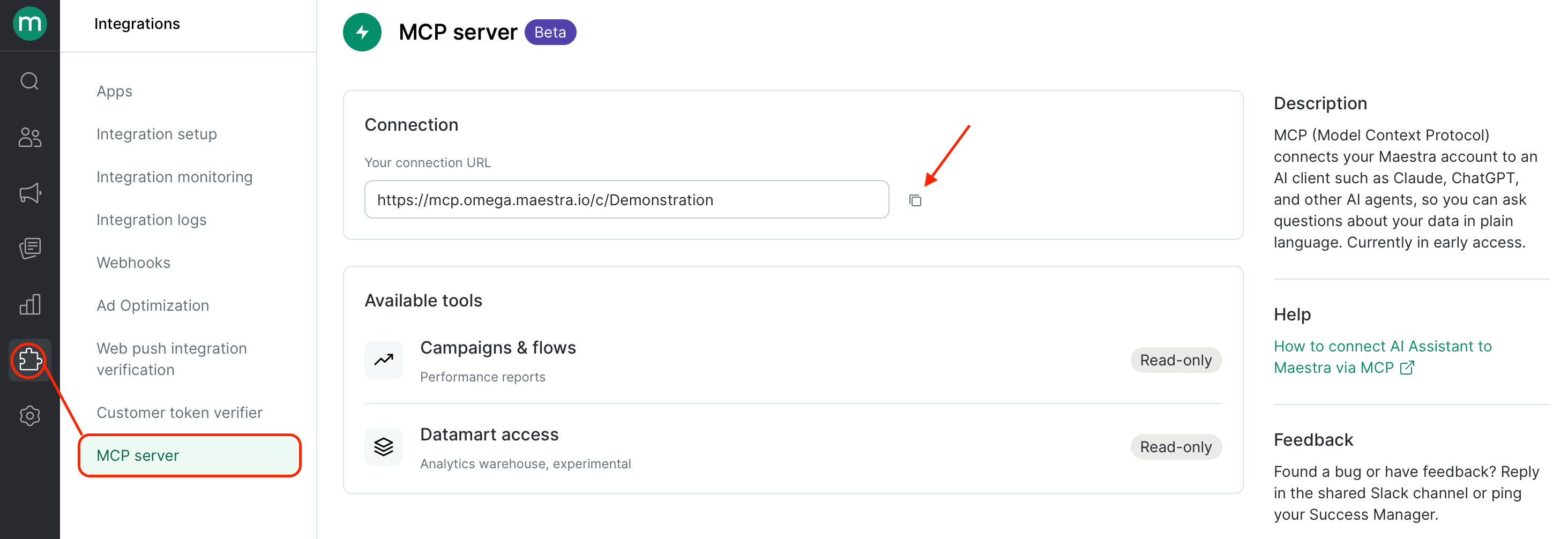
Before connecting your AI assistant, go to Integrations → MCP server in Maestra Platform and copy your connector URL. You’ll need it in the steps below.You need the MCP Access permission to see this section. It’s grantedby default to Owners, Analysts, and Marketers. If the section isn’t visible, ask your account Owner.
Connect Claude
Claude (claude.ai, desktop, and mobile apps) supports custom MCP connectors. How you add it depends on your Claude plan:- Pro or Max plan
- Team or Enterprise plan
- Free plan
Go to Customize → Connectors → + → Add custom connector and paste the URL above.See Anthropic’s guide →
Connect via Claude Code (terminal)
Run this command:Connect ChatGPT
ChatGPT supports MCP connectors in a similar way. Use the same URL above. Refer to OpenAI’s documentation for setup steps in your ChatGPT account.Other AI agents
The MCP spec is open, and other clients (Cursor, Cline, and custom agents) should work with the same URL and OAuth flow. That said, Maestra Platform has only been tested end-to-end with Claude and ChatGPT. Treat other clients as exploratory — not yet a supported integration.Maestra skills
Skills sit on top of MCP: instead of you explaining a task step by step, your assistant follows Maestra’s own instructions for getting it done.- Install them from github.com/maestra-io/maestra-plugins — no zip files to download and unpack.
- Two skills are available today: filter creation and email campaigns.
- New skills are added over time and roll out to you automatically.
What can I ask Maestra’s MCP?
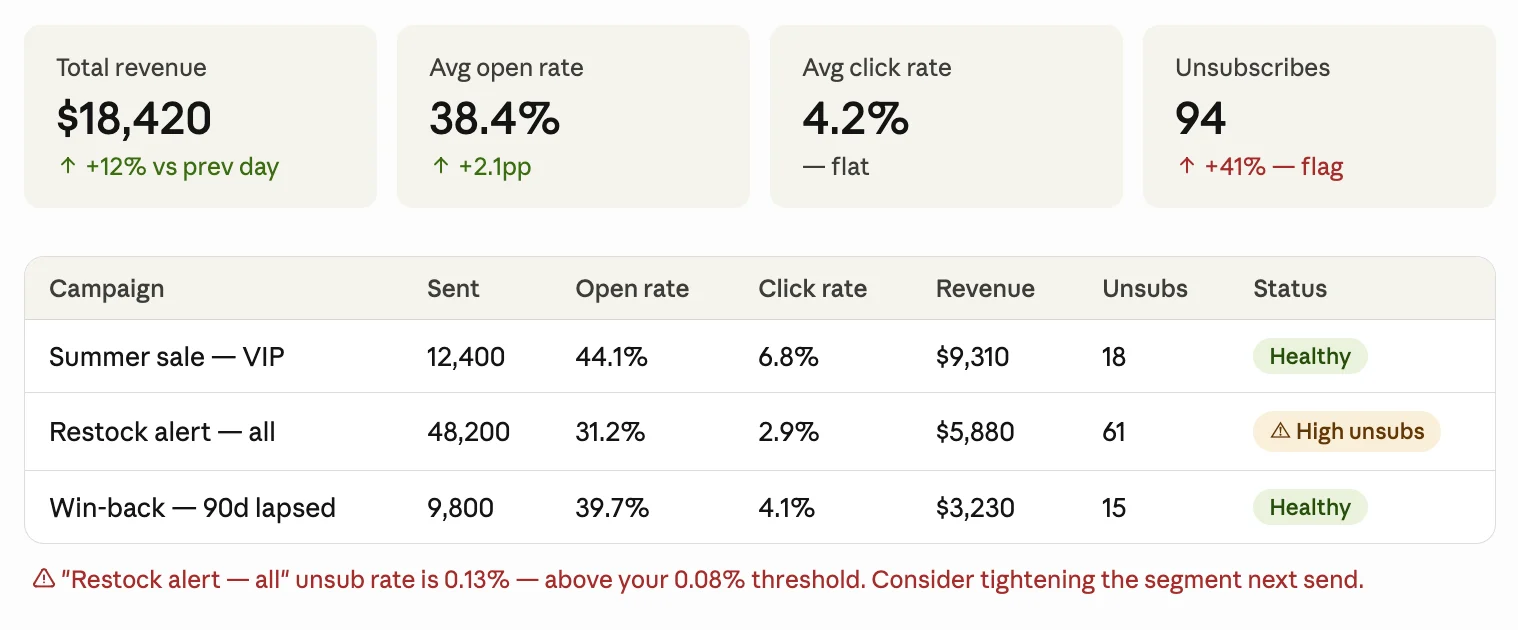
You: Show me yesterday’s email campaign results — revenue, open rate, click rate, unsubscribes. Flag anything that looks off.
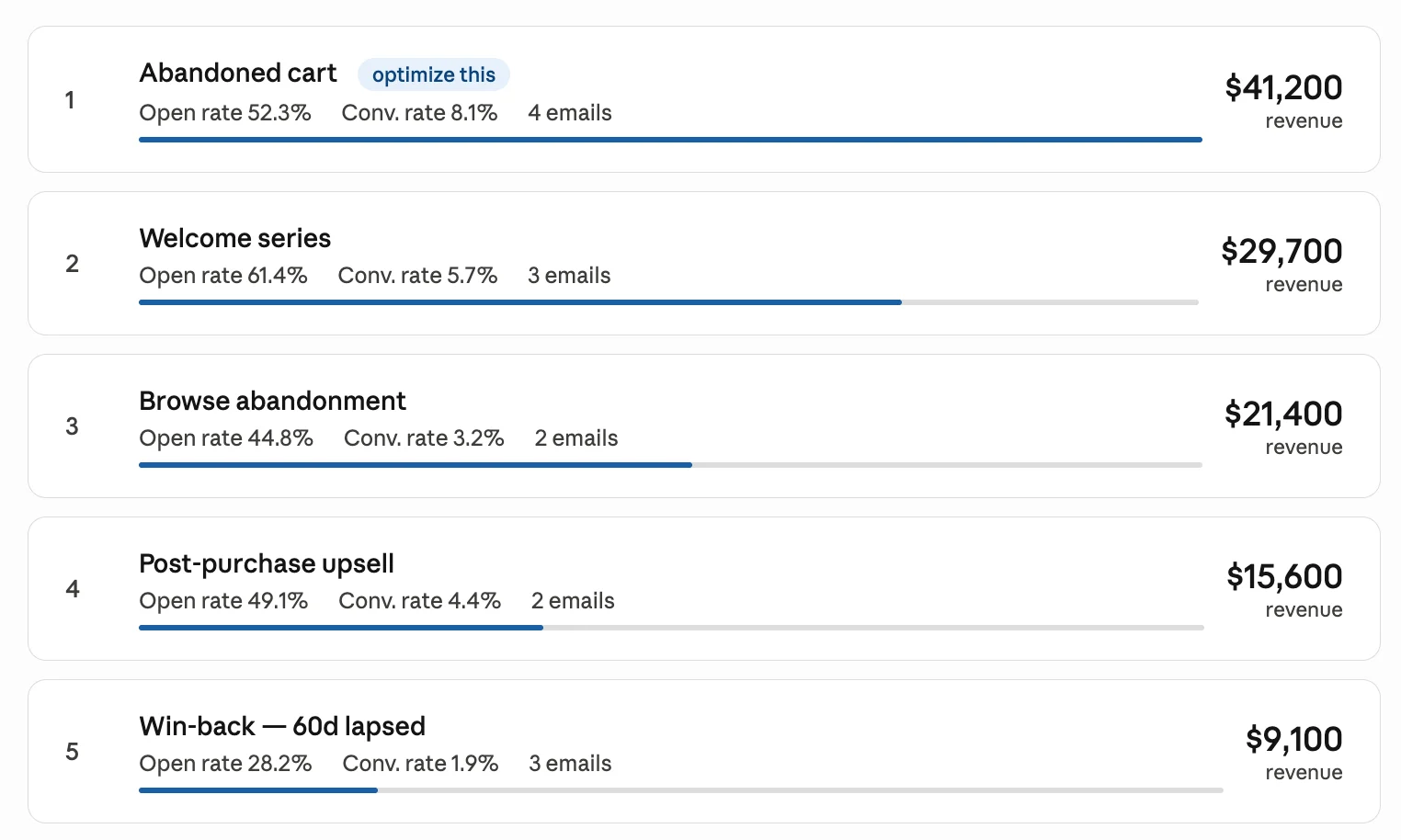
You: Which email flows drove the most revenue over the last 30 days? Show me top 5 with open rate and conversion rate.
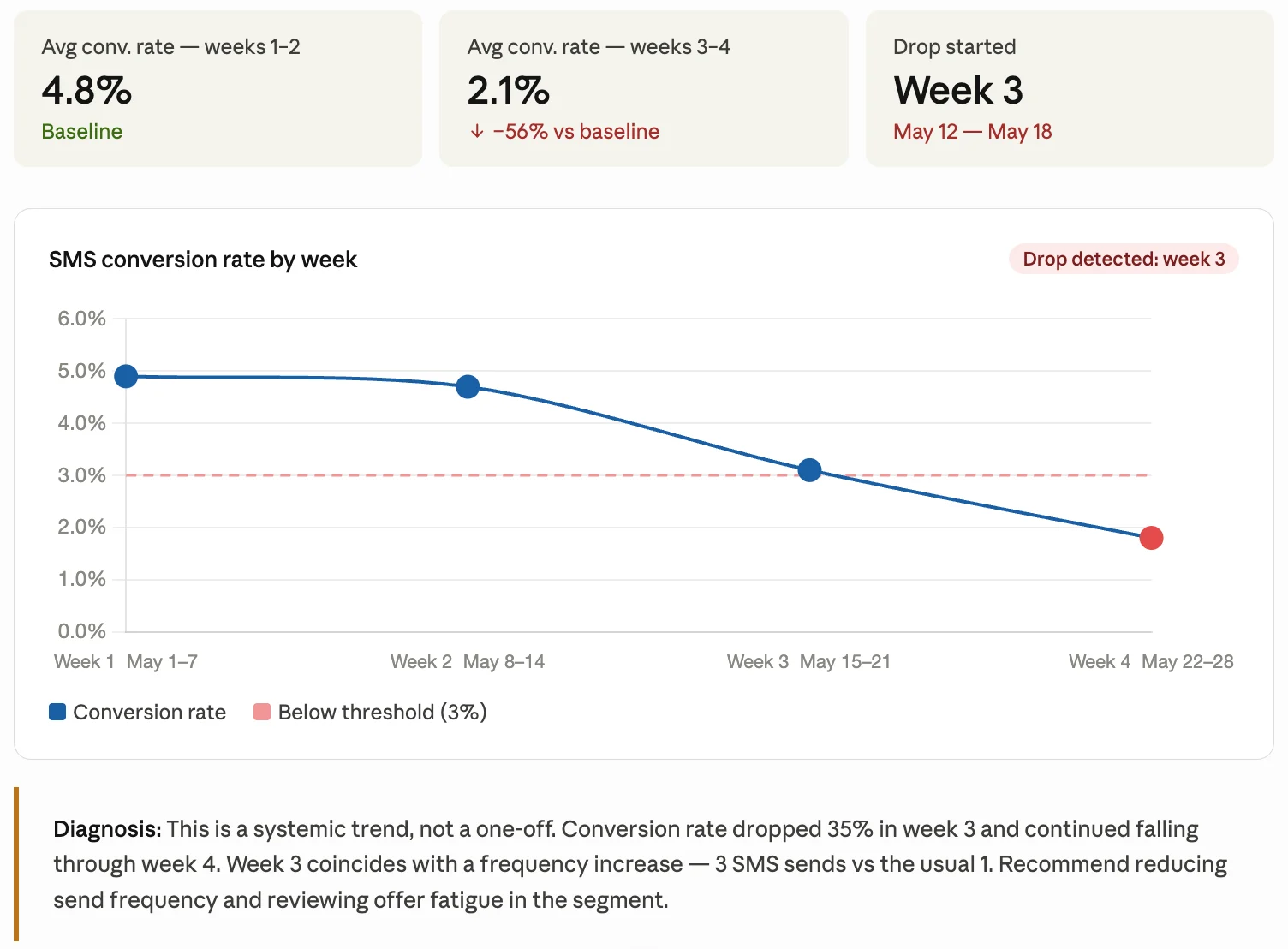
You: SMS campaigns over the last month — show me conversion rate by week. Is there a drop, and if so, which week did it start?
Security and data privacy
- Authentication. The MCP endpoint uses your existing Maestra staff login. The same role-based permissions that apply in the admin panel apply through MCP — if an action requires additional permissions, they’re enforced the same way.
- No customer PII is exposed. The MCP tools return aggregated performance metrics only. No personal data belonging to your customers is transmitted.
- No third-party sharing. Maestra does not share your session data with third parties, including LLM providers. The data that passes through your MCP session (request parameters and results) is stored temporarily for debugging and quality improvement, and is purged when your account is offboarded.
- You control your AI provider’s data policy. How your AI assistant (Claude, ChatGPT, etc.) handles the data it receives is governed by your agreement with that provider — manage this through your Anthropic or OpenAI account settings.
Troubleshooting
The connector won't authenticate
The connector won't authenticate
Make sure the MCP feature is enabled for your account and the MCP Access permission is granted.
I don't see the MCP Access permission
I don't see the MCP Access permission
Contact your account Owner to grant you the MCP Access permission.
A new tool isn't showing up
A new tool isn't showing up
Restart your AI assistant app. Tool lists refresh on startup.
I'm on a Team or Enterprise Claude plan and can't add the connector
I'm on a Team or Enterprise Claude plan and can't add the connector
Only your Claude organization Owner can add connectors for Team/Enterprise plans. Reach out to whoever manages your organization’s Claude account.
The AI assistant isn't using any Maestra tools.
The AI assistant isn't using any Maestra tools.
Your MCP authorization may have expired. MCP sessions last up to 30 days — after that, Claude loses access to Maestra data and stops responding with real results. To fix this open connector settings and sign in again.