

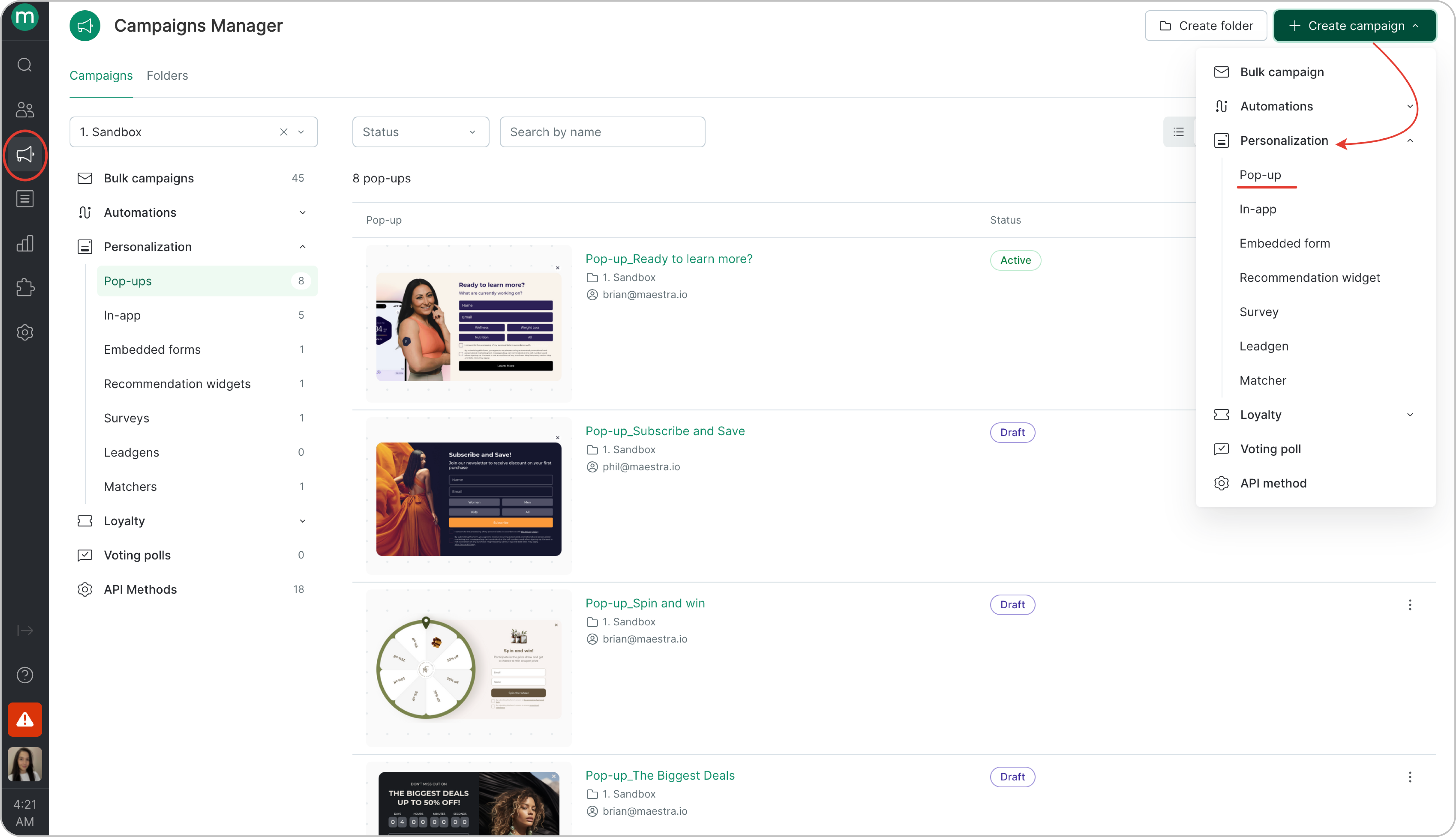
- Go to Campaigns Manager→ Create campaign
- Personalization → Pop-up.
.png?fit=max&auto=format&n=05-EV9YqA_RINTJ8&q=85&s=fda82b14f64303d316bcb824747d9d5e)
Choose a template
Next, choose a template depending on the purpose of the pop-up. You can use it to:- Generate leads
- Increase conversion & average order value
- Notify visitors
- Conduct a survey
.png?fit=max&auto=format&n=PP-BodS5bFF14NYd&q=85&s=51e286b80c2ef29890f35d31046fc2fe)

Edit the template
Once the pop-up is created, click the Edit button .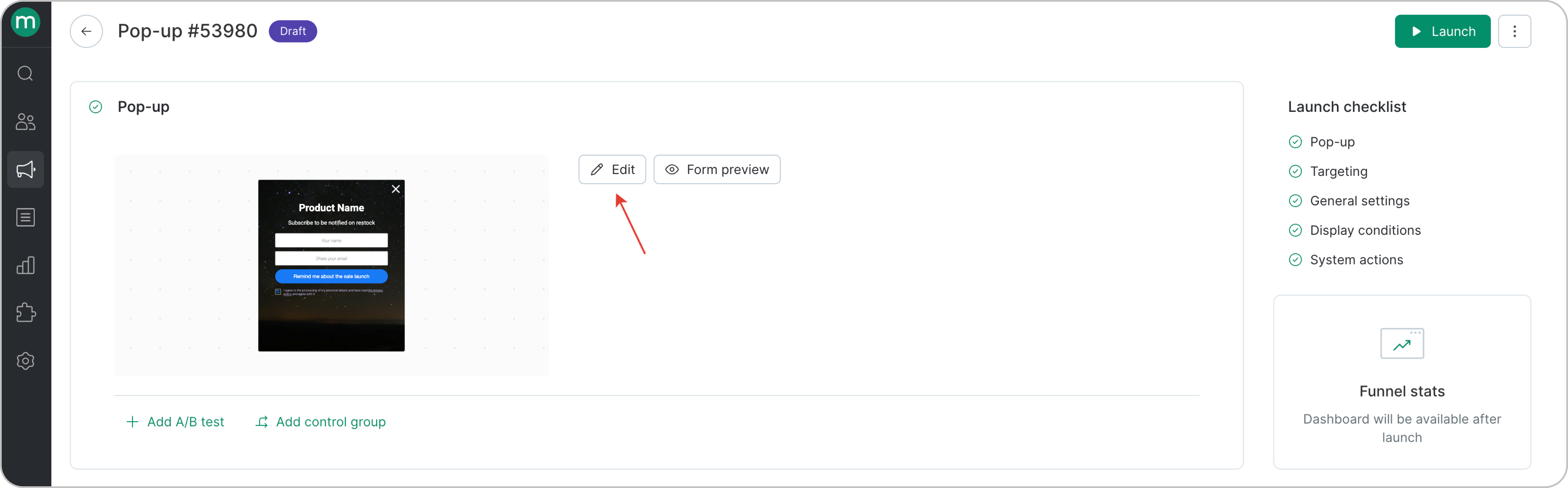
.png?fit=max&auto=format&n=05-EV9YqA_RINTJ8&q=85&s=1d6b9a24ddf856aa6213c814adfbced7)
.png?fit=max&auto=format&n=05-EV9YqA_RINTJ8&q=85&s=a99a65c0365d0e9302316137f591ba55)
- Adjust the pop-up’s position on the website (Form position button)
- Check how the pop-up displays on different devices (Desktop/Tablet/Phone).
- Configure background color, icons, border and field sizes, fonts, privacy policy and other visual options.
.png?fit=max&auto=format&n=05-EV9YqA_RINTJ8&q=85&s=a1ad410c0c8c617bd34b33dd1cfe1753)
- Edit the pop-up directly in HTML code (<>Code button)
- Configure the main screen and the confirmation screen after the customer completes the action.
- Preview the form on your website.
New pop-up templates
New templates allow you to create forms that are different for each device. They are also easier and more intuitive to configure. You can find them in the gallery, where they are marked with a “New” label..png?fit=max&auto=format&n=05-EV9YqA_RINTJ8&q=85&s=c5d300b9d06404db84ca7e7cb5e234db)
Pop-up editing pageWhen you open a page, you’ll see a list of elements included in the form. You can move, delete, or add new ones.
.png?fit=max&auto=format&n=05-EV9YqA_RINTJ8&q=85&s=51f80f99a37eb4bcdb56c4094565a7d8)
- timer
- promo code field
- option buttons
-
close button
.png?fit=max&auto=format&n=05-EV9YqA_RINTJ8&q=85&s=d1e3e36c4fe0869a6a907fccbfbe4ee0)
Editing elementsTo edit an element, click it in the list or on the preview.
.png?fit=max&auto=format&n=PP-BodS5bFF14NYd&q=85&s=a90c66d8340ba9ea73f7cda0ea39e3e8)
New templates allow you to customize each text element for different screens, including font style, size, color, and alignment.
Device-specific designBy default, most elements automatically sync and adjust to the mobile version.To set custom properties, disable synchronization and configure settings for the specific device.
.png?fit=max&auto=format&n=PP-BodS5bFF14NYd&q=85&s=416f6c3d2897a545a5e8696554bd40bc)
General form settingsTo adjust general form settings (font, close button, layout, etc.), go back to the General settings page.
.png?fit=max&auto=format&n=PP-BodS5bFF14NYd&q=85&s=f86b1dd6510000a0bfb58d053279b770)
.png?fit=max&auto=format&n=PP-BodS5bFF14NYd&q=85&s=b47a10b31bc41fe8346dc190e12654ea)
With the new templates, you can set a fixed height for all screens. This is useful when screens contain different content and their heights vary.
Saving data when closing the second screenFor templates with multiple main screens, you can configure the form to save entered data when the second screen is closed.In this case, all fields on the second screen become optional.
To enable: open General settings desktop→ Data transfer → User data and activate the option..png?fit=max&auto=format&n=PP-BodS5bFF14NYd&q=85&s=3ed21f563a4ad7c1698b34d5744fdaa2)
Targeting
Use filters to define who will see the pop-up and under what conditions.You can preconfigure a customer segment and show (or hide) the form for that segment.For example, here’s a filter for customers whose birthday is in 7 days (segment created in advance)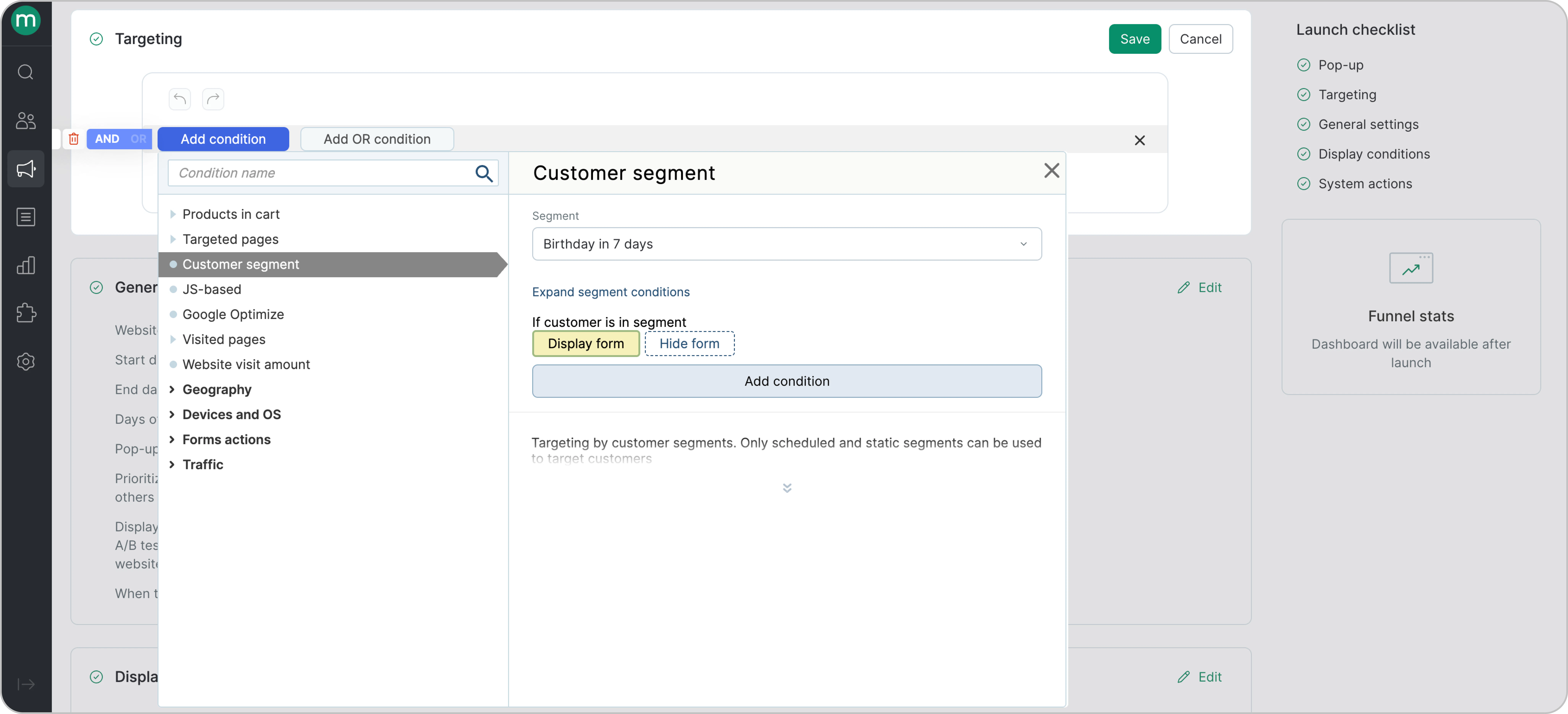
General Settings
In General settings, specify:- Website
- Days of the week for display
- Frequency of appearance
- Whether the form is priority. If checked, the pop-up will appear even if frequency limits per visitor are set in the “Pop-up frequency control” section.
For example, these are the settings for a form that will be displayed daily, but will only pop up once for each user during a visit to the site (and form is a priority)..png?fit=max&auto=format&n=PP-BodS5bFF14NYd&q=85&s=56707b3a4ef7b5db3a4d4f2c311ab51d)
Display conditions
Next, set the pop-up display conditions: 1. By set of conditions- After Exit intent (cursor leaves the active page area) - only for desktop campaigns.
- After page scrolled for X %
- After a certain time spent on the page.
- After visiting a defined number of pages.
- After being inactive for period of time
- On a specific action performed on the website.2. Immidiately after falling into target group 3. After API-request or click on call-to-action button
For example, these are the settings for a form that will be displayed for a customer who has visited two pages of the site in total..png?fit=max&auto=format&n=PP-BodS5bFF14NYd&q=85&s=36e07b05bb0cc1908aceb335307bad26)
What happens after form was filled & Custom JS-calls
.png?fit=max&auto=format&n=PP-BodS5bFF14NYd&q=85&s=ab09c12c7284e53b88842725f67db32d)
- Create new customer or edit an existing one
- Add an action
- Transfer events to Google Analytics
- Call custom JS code. The available actions depend on the selected template.
How to test the pop-up on your website
Click Form preview. Insert your website link and open it..png?fit=max&auto=format&n=PP-BodS5bFF14NYd&q=85&s=d2eb7ffedc1897b808ebbb50146a4086)
.png?fit=max&auto=format&n=PP-BodS5bFF14NYd&q=85&s=8c659420327eabb00d0557ff98ee4efc)