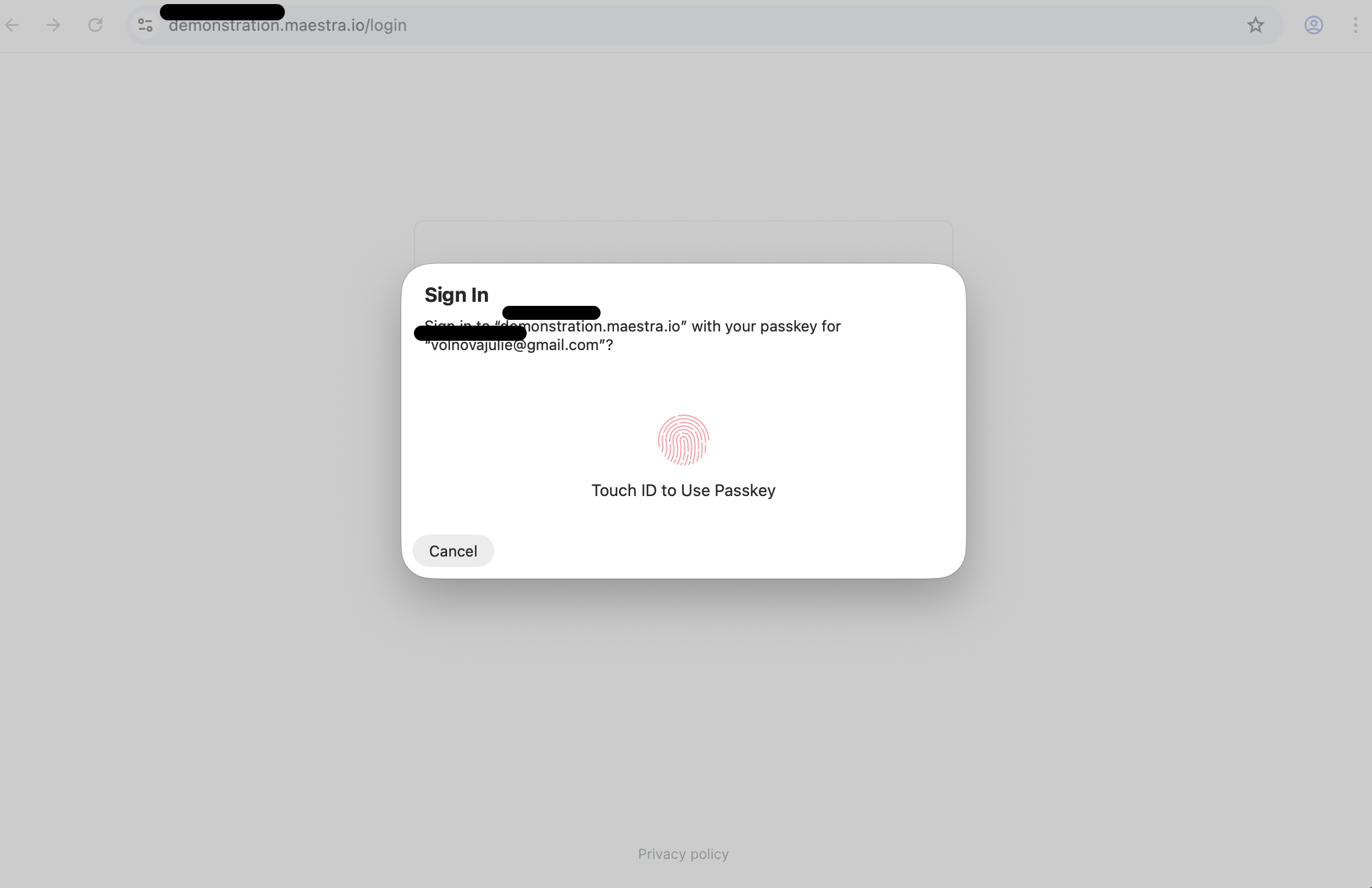
Passkey login is enabled by default for all projects. If you experience any issues, please contact Maestra Support.
Managing Passkeys: Owner/Admin Guide
To manage passkeys, you need the View user settings and Edit users permissions. By default, these permissions are granted to project owners and administrators. If needed, you can assign them to other team members. Owners, administrators, and any staff members with the above permissions can:- View which users have passkeys set up.
- Send an email to create a new passkey for users who’ve lost access or need an additional passkey for another device.
- Reset existing passkeys.
How to send a setup email to a new user
You can add new users manually or via import. After adding them, go to the staff editing page and click Send new passkey. The user will receive an email with a link to set up their passkey..png?fit=max&auto=format&n=8VE_QojSxRA8jQ0B&q=85&s=dcff11c4ab0f1862139211dcd8968385)
How to set up an additional passkey for a user
A user may need an additional passkey if they access Maestra from multiple devices that cannot share the same passkey. For example, when one is stored locally in Windows Hello or Google Password Manager under a corporate account. To set up an additional passkey:- Go to Settings → Security → Users.
- Open the user’s profile.
- Click Send new passkey.
Helping users with passkey issues
If a user reports that:- Their password manager has changed, but the passkeys weren’t transferred.
- They lost the device on which their passkey was set up.
- A passkey has been compromised.
- Go to Settings → Security → Users.
- Open the user’s profile.
- Click Reset keys.
- Send a new key.
.png?fit=max&auto=format&n=8VE_QojSxRA8jQ0B&q=85&s=af07a9027331a9cdfcf3b46dfd528735)
Passkey Setup: From Email Invitation to Sign-In
New users
Once the project owner creates your profile, you’ll receive an email with a link to set up your access.- Follow the link from the email.
.png?fit=max&auto=format&n=8VE_QojSxRA8jQ0B&q=85&s=3f601b4e00920788ff2702f2f4dc2a32)
- In the window that opens, click Set up.
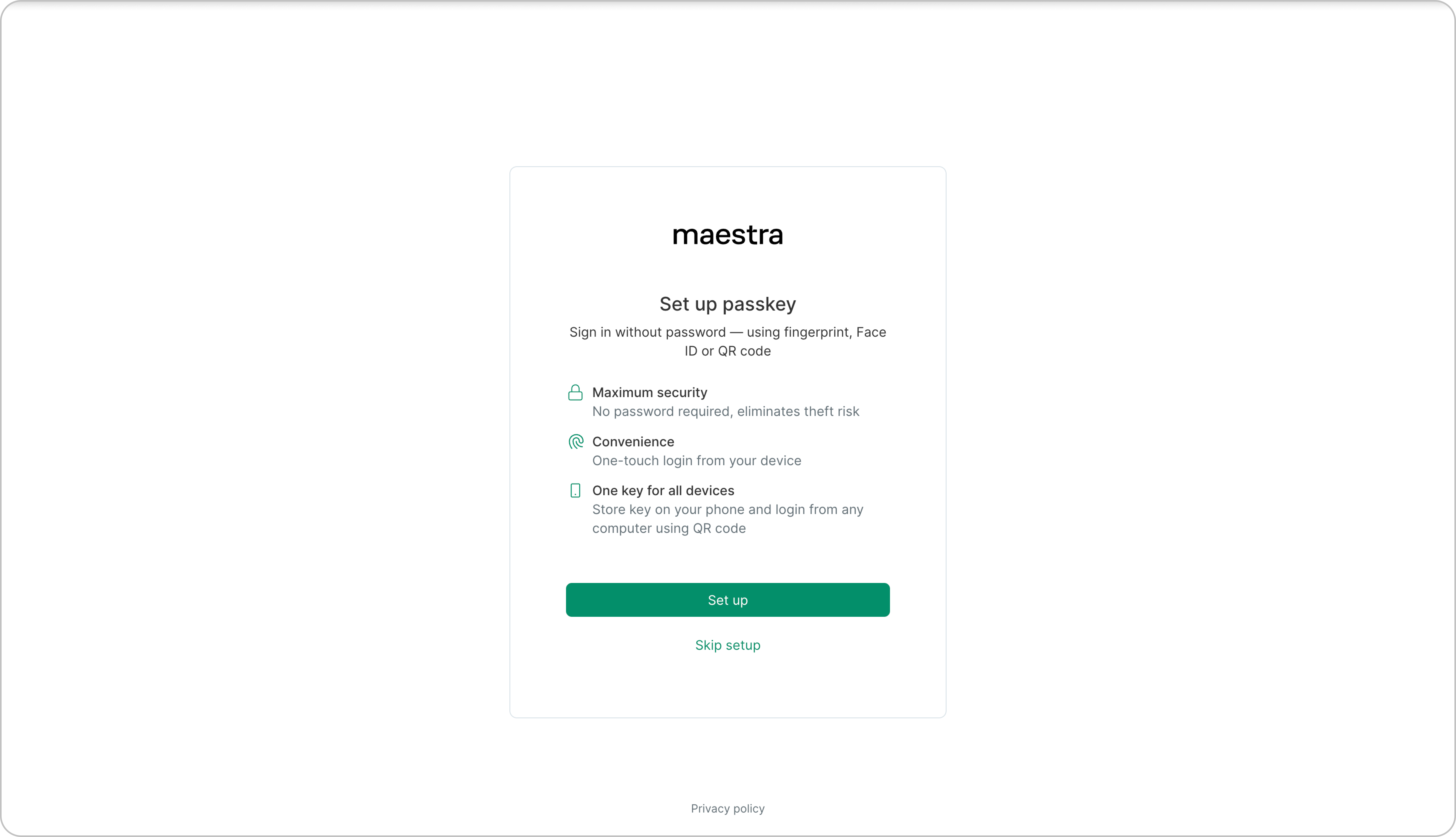
- Choose where to store your passkey:
The options available in the system window depend on your browser, device operating system, and installed password managers.
Using iCloud Keychain
Using iCloud Keychain
It is available for selection in the system window when setting up the passkey on Apple devices.
- In the system window, select “iCloud Keychain.”
.png?fit=max&auto=format&n=8VE_QojSxRA8jQ0B&q=85&s=1b0ab7232951fad3b9ccbcb771046e2e)
.png?fit=max&auto=format&n=8VE_QojSxRA8jQ0B&q=85&s=cb75e287ae14d5efd52ef2126c80a346)
Using Apple or Android mobile phone
Using Apple or Android mobile phone
This option is available in the system window of your browser if it supports passkeys and your device supports Bluetooth.
- In the system window, select “Use a phone, tablet, or security key.”
.png?fit=max&auto=format&n=8VE_QojSxRA8jQ0B&q=85&s=5abd1f2f49ece75d8684a02a6235e847)
.png?fit=max&auto=format&n=8VE_QojSxRA8jQ0B&q=85&s=2cd5a5bc30a29000e7050416a3dc2506)
- In the system window, select “Iphone, Ipad or Android device”.
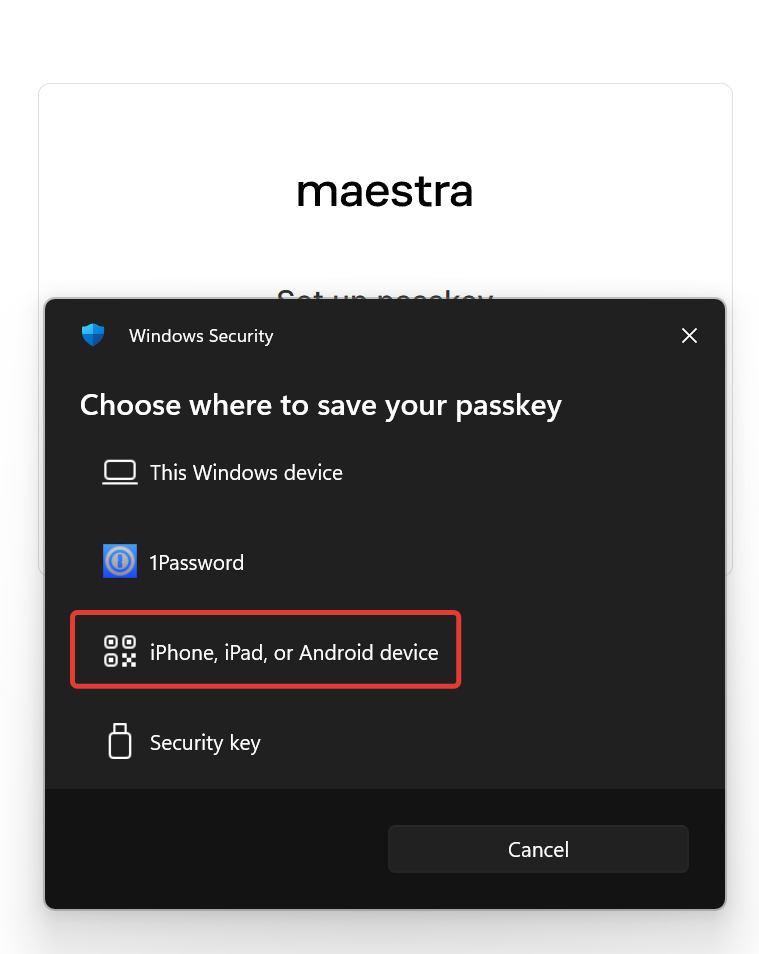
- Use your device’s camera to scan the QR code and save the passkey for logging in.
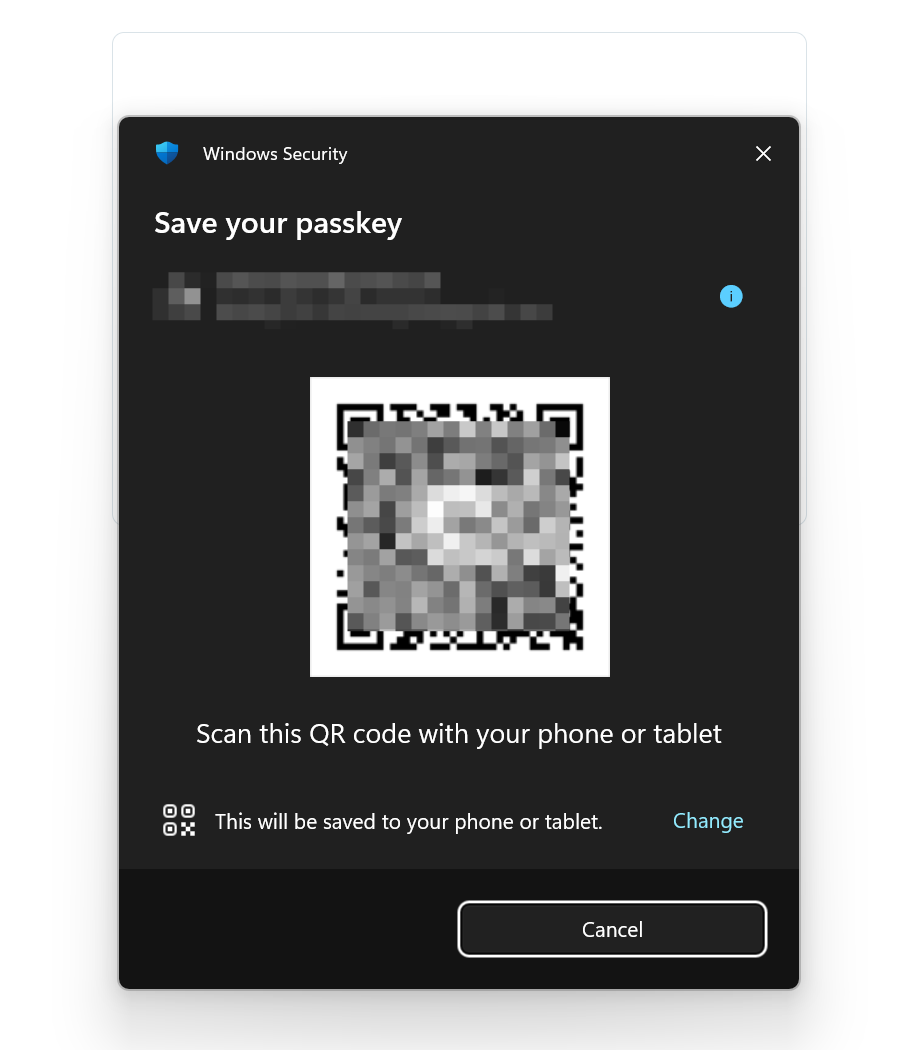
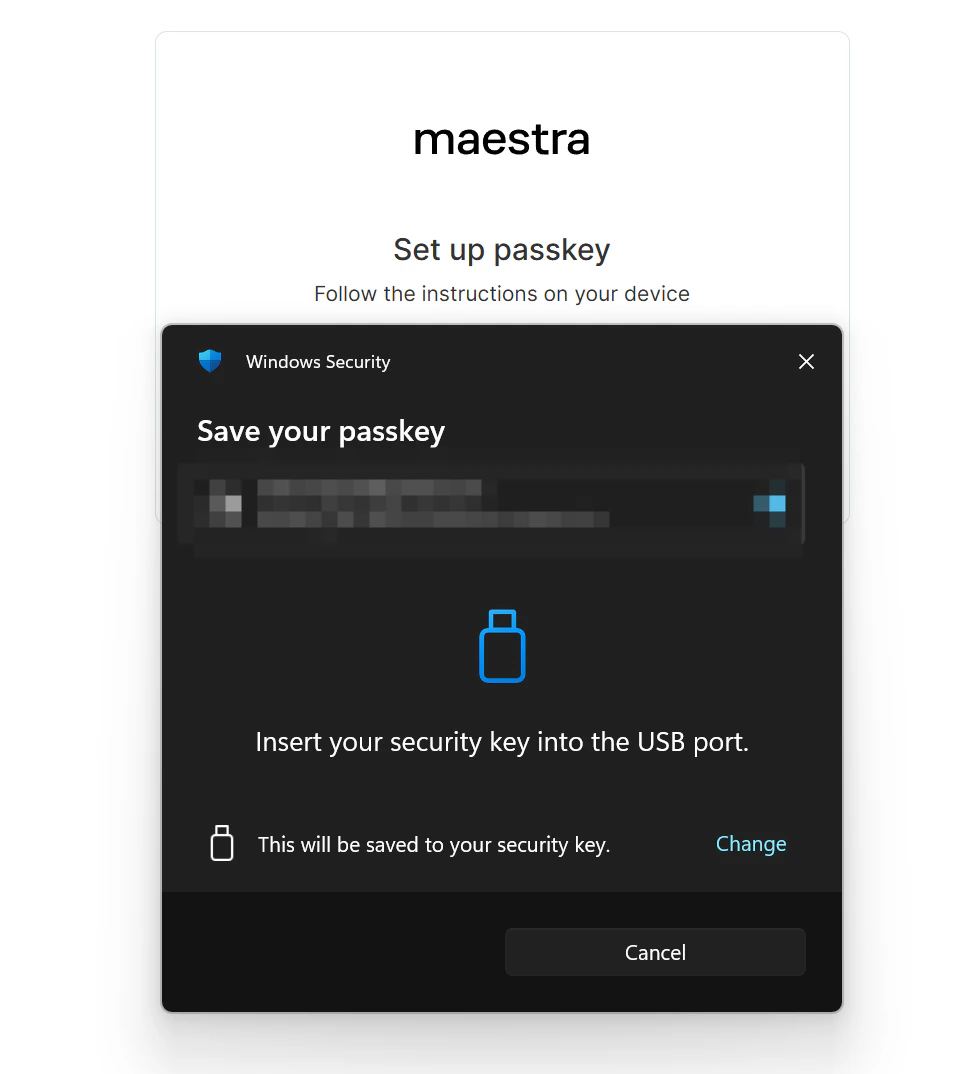
- Make sure your device supports Bluetooth, and that it is turned on on both your phone and computer during setup.
- If Bluetooth was turned off, turn it on and refresh the page to start setting up the keys again. When the system window appears asking if you want to continue with USB port, click “Cancel”.
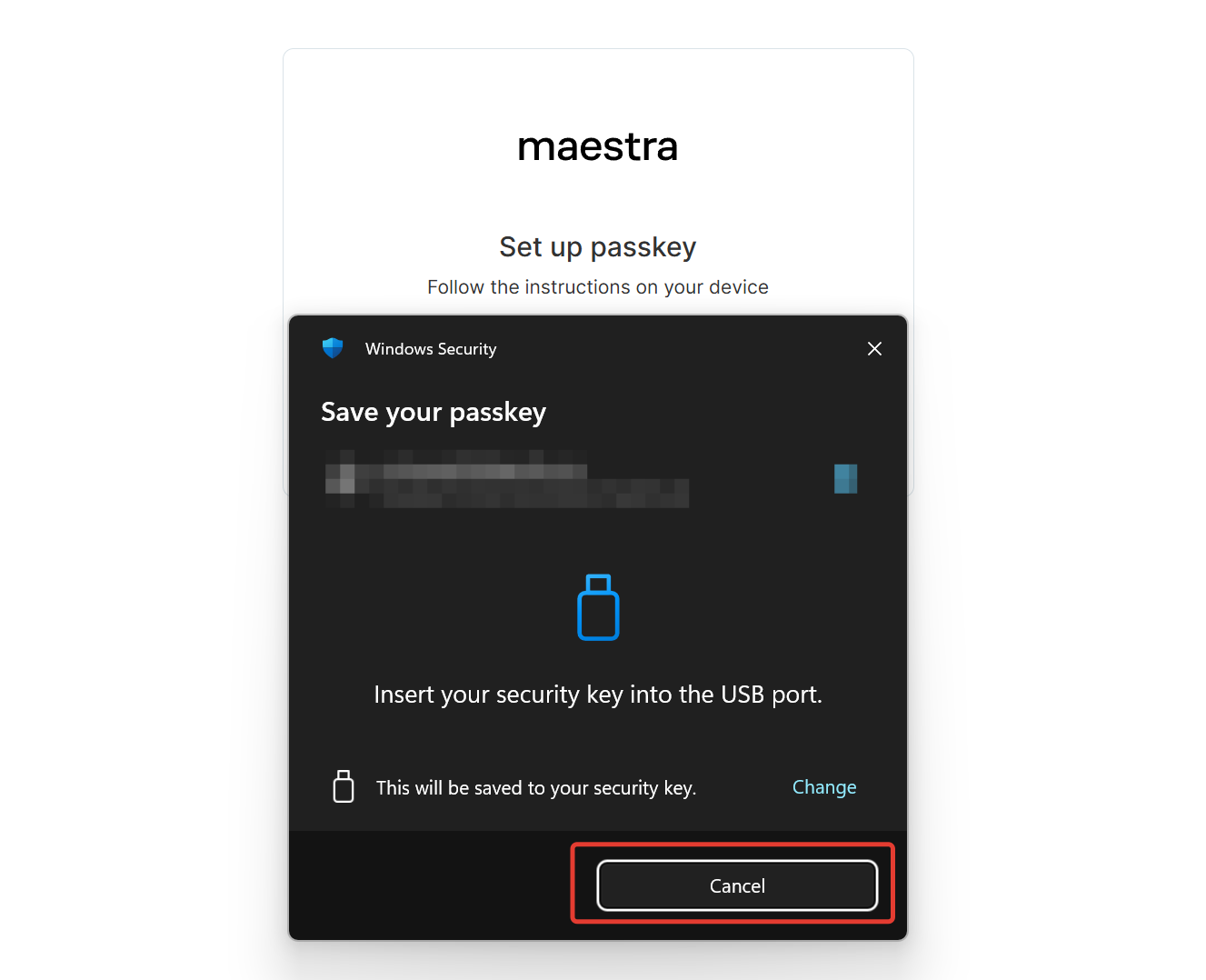
If the above method does not work and the system does not offer any options except for a USB key, please contact Maestra Support.
Using Google Password Manager
Using Google Password Manager
It is available for selection in the system window of the Chrome browser. To save the passkey, you need to be authorized in your Google account.
- In the system window, select “Google Password Manager”
.png?fit=max&auto=format&n=8VE_QojSxRA8jQ0B&q=85&s=2e27000c1eb1447871c8a987d978ea96)
- Save the passkey in your Google account.
.png?fit=max&auto=format&n=8VE_QojSxRA8jQ0B&q=85&s=7f2169ec5a056d6e0c54739ab1b1097d)
Using Chrome profile
Using Chrome profile
This option is available for selection in the system window of the Chrome browser.
- In the system window, select “Your Chrome profile”
.png?fit=max&auto=format&n=8VE_QojSxRA8jQ0B&q=85&s=86d1026cf7ea2d3532d5d12b86577409)
- Save the access key in your profile.
.png?fit=max&auto=format&n=8VE_QojSxRA8jQ0B&q=85&s=3a8f28303283a08bc6e92b970d2f8f5f)
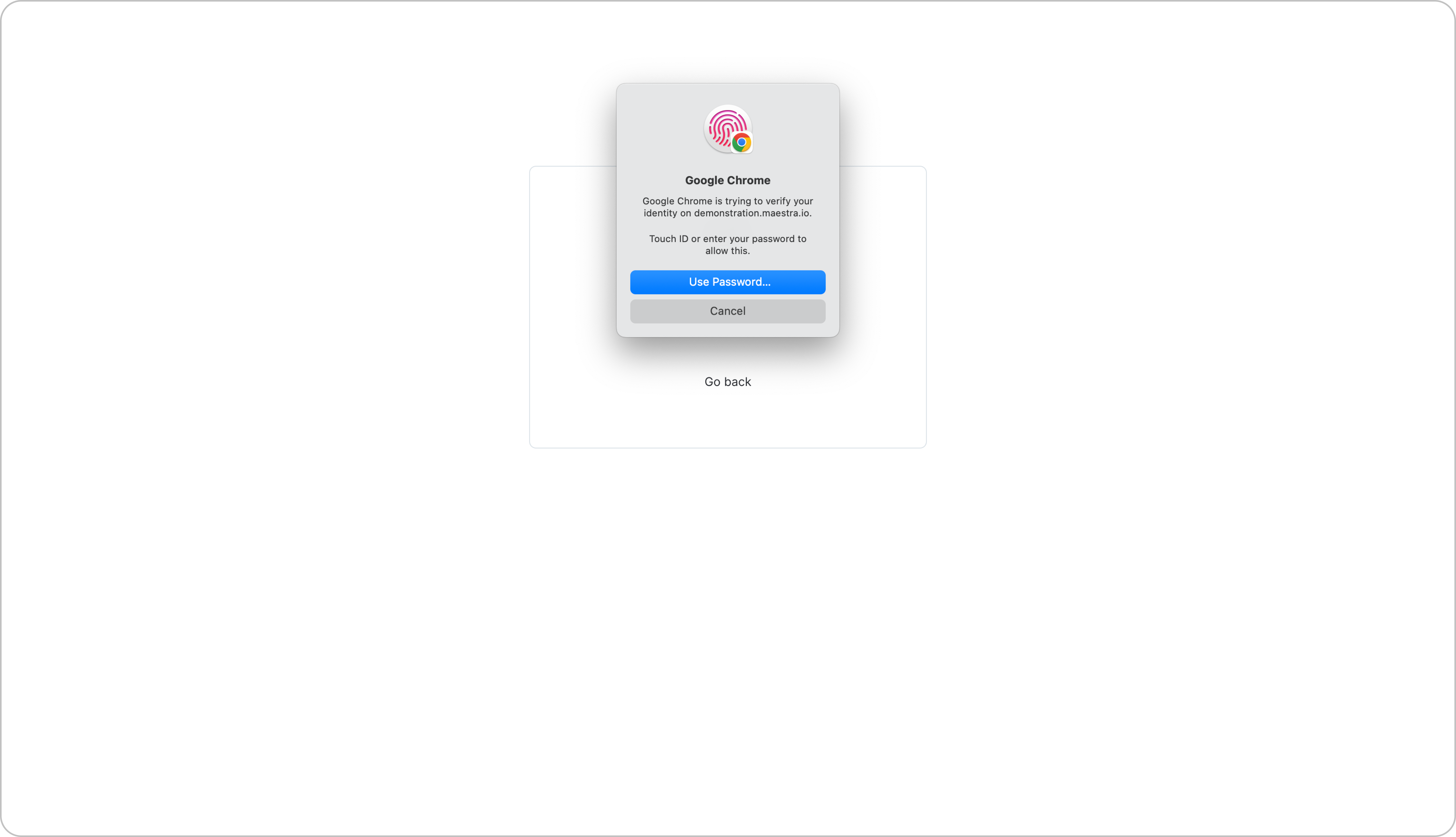
Using Windows Hello
Using Windows Hello
Available for selection in the system window on Windows computers that have PIN or fingerprint sign-in enabled.
- In the system window, select “Windows Hello or external security key.”
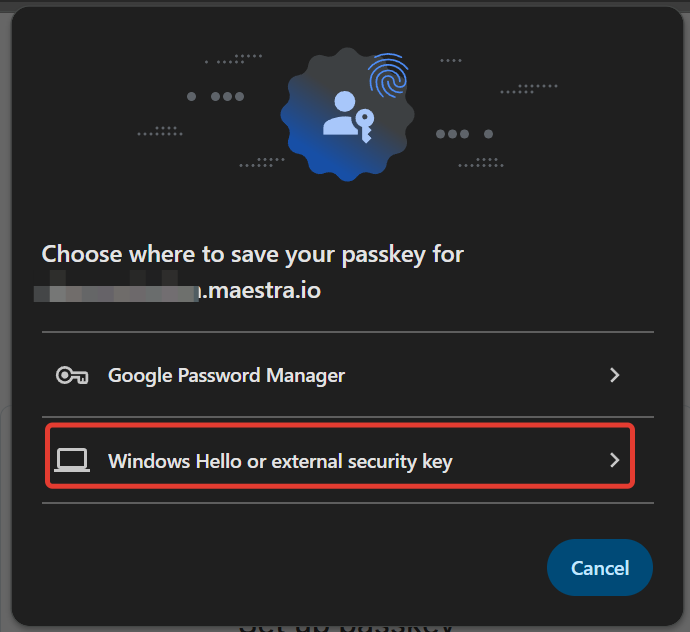
- Verify your identity by entering your PIN or scanning your fingerprint.
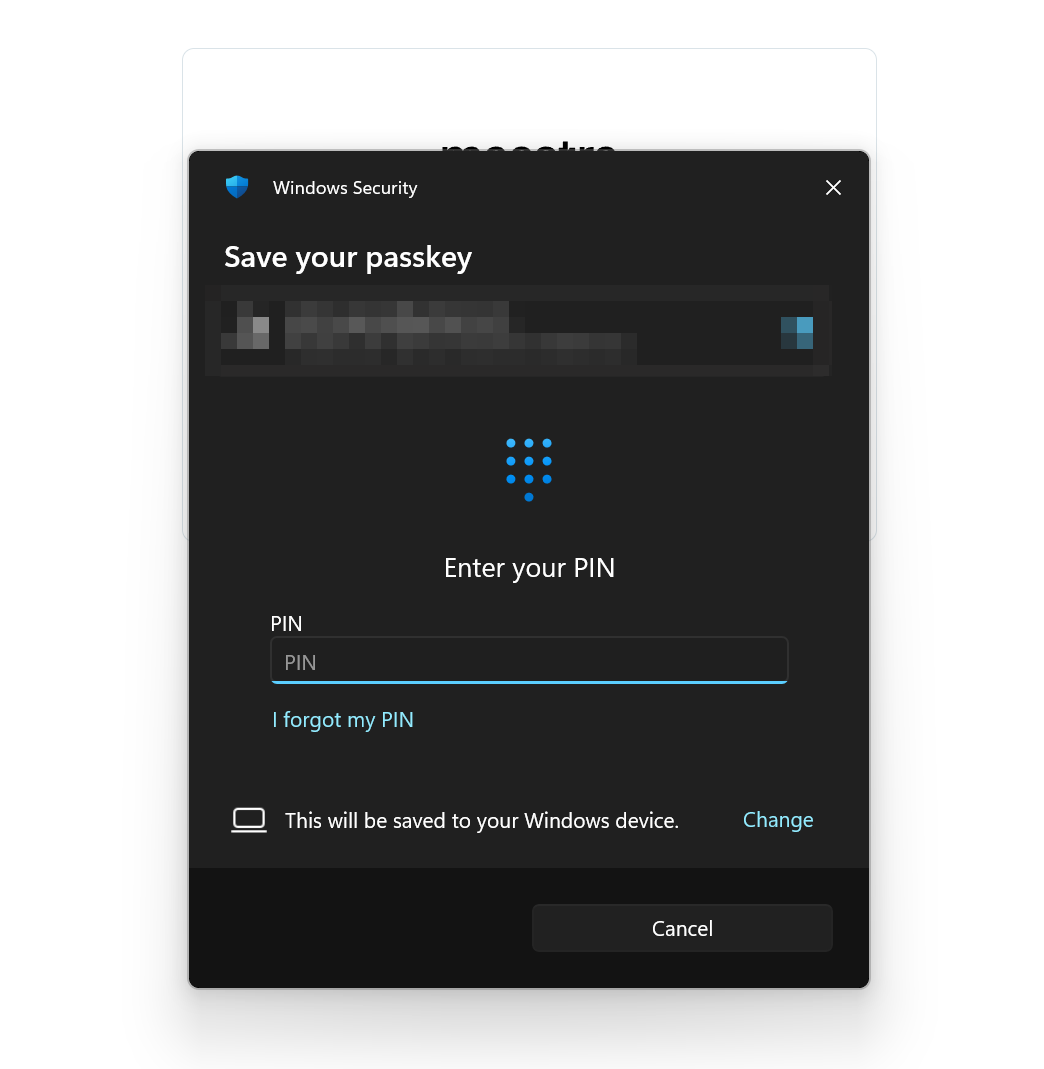
- Make sure your computer has PIN or fingerprint sign-in enabled. If not, change your sign-in method accordingly.
- After enabling PIN or fingerprint login, refresh the page and start the passkey setup process again. When prompted to insert a USB security key, click “Cancel”.
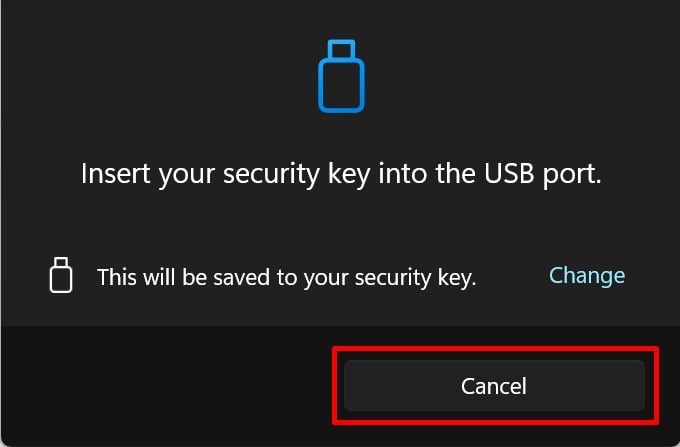
If the steps above don’t resolve the issue and the system still only offers a USB key option, please contact Maestra Support.
Using Bitwarden Password Manager
Using Bitwarden Password Manager
In this section, we’ll look at how to store your passkey in the Bitwarden password manager. You can also use other password managers, such as 1Password, Dashlane and others.
- Register an account on the Bitwarden website.
- Sign in to your Bitwarden account and install the browser extension.
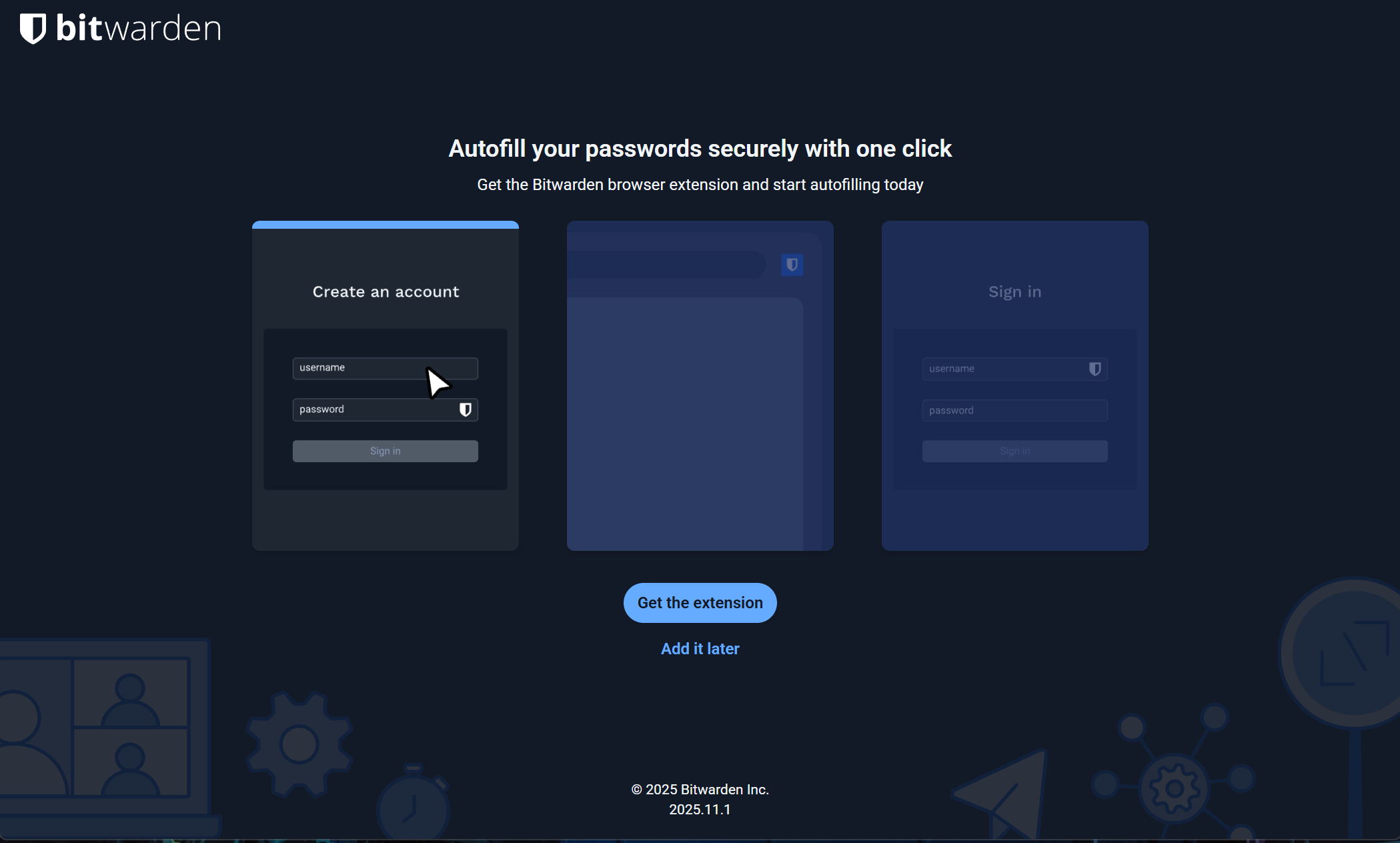
- Complete the extension setup following Bitwarden’s instructions.
- Go to the Maestra passkey setup page and click “Set up”.
- The Bitwarden extension will automatically prompt you to save your passkey. Click “Save passkey as new login”.
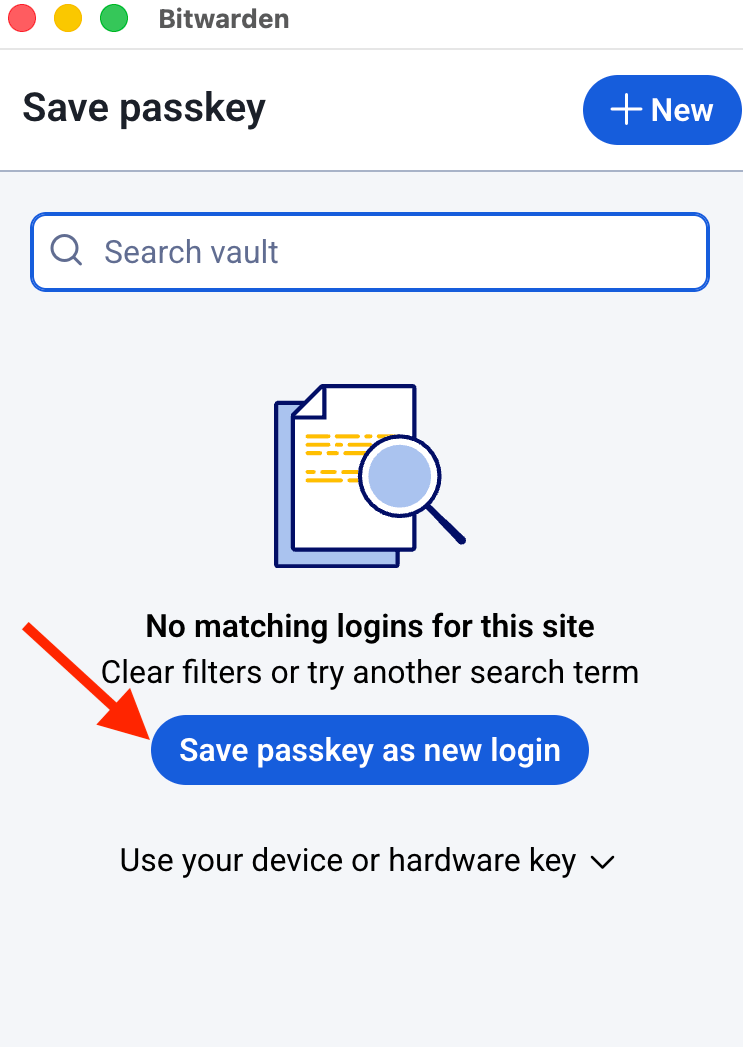
- Enter your username or email.
- Confirm authentication by selecting the appropriate passkey.
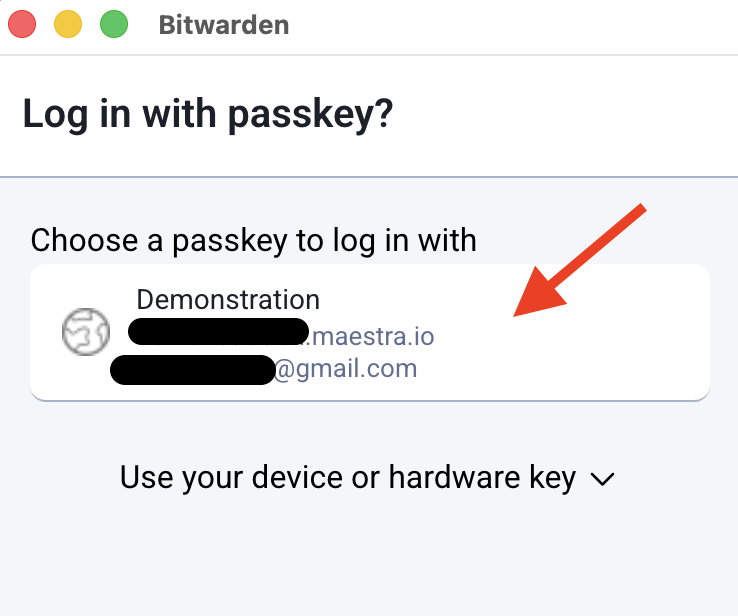
- That’s it — passkey saved.
.png?fit=max&auto=format&n=8VE_QojSxRA8jQ0B&q=85&s=5c6e6022b40423ac7ee6360af31d60d8)
Existing users
The system will prompt existing users to set up a passkey during their next login to Maestra. Follow the same setup steps described above, starting from step 2. If needed, you can postpone the setup and return to it later.How to set up passkeys on a new device
- If your passkey is stored in a password manager or iCloud Keychain: Log in to your account on the a device — the passkey will sync automatically.
- If your passkey is linked to a specific device: Contact the project owner or administrator to generate an additional passkey for a new device.
How to log into Maestra using a passkey
- Enter your email or username on the login page.
.png?fit=max&auto=format&n=8VE_QojSxRA8jQ0B&q=85&s=0e6d0cca22560fc8825b1b81d0bc93f1)