When are action templates generated?
Bulk campaign: ATs are generated when a message is sent. Tailor-made flows: ATs are generated once you finish editing and the status changes to Automated campaign is ready.What ATs are generated and when are they assigned to customers?
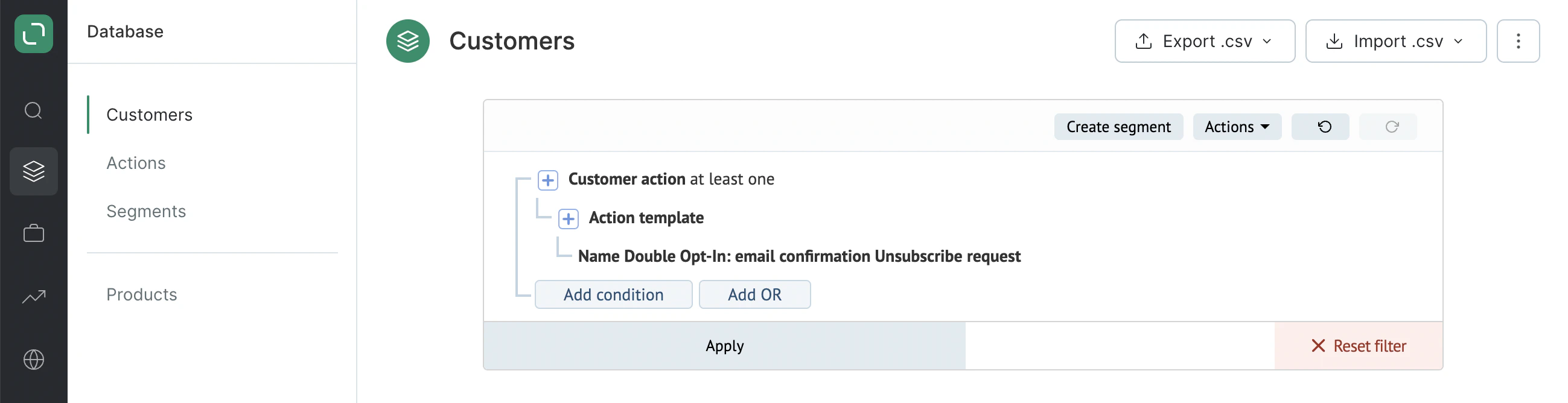
Let’s look at a Double Opt-In email as an example. While it is being created, the ATs are generated automatically. You can find these listed in the screenshot below. ATs are assigned to a customer once the customer’s status for the email changes:

How are ATs recorded in a customer’s profile?
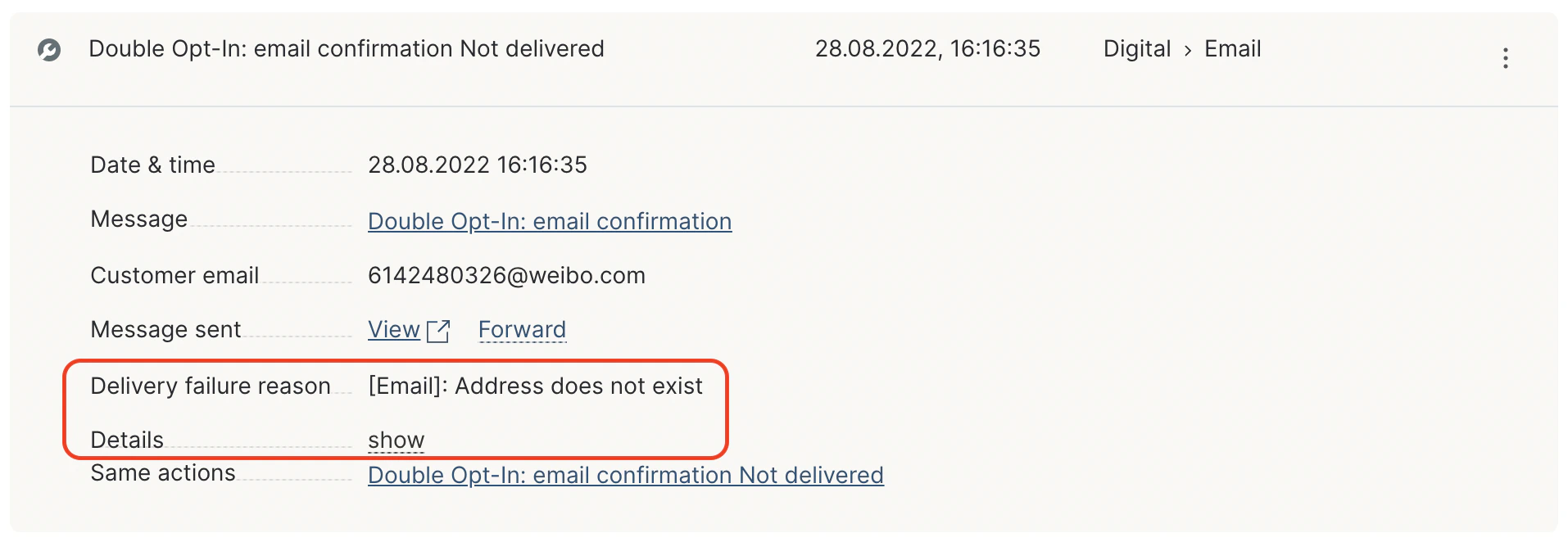
A customer is assigned a relevant AT automatically every time the status changes for a message to the customer. All the assigned actions are recorded in the customer’s profile along with the timestamp and touchpoint of the action. For example, the customer has clicked a URL in a message. If we look at their history of actions, we’ll see emails that were sent, as well as opens and clicks:
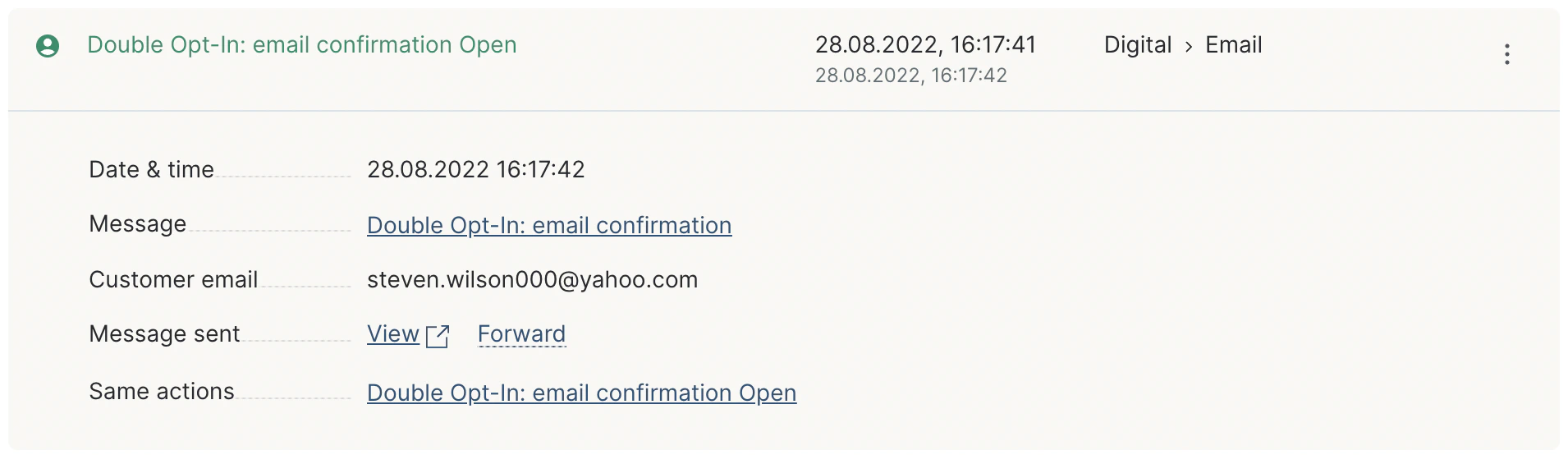
- Message: this will take you to the page where you can edit the email template.
- View: click on this URL to view the personalized email that was sent to this specific customer.
- Forward: for email campaigns only. A customer will receive AT after sending.
- Same actions: all the events when this action template was assigned to any customer. If you click this link, you’ll be taken to the Actions page with this action applied in the filter.
How to use message Action Templates:
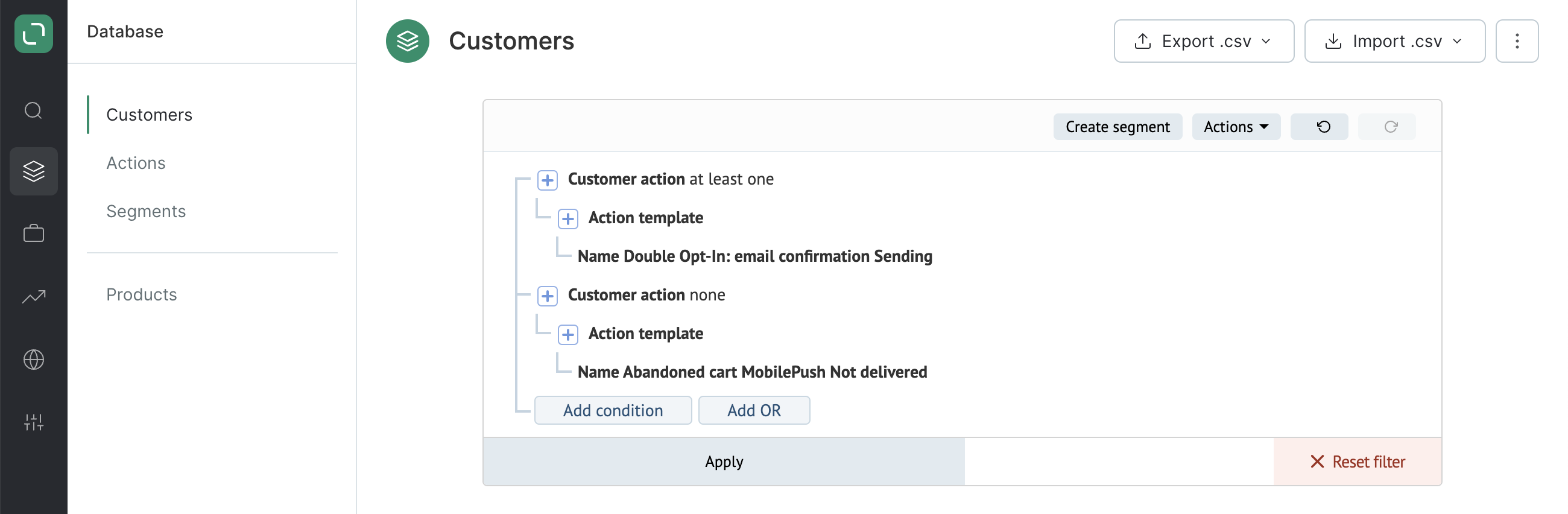
- Use the filter to select the customers that the message was sent to:

- Select the customers that the message was delivered to.
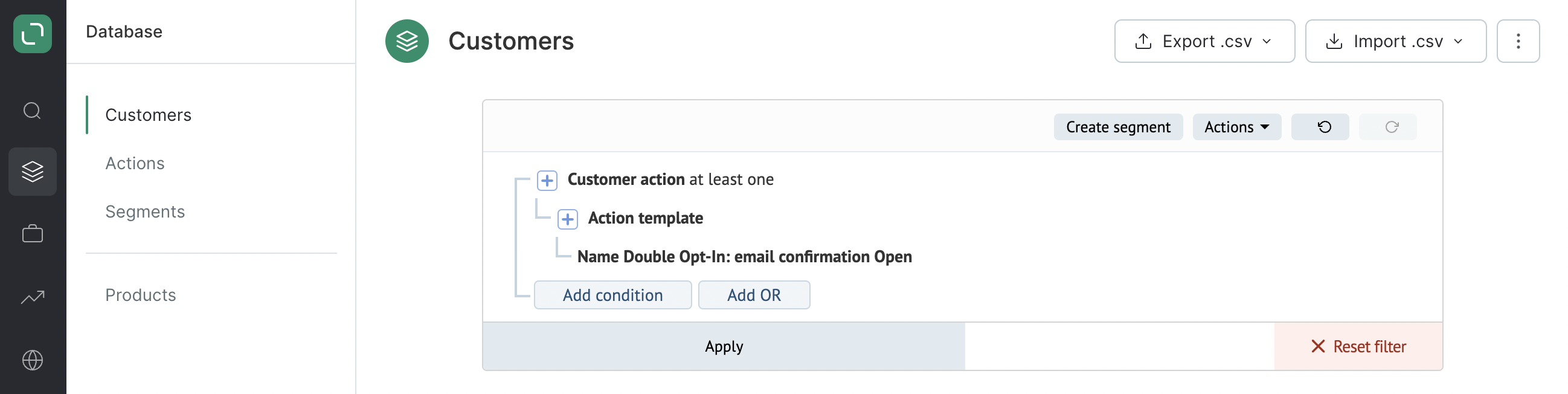
- Filter the customers who have opened the message:
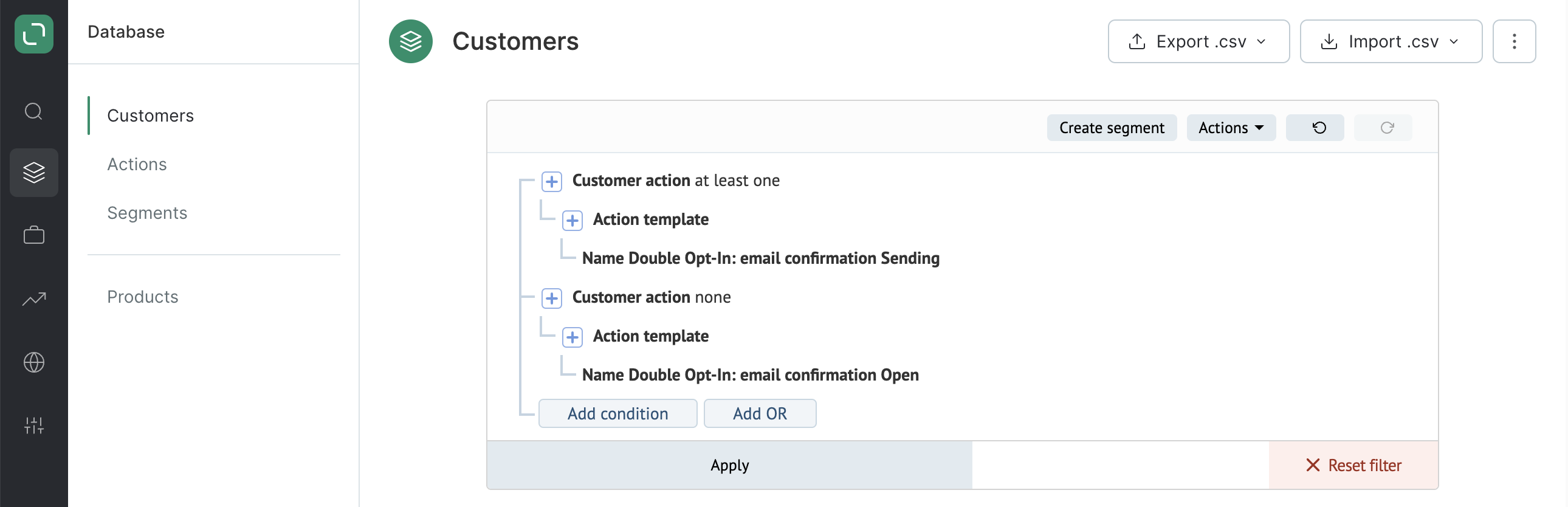
- Filter the customers who have not opened the message that was sent to them:
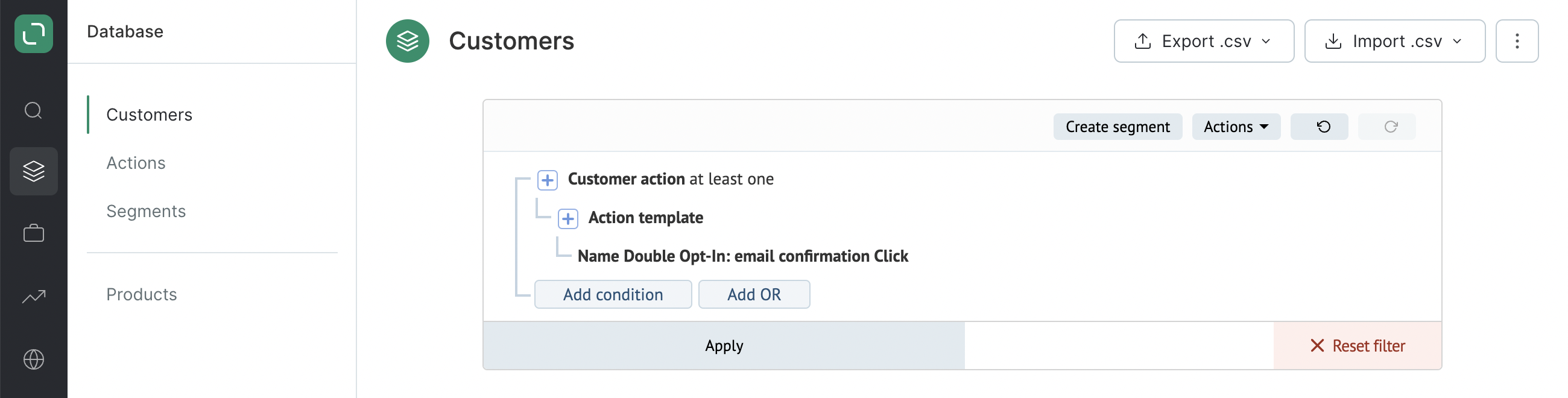
- Filter the customers who have clicked the URL in the message:
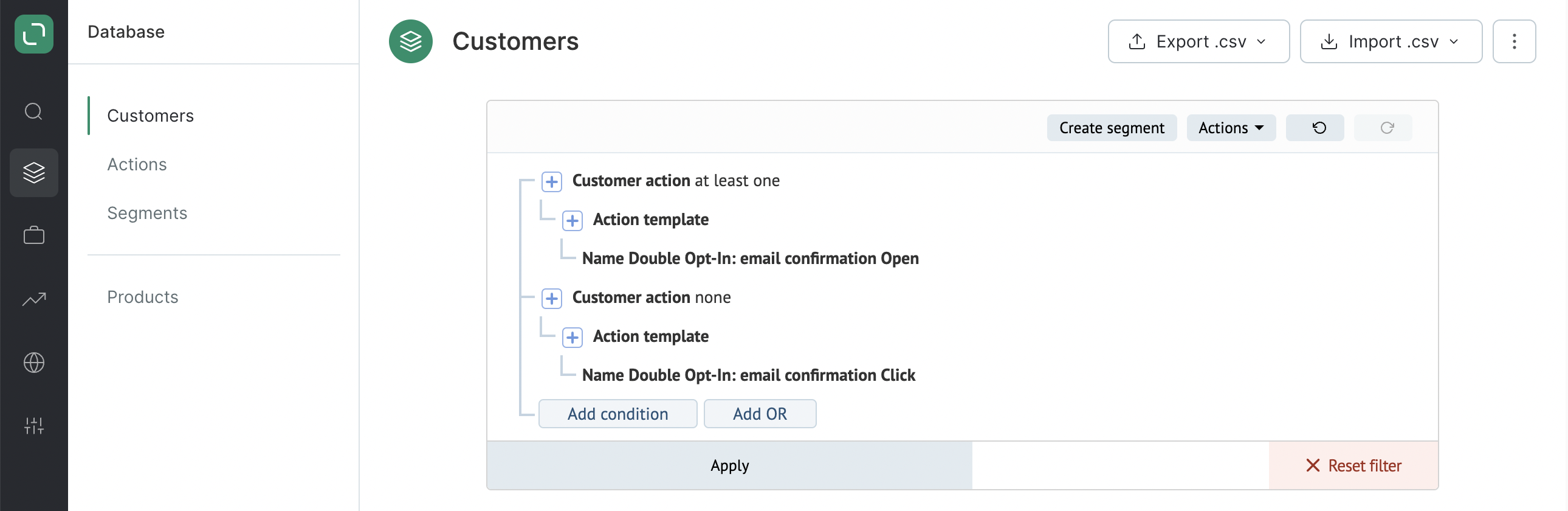
- Filter the customers who opened the message but did not click the URL:
- Filter the customers who have clicked on the unsubscribe link in the message: