How Does the Test Mode Work in Automated Campaigns?
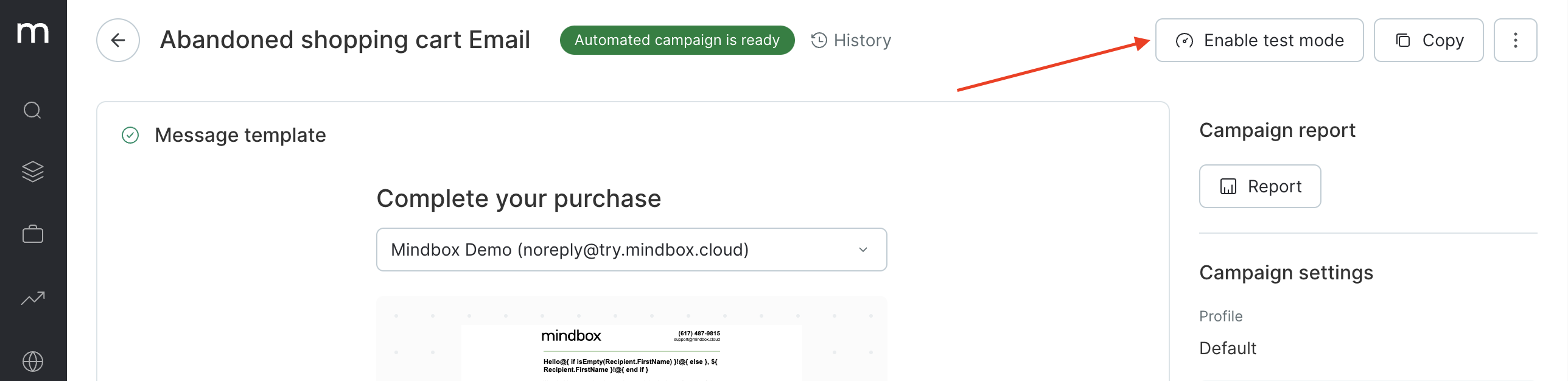
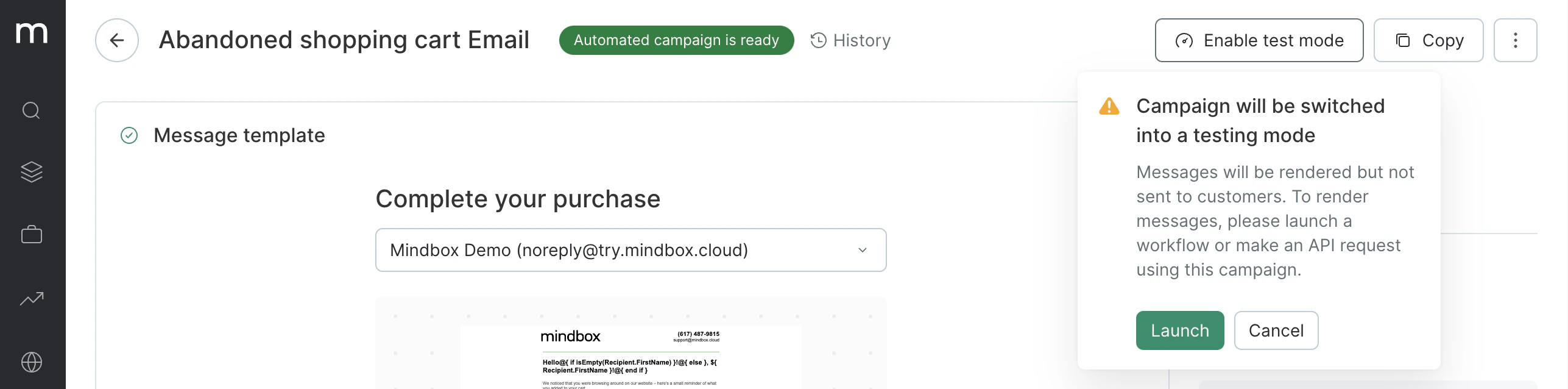
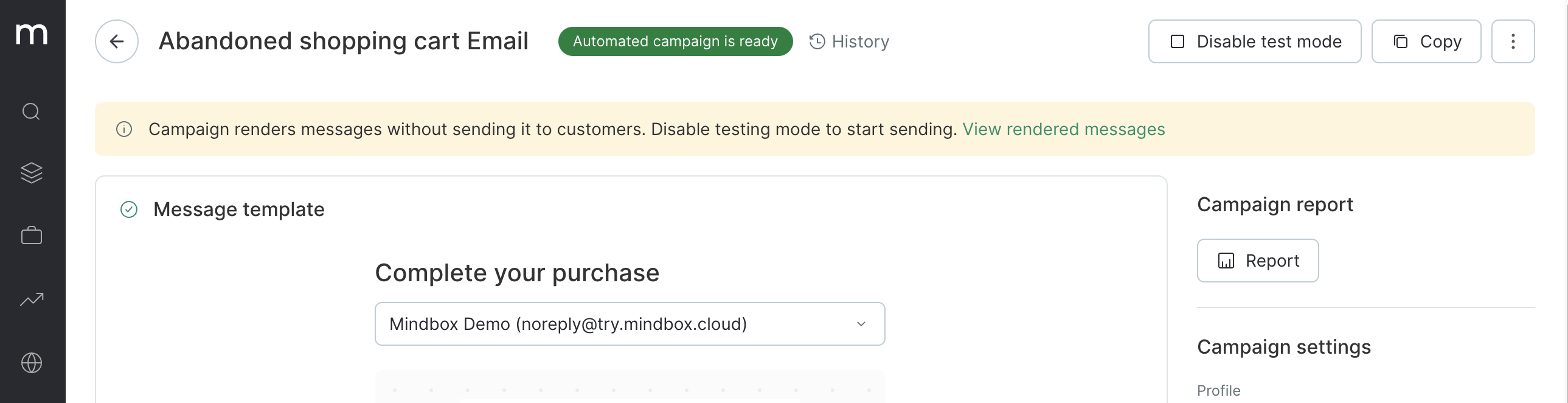
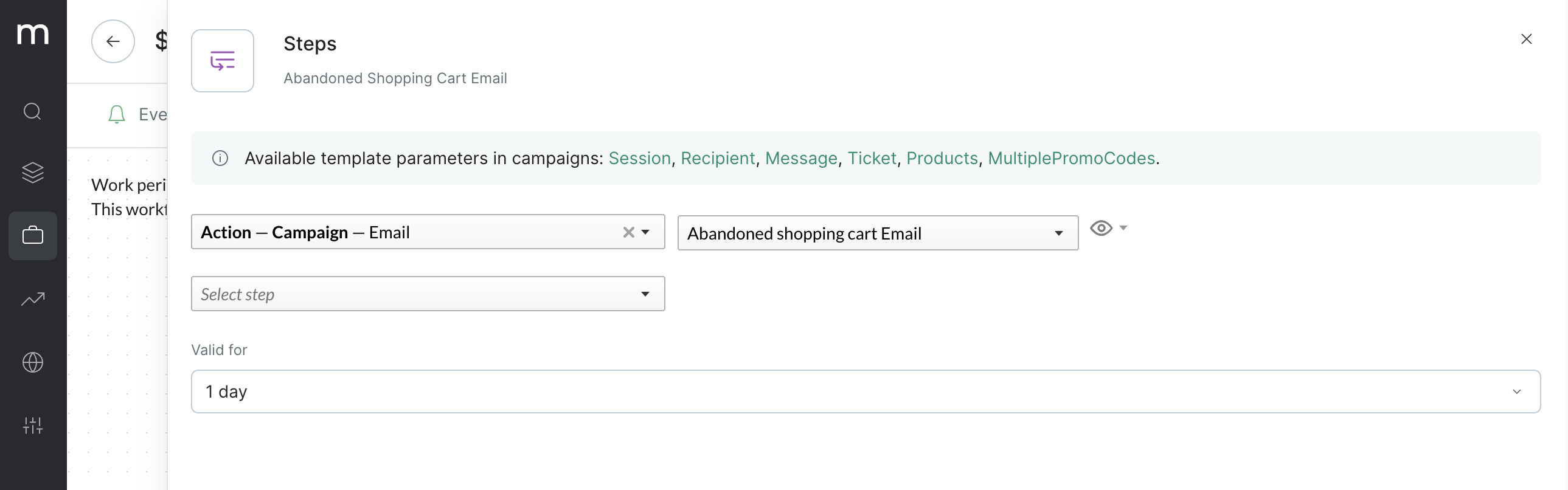
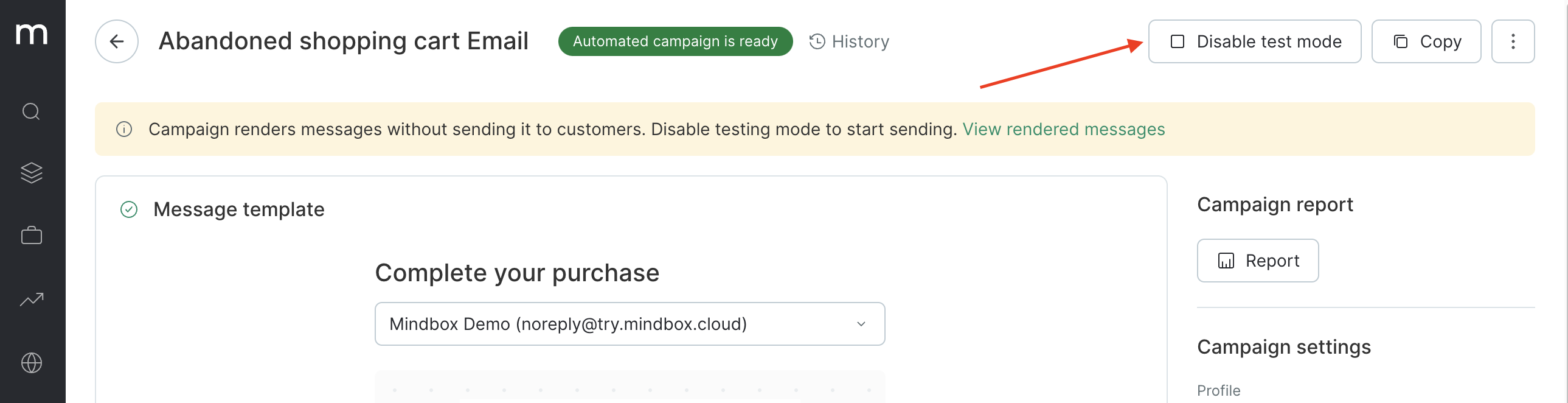
You cannot send test messages in tailor-made automated campaigns that use complex event parameters such as an order, session, etc. In these cases, you can view what the final message will look like only if there have been events that have collected data for these parameters.To test this message, you can switch it to test mode and place it into an automation / flow to view what your messages look like to real customers after being triggered by real events.Please note that in this case, messages will only get generated but will not actually be sent to customers.
You’ll be able to see the following data in the list of messages:
Recipient: URL to the customer’s profile.Contact: the customer’s contact that was used to send the message.Added: date and time when the message was created.Sending scheduled: this is the actual time when the message will be sent. This option is useful if sending hours have been limited in settings. It is updated at every attempt to send the message.Sent: messages that were sent upon completing the testing.Message: URL to the composed message.Status: current status of the message.The message list also includes test messages sent from the email UI by clicking the Send test message button.
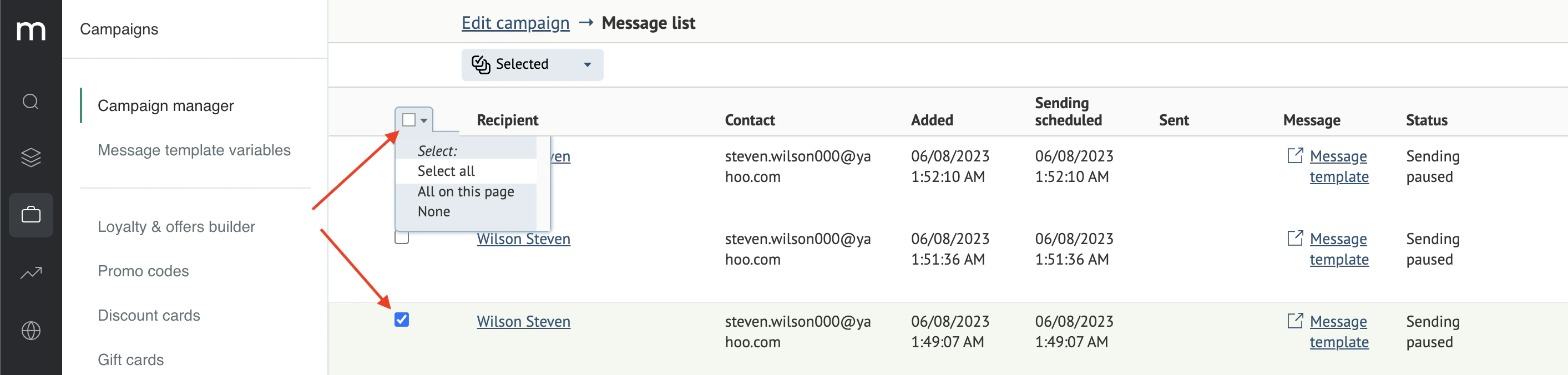
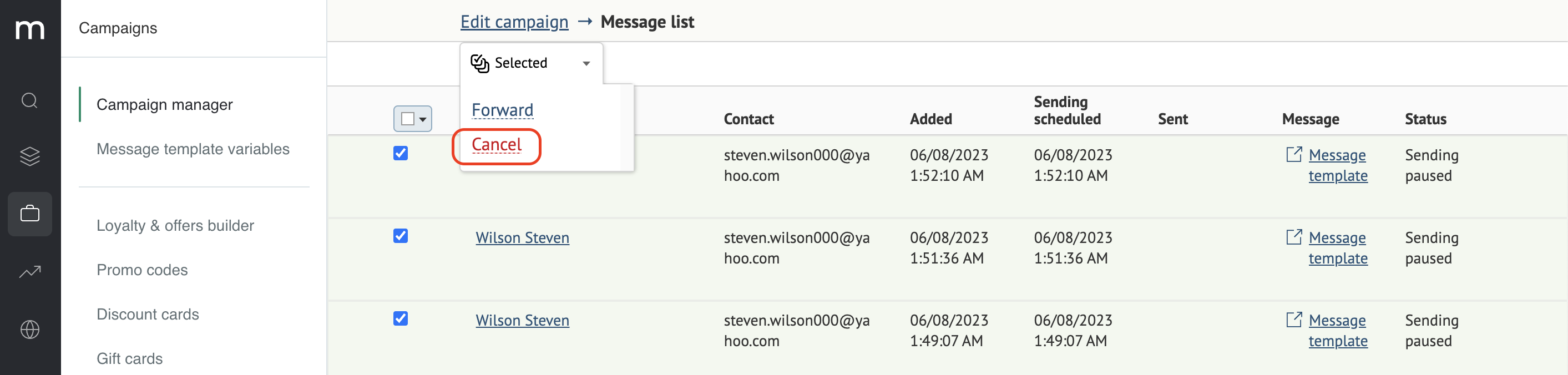
You can cancel the sending of all messages or selected messages that you have filtered to make sure they are not sent to customers after the test mode has been disabled.You can filter the relevant messages in one of the two following ways:Click Selected → Cancel:Confirm the cancelation. The messages’ status will change to Sending canceled.
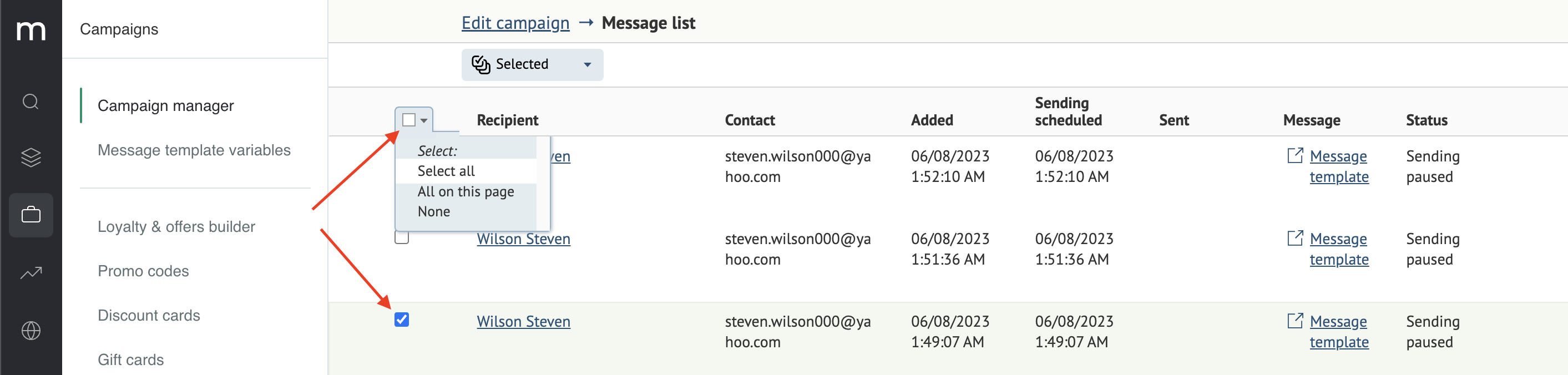
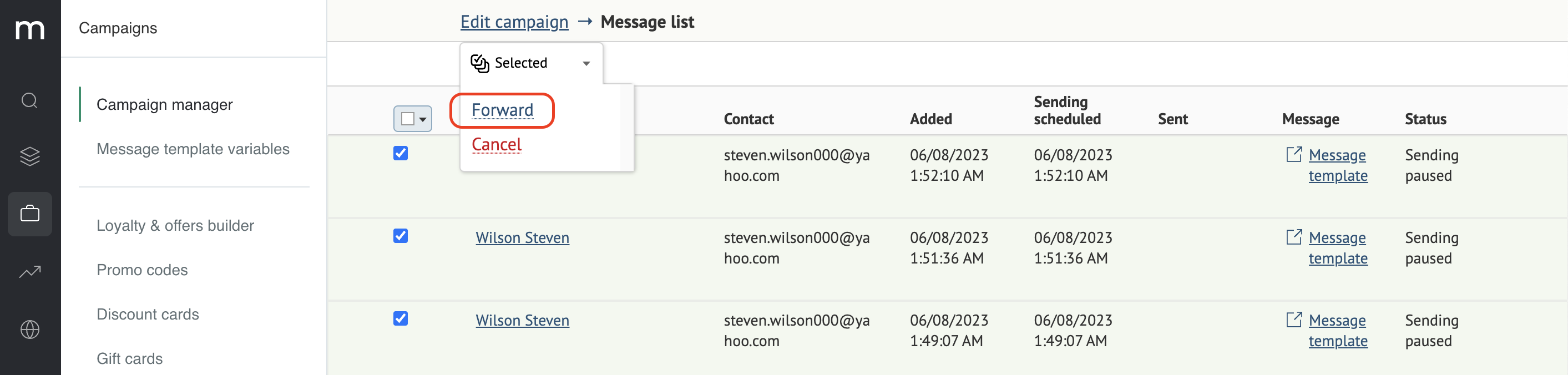
Filter and select messages in one of the two ways:Click Selected → Forward:You can apply it to messages that have not been canceled. You can forward up to 5 messages at a time.Forwarded messages will also appear in the list of messages.
If you end the test mode, this will not affect how your flow operates.Once you end the test mode, real messages will be generated and sent every time you launch the flow.To avoid this, pause the flow before ending test mode.
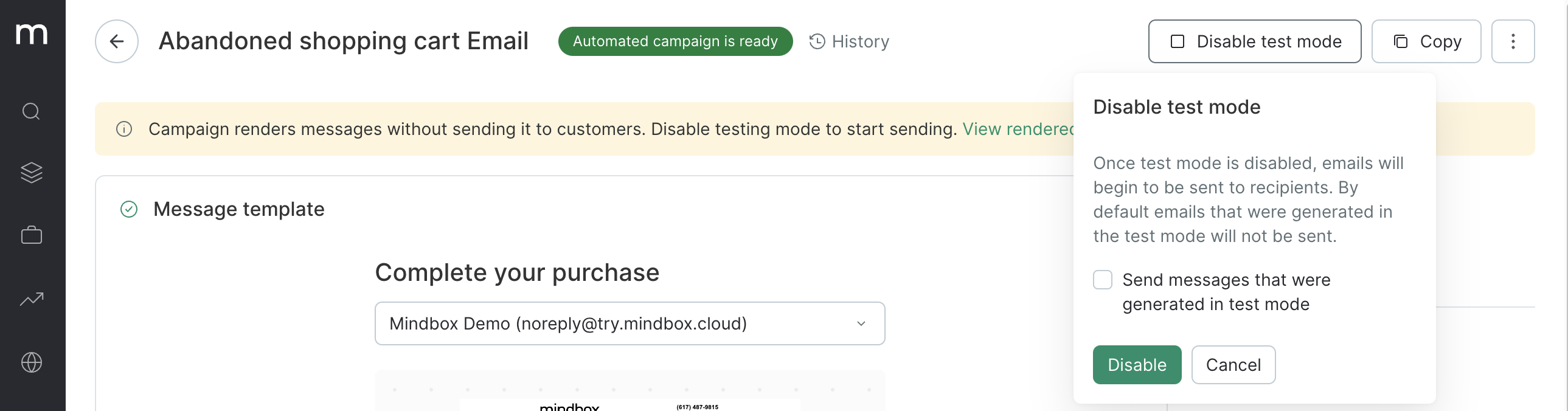
You also have an option to send messages that were generated in test mode. This allows you to decide what to do with the messages generated during the last test phase:This is disabled by default. So no messages will be sent: their status will simply change to Sending canceled.If you check this option, the system will send queued messages that were not canceled to customers and will change these messages’ statuses to Sent or Not sent (if a message contains an error).
Actions. If the message status is Sending paused or Sending canceled, actions will not be assigned to customers. It means that these actions will not be displayed in the customer’s profile or in the overall list of actions.
If you enable generated messages to be sent after test mode has ended, actions will be assigned to messages as usual.
Message relevance. Tick this option to check that the composed messages are sent within the period in which they are relevant and not sent when they are no longer relevant. The countdown starts from the time the message is added to the list.
The period of relevance is validated when the message is generated, not when it is sent.
If a flow has been launched, it can seem as though it has worked on real customers. However, if the campaign within the flow is in test mode, it will not be sent.
If you send an email in a flow using the Send email to user option, you will not be able to view the generated emails. This is because you cannot save any messages for Maestra users in the system. We recommend testing these emails using the standard Send email option in the flow.
{"docsConfig":{"theme":"mint","$schema":"https://mintlify.com/docs.json","name":"Maestra Help Center","colors":{"primary":"#5DA600","light":"#97EA2D","dark":"#7ECE17"},"logo":{"light":"https://mintcdn.com/maestraio/QFfUMd9lAUjtR59J/logo/light.svg?fit=max\u0026auto=format\u0026n=QFfUMd9lAUjtR59J\u0026q=85\u0026s=850a8fd5d63a0dc23daae21e31810aed","dark":"https://mintcdn.com/maestraio/QFfUMd9lAUjtR59J/logo/dark.svg?fit=max\u0026auto=format\u0026n=QFfUMd9lAUjtR59J\u0026q=85\u0026s=5ff6140ad7367a721f7ef4748d393b39"},"favicon":"https://mintcdn.com/maestraio/fpoGWXHzPf6Ub5Qi/favicon.png?fit=max\u0026auto=format\u0026n=fpoGWXHzPf6Ub5Qi\u0026q=85\u0026s=55f1e8d5d8d3f26ff774217a9a0ee5f7","navbar":{"links":[{"href":"https://maestra.io/blog/cases","label":"Success stories"},{"href":"https://developers.maestra.io","label":"Maestra API"}]},"footer":{"socials":{"linkedin":"https://www.linkedin.com/company/maestraplatform","facebook":"https://www.facebook.com/maestraplatform"},"links":[{"items":[{"label":"support@maestra.io","href":"mailto:support@maestra.io"}]}]},"integrations":{"intercom":{"appId":"imn5pkg4"}},"contextual":{"options":["copy","view","chatgpt","claude","perplexity","mcp","cursor","vscode"],"display":"header"},"styling":{"latex":true},"navigation":{"global":{},"pages":[]}},"deployment":{"deploymentMetadataValue":{"subdomain":"maestraio","hasAudioNarration":false,"actualSubdomain":"maestraio","customDomains":["help.maestra.io"],"gitSource":{"type":"github","owner":"maestra-io","repo":"help-maestra-docs","deployBranch":"main","contentDirectory":"","isPrivate":true,"mountPath":"","label":""},"chroma":{"liveDeploymentHistoryId":"6ad6280a4613fdc88741b16e","collectionId":"02a2a0cb-caa2-4aad-892f-c5694d915686","schemaVersion":"v3","latestBuiltDeploymentHistoryId":"6ad6280a4613fdc88741b16e"},"entitlements":{},"buildId":"6ad6280a4613fdc88741b16e","clientVersion":"0.0.3908","searchFilterCounts":[{"language":"default","tag":"Guides","count":305},{"language":"default","tag":"Customers, orders and products","count":83},{"language":"default","tag":"Campaigns","count":61},{"language":"default","tag":"Customers","count":54},{"language":"default","tag":"Flows","count":29},{"language":"default","tag":"Merging customers","count":26},{"language":"default","tag":"Personalization","count":26},{"language":"default","tag":"Loyalty","count":24},{"language":"default","tag":"Email campaigns","count":23},{"language":"default","tag":"Filters","count":23}]},"assistantConfig":{"enableAskAiButton":false,"enableStarterQuestions":false,"enableContextualStarterQuestions":false,"enableAskAiSearchBar":true},"hasChatPermissions":false,"hasWebMcpPermissions":false,"toggles":[{"name":"kill-isr","enabled":true,"variant":{"name":"disabled","enabled":false,"feature_enabled":true},"impressionData":false},{"name":"agent-mintlify-slack","enabled":true,"variant":{"name":"disabled","enabled":false,"feature_enabled":true},"impressionData":false},{"name":"editor-v7-file-tree","enabled":true,"variant":{"name":"disabled","enabled":false,"feature_enabled":true},"impressionData":false},{"name":"agent-integrations-settings","enabled":true,"variant":{"name":"disabled","enabled":false,"feature_enabled":true},"impressionData":false},{"name":"automations-pr-grouping","enabled":true,"variant":{"name":"disabled","enabled":false,"feature_enabled":true},"impressionData":false},{"name":"custom-prefix","enabled":true,"variant":{"name":"disabled","enabled":false,"feature_enabled":true},"impressionData":false},{"name":"analytics-v7","enabled":true,"variant":{"name":"disabled","enabled":false,"feature_enabled":true},"impressionData":false},{"name":"user-flows-analytics","enabled":true,"variant":{"name":"disabled","enabled":false,"feature_enabled":true},"impressionData":false},{"name":"no-publish-flow","enabled":true,"variant":{"name":"disabled","enabled":false,"feature_enabled":true},"impressionData":false},{"name":"workos-onboarding","enabled":true,"variant":{"name":"disabled","enabled":false,"feature_enabled":true},"impressionData":false},{"name":"llms-txt-v2","enabled":true,"variant":{"name":"disabled","enabled":false,"feature_enabled":true},"impressionData":false},{"name":"pause-universal-search-reconcile","enabled":true,"variant":{"name":"disabled","enabled":false,"feature_enabled":true},"impressionData":false},{"name":"snapshot-serving-live","enabled":true,"variant":{"name":"disabled","enabled":false,"feature_enabled":true},"impressionData":false},{"name":"stripTemperatureMiddleware","enabled":true,"variant":{"name":"disabled","enabled":false,"feature_enabled":true},"impressionData":false},{"name":"per-site-search-delta","enabled":true,"variant":{"name":"disabled","enabled":false,"feature_enabled":true},"impressionData":false},{"name":"support-platform-pylon-zendesk","enabled":true,"variant":{"name":"disabled","enabled":false,"feature_enabled":true},"impressionData":false},{"name":"editor-branches-v2-autocommit","enabled":true,"variant":{"name":"disabled","enabled":false,"feature_enabled":true},"impressionData":false},{"name":"editor-branches-v2","enabled":true,"variant":{"name":"disabled","enabled":false,"feature_enabled":true},"impressionData":false},{"name":"snapshot-serving","enabled":true,"variant":{"name":"disabled","enabled":false,"feature_enabled":true},"impressionData":false},{"name":"instant-rollback","enabled":true,"variant":{"name":"disabled","enabled":false,"feature_enabled":true},"impressionData":false},{"name":"granular-notifications-server","enabled":true,"variant":{"name":"disabled","enabled":false,"feature_enabled":true},"impressionData":false},{"name":"granular-notifications","enabled":true,"variant":{"name":"disabled","enabled":false,"feature_enabled":true},"impressionData":false},{"name":"editor-private-page-search","enabled":true,"variant":{"name":"disabled","enabled":false,"feature_enabled":true},"impressionData":false},{"name":"automations-fable","enabled":true,"variant":{"name":"disabled","enabled":false,"feature_enabled":true},"impressionData":false},{"name":"fixed-ai-action-pricing","enabled":true,"variant":{"name":"disabled","enabled":false,"feature_enabled":true},"impressionData":false},{"name":"automation-resolve-merge-conflict","enabled":true,"variant":{"name":"disabled","enabled":false,"feature_enabled":true},"impressionData":false},{"name":"scoped-publishing","enabled":true,"variant":{"name":"disabled","enabled":false,"feature_enabled":true},"impressionData":false},{"name":"mintql","enabled":true,"variant":{"name":"disabled","enabled":false,"feature_enabled":true},"impressionData":false},{"name":"page-level-analytics","enabled":true,"variant":{"name":"disabled","enabled":false,"feature_enabled":true},"impressionData":false},{"name":"teamspace","enabled":true,"variant":{"name":"disabled","enabled":false,"feature_enabled":true},"impressionData":false},{"name":"editor-version-history-v2","enabled":true,"variant":{"name":"disabled","enabled":false,"feature_enabled":true},"impressionData":false},{"name":"vite-origin","enabled":true,"variant":{"name":"disabled","enabled":false,"feature_enabled":true},"impressionData":false},{"name":"editor-nav-generations","enabled":true,"variant":{"name":"disabled","enabled":false,"feature_enabled":true},"impressionData":false},{"name":"billing-page-v2","enabled":true,"variant":{"name":"disabled","enabled":false,"feature_enabled":true},"impressionData":false},{"name":"workspace-projects","enabled":true,"variant":{"name":"disabled","enabled":false,"feature_enabled":true},"impressionData":false},{"name":"assistant-v5","enabled":true,"variant":{"name":"disabled","enabled":false,"feature_enabled":true},"impressionData":false},{"name":"byok-sep-25","enabled":true,"variant":{"name":"disabled","enabled":false,"feature_enabled":true},"impressionData":false},{"name":"fork-pr-previews","enabled":true,"variant":{"name":"disabled","enabled":false,"feature_enabled":true},"impressionData":false},{"name":"revalidation-jwt","enabled":true,"variant":{"name":"disabled","enabled":false,"feature_enabled":true},"impressionData":false},{"name":"editor-agent-model-picker","enabled":true,"variant":{"name":"disabled","enabled":false,"feature_enabled":true},"impressionData":false},{"name":"client-snapshot-docs-config","enabled":true,"variant":{"name":"disabled","enabled":false,"feature_enabled":true},"impressionData":false},{"name":"hobby-abuse-scan","enabled":true,"variant":{"name":"disabled","enabled":false,"feature_enabled":true},"impressionData":false},{"name":"dashboard-inbox","enabled":true,"variant":{"name":"disabled","enabled":false,"feature_enabled":true},"impressionData":false}],"isAtlas":false,"googleFontsInlined":false},"customCss":[{"filePath":"custom.css","content":"details.accordion{margin-top:1.5rem;background-color:rgba(151,234,45,.08)}.dark details.accordion{background-color:rgba(255,255,255,.04)}.accordion-muted details.accordion{background-color:rgba(128,128,128,.08)}"}],"page":{"pagePath":"campaigns/common-settings/how-does-the-test-mode-work-in-automated-campaigns","slug":"/campaigns/common-settings/how-does-the-test-mode-work-in-automated-campaigns","pageMetadata":{"title":"How Does the Test Mode Work in Automated Campaigns?","description":null,"href":"/campaigns/common-settings/how-does-the-test-mode-work-in-automated-campaigns"},"pageType":"default","mdx":{"mdxSource":{"compiledSource":"\"use strict\";const{Fragment:_Fragment,jsx:_jsx,jsxs:_jsxs}=arguments[0];const{useMDXComponents:_provideComponents}=arguments[0];function _createMdxContent(props){const _components={em:`em`,li:`li`,ol:`ol`,p:`p`,strong:`strong`,..._provideComponents(),...props.components},{Heading,Note,OptimizedImage,Warning}=_components;if(!Heading)_missingMdxReference(`Heading`,true);if(!Note)_missingMdxReference(`Note`,true);if(!OptimizedImage)_missingMdxReference(`OptimizedImage`,true);if(!Warning)_missingMdxReference(`Warning`,true);return _jsxs(_Fragment,{children:[_jsx(_components.p,{children:`You cannot send test messages in tailor-made automated campaigns that use complex event parameters such as an order, session, etc. In these cases, you can view what the final message will look like only if there have been events that have collected data for these parameters.`}),`\n`,_jsx(_components.p,{children:`To test this message, you can switch it to test mode and place it into an automation / flow to view what your messages look like to real customers after being triggered by real events.`}),`\n`,_jsx(_components.p,{children:`Please note that in this case, messages will only get generated but will not actually be sent to customers.`}),`\n`,_jsx(Heading,{level:`2`,id:`how-to-launch-an-automated-campaign-using-test-mode`,children:`How to launch an automated campaign using test mode`}),`\n`,_jsxs(_components.ol,{children:[`\n`,_jsx(_components.li,{children:`Enable test mode.`}),`\n`]}),`\n`,_jsxs(_components.p,{children:[`Please note that the message status must be `,_jsx(_components.strong,{children:`Automated campaign is ready`}),`.`]}),`\n`,_jsxs(_components.ol,{start:`2`,children:[`\n`,_jsxs(_components.li,{children:[`Click `,_jsx(_components.strong,{children:`Enable test mode`}),`:`]}),`\n`]}),`\n`,_jsx(OptimizedImage,{src:`https://mintcdn.com/maestraio/-w5Ud9QNiG7Y4nor/images/imported/00_test_mode.png?fit=max\u0026auto=format\u0026n=-w5Ud9QNiG7Y4nor\u0026q=85\u0026s=0c452c113b5d82b51668e81ab737a5e2`,alt:`00_test_mode`,\"data-og-width\":`2576`,width:`2576`,\"data-og-height\":`626`,height:`626`,\"data-path\":`images/imported/00_test_mode.png`,\"data-optimize\":`true`,\"data-opv\":`3`,srcset:`https://mintcdn.com/maestraio/-w5Ud9QNiG7Y4nor/images/imported/00_test_mode.png?w=280\u0026fit=max\u0026auto=format\u0026n=-w5Ud9QNiG7Y4nor\u0026q=85\u0026s=e612cda489bcdb5accd83f8914e12626 280w, https://mintcdn.com/maestraio/-w5Ud9QNiG7Y4nor/images/imported/00_test_mode.png?w=560\u0026fit=max\u0026auto=format\u0026n=-w5Ud9QNiG7Y4nor\u0026q=85\u0026s=fe0c64bde62450216e66650ef835b5de 560w, https://mintcdn.com/maestraio/-w5Ud9QNiG7Y4nor/images/imported/00_test_mode.png?w=840\u0026fit=max\u0026auto=format\u0026n=-w5Ud9QNiG7Y4nor\u0026q=85\u0026s=5ca6cb9e21f4e9765599e2cfe3310ddc 840w, https://mintcdn.com/maestraio/-w5Ud9QNiG7Y4nor/images/imported/00_test_mode.png?w=1100\u0026fit=max\u0026auto=format\u0026n=-w5Ud9QNiG7Y4nor\u0026q=85\u0026s=6e388ba8a9a5a87221b893c857080258 1100w, https://mintcdn.com/maestraio/-w5Ud9QNiG7Y4nor/images/imported/00_test_mode.png?w=1650\u0026fit=max\u0026auto=format\u0026n=-w5Ud9QNiG7Y4nor\u0026q=85\u0026s=c3cbb90d5fed8e061182f404ce211693 1650w, https://mintcdn.com/maestraio/-w5Ud9QNiG7Y4nor/images/imported/00_test_mode.png?w=2500\u0026fit=max\u0026auto=format\u0026n=-w5Ud9QNiG7Y4nor\u0026q=85\u0026s=477f44447a0c5f853c347f9e8896fa6b 2500w`}),`\n`,_jsx(_components.p,{children:`Launch:`}),`\n`,_jsx(OptimizedImage,{src:`https://mintcdn.com/maestraio/-w5Ud9QNiG7Y4nor/images/imported/01_test_mode.png?fit=max\u0026auto=format\u0026n=-w5Ud9QNiG7Y4nor\u0026q=85\u0026s=8da1d00014d6a283f6495a08a455d067`,alt:`01_test_mode`,\"data-og-width\":`2574`,width:`2574`,\"data-og-height\":`638`,height:`638`,\"data-path\":`images/imported/01_test_mode.png`,\"data-optimize\":`true`,\"data-opv\":`3`,srcset:`https://mintcdn.com/maestraio/-w5Ud9QNiG7Y4nor/images/imported/01_test_mode.png?w=280\u0026fit=max\u0026auto=format\u0026n=-w5Ud9QNiG7Y4nor\u0026q=85\u0026s=c860b44fa875f18fa8b0a945b66c72c6 280w, https://mintcdn.com/maestraio/-w5Ud9QNiG7Y4nor/images/imported/01_test_mode.png?w=560\u0026fit=max\u0026auto=format\u0026n=-w5Ud9QNiG7Y4nor\u0026q=85\u0026s=87b067c4e54d679c2e66ba6382c62552 560w, https://mintcdn.com/maestraio/-w5Ud9QNiG7Y4nor/images/imported/01_test_mode.png?w=840\u0026fit=max\u0026auto=format\u0026n=-w5Ud9QNiG7Y4nor\u0026q=85\u0026s=5657b1ccdfe8fea26b3a78e1257fed2b 840w, https://mintcdn.com/maestraio/-w5Ud9QNiG7Y4nor/images/imported/01_test_mode.png?w=1100\u0026fit=max\u0026auto=format\u0026n=-w5Ud9QNiG7Y4nor\u0026q=85\u0026s=88fd77ad1d9944a24b860554ff4818d6 1100w, https://mintcdn.com/maestraio/-w5Ud9QNiG7Y4nor/images/imported/01_test_mode.png?w=1650\u0026fit=max\u0026auto=format\u0026n=-w5Ud9QNiG7Y4nor\u0026q=85\u0026s=f8fff1d8dc96e31c9a837100aabe056f 1650w, https://mintcdn.com/maestraio/-w5Ud9QNiG7Y4nor/images/imported/01_test_mode.png?w=2500\u0026fit=max\u0026auto=format\u0026n=-w5Ud9QNiG7Y4nor\u0026q=85\u0026s=32cab4f130414fa46d85b5cf657a373f 2500w`}),`\n`,_jsxs(_components.p,{children:[`The status will change to `,_jsx(_components.strong,{children:`Test mode`}),` and you should now see a URL to view the emails generated:`]}),`\n`,_jsx(OptimizedImage,{src:`https://mintcdn.com/maestraio/59KyfifOW7tLz5QR/images/imported/02_test_mode.png?fit=max\u0026auto=format\u0026n=59KyfifOW7tLz5QR\u0026q=85\u0026s=6c6e1947977c2aa6211208dd0e7037ea`,alt:`02_test_mode`,\"data-og-width\":`2578`,width:`2578`,\"data-og-height\":`662`,height:`662`,\"data-path\":`images/imported/02_test_mode.png`,\"data-optimize\":`true`,\"data-opv\":`3`,srcset:`https://mintcdn.com/maestraio/59KyfifOW7tLz5QR/images/imported/02_test_mode.png?w=280\u0026fit=max\u0026auto=format\u0026n=59KyfifOW7tLz5QR\u0026q=85\u0026s=592ce0bd9268c81bff6f347d18f535ec 280w, https://mintcdn.com/maestraio/59KyfifOW7tLz5QR/images/imported/02_test_mode.png?w=560\u0026fit=max\u0026auto=format\u0026n=59KyfifOW7tLz5QR\u0026q=85\u0026s=be1e386fe37deba2f6266fabae047df9 560w, https://mintcdn.com/maestraio/59KyfifOW7tLz5QR/images/imported/02_test_mode.png?w=840\u0026fit=max\u0026auto=format\u0026n=59KyfifOW7tLz5QR\u0026q=85\u0026s=04628baa6bf52314d47f142675e74de4 840w, https://mintcdn.com/maestraio/59KyfifOW7tLz5QR/images/imported/02_test_mode.png?w=1100\u0026fit=max\u0026auto=format\u0026n=59KyfifOW7tLz5QR\u0026q=85\u0026s=adb6d998d0460da2365c8aac8b425ef5 1100w, https://mintcdn.com/maestraio/59KyfifOW7tLz5QR/images/imported/02_test_mode.png?w=1650\u0026fit=max\u0026auto=format\u0026n=59KyfifOW7tLz5QR\u0026q=85\u0026s=99c49b51d87d058ca47f7d73c3726b29 1650w, https://mintcdn.com/maestraio/59KyfifOW7tLz5QR/images/imported/02_test_mode.png?w=2500\u0026fit=max\u0026auto=format\u0026n=59KyfifOW7tLz5QR\u0026q=85\u0026s=7659e89a16aa1041b82f739ca943f4b1 2500w`}),`\n`,_jsxs(_components.ol,{start:`2`,children:[`\n`,_jsx(_components.li,{children:`Open a flow with the event that you need and select your campaign:`}),`\n`]}),`\n`,_jsx(OptimizedImage,{src:`https://mintcdn.com/maestraio/nXS6QsINTx63g9ke/images/imported/03_test_mode.png?fit=max\u0026auto=format\u0026n=nXS6QsINTx63g9ke\u0026q=85\u0026s=25f6b325e48520a3cd142eee0cc4fde5`,alt:`03_test_mode`,\"data-og-width\":`2578`,width:`2578`,\"data-og-height\":`806`,height:`806`,\"data-path\":`images/imported/03_test_mode.png`,\"data-optimize\":`true`,\"data-opv\":`3`,srcset:`https://mintcdn.com/maestraio/nXS6QsINTx63g9ke/images/imported/03_test_mode.png?w=280\u0026fit=max\u0026auto=format\u0026n=nXS6QsINTx63g9ke\u0026q=85\u0026s=535602d3a7226a005620ef0249bf6cc0 280w, https://mintcdn.com/maestraio/nXS6QsINTx63g9ke/images/imported/03_test_mode.png?w=560\u0026fit=max\u0026auto=format\u0026n=nXS6QsINTx63g9ke\u0026q=85\u0026s=47799026d60b666851f54949cc326645 560w, https://mintcdn.com/maestraio/nXS6QsINTx63g9ke/images/imported/03_test_mode.png?w=840\u0026fit=max\u0026auto=format\u0026n=nXS6QsINTx63g9ke\u0026q=85\u0026s=88656b75b6aa4794689d6cbe8225f50e 840w, https://mintcdn.com/maestraio/nXS6QsINTx63g9ke/images/imported/03_test_mode.png?w=1100\u0026fit=max\u0026auto=format\u0026n=nXS6QsINTx63g9ke\u0026q=85\u0026s=85bd86cea69387d4c0ec379d2a87a60d 1100w, https://mintcdn.com/maestraio/nXS6QsINTx63g9ke/images/imported/03_test_mode.png?w=1650\u0026fit=max\u0026auto=format\u0026n=nXS6QsINTx63g9ke\u0026q=85\u0026s=c625408edcfb5ab3fc4bba910c185886 1650w, https://mintcdn.com/maestraio/nXS6QsINTx63g9ke/images/imported/03_test_mode.png?w=2500\u0026fit=max\u0026auto=format\u0026n=nXS6QsINTx63g9ke\u0026q=85\u0026s=adaa509c7ed4a586a725cb3945108342 2500w`}),`\n`,_jsxs(_components.ol,{start:`3`,children:[`\n`,_jsx(_components.li,{children:`Launch it:`}),`\n`]}),`\n`,_jsx(OptimizedImage,{src:`https://mintcdn.com/maestraio/nXS6QsINTx63g9ke/images/imported/04_test_mode.png?fit=max\u0026auto=format\u0026n=nXS6QsINTx63g9ke\u0026q=85\u0026s=32ea746c683f35815973c5d5f4c7b8e8`,alt:`04_test_mode`,\"data-og-width\":`2594`,width:`2594`,\"data-og-height\":`456`,height:`456`,\"data-path\":`images/imported/04_test_mode.png`,\"data-optimize\":`true`,\"data-opv\":`3`,srcset:`https://mintcdn.com/maestraio/nXS6QsINTx63g9ke/images/imported/04_test_mode.png?w=280\u0026fit=max\u0026auto=format\u0026n=nXS6QsINTx63g9ke\u0026q=85\u0026s=761292ff40e0fccd5f2d341a836f33f2 280w, https://mintcdn.com/maestraio/nXS6QsINTx63g9ke/images/imported/04_test_mode.png?w=560\u0026fit=max\u0026auto=format\u0026n=nXS6QsINTx63g9ke\u0026q=85\u0026s=ef3bf7e36a16ce250439871eee3fb65d 560w, https://mintcdn.com/maestraio/nXS6QsINTx63g9ke/images/imported/04_test_mode.png?w=840\u0026fit=max\u0026auto=format\u0026n=nXS6QsINTx63g9ke\u0026q=85\u0026s=0970ee83ee2486b13cd95c2768bc1345 840w, https://mintcdn.com/maestraio/nXS6QsINTx63g9ke/images/imported/04_test_mode.png?w=1100\u0026fit=max\u0026auto=format\u0026n=nXS6QsINTx63g9ke\u0026q=85\u0026s=babafd6961bbc173673f18d85fcdfd33 1100w, https://mintcdn.com/maestraio/nXS6QsINTx63g9ke/images/imported/04_test_mode.png?w=1650\u0026fit=max\u0026auto=format\u0026n=nXS6QsINTx63g9ke\u0026q=85\u0026s=ae50e13067ed17f9f8c62eace46b810f 1650w, https://mintcdn.com/maestraio/nXS6QsINTx63g9ke/images/imported/04_test_mode.png?w=2500\u0026fit=max\u0026auto=format\u0026n=nXS6QsINTx63g9ke\u0026q=85\u0026s=a9966b82d9707e6dc5bd8666045d43b1 2500w`}),`\n`,_jsxs(_components.ol,{start:`4`,children:[`\n`,_jsxs(_components.li,{children:[`The flow will run using real customers and will form messages with a `,_jsx(_components.strong,{children:`Sending paused`}),` status assigned:`]}),`\n`]}),`\n`,_jsx(OptimizedImage,{src:`https://mintcdn.com/maestraio/5322-upQA3cGdluA/images/imported/05_test_mode.png?fit=max\u0026auto=format\u0026n=5322-upQA3cGdluA\u0026q=85\u0026s=1e06be7ecb7d232c8846eb60ccfedc2e`,alt:`05_test_mode`,\"data-og-width\":`2778`,width:`2778`,\"data-og-height\":`540`,height:`540`,\"data-path\":`images/imported/05_test_mode.png`,\"data-optimize\":`true`,\"data-opv\":`3`,srcset:`https://mintcdn.com/maestraio/5322-upQA3cGdluA/images/imported/05_test_mode.png?w=280\u0026fit=max\u0026auto=format\u0026n=5322-upQA3cGdluA\u0026q=85\u0026s=da1114b3a6329559820d76b43bf8bd72 280w, https://mintcdn.com/maestraio/5322-upQA3cGdluA/images/imported/05_test_mode.png?w=560\u0026fit=max\u0026auto=format\u0026n=5322-upQA3cGdluA\u0026q=85\u0026s=04c38ed78cb999e075ab4d9238154869 560w, https://mintcdn.com/maestraio/5322-upQA3cGdluA/images/imported/05_test_mode.png?w=840\u0026fit=max\u0026auto=format\u0026n=5322-upQA3cGdluA\u0026q=85\u0026s=f69b601777a3071e463b4796362a7028 840w, https://mintcdn.com/maestraio/5322-upQA3cGdluA/images/imported/05_test_mode.png?w=1100\u0026fit=max\u0026auto=format\u0026n=5322-upQA3cGdluA\u0026q=85\u0026s=fe356041aaf75dac8f5b2a59411c859d 1100w, https://mintcdn.com/maestraio/5322-upQA3cGdluA/images/imported/05_test_mode.png?w=1650\u0026fit=max\u0026auto=format\u0026n=5322-upQA3cGdluA\u0026q=85\u0026s=1b98504c1283325770c611ab1ed9ef86 1650w, https://mintcdn.com/maestraio/5322-upQA3cGdluA/images/imported/05_test_mode.png?w=2500\u0026fit=max\u0026auto=format\u0026n=5322-upQA3cGdluA\u0026q=85\u0026s=143c08f9a0848e2b6384db7a5b4db870 2500w`}),`\n`,_jsx(Heading,{level:`3`,id:`you’ll-be-able-to-see-the-following-data-in-the-list-of-messages`,children:`You’ll be able to see the following data in the list of messages:`}),`\n`,_jsxs(_components.p,{children:[_jsx(_components.strong,{children:`Recipient`}),`: URL to the customer’s profile.`]}),`\n`,_jsxs(_components.p,{children:[_jsx(_components.strong,{children:`Contact`}),`: the customer’s contact that was used to send the message.`]}),`\n`,_jsxs(_components.p,{children:[_jsx(_components.strong,{children:`Added`}),`: date and time when the message was created.`]}),`\n`,_jsxs(_components.p,{children:[_jsx(_components.strong,{children:`Sending scheduled`}),`: this is the actual time when the message will be sent. This option is useful if sending hours have been limited in settings. It is updated at every attempt to send the message.`]}),`\n`,_jsxs(_components.p,{children:[_jsx(_components.strong,{children:`Sent`}),`: messages that were sent upon completing the testing.`]}),`\n`,_jsxs(_components.p,{children:[_jsx(_components.strong,{children:`Message`}),`: URL to the composed message.`]}),`\n`,_jsxs(_components.p,{children:[_jsx(_components.strong,{children:`Status`}),`: current status of the message.`]}),`\n`,_jsx(_components.p,{children:`The message list also includes test messages sent from the email UI by clicking the Send test message button.`}),`\n`,_jsx(Heading,{level:`3`,id:`what-you-can-do-in-the-list-of-messages`,children:`What you can do in the list of messages`}),`\n`,_jsx(Heading,{level:`3`,id:`cancel-sending`,children:`Cancel sending`}),`\n`,_jsx(_components.p,{children:`You can cancel the sending of all messages or selected messages that you have filtered to make sure they are not sent to customers after the test mode has been disabled.`}),`\n`,_jsx(_components.p,{children:`You can filter the relevant messages in one of the two following ways:`}),`\n`,_jsx(OptimizedImage,{src:`https://mintcdn.com/maestraio/5322-upQA3cGdluA/images/imported/06_test_mode.png?fit=max\u0026auto=format\u0026n=5322-upQA3cGdluA\u0026q=85\u0026s=8419e853083bb3503924e89d9ac23857`,alt:`06_test_mode`,\"data-og-width\":`2826`,width:`2826`,\"data-og-height\":`676`,height:`676`,\"data-path\":`images/imported/06_test_mode.png`,\"data-optimize\":`true`,\"data-opv\":`3`,srcset:`https://mintcdn.com/maestraio/5322-upQA3cGdluA/images/imported/06_test_mode.png?w=280\u0026fit=max\u0026auto=format\u0026n=5322-upQA3cGdluA\u0026q=85\u0026s=9d84f2ce1748f42ef59fa8cd2432b329 280w, https://mintcdn.com/maestraio/5322-upQA3cGdluA/images/imported/06_test_mode.png?w=560\u0026fit=max\u0026auto=format\u0026n=5322-upQA3cGdluA\u0026q=85\u0026s=f382a5711a549e74c8f97115b0c1b382 560w, https://mintcdn.com/maestraio/5322-upQA3cGdluA/images/imported/06_test_mode.png?w=840\u0026fit=max\u0026auto=format\u0026n=5322-upQA3cGdluA\u0026q=85\u0026s=f141c61a1e24db57d2c75f1a86626bb4 840w, https://mintcdn.com/maestraio/5322-upQA3cGdluA/images/imported/06_test_mode.png?w=1100\u0026fit=max\u0026auto=format\u0026n=5322-upQA3cGdluA\u0026q=85\u0026s=7d556e3ec61f5e95cbf86ca5309b1ecb 1100w, https://mintcdn.com/maestraio/5322-upQA3cGdluA/images/imported/06_test_mode.png?w=1650\u0026fit=max\u0026auto=format\u0026n=5322-upQA3cGdluA\u0026q=85\u0026s=fca6a94111bab4dbca22f40488dc838b 1650w, https://mintcdn.com/maestraio/5322-upQA3cGdluA/images/imported/06_test_mode.png?w=2500\u0026fit=max\u0026auto=format\u0026n=5322-upQA3cGdluA\u0026q=85\u0026s=27a4018e7f3b664c27dfe42c1a592a93 2500w`}),`\n`,_jsxs(_components.p,{children:[`Click `,_jsx(_components.strong,{children:`Selected`}),` → `,_jsx(_components.strong,{children:`Cancel`}),`:`]}),`\n`,_jsx(OptimizedImage,{src:`https://mintcdn.com/maestraio/hDwb_Ye73XB_-pfV/images/imported/10_test_mode.png?fit=max\u0026auto=format\u0026n=hDwb_Ye73XB_-pfV\u0026q=85\u0026s=8efa7884256d450f1ca3b1f166cfed89`,alt:`10_test_mode`,\"data-og-width\":`2826`,width:`2826`,\"data-og-height\":`676`,height:`676`,\"data-path\":`images/imported/10_test_mode.png`,\"data-optimize\":`true`,\"data-opv\":`3`,srcset:`https://mintcdn.com/maestraio/hDwb_Ye73XB_-pfV/images/imported/10_test_mode.png?w=280\u0026fit=max\u0026auto=format\u0026n=hDwb_Ye73XB_-pfV\u0026q=85\u0026s=a0bd917a1bfcaf2dff223f5886d3bf64 280w, https://mintcdn.com/maestraio/hDwb_Ye73XB_-pfV/images/imported/10_test_mode.png?w=560\u0026fit=max\u0026auto=format\u0026n=hDwb_Ye73XB_-pfV\u0026q=85\u0026s=1d5446abb5dd4e83297c312d5ff0dde4 560w, https://mintcdn.com/maestraio/hDwb_Ye73XB_-pfV/images/imported/10_test_mode.png?w=840\u0026fit=max\u0026auto=format\u0026n=hDwb_Ye73XB_-pfV\u0026q=85\u0026s=2ee136bc349aef9e2b8fd02450c25ea9 840w, https://mintcdn.com/maestraio/hDwb_Ye73XB_-pfV/images/imported/10_test_mode.png?w=1100\u0026fit=max\u0026auto=format\u0026n=hDwb_Ye73XB_-pfV\u0026q=85\u0026s=58002a2afcaab47cb39385f0e99eaf33 1100w, https://mintcdn.com/maestraio/hDwb_Ye73XB_-pfV/images/imported/10_test_mode.png?w=1650\u0026fit=max\u0026auto=format\u0026n=hDwb_Ye73XB_-pfV\u0026q=85\u0026s=fe8fc82a179cbb73a96d64186fa8816c 1650w, https://mintcdn.com/maestraio/hDwb_Ye73XB_-pfV/images/imported/10_test_mode.png?w=2500\u0026fit=max\u0026auto=format\u0026n=hDwb_Ye73XB_-pfV\u0026q=85\u0026s=e56a220f5e08ec8a775188e9199d1499 2500w`}),`\n`,_jsxs(_components.p,{children:[`Confirm the cancelation. The messages’ status will change to `,_jsx(_components.strong,{children:`Sending canceled`}),`.`]}),`\n`,_jsx(Heading,{level:`3`,id:`forward-your-messages`,children:`Forward your messages`}),`\n`,_jsx(_components.p,{children:`Filter and select messages in one of the two ways:`}),`\n`,_jsx(OptimizedImage,{src:`https://mintcdn.com/maestraio/2_WUUqtXTQTrF_2i/images/imported/08_test_mode.png?fit=max\u0026auto=format\u0026n=2_WUUqtXTQTrF_2i\u0026q=85\u0026s=b09cc17df7d453f68ce3514118bac137`,alt:`08_test_mode`,\"data-og-width\":`2826`,width:`2826`,\"data-og-height\":`676`,height:`676`,\"data-path\":`images/imported/08_test_mode.png`,\"data-optimize\":`true`,\"data-opv\":`3`,srcset:`https://mintcdn.com/maestraio/2_WUUqtXTQTrF_2i/images/imported/08_test_mode.png?w=280\u0026fit=max\u0026auto=format\u0026n=2_WUUqtXTQTrF_2i\u0026q=85\u0026s=a073a144e4fc15a426a81976fb58ea43 280w, https://mintcdn.com/maestraio/2_WUUqtXTQTrF_2i/images/imported/08_test_mode.png?w=560\u0026fit=max\u0026auto=format\u0026n=2_WUUqtXTQTrF_2i\u0026q=85\u0026s=7749a473bce0d6a20d390a27809c2202 560w, https://mintcdn.com/maestraio/2_WUUqtXTQTrF_2i/images/imported/08_test_mode.png?w=840\u0026fit=max\u0026auto=format\u0026n=2_WUUqtXTQTrF_2i\u0026q=85\u0026s=7fd498af083e7454802206b2941efb8d 840w, https://mintcdn.com/maestraio/2_WUUqtXTQTrF_2i/images/imported/08_test_mode.png?w=1100\u0026fit=max\u0026auto=format\u0026n=2_WUUqtXTQTrF_2i\u0026q=85\u0026s=26da22e3196ae92a8636a040f916b024 1100w, https://mintcdn.com/maestraio/2_WUUqtXTQTrF_2i/images/imported/08_test_mode.png?w=1650\u0026fit=max\u0026auto=format\u0026n=2_WUUqtXTQTrF_2i\u0026q=85\u0026s=c9738797f35c8bf84856aec44139cf29 1650w, https://mintcdn.com/maestraio/2_WUUqtXTQTrF_2i/images/imported/08_test_mode.png?w=2500\u0026fit=max\u0026auto=format\u0026n=2_WUUqtXTQTrF_2i\u0026q=85\u0026s=1be3de264d02ef780c1cf88b25fce6d7 2500w`}),`\n`,_jsxs(_components.p,{children:[`Click `,_jsx(_components.strong,{children:`Selected`}),` → `,_jsx(_components.strong,{children:`Forward`}),`:`]}),`\n`,_jsx(OptimizedImage,{src:`https://mintcdn.com/maestraio/hDwb_Ye73XB_-pfV/images/imported/09_test_mode.png?fit=max\u0026auto=format\u0026n=hDwb_Ye73XB_-pfV\u0026q=85\u0026s=49e29b77a4891b5a65730aee596143b9`,alt:`09_test_mode`,\"data-og-width\":`2826`,width:`2826`,\"data-og-height\":`676`,height:`676`,\"data-path\":`images/imported/09_test_mode.png`,\"data-optimize\":`true`,\"data-opv\":`3`,srcset:`https://mintcdn.com/maestraio/hDwb_Ye73XB_-pfV/images/imported/09_test_mode.png?w=280\u0026fit=max\u0026auto=format\u0026n=hDwb_Ye73XB_-pfV\u0026q=85\u0026s=7eacd5ab7f15ded1008c0a5e4e2a16fb 280w, https://mintcdn.com/maestraio/hDwb_Ye73XB_-pfV/images/imported/09_test_mode.png?w=560\u0026fit=max\u0026auto=format\u0026n=hDwb_Ye73XB_-pfV\u0026q=85\u0026s=e78c6431835fedb9d70faf1b0fb00060 560w, https://mintcdn.com/maestraio/hDwb_Ye73XB_-pfV/images/imported/09_test_mode.png?w=840\u0026fit=max\u0026auto=format\u0026n=hDwb_Ye73XB_-pfV\u0026q=85\u0026s=38d6b677337b70c8ae35e2e8e949d61e 840w, https://mintcdn.com/maestraio/hDwb_Ye73XB_-pfV/images/imported/09_test_mode.png?w=1100\u0026fit=max\u0026auto=format\u0026n=hDwb_Ye73XB_-pfV\u0026q=85\u0026s=e1d6634563d64f5077f1c844789d6f34 1100w, https://mintcdn.com/maestraio/hDwb_Ye73XB_-pfV/images/imported/09_test_mode.png?w=1650\u0026fit=max\u0026auto=format\u0026n=hDwb_Ye73XB_-pfV\u0026q=85\u0026s=e5550d3a8aab74d53122be11e23375be 1650w, https://mintcdn.com/maestraio/hDwb_Ye73XB_-pfV/images/imported/09_test_mode.png?w=2500\u0026fit=max\u0026auto=format\u0026n=hDwb_Ye73XB_-pfV\u0026q=85\u0026s=4b3c5d02c01b97235cb0ac064eaf3779 2500w`}),`\n`,_jsx(_components.p,{children:`You can apply it to messages that have not been canceled. You can forward up to 5 messages at a time.`}),`\n`,_jsx(_components.p,{children:`Forwarded messages will also appear in the list of messages.`}),`\n`,_jsx(Heading,{level:`2`,id:`how-to-stop-testing-and-what-will-happen-next`,children:`How to stop testing and what will happen next`}),`\n`,_jsxs(Warning,{children:[_jsx(_components.p,{children:`If you end the test mode, this will not affect how your flow operates.`}),_jsx(_components.p,{children:`Once you end the test mode, real messages will be generated and sent every time you launch the flow.`}),_jsxs(_components.p,{children:[`To avoid this, pause the flow `,_jsx(_components.em,{children:`before`}),` ending test mode.`]})]}),`\n`,_jsx(Heading,{level:`3`,id:`next-steps`,children:`Next steps:`}),`\n`,_jsxs(_components.ol,{children:[`\n`,_jsx(_components.li,{children:`Click Disable test mode:`}),`\n`]}),`\n`,_jsx(OptimizedImage,{src:`https://mintcdn.com/maestraio/hDwb_Ye73XB_-pfV/images/imported/11_test_mode.png?fit=max\u0026auto=format\u0026n=hDwb_Ye73XB_-pfV\u0026q=85\u0026s=4190caa28307375b7cd70a7367d17f13`,alt:`11_test_mode`,\"data-og-width\":`2578`,width:`2578`,\"data-og-height\":`662`,height:`662`,\"data-path\":`images/imported/11_test_mode.png`,\"data-optimize\":`true`,\"data-opv\":`3`,srcset:`https://mintcdn.com/maestraio/hDwb_Ye73XB_-pfV/images/imported/11_test_mode.png?w=280\u0026fit=max\u0026auto=format\u0026n=hDwb_Ye73XB_-pfV\u0026q=85\u0026s=a721796ce3308a7ce3da20bd74bcbcae 280w, https://mintcdn.com/maestraio/hDwb_Ye73XB_-pfV/images/imported/11_test_mode.png?w=560\u0026fit=max\u0026auto=format\u0026n=hDwb_Ye73XB_-pfV\u0026q=85\u0026s=e549fec73a3a39ea45b42c7eee1627a4 560w, https://mintcdn.com/maestraio/hDwb_Ye73XB_-pfV/images/imported/11_test_mode.png?w=840\u0026fit=max\u0026auto=format\u0026n=hDwb_Ye73XB_-pfV\u0026q=85\u0026s=29761fa0f3f912300ae044eb2bf6ae93 840w, https://mintcdn.com/maestraio/hDwb_Ye73XB_-pfV/images/imported/11_test_mode.png?w=1100\u0026fit=max\u0026auto=format\u0026n=hDwb_Ye73XB_-pfV\u0026q=85\u0026s=e09a912c17174e205486a6eec2c362b8 1100w, https://mintcdn.com/maestraio/hDwb_Ye73XB_-pfV/images/imported/11_test_mode.png?w=1650\u0026fit=max\u0026auto=format\u0026n=hDwb_Ye73XB_-pfV\u0026q=85\u0026s=3c4a17486adfd0b71e1b3f59a53a5dc8 1650w, https://mintcdn.com/maestraio/hDwb_Ye73XB_-pfV/images/imported/11_test_mode.png?w=2500\u0026fit=max\u0026auto=format\u0026n=hDwb_Ye73XB_-pfV\u0026q=85\u0026s=a872aab2b2ad7d5bef33ee6257ae8236 2500w`}),`\n`,_jsxs(_components.ol,{start:`2`,children:[`\n`,_jsx(_components.li,{children:`Confirm.`}),`\n`]}),`\n`,_jsx(_components.p,{children:`You also have an option to send messages that were generated in test mode. This allows you to decide what to do with the messages generated during the last test phase:`}),`\n`,_jsx(OptimizedImage,{src:`https://mintcdn.com/maestraio/EeW0Po78IZGyB5gF/images/imported/12_test_mode.png?fit=max\u0026auto=format\u0026n=EeW0Po78IZGyB5gF\u0026q=85\u0026s=1bf2d3f28acf022663e3f2a9a71ffa0a`,alt:`12_test_mode`,\"data-og-width\":`2578`,width:`2578`,\"data-og-height\":`676`,height:`676`,\"data-path\":`images/imported/12_test_mode.png`,\"data-optimize\":`true`,\"data-opv\":`3`,srcset:`https://mintcdn.com/maestraio/EeW0Po78IZGyB5gF/images/imported/12_test_mode.png?w=280\u0026fit=max\u0026auto=format\u0026n=EeW0Po78IZGyB5gF\u0026q=85\u0026s=3b9a762126e19782537de6dbff77eb0b 280w, https://mintcdn.com/maestraio/EeW0Po78IZGyB5gF/images/imported/12_test_mode.png?w=560\u0026fit=max\u0026auto=format\u0026n=EeW0Po78IZGyB5gF\u0026q=85\u0026s=d594e5e6f2a1cdeabd2177a0c1ba44a9 560w, https://mintcdn.com/maestraio/EeW0Po78IZGyB5gF/images/imported/12_test_mode.png?w=840\u0026fit=max\u0026auto=format\u0026n=EeW0Po78IZGyB5gF\u0026q=85\u0026s=7fbb08339483158e6daf97490f7e00d3 840w, https://mintcdn.com/maestraio/EeW0Po78IZGyB5gF/images/imported/12_test_mode.png?w=1100\u0026fit=max\u0026auto=format\u0026n=EeW0Po78IZGyB5gF\u0026q=85\u0026s=7dae0361e76b8083060ad44e6481444e 1100w, https://mintcdn.com/maestraio/EeW0Po78IZGyB5gF/images/imported/12_test_mode.png?w=1650\u0026fit=max\u0026auto=format\u0026n=EeW0Po78IZGyB5gF\u0026q=85\u0026s=b05d899ec933b3be00db38a79c445266 1650w, https://mintcdn.com/maestraio/EeW0Po78IZGyB5gF/images/imported/12_test_mode.png?w=2500\u0026fit=max\u0026auto=format\u0026n=EeW0Po78IZGyB5gF\u0026q=85\u0026s=9c81a31e089452d16fd10439e1f85e0a 2500w`}),`\n`,_jsxs(_components.p,{children:[`This is disabled by default. So no messages will be sent: their status will simply change to `,_jsx(_components.strong,{children:`Sending canceled`}),`.`]}),`\n`,_jsxs(_components.p,{children:[`If you check this option, the system will send queued messages that were not canceled to customers and will change these messages’ statuses to `,_jsx(_components.strong,{children:`Sent`}),` or `,_jsx(_components.strong,{children:`Not sent`}),` (if a message contains an error).`]}),`\n`,_jsx(Heading,{level:`2`,id:`important-things-to-note-when-using-test-mode`,children:`Important things to note when using test mode`}),`\n`,_jsx(Note,{children:_jsxs(_components.ol,{children:[`\n`,_jsx(_components.li,{children:`Actions. If the message status is Sending paused or Sending canceled, actions will not be assigned to customers. It means that these actions will not be displayed in the customer’s profile or in the overall list of actions.`}),`\n`,_jsx(_components.li,{children:`If you enable generated messages to be sent after test mode has ended, actions will be assigned to messages as usual.`}),`\n`,_jsx(_components.li,{children:`Message relevance. Tick this option to check that the composed messages are sent within the period in which they are relevant and not sent when they are no longer relevant. The countdown starts from the time the message is added to the list.`}),`\n`,_jsx(_components.li,{children:`The period of relevance is validated when the message is generated, not when it is sent.`}),`\n`,_jsx(_components.li,{children:`If a flow has been launched, it can seem as though it has worked on real customers. However, if the campaign within the flow is in test mode, it will not be sent.`}),`\n`,_jsxs(_components.li,{children:[`If you send an email in a flow using the `,_jsx(_components.strong,{children:`Send email to user`}),` option, you will not be able to view the generated emails. This is because you cannot save any messages for Maestra users in the system. We recommend testing these emails using the standard `,_jsx(_components.strong,{children:`Send email`}),` option in the flow.`]}),`\n`]})})]})}function MDXContent(props={}){const{wrapper:MDXLayout}={..._provideComponents(),...props.components};return MDXLayout?_jsx(MDXLayout,{...props,children:_jsx(_createMdxContent,{...props})}):_createMdxContent(props)}return{default:MDXContent};function _missingMdxReference(id,component){throw new Error(`Expected `+(component?`component`:`object`)+\" `\"+id+\"` to be defined: you likely forgot to import, pass, or provide it.\")}","frontmatter":{},"scope":{"config":{},"pageMetadata":{"title":"How Does the Test Mode Work in Automated Campaigns?","description":null,"href":"/campaigns/common-settings/how-does-the-test-mode-work-in-automated-campaigns"}}},"mdxSourceWithNoJs":null},"mdxExtracts":{"tableOfContents":[{"title":"How to launch an automated campaign using test mode","slug":"how-to-launch-an-automated-campaign-using-test-mode","depth":2,"children":[{"title":"You’ll be able to see the following data in the list of messages:","slug":"you’ll-be-able-to-see-the-following-data-in-the-list-of-messages","depth":3,"children":[]},{"title":"What you can do in the list of messages","slug":"what-you-can-do-in-the-list-of-messages","depth":3,"children":[]},{"title":"Cancel sending","slug":"cancel-sending","depth":3,"children":[]},{"title":"Forward your messages","slug":"forward-your-messages","depth":3,"children":[]}]},{"title":"How to stop testing and what will happen next","slug":"how-to-stop-testing-and-what-will-happen-next","depth":2,"children":[{"title":"Next steps:","slug":"next-steps","depth":3,"children":[]}]},{"title":"Important things to note when using test mode","slug":"important-things-to-note-when-using-test-mode","depth":2,"children":[]}],"codeExamples":{}},"jsLinks":[],"subdomain":"maestraio","siteName":"Maestra Help Center","title":"How Does the Test Mode Work in Automated Campaigns? - Maestra Help Center","navMaps":{"firstHrefInVersion":{},"firstHrefInLanguage":{}},"lastModified":"2026-10-14T16:48:14.962Z","originalFileLocation":"campaigns/common-settings/how-does-the-test-mode-work-in-automated-campaigns.mdx"},"headHtml":"\u003cscript data-mint-head>(function(){var d=document.documentElement,p=null;if(!p){try{p=localStorage.getItem(\"isDarkMode\")}catch(e){}if(p==='true')p='dark';else if(p==='false')p='light';if(p!=='light'\u0026\u0026p!=='dark'\u0026\u0026p!=='system')p=\"system\"}var r=p==='system'?(matchMedia(\"(prefers-color-scheme: dark)\").matches?'dark':'light'):p;d.classList.remove(r==='dark'?'light':'dark');d.classList.add(r);d.setAttribute(\"data-theme-preference\",p)})();\u003c/script>\u003cmeta data-mint-head name=\"application-name\" content=\"Maestra Help Center\">\u003cmeta data-mint-head name=\"generator\" content=\"Mintlify\">\u003clink data-mint-head rel=\"icon\" type=\"image/png\" sizes=\"192x192\" href=\"/mintlify-assets/_mintlify/favicons/maestraio/pnAUqzhcyAMFIg1E/_generated/favicon/android-chrome-192x192.png\" media=\"(prefers-color-scheme: light)\">\u003clink data-mint-head rel=\"apple-touch-icon\" type=\"image/png\" sizes=\"180x180\" href=\"/mintlify-assets/_mintlify/favicons/maestraio/pnAUqzhcyAMFIg1E/_generated/favicon/apple-touch-icon.png\">\u003clink data-mint-head rel=\"icon\" type=\"image/png\" sizes=\"16x16\" href=\"/mintlify-assets/_mintlify/favicons/maestraio/pnAUqzhcyAMFIg1E/_generated/favicon/favicon-16x16.png\" media=\"(prefers-color-scheme: light)\">\u003clink data-mint-head rel=\"icon\" type=\"image/png\" sizes=\"32x32\" href=\"/mintlify-assets/_mintlify/favicons/maestraio/pnAUqzhcyAMFIg1E/_generated/favicon/favicon-32x32.png\" media=\"(prefers-color-scheme: light)\">\u003clink data-mint-head rel=\"shortcut icon\" type=\"image/x-icon\" href=\"/mintlify-assets/_mintlify/favicons/maestraio/pnAUqzhcyAMFIg1E/_generated/favicon/favicon.ico\" media=\"(prefers-color-scheme: light)\">\u003clink data-mint-head rel=\"icon\" type=\"image/png\" sizes=\"192x192\" href=\"/mintlify-assets/_mintlify/favicons/maestraio/pnAUqzhcyAMFIg1E/_generated/favicon-dark/android-chrome-192x192.png\" media=\"(prefers-color-scheme: dark)\">\u003clink data-mint-head rel=\"icon\" type=\"image/png\" sizes=\"16x16\" href=\"/mintlify-assets/_mintlify/favicons/maestraio/pnAUqzhcyAMFIg1E/_generated/favicon-dark/favicon-16x16.png\" media=\"(prefers-color-scheme: dark)\">\u003clink data-mint-head rel=\"icon\" type=\"image/png\" sizes=\"32x32\" href=\"/mintlify-assets/_mintlify/favicons/maestraio/pnAUqzhcyAMFIg1E/_generated/favicon-dark/favicon-32x32.png\" media=\"(prefers-color-scheme: dark)\">\u003clink data-mint-head rel=\"shortcut icon\" type=\"image/x-icon\" href=\"/mintlify-assets/_mintlify/favicons/maestraio/pnAUqzhcyAMFIg1E/_generated/favicon-dark/favicon.ico\" media=\"(prefers-color-scheme: dark)\">\u003cmeta data-mint-head property=\"og:title\" content=\"How Does the Test Mode Work in Automated Campaigns? - Maestra Help Center\">\u003cmeta data-mint-head property=\"og:site_name\" content=\"Maestra Help Center\">\u003cmeta data-mint-head property=\"og:url\" content=\"https://help.maestra.io/campaigns/common-settings/how-does-the-test-mode-work-in-automated-campaigns\">\u003cmeta data-mint-head property=\"og:type\" content=\"website\">\u003cmeta data-mint-head name=\"twitter:card\" content=\"summary_large_image\">\u003cmeta data-mint-head name=\"twitter:title\" content=\"How Does the Test Mode Work in Automated Campaigns? - Maestra Help Center\">\u003cmeta data-mint-head name=\"msapplication-config\" content=\"/mintlify-assets/_mintlify/favicons/maestraio/pnAUqzhcyAMFIg1E/_generated/favicon/browserconfig.xml\">\u003cmeta data-mint-head name=\"apple-mobile-web-app-title\" content=\"Maestra Help Center\">\u003cmeta data-mint-head name=\"msapplication-TileColor\" content=\"#5DA600\">\u003clink data-mint-head rel=\"canonical\" href=\"https://help.maestra.io/campaigns/common-settings/how-does-the-test-mode-work-in-automated-campaigns\">\u003clink data-mint-head rel=\"alternate\" type=\"application/xml\" href=\"/sitemap.xml\">\u003clink data-mint-head rel=\"alternate\" type=\"text/markdown\" href=\"/campaigns/common-settings/how-does-the-test-mode-work-in-automated-campaigns.md\">\u003cscript data-mint-head type=\"application/ld+json\">{\"@context\":\"https://schema.org\",\"@graph\":[{\"@type\":\"Organization\",\"@id\":\"https://help.maestra.io/#organization\",\"name\":\"Maestra Help Center\",\"url\":\"https://help.maestra.io\",\"logo\":{\"@type\":\"ImageObject\",\"url\":\"https://mintcdn.com/maestraio/QFfUMd9lAUjtR59J/logo/light.svg?fit=max\u0026auto=format\u0026n=QFfUMd9lAUjtR59J\u0026q=85\u0026s=850a8fd5d63a0dc23daae21e31810aed\"}},{\"@type\":\"WebSite\",\"@id\":\"https://help.maestra.io#website\",\"name\":\"Maestra Help Center\",\"url\":\"https://help.maestra.io\",\"publisher\":{\"@id\":\"https://help.maestra.io/#organization\"}},{\"@type\":\"WebPage\",\"@id\":\"https://help.maestra.io/campaigns/common-settings/how-does-the-test-mode-work-in-automated-campaigns#webpage\",\"url\":\"https://help.maestra.io/campaigns/common-settings/how-does-the-test-mode-work-in-automated-campaigns\",\"name\":\"How Does the Test Mode Work in Automated Campaigns?\",\"dateModified\":\"2026-10-14T16:48:14.962Z\",\"isPartOf\":{\"@id\":\"https://help.maestra.io#website\"},\"breadcrumb\":{\"@id\":\"https://help.maestra.io/campaigns/common-settings/how-does-the-test-mode-work-in-automated-campaigns#breadcrumb\"}},{\"@type\":\"BreadcrumbList\",\"@id\":\"https://help.maestra.io/campaigns/common-settings/how-does-the-test-mode-work-in-automated-campaigns#breadcrumb\",\"itemListElement\":[{\"@type\":\"ListItem\",\"position\":1,\"name\":\"Campaigns\",\"item\":\"https://help.maestra.io/campaigns/types-of-campaigns-available-in-maestra\"},{\"@type\":\"ListItem\",\"position\":2,\"name\":\"Common Settings\",\"item\":\"https://help.maestra.io/campaigns/common-settings/how-to-use-manual-import-in-emails\"},{\"@type\":\"ListItem\",\"position\":3,\"name\":\"How Does the Test Mode Work in Automated Campaigns?\",\"item\":\"https://help.maestra.io/campaigns/common-settings/how-does-the-test-mode-work-in-automated-campaigns\"}]},{\"@type\":[\"Article\",\"TechArticle\"],\"@id\":\"https://help.maestra.io/campaigns/common-settings/how-does-the-test-mode-work-in-automated-campaigns#article\",\"headline\":\"How Does the Test Mode Work in Automated Campaigns?\",\"name\":\"How Does the Test Mode Work in Automated Campaigns?\",\"url\":\"https://help.maestra.io/campaigns/common-settings/how-does-the-test-mode-work-in-automated-campaigns\",\"mainEntityOfPage\":{\"@id\":\"https://help.maestra.io/campaigns/common-settings/how-does-the-test-mode-work-in-automated-campaigns#webpage\"},\"dateModified\":\"2026-10-14T16:48:14.962Z\",\"publisher\":{\"@id\":\"https://help.maestra.io/#organization\"},\"isPartOf\":{\"@id\":\"https://help.maestra.io#website\"}}]}\u003c/script>\u003cscript data-mint-head type=\"application/ld+json\">{\"@context\":\"https://schema.org\",\"@type\":\"WebSite\",\"name\":\"Maestra Help Center\",\"creator\":{\"@type\":\"Organization\",\"name\":\"Mintlify\",\"url\":\"https://mintlify.com\"}}\u003c/script>","siteName":"Maestra Help Center","nav":{"global":{},"tabs":[{"tab":"Guides","groups":[{"group":"Customers, orders and products","pages":[{"group":"Customers","pages":[{"title":"Who is a Customer?","href":"/customers-orders-and-products/customers/who-is-a-customer"},{"title":"How Customer De-anonymization Works","href":"/customers-orders-and-products/customers/how-customer-de-anonymization-works"},{"group":"Personal data","pages":[{"title":"How Customer Names Are Validated","href":"/customers-orders-and-products/customers/personal-data/how-customer-names-are-cleaned-up"},{"title":"Field Validation Rules for Customer Data","href":"/customers-orders-and-products/customers/personal-data/field-validation-rules"},{"title":"How a Customer's Time Zone Is Determined","href":"/customers-orders-and-products/customers/personal-data/how-customer-timezone-is-determined"},{"title":"How a Customer's Gender Is Determined From Their Name","href":"/customers-orders-and-products/customers/personal-data/how-customer-gender-is-determined-from-name"}]},{"group":"Contacts and identifiers","pages":[{"group":"Email validity","pages":[{"title":"How Email Validity Is Determined","href":"/customers-orders-and-products/customers/contacts-and-identifiers/email-validity/how-email-validity-is-determined"},{"title":"How to Manage Invalid Mobile Phone Numbers and Email Addresses","href":"/customers-orders-and-products/customers/contacts-and-identifiers/email-validity/how-to-manage-invalid-mobile-phone-numbers-and-email-addresses"}]},{"group":"Blocklist","pages":[{"title":"What Is the Blocklist","href":"/customers-orders-and-products/customers/contacts-and-identifiers/blocklist/what-is-the-blocklist"},{"title":"How to add contacts to the blocklist","href":"/customers-orders-and-products/customers/contacts-and-identifiers/blocklist/how-to-add-contacts-to-the-blocklist"},{"title":"How to remove contacts from the blocklist","href":"/customers-orders-and-products/customers/contacts-and-identifiers/blocklist/how-to-remove-contacts-from-the-blocklist"},{"title":"How to Export the Blocklist","href":"/customers-orders-and-products/customers/contacts-and-identifiers/blocklist/how-to-export-the-blocklist"}]},{"group":"Contact confirmation","pages":[{"title":"Contact Confirmation Status: How It Works","href":"/customers-orders-and-products/customers/contacts-and-identifiers/contact-confirmation/contact-confirmation-status"}]},{"group":"Account access","pages":[{"title":"How to Mark a Contact as \"Gives Account Access\" or Set It as Awaiting Confirmation","href":"/customers-orders-and-products/customers/contacts-and-identifiers/account-access/how-to-mark-a-contact-as-giving-account-access"},{"title":"How Contacts With the \"Gives Account Access\" Flag Behave","href":"/customers-orders-and-products/customers/contacts-and-identifiers/account-access/account-access-contact-behavior"}]}]},{"group":"Add, edit, export, delete","pages":[{"title":"How to Add a Customer Manually via the User Interface","href":"/customers-orders-and-products/customers/add-edit-export-delete/how-to-add-a-customer-manually-via-the-user-interface"},{"title":"How to Edit Customer Data in Their Profile","href":"/customers-orders-and-products/customers/add-edit-export-delete/how-to-edit-customer-data-in-the-profile"},{"group":"Bulk import and edit","pages":[{"title":"How to Bulk Import Customers from a File?","href":"/customers-orders-and-products/customers/add-edit-export-delete/bulk-import-and-edit/how-to-bulk-import-customers-from-a-file"},{"title":"How to edit existing customers via import","href":"/customers-orders-and-products/customers/add-edit-export-delete/bulk-import-and-edit/how-to-edit-existing-customers-via-import"},{"title":"Customer Import Best Practices","href":"/customers-orders-and-products/customers/add-edit-export-delete/bulk-import-and-edit/customer-import-recommendations"}]},{"group":"Bulk delete","pages":[{"title":"How to bulk delete customers by filter","href":"/customers-orders-and-products/customers/add-edit-export-delete/bulk-delete/how-to-bulk-delete-customers-by-filter"},{"title":"How to Bulk Delete Customers by ID List","href":"/customers-orders-and-products/customers/add-edit-export-delete/bulk-delete/how-to-bulk-delete-customers-by-id-list"},{"title":"How to bulk delete customers by email list","href":"/customers-orders-and-products/customers/add-edit-export-delete/bulk-delete/how-to-bulk-delete-customers-by-email-list"}]}]},{"group":"Subscriptions","pages":[{"title":"How Customer Subscriptions Work","href":"/customers-orders-and-products/customers/subscriptions/how-customer-subscriptions-work"},{"title":"How to Subscribe or Unsubscribe a Customer in Their Profile","href":"/customers-orders-and-products/customers/subscriptions/how-to-subscribe-or-unsubscribe-a-customer-in-their-profile"},{"title":"How to Bulk Subscribe or Unsubscribe Customers","href":"/customers-orders-and-products/customers/subscriptions/how-to-bulk-subscribe-or-unsubscribe-customers"},{"title":"How Topic Subscriptions Change When a Customer's Channel Data Is Updated","href":"/customers-orders-and-products/customers/subscriptions/how-topic-subscriptions-change-when-channel-data-is-updated"},{"title":"Double Opt-In: How Two-Step Subscription Works","href":"/customers-orders-and-products/customers/subscriptions/double-opt-in-how-two-step-subscription-works"}]},{"group":"Merging customers","pages":[{"title":"How Maestra Builds a Unified Customer Profile","href":"/customers-orders-and-products/customers/merging-customers/how-maestra-creates-a-unified-customer-profile"},{"title":"Why Were Two Customers Merged","href":"/customers-orders-and-products/customers/merging-customers/why-were-customers-merged"},{"title":"Customer Priority and Data Overwrites When Merging","href":"/customers-orders-and-products/customers/merging-customers/customer-priority-and-data-overwrites-on-merge"},{"title":"How to Manually Merge Customer Profiles","href":"/customers-orders-and-products/customers/merging-customers/how-to-merge-customer-profiles-manually"},{"title":"How to merge customers via import","href":"/customers-orders-and-products/customers/merging-customers/how-to-merge-customer-profiles-via-file-import"},{"group":"Merge settings","pages":[{"title":"What Deduplication Settings Are Available","href":"/customers-orders-and-products/customers/merging-customers/merge-settings/deduplication-settings"},{"title":"Can You Block Customer Profile Merging","href":"/customers-orders-and-products/customers/merging-customers/merge-settings/can-merging-be-disabled"},{"title":"Can You Turn Off Deduplication","href":"/customers-orders-and-products/customers/merging-customers/merge-settings/can-deduplication-be-disabled"}]},{"group":"Personal info and identifiers","pages":[{"title":"What Counts as Customer Personal Data and How to Edit It","href":"/customers-orders-and-products/customers/merging-customers/personal-info-and-identifiers/what-counts-as-personal-data-and-how-to-edit-it"},{"title":"Customer Identifiers in Maestra","href":"/customers-orders-and-products/customers/merging-customers/personal-info-and-identifiers/customer-identifiers-in-maestra"},{"title":"How to Wipe a Customer's Name, Phone, Email, or Identifier","href":"/customers-orders-and-products/customers/merging-customers/personal-info-and-identifiers/how-to-wipe-customer-name-phone-email-or-id"},{"title":"What Is Identifier History Search","href":"/customers-orders-and-products/customers/merging-customers/personal-info-and-identifiers/what-is-identifier-history-search"}]},{"group":"Customer change history","pages":[{"title":"How to Read Customer Change History After a Merge","href":"/customers-orders-and-products/customers/merging-customers/customer-change-history/how-to-read-customer-history-after-a-merge"},{"title":"How to Read Customer Change History to Find Out What Changed and Why","href":"/customers-orders-and-products/customers/merging-customers/customer-change-history/how-to-read-customer-history-why-customer-changed"},{"title":"How to Read Customer History — Where Did the Email Go","href":"/customers-orders-and-products/customers/merging-customers/customer-change-history/how-to-read-customer-history-where-did-the-email-go"}]},{"group":"Merge errors","pages":[{"title":"Error: \"Technical IDs Must Be Unique\"","href":"/customers-orders-and-products/customers/merging-customers/merge-errors/error-technical-ids-must-be-unique"},{"title":"Error: \"User With This Mobile Phone Is Already Registered\"","href":"/customers-orders-and-products/customers/merging-customers/merge-errors/error-user-with-mobile-phone-already-registered"},{"title":"Error: \"Cannot Uniquely Identify the Customer\"","href":"/customers-orders-and-products/customers/merging-customers/merge-errors/error-cannot-uniquely-identify-customer"}]},{"group":"Deduplication FAQ","pages":[{"group":"Contact merging","pages":[{"title":"Why Did a Customer Lose Their Phone or Email","href":"/customers-orders-and-products/customers/merging-customers/deduplication-faq/contact-merging/why-did-customer-lose-phone-or-email"},{"title":"Customers Share the Same Phone or Email — Why Weren't They Merged","href":"/customers-orders-and-products/customers/merging-customers/deduplication-faq/contact-merging/customers-share-phone-or-email-why-not-merged"}]},{"group":"Profile merging","pages":[{"title":"What Happens to a Customer's Name and Other Data After a Merge","href":"/customers-orders-and-products/customers/merging-customers/deduplication-faq/profile-merging/what-happens-to-name-and-other-data-after-merge"},{"title":"Which Segment Does a Customer Land In After a Merge","href":"/customers-orders-and-products/customers/merging-customers/deduplication-faq/profile-merging/which-segment-customer-lands-in-after-merge"},{"title":"Why Did a Customer's Custom Field Value Disappear","href":"/customers-orders-and-products/customers/merging-customers/deduplication-faq/profile-merging/why-customer-custom-field-value-disappeared"},{"title":"About Sessions: Why a Customer Has Actions That Happened Before They Appeared in the Database","href":"/customers-orders-and-products/customers/merging-customers/deduplication-faq/profile-merging/about-sessions-actions-before-database-appearance"},{"title":"What Happens to Subscriptions When Customers Are Merged","href":"/customers-orders-and-products/customers/merging-customers/deduplication-faq/profile-merging/what-happens-to-subscriptions-on-merge"},{"title":"What Happens to Customer Identifiers After a Merge","href":"/customers-orders-and-products/customers/merging-customers/deduplication-faq/profile-merging/what-happens-to-customer-identifiers-after-merge"}]}]}]}]},{"group":"Actions","pages":[{"title":"What is an Action?","href":"/customers-orders-and-products/actions/what-is-an-action"},{"title":"What is a Folder, and How to Create One","href":"/customers-orders-and-products/actions/what-is-a-folder-and-how-to-create-one"},{"group":"Issuing and deleting actions","pages":[{"title":"How to Issue an Action in a Customer Profile","href":"/customers-orders-and-products/actions/issuing-and-deleting-actions/how-to-issue-an-action-in-a-customer-profile"},{"title":"How to Issue Actions to Customers Selected by a Filter","href":"/customers-orders-and-products/actions/issuing-and-deleting-actions/how-to-issue-actions-to-customers-selected-by-a-filter"},{"title":"How to Import Actions","href":"/import-data/actions/how-to-bulk-import-actions-from-a-file"},{"title":"How to Delete Actions","href":"/customers-orders-and-products/actions/issuing-and-deleting-actions/how-to-delete-actions"}]},{"group":"Action template","pages":[{"title":"How to Create an Action Template","href":"/customers-orders-and-products/actions/action-template/how-to-create-an-action-template"},{"title":"How to Copy an Action Template","href":"/customers-orders-and-products/actions/action-template/how-to-copy-an-action-template"},{"group":"Template examples","pages":[{"title":"Action Template for Issuing an Action in an Operation or Flow","href":"/customers-orders-and-products/actions/action-template/examples/action-template-for-issuing-an-action-in-an-operation-or-flow"},{"title":"Action Template for Product and Category Views","href":"/customers-orders-and-products/actions/action-template/examples/action-template-for-product-or-category-views"},{"title":"Action Templates for Adding and Removing Products From a Product List","href":"/customers-orders-and-products/actions/action-template/examples/action-templates-for-adding-and-removing-products-from-a-product-list"}]}]},{"group":"Channels and touchpoints","pages":[{"title":"How the Website Traffic Source Is Determined","href":"/customers-orders-and-products/actions/channels-and-touchpoints/how-the-website-traffic-source-is-determined"},{"group":"Channels","pages":[{"title":"How to Create a Channel","href":"/customers-orders-and-products/actions/channels-and-touchpoints/channels/how-to-create-a-channel"},{"title":"How to Import Channels","href":"/import-data/references/how-to-import-channels"},{"title":"How Channels and Touchpoints Are Created From UTM Tags","href":"/customers-orders-and-products/actions/channels-and-touchpoints/channels/how-channels-and-touchpoints-are-created-from-utm-tags"}]},{"group":"Touchpoints","pages":[{"title":"How to Create a Touchpoint","href":"/customers-orders-and-products/actions/channels-and-touchpoints/touchpoints/how-to-create-a-touchpoint"},{"title":"How to Import Touchpoints","href":"/import-data/references/how-to-import-touchpoints"}]}]},{"group":"Tags","pages":[{"title":"How to Create an Action Tag","href":"/customers-orders-and-products/actions/tags/how-to-create-an-action-tag"},{"title":"How to Assign and Remove a Tag","href":"/customers-orders-and-products/actions/tags/how-to-assign-and-remove-a-tag"}]}]},{"group":"Orders","pages":[{"title":"What is an Order?","href":"/customers-orders-and-products/orders/what-is-an-order"},{"title":"How to Import Orders from a File","href":"/import-data/orders/how-to-bulk-import-orders-from-a-file"},{"title":"How Sending to the Contact from an Order Works","href":"/customers-orders-and-products/orders/how-sending-to-the-contact-from-an-order-works"},{"group":"Order settings","pages":[{"title":"How to Add an Order Line Status","href":"/customers-orders-and-products/orders/order-settings/how-to-add-an-order-line-status"},{"title":"How to Add a Payment Method","href":"/customers-orders-and-products/orders/order-settings/how-to-add-a-payment-method"}]}]},{"group":"Products","pages":[{"title":"What is a Product?","href":"/customers-orders-and-products/products/what-is-a-product"},{"title":"How to Set Up a Product Feed Import","href":"/customers-orders-and-products/products/how-to-set-up-a-product-feed-import"},{"title":"How to Set Up a Regional Product Feed Import","href":"/customers-orders-and-products/products/how-to-set-up-a-regional-product-feed-import"},{"title":"How to upload multiple product feeds in a single file","href":"/customers-orders-and-products/products/how-to-upload-multiple-product-feeds-in-a-single-file"}]},{"group":"Data Export","pages":[{"title":"How to Set Up Data Export for Analytics","href":"/customers-orders-and-products/data-export/how-to-set-up-data-export-for-analytics"}]}]},{"group":"Import data","pages":[{"title":"What is Data Import?","href":"/import-data/what-is-data-import"},{"title":"Preparing a file for import","href":"/import-data/preparing-a-file-for-import"}]},{"group":"Filters","pages":[{"title":"How to Create Filters","href":"/filters/how-to-create-filters"},{"title":"How to Simplify a Filter","href":"/filters/how-to-simplify-a-filter"},{"group":"Filtering by Customer Activity","pages":[{"title":"How to Find Customers Added to the Database in a Given Period","href":"/filters/how-to-find-customers-added-to-database-in-a-period"},{"title":"How to Find Customers Whose First Action Was in a Given Period","href":"/filters/how-to-find-customers-by-first-action-period"},{"title":"How to Find Customers Who Viewed Specific Products or Categories","href":"/filters/how-to-find-customers-who-viewed-products-or-categories"},{"title":"How to Find Customers Who Interacted With Product Lists","href":"/filters/how-to-find-customers-who-interacted-with-product-lists"},{"title":"How to Find Customers With Products in a List (Cart, Favorites)","href":"/filters/how-to-find-customers-with-products-in-a-list"},{"title":"How to Build a Filter With Multiple Action Templates","href":"/filters/how-to-build-a-filter-with-multiple-action-templates"}]},{"group":"Filtering by Campaign Engagement","pages":[{"title":"How to Find Customers Who Interacted with a Specific Campaign","href":"/filters/filtering-by-campaign-engagement/how-to-find-customers-who-interacted-with-a-specific-campaign"},{"title":"How to Find Customers Who Interacted with More Than One Campaign","href":"/filters/filtering-by-campaign-engagement/how-to-find-customers-who-interacted-with-more-than-one-campaign"},{"title":"How to find customers with send failures or undeliveries","href":"/filters/filtering-by-campaign-engagement/how-to-find-customers-with-send-failures-or-undeliveries"},{"title":"How to find clicks on specific links in campaigns","href":"/filters/filtering-by-campaign-engagement/how-to-find-clicks-on-specific-links-in-campaigns"}]},{"group":"Filtering by Orders","pages":[{"title":"How the order status filter works","href":"/filters/filtering-by-orders/how-the-order-status-filter-works"},{"title":"How the order first action filter works","href":"/filters/filtering-by-orders/how-the-order-first-action-filter-works"},{"title":"How to find customers with orders","href":"/filters/filtering-by-orders/how-to-find-customers-with-orders"},{"title":"How to find customers without orders","href":"/filters/filtering-by-orders/how-to-find-customers-without-orders"},{"title":"How to find orders for a specific period","href":"/filters/filtering-by-orders/how-to-find-orders-for-a-specific-period"},{"title":"How to find orders with a specific order price","href":"/filters/filtering-by-orders/how-to-find-orders-with-a-specific-order-price"},{"title":"How to find customers by Average Order Value","href":"/filters/filtering-by-orders/how-to-find-customers-by-average-order-value"},{"title":"How to filter customers by total revenue","href":"/filters/filtering-by-orders/how-to-filter-customers-by-total-revenue"},{"title":"How to find orders with applied promotions","href":"/filters/filtering-by-orders/how-to-find-orders-with-applied-promotions"},{"title":"How to find orders with earned points","href":"/filters/filtering-by-orders/how-to-find-orders-with-earned-points"},{"title":"How to Find Campaigns Sent for a Specific Order","href":"/filters/filtering-by-orders/how-to-find-campaigns-sent-for-a-specific-order"}]}]},{"group":"Segments","pages":[{"title":"Types of Customer Segments","href":"/segments/types-of-customer-segments"},{"title":"How to Filter Customers into Segments","href":"/segments/how-to-filter-customers-into-segments"},{"title":"How to Create a Static Customer Segment","href":"/segments/how-to-create-a-static-customer-segment"},{"title":"How to Add Customers into a Static Segment using UI","href":"/segments/how-to-add-customers-into-a-static-segment-using-ui"},{"title":"How Does RFM Segmentation Work?","href":"/segments/how-does-rfm-segmentation-work"},{"title":"What to Do If You Cannot Update a Segment","href":"/segments/what-to-do-if-you-cannot-update-a-segment"},{"title":"Types of Product Segments","href":"/segments/types-of-product-segments"},{"title":"How to Create a Product Segment From a Filter","href":"/segments/how-to-create-a-product-segment-from-a-filter"},{"title":"How to Create a Scheduled Product Segment","href":"/segments/how-to-create-a-scheduled-product-segment"},{"title":"How to Create a Static Product Segment","href":"/segments/how-to-create-a-static-product-segment"}]},{"group":"Flows","pages":[{"title":"What are flows and How Do You Use Them?","href":"/flows/what-are-flows-and-how-do-you-use-them"},{"title":"How to Test a Flow","href":"/flows/how-to-test-a-flow"},{"title":"How to Track a Customer's Progress Through a Flow","href":"/flows/how-to-track-a-customers-progress-through-a-flow"},{"title":"What is a transactional flow?","href":"/flows/what-is-a-transactional-flow"},{"title":"What Events Can Trigger a Flow","href":"/flows/what-events-can-trigger-a-flow"},{"title":"How to Schedule a Flow to Run Periodically","href":"/flows/how-to-schedule-a-flow-to-run-periodically"},{"title":"How Contextual Filters Work in the Condition Block of a Flow","href":"/flows/how-contextual-filters-work-in-the-condition-block-of-a-flow"},{"title":"How the \"MultiBranches\" Mode Work in the \"Condition\" Block of the flow","href":"/flows/how-the-multibranches-mode-work-in-the-condition-block-of-the-flow"},{"title":"How the Wait Block Works in a Flow","href":"/flows/how-the-wait-block-works-in-a-flow"},{"title":"How to Limit How Often a Flow Runs","href":"/flows/how-to-limit-how-often-a-flow-runs"},{"title":"Flow Run Statistics","href":"/flows/flow-run-statistics"},{"group":"Examples","pages":[{"title":"Welcome Flow: How to Greet a New Customer","href":"/flows/examples/welcome-flow"},{"title":"Double Opt-In Welcome Flow","href":"/flows/examples/double-opt-in-welcome-flow"},{"title":"Abandoned Session Flow","href":"/flows/examples/abandoned-session-flow"},{"title":"Multiple Abandoned Sessions Flow","href":"/flows/examples/multiple-abandoned-sessions-flow"},{"title":"Price Dropped on a Product in Customer's List Flow","href":"/flows/examples/price-dropped-on-product-in-list-flow"},{"title":"Price Dropped on a Viewed Product Flow","href":"/flows/examples/price-dropped-on-viewed-product-flow"},{"title":"Product From Customer's List Is Back in Stock Flow","href":"/flows/examples/product-in-list-back-in-stock-flow"},{"title":"Viewed Product Is Back in Stock Flow","href":"/flows/examples/viewed-product-back-in-stock-flow"},{"title":"The price of the most viewed or purchased product has dropped flow","href":"/flows/examples/the-price-of-the-most-viewed-or-purchased-product-has-dropped-flow"},{"title":"Order Confirmation Flow: 'Your Order Is Placed'","href":"/flows/examples/order-confirmation-flow"},{"title":"Reminder Before an Event Flow","href":"/flows/examples/reminder-before-event-flow"},{"title":"Post-Purchase Feedback and Review Flow","href":"/flows/examples/post-purchase-feedback-flow"},{"title":"Post-Trip Survey Flow","href":"/flows/examples/post-trip-survey-flow"},{"title":"Repeat Purchase Motivation Flow","href":"/flows/examples/repeat-purchase-motivation-flow"},{"title":"Product Replenishment Reminder Flow","href":"/flows/examples/product-replenishment-reminder-flow"},{"title":"Customer Reactivation by Order Activity Flow","href":"/flows/examples/reactivation-by-orders-flow"},{"title":"Customer Reactivation by Email Opens Flow","href":"/flows/examples/reactivation-by-email-opens-flow"},{"title":"How to Create a Next Best Action flow","href":"/flows/examples/how-to-create-a-next-best-action-flow"}]}]},{"group":"Campaigns","pages":[{"title":"Types of Campaigns Available in Maestra","href":"/campaigns/types-of-campaigns-available-in-maestra"},{"title":"Filtering Out Fake Clicks: Keeping Your Click Rate Clean","href":"/campaigns/filtering-out-fake-clicks-keeping-your-click-rate-clean"},{"title":"How to Test Your Campaign","href":"/campaigns/how-to-test-your-campaign"},{"title":"How to Test an Automated Campaign","href":"/campaigns/how-to-test-an-automated-campaign"},{"title":"How to Send a Campaign Using a File","href":"/campaigns/how-to-send-a-campaign-using-a-file"},{"title":"Smart Send","href":"/campaigns/smart-send"},{"group":"Email campaigns","pages":[{"title":"How to Create a Bulk Email Campaign","href":"/campaigns/email-campaigns/how-to-create-a-bulk-email-campaign"},{"title":"How to Create Automated Email Campaign","href":"/campaigns/email-campaigns/how-to-create-automated-email-campaign"},{"title":"How to Send a Campaign with an Attachment","href":"/campaigns/email-campaigns/how-to-send-a-campaign-with-an-attachment"},{"group":"Get started","pages":[{"title":"Maestra’s Basic Template Variables (Web Version, Unsubscribe, Mailing Name)","href":"/campaigns/email-campaigns/get-started/maestras-basic-template-variables-web-version-unsubscribe-mailing-name"},{"title":"How to Add Sender's email address","href":"/campaigns/email-campaigns/get-started/how-to-add-senders-email-address"},{"title":"Maestra IP List","href":"/campaigns/email-campaigns/get-started/maestra-ip-list"}]},{"group":"Email authentication methods","pages":[{"title":"Setting up DKIM and DMARC","href":"/campaigns/email-campaigns/email-authentication-methods/setting-up-dkim-and-dmarc"},{"title":"How to Set Up Branded Click Tracking","href":"/campaigns/email-campaigns/email-authentication-methods/how-to-set-up-branded-click-tracking"}]},{"group":"Email deliverability","pages":[{"title":"What Is Email Deliverability?","href":"/campaigns/email-campaigns/email-deliverability/what-is-email-deliverability"},{"title":"Which Email Metrics Impact Deliverability","href":"/campaigns/email-campaigns/email-deliverability/which-email-metrics-impact-deliverability"},{"title":"Email Health Report","href":"/campaigns/email-campaigns/email-deliverability/email-health-report"},{"title":"What IPs Does Maestra Use to Send Emails?","href":"/campaigns/email-campaigns/email-deliverability/what-ips-does-maestra-use-to-send-emails"},{"title":"Email List Hygiene","href":"/campaigns/email-campaigns/email-deliverability/email-list-hygiene"},{"title":"How to Segment Your Subscribers Based on Activity","href":"/campaigns/email-campaigns/email-deliverability/how-to-segment-your-subscribers-based-on-activity"},{"title":"Active subscribers","href":"/campaigns/email-campaigns/email-deliverability/active-subscribers"},{"title":"Inactive Subscribers","href":"/campaigns/email-campaigns/email-deliverability/inactive-subscribers"},{"title":"What to Do If You Have a Low Email Open Rate","href":"/campaigns/email-campaigns/email-deliverability/what-to-do-if-you-have-a-low-email-open-rate"},{"title":"What to Do if You Have a Low Email Click-Through Rate","href":"/campaigns/email-campaigns/email-deliverability/what-to-do-if-you-have-a-low-email-click-through-rate"},{"title":"What to Do if You Have a High Bounce Rate","href":"/campaigns/email-campaigns/email-deliverability/what-to-do-if-you-have-a-high-bounce-rate"},{"title":"What to Do if You Have a High Email Spam Complaint Rate","href":"/campaigns/email-campaigns/email-deliverability/what-to-do-if-you-have-a-high-email-spam-complaint-rate"},{"title":"What to Do if You Have a High Email Unsubscribe Rate","href":"/campaigns/email-campaigns/email-deliverability/what-to-do-if-you-have-a-high-email-unsubscribe-rate"},{"title":"Why Gmail Clips Emails","href":"/campaigns/email-campaigns/email-deliverability/why-gmail-clips-emails"}]},{"group":"Maestra Email Editor","pages":[{"title":"How to use custom fonts in the Maestra Editor","href":"/campaigns/email-campaigns/maestra-email-editor/how-to-use-custom-fonts-in-the-maestra-editor"}]}]},{"group":"SMS campaigns","pages":[{"title":"How to Create a Bulk SMS Campaign","href":"/campaigns/sms-campaigns/how-to-create-a-bulk-sms-campaign"},{"title":"How to Shorten Links in SMS, MMS, and Other Channels","href":"/campaigns/sms-campaigns/how-to-shorten-links-in-sms-mms-and-other-channels"}]},{"group":"Mobile Push Campaigns","pages":[{"title":"How to Create a Bulk Mobile Push Campaign","href":"/campaigns/mobile-push-campaigns/how-to-create-a-bulk-mobile-push-campaign"},{"title":"Technical Limitations for Push notifications","href":"/campaigns/mobile-push-campaigns/technical-limitations-for-push-notifications"}]},{"group":"Web Push Campaigns","pages":[{"title":"How to Create a Bulk Web Push Campaign","href":"/campaigns/web-push-campaigns/how-to-create-a-bulk-web-push-campaign"},{"title":"How to Create an Automated Web Push Campaign","href":"/campaigns/web-push-campaigns/how-to-create-an-automated-web-push-campaign"},{"title":"How to Find Recipients of a Web Push Campaign","href":"/campaigns/web-push-campaigns/how-to-find-web-push-recipients"},{"title":"How to Change the Web Push Service","href":"/campaigns/web-push-campaigns/how-to-change-the-web-push-service"}]},{"group":"Messengers","pages":[{"title":"How to Send a Telegram Campaign via Fasttrack","href":"/campaigns/messengers/how-to-send-a-telegram-campaign"},{"title":"How to Send a WhatsApp Campaign via Fasttrack","href":"/campaigns/messengers/how-to-send-a-whatsapp-campaign-via-fasttrack"},{"title":"How to Send a WhatsApp Campaign via Wazzup24","href":"/campaigns/messengers/how-to-send-a-whatsapp-campaign-via-wazzup"},{"title":"How to Send a WhatsApp Campaign via Edna Pulse","href":"/campaigns/messengers/how-to-send-a-whatsapp-campaign-via-edna-pulse"}]},{"group":"Common Settings","pages":[{"title":"How to Use Manual Import in Emails","href":"/campaigns/common-settings/how-to-use-manual-import-in-emails"},{"title":"Action Templates for Campaigns","description":null,"href":"/campaigns/common-settings/action-templates-for-campaigns"},{"title":"How Does the Test Mode Work in Automated Campaigns?","href":"/campaigns/common-settings/how-does-the-test-mode-work-in-automated-campaigns"}]},{"group":"A/B Tests","pages":[{"title":"How A/B Tests Work in Maestra","description":null,"href":"/campaigns/ab-tests/how-ab-tests-work"},{"title":"How to Set up Control Groups and A/B Tests for Campaigns","href":"/campaigns/ab-tests/how-to-set-up-control-groups-and-ab-tests-for-campaigns"},{"title":"A/B Tests by Customer Segments","href":"/campaigns/ab-tests/ab-tests-by-segments"},{"title":"A/B Tests in Flows","href":"/campaigns/ab-tests/ab-tests-in-flows"},{"title":"A/B Tests in Site Personalization","href":"/campaigns/ab-tests/ab-tests-in-site-personalization"},{"title":"Website A/B Tests","href":"/campaigns/ab-tests/website-ab-tests"},{"title":"Mobile App A/B Tests","href":"/campaigns/ab-tests/mobile-app-ab-tests"}]},{"group":"Message template engine","pages":[{"title":"What is the Message Template Engine?","href":"/campaigns/message-template-engine/what-is-the-message-template-engine"},{"title":"Adding a Condition: if...else if...end if","href":"/campaigns/message-template-engine/adding-a-condition-ifelse-ifend-if"},{"title":"How to Use Elements of a Collection with the \"for...end for\" Loop and the \"set\" Keyword","href":"/campaigns/message-template-engine/how-to-use-elements-of-a-collection-with-the-forend-for-loop-and-the-set-keyword"},{"title":"How Use Variables to Create a Product Grid Layout for HTML","href":"/campaigns/message-template-engine/how-use-variables-to-create-a-product-grid-layout-for-html"},{"title":"Data Processing and Formatting Methods","href":"/campaigns/message-template-engine/data-processing-and-formatting-methods"},{"title":"How to Greet Contacts by Name in your campaigns.","href":"/campaigns/message-template-engine/how-to-greet-contacts-by-name-in-your-campaigns"}]},{"group":"Webhooks","pages":[{"title":"What is a webhook and how to create one","href":"/campaigns/webhooks/what-is-a-webhook-and-how-to-create-one"},{"title":"Webhook Logs","href":"/campaigns/webhooks/webhook-logs"},{"title":"How to Use Webhook Responses in Flows","href":"/campaigns/webhooks/how-to-use-webhook-responses-in-flows"},{"title":"Adding Webhook-Powered Content to Campaigns","icon":"webhook","href":"/campaigns/webhooks/adding-webhook-powered-content-to-campaigns"}]}]},{"group":"Personalization","pages":[{"group":"Recommendations","pages":[{"title":"What Are Product Recommendations","href":"/personalization/product-recommendation/what-are-product-recommendations"},{"title":"Types of recommendation presets","href":"/personalization/product-recommendation/types-of-product-recommendation-presets"},{"group":"Recommendation presets","pages":[{"title":"How to Create a Bestsellers Preset","href":"/personalization/product-recommendation/recommendation-presets/how-to-create-a-popular-products-algorithm"},{"title":"How to Create a Similar Products Preset","href":"/personalization/product-recommendation/recommendation-presets/how-to-create-a-similar-products-algorithm"},{"title":"How to Create a Related Products Recommendation Preset","href":"/personalization/product-recommendation/recommendation-presets/how-to-create-a-related-products-algorithm"},{"title":"How to Create a Custom Recommendation Preset","href":"/personalization/product-recommendation/recommendation-presets/how-to-create-a-manual-mapping-algorithm"},{"title":"How to Create a Personal Recommendation Preset","href":"/personalization/product-recommendation/recommendation-presets/how-to-create-a-personal-recommendations-algorithm"}]},{"title":"Tips for Using Recommendation Algorithms","href":"/personalization/product-recommendation/tips-for-using-recommendation-algorithms"},{"title":"Why Recommendations Aren't Showing or Are Wrong","href":"/personalization/product-recommendation/why-recommendations-are-not-showing"},{"title":"How to Insert Recommendations Into an Email","href":"/personalization/product-recommendation/how-to-insert-recommendations-into-an-email"},{"title":"How to Create an Operation to Send Recommendations to a Site","href":"/personalization/product-recommendation/how-to-create-an-operation-to-send-recommendations-to-a-site"}]},{"group":"Site personalization","pages":[{"group":"Pop-up forms and embedded blocks","pages":[{"title":"How to Create Pop-ups","href":"/personalization/pop-up-forms-and-embedded-blocks/how-to-create-pop-ups"},{"title":"How to Create Embedded Form","href":"/personalization/pop-up-forms-and-embedded-blocks/how-to-create-embedded-form"},{"title":"Custom Colors and Fonts in Pop-ups and Embedded Blocks","href":"/personalization/pop-up-forms-and-embedded-blocks/custom-colors-and-fonts"},{"title":"How to Configure Form Targeting","href":"/personalization/pop-up-forms-and-embedded-blocks/how-to-configure-form-targeting"},{"title":"How to Set Up a Pop-up Trigger Button","href":"/personalization/pop-up-forms-and-embedded-blocks/how-to-set-up-a-pop-up-trigger-button"},{"title":"Actions After a Form Is Submitted","href":"/personalization/pop-up-forms-and-embedded-blocks/post-submission-actions"},{"title":"How to Pass Form Data to Your Project","href":"/personalization/pop-up-forms-and-embedded-blocks/how-to-pass-form-data-to-your-project"},{"title":"Guidelines for Coding Pop-ups and Embedded Forms","href":"/personalization/pop-up-forms-and-embedded-blocks/guidelines-for-coding-pop-ups-and-embedded-forms"}]},{"group":"Recommendation widgets","pages":[{"title":"How to Create a Recommendation Widget","href":"/personalization/recommendation-widgets/how-to-create-a-recommendation-widget"},{"title":"How to Style a Recommendation Widget","href":"/personalization/recommendation-widgets/how-to-style-a-recommendation-widget"},{"title":"Required Integrations for Recommendation Widgets","href":"/personalization/recommendation-widgets/required-integrations-for-recommendation-widgets"},{"title":"Product Grouping in a Recommendation Widget","href":"/personalization/recommendation-widgets/product-grouping-in-a-widget"}]}]},{"group":"Site integration","pages":[{"title":"How Maestra affects website loading speed?","href":"/personalization/site-integration/how-maestra-affects-website-loading-speed"},{"title":"Maestra and SEO","href":"/personalization/site-integration/maestra-and-seo"},{"title":"Site Integration Modes: Injector, Manual Div, and API","href":"/personalization/site-integration/site-integration-modes"}]}]},{"group":"Mobile app personalization","pages":[{"title":"Creating an In-app Message","href":"/mobile-app-personalization/creating-an-in-app-message"},{"title":"Free In-App to Collect Subscriptions to Push Notifications","href":"/mobile-app-personalization/free-in-app-to-collect-subscriptions-to-push-notifications"},{"title":"How to Display an In-App Message Anywhere in Your App","href":"/mobile-app-personalization/how-to-display-an-in-app-anywhere-in-the-app"},{"title":"How to Target In-Apps by Product or Category","href":"/mobile-app-personalization/how-to-target-in-apps-by-product-or-category"},{"title":"How to Limit How Often In-Apps Show to Customers","href":"/mobile-app-personalization/how-to-limit-in-app-frequency"},{"title":"Why an In-App Is Not Showing","href":"/mobile-app-personalization/why-an-in-app-is-not-showing"}]},{"group":"Ad Optimization","pages":[{"title":"How to Set Up the Ad Optimization Module","href":"/ad-optimization/how-to-set-up-the-ad-optimization-module"}]},{"group":"Loyalty","pages":[{"title":"What Is a Loyalty Program in Maestra","href":"/loyalty/what-is-a-loyalty-program"},{"group":"Promotions","pages":[{"title":"How to Create a Discount Promotion","href":"/loyalty/how-to-create-a-discount-promotion"},{"title":"How to Create a Bonus Points Promotion","href":"/loyalty/how-to-create-a-bonus-points-promotion"},{"title":"What Are External Promotions","href":"/loyalty/what-are-external-promotions"},{"title":"How Promotion Arbitration Works","href":"/loyalty/how-promotion-arbitration-works"},{"title":"How to Set Limits on a Promotion","href":"/loyalty/how-to-set-promotion-limits"},{"title":"Maximum Benefit in Promotions","href":"/loyalty/maximum-benefit-in-promotions"},{"title":"How Discounts Are Distributed Across Order Line Items","href":"/loyalty/how-discounts-are-distributed-across-order-line-items"}]},{"group":"Promo codes","pages":[{"title":"How to Import Promo Codes into a Project","href":"/loyalty/how-to-import-promo-codes-into-a-project"},{"title":"How to Create a Promo Code Format for Generation","href":"/loyalty/how-to-create-a-promo-code-format"},{"title":"How to Generate Promo Codes for a Pool","href":"/loyalty/how-to-generate-promo-codes-for-a-pool"},{"title":"How to Add a Multi-Use Promo Code Pool to a Promotion","href":"/loyalty/how-to-add-multi-use-promo-codes-to-a-promotion"},{"title":"How to Manually Issue Promo Codes from the Pool Using Filters","href":"/loyalty/how-to-manually-issue-promo-codes-from-the-pool-using-filters"},{"title":"How to add a Promo Code into a Campaign","href":"/loyalty/how-to-add-a-promo-code-into-a-campaign"}]},{"group":"Discount cards","pages":[{"title":"How to Create, Edit, and Delete Discount Card Types","href":"/loyalty/discount-cards/how-to-manage-discount-card-types"},{"title":"How to Bulk Import Discount Cards","href":"/loyalty/discount-cards/how-to-bulk-import-discount-cards"},{"title":"How to Change a Discount Card's Status","href":"/loyalty/discount-cards/how-to-change-a-discount-card-status"},{"title":"How to Bulk Unlink Discount Cards via the UI","href":"/loyalty/discount-cards/how-to-bulk-unlink-discount-cards-via-ui"}]},{"group":"Gift cards","pages":[{"title":"What Are Gift Cards in Maestra","href":"/loyalty/gift-cards/what-are-gift-cards"},{"title":"How to Import Gift Card Pools","href":"/loyalty/gift-cards/how-to-import-gift-card-pools"},{"title":"How to Import Gift Cards","href":"/loyalty/gift-cards/how-to-import-gift-cards"},{"title":"How to Delete Gift Card Pools","href":"/loyalty/gift-cards/how-to-delete-gift-card-pools"},{"title":"How to Delete Gift Cards","href":"/loyalty/gift-cards/how-to-delete-gift-cards"},{"title":"How to Extend Gift Card Validity","href":"/loyalty/gift-cards/how-to-extend-gift-card-validity"}]}]},{"group":"Reports","pages":[{"title":"Goals","href":"/reports/goals"},{"title":"Business Metrics Report","href":"/reports/business-metrics-report"},{"title":"How to Find Business Growth Opportunities","href":"/reports/how-to-find-business-growth-opportunities"},{"title":"Campaigns Report","href":"/reports/campaigns-report"},{"title":"Revenue \u0026 Drivers Report","href":"/reports/revenue-drivers-report"},{"title":"Customer Lifecycle Segmentation \u0026 Smart Engagement Strategies","href":"/reports/customer-lifecycle-segmentation-smart-engagement-strategies"},{"title":"Customer Segments Comparison Report","href":"/reports/customer-segments-comparison-report"},{"title":"Segments Dashboard","href":"/reports/segments-dashboard"},{"title":"Subscribers Report","href":"/reports/subscribers-report"},{"title":"Site Personalization Report","href":"/reports/site-personalization-report"},{"title":"In-App Messages Report","href":"/reports/in-app-report"},{"title":"Loyalty Program Report","href":"/reports/loyalty-program-report"},{"title":"Attribution model","href":"/reports/attribution-model"},{"title":"Promotions Report","href":"/reports/promotions-report"}]},{"group":"API integrations","pages":[{"title":"API v3 Methods: Basics","href":"/api-integrations/api-v3-methods-basics"},{"title":"What is a DeviceUUID?","href":"/api-integrations/what-is-a-deviceuuid"},{"title":"Cookies and Browser Storage","href":"/api-integrations/cookies-and-browser-storage"},{"title":"Computed fields","href":"/api-integrations/computed-fields"},{"title":"How to Create a Custom Field","href":"/api-integrations/how-to-create-a-custom-field"},{"title":"How to create and configure an integration point","href":"/api-integrations/how-to-create-and-configure-an-integration-point"},{"title":"Connect an AI Assistant to Maestra via MCP","href":"/api-integrations/connect-an-ai-assistant-to-maestra-via-mcp"}]},{"group":"Administration","pages":[{"title":"How the Billing page works","href":"/administration/billing"},{"title":"Invoices and Payment","href":"/administration/invoices-and-payment"},{"title":"Common billing questions","href":"/administration/billing-faq"},{"title":"Multibrand","href":"/administration/multibrand"},{"title":"How to create an external system","href":"/administration/how-to-create-an-external-system"},{"group":"Users","pages":[{"title":"How to add a User","href":"/administration/staff/how-to-add-a-staff-member"},{"title":"How to bulk import User from a file","href":"/administration/staff/how-to-bulk-import-staff-from-a-file"},{"title":"Permission Groups: Managing User Access.","href":"/administration/staff/what-security-groups-are-available"},{"title":"How to create a permission group","href":"/administration/staff/how-to-create-a-security-group"},{"title":"What permissions are needed for different tasks","href":"/administration/staff/what-permissions-are-needed-for-different-tasks-v2"},{"title":"How to check your own permissions","href":"/administration/staff/how-to-check-your-own-permissions"},{"title":"How to extend a user's permissions","href":"/administration/staff/how-to-extend-staff-permissions"}]}]},{"group":"Security","pages":[{"title":"Single Sign-On (SSO)","href":"/security/single-sign-on-sso"},{"title":"How Two-Factor Authentication Works","href":"/security/how-two-factor-authentication-works"},{"title":"Advanced security","href":"/security/advanced-security"},{"title":"Staff session duration","href":"/security/staff-session-duration"},{"group":"Passkeys","pages":[{"title":"What are passkeys?","href":"/security/passkeys/what-are-passkeys"},{"title":"Passkey login administration and setup","href":"/security/passkeys/passkey-login-administration-and-setup"},{"title":"Passkey FAQ","href":"/security/passkeys/passkey-faq"}]}]}]}]},"title":"How Does the Test Mode Work in Automated Campaigns? - Maestra Help Center","buildId":"dpl_CUnGQP1HgFUzoxatVC37y4zP83Vx","deploymentId":"dpl_CUnGQP1HgFUzoxatVC37y4zP83Vx","dynamics":["a74be98ba7"],"chunks":["zoom-image-lightbox-DQ5W4Q2v.js","PlusIcon-jZ8vgk6R.js","lightbox-handle-r17bVUz3.js"]}