

How to find customers
Go to Customer Data Platform→ Customers..png?fit=max&auto=format&n=O0b_zyYQP7Y48mll&q=85&s=796bf5f5418af07d8618f208e7e303ad)
We’ll use a “Welcome / Referral program” campaign as an example.
Searching by campaign status
In the Campaigns filter group, select the status you need. 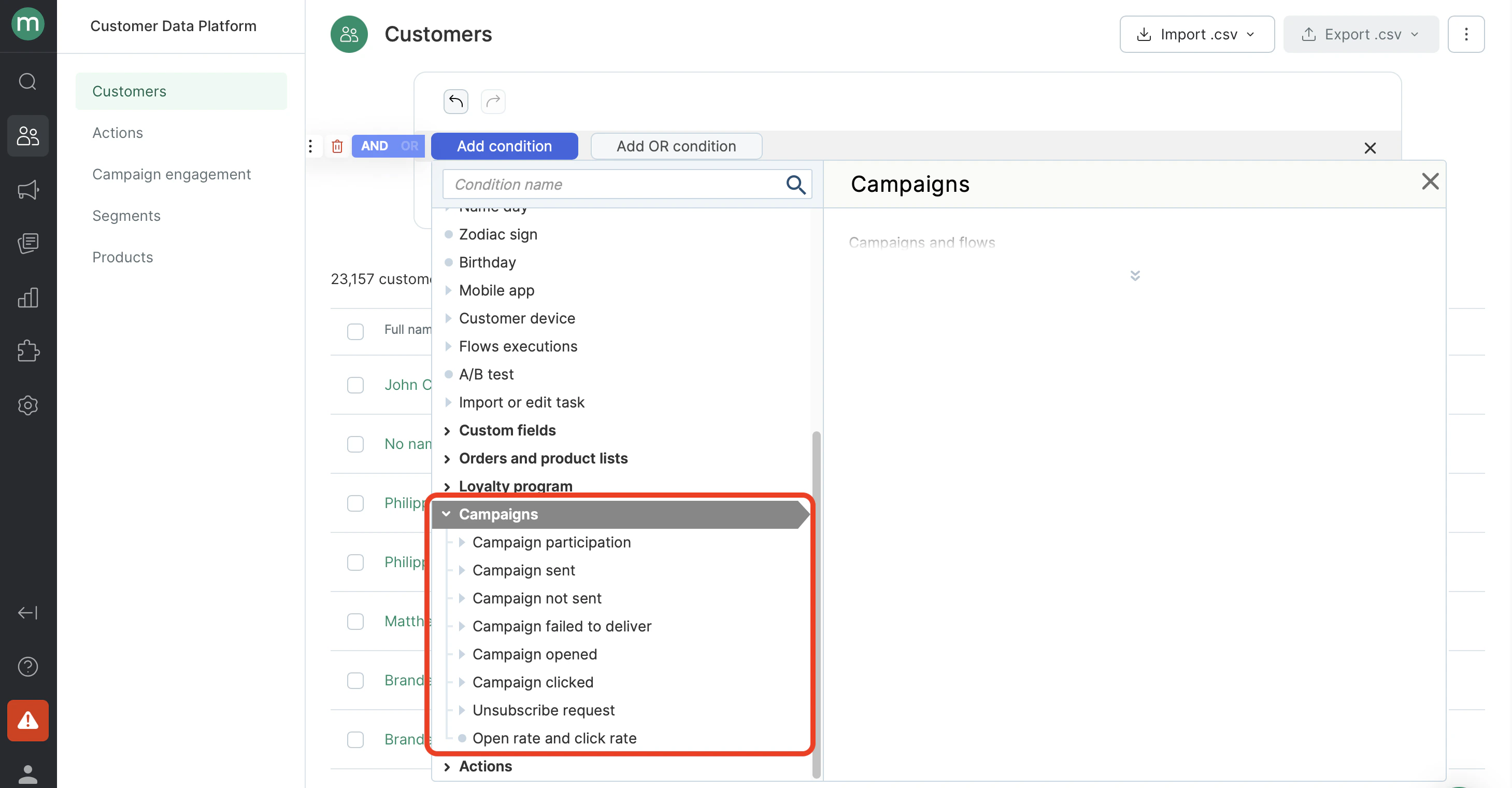
.png?fit=max&auto=format&n=O0b_zyYQP7Y48mll&q=85&s=b4c17e53248878669be6635892540316)
- Find customers who were sent the campaign.
.png?fit=max&auto=format&n=O0b_zyYQP7Y48mll&q=85&s=f6c639b44924006ba10ca5b03b772b4e)
- Find customers who were unable to send the campaign.
.png?fit=max&auto=format&n=O0b_zyYQP7Y48mll&q=85&s=5bb862f1ee55d21c419319040a1235d2)
- Find customers who were unable to deliver the campaign.
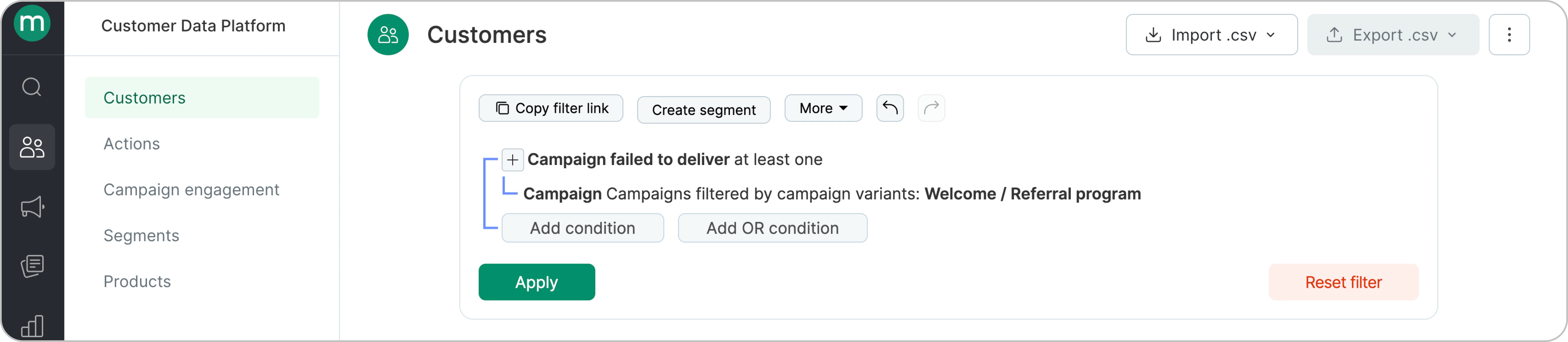
- Find customers who were in the campaign recipient list but could not receive it due to a send or delivery failure.
.png?fit=max&auto=format&n=O0b_zyYQP7Y48mll&q=85&s=6cdc5afe70f698334815d005f0ac9e5b)
- Find customers who received the campaign.
.png?fit=max&auto=format&n=O0b_zyYQP7Y48mll&q=85&s=ebe3eaffc77ed809b39d20b820038940)
- Find customers who opened the campaign.
.png?fit=max&auto=format&n=O0b_zyYQP7Y48mll&q=85&s=2002ab1818809e8a7305964d44636dc1)
- Find customers who didn’t open the campaign.
.png?fit=max&auto=format&n=O0b_zyYQP7Y48mll&q=85&s=5d17810479cbc379668a64c5277a1009)
- Find customers who clicked on a link in the campaign.
.png?fit=max&auto=format&n=O0b_zyYQP7Y48mll&q=85&s=788b925b804e408c9645204533bd0a73)
- Find customers who did not click in the campaign.
.png?fit=max&auto=format&n=O0b_zyYQP7Y48mll&q=85&s=bf215ee9624ffc0f95996c1a351e4951)
- Find customers who clicked the unsubscribe link.
.png?fit=max&auto=format&n=O0b_zyYQP7Y48mll&q=85&s=e301212b3e20c3edf99b3adce6d90032)
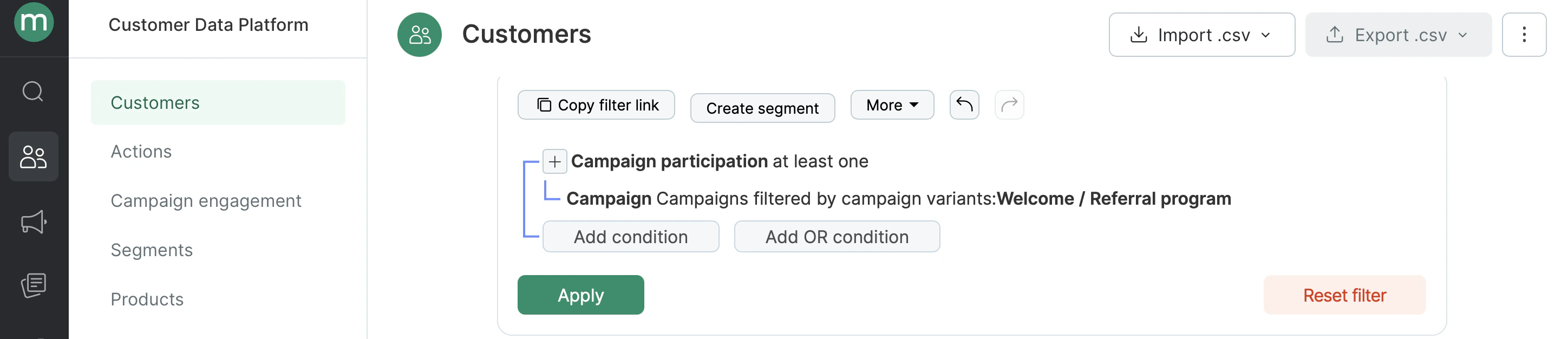
- Find all campaign participants — all customers who were included in the campaign’s recipient list.
Searching by interaction time
- Find customers who opened the campaign in June 2024.
.png?fit=max&auto=format&n=O0b_zyYQP7Y48mll&q=85&s=06e406ce6db277bd77ebca07a0344ed0)
- Find customers who opened the campaign within the last hour.
.png?fit=max&auto=format&n=O0b_zyYQP7Y48mll&q=85&s=14fb501af969a6868a94869624a8c044)
Searching by number of interactions
- Find customers who clicked in the campaign two or more times.
.png?fit=max&auto=format&n=O0b_zyYQP7Y48mll&q=85&s=c4560332705e49b8efebf6f8596d8b56)
- Find customers who were sent the campaign three times in the last six months.
.png?fit=max&auto=format&n=O0b_zyYQP7Y48mll&q=85&s=d6f6e8ea8a9327ce94fe7d1beeb8b288)
How to find specific Campaign engagements (e.g. clicked, sent, opened etc.)
Go to Customer Data Platform → Campaign engagements..png?fit=max&auto=format&n=O0b_zyYQP7Y48mll&q=85&s=ced6954cd08aee53b195f51d53166eeb)
- Find campaign sends.
.png?fit=max&auto=format&n=O0b_zyYQP7Y48mll&q=85&s=48edaa803b62e4be67355fdb81250c9d)
- Find campaign opens.
.png?fit=max&auto=format&n=O0b_zyYQP7Y48mll&q=85&s=731ee4bab030c601463cd2ab4e83b4d1)
- Find campaign clicks in the last 24 hours.
.png?fit=max&auto=format&n=O0b_zyYQP7Y48mll&q=85&s=82a96cbafbb3919e688b974d9e8903ca)