

Similar products
Items similar to a single product.
Similar to product list
Items similar to each product on a customer’s list.
Similar to recently browsed
Items similar to what a customer viewed in their last session.
How to set it up
1
Open Product Recommendations
Go to Content → Product Recommendations → Create recommendations preset.

2
Choose the preset and Click Create
Pick Similar products, Similar to product list, or Similar to recently browsed depending on where you’ll show recommendations.
3
Name the preset and Click Create
Give it a descriptive name (for example,
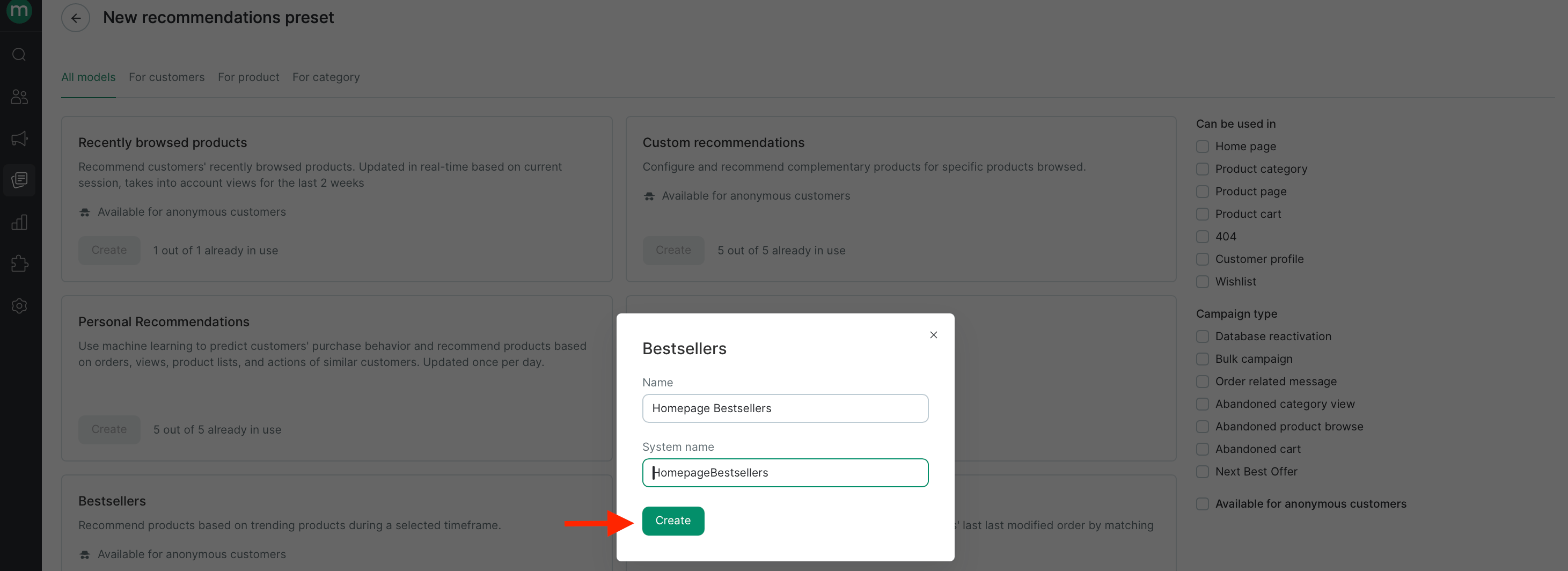
PDP similar products) so you can find it later, then continue.4
Configure General settings for your chosen preset
Settings vary slightly by preset.Similar products
- Recommend for products — the target segment the preset applies to (optional).
- Recommend from — the source segment recommendations are drawn from (optional).
- Suggest by price — recommend all products, only cheaper ones, or only more expensive ones (optional).
- External product systems match — checked by default; uncheck to also recommend products from other external systems.
- Recommend for products — the target segment the preset applies to (optional).
- Recommend from — the source segment recommendations are drawn from (optional).
- Brand (for multi-brand projects) and Product list — pick the list to build recommendations for.
- Suggest by price — recommend all products, only cheaper ones, or only more expensive ones (optional).
- External product systems match — checked by default; uncheck to also recommend products from other external systems.
- Recommend for products — the target segment the preset applies to (optional).
- Recommend from — the source segment recommendations are drawn from (optional).
- Suggest by price — recommend all products, only cheaper ones, or only more expensive ones (optional).
- External product systems match — checked by default; uncheck to also recommend products from other external systems.
5
Configure similarity settings
Similarity parameters set the sort order for recommendations. Maestra Platform first keeps only candidates that pass the parameters you mark as Exact match, then ranks the rest by similarity. See Similarity logic below for the ranking rules.
The more fields you select, the fewer recommendations you’ll get. Too many constraints can leave you with none at all.
6
Set vendor restrictions (optional)
Add a restriction if you want to keep specific vendors out of another vendor’s recommendations — for example, never recommend Vendor B’s items alongside Vendor A’s products.Restrictions are one-way. Set two rules if you want the block to work both ways.
7
Start the preset
Click Start. The preset appears in your list with its current status and the timestamp of its last update.

Similarity logic
Similarity settings drive both filtering and ranking. When any parameters are ticked as Exact match, Maestra Platform first picks products that match the source product on all the ticked parameters, then ranks the filtered result by similarity. When nothing is ticked, it goes straight to similarity ranking.Exact match filtering
For every parameter you tick as Exact match, candidates must match the source product on that parameter. What counts as a match depends on the parameter type:- Price / old price — only items within ±30% of the source product’s price are kept.
- Manufacturer and other single-value parameters — values must match exactly.
- Multi-value parameters and categories — the candidate’s value set must overlap with or be contained in the source product’s value set.
Similarity ranking
After exact match filtering (if applied), remaining candidates are sorted by similarity in the order you list the parameters. Products that match more parameters — starting from the top of the list — rank higher.- Price and old price
- Products within ±33% of the source price rank higher than products farther out.
- If the source product has no price, candidates without a price rank higher than those with one.
- Products with similar prices are shuffled randomly within the algorithm’s output.
- Manufacturer or another single-value parameter
- Products with matching values rank higher than products with mismatched values.
- If the source product’s value is empty, candidates with an empty value rank higher than candidates with a filled value.
- Multi-value parameters and category levels 1, 2, 3
- Products are ranked by how many values they share with the source product.
Example: If you list Price first and Manufacturer second (without ticking either as Exact match), products matching both rank at the top, then products matching only Price, then products matching only Manufacturer.
Once the preset is live, the recommendations page will display its status and last updated time.