- View your own profile from Profile → Edit profile.
- View your own profile from Settings → Security → Users.
- View your own permissions from Settings → Security → Users by expanding your row.
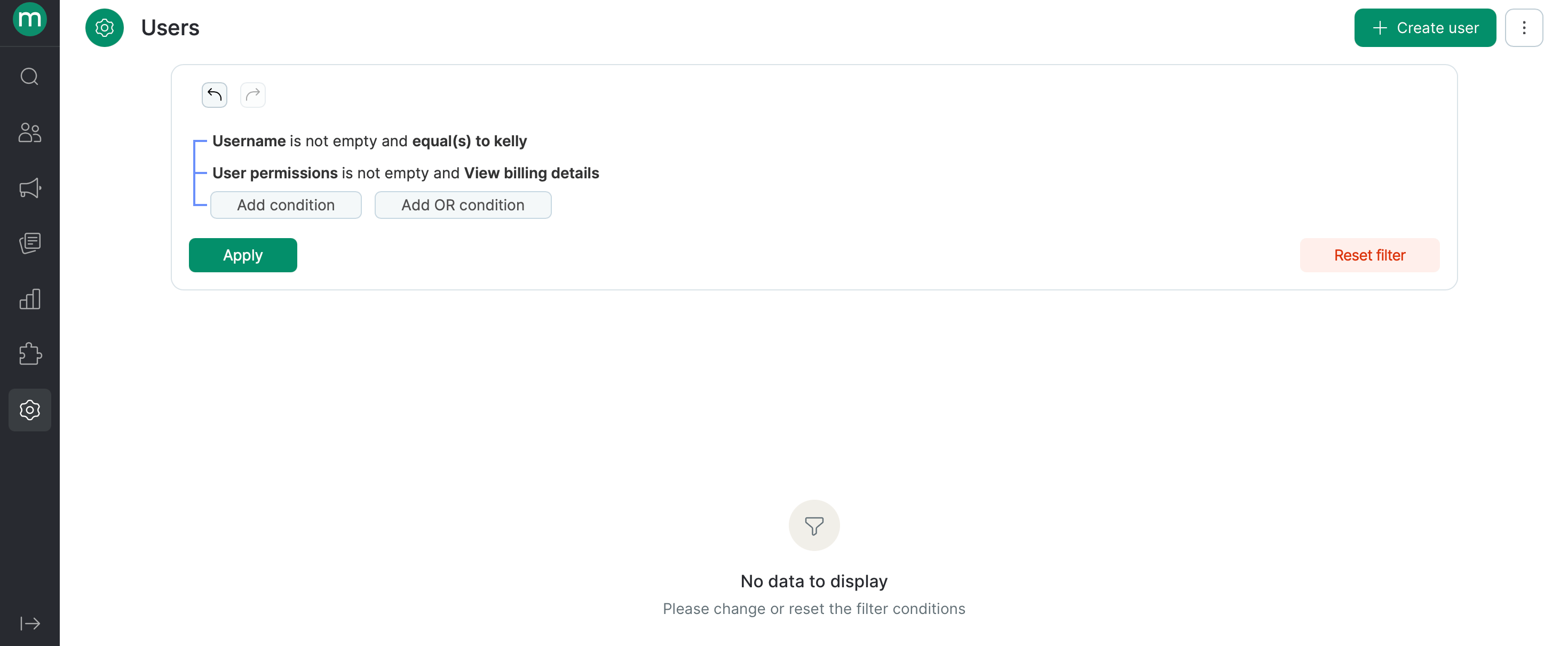
- Find the permissions you need with a filter.
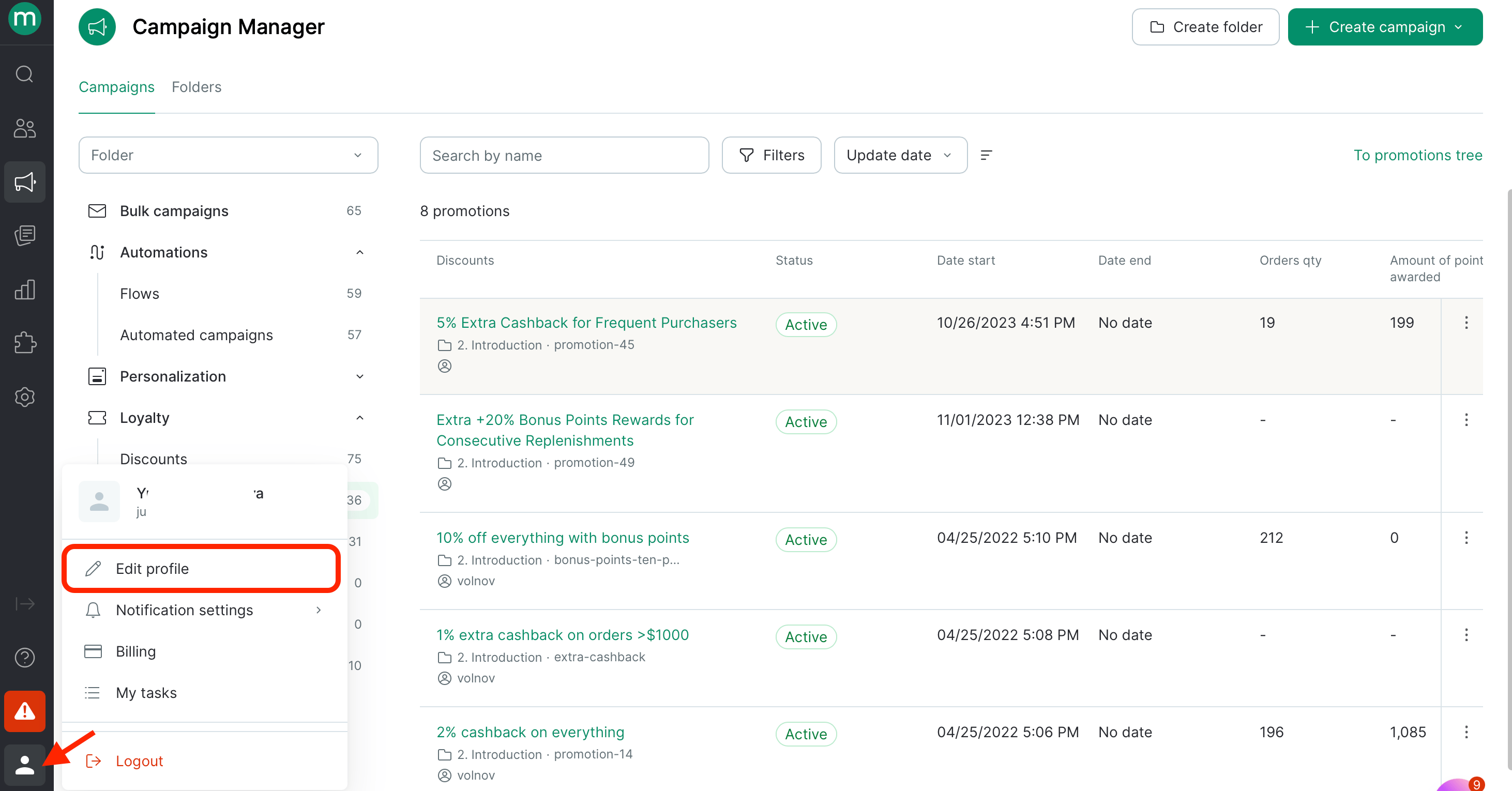
View your own profile from Profile → Edit profile
Available if you have theManage personal user profile permission.
Click the user icon in the bottom-left corner → Edit profile.
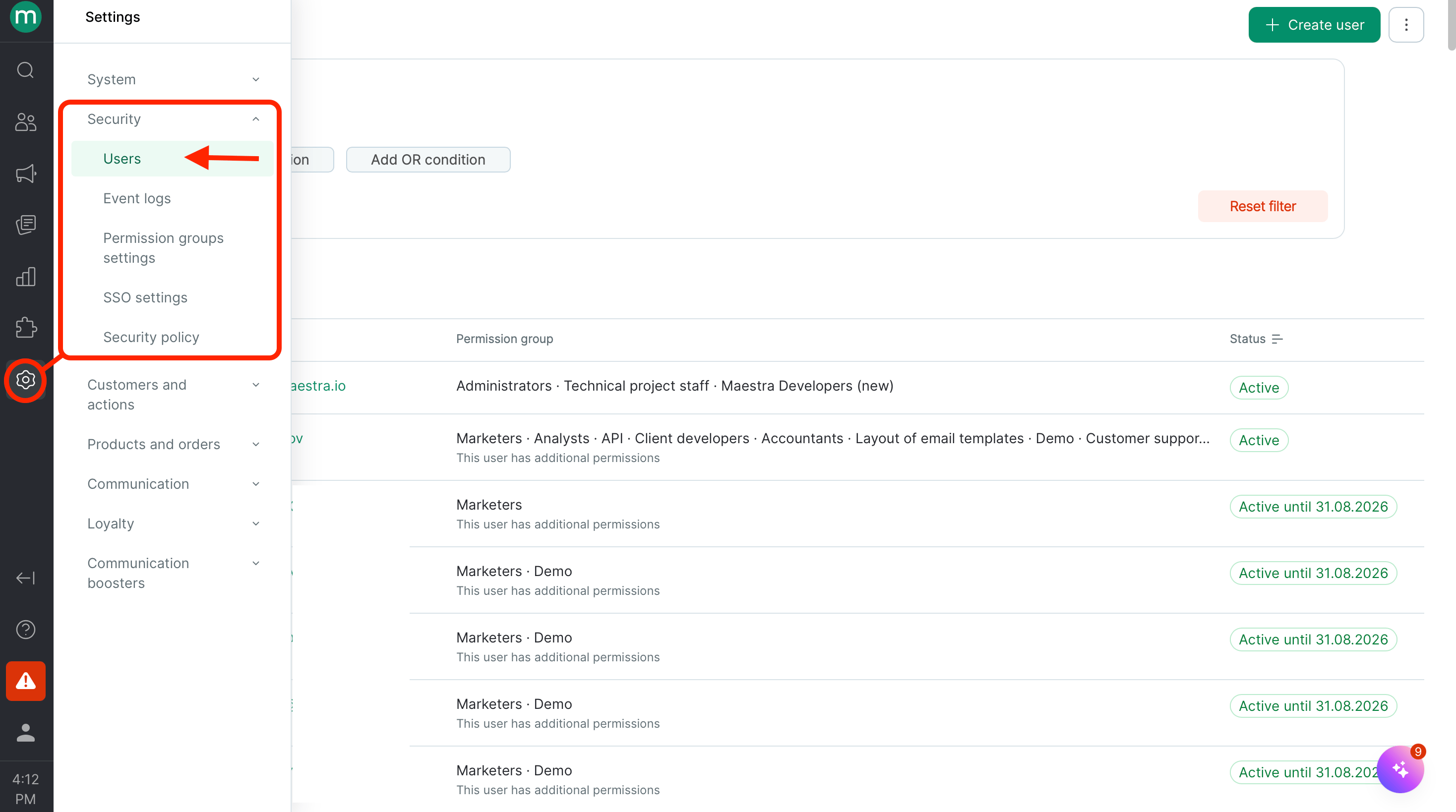
View your own profile from Settings → Security → Users
Available if you have theView and export the users list and View users permissions.
Go to Settings → Security → Users.
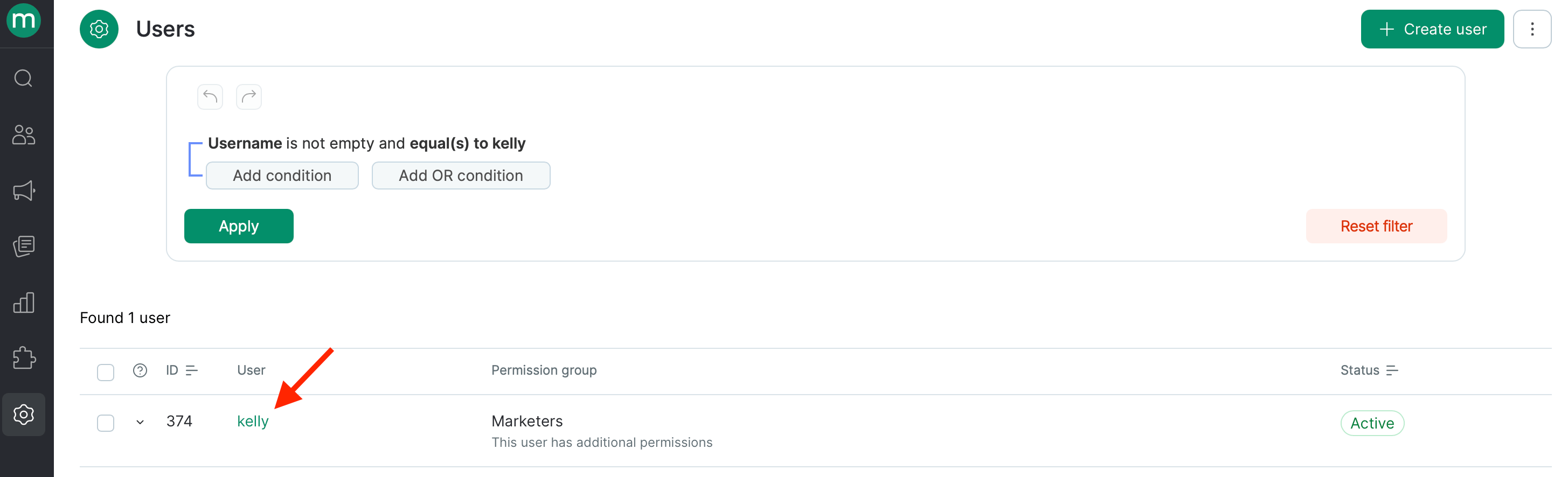
View your own permissions from Settings → Security → Users by expanding your row
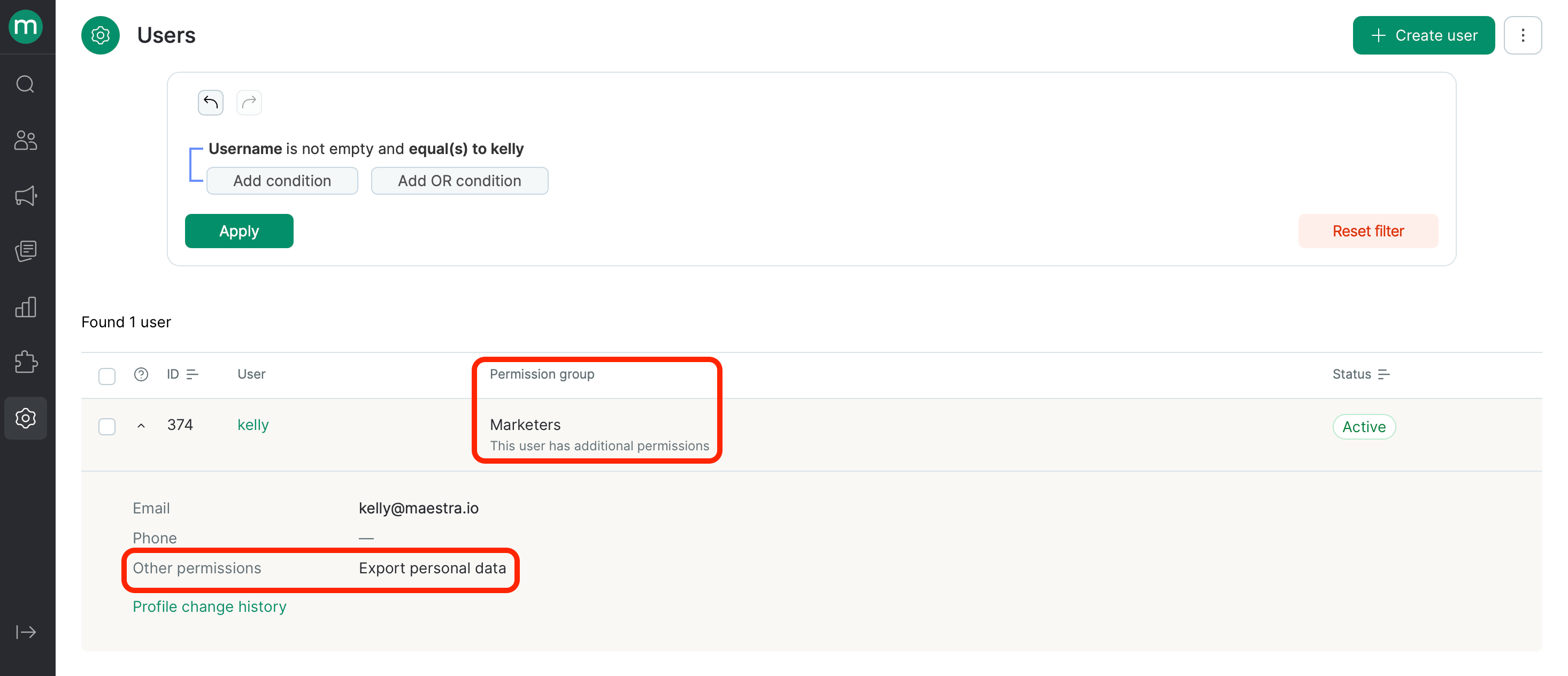
If you can open the users page but not individual profiles — meaning you only have theView and export the users list permission — click the row with your details. It expands to show your access, including your permissions.
Find the permissions you need with a filter
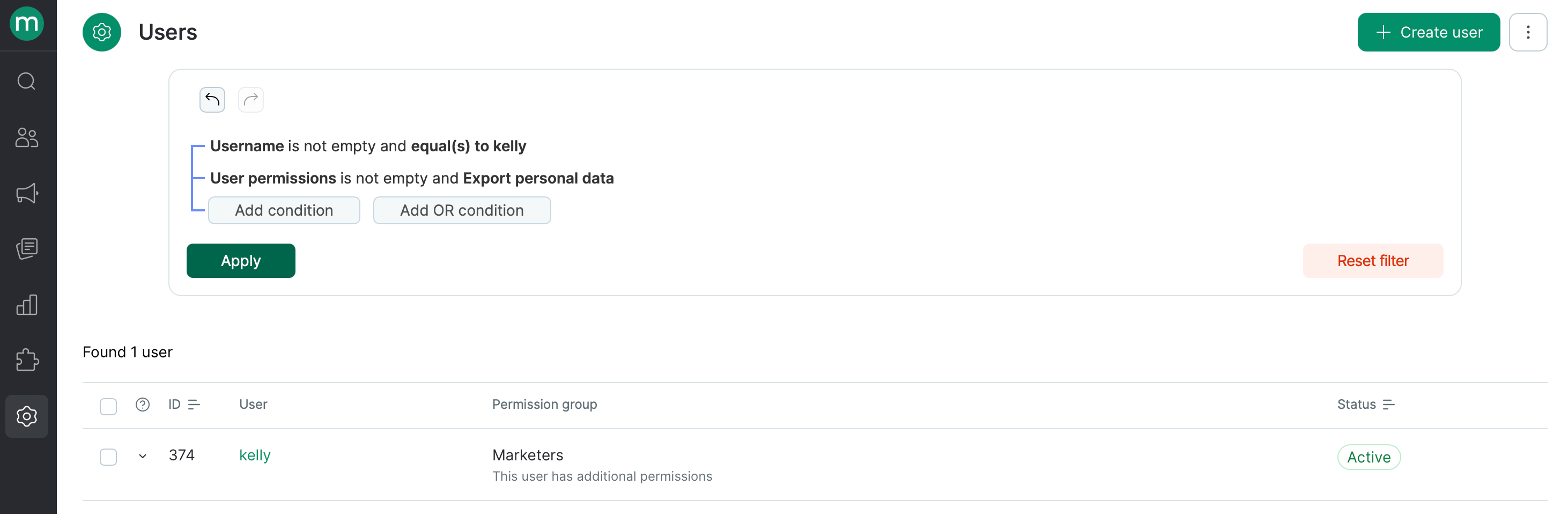
Another option on the users page, so you don’t have to work through group permissions — use filters. Go to Settings → Security → Users.- The user can export personal data.
- The user can’t view billing details.