

Which permissions to grant
Start here: You don’t have to grant permissions one by one — you can also swap the user’s permission group entirely. That’s the better move when a lot of permissions are missing. Pick a standard group that fits, or create a new one.Who can extend permissions
Two things matter here: access to editing users, and holding enough permissions yourself.Access to editing users
You can edit users if you have these permissions:View and export the users listView usersEdit users
You can’t grant what you don’t have
Whatever you grant has to be covered by your own access:- You can only grant additional permissions that exist on your own profile.
- To assign a permission group, you either need to belong to that group yourself or hold every permission it contains.
Permissions are usually granted by Owners, since they have the widest access on the project.
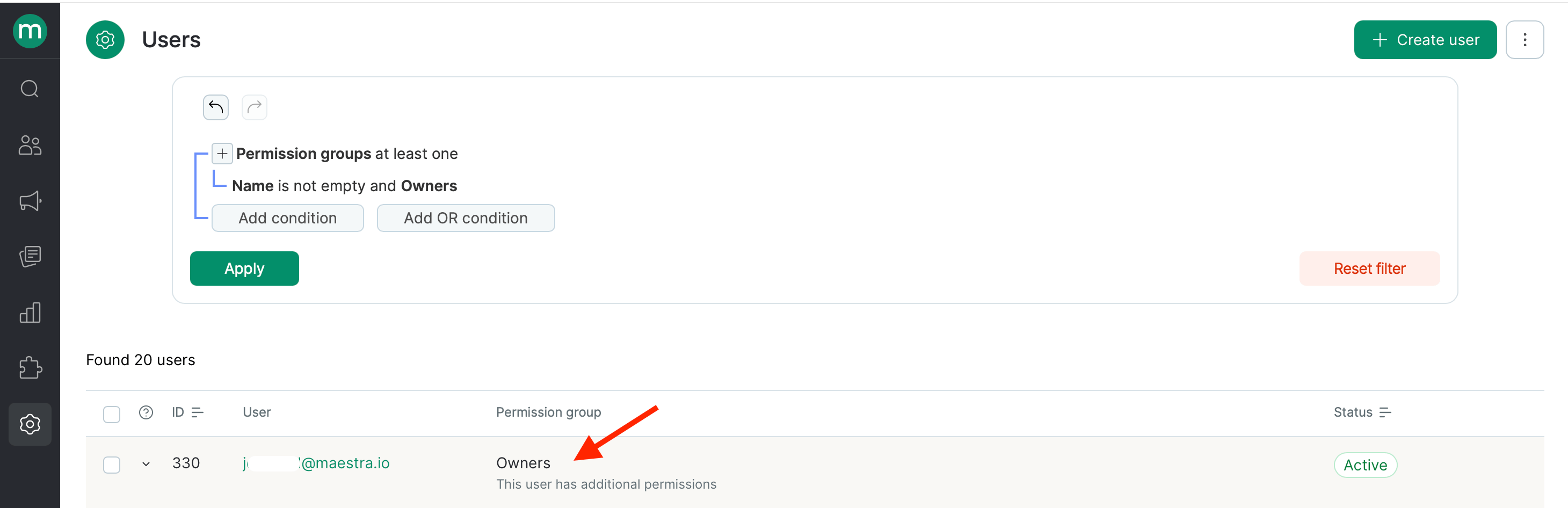
How to grant additional permissions
1
Open the users list
Go to Settings → Security → Users.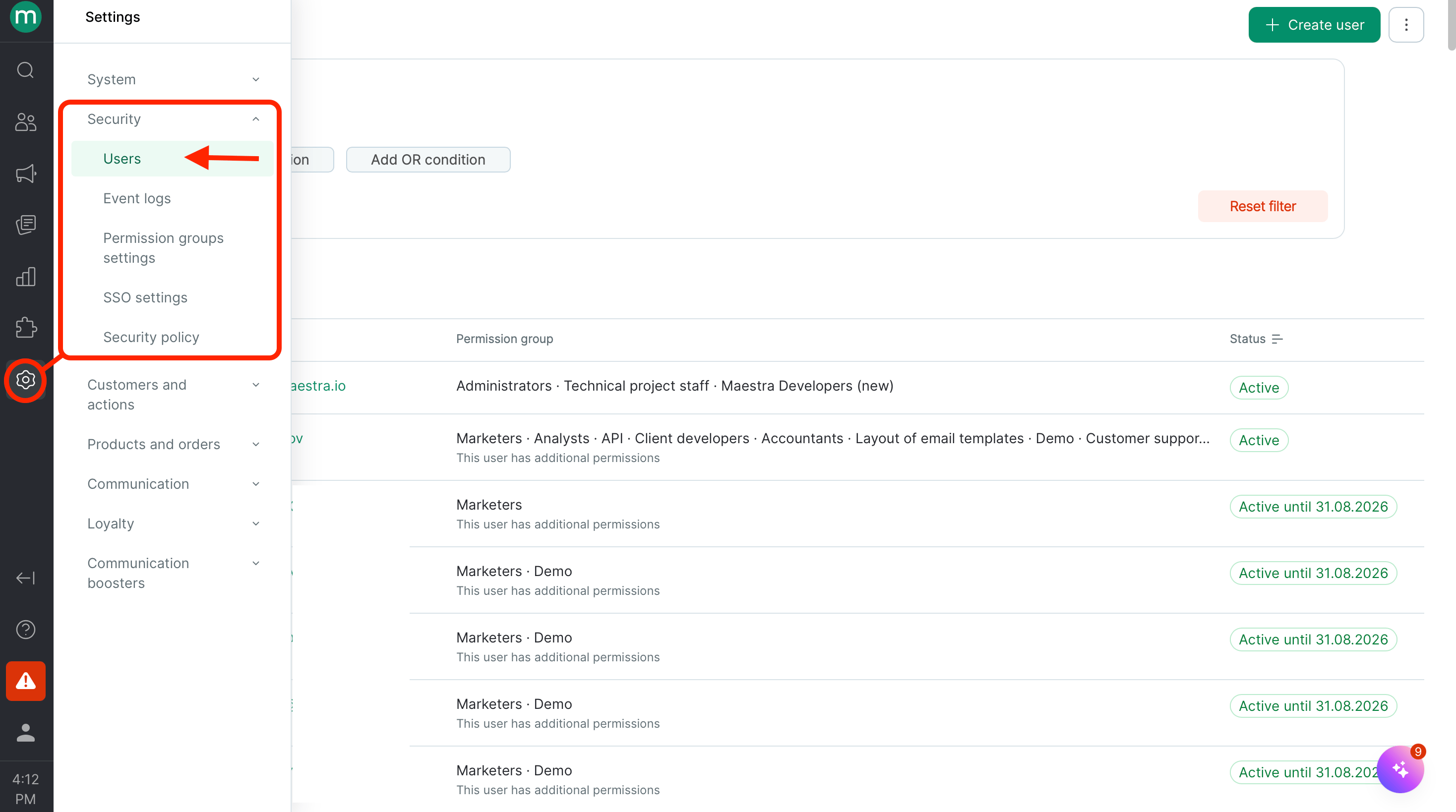
2
Open the user's profile
Find the user you need and open their profile.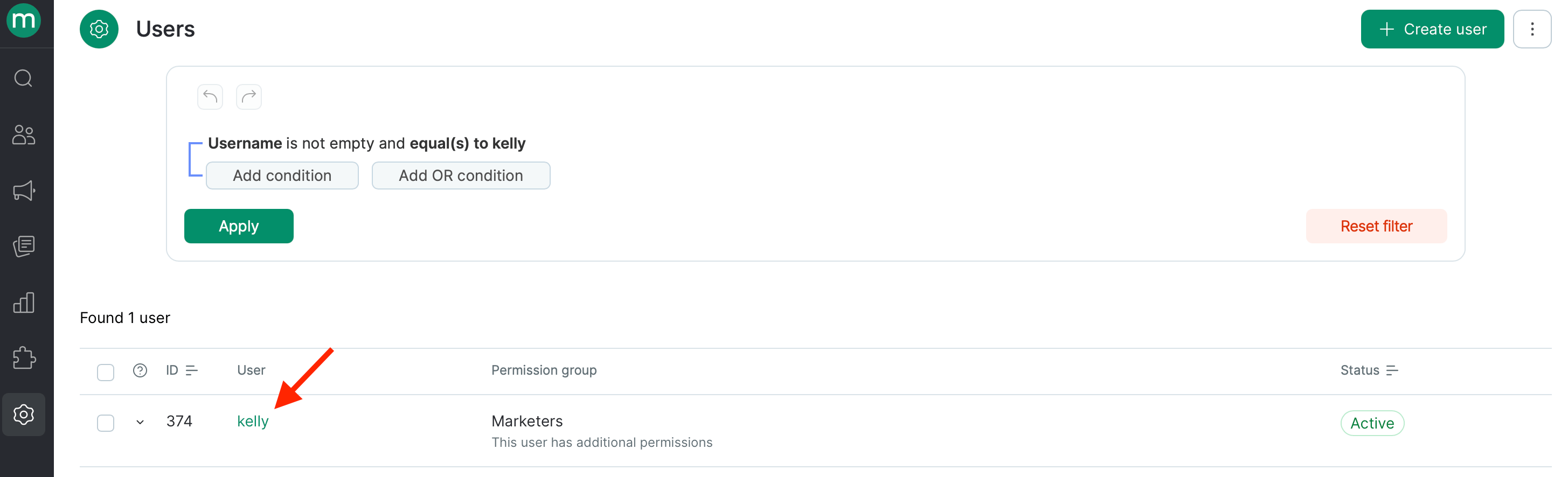
3
Add the permissions
Pick the permissions you need from the Additional permissions dropdown.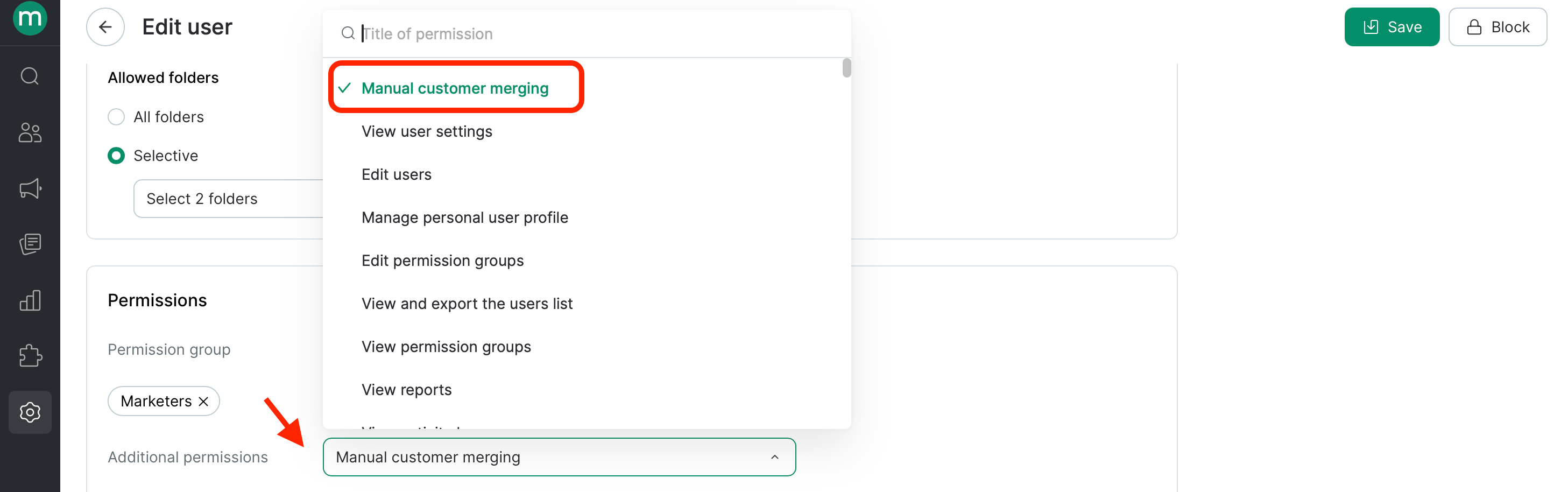
4
Save
Click Save.