Documentation Index

Fetch the complete documentation index at: https://help.maestra.io/llms.txt

Use this file to discover all available pages before exploring further.

Every action in Maestra Platform requires a specific permission. Use this page as a lookup: pick a section of the platform, find the action you want to perform, and grant the listed permissions.
Use Ctrl / ⌘ + F to search this page for an action (“export customers”) or a permission name (“Edit folders”).

Jump to a section

Customers

Actions & engagement

Segments

Products

Campaigns

Personalization

Flows

Promotions & loyalty

Analytics & A/B tests

Integrations

Settings

Billing & profile

Permissions stack on top of a permission group. You can extend an individual user’s access or build a custom group.

Customer Data Platform

Customers

To open this page: View customer list + View customer
2026 05 20 10 21 59
To do this on the pageAdd these permissions
View or edit name, email, and phoneView and edit customer personal details
Add to a segment / Remove from a segmentEdit customer segment, View segment groups
Assign an actionAdd actions, View campaign manager
Edit bonus balanceEdit customer balances
Merge customersManual customer merging
Issue a promo codeView promo codes, Edit promo codes
Delete customersDelete customers
Add a customerAdd customer
Import customersAdd customer, Edit customer, Add bulk tasks
Edit the product listAdd actions
Import areasEdit order settings
Export customersExport customers + Export personal data (to include name, email, phone, DOB) + View non-system tasksorView personal bulk tasks only (to see the task and download the file)
New export buttonExport customers, Edit folders, View campaign manager
Export areasExport areas + View non-system tasksorView personal bulk tasks only
Export the blocklistExport customers + View non-system tasksorView personal bulk tasks only
Create a segmentView segment groups
Edit a segmentEdit segments
Send bulk campaignSee the Campaigns section

Customer profile

To open a profile: View customer list + View customer To see customer actions in detail: View actions
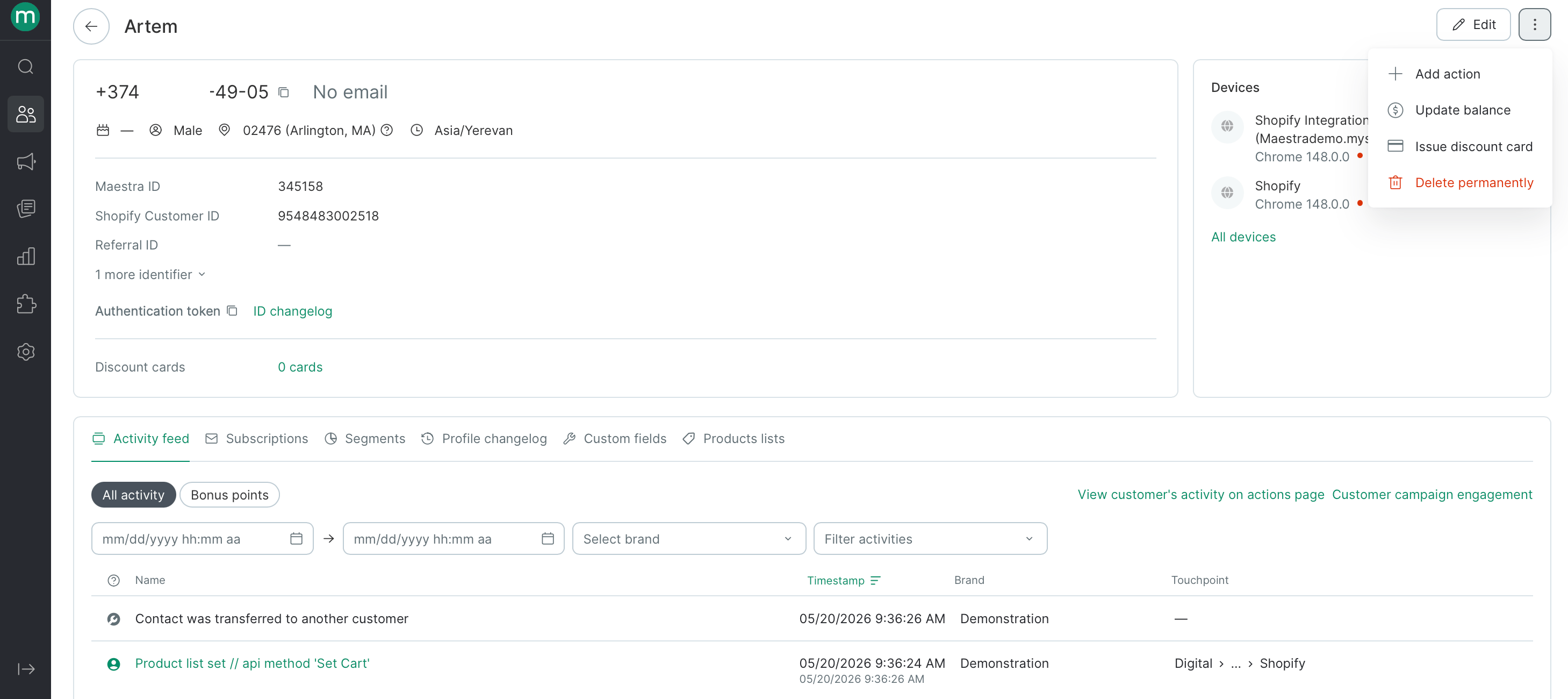
2026 05 20 10 27 29
To do this on the profileAdd these permissions
View or edit name, email, and phoneView and edit customer personal details
Edit the customer / Issue a discount cardEdit customer
Mark an email as validEdit email validity
Add an actionAdd actions, View campaign manager
Cancel an orderOrder cancellation
Update balanceEdit customer balances

Actions

Actions page

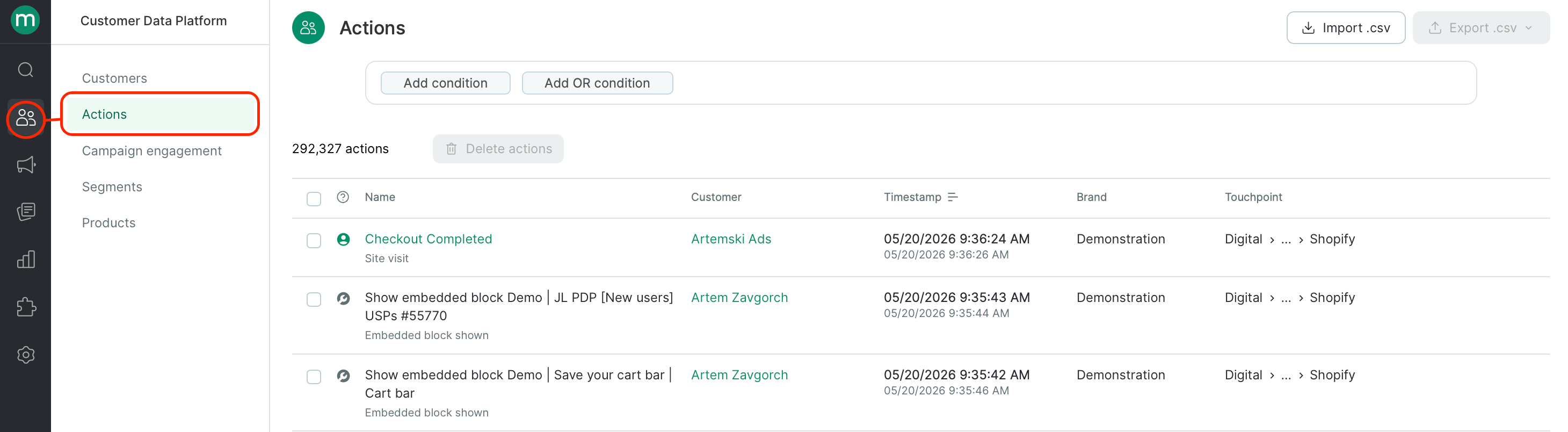
To open this page: View actions
2026 05 20 10 30 27
To do thisAdd these permissions
ImportActions bulk import
ExportExport actions
Delete actionsDelete customer actions
Cancel an orderOrder cancellation

Campaign Engagement page

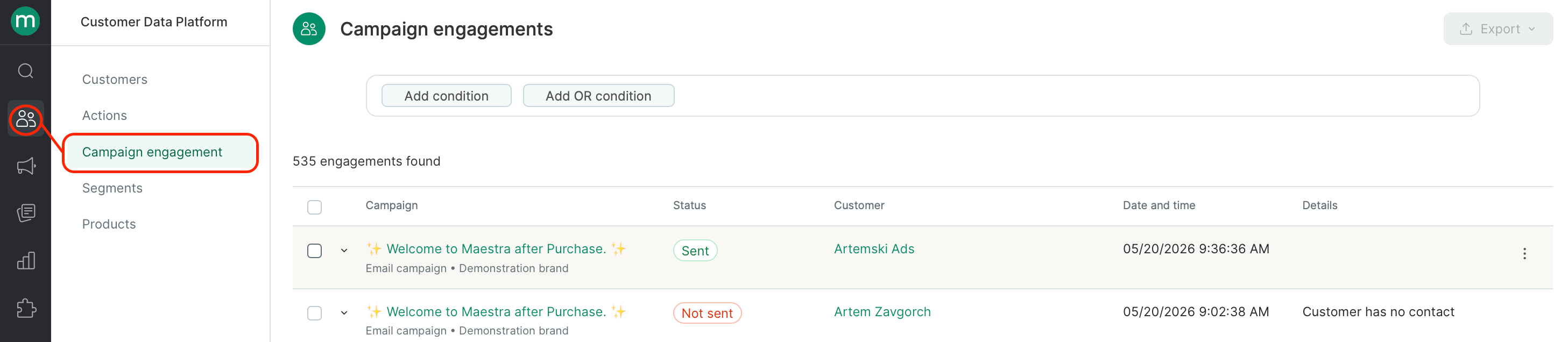
To open this page: View actions
2026 05 20 10 33 01
To do thisAdd these permissions
ExportExport messages

Segments

To open the section or a segment: View segment groups
2026 05 20 10 35 04
To do thisAdd these permissions
Add / Edit / Delete / See where it’s usedEdit segments
ImportAdd bulk tasks
View the task (scheduled segments only)View system tasks (Maestra staff only)

Products

To open the section, add, edit, or delete a product: View products
2026 05 20 10 36 56
To do thisAdd these permissions
Import products or manufacturersAdd bulk tasks
YML import settingsEdit third-party system connectors, Edit product list
ExportExport products + View non-system tasksorView personal bulk tasks only

Campaign Manager

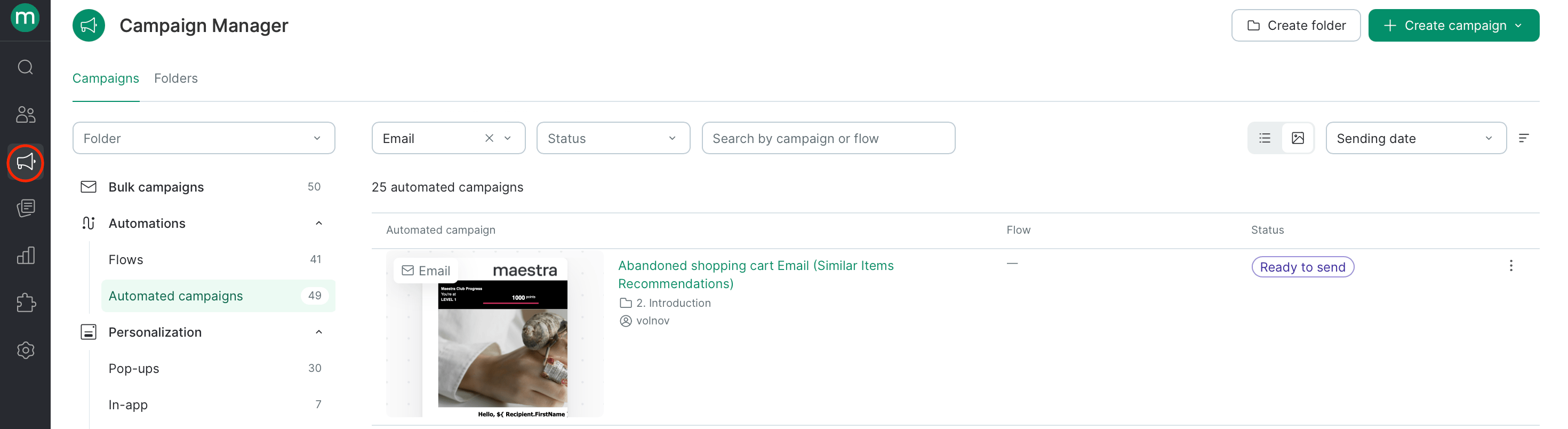
To open the Campaign Manager: View campaign manager
2026 05 20 10 40 57
If a user’s folder access is restricted, they’ll only see the allowed folders in the list.
To do thisAdd these permissions
Add / Edit / Delete a folderEdit folders +Limit campaigns to segments (if you need to restrict staff to specific folders only)
To view or add an asset to a folder, you need permissions specific to each asset type — see the sections below. Surveys, Promo code pools, and API methods are visible by default.

Messaging channels (Email, SMS, Mobile push, Web push, Viber)
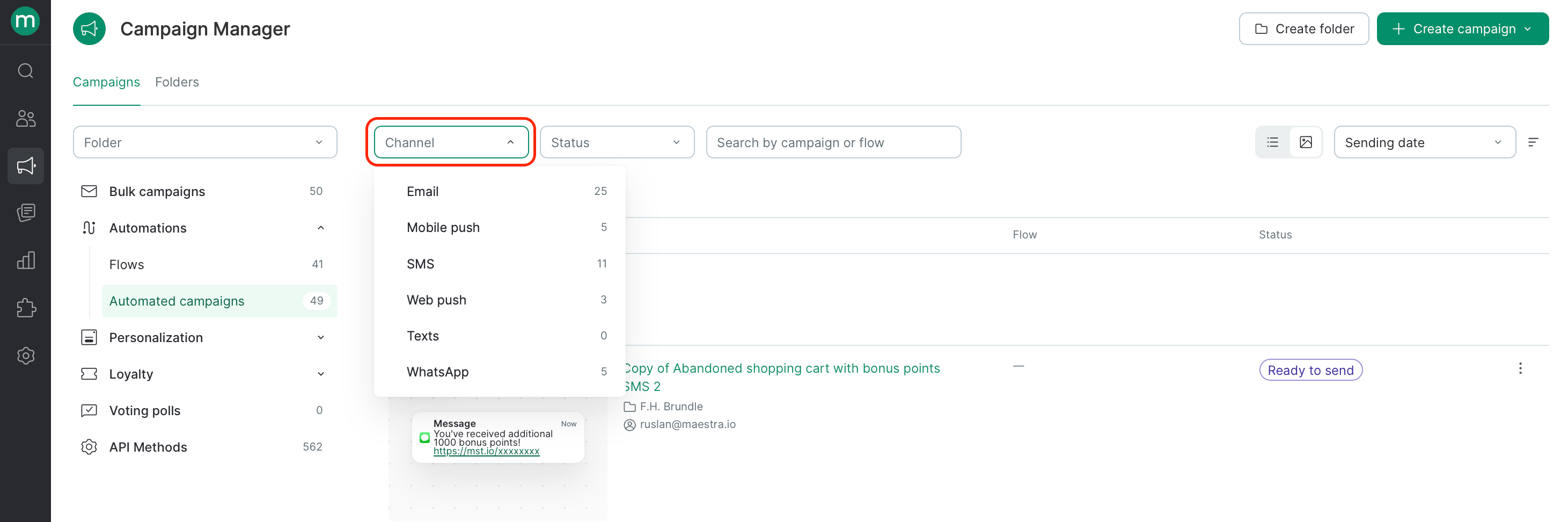
2026 05 20 10 51 46
All five channels follow the same permission pattern. Just swap in the channel-specific permission for Channel messages permission in the table below.
ChannelChannel messages permission
EmailView and edit email messages
SMSView and edit SMS messages
Mobile pushView and edit mobile push messages
Web pushView and edit web push notifications
ViberView and edit Viber messages
To open the channel section: View campaign manager + the channel’s messages permission. To open a specific campaign: the channel’s messages permission.
To do thisAdd these permissions
Add a campaignView brands (multibrand projects only)
Start / Schedule / Stop / Cancel / Finish editing an automated campaignCampaign sending
Send a test messageSend test messages
Copy / Delete / Run test modeNone — the channel’s messages permission is enough
Save or edit a template version in the email builder (Email only)Create, edit and delete blocks in the email constructor

API methods

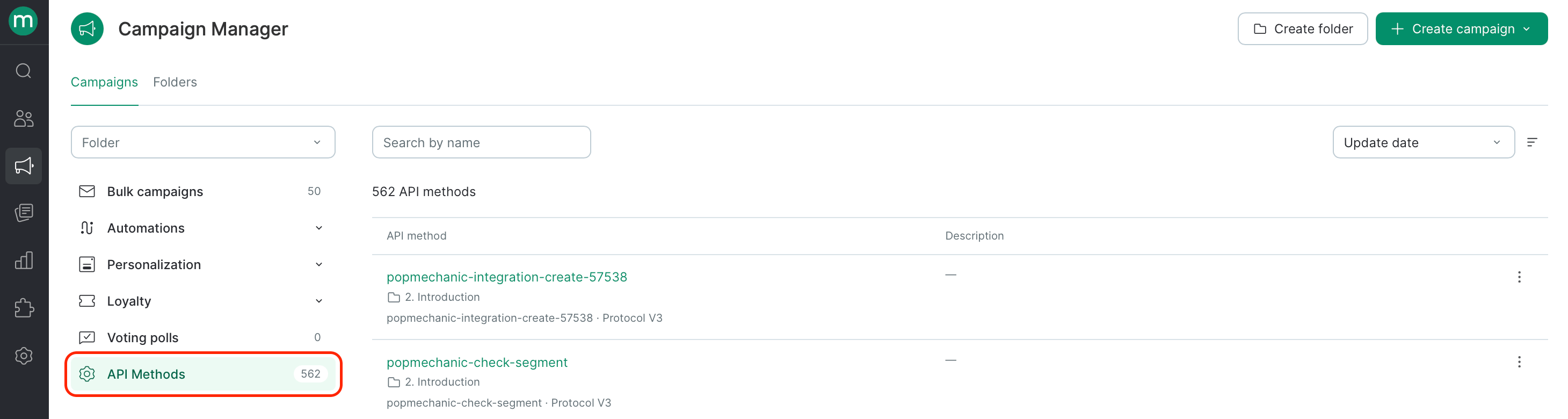
To open the section or view the spec: View campaign manager
2026 05 20 10 58 58
To do thisAdd these permissions
Add / Edit / DeleteEdit folders + Export event log (to add an “Export event log” step) + Export dashboards (to add an “Export report” step)

Personalization

Recommendation widgets

To open the section: View campaign manager + View and edit website personalization forms
To do thisAdd these permissions
AddView integrations, Edit external systems, View product recommendation algorithms
EditView integrations (if changing the integration), Edit external systems (if changing the external system), View product recommendation algorithms (if changing the algorithm)
Start / Stop / DeleteNone — View and edit website personalization forms is enough

Pop-ups, Embedded blocks

To open either section: View campaign manager + View and edit website personalization forms
To do thisAdd these permissions
AddView integrations
EditView integrations (only if changing the integration)
Start / Stop / DeleteNone — View and edit website personalization forms is enough

In-app

To open the section: View campaign manager + View in-apps
To do thisAdd these permissions
AddRun and edit In-apps, View integrations, View segment groups (if refining the targeting segment)
Edit / DeleteView integrations, View segment groups (if changing the targeting segment)
Start / StopRun and edit In-appsorView integrations

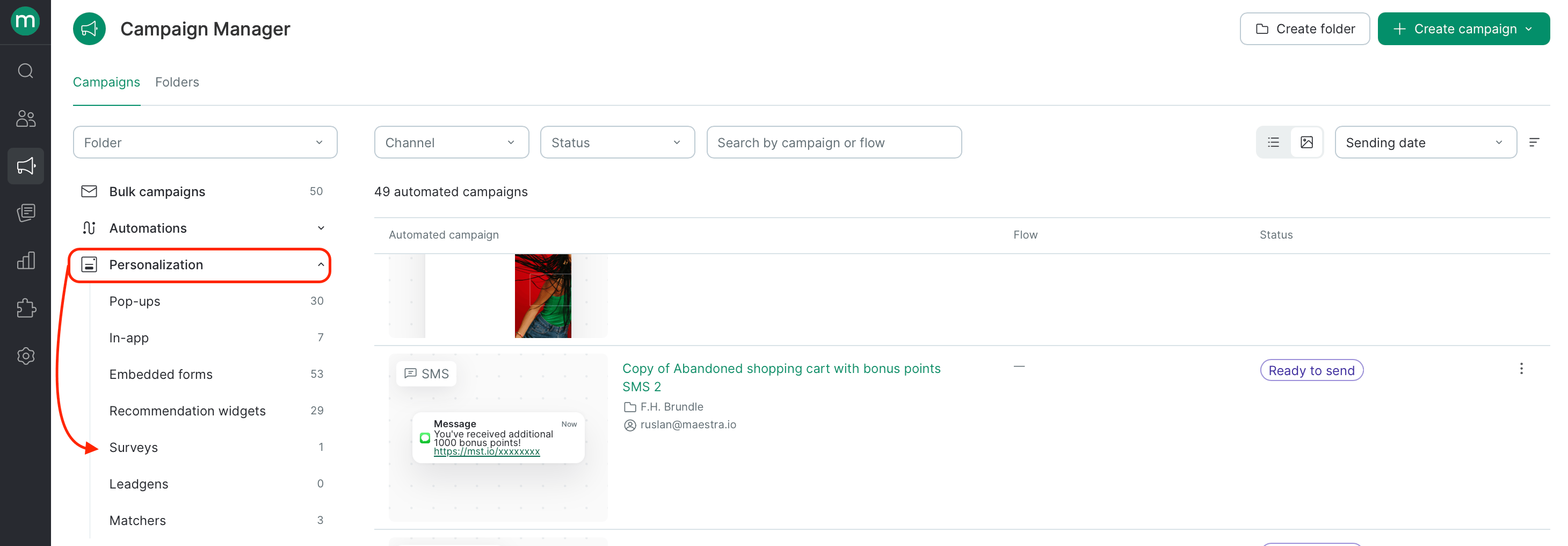
Surveys

To open the section: View campaign manager
2026 05 20 10 56 41
To do thisAdd these permissions
Add / Edit / DeleteEdit folders

Product recommendations

Required permission: View product recommendation algorithms

Communication boosters → Popup frequency control

Required permission: View and edit website personalization forms

Automations

Flows

To open the section: View campaign manager + View flows
To do thisAdd these permissions
Open a flowView flows
Add a flowEdit flows, View integrations, View brands (multibrand projects only)
Edit a flowEdit flows
Start / Stop / Delete a flowEdit flows
Export customers from flow stepsExport customers from scenario execution report

Wallet / OSMICards / Telegram

To open the section: View campaign manager
To do thisAdd these permissions
Add / Edit / Delete / Start / StopView and edit "MMS and messengers" messages
You’ll also need a provider connection set up before you can use this section. Reach out to your success manager.

Loyalty

Promotions

To open the section: View promotions, View and edit promotions, or View and launch promotions
To do thisAdd these permissions
Change the promotion treeView promotions (read-only), View and edit promotions (draft / completed / archived / stopped only), View and launch promotions (all types)
Add a promotion or group / Edit name and descriptionView and edit promotionsorView and launch promotions
Start or stop a promotionView and launch promotions
ArchiveView and launch promotions
Open a promotionView promotions, View and edit promotionsor, View and launch promotions (all types) + View promo codes + View campaign manager
Edit a promotionView and edit promotions

Gift cards

To open the section, edit, or export: View gift cards
To do thisAdd these permissions
ImportAdd bulk tasks

Promo code pools

To open the section: View campaign manager + View promo code
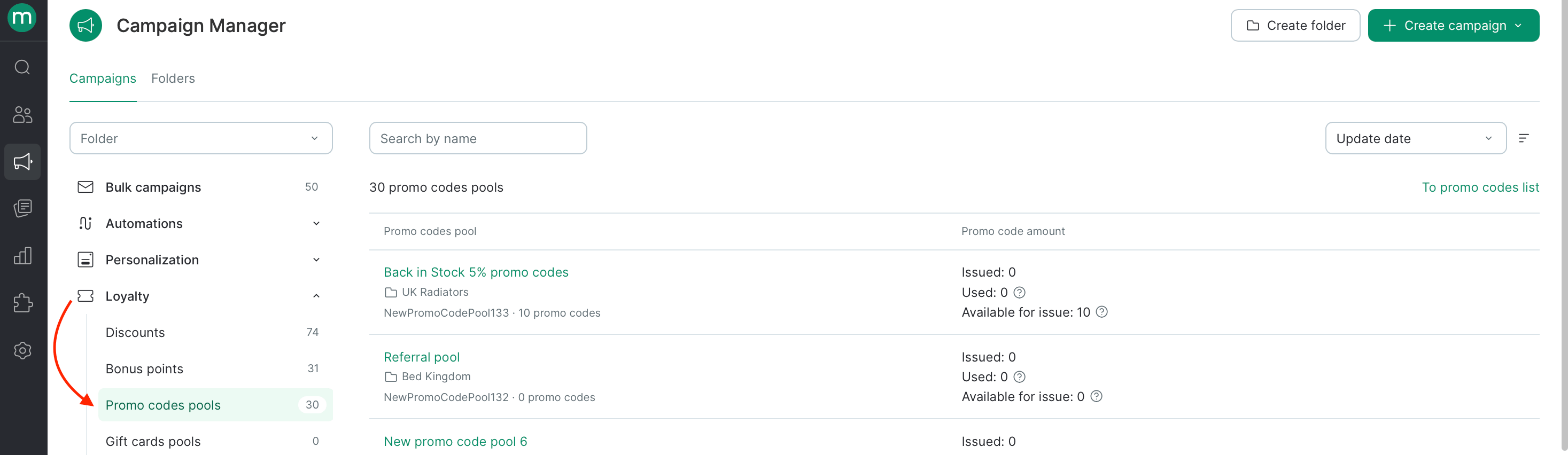
2026 05 20 11 00 46
To do thisAdd these permissions
Add / Edit / Delete a poolEdit folders
View promo codesView promo codes
ImportAdd bulk tasks
ExportExport promo codes
Edit / Delete promo codesEdit promo codes

Analytics & A/B tests

Analytics

Required permission: View reports
Brand-restricted users only see allowed brands in the Revenue & Drivers and Subscribers reports. Folder-restricted users only see allowed folders in the Campaigns report.

A/B tests

To open the section: View A/B tests
To do thisAdd these permissions
AddRun and edit A/B tests, View segment groups (to pick a participant segment)
Open an A/B testView segment groups (to see the selected segment)
Start / Stop / DeleteRun and edit A/B tests
EditRun and edit A/B tests, View segment groups (optional, only if changing the segment)

Integrations

To open the section or an integration: View integrations
To do thisAdd these permissions
Add an integrationEdit integrations
Edit / View and create test secret keysEdit integrations
View and copy any keysManage secret keys
Create any keysEdit integrations + Manage secret keys
Set up FTP importEdit third-party system connectors + Manage secret keys (to edit login/password)
Set up YML importEdit third-party system connectors + Edit product list
Set up webhook integrationsView webhook builder + Webhook builder access (to send from static IPs) + Manage secret keys (to view static IPs, add or view secret headers)

Integration logs

ActionRequired permissions
API methods — open / get log linkView integration logs
API methods — exportView integration logs + Export integration logs
Webhooks — open / get log linkView integration logs + View webhook builder
Webhooks — exportView integration logs + View webhook builder + Export integration logs

Integration monitoring

Any project access is enough — no extra permissions required.

Webhooks (builder)

To open the section: View webhook builder
To do thisAdd these permissions
Add / Delete / Edit / CloneWebhook builder access + Manage secret keys (to view secret headers)

Media

Required permission: View integrations

WebPush — integration verification

Any project access is enough.

Customer token verifier

Required permission: Customer token verification

Settings

Settings — System
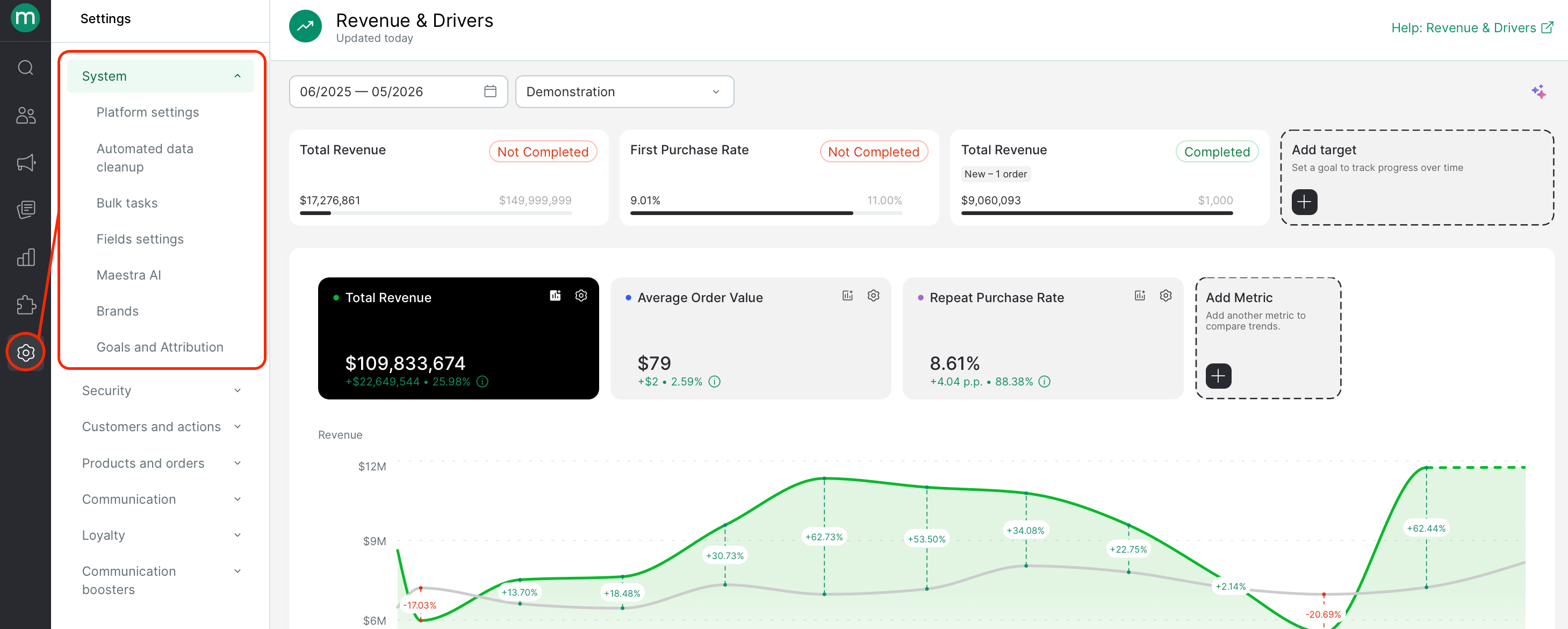
PageRequired permissions
Platform parametersEdit project settings
Automated data cleanupEdit auto-deletion settings
Brands — openView brands
Brands — add / editAdd and edit brands
Fields Settings — open / see where usedView custom fields
Fields Settings — create / edit / delete / importEdit custom fields

Bulk Tasks

To open the section: View personal bulk tasks only (shows only non-system tasks created from the logged-in user’s account) To expand what tasks are visible:
  • View non-system tasks — user tasks (auto-deletion, manual deletion, segment imports, report or export)
  • View all system tasks (Maestra staff only) — technical tasks (segment recalcs, campaign sends)
To access import source files:
  • View personal bulk tasks only — own tasks only
  • View imports input files — download files from any task
To access export files (separate permission per data type):
Export typePermission
Customers, product lists, customer discount cards, blocklist contacts, customer segment changesExport customers
Customer actions, orders, order line items, balance change historyExport actions
Products, product categories, product segment changesExport products
AreasExport areas
CampaignsExport messages
Campaign statusesExport statuses
FlowsExport flows
Customers from flow step executionsExport customers from scenario execution report
Operation and webhook logsExport integration logs
Bulk and dynamic campaign reportsExport dashboards
PromotionsExport promotions
To do this on a taskAdd these permissions
Stop / Resume a taskManage tasks
Force a taskForce tasks

Settings — Security

PageRequired permissions
Users — openView and export the users list
Users — add / importEdit users
Users — blockView users + Edit users
Users — exportView and export the users list
Users — open a profileView users
Users — editView users + Edit users + Limit staff campaign access (if restricting campaign access)
Permission groups — openView permission groups
Permission groups — create / delete / open / editEdit permission groups
Security policy — openView security policy
Security policy — edit alternative login user listView security policy + Manage security policy: partial access
Security policy — edit any settingsView security policy + Edit security policy
Event logsView activity logs
To assign a permission group, you either need to belong to that group yourself or hold every permission it contains. Maestra internal groups can’t be selected from the UI. You can only grant additional permissions that exist on your own profile.
System permission groups can’t be edited or deleted. A group must have no users assigned before it can be deleted.

Settings — Customers and actions

PageRequired permissions
Customer profileEdit third-party system connectors
Discount cards — openView discount cards list
Discount cards — import / export / detach / deleteDiscount card bulk tasks
Discount card typesManage discount card types
Action templates — openView action template list
Action templates — create / tag / set category / delete / export / edit / copyEdit action template list
Channels — open / exportView touchpoint list
Channels — add / delete / import / editEdit touchpoint list
Touchpoints — open / exportView touchpoint list
Touchpoints — add / delete / import / editEdit touchpoint list

Settings — Products and orders

PageRequired permissions
Order line statusesEdit order settings
Payment methodsEdit order settings
External systemsEdit external systems
Customer product lists — open / add / editEdit product list
Customer product lists — generate methodsEdit folders + Edit product list
AttributionEdit order settings

Settings — Communication

To open the Campaign settings area at all, you need Edit subscription topics.
PageRequired permissions
Email settingsEdit subscription topics + Edit email settings
Default UTM tagsEdit subscription topics + Edit default UTM tags
SMS settingsEdit subscription topics + Edit SMS settings
Subscription TopicsEdit subscription topics
Universal linksEdit subscription topics + Edit email settings
Global control groupEdit subscription topics + Editing global control group settings
SMS connections — open / add / editEdit SMS settings
SMS connections — deleteDelete SMS connections
Viber connections — open / add / editEdit Viber settings
Viber connections — deleteDelete Viber connections

Settings — Loyalty

PageRequired permissions
Loyalty program membersAny project access
Points balances — openAny project access
Points balances — add / edit / deleteEdit folders
Personal offers listAny project access

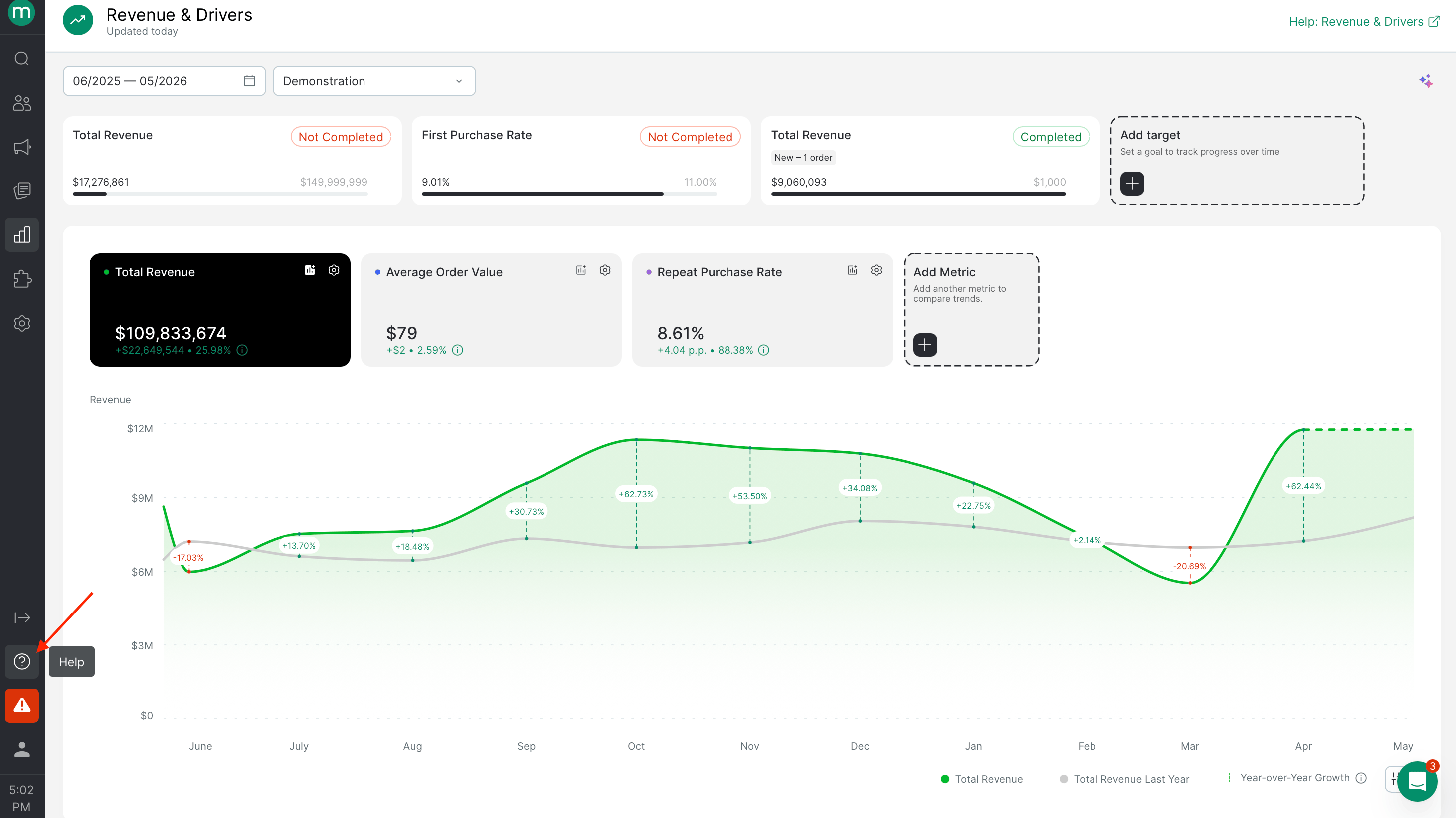
Help

PageRequired permissions
Dynamic parametersView message template variables (tab)
Campaign & Data MonitoringProject monitoring access

Billing & profile

Billing

To open the section: View billing detalization
To do thisAdd these permissions
Enable / Disable a module / Activate billing / Cancel subscriptionAbility to manage billing

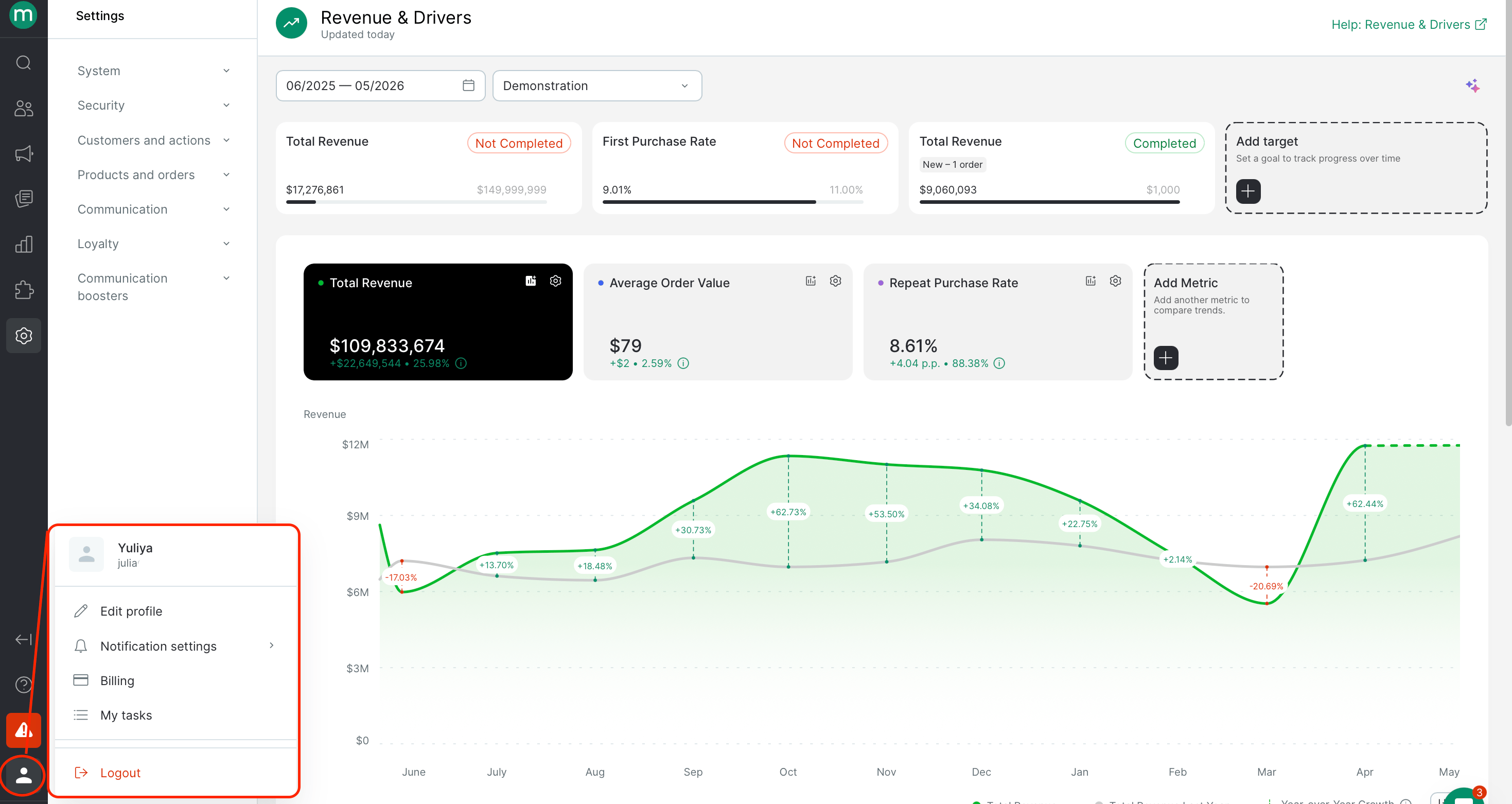
Profile

PageRequired permissions
Edit your profileManage personal user profile + View and export the users list
Edit the Email field in your own profileAdd Edit users
Notification settingsAny project access
My subscriptionsAny project access
Reports and exportsAny project access

My tasks

Opens the Bulk Tasks section pre-filtered by user. To open the section: View personal bulk tasks only For broader task visibility, import-source-file access, and per-data-type export permissions, see Bulk Tasks above.
To do thisAdd these permissions
Stop / Resume a taskManage tasks
Force a taskForce tasks