

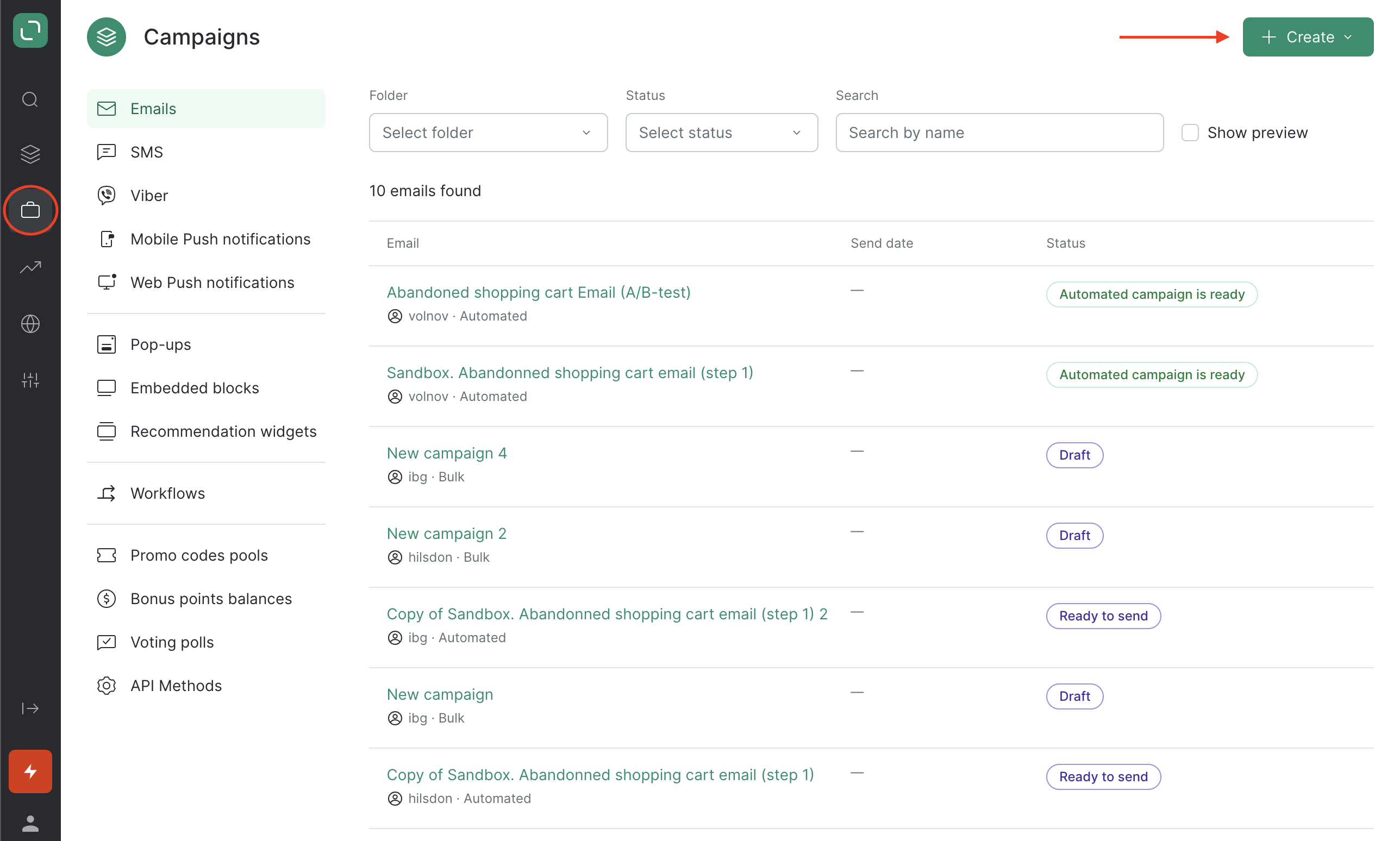
- Go to Campaigns and click Create:
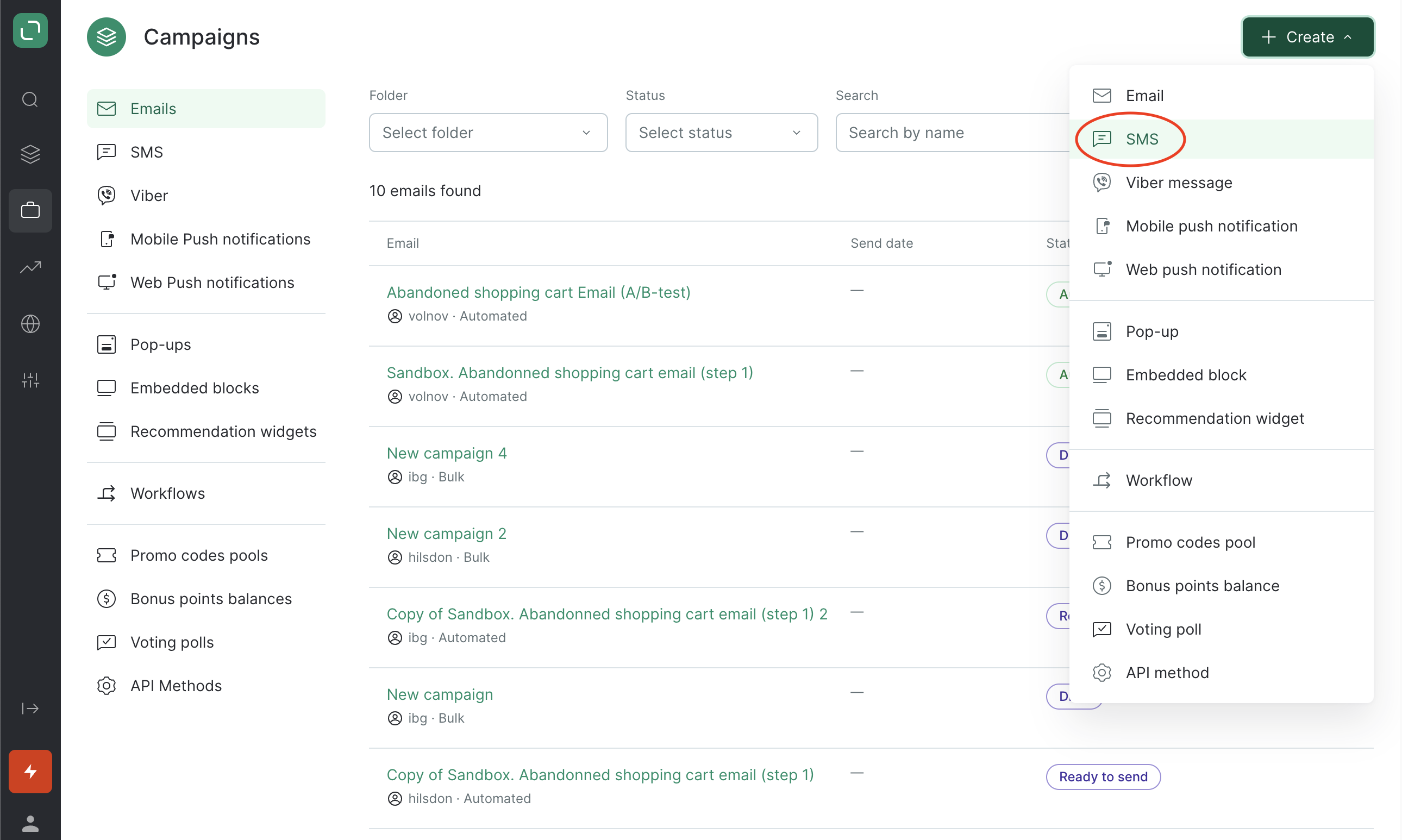
- Select the SMS channel:
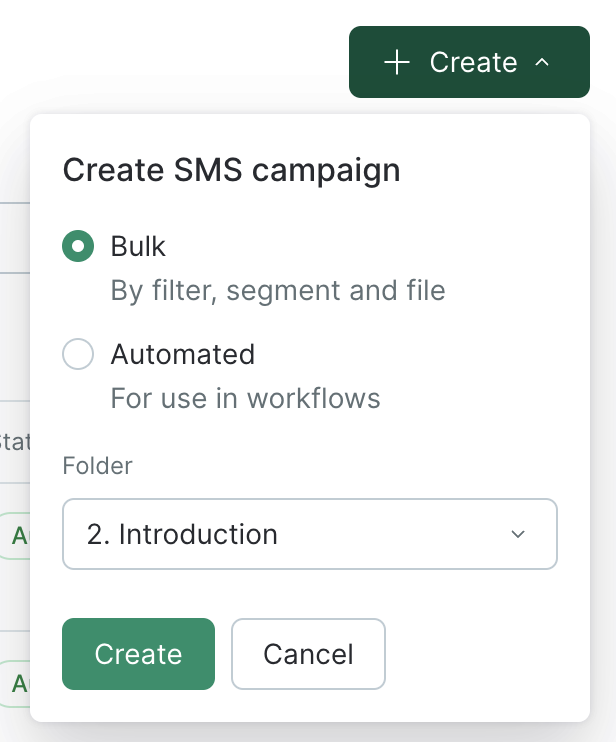
- Select the bulk type and the folder, where your campaign will be created:
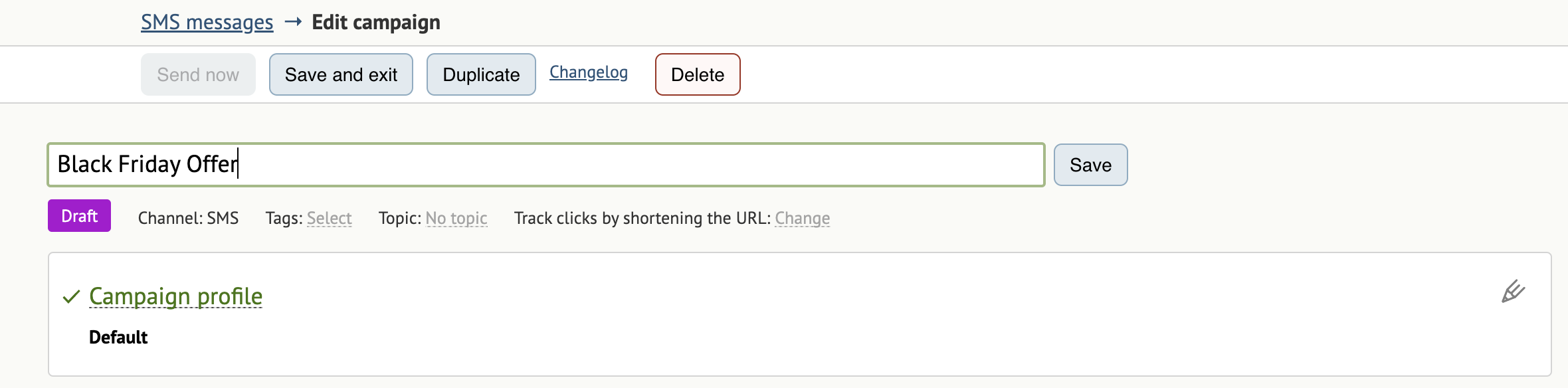
- Enter a title for your campaign:
- You can also select a Topic:

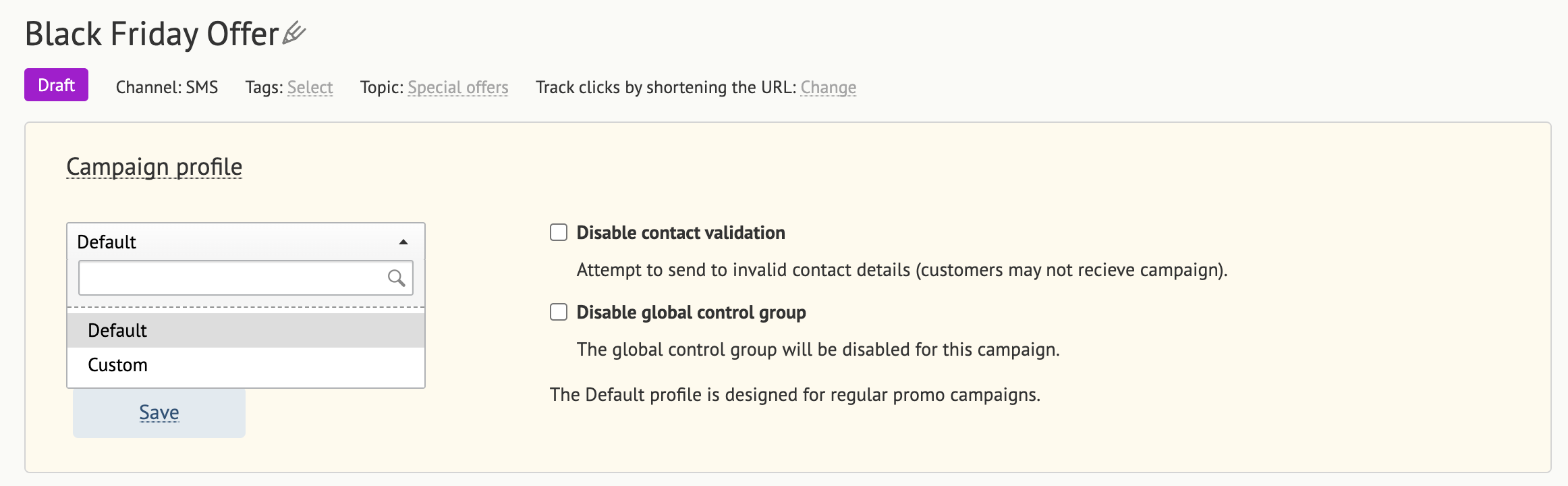
- Set up the Campaign profile.
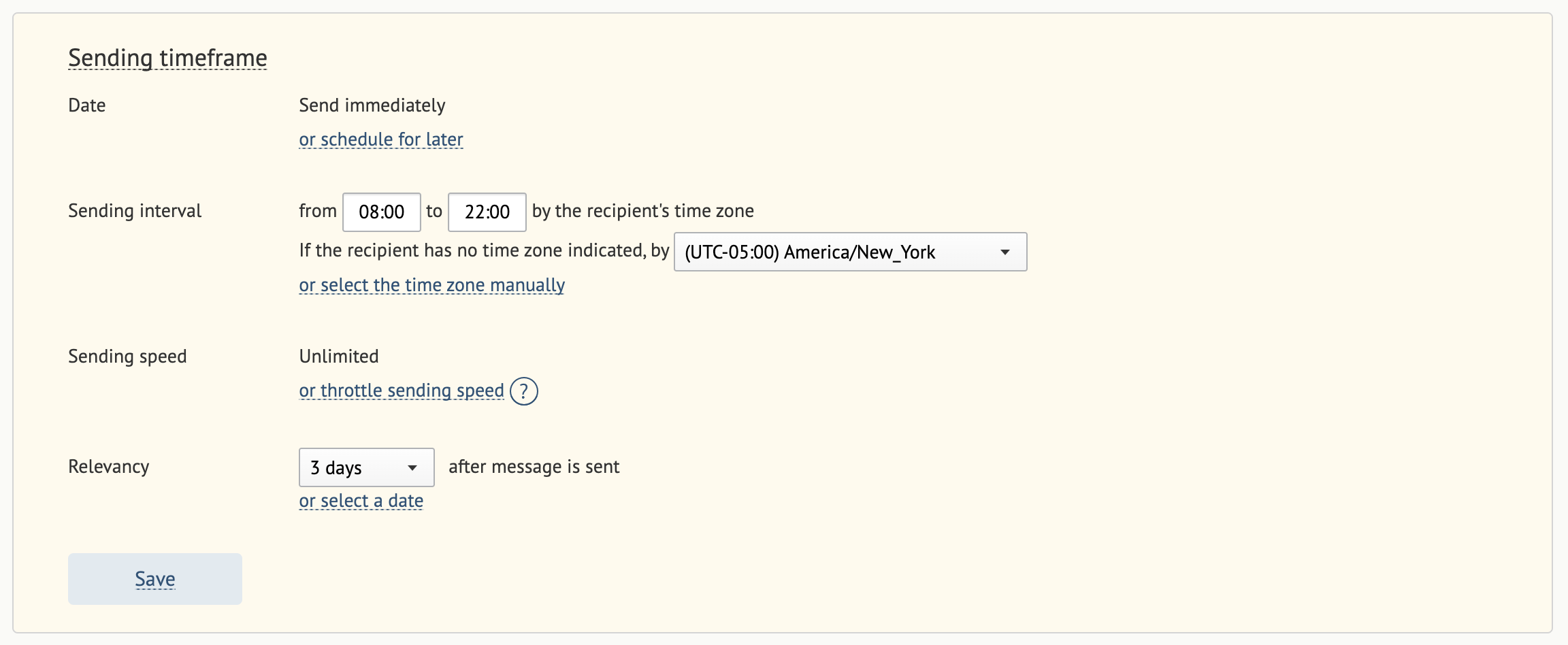
- Fill in the fields in the Sending timeframe section.
- If you have URLs in your message, use the following feature to shorten them:

How to Shorten URLs
Enabling this function allows you to collect statistics on clicks and orders from SMS. If the function is disabled, the number of clicks and orders from the SMS campaign will always be 0.
- Select the Sender:

- Enter your message:

In the U.S. and Canada, text messages are limited to 160 characters (including spaces and punctuation marks).
- Once finished, click Save.
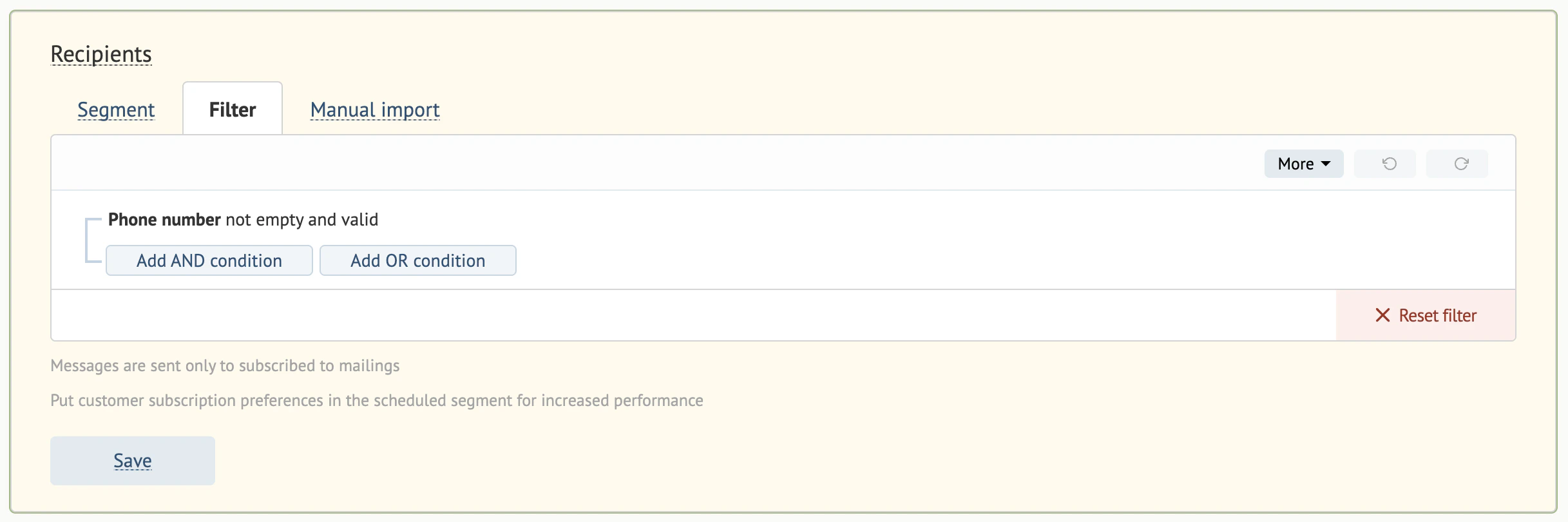
- Specify your recipients: select a customer segment, create a filter, or upload a file for manual import:
- Send a test message to check that you’ve set everything up correctly:

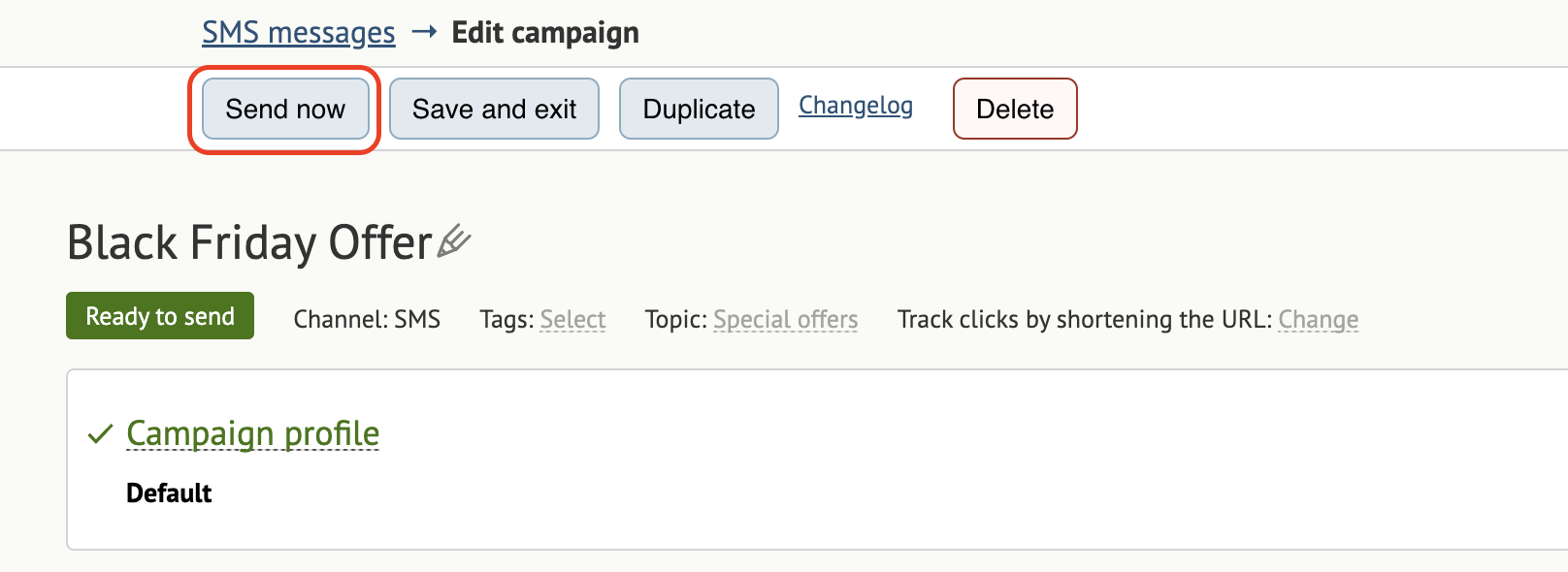
- When you’re ready, click Send now:
Scheduled sending
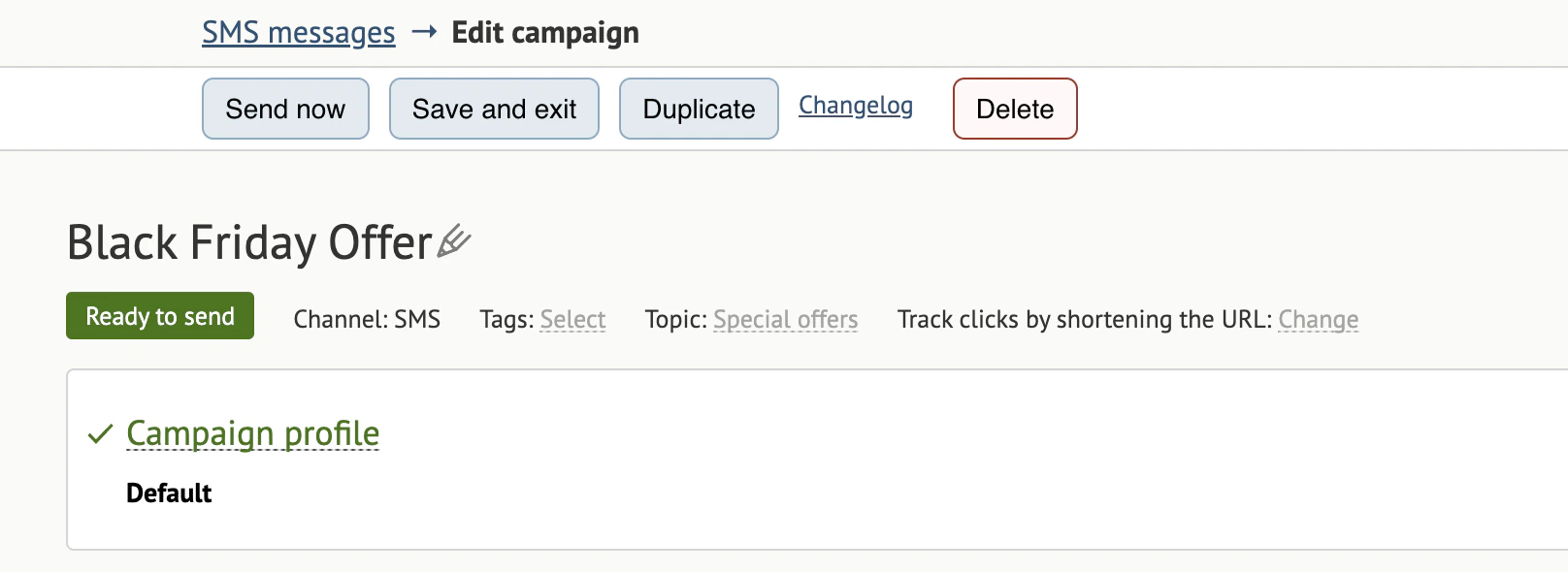
If you schedule your message for a later date/time, its status switches to Sending scheduled. Please note that once you click Send now, the system will launch your campaign immediately. You need to click Save and exit to launch your campaign later. You can also apply the following actions to a campaign:- Save and exit — nothing happens, changes will be saved and you will end up on the bulk campaign tab on the Campaigns page.
- Duplicate — a new copy of the campaign will be created.
- Changelog — view a history of edits/ changes made to the campaign.
- Delete — this campaign will be deleted.
A/B tests and control groups
- Add an A/B test variation:

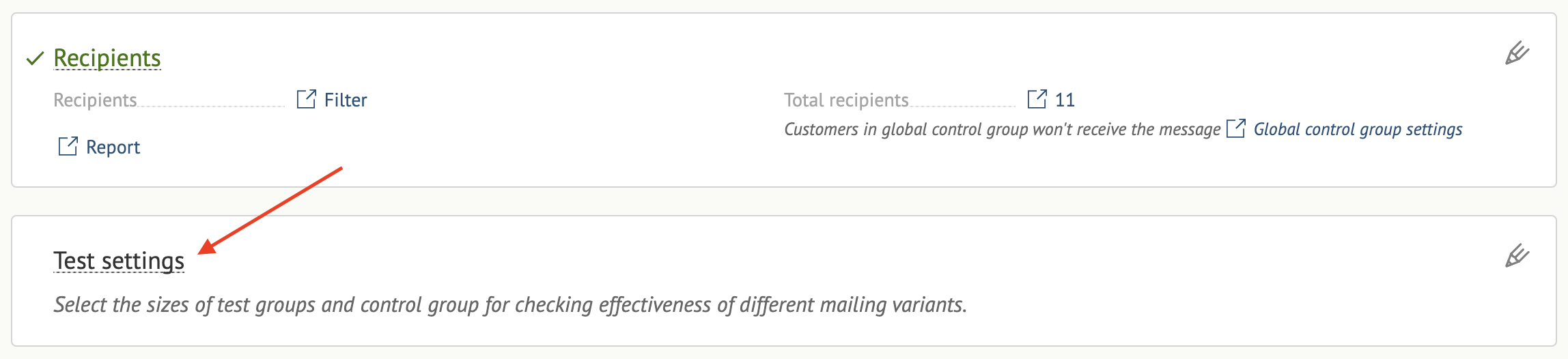
- Set up your A/B testing:
- Select the evaluation criterion.
- Select the target action.
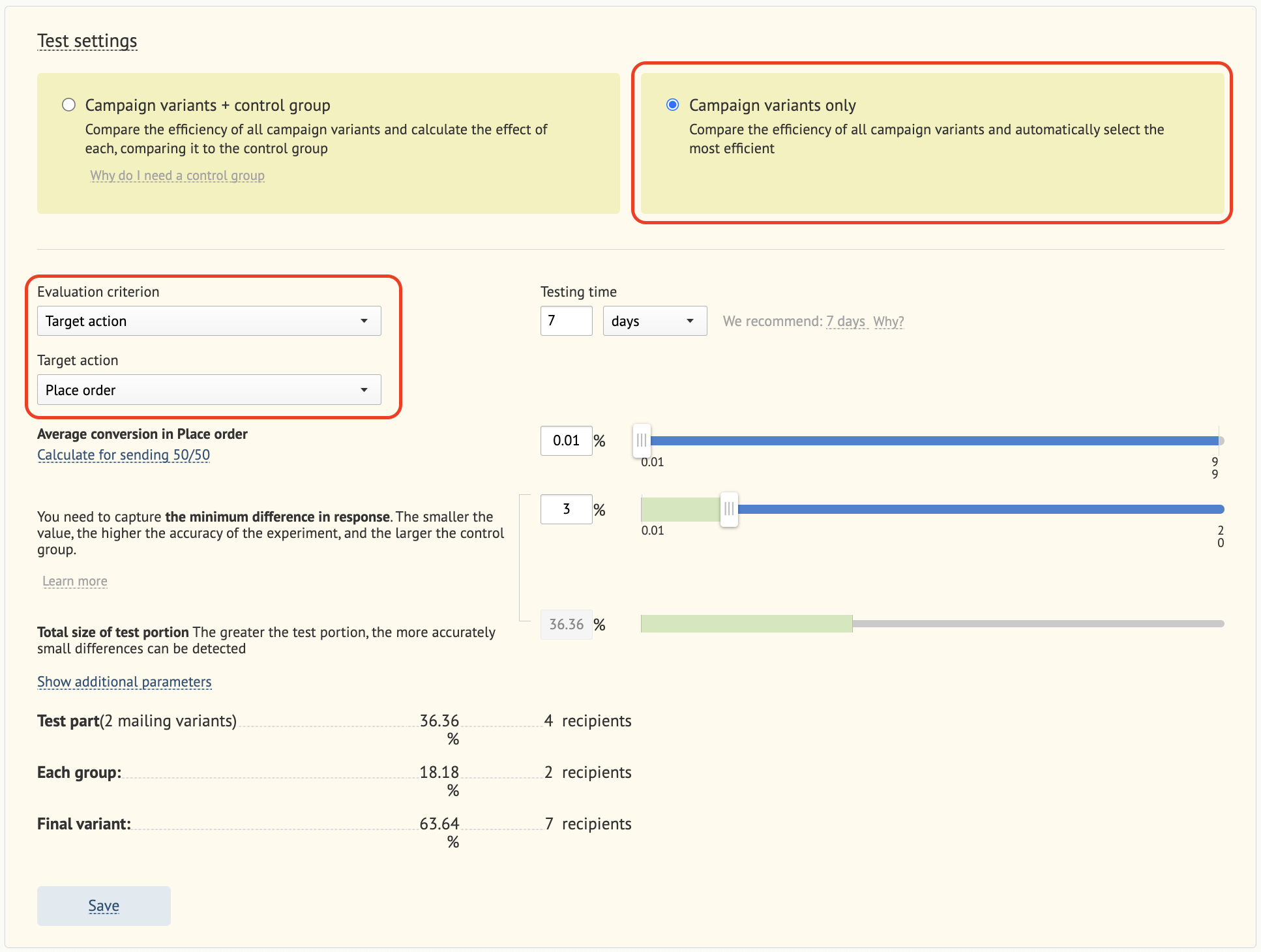
- Select the target action.
